Container Service for Kubernetes (ACK) network policies provide policy-based network control. If you use the Terway container network plug-in, you can use network policies to control network traffic at the IP address or port level for specific applications in your cluster. This topic describes how to use network policies in ACK clusters and provides examples of common scenarios.
Prerequisites
You have created an ACK managed cluster or an ACK dedicated cluster that uses Terway as the network plug-in. For more information, see Create an ACK managed cluster and Create an ACK dedicated cluster (discontinued).
You have obtained the kubeconfig file for the cluster and used kubectl to connect to the cluster.
Usage notes
To use network policies in the console, you must submit an application in the Quota Center console.
You do not need to submit an application if you use the command line to manage network policies.
NetworkPolicy rules use LabelSelectors to select namespaces or pods. However, many NetworkPolicies in a cluster can increase the time required for rules to take effect and can complicate cluster management and troubleshooting. We recommend that you create fewer than 100 NetworkPolicies in your cluster.
This feature applies only to nodes that use the Terway CNI plug-in and are configured in shared ENI mode. It is not supported for nodes in a node pool configured in exclusive ENI mode.
This document does not cover specific configurations and limitations for different computing scenarios. To use this feature in specific computing environments, such as hybrid cloud or elastic instances, see the documentation for the corresponding computing product.
ACK supports only standard Kubernetes network policies. It does not support custom network policies from third parties such as Calico or Cilium.
Supported items
When you create a cluster, the implementation of NetworkPolicy depends on the initial version of Terway.
1.9.0 and later
Component | NetworkPolicy implementation |
terway-eniip | eBPF |
To match pods within the cluster, use
podSelectorornamespaceSelector. TheipBlockselector can only match addresses outside the cluster.If you create a cluster with a Terway version earlier than 1.9.0, the NetworkPolicy implementation remains unchanged even after you upgrade Terway to 1.9.0 or later.
The eBPF-based NetworkPolicy implementation requires kernel version 4.19 or later. If your node kernel version is earlier than 4.19, the NetworkPolicy feature does not work.
The preceding notes apply only to regular ECS nodes that run the Terway component. To enable NetworkPolicy on virtual nodes, see Use a network policy.
Earlier than 1.9.0
Component | NetworkPolicy implementation |
terway-eniip and IPvlan or DataPath V2 is not enabled | iptables |
terway-eniip and IPvlan or DataPath V2 is enabled | eBPF |
To match pods within the cluster, use
podSelectorornamespaceSelector. In the eBPF implementation, theipBlockselector can only match addresses outside the cluster.If you create a cluster with an initial Terway version earlier than 1.9.0, the NetworkPolicy implementation remains unchanged even after you upgrade Terway to 1.9.0 or later.
The eBPF-based NetworkPolicy implementation requires kernel version 4.19 or later. If your node kernel version is earlier than 4.19, the NetworkPolicy feature falls back to iptables mode. Note that NetworkPolicy rules may not work as expected.
The preceding notes apply only to regular ECS nodes that run the Terway component. To enable NetworkPolicy on virtual nodes, see Use a network policy.
Enable network policies
You can enable network policies when you create a cluster or for an existing cluster.
New clusters
When creating a cluster, select Support for NetworkPolicies to enable the network policy feature. For more information, see Create an ACK Pro cluster.
Existing clusters
-
Log on to the ACK console. In the left navigation pane, click Clusters.
-
On the Clusters page, click the name of your cluster. In the left navigation pane, click Components and Add-ons .
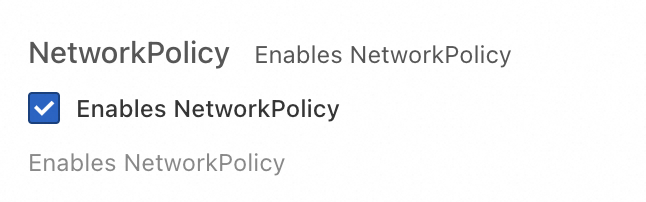
On the Networking tab, locate the terway-eniip add-on and click Configuration in the lower-right corner. Select Enables NetworkPolicy and click OK.
 Important
For clusters that do not have DataPath V2 enabled, enabling the NetworkPolicy feature does not take effect on existing nodes immediately. You must restart the nodes for the changes to take effect.
Network policy usage examples
Prepare an example application
Follow these steps to create an Nginx test application that other pods can access.
Use the console
-
Log on to the ACK console. In the left navigation pane, click Clusters.
On the Clusters page, click the name of the target cluster and in the left navigation pane, choose .
On the Deployments page, click Create from Image. In the Create wizard, create an application named nginx and expose it using a Service. After configuring the application, click Create.
For this example, configure only the following items for the Nginx application and keep the default settings for the other parameters. For more information about the configurations, see Configuration parameters.
Configuration item
Description
Example value
Basic Information
Name
A custom name.
nginx
Replicas
Select as needed.
1
Container
Image Name
The name of the image used to start the container.
nginx:latest
Advanced
Services
To the right of Services, click Create to set the service configuration items.
Name: nginx
Service Type:
Cluster IP
SLB
Node Port
Port Mapping:
Name: nginx
Service Port: 80
Container Port: 80
Protocol: TCP
On the Deployments page, click Create from Image. In the resulting Create wizard, create a client application named busybox to test access to the nginx Service that you created in the previous step.
For this example, configure only the following items for the busybox client application and keep the default settings for the other parameters. For more information about the configurations, see Configuration parameters.
Configuration item
Description
Example value
Basic Information
Name
A custom name.
busybox
Replicas
Set a value as needed.
1
Container
Image Name
The name of the image used to start the container.
busybox:latest
Container Start Parameter
None
Select stdin and tty
Verify that the busybox client application can access the Nginx Service.
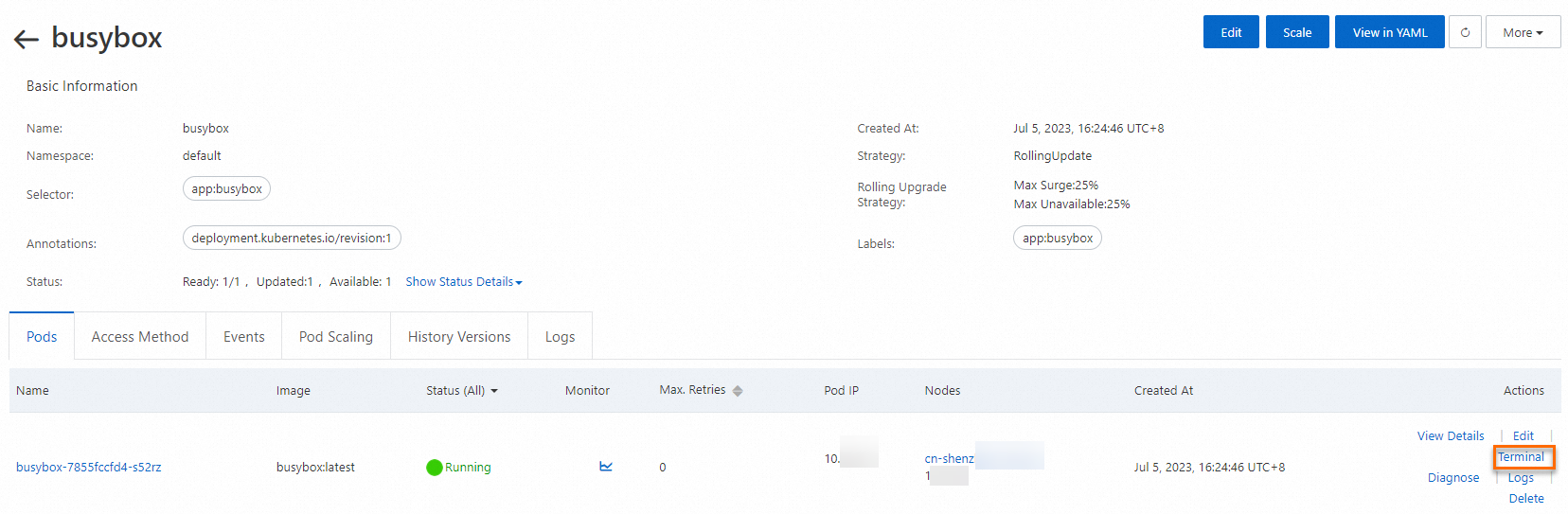
On the Deployments page, click the busybox application name.
On the Pods tab, locate the busybox-{hash value} pod and click Terminal in the Actions column.
In the busybox command-line terminal, run the
wget nginxcommand to test access to Nginx.
The output indicates that busybox can access the Nginx Service.
Use the CLI
Run the following commands to create an Nginx application and expose it using a Service named nginx.
Create an Nginx application:
kubectl run nginx --image=nginxExpected output:
pod/nginx createdCheck whether the pod is started:
kubectl get podExpected output:
NAME                     READY   STATUS    RESTARTS   AGE
nginx                    1/1     Running   0          45s
Create a Service named nginx:
kubectl expose pod nginx --port=80Expected output:
service/nginx exposedView the Service:
kubectl get serviceExpected output:
NAME         TYPE        CLUSTER-IP      EXTERNAL-IP   PORT(S)   AGE
kubernetes   ClusterIP   172.XX.XX.1     <none>        443/TCP   30m
nginx        ClusterIP   172.XX.XX.48    <none>        80/TCP    12s
Run the following command to create a pod named busybox and access the Service named nginx.
kubectl run busybox --rm -ti --image=busybox /bin/shExpected output:
If you don't see a command prompt, try pressing enter.
/ #
/ #
Access nginx:
If you don't see a command prompt, try pressing enter.
/ #
/ # wget nginx  # Enter wget nginx here.
Expected output:
Connecting to nginx (172.XX.XX.48:80)
saving to 'index.html'
index.html           100% |****************************************************************************************************************************************************|   612  0:00:00 ETA
'index.html' saved
Scenario 1: Restrict service access to applications with specific labels using a network policy
Use the console
To use network policies in the console, you must submit an application to be added to the whitelist. For more information, see Usage notes.
-
Log on to the ACK console. In the left navigation pane, click Clusters.
-
On the Clusters page, click the name of your cluster. In the left navigation pane, click .
On the Network Policies page, select a namespace from the top of the page. This example uses the default namespace. In the upper-left corner, click Create. In the Create panel, configure the policy.
Parameter
Description
Example value
Name
A custom name for the network policy.
access-nginx
Pod Selectors
Click + Specify workload type and labels to set the pods to which the network policy applies.
NoteIf the pod selector is empty, the network policy applies to all pods in the namespace.
This example uses the following settings:
Set Type to Deployments
Set Workloads to nginx
Set Labels to app=nginx
Source
Each network policy can contain a whitelist of source (ingress) rules. Each rule allows traffic that matches both the source rule and the specified port section.
Rule:
podSelector: This selector selects specific pods in the same namespace as the network policy and allows them as sources for inbound traffic.
namespaceSelector: This selector selects specific namespaces and uses all pods in them as sources for inbound traffic.
ipBlock: This selector selects specific IP CIDR ranges to use as sources for inbound traffic.
Port: Supports TCP and UDP protocols.
NoteIf you do not add any rules, no pods are allowed to access the selected pods.
If DataPathv2 or IPvlan is enabled for the cluster, you cannot use ipBlock to restrict traffic from pod CIDR blocks. You must use podSelector.
This example does not add any source rules.
Destination
Each network policy can contain a whitelist of egress rules. Each rule allows traffic that matches the destination rule and the specified port section.
Rule:
podSelector: This selector selects specific pods in the same namespace as the network policy and allows them as destinations for outbound traffic.
namespaceSelector: This selector selects specific namespaces and uses all pods in them as destinations for outbound traffic.
ipBlock: This selector selects specific IP CIDR ranges as destinations for outbound traffic.
Port: Supports TCP and UDP protocols.
NoteIf DataPathv2 or IPvlan is enabled for the cluster, you cannot use ipBlock to restrict traffic from pod CIDR blocks. You must use podSelector.
This example does not add any destination rules.
Click Next, and then click OK.
In the busybox command-line terminal, run the
wget nginxcommand to test access to the nginx Service. For more information, see Step 5.Access times out because the network policy does not allow access from busybox.

Modify the network policy to allow access from the busybox application.
Find the access-nginx network policy in the network policy list and click Edit in the Actions column.
Add a source rule.
To the right of Source, click + Add and perform the following steps:
To the right of Rule, click + Add. Configure an access rule for the podSelector as follows:
Parameter
Example
Selector
podSelector
Type
Stateless
Workload
busybox
Label
app=busybox
To the right of Port, click + Add and configure the port as follows:
Parameter
Example
Protocol
TCP
Port
80
Click Next, then click OK.
Run the
wget -O /dev/null nginxcommand to test access from busybox to nginx after you modify the network policy.After the rule for the busybox application is added to the network policy, busybox can access nginx.

Use The CLI
Run the
vim policy.yamlcommand to create a file named policy.yaml, and populate it with the following YAML template.vim policy.yamlThe following is the content of the YAML file.
kind: NetworkPolicy
apiVersion: networking.k8s.io/v1
metadata:
  name: access-nginx
spec:
  podSelector:
    matchLabels:
      run: nginx
  ingress:
  - from:
    - podSelector:
        matchLabels:
          access: "true"
Run the following command to create a network policy from the policy.yaml file.
kubectl apply -f policy.yamlExpected output:
networkpolicy.networking.k8s.io/access-nginx createdRun the following commands to test access to the nginx Service. Because no access label is defined, the request times out.
kubectl run busybox --rm -ti --image=busybox /bin/shTest access to the nginx Service:
wget nginxExpected output:
Connecting to nginx (172.19.XX.XX:80)
wget: can't connect to remote host (172.19.XX.XX): Connection timed out
Run the following commands to define the access label.
kubectl run busybox --rm -ti --labels="access=true" --image=busybox /bin/shTest access to the Nginx Service:
wget nginxExpected output:
Connecting to nginx (172.21.XX.XX:80)
saving to 'index.html'
index.html           100% |****************************************************************************************************************************************************|   612  0:00:00 ETA
'index.html' saved
The output indicates that the connection progress is 100%. This means that the request is successful and the Nginx service can be accessed.
Scenario 2: Restrict the source CIDR blocks that can access an Internet-facing service using a network policy
Use the console
Create a network policy for the Nginx Service. For more information about the configurations, see Restrict service access to applications with specific labels using a network policy.
In the External Endpoint column of the service list, find the public access address (47.xxx.xx.x) for the Nginx example application Service and access it in a browser.

Access fails because the network policy denies access by default.
Add an allowed CIDR block to the network policy to allow client access.
Visit myip.ipip.net in a browser to obtain the public IP address of your machine.
In the network policy list, find the access-nginx network policy, click Edit in the Actions column, and modify the rule in the Edit panel.
To the right of Source, click + Add and do the following:
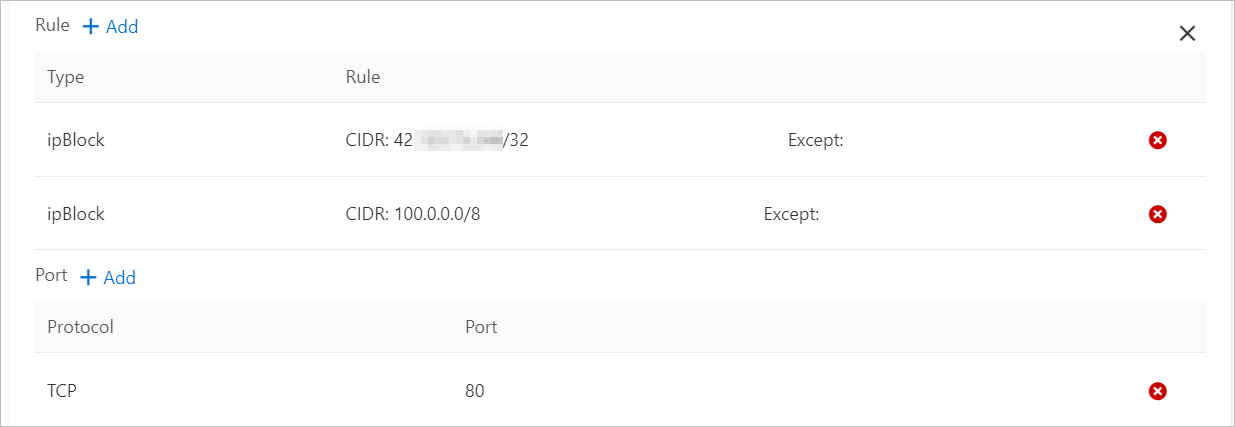
To the right of Rule, click + Add. Configure the new rule to allow access from your machine's IP address:
Parameter
Example
Selector
ipBlock
cidr
<Your machine's IP address>/32
For example, 42.xx.xx.xx/32
To the right of Rule, click + Add. Configure the rule to allow access from the health check CIDR block of Alibaba Cloud SLB:
Parameter
Example
Selector
ipBlock
cidr
100.0.0.0/8
To the right of Port, click + Add and configure the port as follows:
Parameter
Example
Protocol
TCP
Port
80
Click Next and then OK.
In the External Endpoint column of the service list, click the IP address of the external endpoint (47.xxx.xx.x:80) to access the Nginx service.
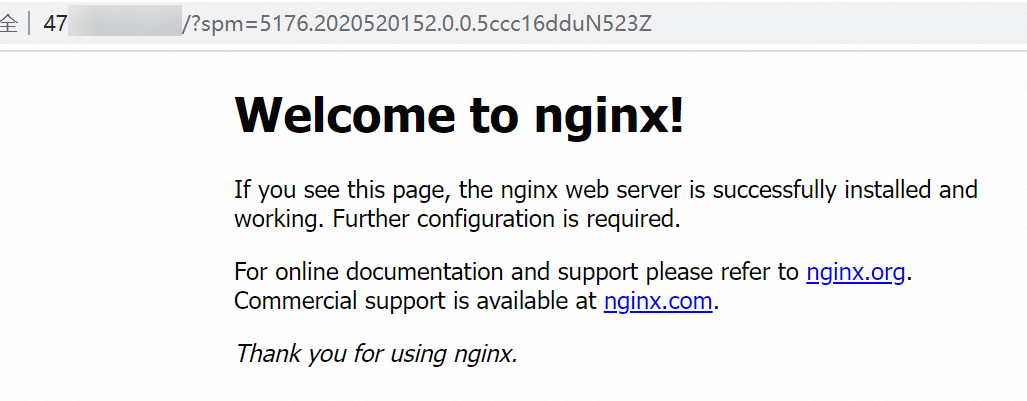
After the network policy is modified, the client can access the Nginx service through the Internet-facing SLB.
Use the CLI
Run the following command to create an Alibaba Cloud SLB instance for the nginx application. Specify
type=LoadBalancerto expose the nginx service to the Internet.vim nginx-service.yamlThe following is the template for the nginx-service.yaml file.
# Paste the following YAML content into nginx-service.yaml.
apiVersion: v1
kind: Service
metadata:
  labels:
    run: nginx
  name: nginx-slb
spec:
  externalTrafficPolicy: Local
  ports:
  - port: 80
    protocol: TCP
    targetPort: 80
  selector:
    run: nginx
  type: LoadBalancer
Run the following command to create a network policy from the nginx-service.yaml file.
kubectl apply -f nginx-service.yamlExpected output:
service/nginx-slb createdCheck whether the application exposes the Nginx service:
kubectl get service nginx-slbExpected output:
NAME        TYPE           CLUSTER-IP      EXTERNAL-IP      PORT(S)        AGE
nginx-slb   LoadBalancer   172.19.xx.xxx   47.110.xxx.xxx   80:32240/TCP   8m
Run the following command to access the IP address of the newly created SLB instance, 47.110.xxx.xxx. Access fails.
wget 47.110.xxx.xxxExpected output:
--2018-11-21 11:46:05-- http://47.110.xx.xxx/ Connecting to 47.110.XX.XX:80... failed: Connection refused.NoteAccess fails for the following reasons:
The configured nginx Service can only be accessed by applications with the specific label
access=true.Accessing the IP address of the SLB instance is considered external access to Kubernetes. This is different from the scenario of restricting service access to applications with specific labels.
Solution: Modify the network policy to add the allowed source CIDR block.
Run the following command to view your local IP address.
curl myip.ipip.netExpected output:
Current IP: 10.0.x.x From: China Beijing Beijing # This is an example. Use the actual device information.Run the following command to modify the policy.yaml file.
vim policy.yamlModify the policy.yaml file to include the following content:
# The following is the content of the YAML file.
kind: NetworkPolicy
apiVersion: networking.k8s.io/v1
metadata:
  name: access-nginx
spec:
  podSelector:
    matchLabels:
      run: nginx
  ingress:
  - from:
    - podSelector:
        matchLabels:
          access: "true"
    - ipBlock:
        cidr: 100.64.0.0/10
    - ipBlock:
        cidr: 10.0.0.1/24      # Local IP address. This is an example. Use the actual device information.
Run the following command to create a network policy from the policy.yaml file.
kubectl apply -f policy.yamlExpected output:
networkpolicy.networking.k8s.io/access-nginx unchangedNoteSome networks have multiple egress IP addresses. We recommend that you use a /24 address range.
The SLB health check addresses are in the
100.64.0.0/10CIDR block. Therefore, you must add100.64.0.0/10to the allowed list.
Run the following command to access the Nginx service.
kubectl run busybox --rm -ti --labels="access=true" --image=busybox /bin/shAccess the nginx service:
wget 47.110.XX.XXExpected output:
Connecting to 47.110.XX.XX (47.110.XX.XX:80)
index.html           100% |***********************************************************|   612  0:00:00 ETA
The output indicates that the connection progress is 100%. This means that you have successfully accessed the Nginx service.
Scenario 3: Restrict a pod to access only a specified address using a network policy
Use the console
This section uses www.aliyun.com and registry.aliyuncs.com as examples to show how to configure a network policy that allows a pod to access only registry.aliyuncs.com.
Use the
pingcommand to query the IP address (120.55.XXX.XXX) to which registry.aliyuncs.com resolves.Create a network policy rule that restricts the busybox application to access only registry.aliyuncs.com.
In the upper-left corner of the Network Policies page, click Create and configure the network policy rule in the Create panel.
Set Type to Deployments
Set Workloads to busybox
Set Labels to app=busybox
Selector: ipBlock
cidr: 120.55.XXX.XXX/32
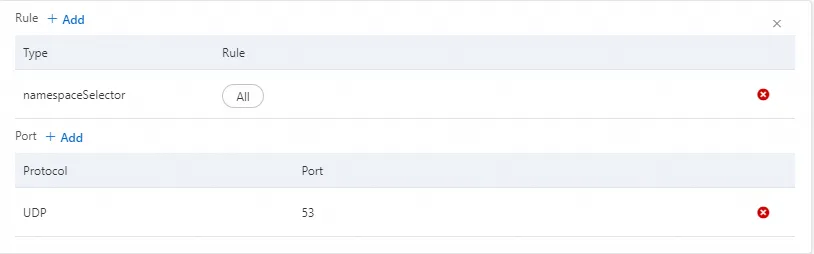
To the right of Rule, click + Add. Add a rule to select all namespaces.
To the right of Port, click + Add. Add a rule for UDP 53 to ensure the application can perform DNS resolution.
Rule:
Selector: namespaceSelector
Namespace: All
Port:
Protocol: UDP
Port: 53
Click Next and then OK.
In the busybox terminal, run the following commands to access www.aliyun.com and registry.aliyuncs.com.
nc -vz -w 1 www.aliyunc.com 443nc -vz -w 1 registry.aliyuncs.com 443The output shows that after the network policy is added, the busybox application can access only registry.aliyuncs.com and cannot access other addresses.
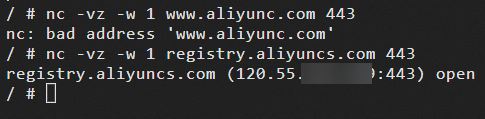
For more information about the parameters, see Restrict service access to applications with specific labels using a network policy. The following is an example configuration.
Parameter
Description
Example
Name
A custom name for the network policy.
busybox-policy
Pod Selectors
Click + Specify workload type and labels to set the pods to which the network policy applies.
NoteIf the pod selector is empty, the network policy applies to all pods in the namespace.
This example uses the following settings:
Destination
To the right of Destination, click + Add, and then to the right of Rule, click + Add.
Add a rule for ipBlock with the resolved IP address (120.55.XXX.XXX)/32 of registry.aliyuncs.com that you obtained earlier.
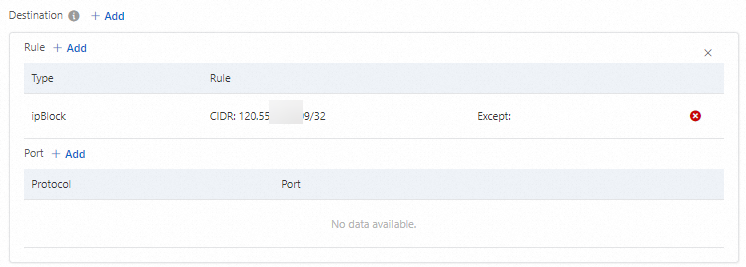
To the right of Destination, click + Add. Add a rule to allow access to UDP port 53 for all namespaces to ensure that the application can perform DNS resolution.
Use the CLI
Run the following command to obtain the list of IP addresses to which the www.aliyun.com domain name resolves.
dig +short www.aliyun.comExpected output:
www-jp-de-intl-adns.aliyun.com.
www-jp-de-intl-adns.aliyun.com.gds.alibabadns.com.
v6wagbridge.aliyun.com.
v6wagbridge.aliyun.com.gds.alibabadns.com.
106.XX.XX.21
140.XX.XX.4
140.XX.XX.13
140.XX.XX.3
Create a file named busybox-policy.yaml.
vim busybox-policy.yamlUse the following template for the busybox-policy.yaml file:
# The following is the content of the YAML file. kind: NetworkPolicy apiVersion: networking.k8s.io/v1 metadata: name: busybox-policy spec: podSelector: matchLabels: run: busybox egress: - to: - ipBlock: cidr: 106.XX.XX.21/32 - ipBlock: cidr: 140.XX.XX.4/32 - ipBlock: cidr: 140.XX.XX.13/32 - ipBlock: cidr: 140.XX.XX.3/32 - to: - ipBlock: cidr: 0.0.0.0/0 - namespaceSelector: {} ports: - protocol: UDP port: 53NoteIn the busybox-policy.yaml file, egress rules are configured to restrict the application's outbound access. You must configure the rules to allow UDP requests. Otherwise, DNS resolution fails.
Run the following command to create a network policy from the busybox-policy.yaml file.
kubectl apply -f busybox-policy.yamlExpected output:
networkpolicy.networking.k8s.io/busybox-policy createdRun the following command to create a busybox pod and test access.
kubectl run busybox --rm -ti --image=busybox /bin/shAccess a website other than www.aliyun.com, such as www.taobao.com:
wget www.taobao.comExpected output:
Connecting to www.taobao.com (64.13.XX.XX:80)
wget: can't connect to remote host (64.13.XX.XX): Connection timed out
The can't connect to remote host message indicates that access failed.
Run the following command to access www.aliyun.com.
wget www.aliyun.comExpected output:
Connecting to www.aliyun.com (140.205.XX.XX:80)
Connecting to www.aliyun.com (140.205.XX.XX:443)
wget: note: TLS certificate validation not implemented
index.html           100% |***********************************************************|  462k  0:00:00 ETA
The output indicates that the connection progress is 100%. This means that the service was accessed successfully.
Scenario 4: Control public network access for pods in a namespace using a network policy
This operation may affect online services that are accessing the public network. We recommend that you perform the following operations in an empty namespace.
Use the console
In the upper-left corner of the Network Policies page, click Create and configure the network policy rule in the Create panel.
For more information about the parameters and operations, see Restrict service access to applications with specific labels using a network policy. The following is an example configuration.
Parameter
Example
Name
deny-public-net
Pod Selectors
Set Type to All.
Source
Add the following two rules:
Set a rule to allow all for namespaceSelector.
Set a rule to allow all for ipBlock.
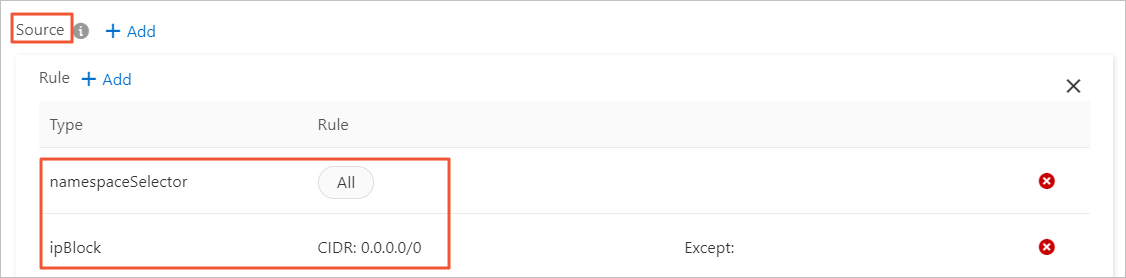
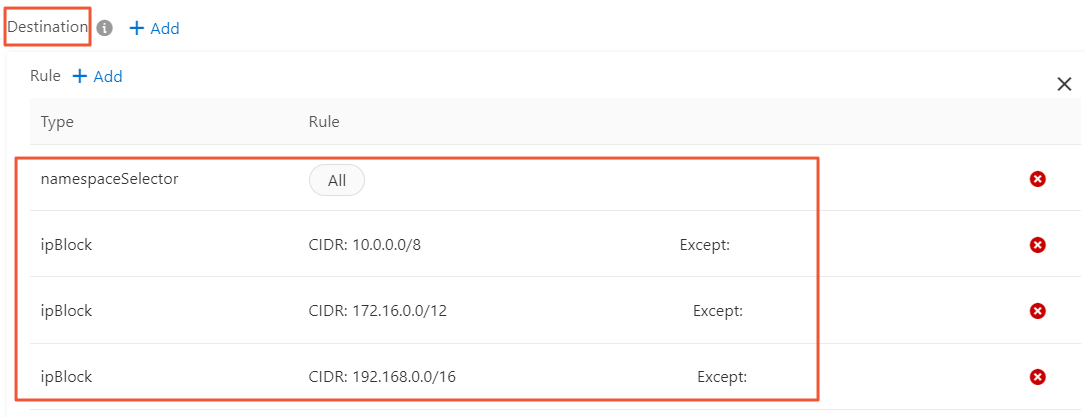
Destination
Add a rule that allows access only to the internal network:
Set a rule to allow All for namespaceSelector to allow the pod to access all pods on the internal network.
Set three rules for ipBlock for the following three internal network CIDR blocks:
10.0.0.0/8
172.16.0.0/12
192.168.0.0/16
NoteYou cannot add multiple CIDR blocks in a single ipBlock rule.
Click Next and then OK.
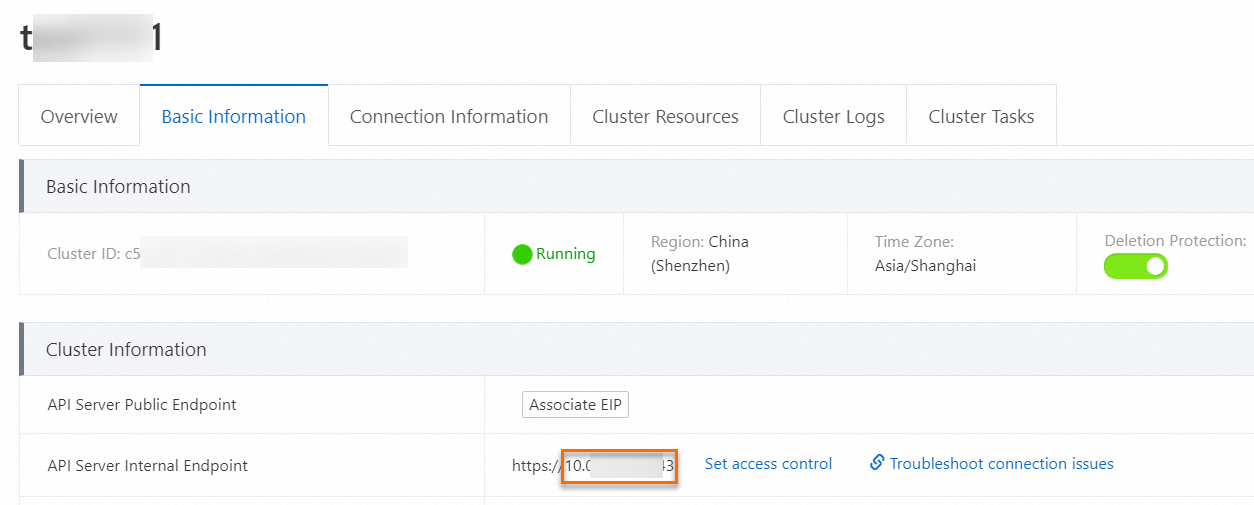
On the Basic Information tab of the cluster details page, obtain the internal IP address and port of the API server.
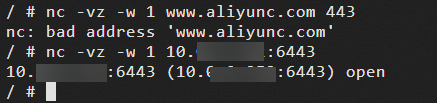
In the busybox terminal, run the following commands to test the pod's public and internal network access.
nc -vz -w 1 www.aliyunc.com 443nc -vz -w 1 10.xx.xx.xx:<IP port> # This is your internal IP address.The output shows that the pod can access only internal addresses and cannot access public addresses.
Use the CLI
Run the following command to create a test namespace.
Create a namespace named test-np.
kubectl create ns test-npExpected output:
namespace/test-np createdRun the following command to create a default network policy for the namespace that allows only outbound access to private networks.
vim default-deny.yamlThe following is an example template for the default-deny.yaml file:
# The following is the content of the YAML file.
kind: NetworkPolicy
apiVersion: networking.k8s.io/v1
metadata:
  namespace: test-np
  name: deny-public-net
spec:
  podSelector: {}
  ingress:
  - from:
    - ipBlock:
        cidr: 0.0.0.0/0
  egress:
  - to:
    - ipBlock:
        cidr: 192.168.0.0/16
    - ipBlock:
        cidr: 172.16.0.0/12
    - ipBlock:
        cidr: 10.0.0.0/8
Verify that the default-deny.yaml file has been created.
kubectl apply -f default-deny.yamlExpected output:
networkpolicy.networking.k8s.io/deny-public-net createdView the network policy:
kubectl get networkpolicy -n test-npExpected output:
NAME                              POD-SELECTOR          AGE
deny-public-net                   <none>                1m
Run the following command to create a network policy that allows pods with a specific label to access the public network.
vim allow-specify-label.yamlIn this example, the label is
public-network=true.# The following is the content of the YAML file. kind: NetworkPolicy apiVersion: networking.k8s.io/v1 metadata: name: allow-public-network-for-labels namespace: test-np spec: podSelector: matchLabels: public-network: "true" ingress: - from: - ipBlock: cidr: 0.0.0.0/0 egress: - to: - ipBlock: cidr: 0.0.0.0/0 - namespaceSelector: matchLabels: ns: kube-system # Allows pods to access key services in kube-system (such as CoreDNS). This is an example. Configure as needed.Run the following command to create the network policy:
kubectl apply -f allow-specify-label.yamlExpected output:
networkpolicy.networking.k8s.io/allow-public-network-for-labels createdView the network policy:
kubectl get networkpolicy -n test-npExpected output:
NAME                              POD-SELECTOR          AGE
allow-public-network-for-labels   public-network=true    1m
deny-public-net                   <none>                 3m
Run the following commands to verify that a pod without the special label cannot access the public network.
kubectl run -it --namespace test-np --rm --image registry-cn-hangzhou.ack.aliyuncs.com/ack-demo/busybox:1.28 busybox-intranetping aliyun.comExpected output:
PING aliyun.com (106.11.2xx.xxx): 56 data bytes
^C
--- aliyun.com ping statistics ---
9 packets transmitted, 0 packets received, 100% packet loss
The 0 packets received message indicates that access failed.
NoteAccess failed because the deny-public-net network policy restricts public network access for pods in the test-np namespace by default. Therefore, pods that are started in this namespace with default labels cannot access the public network.
Run the following command to verify that a pod with the public-network=true label can access the public network.
kubectl run -it --namespace test-np --labels public-network=true --rm --image registry-cn-hangzhou.ack.aliyuncs.com/ack-demo/busybox:1.28 busybox-internetping aliyun.comExpected output:
PING aliyun.com (106.11.1xx.xx): 56 data bytes
64 bytes from 106.11.1xx.xx: seq=0 ttl=47 time=4.235 ms
64 bytes from 106.11.1xx.xx: seq=1 ttl=47 time=4.200 ms
64 bytes from 106.11.1xx.xx: seq=2 ttl=47 time=4.182 ms
^C
--- aliyun.com ping statistics ---
3 packets transmitted, 3 packets received, 0% packet loss
round-trip min/avg/max = 4.182/4.205/4.235 ms
The 0% packet loss message indicates that the service was accessed successfully.
NoteAccess is successful because the allow-public-network-for-labels network policy allows public network access for pods with the public-network=true label. Therefore, the busybox-internet pod, which has this label, can access the public network.