Knative services can experience predictable traffic spikes — peak business hours, overnight quiet periods, or scheduled batch windows. Advanced Horizontal Pod Autoscaler (AHPA) handles both patterns: it predicts demand from historical metrics (RPS, concurrency, CPU, and memory) and scales proactively, while instanceBounds lets you enforce replica floor-and-ceiling values during specific time windows using cron expressions.
When a scheduled window starts, AHPA scales pods up to the defined minimum. When the window ends, AHPA scales back. This makes schedule-based autoscaling useful for locking in a safe replica floor during business hours and allowing full scale-to-zero overnight.
Prerequisites
Before you begin, ensure that you have:
-
Knative deployed in your cluster. For more information, see Deploy Knative.
-
AHPA deployed. For more information, see Deploy AHPA.
Step 1: Configure autoscaling metrics with AHPA
Create an AdvancedHorizontalPodAutoscalerTemplate resource that defines both predictive scaling metrics and scheduled replica bounds. Apply the following YAML to your cluster:
apiVersion: autoscaling.alibabacloud.com/v1beta1
kind: AdvancedHorizontalPodAutoscalerTemplate
metadata:
  name: ahpa-demo
spec:
  metrics:
  - type: Resource
    resource:
      name: rps
      target:
        type: Utilization
        averageUtilization: 10  # Scale out when RPS per pod exceeds 10
  maxReplicas: 50  # Global ceiling
  minReplicas: 0   # Global floor (allows scale-to-zero)
  prediction:
    quantile: 95        # Use 95th-percentile forecast for conservative scaling
    scaleUpForward: 180 # Predict 180 seconds ahead to scale before demand arrives
  instanceBounds:
  - startTime: "2023-06-01 00:00:00"  # Bounds active from this date
    endTime: "2123-06-01 00:00:00"    # Bounds active until this date
    bounds:
    - cron: '* 0-6 ? * *'    # 12 AM – 6 AM: allow scale-to-zero
      maxReplicas: 50
      minReplicas: 0
    - cron: '* 7-9 ? * *'    # 7 AM – 9 AM: maintain at least 5 replicas
      maxReplicas: 50
      minReplicas: 5
    - cron: '* 10-16 ? * *'  # 10 AM – 4 PM: maintain at least 10 replicas
      maxReplicas: 50
      minReplicas: 10
    - cron: '* 17-23 ? * *'  # 5 PM – 11 PM: maintain at least 2 replicas
      maxReplicas: 50
      minReplicas: 2
Key parameters:
| Parameter | Required | Description |
|---|---|---|
metrics |
Yes | Metrics used for autoscaling. Supported values: RPS, concurrency, CPU, and memory. |
maxReplicas |
Yes | Maximum number of replicas allowed globally. |
minReplicas |
Yes | Minimum number of replicas to maintain globally. |
instanceBounds |
No | Time range during which AHPA enforces per-period replica bounds. Contains startTime and endTime. |
bounds |
No | Per-period replica bounds. Each entry specifies a cron expression, maxReplicas, and minReplicas. |
Cron expression syntax
A cron expression consists of five space-separated fields. For a full reference, see Cron expressions.
| Field | Special characters | Required | Valid values |
|---|---|---|---|
| Minutes | * / , - |
Yes | 0–59 |
| Hours | * / , - |
Yes | 0–23 |
| Day of month | * / , - ? |
Yes | 1–31 |
| Month | * / , - |
Yes | 1–12 or JAN–DEC (case-insensitive) |
| Day of week | * / , - ? |
No | 0–6 or SUN–SAT (case-insensitive). If omitted, any day of the week applies. |
Special characters:
-
*— matches any value (for example,*in Hours means every hour) -
/— defines a step (for example,/5means every 5 units) -
,— separates individual values (for example,1,3,5) -
-— defines a range (for example,1-5) -
?— indicates a variable value; valid only in Day of month and Day of week
Step 2: Create a Knative service and enable AHPA
Attach AHPA to a Knative service by adding two annotations to the service manifest. When you update the AHPA template, Knative automatically creates a new revision.
-
Log on to the ACK console. In the left-side navigation pane, click Clusters.
-
On the Clusters page, find your cluster and click its name. In the left-side navigation pane, choose Applications > Knative.
-
On the Services tab, set Namespace to default, click Create from Template, paste the following YAML, and then click Create.
apiVersion: serving.knative.dev/v1
kind: Service
metadata:
  name: helloworld-go-demo
spec:
  template:
    metadata:
      annotations:
        autoscaling.knative.dev/class: ahpa.autoscaling.knative.dev          # Use the AHPA autoscaler
        autoscaling.knative.dev.alibabacloud/ahpa-template: "ahpa-demo"       # Reference the AHPA template from Step 1
    spec:
      containers:
      - image: registry.cn-hangzhou.aliyuncs.com/knative-sample/helloworld-go:73fbdd56
        env:
        - name: TARGET
          value: "Knative"
After the service is created, record its gateway address and domain name — you need them in Step 3.
Step 3: Access the service
Run the following command to send a request to the service. Replace the domain name and gateway address with the values recorded in Step 2.
# helloworld-go-demo.default.example.com is the default domain name of the service.
# alb-i5lagvip6fga******.cn-shenzhen.alb.aliyuncs.com is the gateway address of the service.
curl -H "Host: helloworld-go-demo.default.example.com" http://alb-i5lagvip6fga******.cn-shenzhen.alb.aliyuncs.com
Expected output:
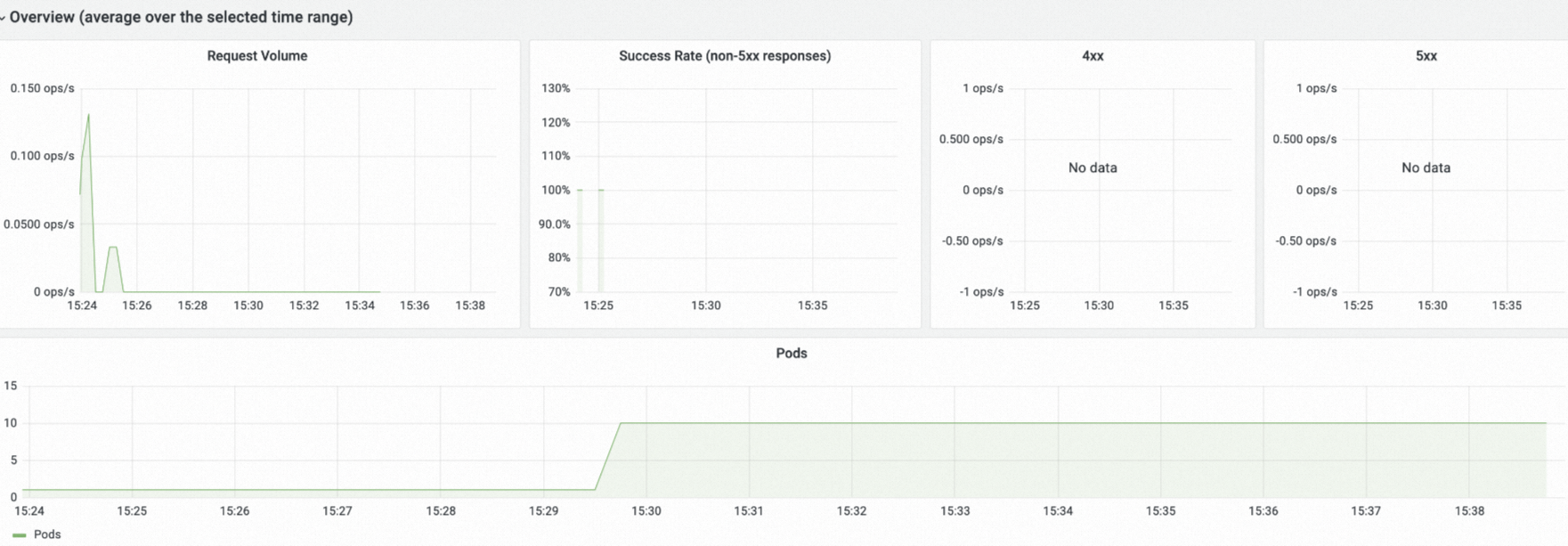
Hello Knative!Step 4 (Optional): Verify scheduled scaling
View pod scaling trends on the Monitoring Dashboards of the Knative page. For setup instructions, see View the Knative monitoring dashboard.
What's next
Configure autoscaling based on concurrent requests and RPS without schedule bounds. For more information, see Enable autoscaling to withstand traffic fluctuations.