Cost control is an essential part of FinOps. After you extract insights from cost data and implement cost optimization strategies, use cost control to keep the entire cost governance process in check and prevent overruns across clusters, departments, and applications.
Cost control at different levels
Container Service for Kubernetes (ACK) supports cost control at three levels:
| Level | Unit | How it works |
|---|---|---|
| Cluster | Cluster | ACK automatically tags all Alibaba Cloud resources in a cluster with the key ack.aliyun.com and the cluster ID as the value. Activate this tag in Expenses and Costs, then create a cost center to track cluster-level spend. |
| Department | Department (smallest allocation unit) | Department administrators set budgets and compare them against actual costs to detect and act on overruns early. |
| Application | Application (smallest budget unit) | Application administrators set cost baselines to track cost trends and prevent overruns. |
View cluster costs
This section shows how to activate the ACK cluster tag, set up a cost center, and view per-cluster costs in Expenses and Costs.
Prerequisites
Before you begin, ensure that you have:
An active ACK cluster
Access to the ACK console
Access to Expenses and Costs
Get the cluster ID
Log on to the ACK console. In the left-side navigation pane, click ACK consoleClusters.
In the cluster list, copy the cluster ID from the Cluster Name /ID column.
Activate the cluster tag
ACK automatically adds the ack.aliyun.com tag to all resources in your cluster. Activate the tag in Expenses and Costs to make it available for cost allocation.
Log on to Expenses and Costs.Expenses and Costs
In the left-side navigation pane, choose Manage Split > Cost allocation tags.
On the Cost allocation tags page, enter
ack.aliyun.comin the Tag Key field and click Search. In the Actions column of ack.aliyun.com, click Enable.
Create a cost center
In the left-side navigation pane of the Expenses and Costs console, choose .
In the left-side navigation pane, choose .
In the middle navigation pane, click the
 icon next to Cost Center below Unallocated Resources. In the Add Cost Center dialog box, enter a name and click OK.
In the left-side navigation pane, choose .
In the Overview section, under Unallocated Resources, click the
 icon next to Cost Center. In the Add Cost Center dialog box, enter a name for the center, such as
 test, then click OK.In the Overview section, click the name of the Cost Center. On the Automatic Allocation Rule tab, click Add Rule.
Click the
 icon, set the condition option to Labels, the tag Key to ack.aliyun.com, and the tag Value to the cluster ID, leave the other settings at their default values, and then click Submit.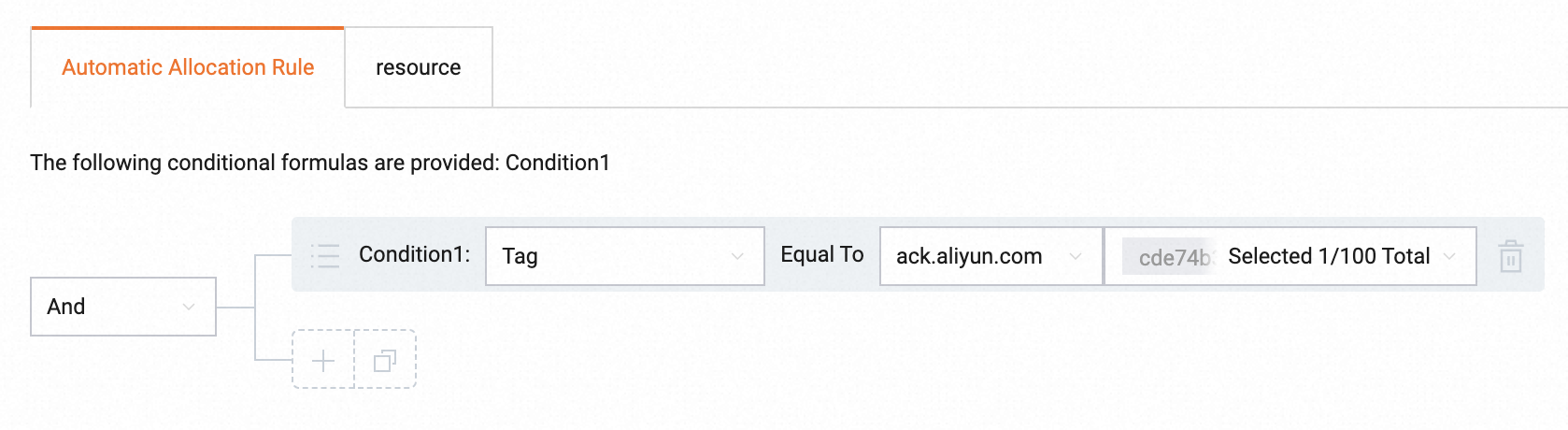
In the middle navigation pane, click the name of the cost center, then click Create Rule on the Automatic Allocation Rule tab.
Click the
 icon. Set Condition1 to Tag, select
 ack.aliyun.comas the tag key, and select the cluster ID as the tag value. Keep the default settings for other parameters, then click Submit.
View cluster costs
In the left-side navigation pane of the Expenses and Costs console, choose Cost Management > Cost Analysis.
In the Filters section, click Cost Center, select the cost center you created, and then click Apply. The Cost Analysis page shows the monthly cost of the cluster.Apply
Data for a new cost center becomes available after 24 hours.
