The rise of Large Language Models (LLMs) has driven demand for fine-grained performance analysis and optimization in AI training and inference. Organizations running on GPU-accelerated nodes require online performance analysis of GPU containers. In Kubernetes environments, AI Profiling serves as a non-intrusive performance analysis tool leveraging extended Berkeley Packet Filter (eBPF) and dynamic process injection. It supports online detection of containerized GPU tasks through five key areas: Python process execution, CPU function calls, system calls, CUDA library interactions, and CUDA kernel operations. By analyzing collected data, you can precisely identify performance bottlenecks in container applications and understand resource utilization levels to optimize applications. For online applications, this dynamically mountable and unloadable profiling tool enables detailed real-time analysis without code modifications. This topic describes how to use AI Profiling via command line.
Preparations
The Python profiling capability in the current AI Profiling version depends on the User Statically-Defined Tracing (USDT) feature of Python interpreters. To use Python profiling, run the following command in your workload container to verify USDT availability:
python -c "import sysconfig; print(sysconfig.get_config_var('WITH_DTRACE'))"The output must be 1 for Python profiling. Otherwise, Python profiling is unavailable.
NoteProfiling tasks only support running on ACK clusters with Elastic Compute Service (ECS) or Lingjun nodes.
To use this feature, Submit a ticket to contact the Container Service team for the latest kubectl-plugin download link and the latest profiling image address.
Procedure
Step 1: Deploy kubectl plugin
AI Profiling is deployed using kubectl-plugin. The procedure is as follows:
Run the following command to install the plugin. This example uses Linux_amd64.
wget https://xxxxxxxxxxxxxxxxx.aliyuncs.com/kubectl_prof_linux_amd64
mv kubectl_prof_linux_amd64 /usr/local/bin/kubectl-prof
chmod +x /usr/local/bin/kubectl-prof
Run the following command to check whether the plugin is installed successfully:
kubectl prof deploy -hExpected output:
deploy the profiling tool pod

Usage:
  kubectl-profile deploy [flags]

Aliases:
  deploy, run

Flags:
      --container string        Specify the target container name
  -d, --duration uint           Specify the profiling duration in seconds (default 60)
  -h, --help                    help for deploy
      --image string            Specify the profiling tool image
      --kubeconfig string       Specify the kubeconfig file
      --memory-limit string     Specify the memory limit (default "1Gi")
      --memory-request string   Specify the memory request (default "128Mi")
      --namespace string        Specify the target pod namespace (default "default")
      --node string             Specify the node name
      --pod string              Specify the target pod name
      --region-id string        Specify the region-id
      --ttl uint                Specify the ttl (default 60)
Step 2: Select target application container and create profiling task
Select an application pod and obtain its Namespace, Name, and Node parameters. This example uses a PyTorch training job.
NAME                              READY   STATUS    RESTARTS   AGE   IP               NODE
pytorch-train-worker-sample   	  1/1     Running   0          82s   172.23.224.197   cn-beijing.10.0.17.XXX
Run the following command to submit a profiling job with the obtained parameters. Specify the pod and container to be profiled. The profiling job will create a profiling pod on the node where the target container of the application pod is located.
kubectl prof deploy \
    --image xxxxxxxxxx \                # Replace with the profiling image address provided by Alibaba Cloud
    --duration 100000 \ 		# The duration of the profiling pod environment
    --namespace default \ 		# The application pod namespace
    --region-id cn-beijing \		# The Alibaba Cloud Region ID of the environment
    --pod pytorch-train-worker-sample \ # The application pod name
    --container pytorch \		# The application pod's container name
    --memory-limit 10G \		# Memory limit of the profiling pod
    --memory-request 1G			# Memory request of the profiling pod
Step 3: Trigger profiling
Run the following command to view the profiling pod information:
kubectl get podExpected output:
NAME                                                   READY   STATUS    RESTARTS   AGE
ai-profiler-89bf5b305acf2ec-xxxxx                      2/2     Running   0          1m
Run the following command to enter the profiling pod:
kubectl exec -ti ai-profiler-89bf5b305acf2ec-xxxxx -c debugger -- bashRun the following command to list all GPU processes and generate a profiling command template:
llmtracker generateCommandExpected output:
I0314 11:42:42.389890 2948136 generate.go:51] GPU PIDs in container: I0314 11:42:42.389997 2948136 generate.go:53] PID: xxxxx, Name: {"pid":xxxxx} I0314 11:42:42.390008 2948136 generate.go:69] The profiling command is: llmtracker profile\ -p <ProcessID-To-Profiling>\ -t <Profiling-Type(python,cuda,syscall,cpu or all)>\ -o /tmp/data.json\ -v 5\ --cpu-buffer-size <CPU-Buffer-Size, recommand to 20>\ --probe-file <Enable-CUDA-Lib-Profile-File>\ -d <Duration-To-Profiling>\ --delay <Delay-Time>\ --enable-cuda-kernel <Enable-CUDA-Kenrel-Profile(true or none)> I0314 14:37:12.436071 3083714 generate.go:86] Profiling Python Path is: /usr/bin/python3.10. If you want to profiling Python, please ser the environment variable: export EBPF_USDT_PYTHON_PATH=/usr/bin/python3.10NoteIf you need to enable Python-level profiling, you must first set the environment variable shown in the output in the profiling environment.
Parameters and descriptions are as follows:
Parameter
Description
-pSpecifies the PID to be profiled. This parameter can be used multiple times to support multiple PIDs.
-tSpecifies the profiling type. Options are python, cuda, syscall, cpu. Use
allto enable all profiling types.-oSpecifies the path and name of the profiling output file. Default:
/tmp/data.json.-vSpecifies the log output level.
--cpu-buffer-sizeSpecifies the CPU buffer size for eBPF data collection. Default: 20.
--probe-fileSpecifies the template file required for CUDA Lib Profiling. Refer to the writing specifications, or directly use the default template.
-dSets the duration of the profiling task in seconds. We recommend maintaining this value below 60s, as prolonged profiling durations may generate excessive data, which can lead to increased memory consumption and storage load.
--delaySets the delay time for profiling to start in seconds. If you enable CUDA Kernel profiling, we recommend maintaining this value above 2.
--enable-cuda-kernelSpecifies whether to enable CUDA Kernel profiling. Set this parameter to true to enable.
Differences between
-t cudaand--enable-cuda-kernel:-t cudauses eBPF to collect CUDA library Symbol calls, including the call time and parameters of each API function, to analyze the actual call situations in the process.--enable-cuda-kerneluses process injection technology to collect specific execution information of CUDA Kernel functions, enabling detailed examination of task flow states on the GPU side.
For more complete parameter information, run the
llmtracker profile -hcommand.Use the following example to execute profiling, modifying the generated profiling command as needed:
NoteThis example enables all profiling items (including CUDA Kernel Profiling), configures CUDA Lib as
probe.json, sets the output file path to/tmp/data.json, and adds--delay 3 -d 5to indicate a 3-second delay before starting and a 5-second profiling duration.export EBPF_USDT_PYTHON_PATH=/usr/bin/python3.10 llmtracker profile -p xxxxx -t all -o /tmp/data.json -v 5 --enable-cuda-kernel true --cpu-buffer-size 20 --probe-file probe.json --delay 3 -d 5Run the following command to format the result file and export it:
NoteThis step converts the result file into a standard format for display in TimeLine.
If the result file contains CUDA Kernel profiling data, you must add the parameter
--cupti-dirand set it to the fixed path/tmp.
llmtracker export -i /tmp/data.json -o /output/out.json --cupti-dir /tmp
Step 4: Display profiling results
Using TensorBoard for display and analysis
If you use storage such as OSS or NAS, you can refer to View TensorBoard for methods to view result data. Start a TensorBoard Pod in the cluster that mounts a PVC containing the profiling result data, and open TensorBoard to view the related data.
Using Chrome Tracing for display and analysis
If you use local storage, you need to copy the generated profiling result file to your local machine, and then view the file using Chrome Tracing (Perfetto).
Display effects
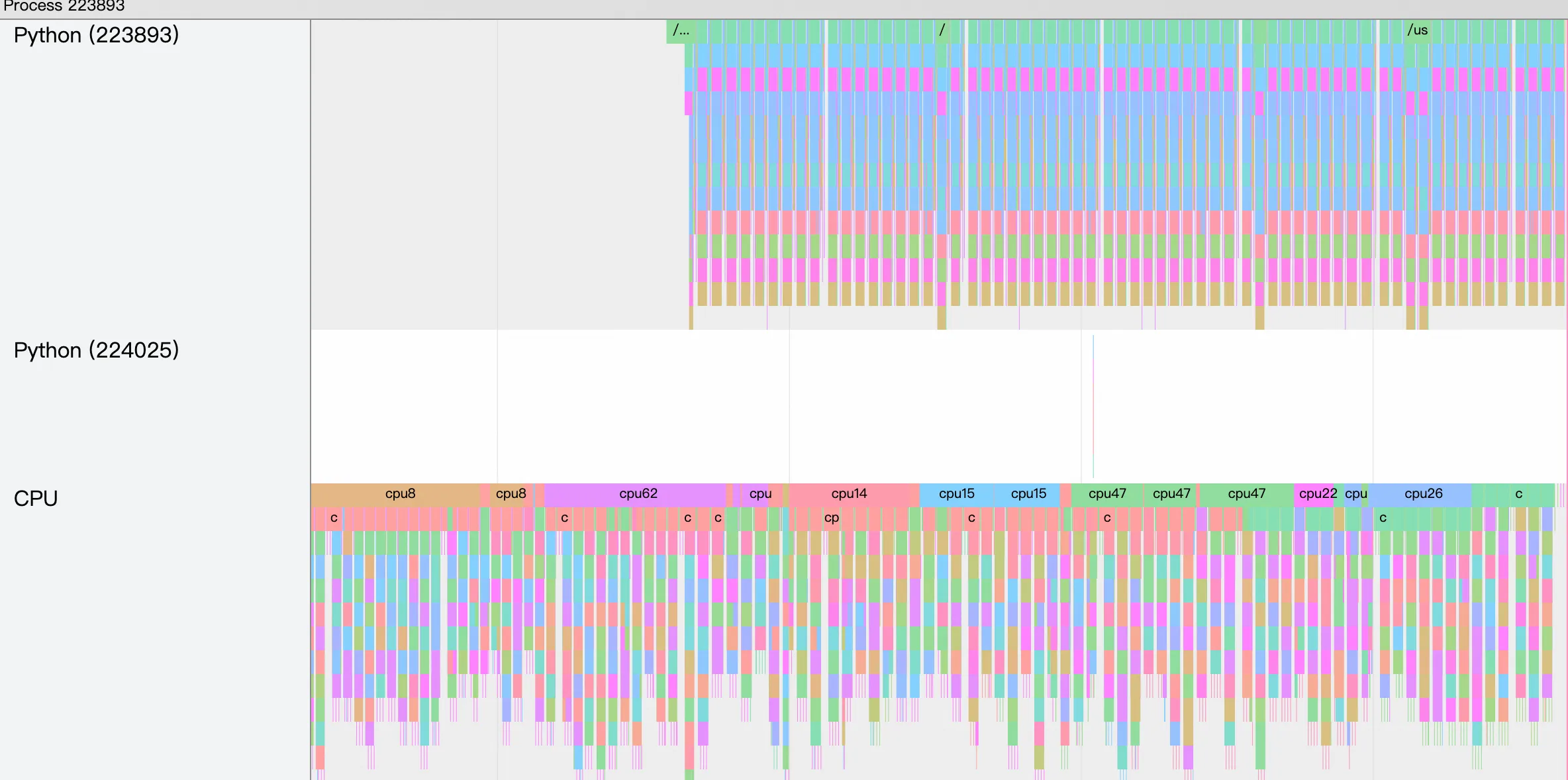
TensorBoard display
The TimeLine displayed using TensorBoard is as follows:
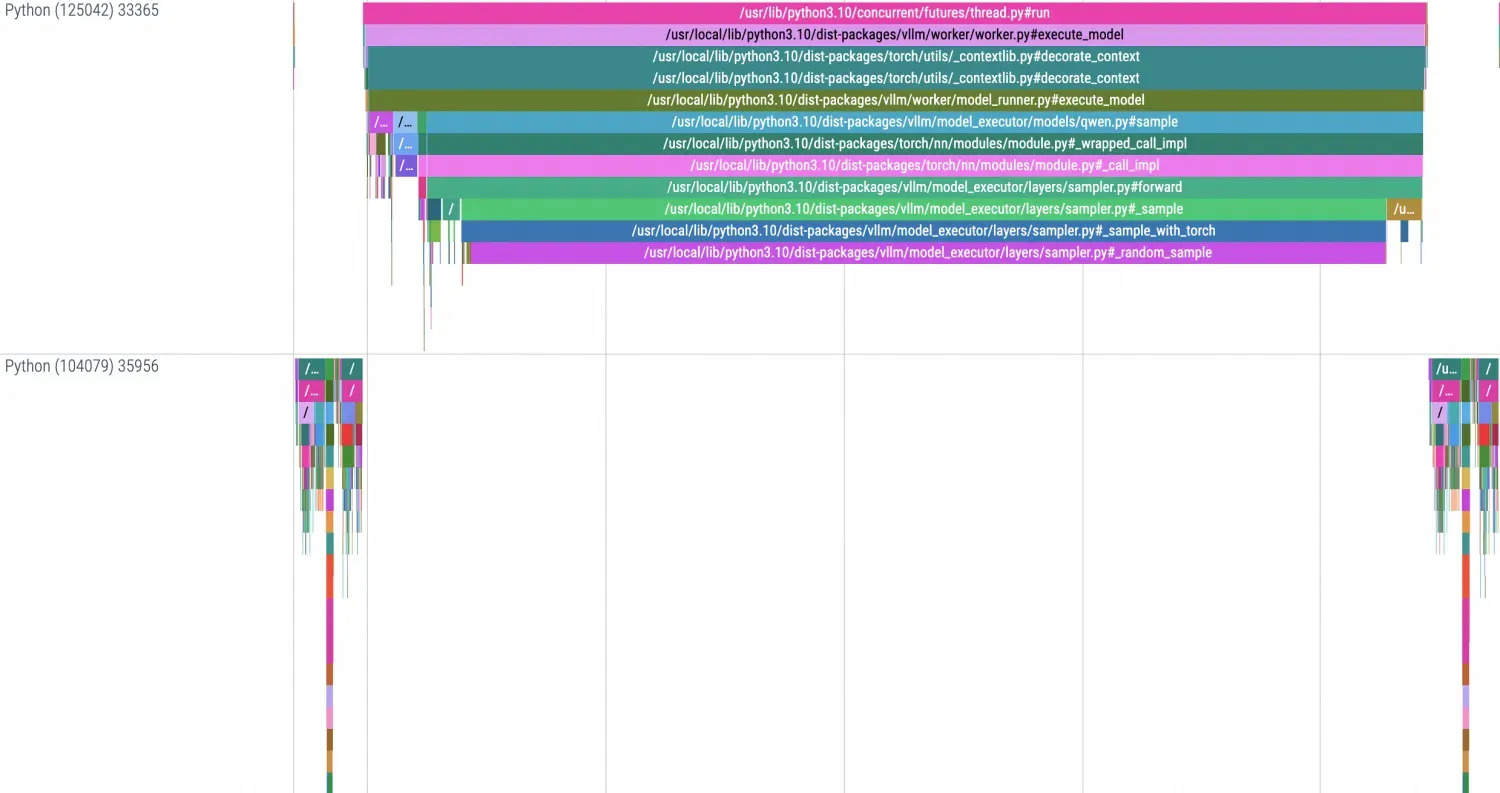
Chrome Tracing display
The TimeLine displayed locally using Chrome Tracing is as follows:
AI Profiling appendix
CUDA Lib configuration file
Obtain recursive dependencies of target libraries and further filter library files. After filtering or confirming the library files you want to track, you can use the
lddcommand to obtain the link dependencies of the target library files, thereby determining the range of library files from which effective data can be collected.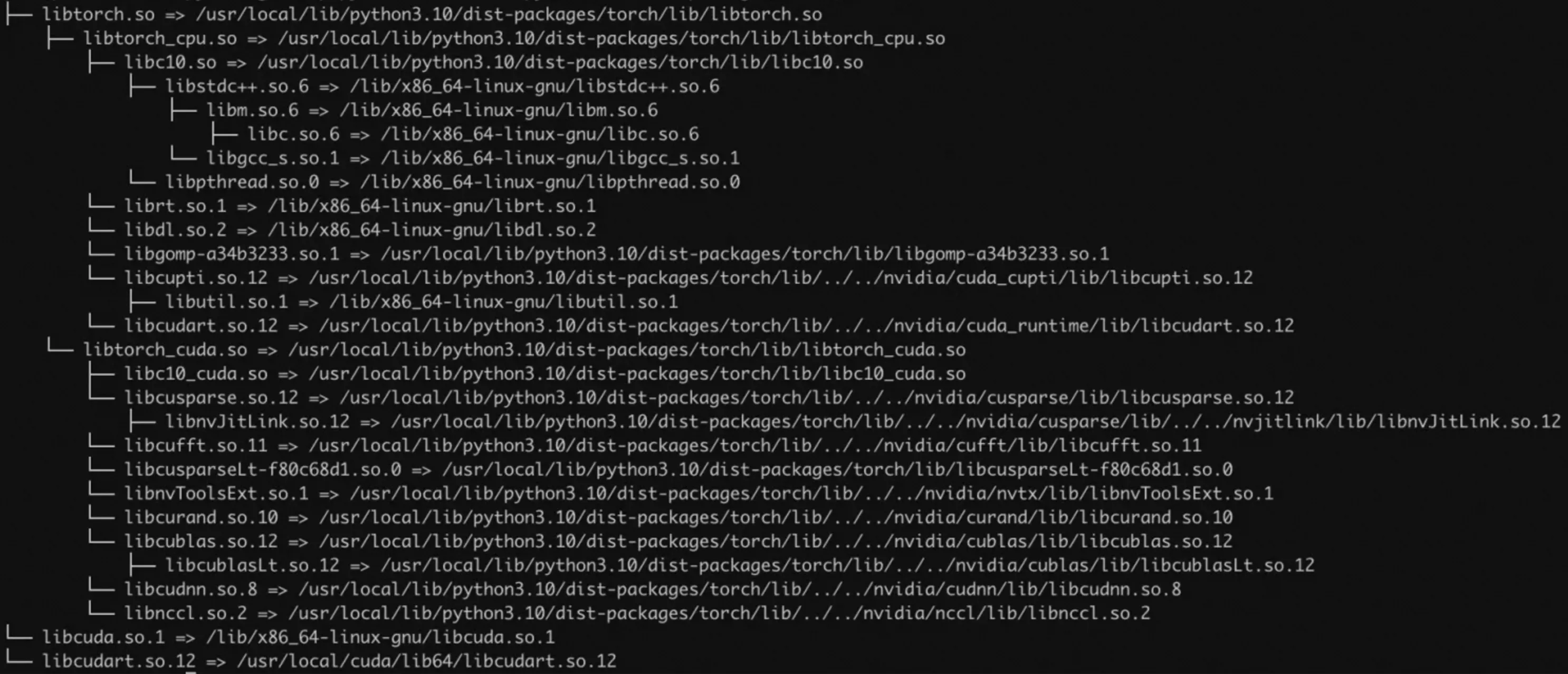
After determining the target library files, you need to confirm the template symbols in the library. This step uses libnccl.so as an example. Run the following command to obtain all symbol information in the library:
readelf -Ws libnccl.so.2 | grep pncclExpected output:
...
   223: 00000000000557d0   650 FUNC    GLOBAL DEFAULT   11 pncclGroupStart
   224: 0000000000050200   243 FUNC    GLOBAL DEFAULT   11 pncclRedOpDestroy
   225: 0000000000062081   656 FUNC    GLOBAL DEFAULT   11 pncclCommAbort
   227: 000000000006320c   721 FUNC    GLOBAL DEFAULT   11 pncclCommUserRank
   228: 0000000000064ee0    20 FUNC    GLOBAL DEFAULT   11 pncclGetVersion
   231: 0000000000045f60  1778 FUNC    GLOBAL DEFAULT   11 pncclAllGather
   232: 00000000000604f8  1578 FUNC    GLOBAL DEFAULT   11 pncclCommInitAll
   233: 000000000004ff20   728 FUNC    GLOBAL DEFAULT   11 pncclRedOpCreatePreMulSum
   238: 0000000000074520   653 FUNC    GLOBAL DEFAULT   11 pncclCommDeregister
   240: 00000000000474b0    30 FUNC    GLOBAL DEFAULT   11 pncclBcast
   243: 000000000006173d   789 FUNC    GLOBAL DEFAULT   11 pncclCommFinalize
   244: 00000000000483d0  2019 FUNC    GLOBAL DEFAULT   11 pncclSend
...
Assemble the JSON configuration file needed for Profiling by constructing a JSON file similar to the following format. This configuration file should define the information needed for Probe, including the relative path of the target library file in the container for UProbe, the Symbol of the method to be monitored in the library file, and the Symbol of the system method to be monitored in KProbe. The default reference template is as follows.