Enable, query, and configure alerts for API server audit logs to meet compliance and security needs.
Cluster auditing records API server requests and responses, enabling you to trace operation history and investigate anomalies.
Applies to ACK managed, ACK dedicated, and ACK Serverless clusters.
For registered clusters, see Use cluster auditing.
Billing
Audit log data uses pay-by-feature billing. See View your bills and Pay-by-feature.
Enabling cluster auditing incurs Simple Log Service (SLS) costs. Monitor your log volume and set a retention period matching your compliance requirements. Default: 30 days for ACK managed clusters, 365 days for ACK dedicated clusters.
Prerequisites
Make sure the following SLS quotas in your Alibaba Cloud account are sufficient:
SLS project quota
Logstore quota per SLS project
Dashboard quota per SLS project
See Adjust resource quotas for quota details and increase requests.
Enable cluster auditing
By default, Enable Log Service is selected during cluster creation. If you disabled it, follow these steps to re-enable it.
Log on to the ACK console. In the left-side navigation pane, click Clusters.
On the Clusters page, click the cluster name. In the left-side pane, choose Security > Cluster Auditing.
Select an SLS project and enable cluster auditing.
ACK automatically creates a Logstore named audit-${clustereid} in the project.
Do not modify the default indexes. Changing them prevents audit reports from generating correctly.
View audit log reports
ACK provides four built-in audit log reports. Filter by namespace or RAM user on the Cluster Auditing page.
Do not modify the built-in audit log reports. Create custom reports in the SLS console instead.
Click the  icon on any chart to view it full-screen or preview its query statement.
Overview
Displays all cluster events and high-priority event details, including RAM user operations, Internet access, command executions, resource deletions, Secret access, and CVE vulnerabilities.
Operations overview
Provides statistics on create, update, delete, and read operations across:
Computing resources: Deployment, StatefulSet, CronJob, DaemonSet, Job, and Pod
Network resources: Service and Ingress
Storage resources: ConfigMap, Secret, and PersistentVolumeClaim (PVC)
Access control resources: Role, ClusterRole, RoleBinding, and ClusterRoleBinding
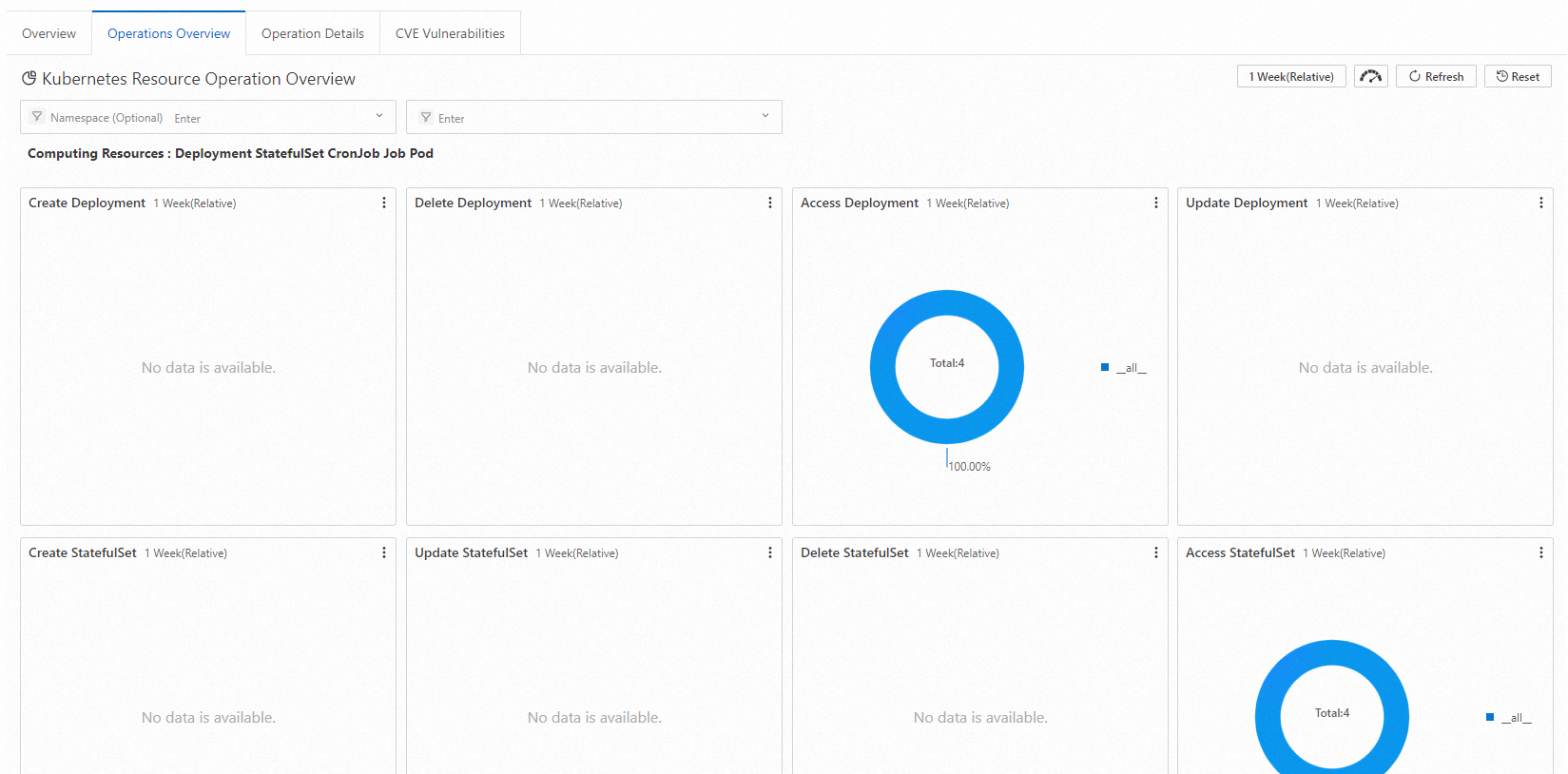
Operation details
Shows operations for a specific resource type. Select a resource type to query. The report displays the total count, namespace distribution, success rate, and trends over time.
To query CRD resources or unlisted resources, enter the plural resource name. For example, to queryAliyunLogConfig, enterAliyunLogConfigs.
CVE vulnerabilities
Displays Kubernetes CVE vulnerabilities. Filter by RAM user ID. See [CVE Security] CVE vulnerability fixes for remediation.
Query detailed log data
For custom queries and deeper analysis, access raw audit log data in the SLS console.
Default retention: 30 days for ACK managed clusters, 365 days for ACK dedicated clusters. See Manage a logstore to change the retention period.
Log on to the ACK console. In the left-side navigation pane, click Clusters.
On the Clusters page, click the cluster name. In the left-side pane, click Cluster Information.
On the Cluster Resources tab, click the project ID next to Log Service Project. In the Logstores list, click the Logstore named audit-${clustereid}.
Enter a query statement, configure the query time range (for example, the last 15 minutes), and click Search & Analysis.
Common query patterns:
By RAM user: Enter the RAM user ID.
By resource: Enter the resource name (Deployment, Service, ConfigMap, or similar).
Exclude system components: Filter out system component noise:
NOT user.username: node NOT user.username: serviceaccount NOT user.username: apiserver NOT user.username: kube-scheduler NOT user.username: kube-controller-manager
See Query methods for syntax details.
Configure alerting
Set up SLS alert rules for real-time notifications when specific operations occur. Supported methods include DingTalk chatbots, custom webhooks, and Alibaba Cloud Message Center.
See Configure an alert rule in SLS.
Alert example 1: Commands executed in containers
Alerts when users execute commands in containers. Each alert includes the container, command, user, event ID, time, and source IP address.
Sample query statement:
verb : create and objectRef.subresource:exec and stage:  ResponseStarted | SELECT auditID as "Event ID", date_format(from_unixtime(__time__), '%Y-%m-%d %T' ) as "Time",  regexp_extract("requestURI", '([^\?]*)/exec\?.*', 1)as "Resource",  regexp_extract("requestURI", '\?(.*)', 1)as "Command" ,"responseStatus.code" as "Status code",
 CASE
 WHEN "user.username" != 'kubernetes-admin' then "user.username"
 WHEN "user.username" = 'kubernetes-admin' and regexp_like("annotations.authorization.k8s.io/reason", 'RoleBinding') then regexp_extract("annotations.authorization.k8s.io/reason", ' to User "(\w+)"', 1)
 ELSE 'kubernetes-admin' END
 as "User account",
CASE WHEN json_array_length(sourceIPs) = 1 then json_format(json_array_get(sourceIPs, 0)) ELSE  sourceIPs END
as "Source IP address" order by "Time" desc  limit 10000
Condition expression: Event =~ ".*"
Alert example 2: Failed Internet access from the API server
Monitors outbound Internet requests from your cluster. Fires when request count reaches 10 and the failure rate exceeds 50%.
Sample query statement:
* | select ip as "Source IP address", total as "Number of times of Internet access", round(rate * 100, 2) as "Failure rate in percentage", failCount as "Number of times of illegal access", CASE when security_check_ip(ip) = 1 then 'yes' else 'no' end  as "Whether the IP address is risky",  ip_to_country(ip) as "Country", ip_to_province(ip) as "Province", ip_to_city(ip) as "City", ip_to_provider(ip) as "ISP" from (select CASE WHEN json_array_length(sourceIPs) = 1 then json_format(json_array_get(sourceIPs, 0)) ELSE  sourceIPs END
as ip, count(1) as total,
sum(CASE WHEN "responseStatus.code" < 400 then 0
ELSE 1 END) * 1.0 / count(1) as rate,
count_if("responseStatus.code" = 403) as failCount
from log  group by ip limit 10000) where ip_to_domain(ip) != 'intranet' and ip not LIKE '%,%' and not try(is_subnet_of('7.0.0.0/8', ip)) ORDER by "Number of times of Internet access" desc limit 10000
Condition expression: Source IP address =~ ".*"
Manage cluster auditing settings
Change the SLS project
To migrate audit logs to a different SLS project:
Log on to the ACK console. In the left-side navigation pane, click Clusters.
On the Clusters page, click the cluster name. In the left-side pane, choose Security > Cluster Auditing.
Click Change Log Service Project and follow the prompts.
Disable cluster auditing
Log on to the ACK console. In the left-side navigation pane, click Clusters.
On the Clusters page, click the cluster name. In the left-side pane, choose Security > Cluster Auditing.
Click Disable Cluster Auditing.
Use a third-party log service (ACK dedicated clusters only)
SLS is the recommended audit log storage. To use a third-party log service, skip SLS during cluster creation and integrate the third-party service. Raw audit logs are available on master nodes at /var/log/kubernetes/kubernetes.audit in JSON format.
Audit policy and backend configuration (ACK dedicated clusters)
For ACK dedicated clusters, Enable Log Service is selected by default. Audit events are collected per the audit policy and written to the backend log file system.
Audit policy
The audit policy defines which events to collect and at what detail level. Four audit levels:
Audit level | What is collected |
None | Nothing. Matching events are skipped. |
Metadata | Request metadata only, such as user info and timestamps. No request or response body. |
Request | Request metadata and body. No response body. Non-resource requests excluded. |
RequestResponse | Request metadata, body, and response body. Non-resource requests excluded. |
The audit policy is loaded from /etc/kubernetes/audit-policy.yml on master nodes (via the --audit-policy-file flag). Default ACK policy:
apiVersion: audit.k8s.io/v1 # Required. Set to audit.k8s.io/v1 if the Kubernetes version of the cluster is 1.24 or later and set to audit.k8s.io/v1beta1 if the Kubernetes version of the cluster is earlier than 1.24.
kind: Policy
# No need to generate audit events at the RequestReceived stage.
omitStages:
  - "RequestReceived"
rules:
  # The following types of requests are frequent and the risk of these requests is low. We recommend that you set the rule to None to skip these requests.
  - level: None
    users: ["system:kube-proxy"]
    verbs: ["watch"]
    resources:
      - group: "" # core
        resources: ["endpoints", "services"]
  - level: None
    users: ["system:unsecured"]
    namespaces: ["kube-system"]
    verbs: ["get"]
    resources:
      - group: "" # core
        resources: ["configmaps"]
  - level: None
    users: ["kubelet"] # legacy kubelet identity
    verbs: ["get"]
    resources:
      - group: "" # core
        resources: ["nodes"]
  - level: None
    userGroups: ["system:nodes"]
    verbs: ["get"]
    resources:
      - group: "" # core
        resources: ["nodes"]
  - level: None
    users:
      - system:kube-controller-manager
      - system:kube-scheduler
      - system:serviceaccount:kube-system:endpoint-controller
    verbs: ["get", "update"]
    namespaces: ["kube-system"]
    resources:
      - group: "" # core
        resources: ["endpoints"]
  - level: None
    users: ["system:apiserver"]
    verbs: ["get"]
    resources:
      - group: "" # core
        resources: ["namespaces"]
  # Set the rule to None for read-only URLs, such as /healthz*, /version*, and /swagger*.
  - level: None
    nonResourceURLs:
      - /healthz*
      - /version
      - /swagger*
  # Set the rule to None for events.
  - level: None
    resources:
      - group: "" # core
        resources: ["events"]
  # Set the rule to Metadata for Secrets, ConfigMaps, and TokenReview API requests that may contain sensitive information or binary files.
  - level: Metadata
    resources:
      - group: "" # core
        resources: ["secrets", "configmaps"]
      - group: authentication.k8s.io
        resources: ["tokenreviews"]
  # Responses may contain large amounts of data. Set the rule to Request so that the response body is not collected.
  - level: Request
    verbs: ["get", "list", "watch"]
    resources:
      - group: "" # core
      - group: "admissionregistration.k8s.io"
      - group: "apps"
      - group: "authentication.k8s.io"
      - group: "authorization.k8s.io"
      - group: "autoscaling"
      - group: "batch"
      - group: "certificates.k8s.io"
      - group: "extensions"
      - group: "networking.k8s.io"
      - group: "policy"
      - group: "rbac.authorization.k8s.io"
      - group: "settings.k8s.io"
      - group: "storage.k8s.io"
  # The rule is set to RequestResponse by default for known Kubernetes API requests to collect the request and response bodies.
  - level: RequestResponse
    resources:
      - group: "" # core
      - group: "admissionregistration.k8s.io"
      - group: "apps"
      - group: "authentication.k8s.io"
      - group: "authorization.k8s.io"
      - group: "autoscaling"
      - group: "batch"
      - group: "certificates.k8s.io"
      - group: "extensions"
      - group: "networking.k8s.io"
      - group: "policy"
      - group: "rbac.authorization.k8s.io"
      - group: "settings.k8s.io"
      - group: "storage.k8s.io"
  # The rule is set to Metadata by default for other requests.
  - level: Metadata
Key behaviors:
Logs are generated after response headers are sent, not when requests are received.
kube-proxy watch requests, kubelet and
system:nodesGET requests to nodes, kube-system endpoint operations, and API server GET requests to namespaces are excluded.Read operations (
get,list,watch) for theauthentication,rbac,certificates,autoscaling, andstorageAPIs are logged at theRequestlevel. Write operations on these APIs are logged atRequestResponse.Secrets and ConfigMaps are logged at
Metadataonly, so their content is never written to audit logs.
Audit backend
Audit events are written as JSON files to the local file system on master nodes. The API server config at /etc/kubernetes/manifests/kube-apiserver.yaml controls backend behavior with these flags:
Flag | Description | Default |
| Max rotated log files to retain |
|
| Max size per log file before rotation |
|
| Output path for audit log files |
|
| Retention period for rotated log files |
|
| Path to the audit policy file |
|
Next steps
See Enable container auditing to audit
kubectl execcommands in containers.See Best security practices for enterprise security.