View your account details and update your logon name, phone number, security email, and profile picture in Alibaba Cloud Account Center.
RAM users, RAM roles, and Enterprise SSO logons cannot modify root account information. Contact your account administrator to log on to the root account and make changes.
View basic account information
Basic account information
Log on to the Alibaba Cloud Account Center, go to the Security Settings page, and in the Basic Settings section, click Modify under Mobile Phone Number.
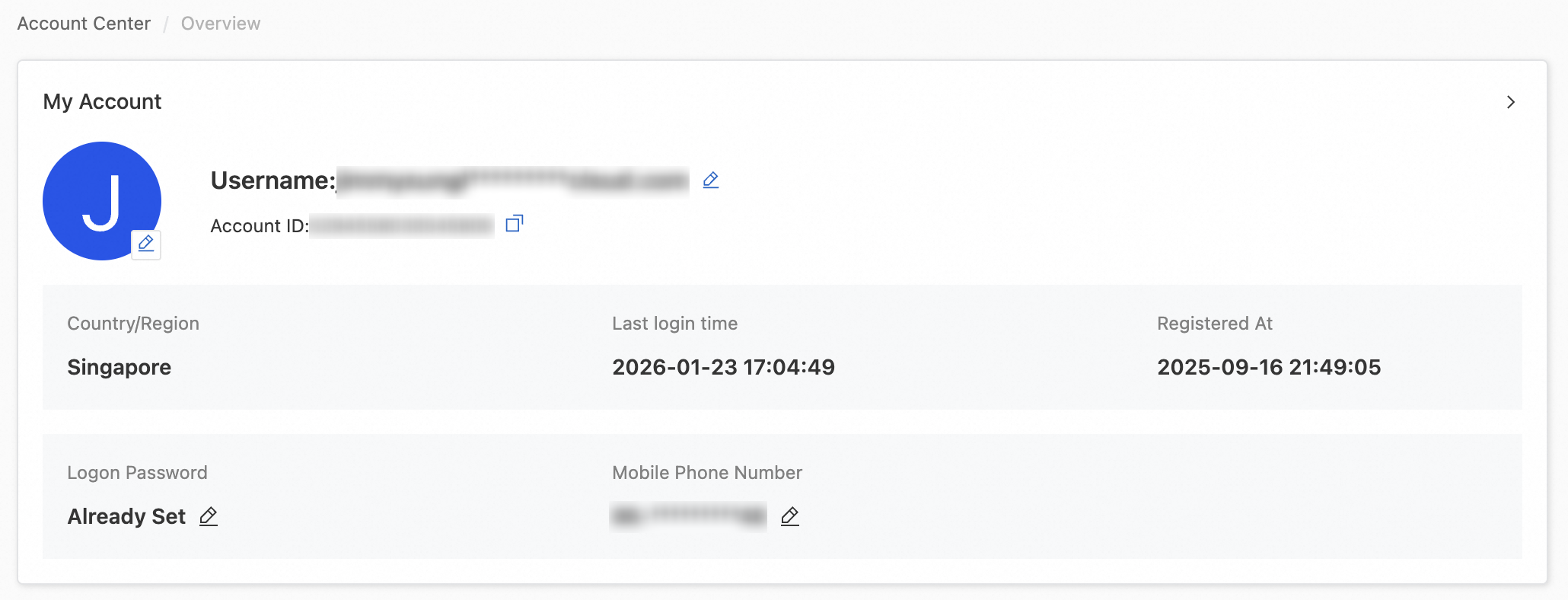
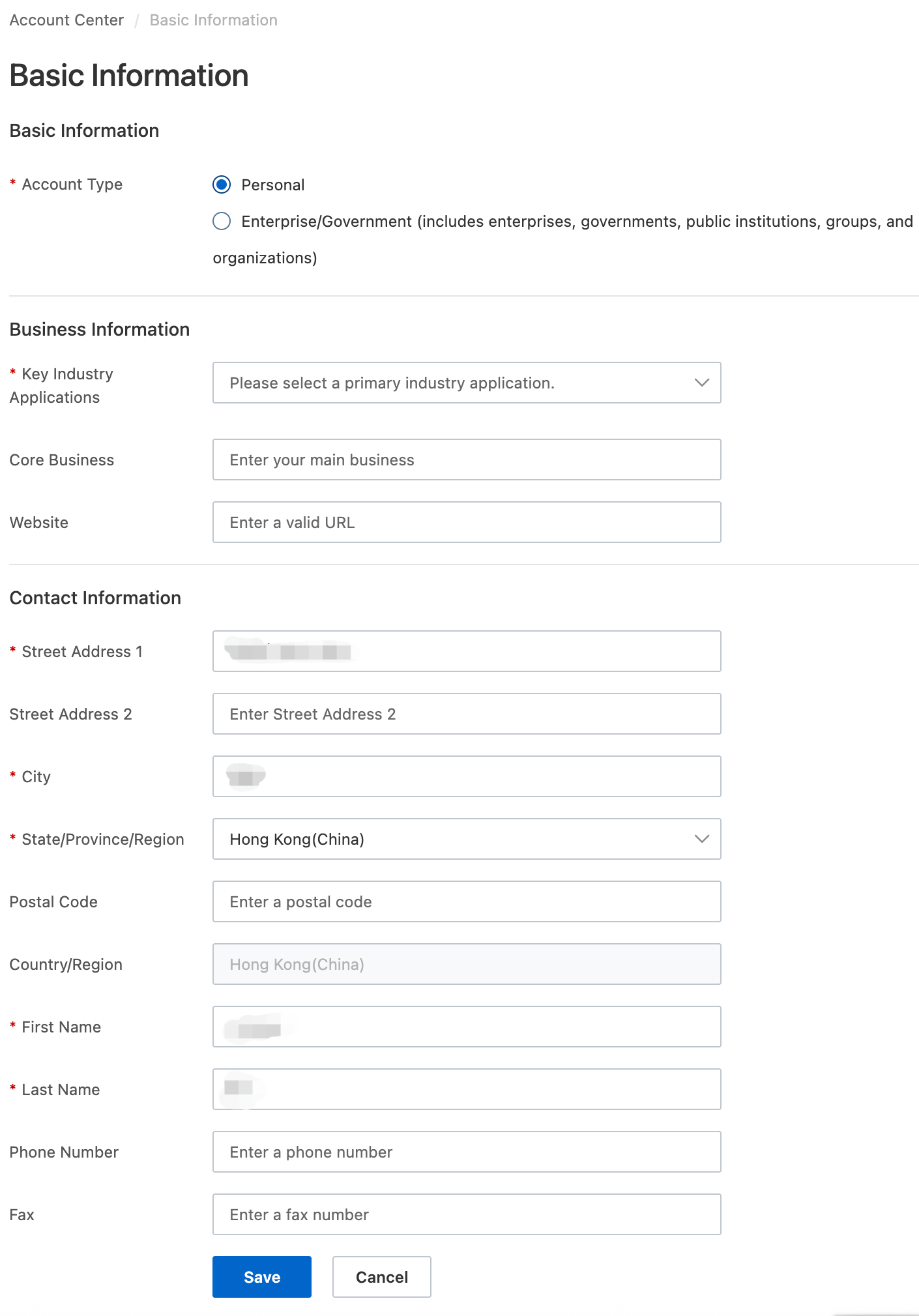
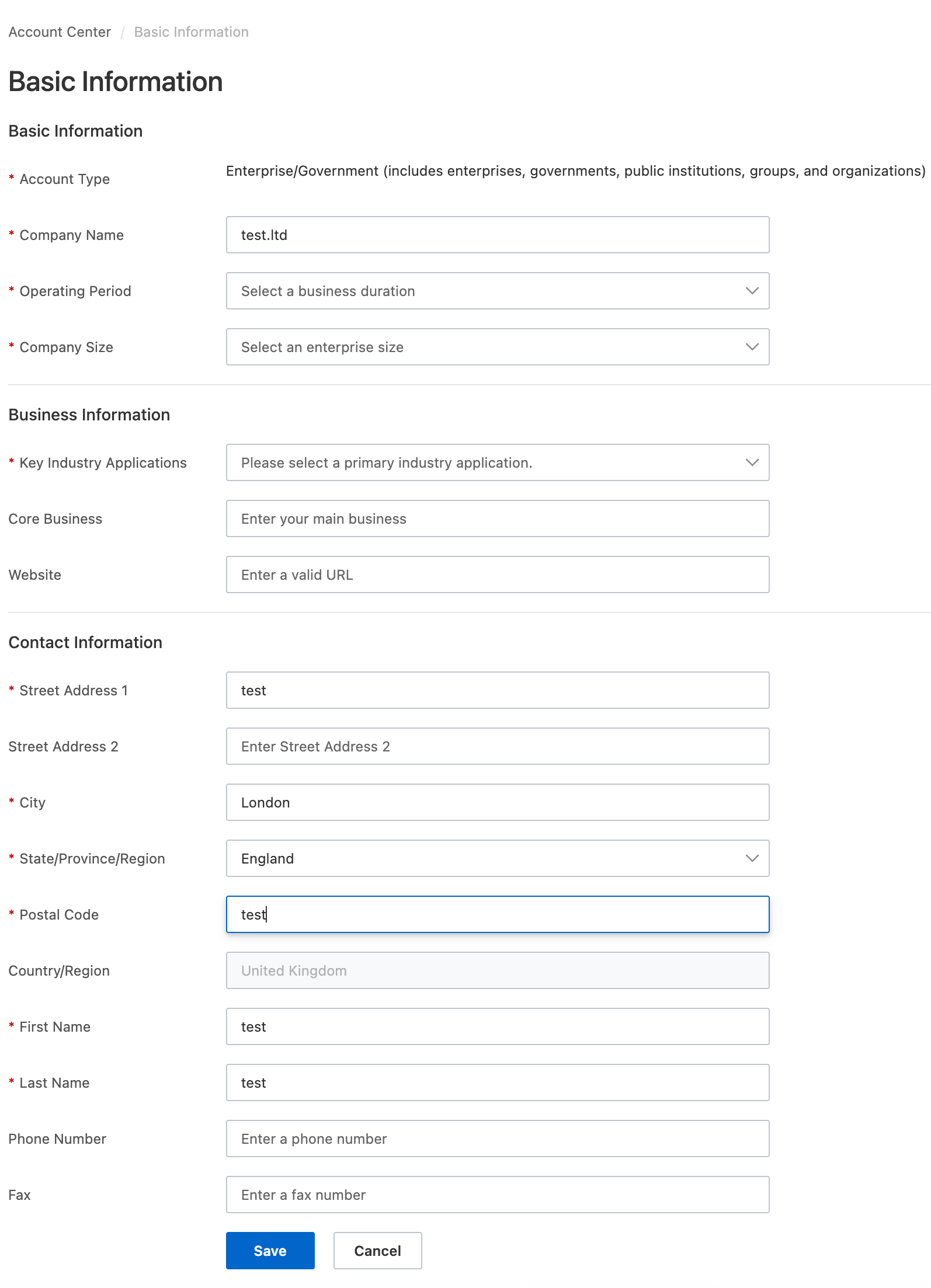
On the Basic Information page, you can view your Account Type (Personal or Enterprise/Government (includes enterprises, governments, public institutions, groups, and organizations)), Business Information, and Contact Information.
Individual
Enterprise/Government
 Note
NoteAfter identity verification, the Basic Information page updates with your verified information.
Account verification information
Log on to the Alibaba Cloud Account Center and go to the Identity Verification page to check your identity verification status. Identity Verification Overview.
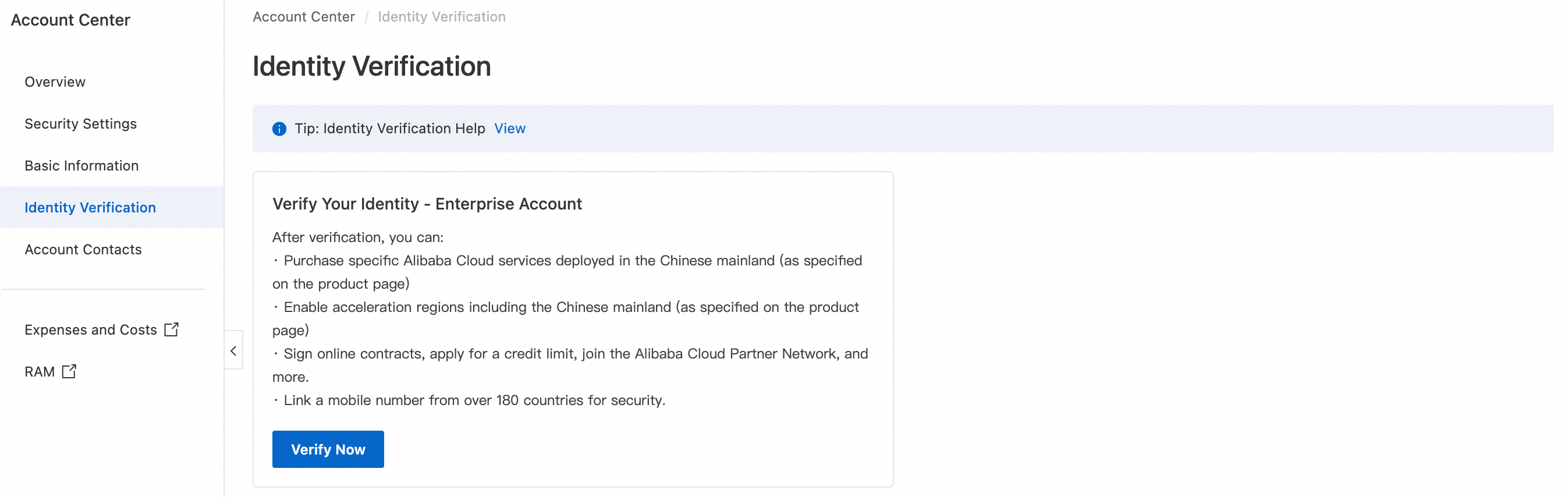
Identity verification not completed
Personal account
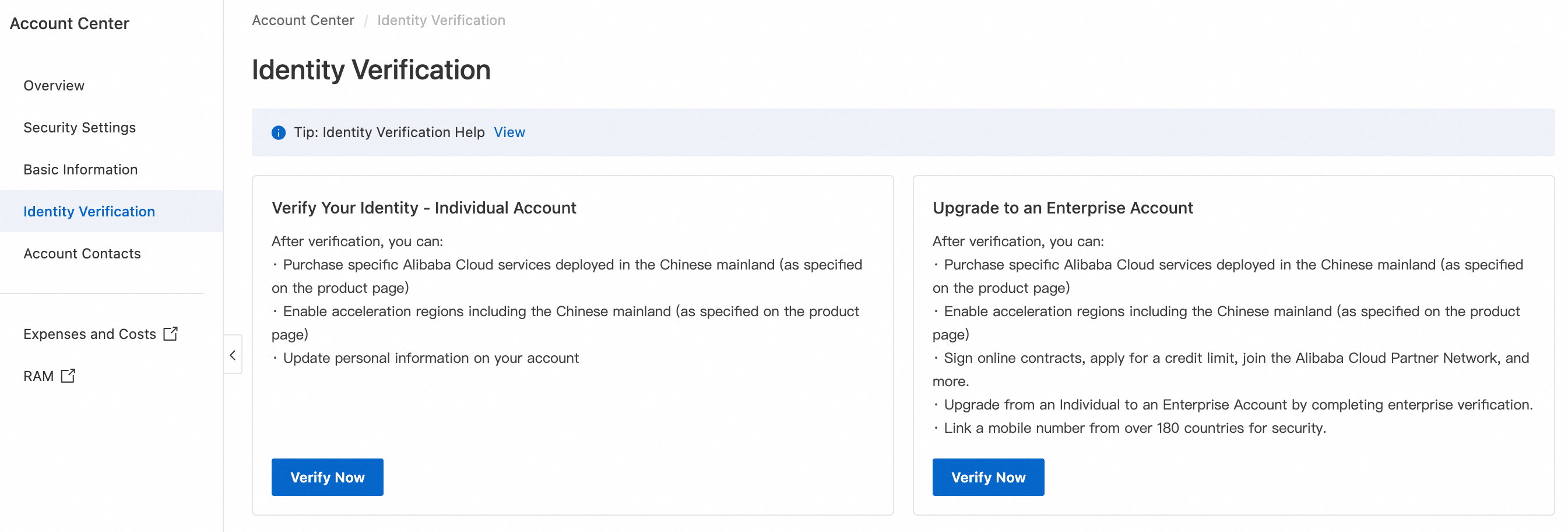
Enterprise account
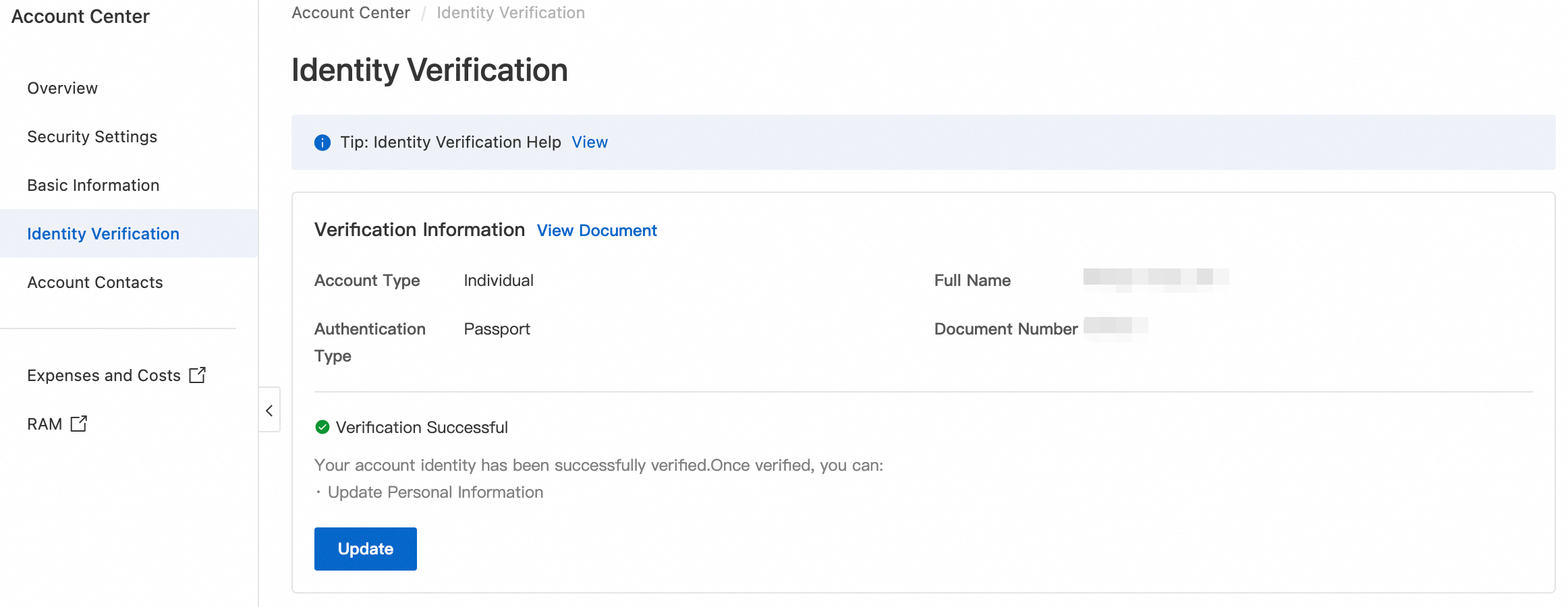
Identity verification completed
Personal account
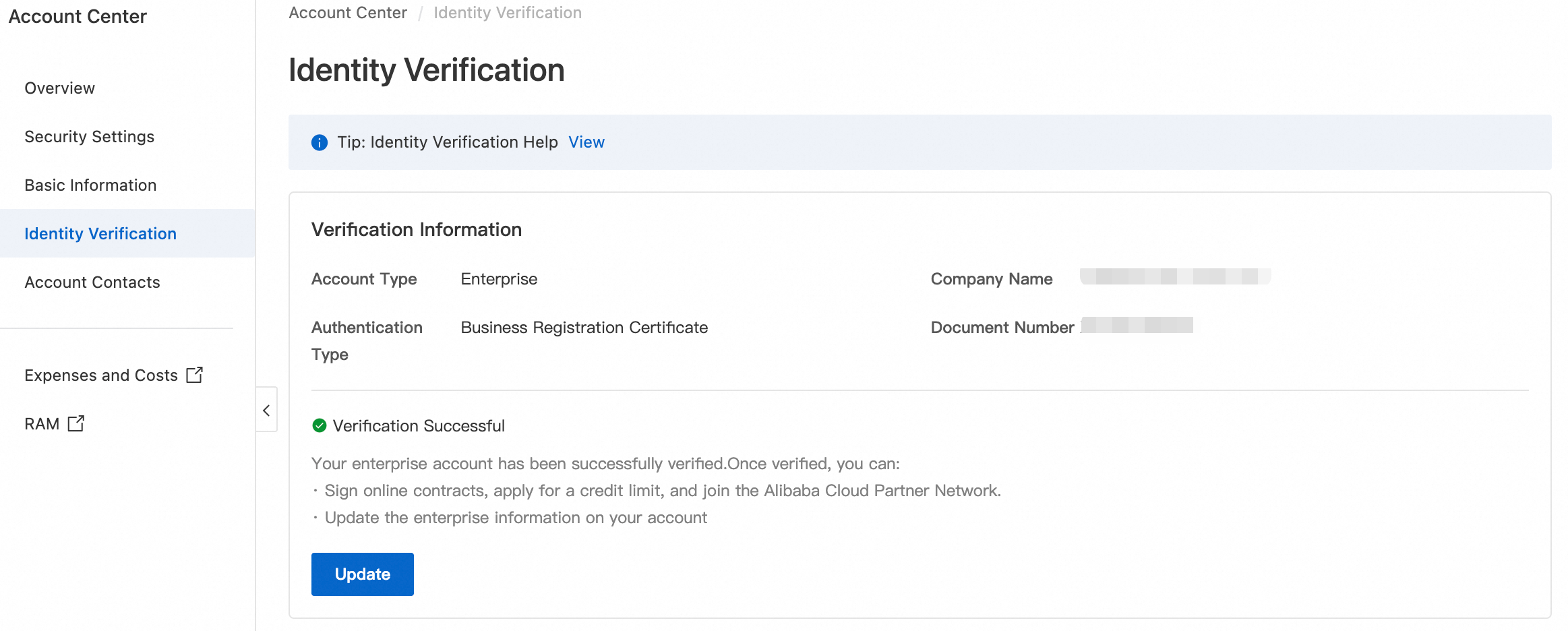
Enterprise account
Change basic account information
Change your mobile phone number
Your mobile phone number is used for secondary identity verification and security notifications. For more information, see Change your mobile phone number.
-
Log on to the Account Center and go to the Security Settings page. In the Basic Settings section, click Modify under Mobile Phone Number.
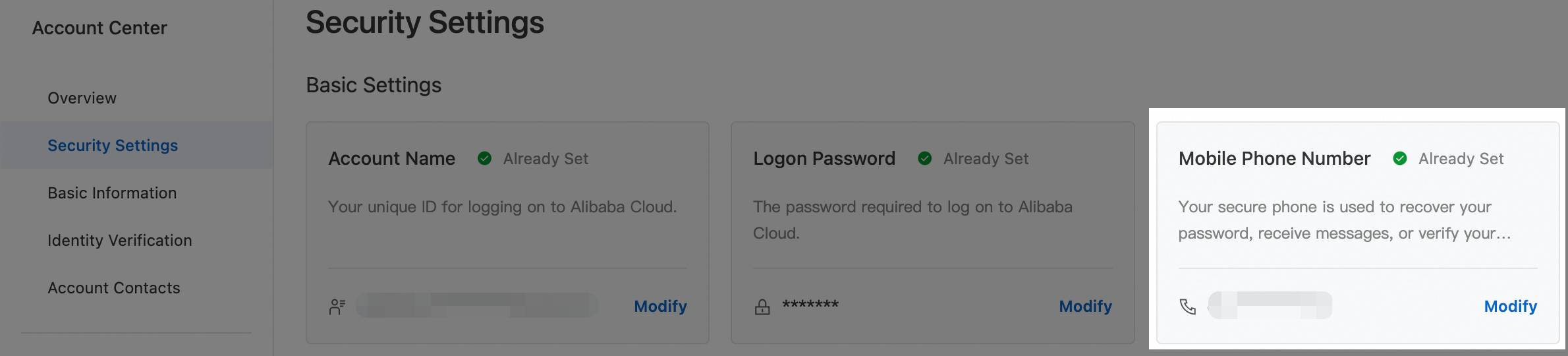
Alternatively, on the Overview page, in the My Account area, click the
 icon next to Mobile Phone Number.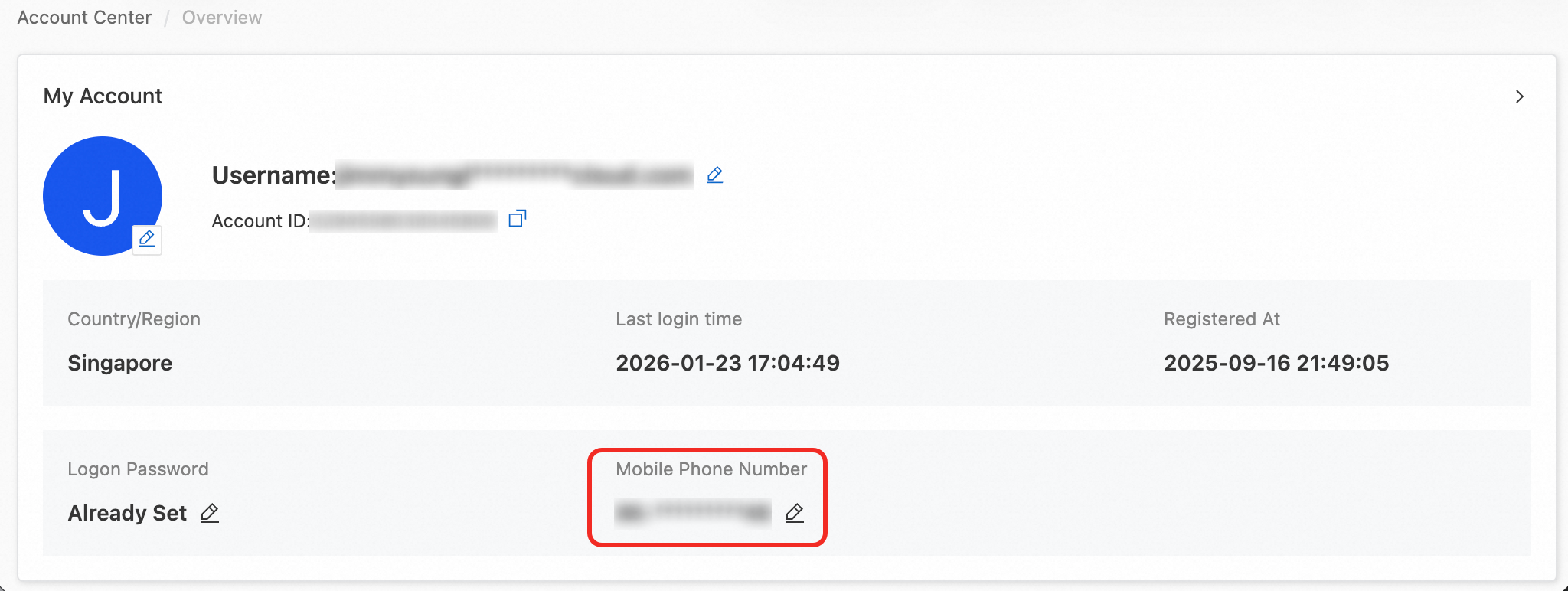
-
Verify your identity using your original mobile phone number, logon email, or TOTP.
-
After verification, enter your new phone number, click Get Verification Code, enter the code, and click OK.
Note-
The phone number must match the country or region you selected during registration.
-
If your account has completed enterprise verification, you can bind a phone number from a country or region different from your registration location. This feature is not available for individual-type accounts. For more information about the enterprise verification process, see Account verification overview.
-
A phone number can be bound to up to six Alibaba Cloud accounts. If you reach this limit, use a different number or close unused accounts. Close your Alibaba Cloud account.
-
-
A Modified successfully message appears.
Change your logon name (logon email address)
Your logon email address is used for account logon, secondary identity verification, and security notifications. Modify the logon name (logon email address).
-
Log on to the Account Center and go to the Security Settings page. In the Basic Settings section, click Modify under Username.

Alternatively, on the Overview page, in the My Account section, click the
 icon next to Username.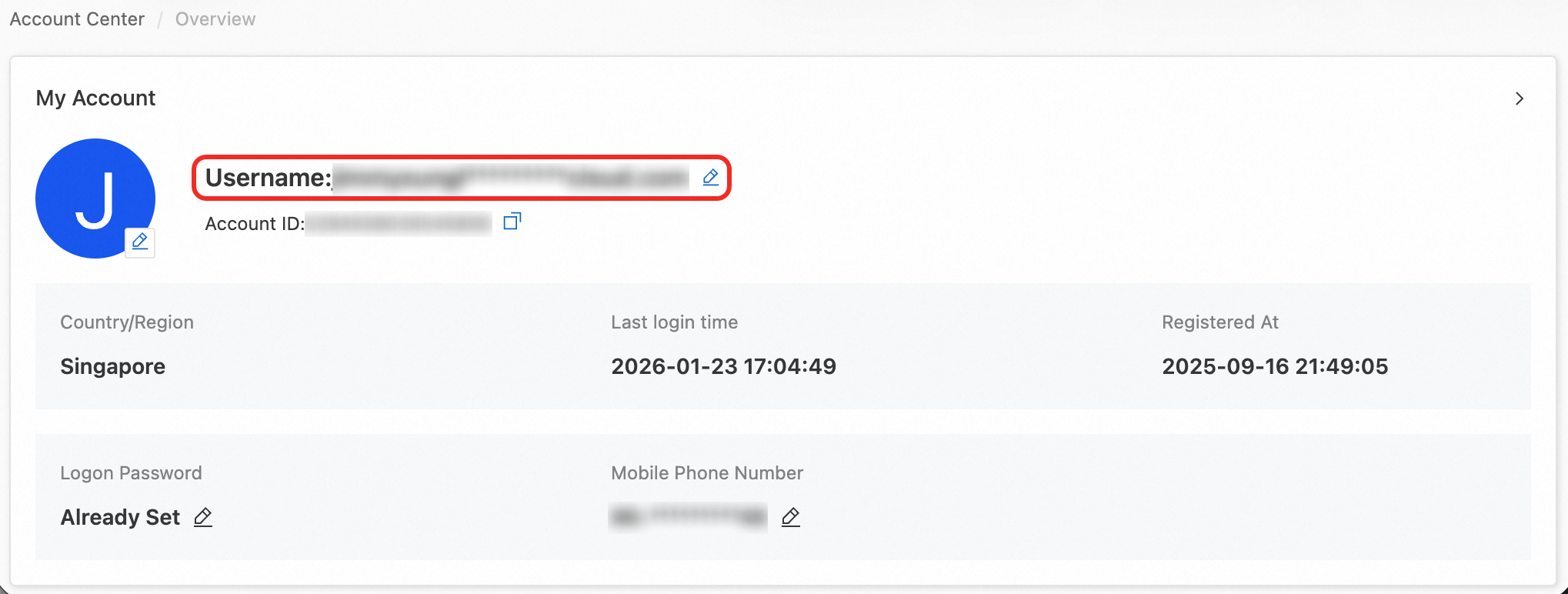
-
Verify your identity with your mobile phone number, original logon email, or TOTP.
-
Enter your new Logon Email Address, click Get Verification Code, enter the code, and click Confirm.
-
A Modification successful message appears.
Modify your profile picture background color
Your profile picture defaults to the first letter of your username on a blue background. Change the background color to distinguish between multiple accounts.
Log on to the Alibaba Cloud Account Center, go to the Overview page, and in the My Account section, click the
 icon next to your profile picture. Custom avatars are not supported.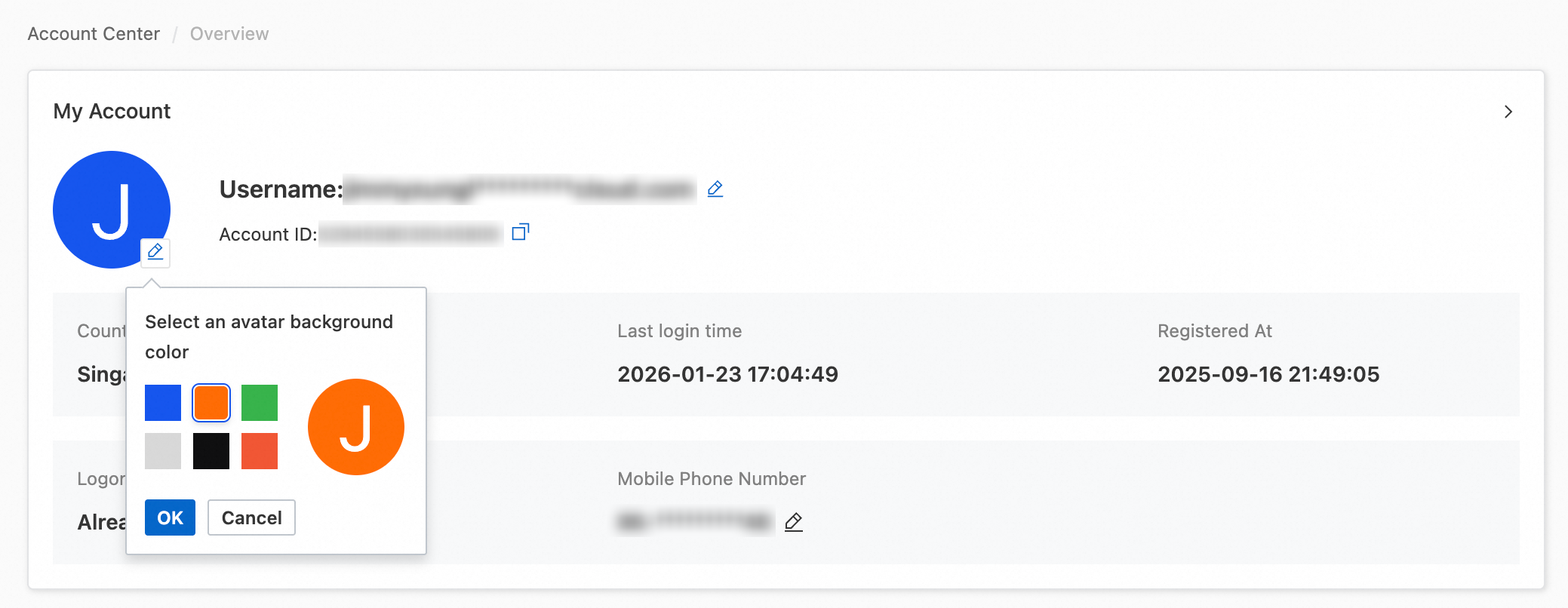
Modify organization name and contact information
On the Basic Information page, you can also modify the following fields in the Business Information and Contact Information sections:
Organization Name
Street Address, City, State/Province, and Postal Code
Primary Industry and Website information
To update these fields:
Log on to the Account Console.
On the Basic Information page, locate the field you want to update.
Edit the field and save your changes.
If your account has completed Identity verification overview, the Organization Name field is locked and cannot be modified through the Account Console. To request a change in this case, submit a support ticket. The support team will guide you through the required identity re-verification process.
Changes to your organization name and address on this page affect the information displayed on your future invoices. For more information, see Get invoices.
Complete tax information (BRN/TIN)
To fill in your Business Registration Number (BRN) or Tax Identification Number (TIN), note the following:
Prerequisite for personal accounts — Before entering tax information, go to the Basic Information page to maintain and verify your latest personal ID number.
Wait for data synchronization — After updating your BRN or personal ID number, wait for the data to sync to the database before entering your TIN. Entering the TIN before synchronization completes may cause a validation failure or an "invalid" prompt.
Universal personal tax number — If TIN validation for your personal account keeps failing, try using the universal personal tax number EI00000000010.
Non-Malaysian citizens without MyKad — If identity number validation fails due to the absence of a MyKad certificate, you can:
Append zeros to your personal identification number to make it 12 digits, or
Temporarily skip this step to complete registration, and update the information later via the Basic Information page.
FAQ
What should I do if an API call returns BASIC_INFO_UNCOMPLETED or I receive an "Information Incomplete" message when claiming a coupon?
This error indicates that your account's basic information is incomplete. Log on to the Account Center, check all required fields, and ensure the following are filled in:
Mobile phone number — For Malaysian numbers, remove the leading zero and select the country code +60 (for example, enter 123456789 instead of 0123456789, and select +60 as the country code).
Payment method — Add a valid payment method in the Account Center.
If you are applying for AI API Credits or student coupons and receive this error, click the link in the error message to go to the Account Center and complete your Basic Information, then retry the application.
The error code BASIC_INFO_UNCOMPLETED and the "information incomplete" prompt both indicate that mandatory account information has not been filled in. Complete all required fields in the Account Center to resolve this issue.
What should I do if credit/debit card binding fails or the page keeps loading?
Card binding failures can occur for multiple reasons. Check each of the following and take the corresponding action:
3D Verification not completed — Check your registered email inbox for a message with the subject line "Please Proceed with the Verification of Your Credit / Debit Card". Click the verification button in that email, then retry card binding.
Card type not supported — Only international credit or debit cards bearing a Visa, Mastercard, AMEX, or JCB logo are supported. The following card types are not supported:
Prepaid cards
Virtual cards
Gift cards
Card already linked to another account — Each card can only be linked to one Alibaba Cloud account, including accounts that were deregistered during the grace period. To use this card, first unlink it from the other Alibaba Cloud account.
Insufficient card balance — The system initiates a pre-authorization charge of 1.00 USD (Malaysian users: 1.00 MYR) to verify the card. Ensure your card has sufficient funds before attempting to bind it.
Bank rejects pre-authorization — Your issuing bank may have declined the pre-authorization request. Contact your issuing bank to authorize the transaction, or try a different card.