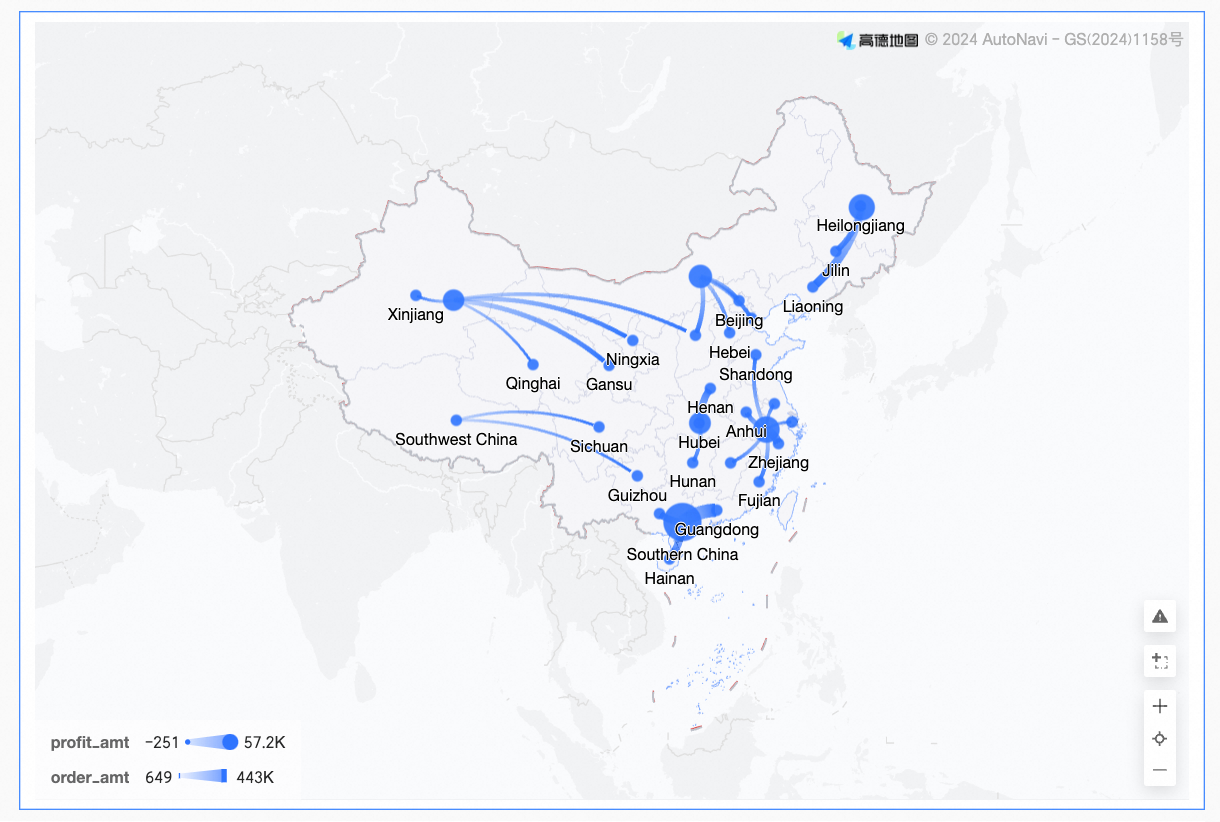
A Flying Line Map uses dynamic flying lines against a map outline to show data relationships between two or more regions. This topic describes how to add data to a Flying Line Map and configure its style.
Limits
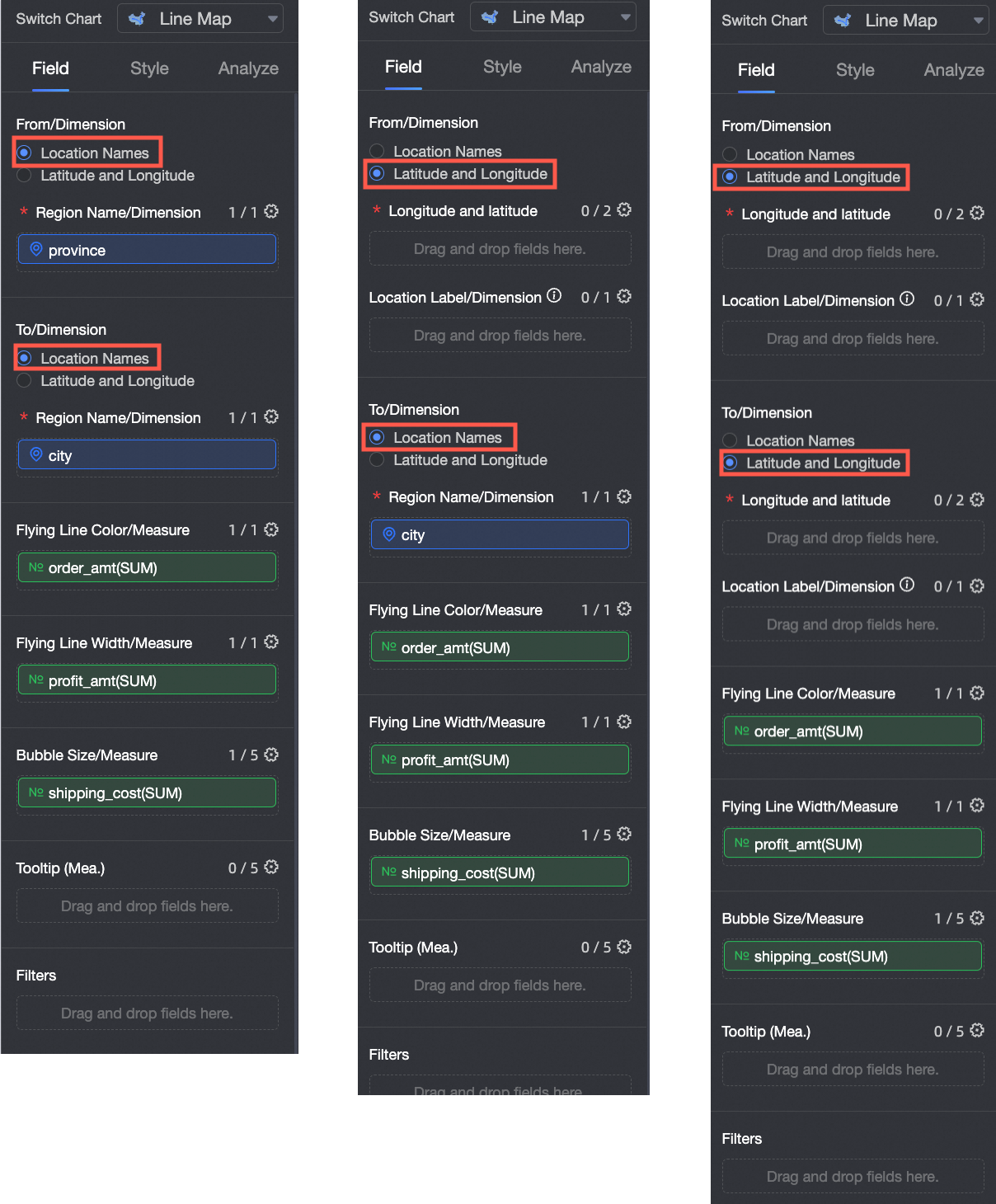
If you create a Flying Line Map by selecting From/Dimension and To/Dimension in Area Name mode, the map consists of Area Name/Dimension and Flying Line Measure:
Area Name is determined by the data dimension. Select a maximum of one dimension. The dimension must be a geographical field, such as a province.
Flying Line Color is determined by the data measure. Select a maximum of one measure, such as Order amount.
Flying Line Thickness is determined by the data measure. Select a maximum of one measure, such as Order amount.
Bubble Size is determined by the data measure. Select at least one measure and a maximum of five measures, such as shipping costs and order quantity.
If you create a Flying Line Map by selecting From/Dimension and To/Dimension in Latitude and Longitude mode, the map consists of Latitude and Longitude/Dimension, Location Label/Dimension, and Flying Line Measure:
Latitude and Longitude are determined by the data dimension. Select a maximum of one longitude field and one latitude field.
Location Label is determined by the data dimension. It supports string and geographical dimensions and is optional.
Flying Line Color is determined by the data measure. Select a maximum of one measure, such as Order amount.
Flying Line Thickness is determined by the data measure. Select a maximum of one measure, such as Order amount.
Bubble Size is determined by the data measure. Select at least one measure and a maximum of five measures, such as shipping costs and order quantity.
Prerequisites
A dashboard is created. For more information, see Create a Dashboard.
Switch the geographical area fields. For more information, see Configure Fields.
NoteAssume the geographical area field to be added to the chart is area. The field is switched to geographical information only when the display
 is marked with a red box. For a detailed comparison table of information for various regions, see public-area-info .xlsx. This table is for geographical area matching reference only and does not represent Quick BI's political stance.
Chart Overview
Scenarios
This chart is often used to display spatially distributed data. It is suitable for datasets with geographical location information, typically showing summarized continuous information based on a region.
Benefits
Visualization effects: Supports flying line maps.
Interactive operations: Supports zooming in on the map, switching metrics, and filtering within components.
Rendered result example
Configure Chart Fields
On the Fields tab, select the required dimension and measure fields.
Geographical Information supports creation using two methods: Area Name and Latitude and Longitude.
NoteThe From Latitude and To Latitude regions support selecting either Region Name or Latitude and Longitude. They also support cross-selection.
If you select Area Name, in the Dimensions list, find Province/City. Double-click or drag it to Area Name/Dimension in the From/To area.
If you select Latitude and Longitude, in the Dimensions list, find the Longitude field and Latitude field. Double-click or drag them to Latitude and Longitude/Dimension in the From/To area. Location Label/Dimension is optional.
In the Measures list, find Order amount. Double-click or drag it to the Flying Line Color/Measure area. This configuration item is optional.
In the Measures list, find Profit amount. Double-click or drag it to the Flying Line Thickness/Measure area. This configuration item is optional.
In the Measures list, find Shipping Cost. Double-click or drag it to the Flying Line Size/Measure area. This configuration item is optional.
Click Update. The system automatically updates the chart.
Configure Styles
This section describes how to configure chart styles. For general chart style configurations, see Configure the Chart Title.
Geographical Area
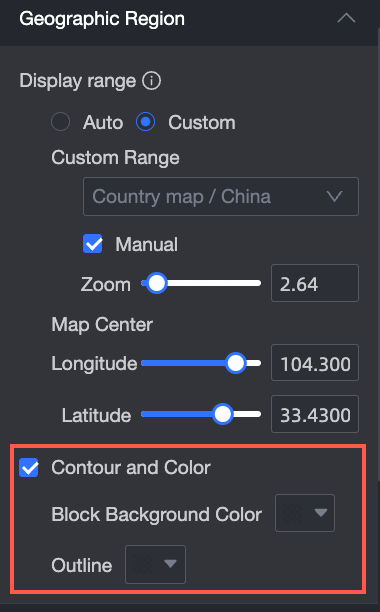
In Map Area, configure Display Range and Outline and Fill.
Display Range: Supports automatic and custom. In this example, select China.
NoteAutomatic display adjusts based on the data range. Custom display allows manual range settings. Interactive analysis scenarios automatically display based on the data range.
Custom display range currently supports only continents and countries globally, and regions, provinces, and cities in China.

Enable Manual Adjustment to automatically generate the current Centroid and Scaling Value, which you can then manually modify.

In Outline and Fill, configure the colors for Block Background Color and Outline.
NoteSome regions do not support displaying outlines.
Basemap
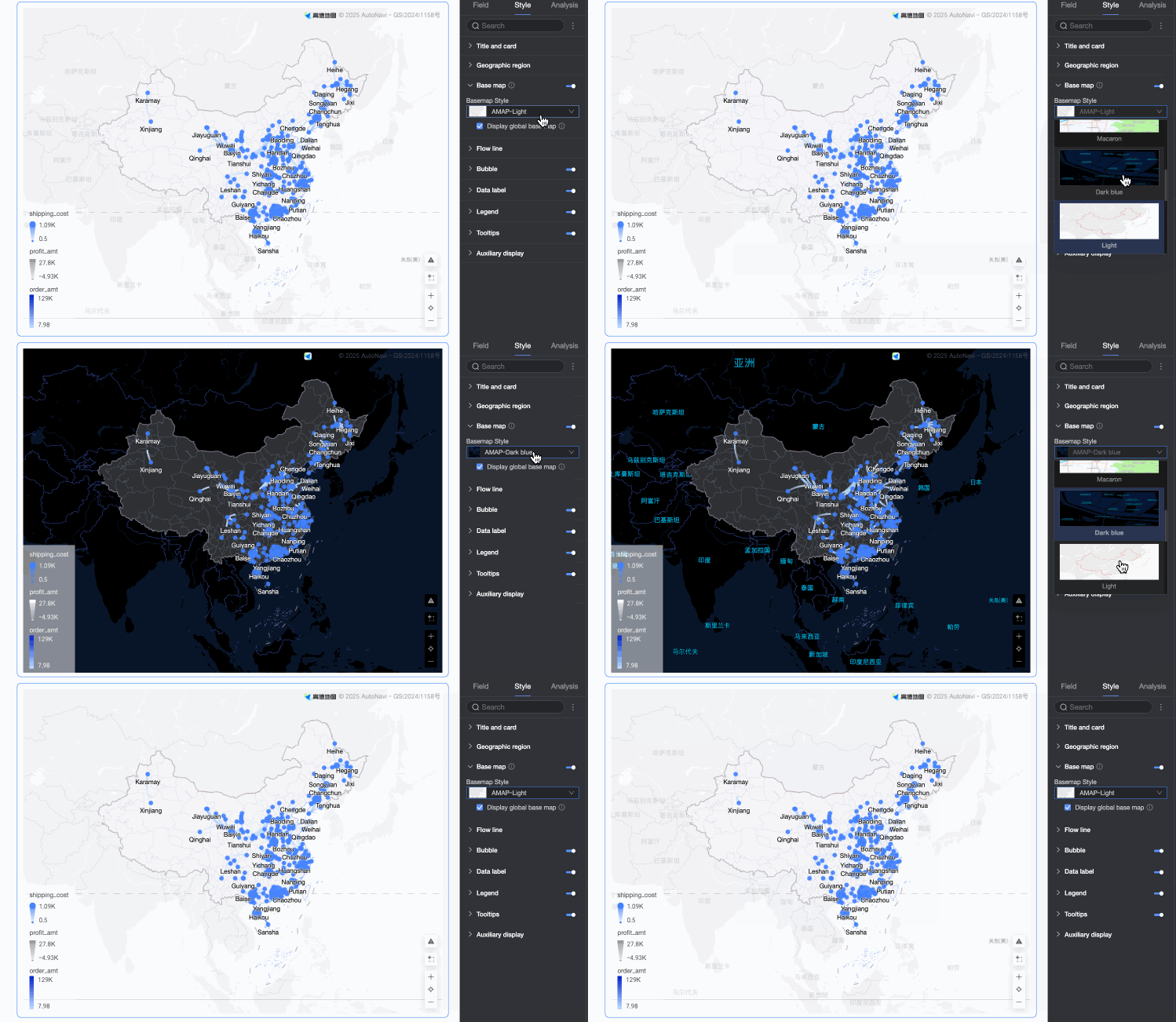
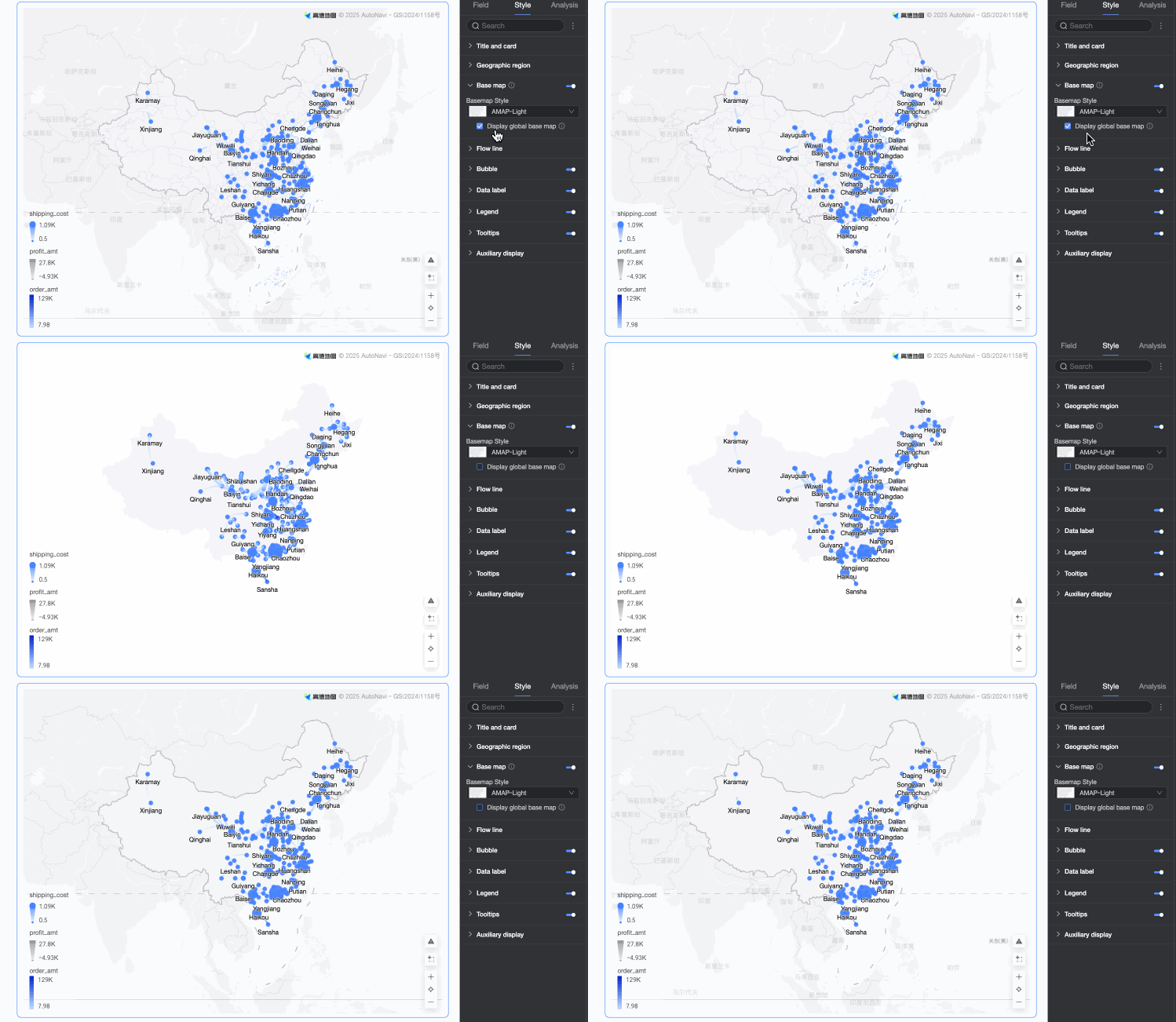
In Basemap, configure whether to Display Basemap, Basemap Style, and whether to Display Global Basemap.
Display Basemap: Click the switch
 to configure whether to display basemap information.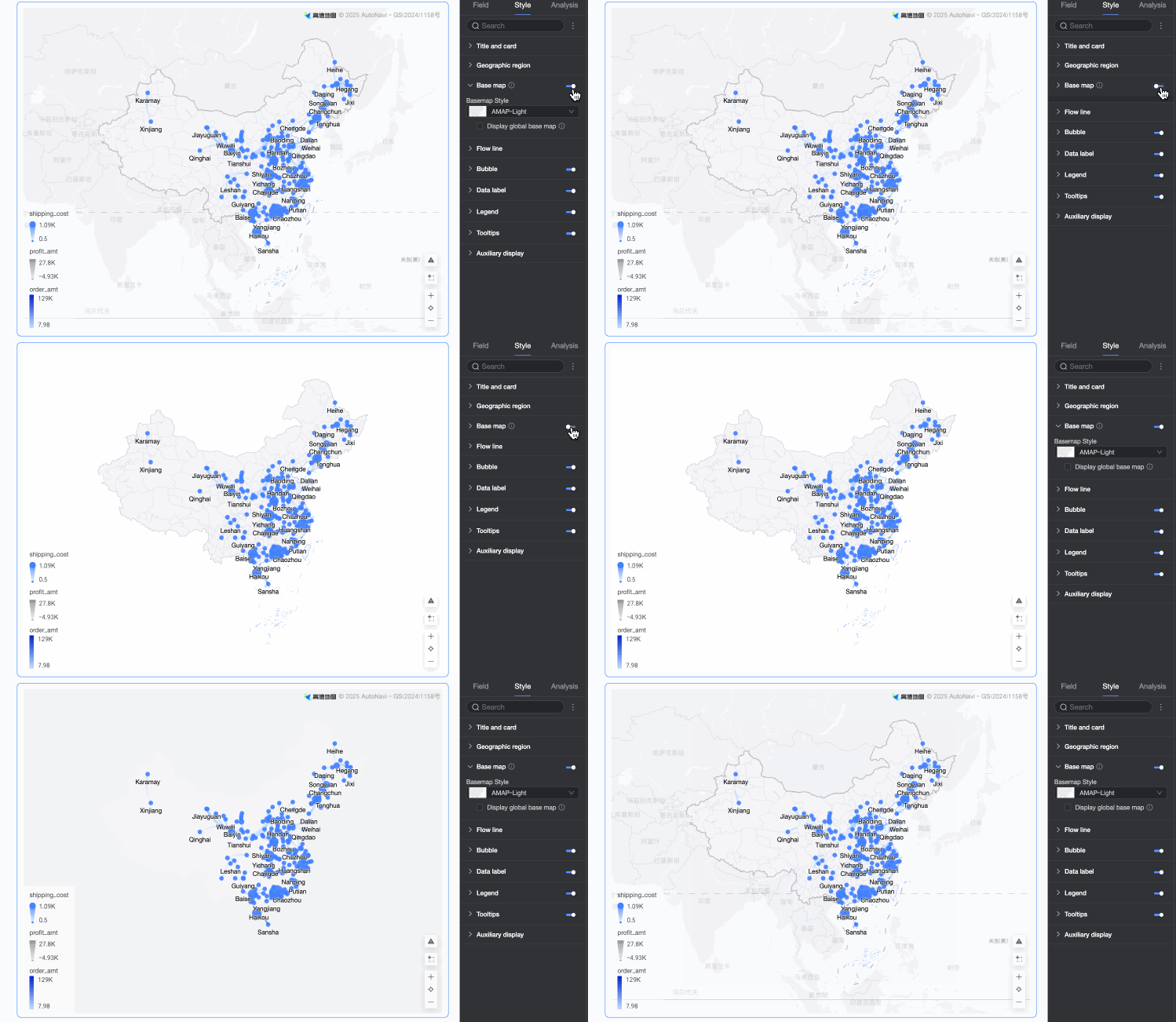
Basemap Style: Supports various styles of Amap basemap display.
Display Global Basemap: Check this option to display global city information in the basemap.
 Note
NoteGlobal Basemap Usage Limits: Each Quick BI organization can preview map charts containing overseas basemap information a maximum of 1,000 times per month (calculated by the number of basemap surface initializations). After exceeding this limit, the map chart will only display domestic basemap information.
Flying Lines
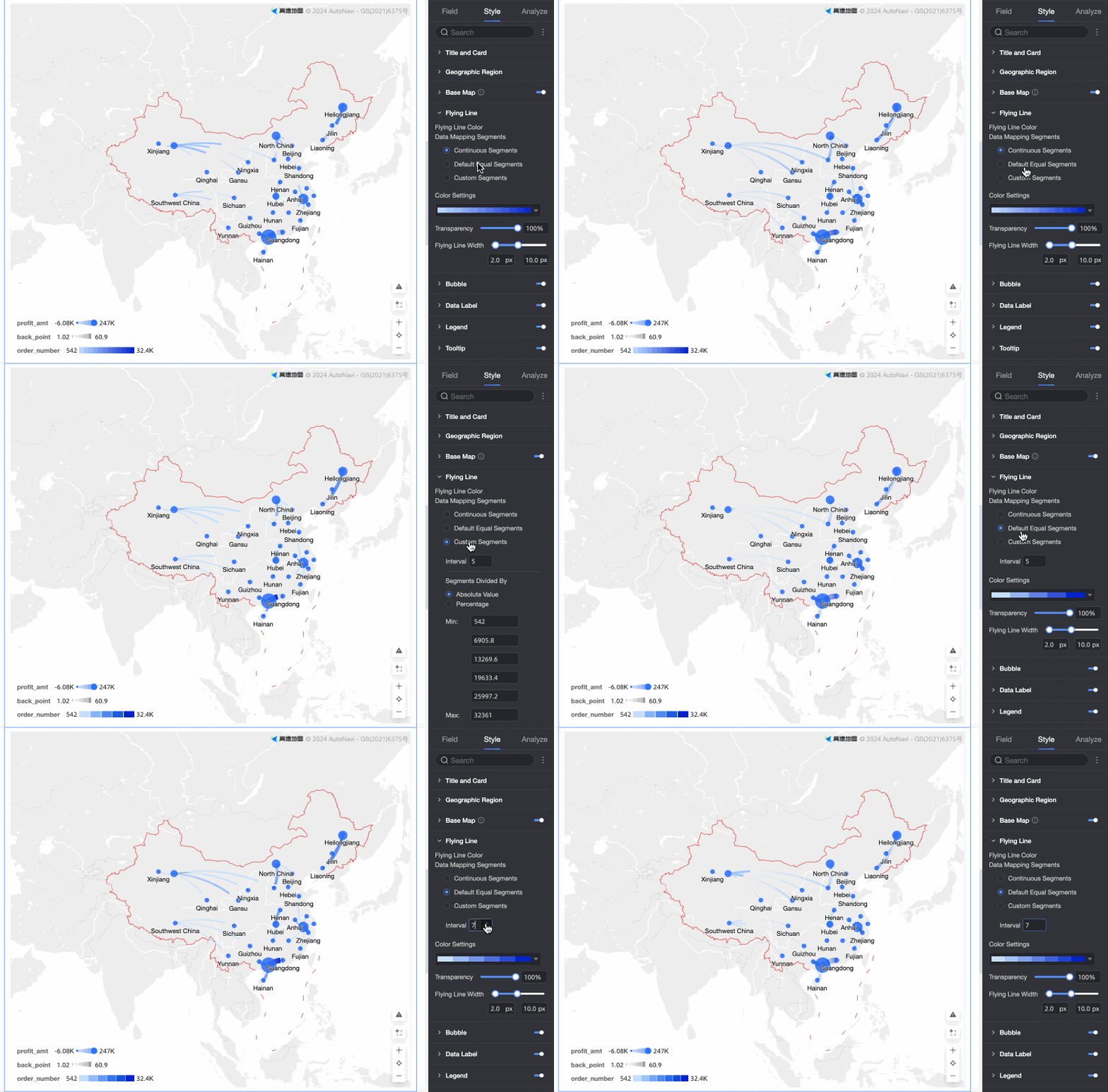
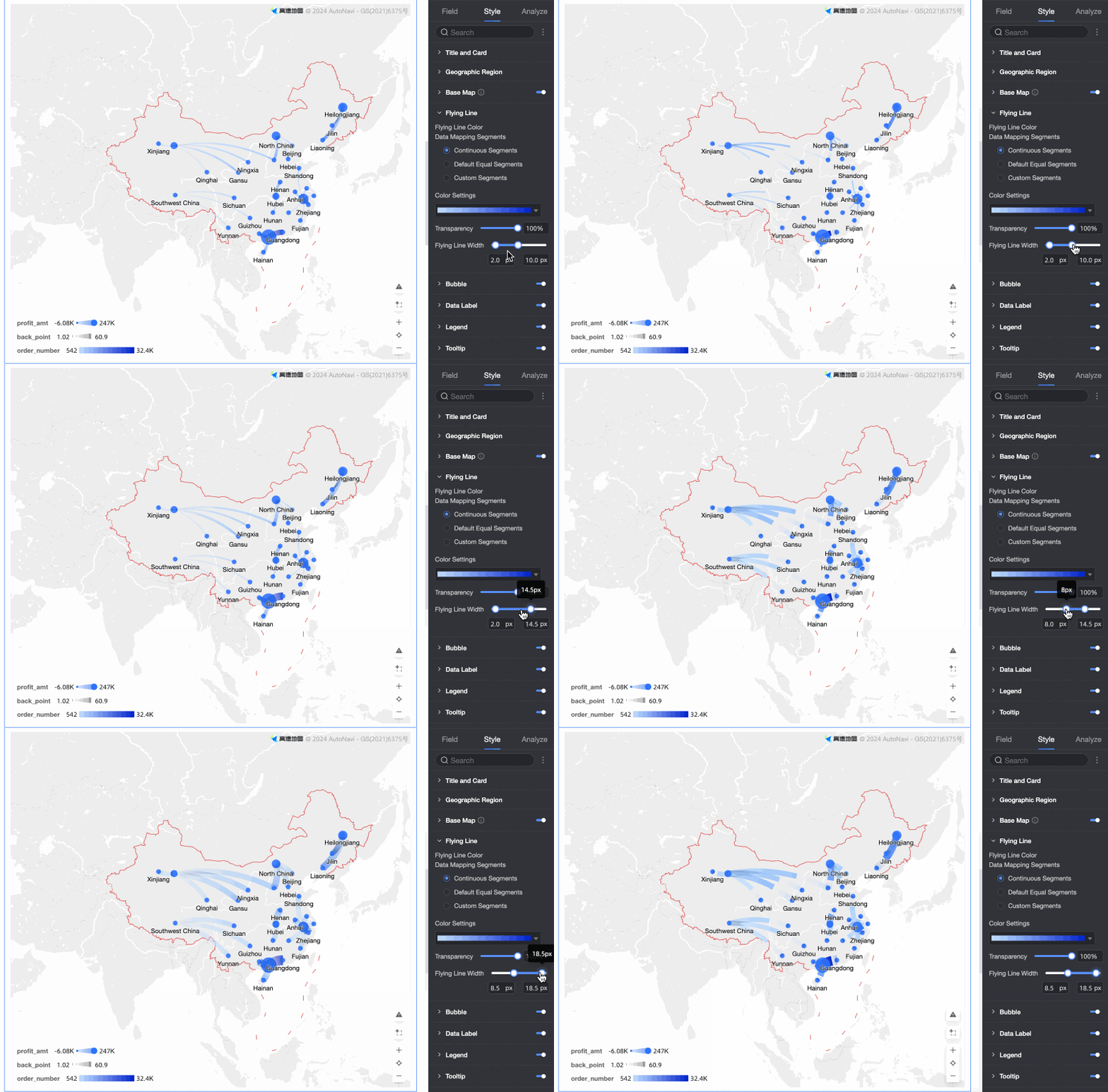
In Flying Lines, you can configure Data Mapping Range, Flying Line Color, Transparency, and Flying Line Thickness.
Data Mapping Range: Supports three methods: continuous range, equal interval range, and custom range.
NoteYou only need to configure the data mapping range when the flying line color field is configured for the current map.
Flying Line Color: Supports three color modes: sequential gradient, diverging gradient, and custom.
Transparency: Set the transparency of the flying lines.
Flying Line Thickness: When a measure field is configured, set the minimum and maximum values for flying line thickness.
Bubbles
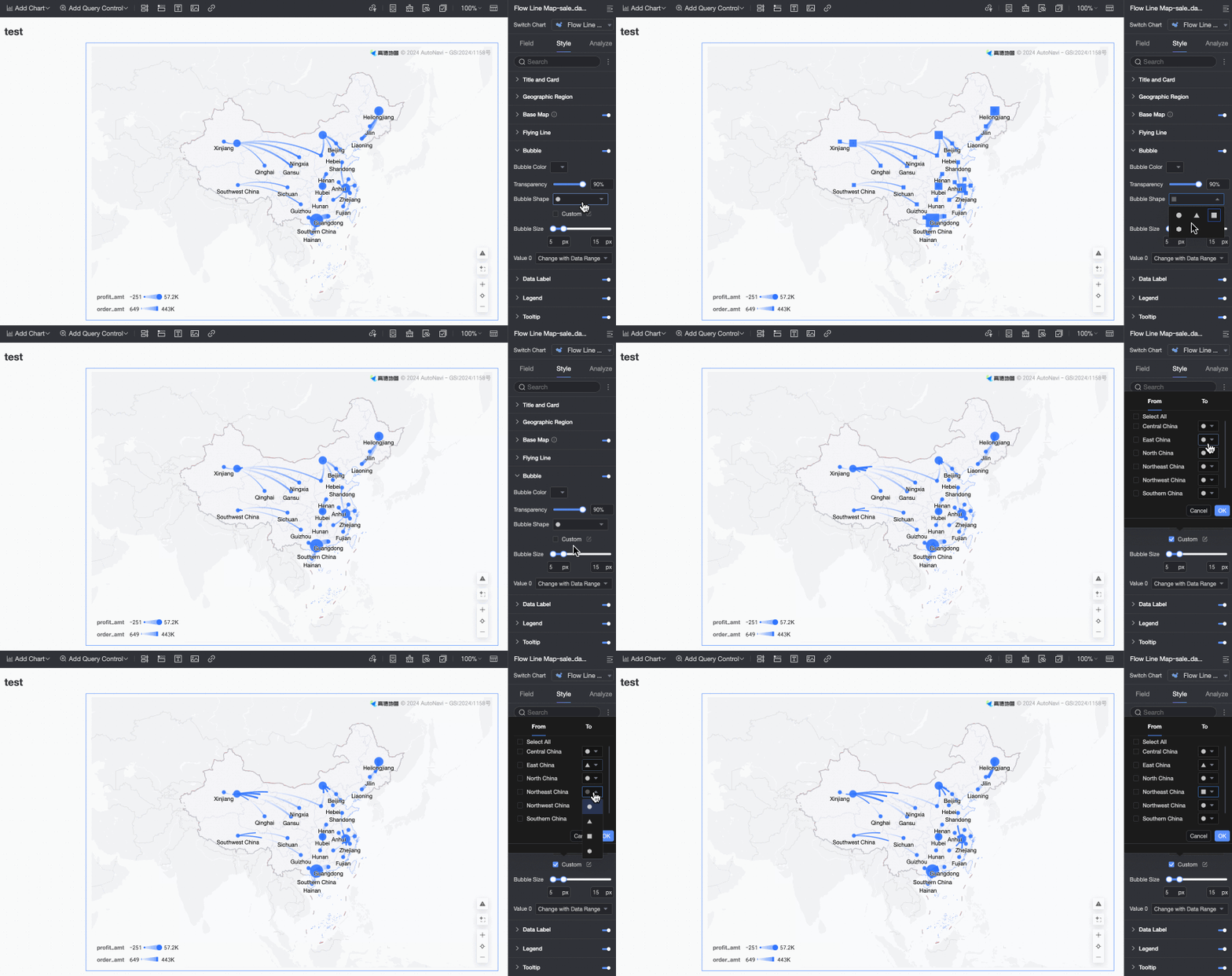
In Bubbles, configure Display Bubbles, Bubble Color, Bubble Shape, Bubble Size, and 0 Value Handling.
Bubble Color: After selecting to display bubbles, configure bubble color and transparency.
Bubble Shape: Supports circle, triangle, rectangle, diamond, and advanced settings. Advanced settings allow customizing the shape of any starting and ending points.
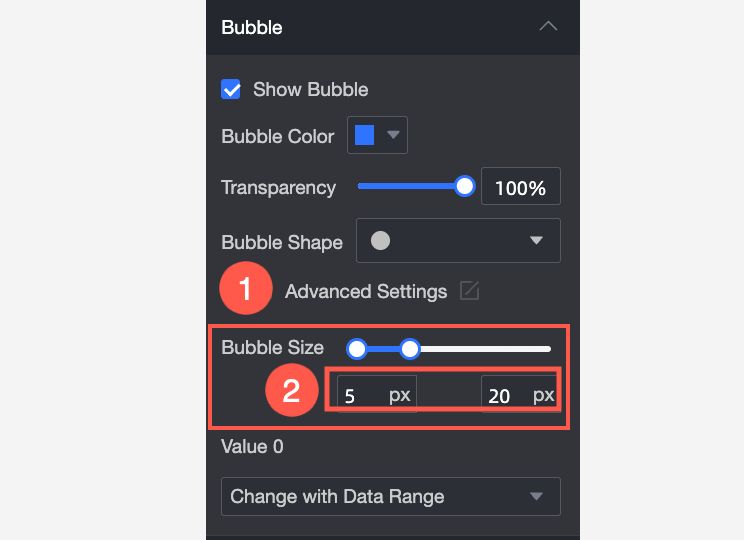
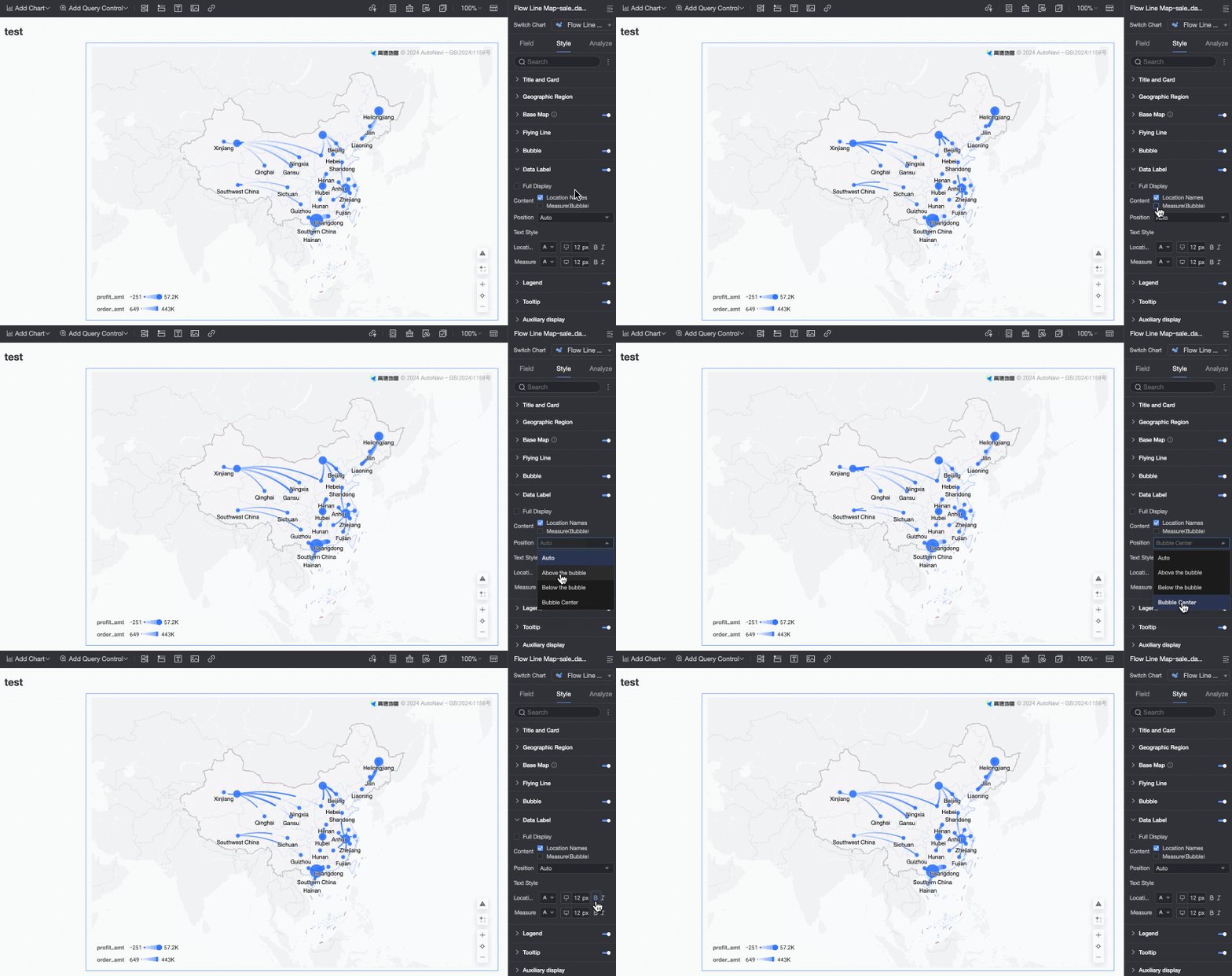
Bubble Size: Drag to change the Bubble Size. If Bubble Size/Measure is not configured, Bubble Size only supports setting a static value, as shown in Figure ①. If Bubble Size/Measure is configured, Bubble Size supports setting minimum and maximum values, as shown in Figure ②.
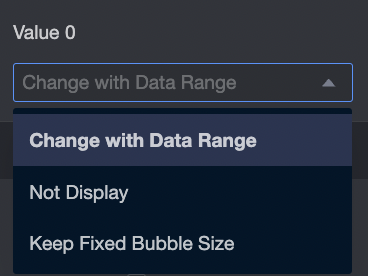
0 Value Handling: Supports three options: do not display, vary with data range, and fixed bubble size.
Data Labels
In Data Labels, configure Display Data Labels, Label Display Format, Content, Position, and Text Style.
Only supports displaying values for Area Name and Bubble Size/Measure. When Bubble Size/Measure is a field, you can configure it.
Legend
In Legend, click the  icon to enable the chart legend and configure its style.
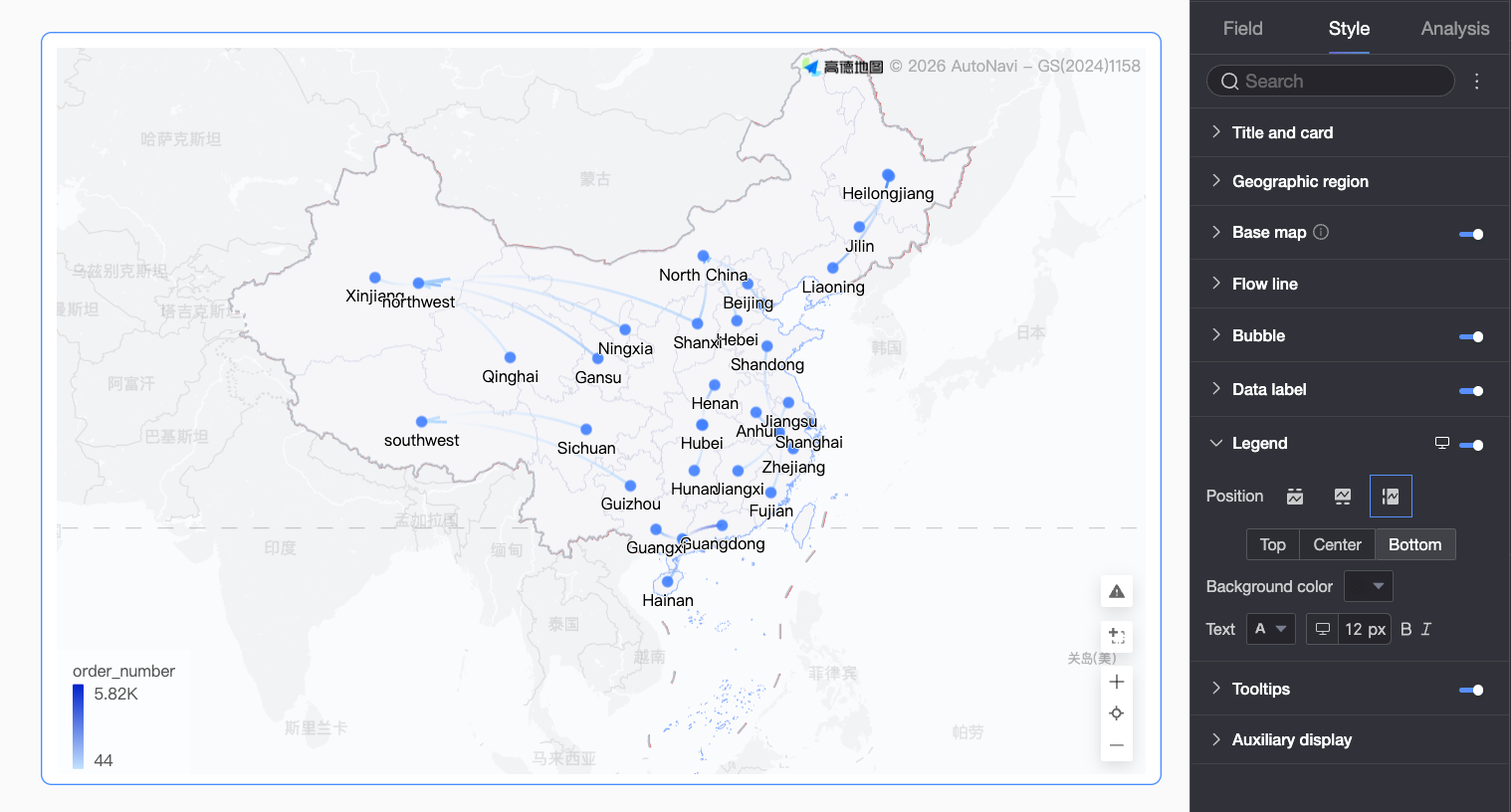
Configuration Item | Description |
Position | Set the display position and alignment of the legend.
|
Background Color | Set the background fill color of the legend. |
Text | Set the text style of the legend. Configure font color, size, weight, and whether it is italic. |
Mobile Legend Configuration | PC and mobile legend settings are independent. Use the PC/Mobile switch button ( |
 ) at the top of the dashboard editing page to enter the corresponding editing view. Configure adaptive legends separately for different terminals. Supports customizing the position, background color, and text style of the mobile legend.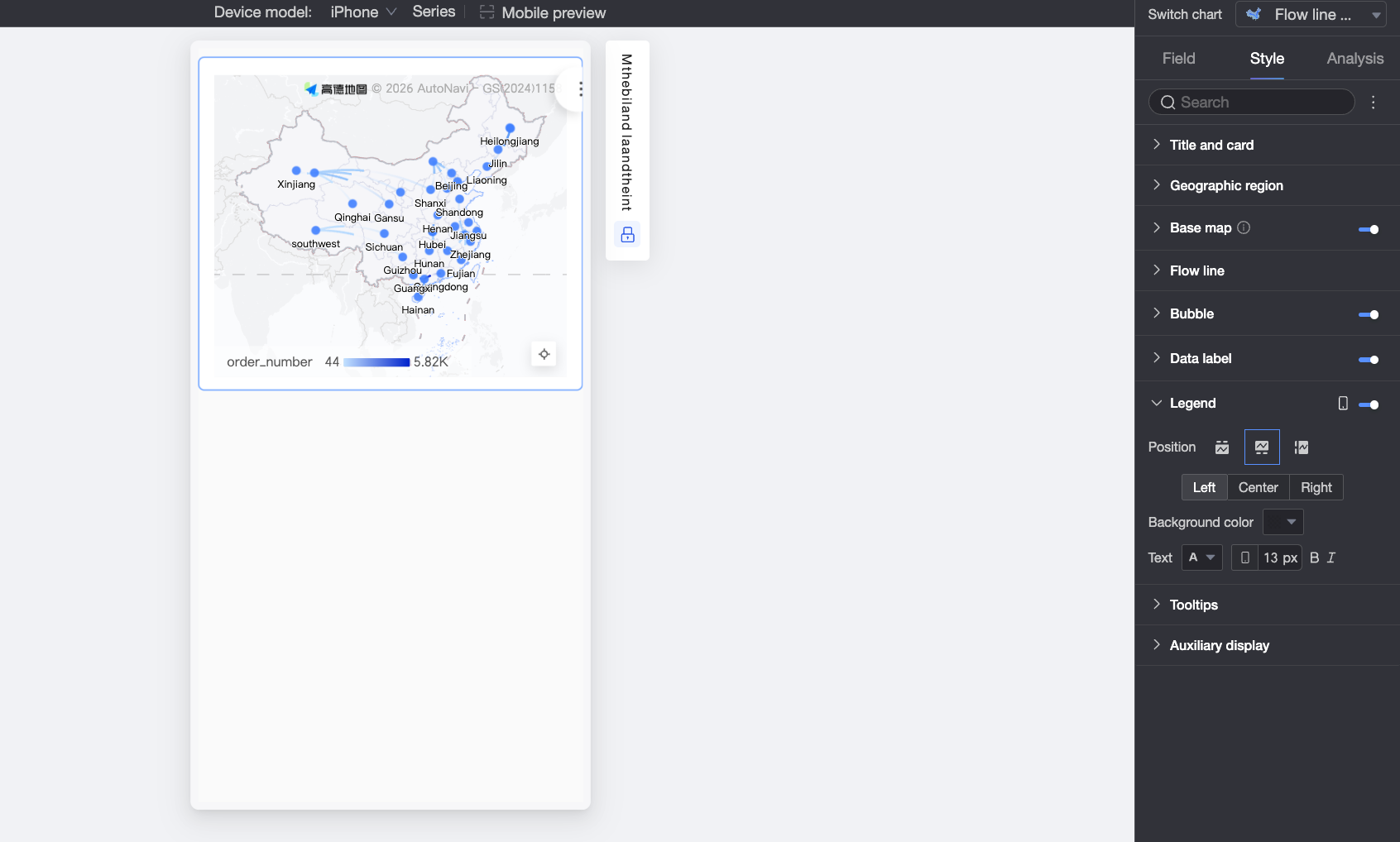
Tooltips
In Tooltips, click the icon to enable tooltips and configure their style.
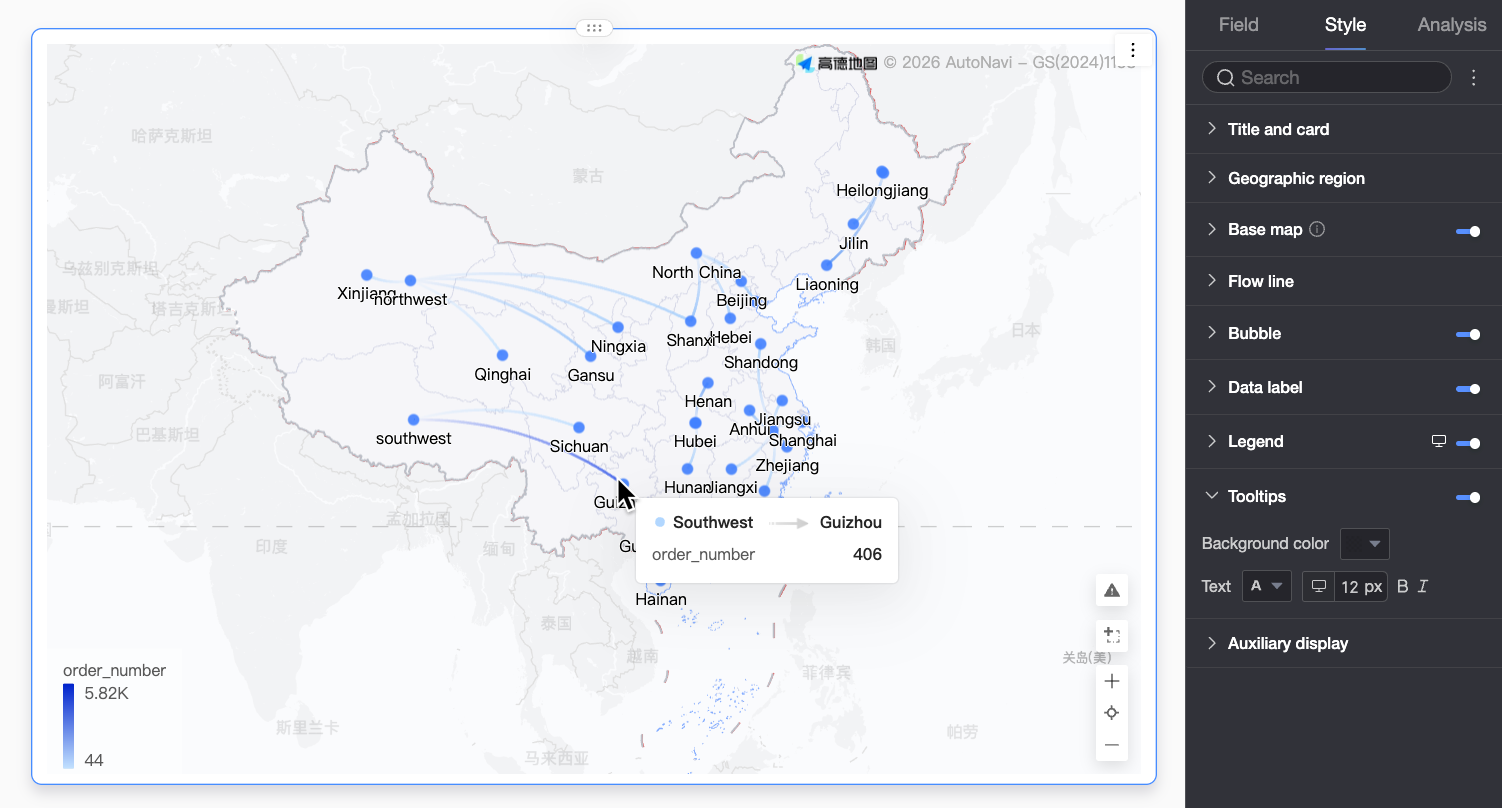
Chart Configuration Item | Configuration Item Description |
Background Color | Set the background fill color of the tooltip box. |
Text | Set the text style in the tooltip box. Configure font color, size, weight, and whether it is italic. |
Mobile Tooltips | PC and mobile tooltip switches are independent. Use the PC/Mobile switch button ( |
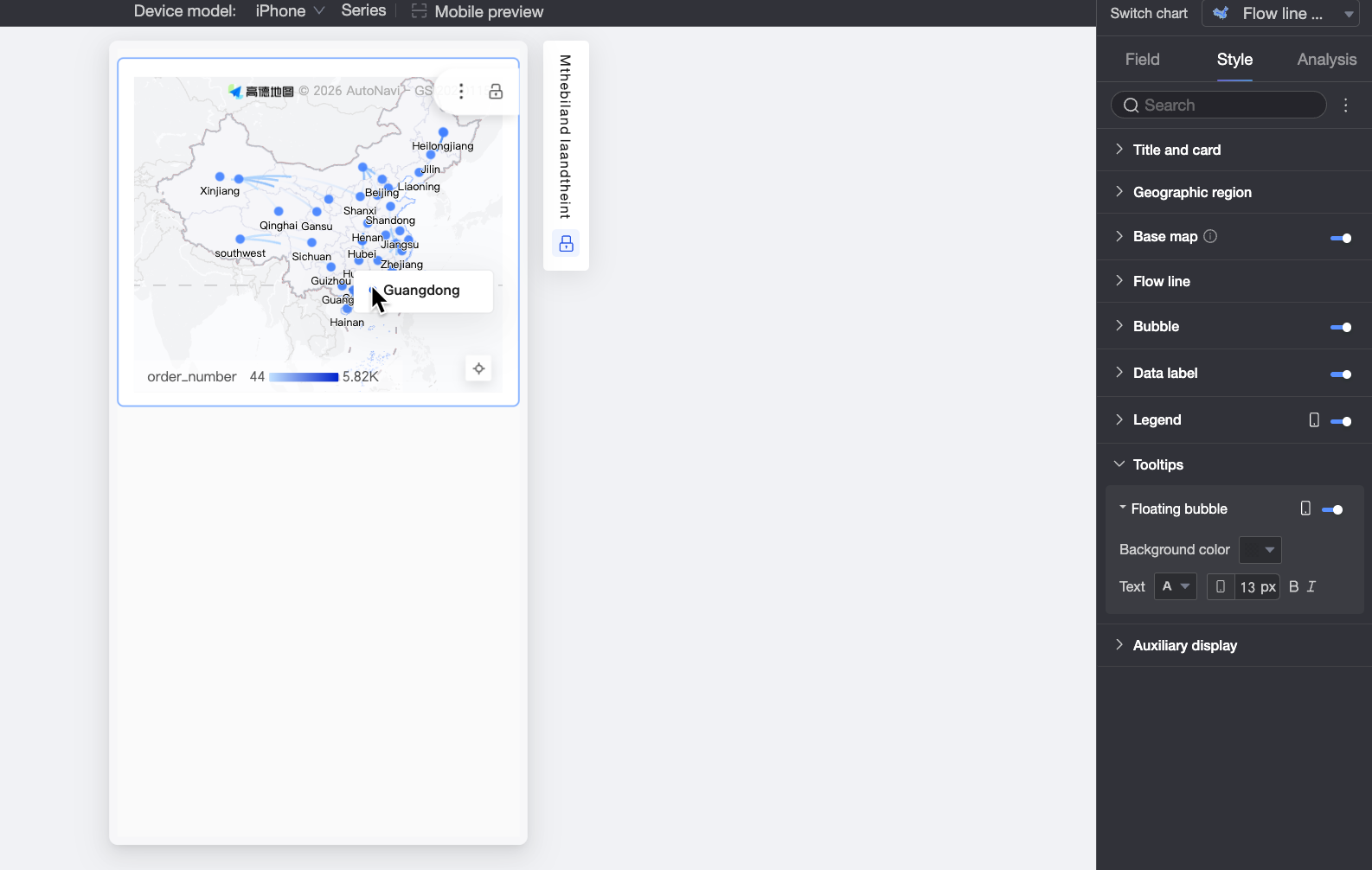
Auxiliary Display
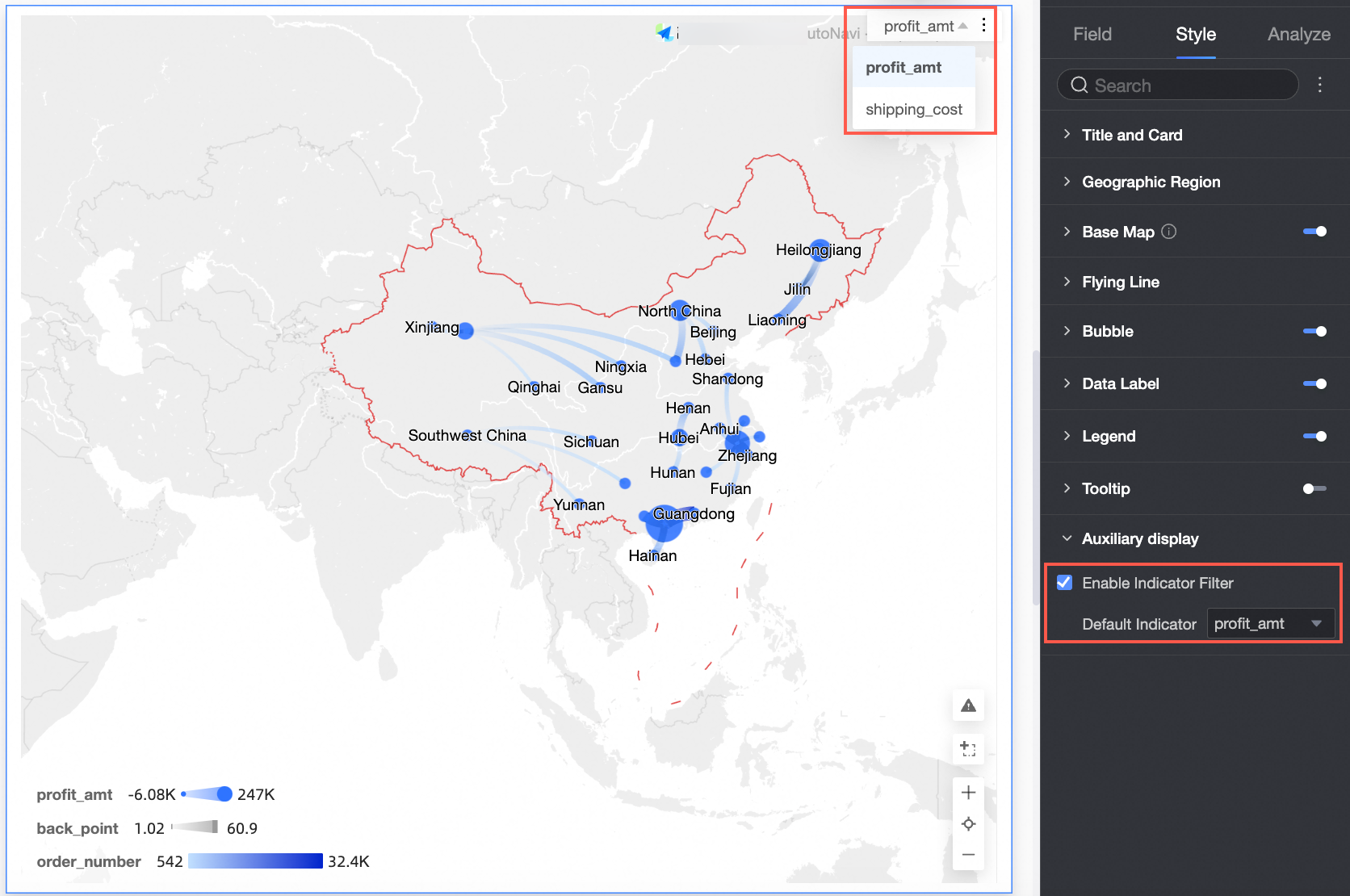
In Auxiliary Display, check to enable indicator filtering and configure the indicators to display.