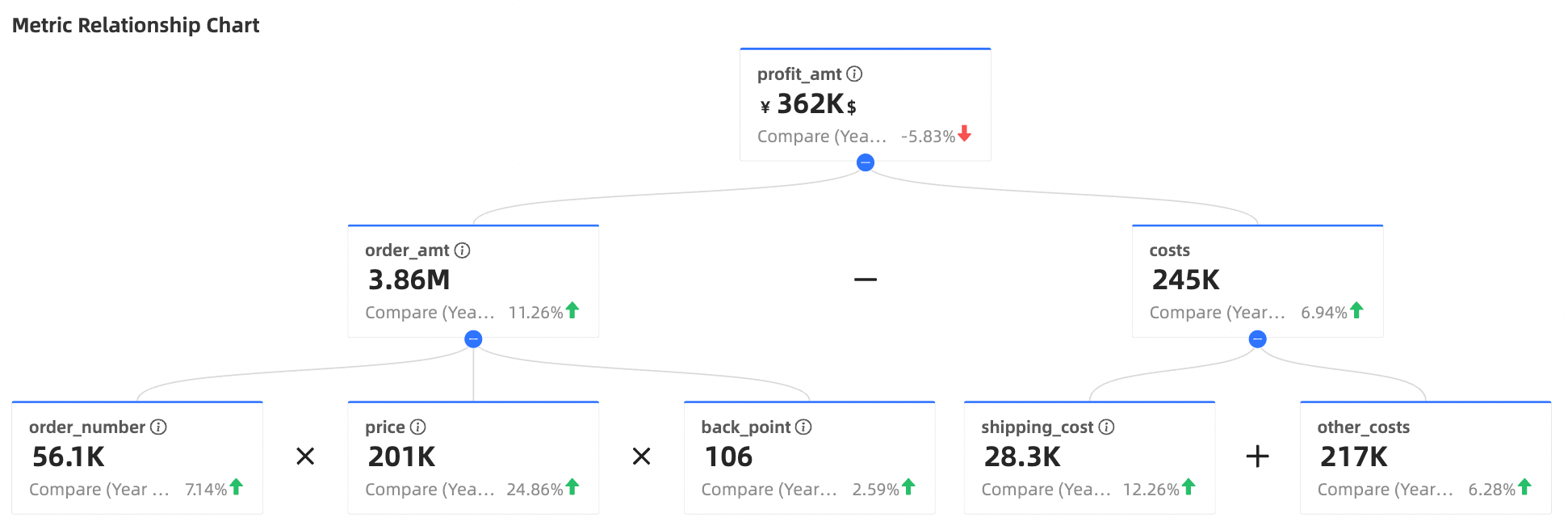
A metric relationship chart is a metric-based visualization component in Quick BI that illustrates mathematical relationships among a group of metrics. It is especially useful for metric decomposition, such as when building and displaying classic models like DuPont Analysis. This chart clearly shows how a top-level core metric is calculated from and influenced by multiple underlying metrics through formulas.
Chart Overview
Scenarios
Use this chart for DuPont Analysis to decompose metrics.
Key Benefits
Calculation capabilities: Supports advanced calculations, period-over-period comparisons, and conditional formatting.
Example Visualization
Limits
Prerequisites: You must have created a dashboard. For more information, see Create a Dashboard.
Field Configuration Limits
Top Indicator/Measure: Select one core measure field as the starting point and ultimate analysis target for the entire relationship chart.
Decomposition Indicators/Measures: Select multiple measure fields to build calculation formulas. These serve as the foundational or intermediate metrics used to compute the top-level indicator.
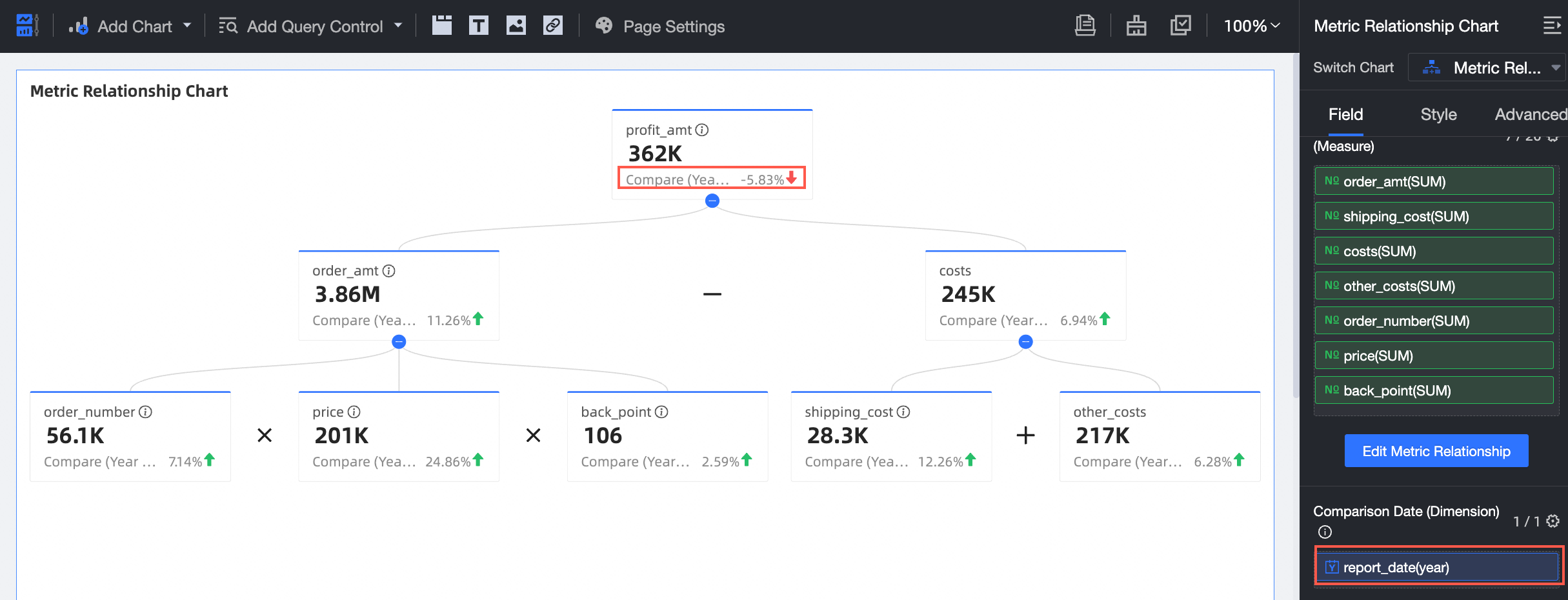
Comparison Date/Dimension (optional): Select one date-type dimension field. Adding this field is required to enable the period-over-period (secondary metric) feature later.
Core Configuration Requirement: You must click the Edit Metric Decomposition Relationship button and manually enter a mathematical expression to define the calculation logic between metrics. Without a defined formula, the chart cannot correctly display the decomposition relationship.
Procedure
Chart Field Configuration
Data Panel
On the Fields tab, select the required dimension and measure fields:
In the measure list, find Profit Amount and double-click or drag it to the Top Indicator/Measure area.
In the measure list, find Order Amount, Shipping Cost, Cost, Other Costs, Order Quantity, Unit Price, and Discount Factor, and double-click or drag them to the Decomposition Indicators/Measures area.
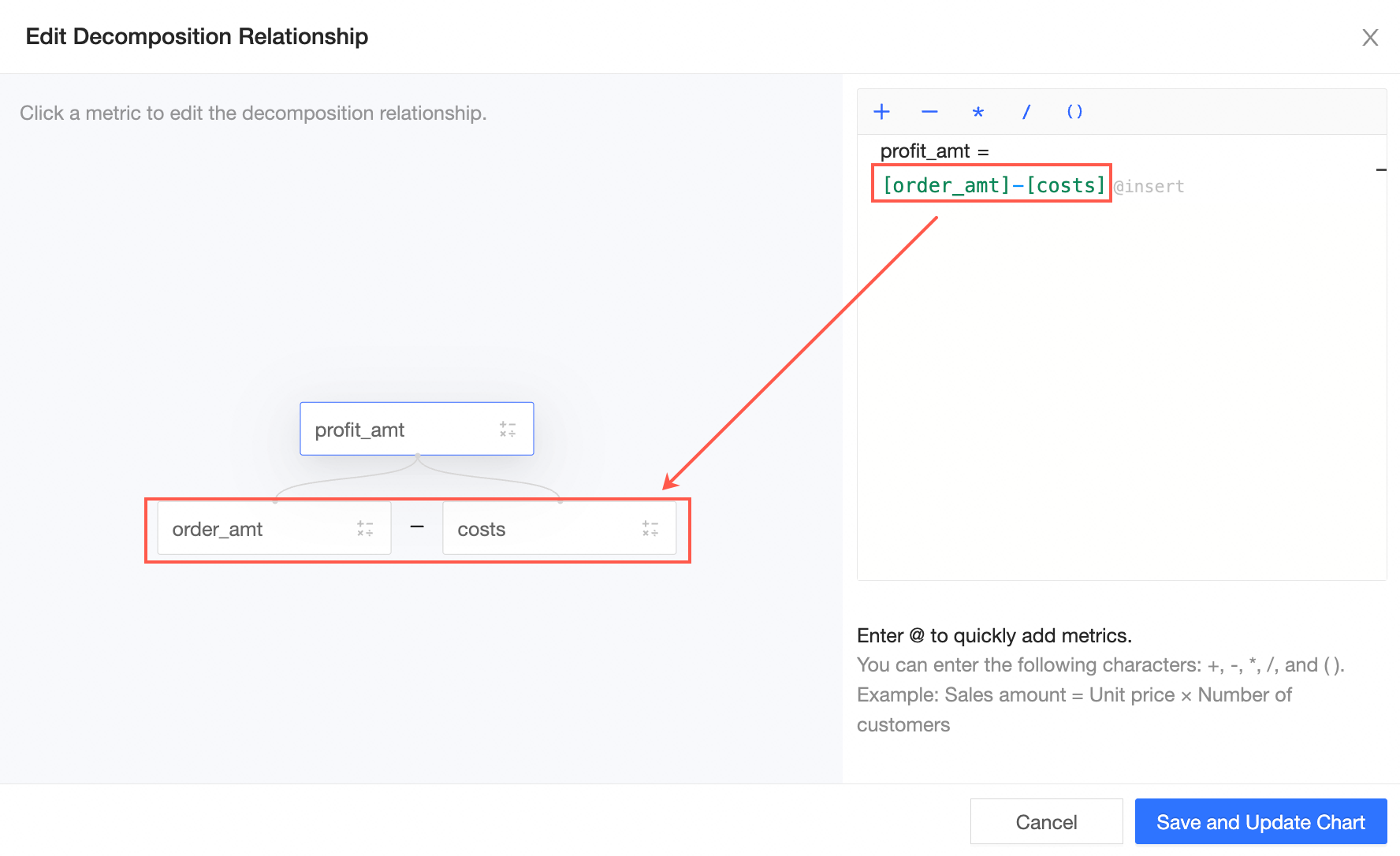
Click Edit Metric Decomposition Relationship to open the configuration interface.
Enter an expression in the Branch Row Expression field to generate the chart in real time.
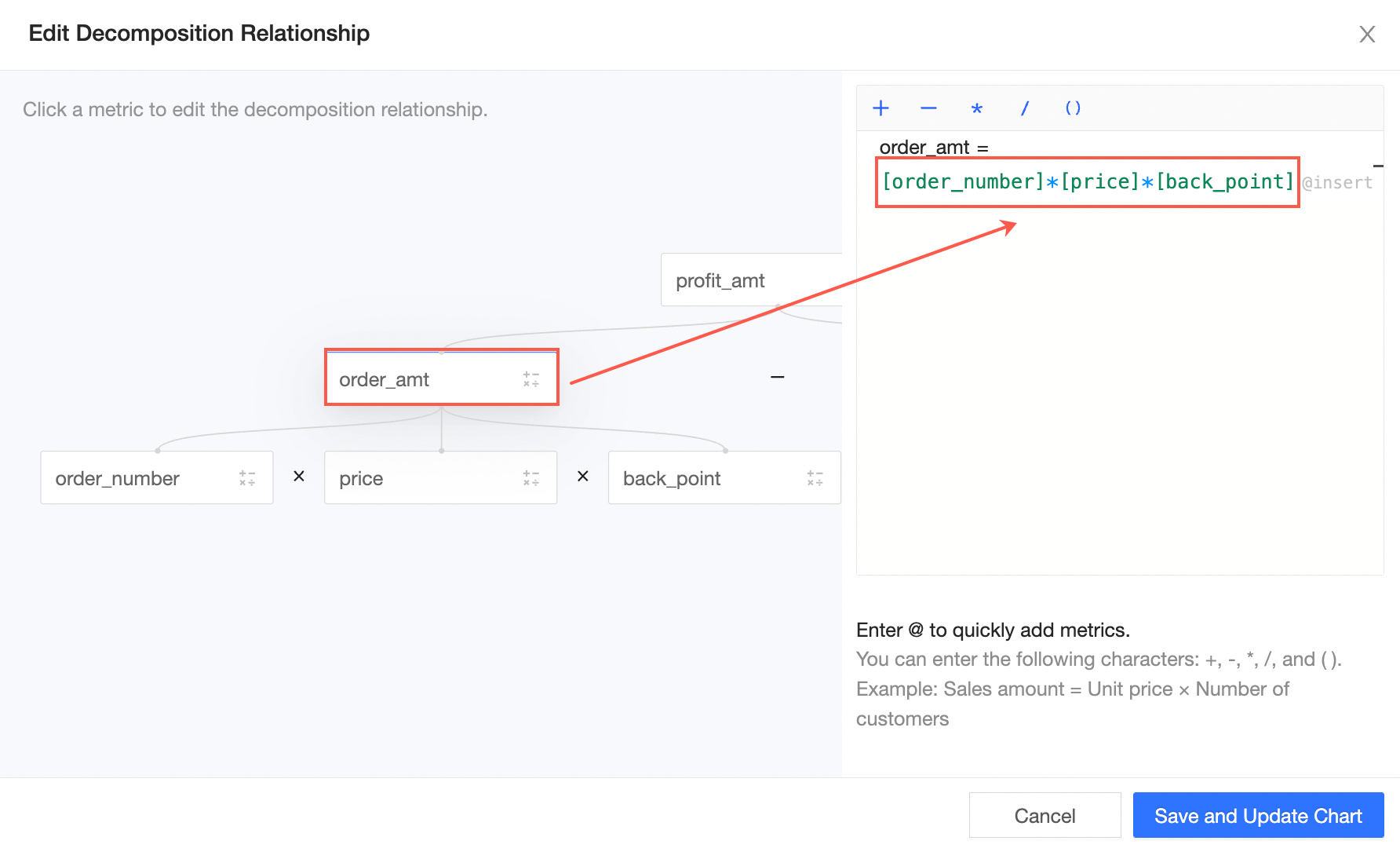
To decompose multiple metrics, click the field you want to decompose and enter an expression. For example, click Order Amount and enter [Order Quantity]*[Unit Price]*[Discount Factor] to complete its decomposition.
 Note
NoteType @ to quickly add metrics, and use your keyboard to enter +, -, *and ( ).
Example: Sales Performance = Average Order Value * Number of Customers
Click Save and Exit Editing. The system automatically updates the chart.
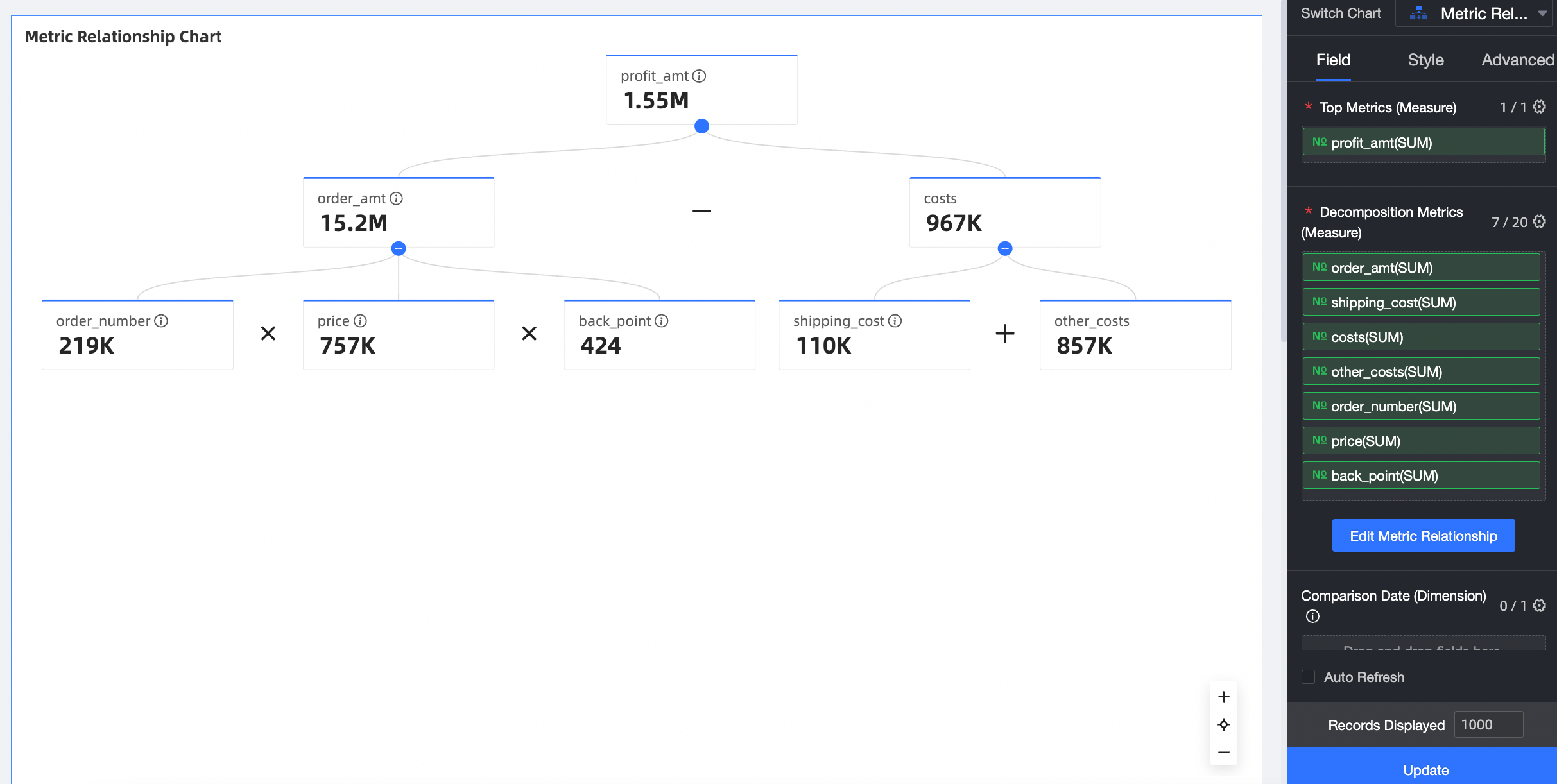
In the dimension list, find the Order Date (year) field and double-click or drag it to the Comparison Date/Dimension area to enable period-over-period comparisons.
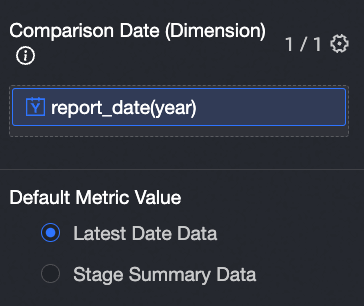
You can choose Latest Date Data or Period Summary Data as the default value for metrics.
After updating the data, go to the Advanced tab to configure period-over-period details.
Click Update. The system automatically refreshes the chart.
(Optional) To view data for only specific cities, set a filter to include only the desired data.
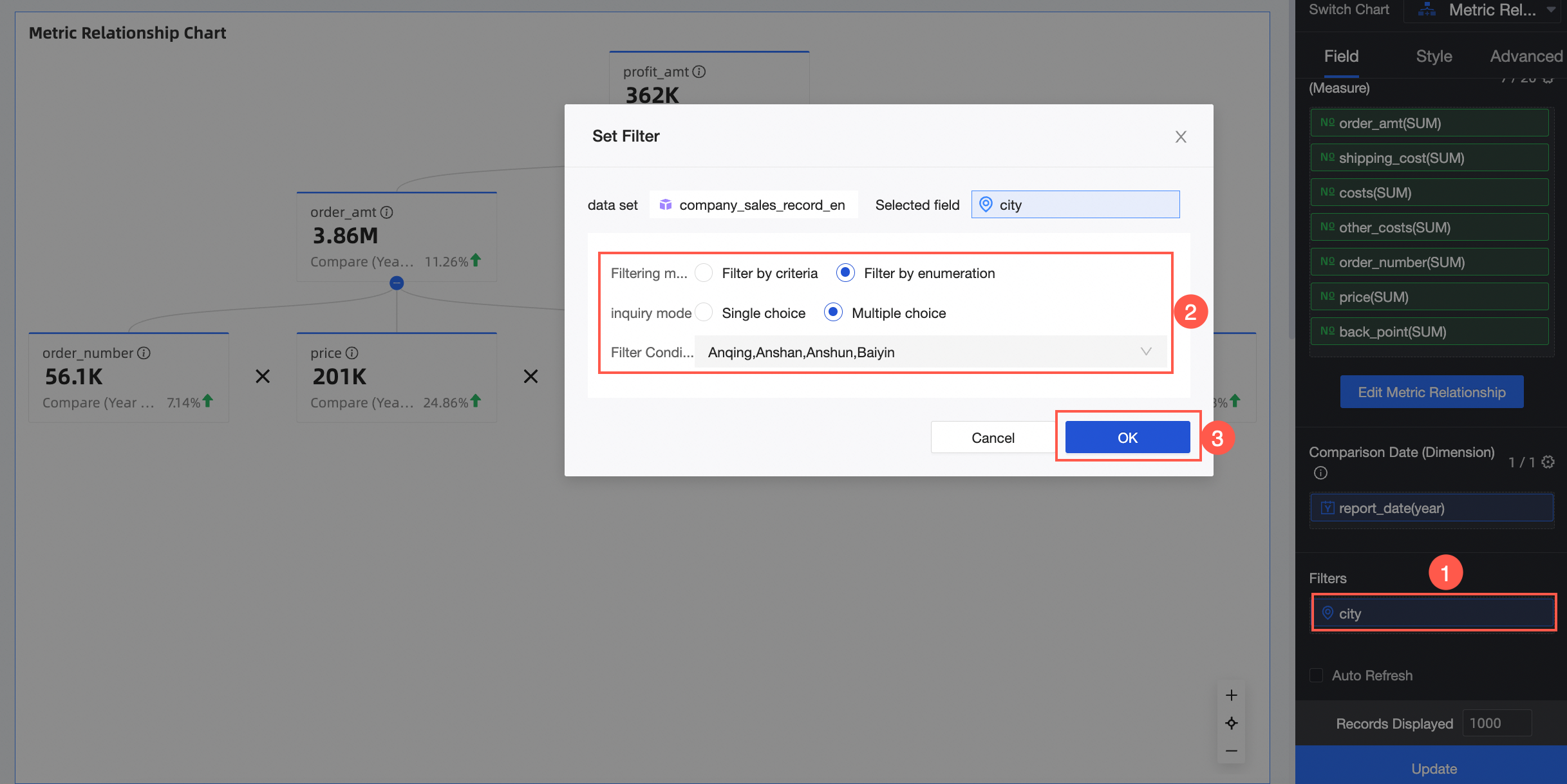
Auto-refresh
When enabled, the system automatically refreshes the chart data. For example, if you select this option and set the interval to 5 minutes, the chart data refreshes every 5 minutes.
Chart Style Configuration
The following sections describe style settings specific to the metric relationship chart. For general chart styling options, see Configure the Chart Title.
Metric Block Style
In Metric Block Style, configure Display Direction and Default Expansion.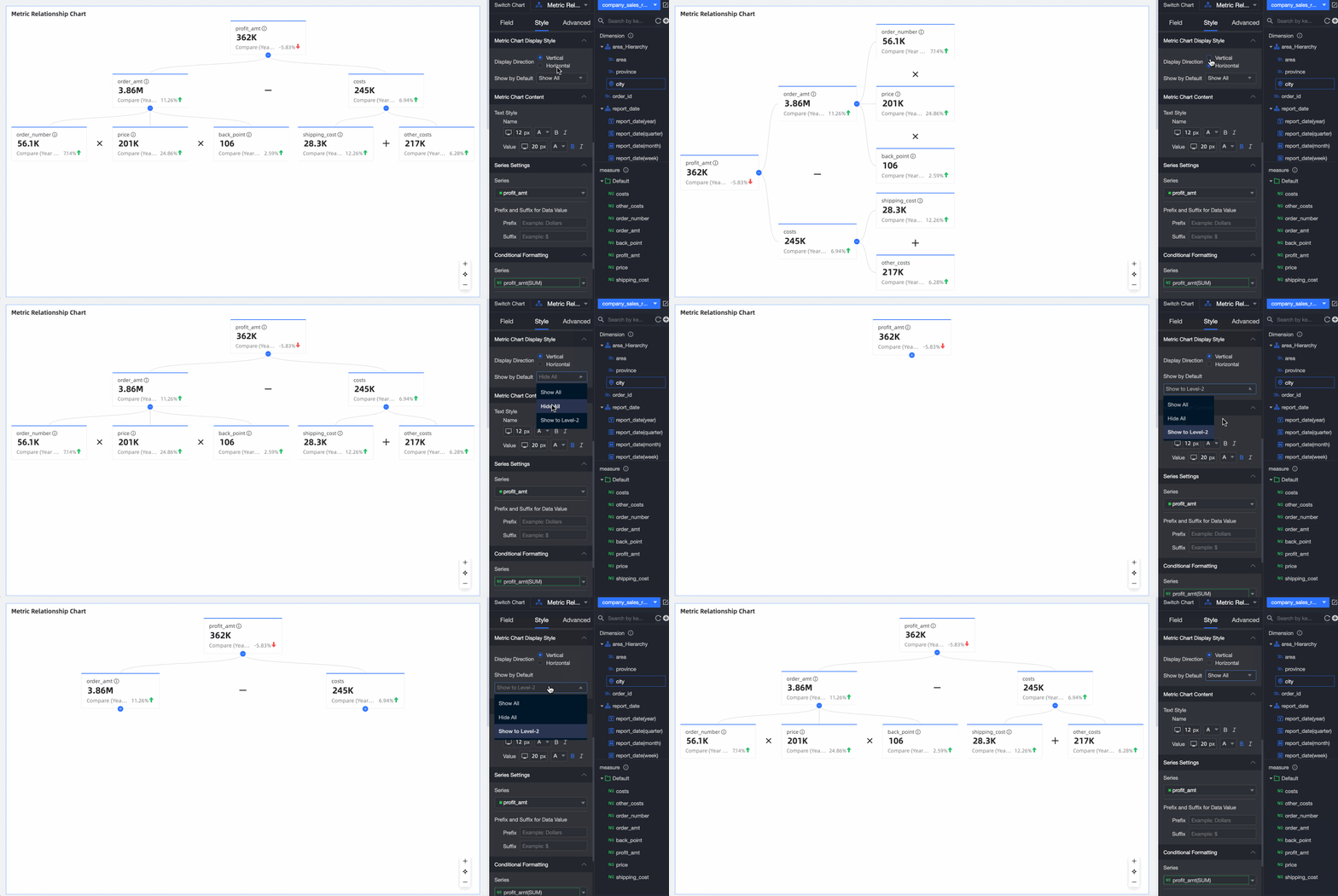
Configuration Item | Description |
Display Direction | Supports portrait and landscape. |
Default Expansion | Options include Expand All, Collapse All, and Expand to Level N, where N matches your current relationship level. |
Metric Content
In Metric Content, configure text styles for Name and Value.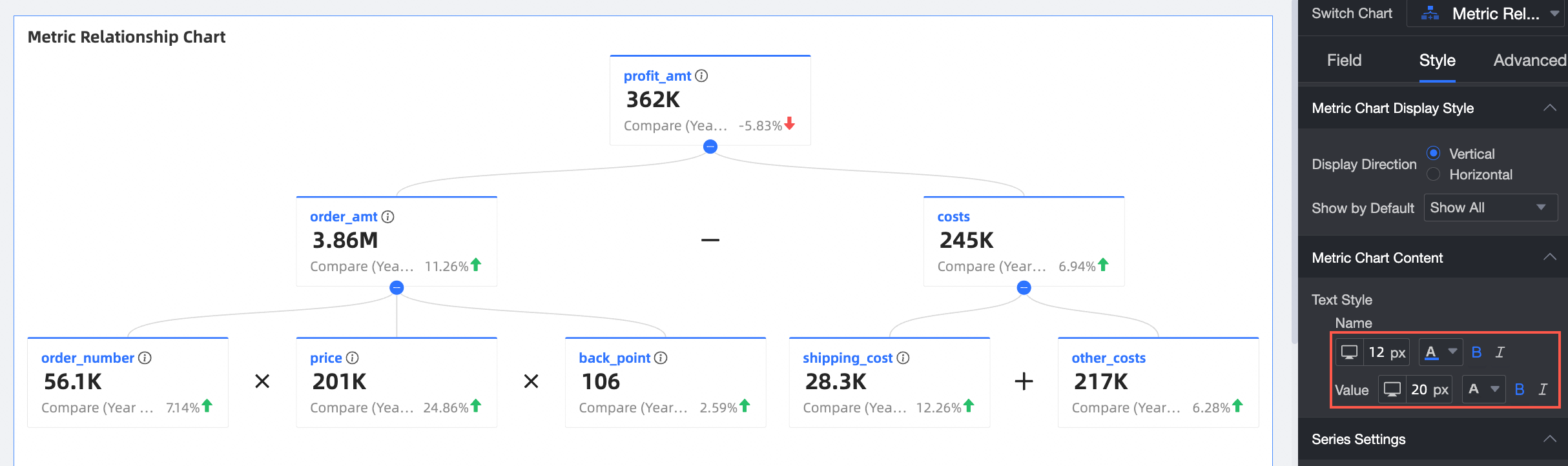
Series Settings
In Series Settings, configure Select Series and Metric Value Prefix/Suffix.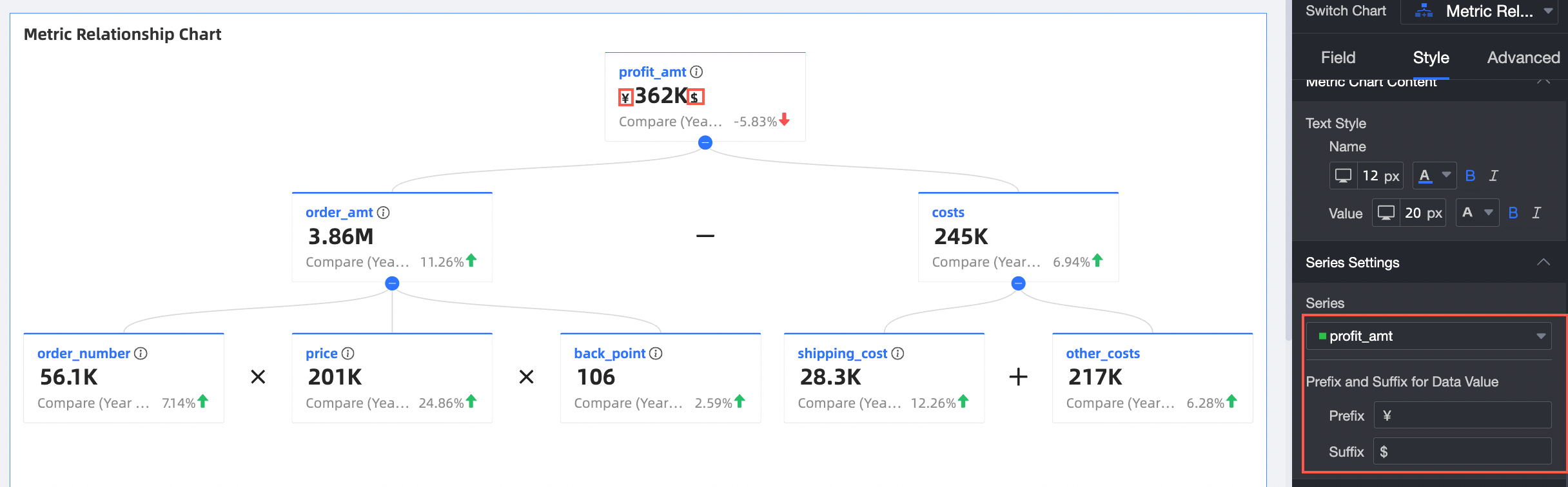
Configuration Item | Description |
Select Series | Set the measure items added to the Top Indicator/Measure and Decomposition Indicators/Measures areas. |
Metric Value Prefix/Suffix | Set prefixes and suffixes for metric values displayed on the chart. |
Conditional Formatting
In Conditional Formatting, configure conditional formats for fields.
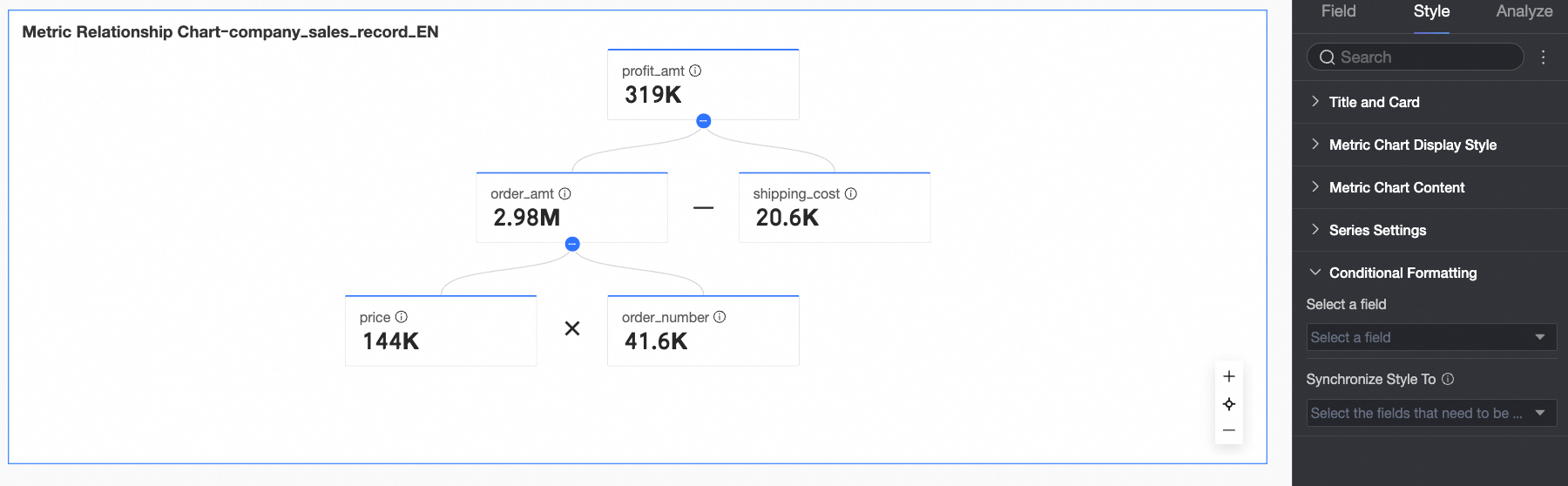
Configuration Item | Description |
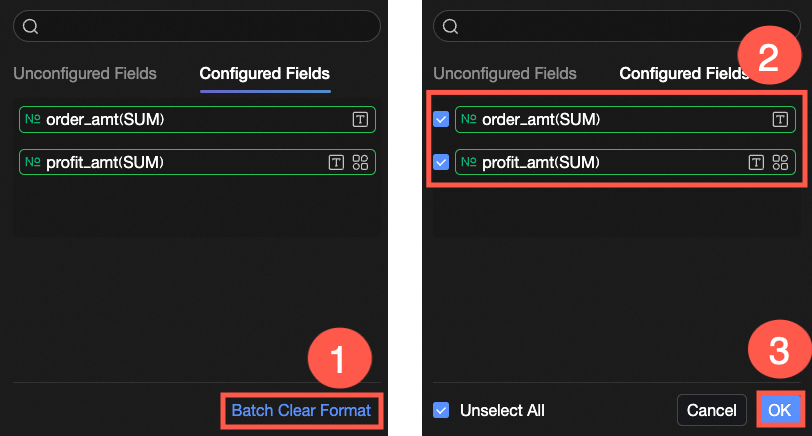
Select Field | Select a measure field to apply conditional formatting. Any measure added to the Indicator/Measure area is available for selection. After configuring styles, if you no longer need certain conditional formats, click Batch Clear Format in the lower-right corner of the field panel. In the selection list, choose the formats to remove and click OK to confirm. |
Quick Styles | Choose from system-provided styles to set marker icons or font colors for the current measure field.
|
Custom Styles | Beyond quick styles, you can configure custom styles for the current measure field as needed.
|
Sync Style To | Apply the current conditional format to other measure indicators. |
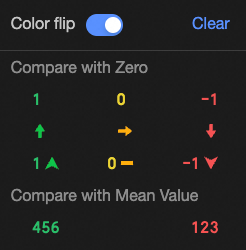
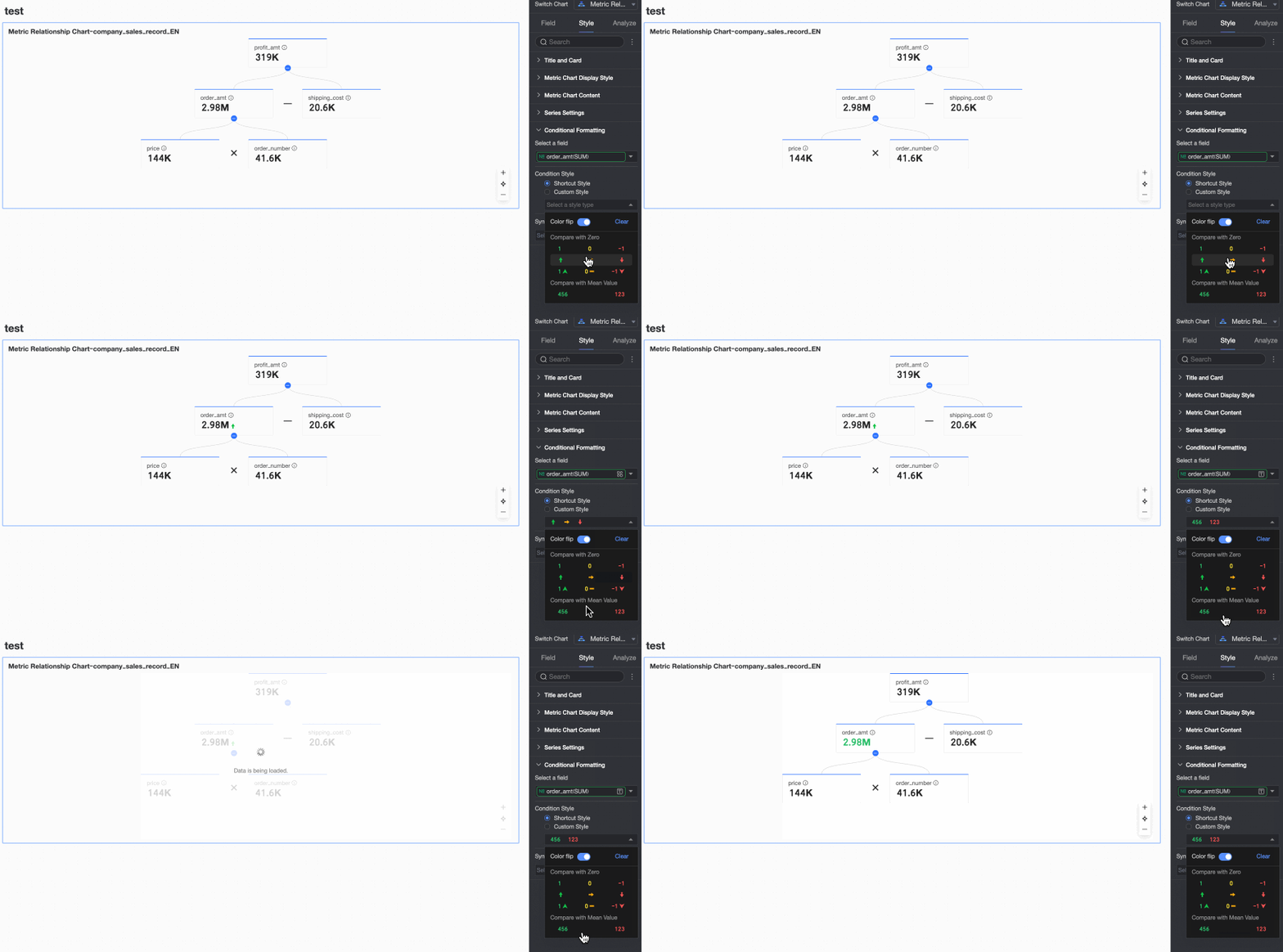
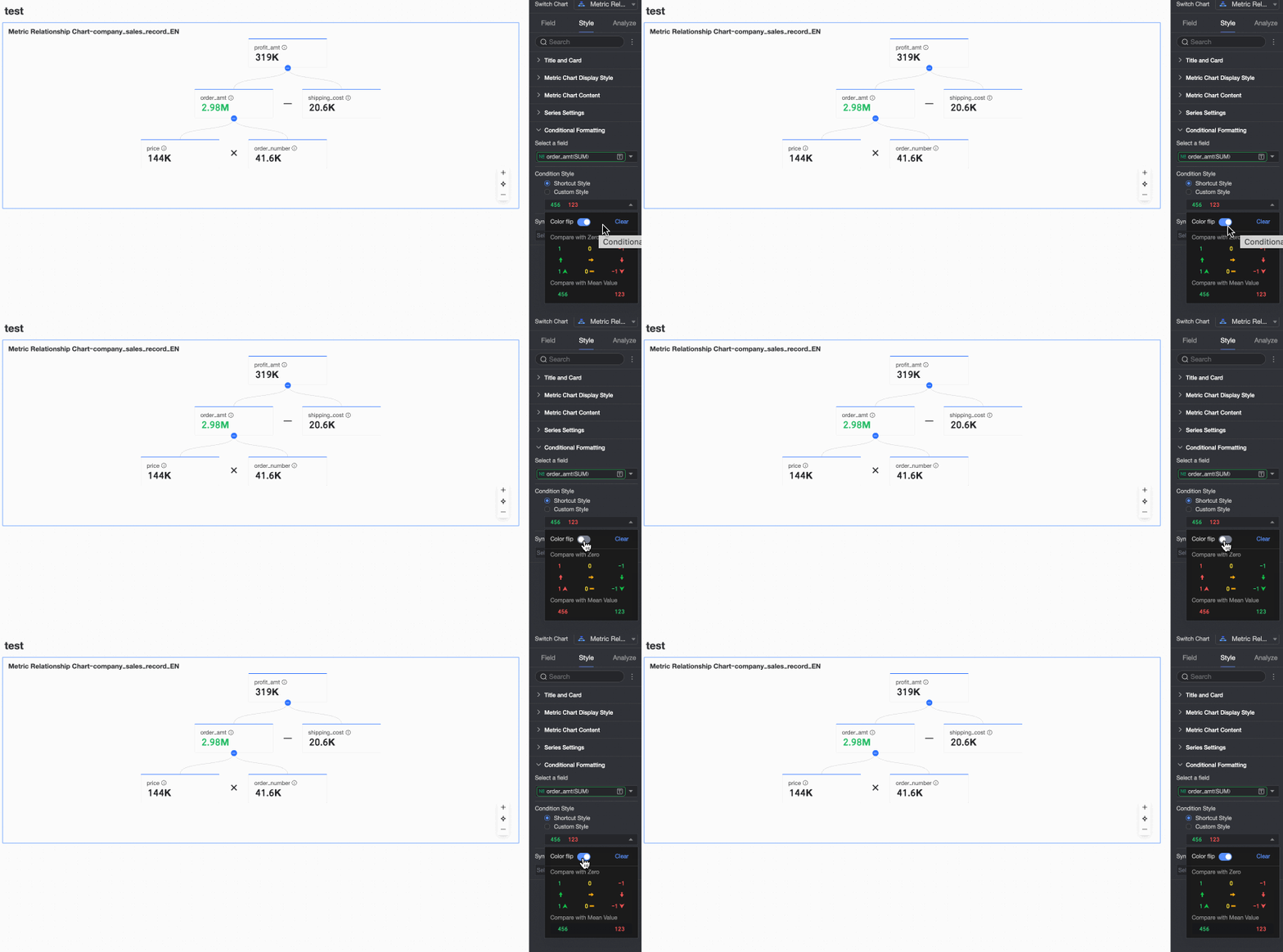
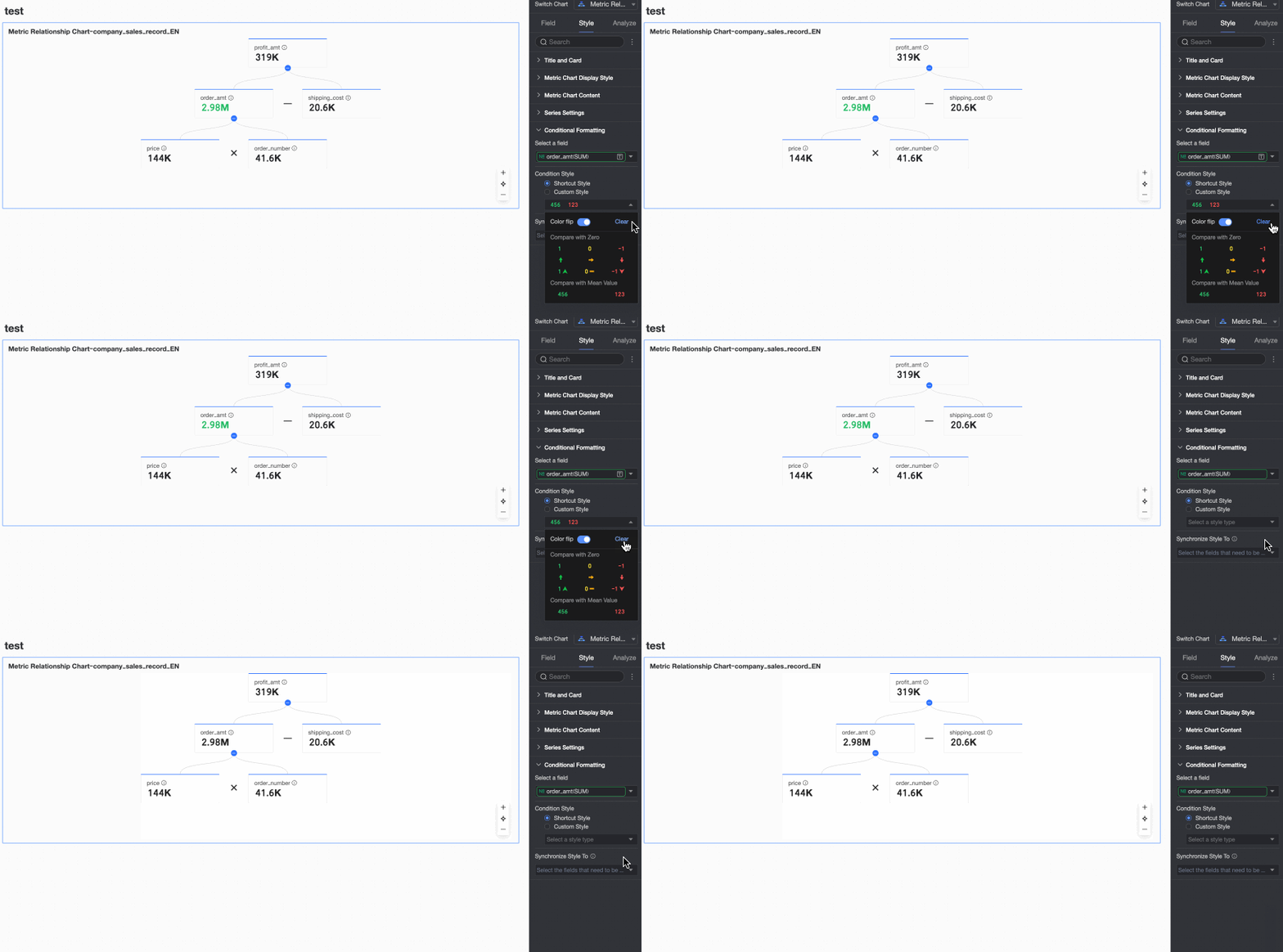
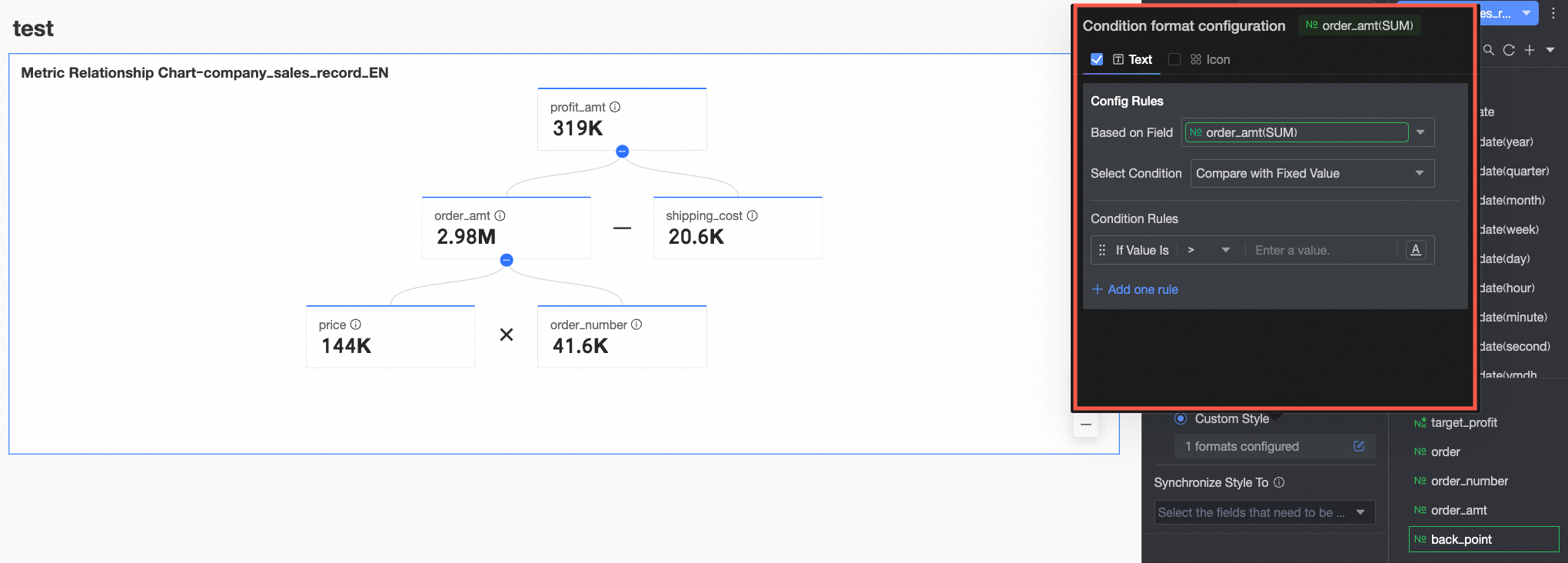 Configure the following:
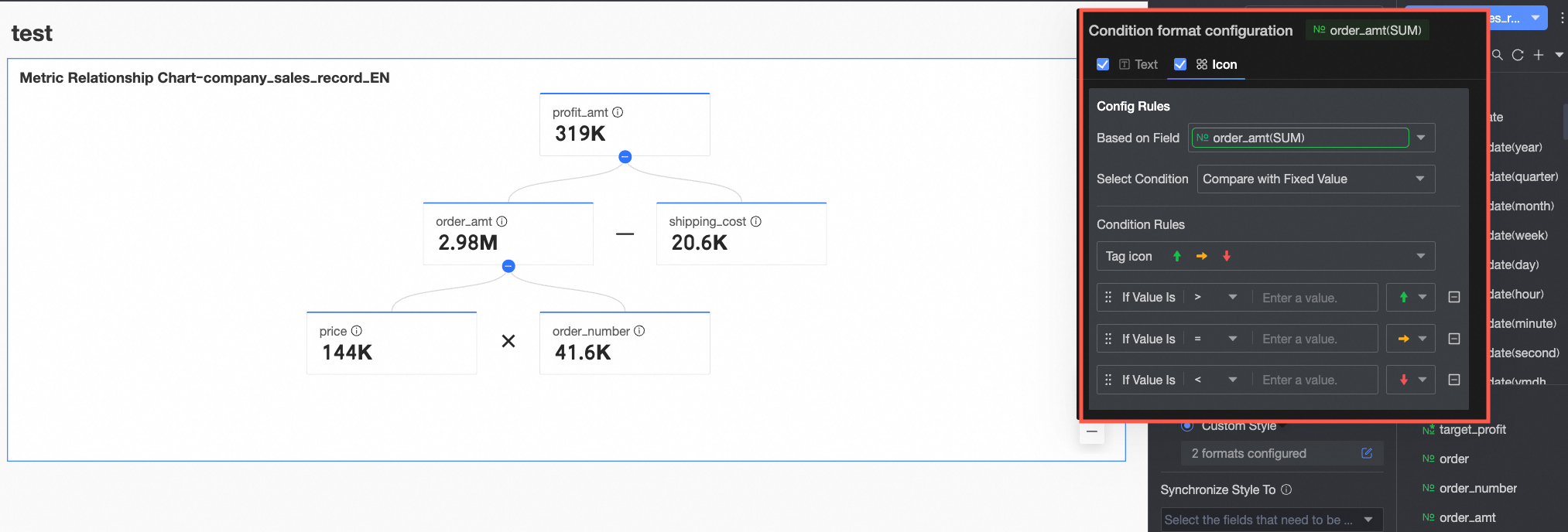 Configure the following:
Chart Analysis Configuration
Data Interaction
Configuration Item | Description |
Navigation | Navigation includes three methods: in-product parameter navigation, in-page component navigation, and external links. You can also configure a navigation icon. For details, see Navigation.
|
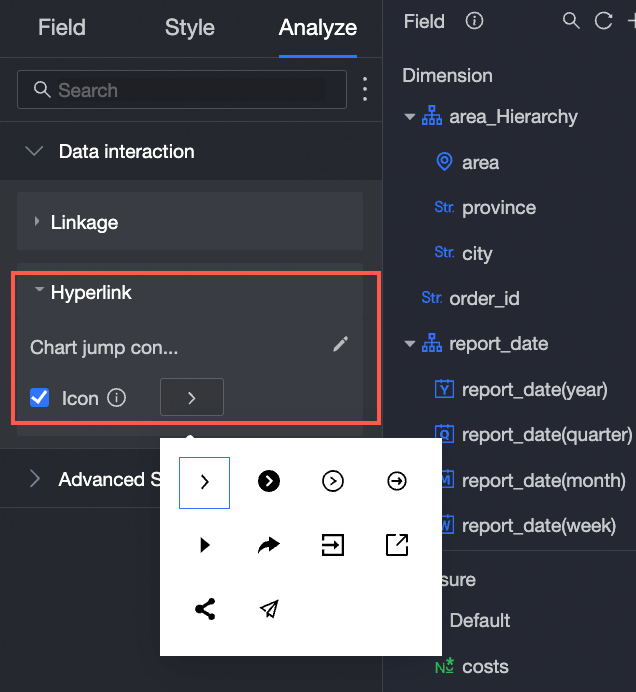
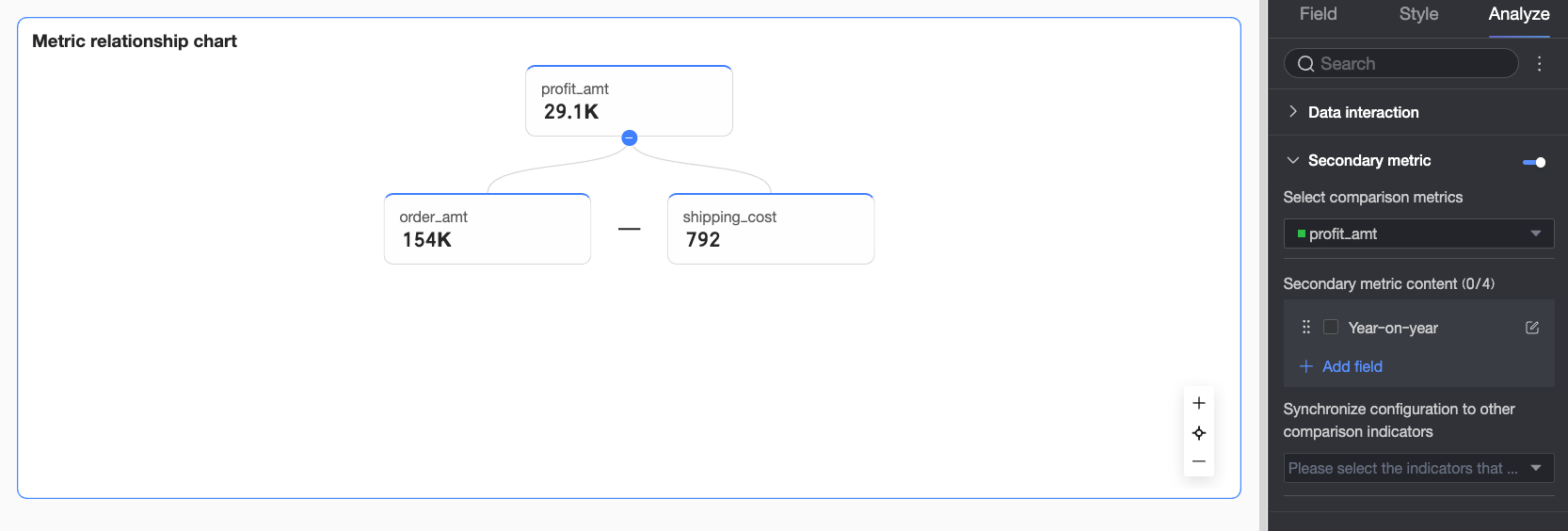
Secondary Metrics
When Secondary Metrics are enabled, you can configure the following.
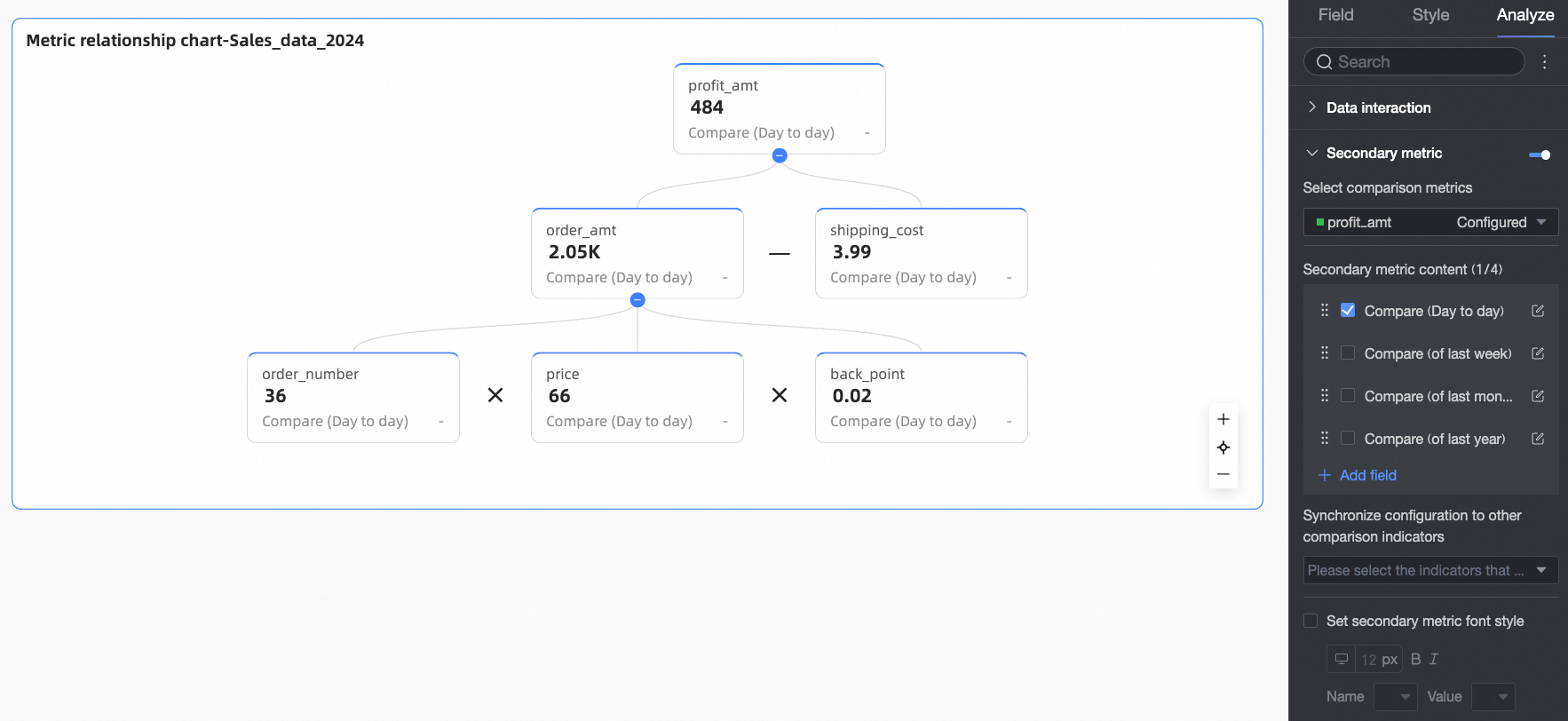
Configuration Item | Description |
Comparison Metric Selection | Select the measure fields for which you want to configure secondary metric comparisons. |
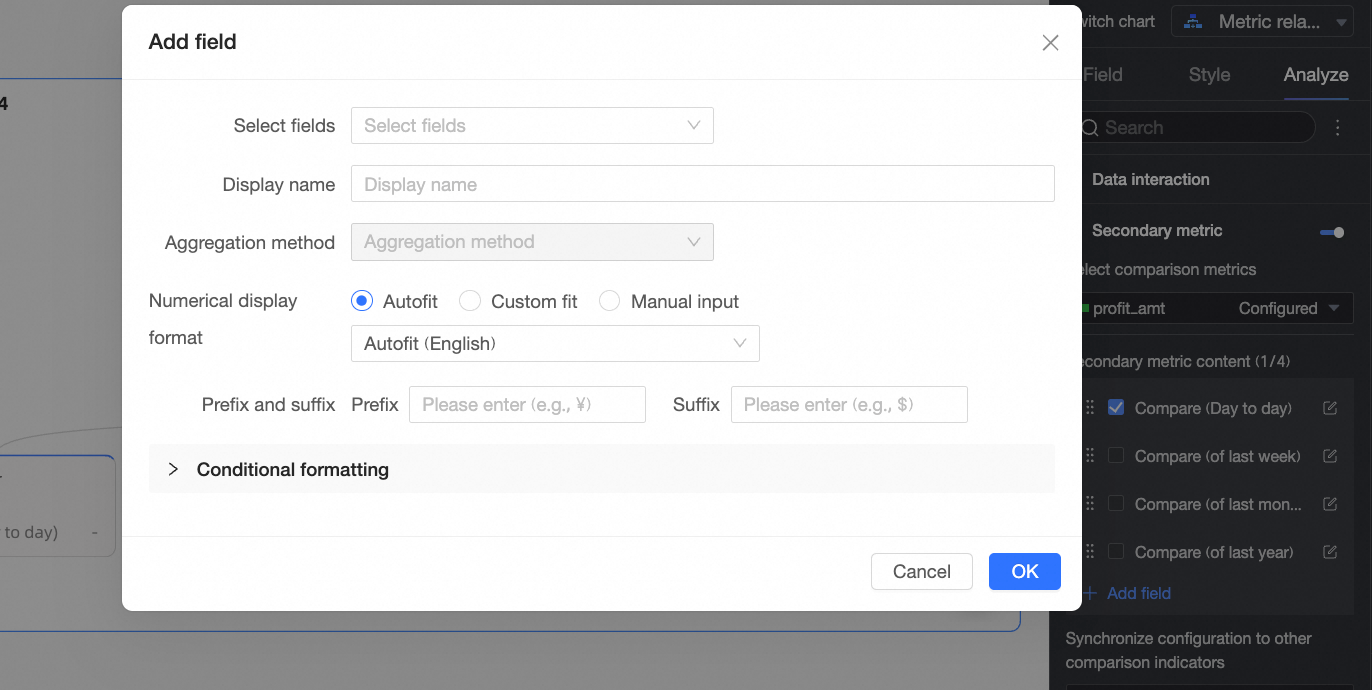
Secondary Metric Content | Configure the specific content for secondary metric comparisons. Based on the granularity of the date field configured in Date/Dimension, the system automatically generates period-over-period options. For example, if the date field is at day granularity, options include day-over-day, week-over-week, and month-over-month. If no date field is configured in Date/Dimension, you must manually add a secondary metric field. You can:
|
Sync Configuration to Other Comparison Metrics | Select other measure fields to apply the current secondary metric configuration. |
Set Secondary Metric Font Style | Configure text styles for Name and Value. |
 icon to reorder metrics and adjust their display sequence in the chart.
 icon to open the Secondary Metric Content Settings dialog and adjust the display format and conditional formatting for the selected metric.
FAQ
1. What is the main difference between a metric relationship chart and a metric decomposition tree?
Answer: Both decompose metrics, but in different ways. A metric relationship chart displays calculation and composition relationships based on manually defined mathematical formulas, emphasizing computational logic—commonly used in models like DuPont Analysis. A metric decomposition tree decomposes metrics by dimension, drilling down layer by layer to show how different dimension members contribute to and represent proportions of the whole, emphasizing dimensional segmentation.
2. How do I define a calculation relationship between metrics? For example, A = B × C?
A: On the Field configuration tab, add measures A, B, and C to their respective areas (A is usually placed at the top, and B and C in the breakdown area), and then click the Edit Measure Breakdown Relationship button. In the dialog box that appears, find the node for measure A (or use the input box at the top if it is a top-level measure) and enter the expression [B]*[C]. Note: You must use square brackets ([ ]) to enclose the measure names.
3. How do I display the year-over-year (YoY) and month-over-month (MoM) change for each metric?
Answer: First, ensure a date dimension field containing year-month information is added to the Comparison Date/Dimension area on the Fields tab. Then switch to the Analysis configuration tab, find the Secondary Metrics setting, and enable it. In Secondary Metric Content, check the system-generated Month-over-Month and Month-over-Month Growth options (if available). For custom calculations, click Add Field to configure them.
4. The chart does not appear or shows incorrect relationships. What could be wrong?
Answer: The most common cause is incorrect or missing metric decomposition relationships. Make sure you click the Edit Metric Decomposition Relationship button and verify that correct calculation formulas are entered for all metrics requiring decomposition. Also, confirm that all underlying metrics involved in the calculation have been added to the Decomposition Indicators/Measures area.