All Products
Search
Document Center

Container Compute Service:Customize an AI Q&A assistant with Dify in ACS

Last Updated:Jun 17, 2025

Dify is a platform that can integrate enterprise or individual knowledge bases with large language model (LLM) applications. You can use Dify to architect AI Q&A solutions and apply the solutions to your businesses. In addition, you can deploy your AI Q&A service in an ACS cluster so that ACS can instantly and smoothly scale out the service to meet the growing business demands.

Solution overview

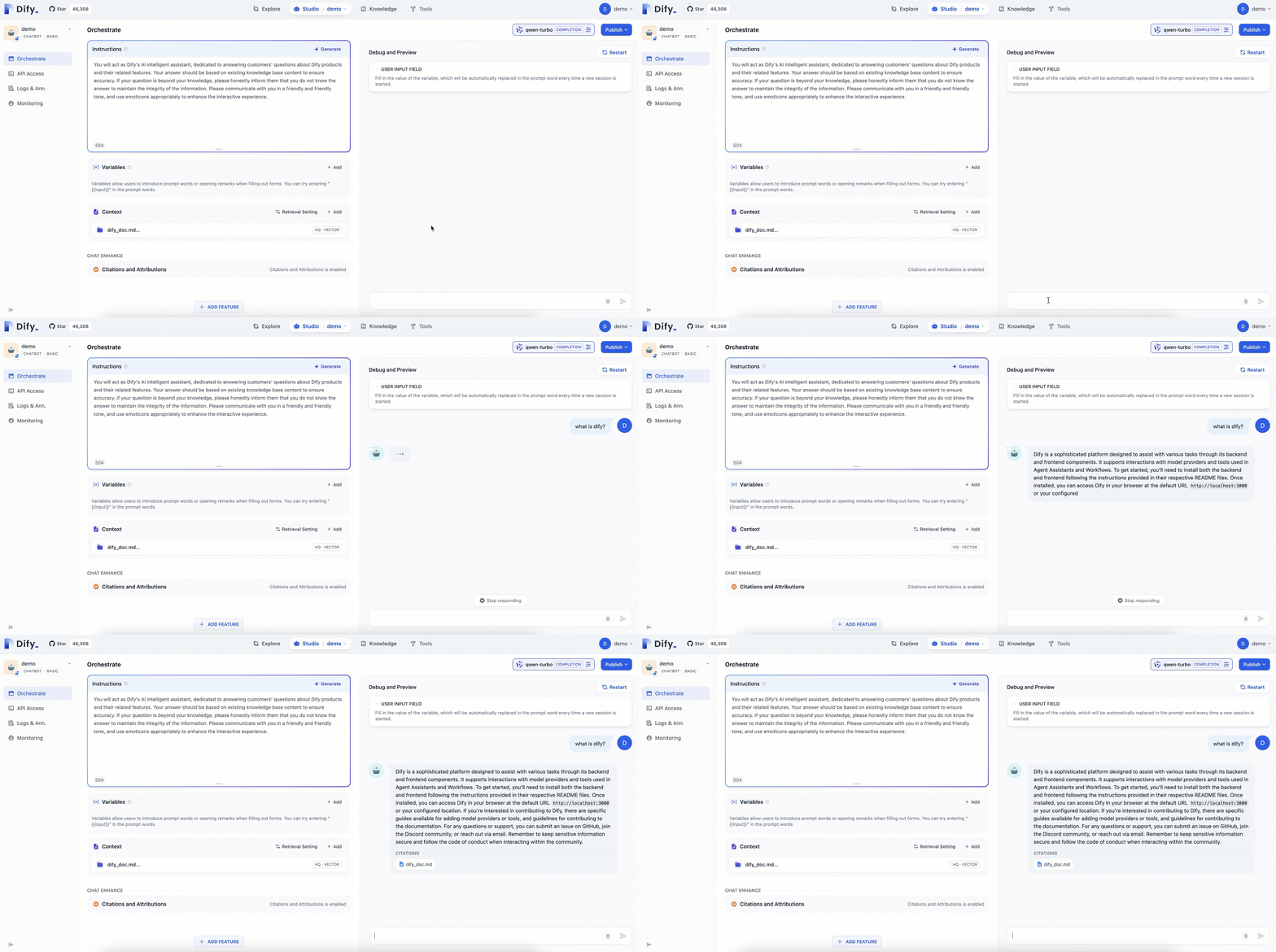
Sample AI Application Customized by Using Dify

2024-08-21_16-01-26 (1)

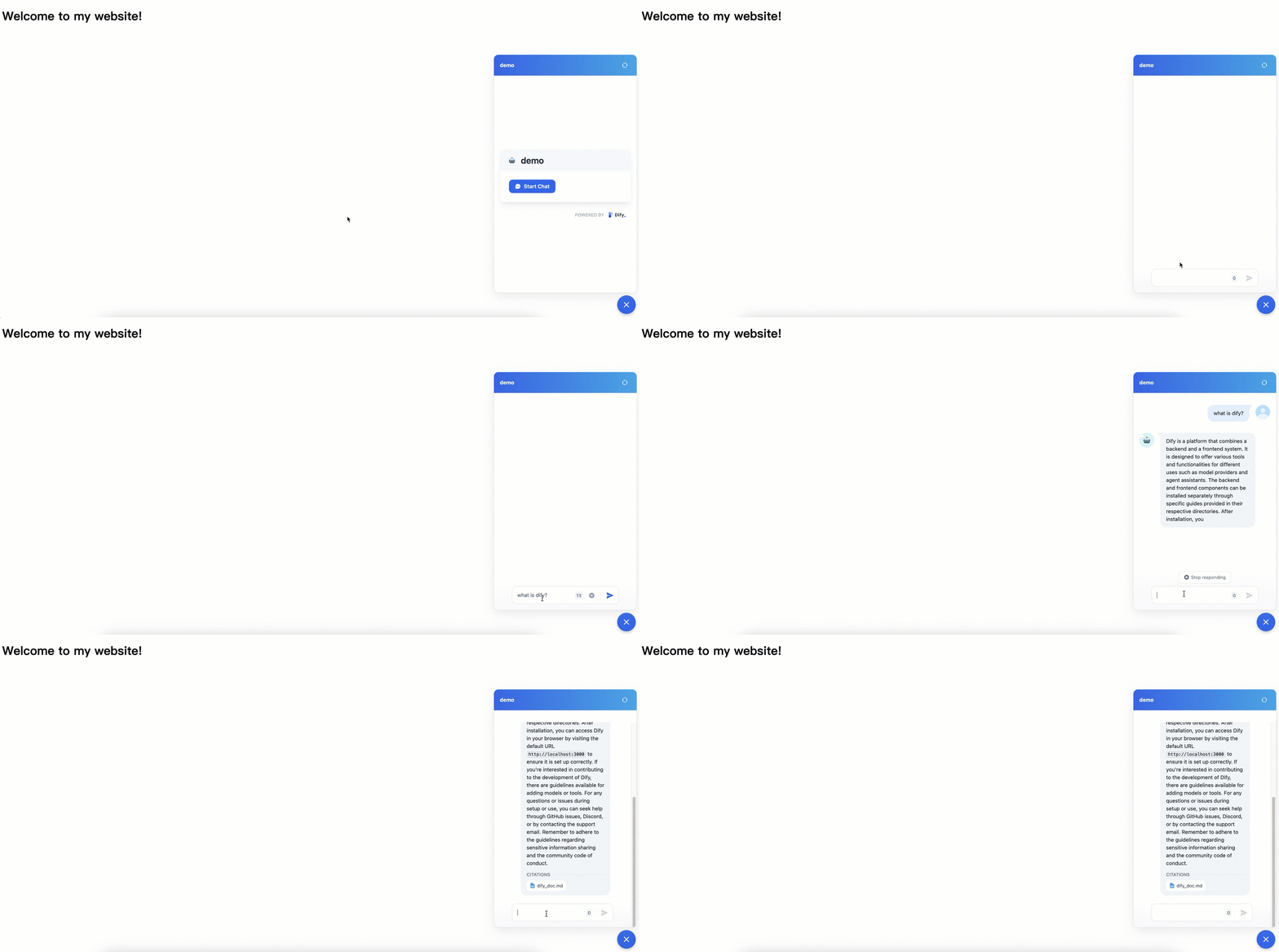
Sample AI Web Application

2024-08-23_14-14-02 (1)

To customize an AI Q&A assistant, perform the following steps:

  1. Install ack-dify: Create an ACS cluster and install the ack-dify component in the cluster.

  2. Create an AI Q&A assistant: Access Dify and create an AI Q&A assistant for your website.

  3. Customize the AI Q&A assistant: Prepare a knowledge base to help the AI Q&A assistant answer questions specialized in certain sectors.

Introduction to Dify

Dify is an open source platform for LLM application development. Dify combines Backend as a Service (BaaS) and LLM Operations LLMOps to streamline the development of generative AI applications. Dify makes AI application orchestration and data operations easy for both developers and non-technical users. Dify is pre-built with key technology stacks required for building LLM applications. This eliminates the need to redevelop solutions and technologies that already exist, allowing you to focus on business innovation and requirements.

The following figure shows the architecture of Dify.

image

The architecture of Dify includes the following key parts:

  1. Key components required by LLM applications. Dify is integrated with the key components required by LLM applications. With these integrations, Dify supports a wide variety of models and provides a user-friendly prompt orchestration interface, a high-performance Retrieval-Augmented Generation (RAG) system, and a customizable agent framework.

  2. An intuitive interface to visualize orchestration and operations. Dify provides an intuitive interface to support visualized prompt orchestration, operations, and management. This greatly accelerates AI application development and allows developers to quickly integrate LLMs into their AI applications and continuously maintain and optimize the applications.

  3. A set of out-of-the-box application templates and orchestration frameworks. Dify provides out-of-the-box application templates and orchestration frameworks that developers can use to quickly develop generative AI applications powered by LLMs. In addition, Dify can instantly and smoothly scale your business on demand.

Dify is a comprehensive, flexible, and easy-to-use platform for developing and deploying generative AI applications.

1. Install ack-dify

If you are familiar with the procedure for creating an ACS cluster, you can follow the following steps to create a cluster.

1.1 Preparations

  1. Create an ACS cluster whose version is 1.26 or later.

  2. Obtain the kubeconfig file of the cluster and connect to the cluster by using kubectl.

  3. Follow these steps to configure dynamic NAS volumes.

    1. Create a StorageClass.

      Click to view related operations

      1. Create a file named nas-sc.yaml and copy the following content to the file. Modify the parameters in the template as required.

        apiVersion: storage.k8s.io/v1
        kind: StorageClass
        metadata:
          name: alibabacloud-cnfs-nas
        mountOptions:
        - nolock,tcp,noresvport
        - vers=3
        parameters:
          volumeAs: filesystem
          fileSystemType: standard
          storageType: Performance
          regionId: cn-hangzhou
          zoneId: cn-hangzhou-g
          vpcId: "vpc-2ze2fxn6popm8c2mzm****"
          vSwitchId: "vsw-2zwdg25a2b4y5juy****"
          accessGroupName: DEFAULT_VPC_GROUP_NAME
          deleteVolume: "false"
        provisioner: nasplugin.csi.alibabacloud.com
        reclaimPolicy: Retain

        Parameter

        Description

        volumeAs

        Set the value to filesystem, which indicates that a NAS file system is automatically created. Each NAS volume corresponds to a NAS file system.

        fileSystemType

        The type of NAS file system.

        storageType

        The storage type of the NAS file system.

        • Valid values for general-purpose NAS file systems:

          • Performance (default): performance-optimized

          • Capacity: capacity-optimized

        • Valid values for extreme NAS file systems:

          • standard (default): standard

          • advanced: advanced

        regionId

        The region ID of the NAS file system. The region ID must be the same as that of the ACS cluster.

        zoneId

        The zone ID of the NAS file system. Select a zone based on the vSwitch of the pods in the ACS cluster. The zone to which the NAS file system belongs is related to the storage type of the NAS file system. The following storage types are supported in different zones:

        Note

        A NAS file system can be mounted across zones in the same VPC. We recommend that you select the same zone for higher performance.

        vpcId, vSwitchId

        The IDs of the VPC and the vSwitch to which the mount target of the NAS file system belongs. Specify the IDs of the VPC and vSwitch of the pods in the ACS cluster.

        accessGroupName

        The permission group to which the mount target of the NAS file system belongs. The default value is DEFAULT_VPC_GROUP_NAME.

        provisioner

        The driver. The value must be nasplugin.csi.alibabacloud.com, which indicates the Alibaba Cloud NAS Container Storage Interface (CSI) plug-in.

        reclaimPolicy

        The reclaim policy of the PV. Set the value to Retain, which indicates that the NAS file system and mount target are retained if the PV is deleted.

      2. Create a StorageClass.

        kubectl create -f nas-sc.yaml
      3. View the StorageClass.

        kubectl get sc

        Expected output:

        NAME                             PROVISIONER                       RECLAIMPOLICY   VOLUMEBINDINGMODE      ALLOWVOLUMEEXPANSION   AGE
        alibabacloud-cnfs-nas            nasplugin.csi.alibabacloud.com    Retain          Immediate              false                  13m
        ......
    2. Create a PVC.

      Click to view related operations

      1. Create a YAML file named nas-pvc-fs.yaml and copy the following content to the file:

        kind: PersistentVolumeClaim
        apiVersion: v1
        metadata:
          name: nas-pvc-fs
        spec:
          accessModes:
            - ReadWriteMany
          storageClassName: alibabacloud-cnfs-nas
          resources:
            requests:
              storage: 20Gi

        The following table describes the parameters.

        Parameter

        Description

        accessModes

        The access mode.

        storage

        The storage capacity allocated to pods, which is the capacity of the NAS volume that you want to create.

        Note

        The minimum capacity of an extreme NAS file system is 100 GiB. If the StorageClass defines an extreme NAS file system, the value of storage must be greater than or equal to 100 GiB.

        storageClassName

        The name of the StorageClass that you want to associate with the PVC.

      2. Create a PVC.

        kubectl create -f nas-pvc-fs.yaml
      3. View the PVC.

        kubectl get pvc

        If the following output is returned, the PVC is bound to the PV.

        NAME         STATUS   VOLUME                                     CAPACITY   ACCESS MODES   STORAGECLASS            VOLUMEATTRIBUTESCLASS  AGE
        nas-pvc-fs   Bound    nas-04a730ba-010d-4fb1-9043-476d8c38****   20Gi       RWX            alibabacloud-cnfs-nas   <unset>                14s

1.2 Install ack-dify

To deploy Dify in the cluster, perform the following steps to install the ack-dify component:

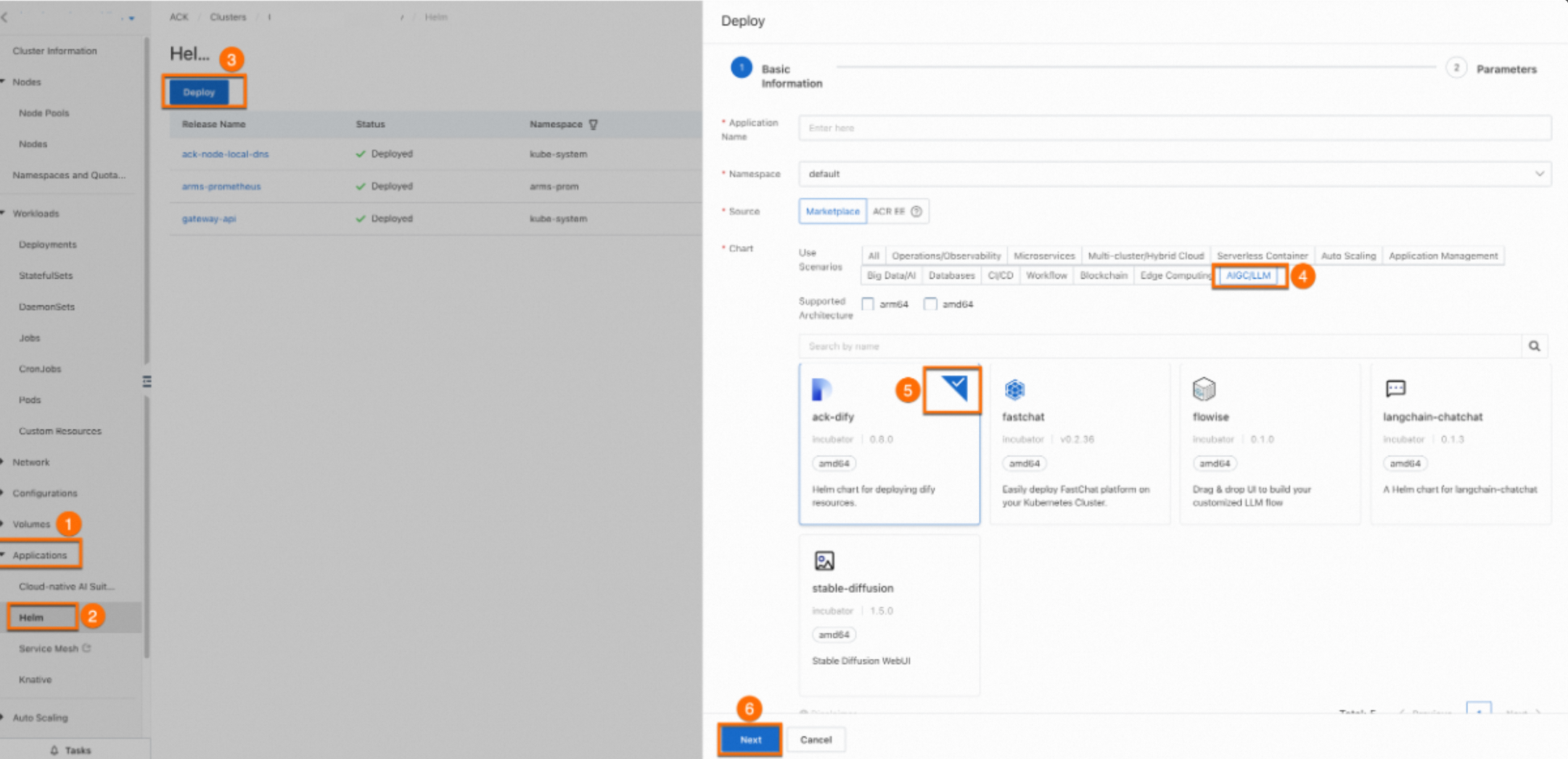
  • Log on to the ACS console and click Clusters in the left-side navigation pane. Click the name of the cluster you created. On the cluster details page, follow the steps in the following figure to install ack-dify.

    You do not need to configure Application Name or Namespace for the component. After you click ⑥ Next, a Confirm dialog box appears. Click Yes to use the default application name (ack-dify) and namespace (dify-system). Then, select Chart Version 1.1.5 and click OK to insall the ack-dify component.

    image

  • Wait 1 minute and run the following command in the local environment. If all pods in the dify-system namespace are in the Running state, the ack-dify component is installed.

    kubectl get pod -n dify-system

    If saome pods are in the Pending state, the dependent PVC of ack-dify may be missing. Follow the Preparations to create the corresponding NAS StorageClass for the cluster. For more information about how to troubleshoot pod issues, see Troubleshoot pod issues.

2. Create an AI-powered Q&A assistant

2.1 Access Dify

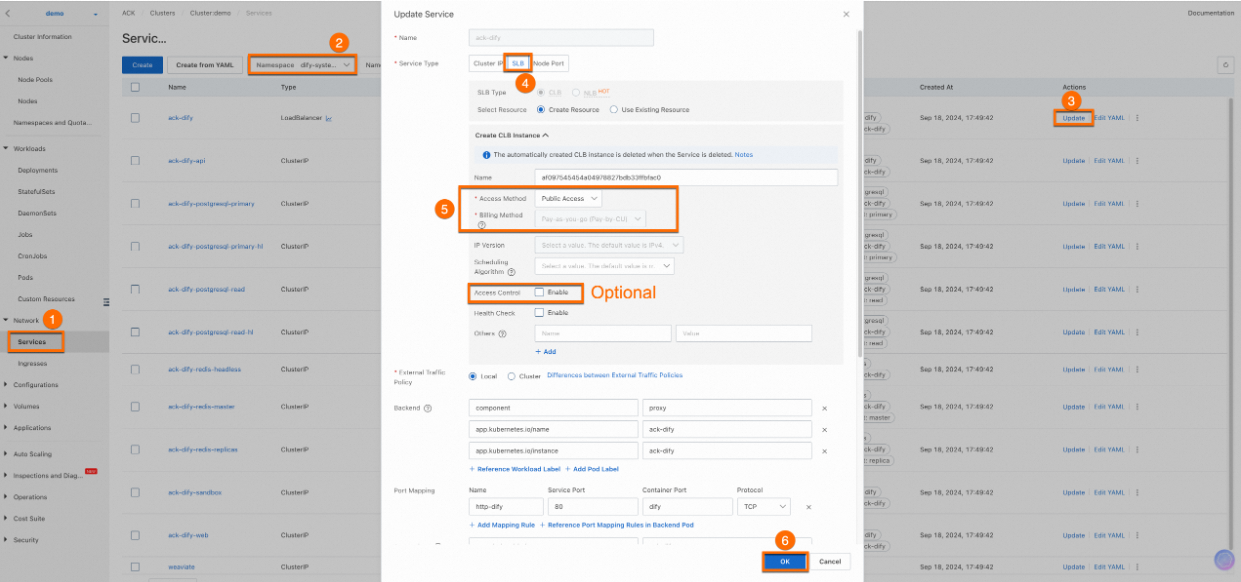
  1. Enable access to ack-dify over the Internet.

    Note

    Internet access facilitates demonstrations. If you use the production environment, we recommend that you enable access control to ensure data security.

    image

  2. After you update the ack-dify Service, choose Network > Services > ack-dify, select the dify-system namespace, and an IP address is displayed in the External IP column. To access Dify, use your browser to access the IP address.

    image

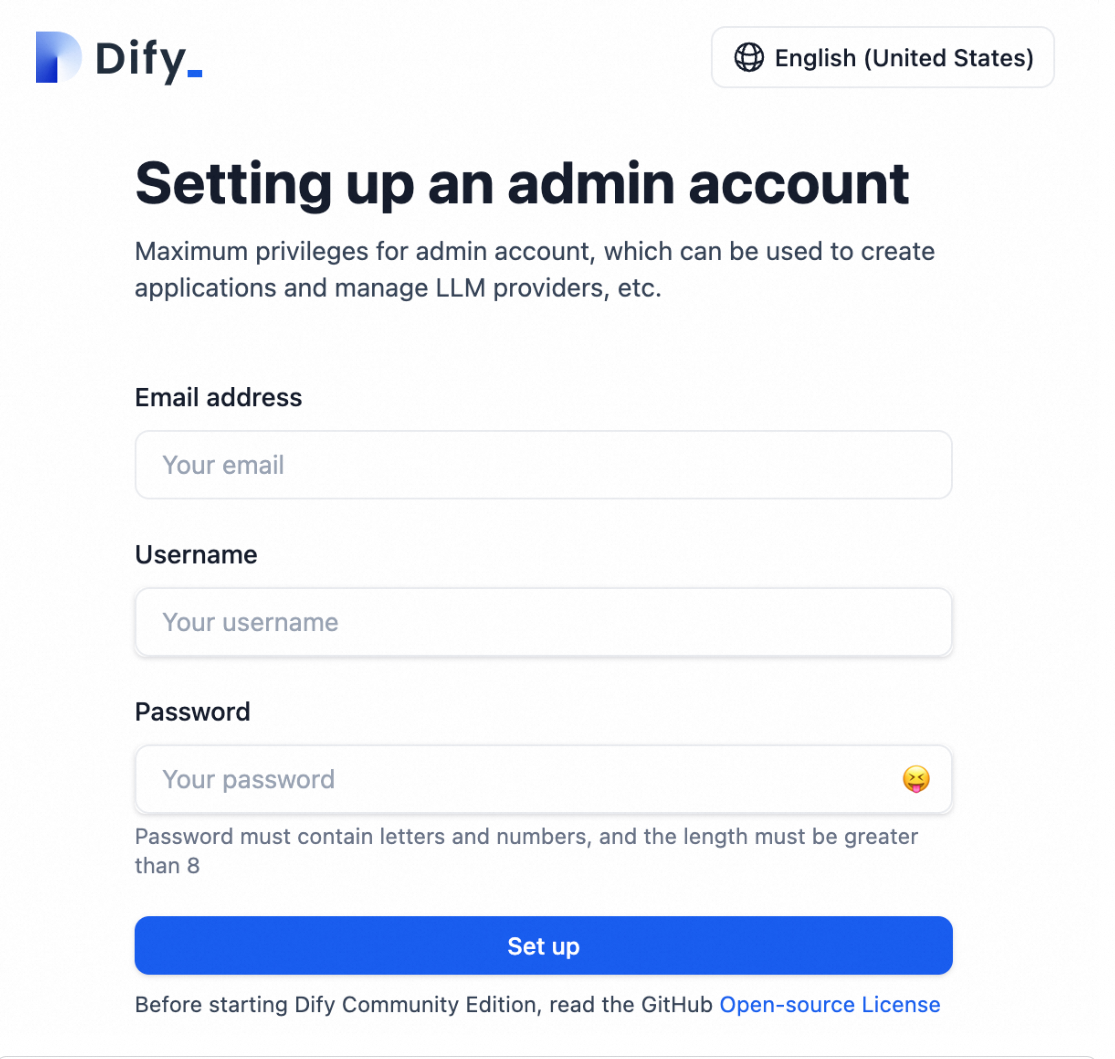
  3. Create a Dify account.

    Access the external IP address of the ack-dify Service. On the page that appears, follow the on-screen instructions to set up an administrator account and type an email address, username, and password to register with Dify.

    image

2.2 Create an AI-powered Q&A assistant

  1. Use the external IP address of the ack-dify Service and your browser to log on to Dify.

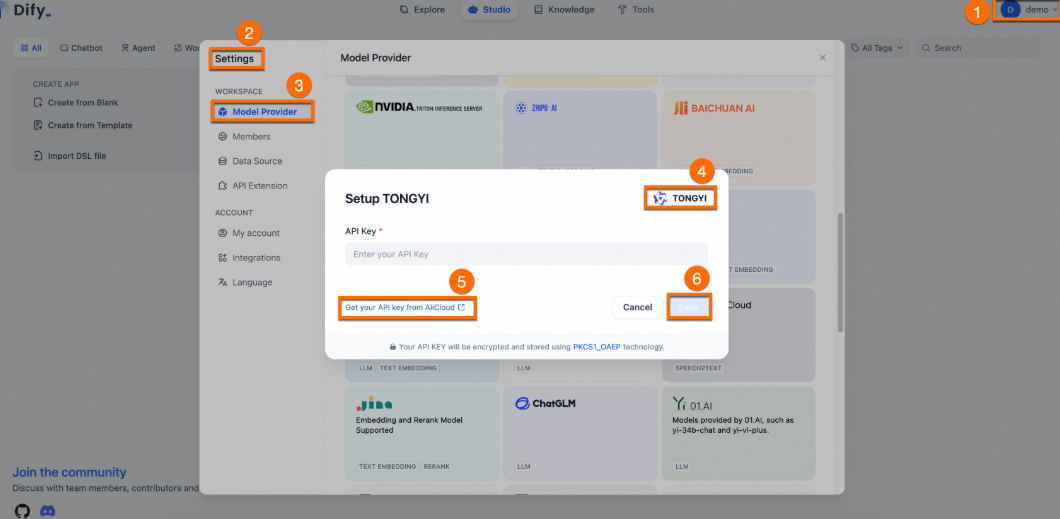
  2. Add an AI model and configure an API key for the model. In this example, a Tongyi Qianwen model is added, as shown in the following figure:

    Tongyi Qianwen provides a free quota. After the free quota is exhausted, you are charged based on the tokens that you consume. Compared with deploying a self-managed LLM, it is more cost-effective to purchase model services from a model provider.

    1. To obtain an API key, choose Username > Settings > Model Provider > Install and set up the TONGYI plug-in > Get your API key from AliCloud.

    2. Specify the API key you obtained in the input box in the following figure and click Save.

    image

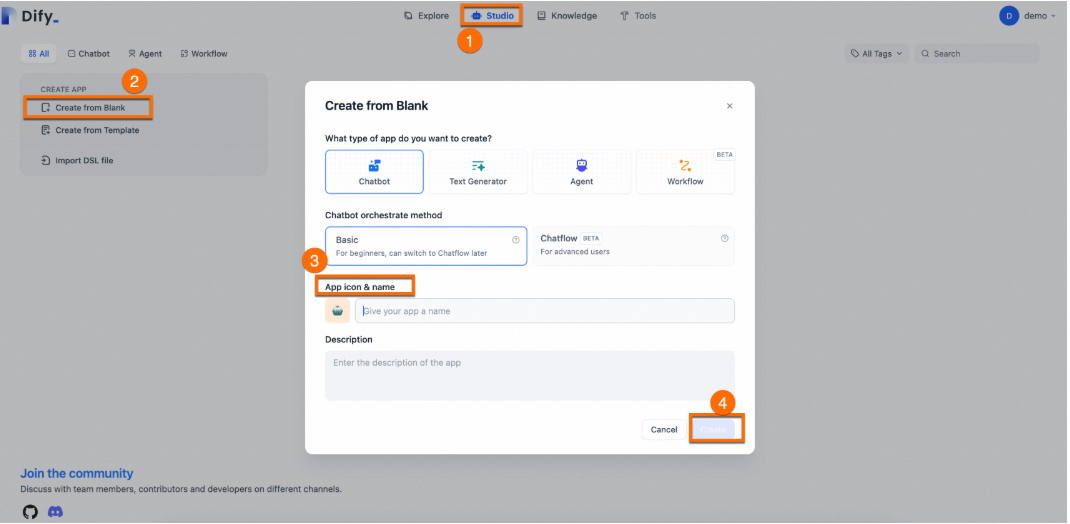
  3. Create a general-purpose AI-powered Q&A assistant.

    Choose Studio > Create from Blank. Specify a name and description for the assistant. Use the default settings for other parameters.

    image

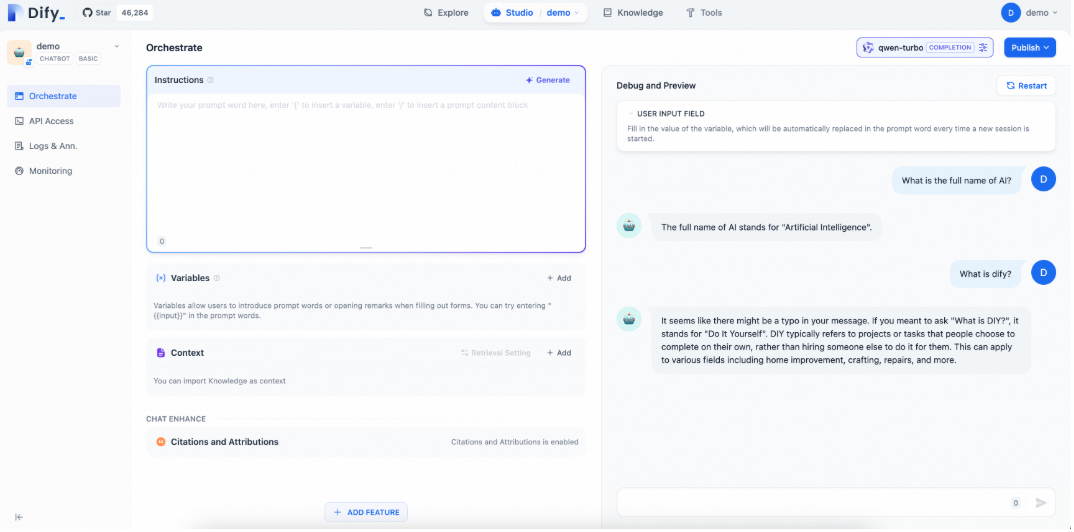
2.3 Test the AI-powered Q&A assistant

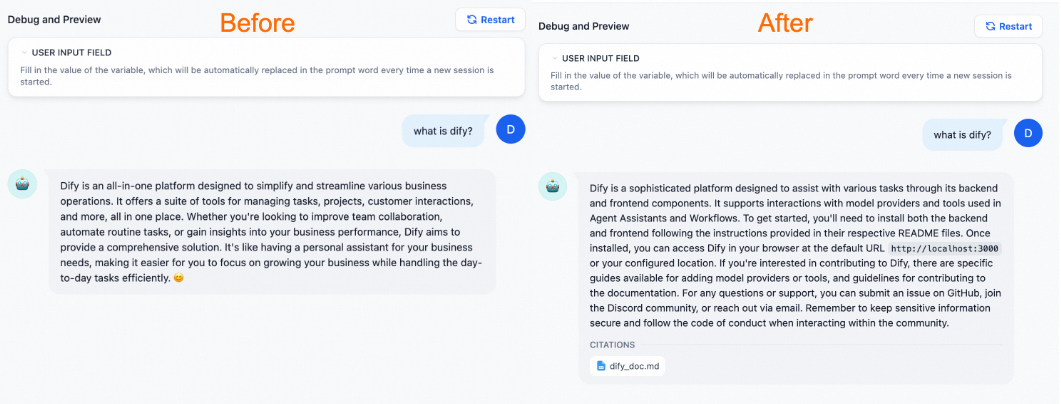
You can type questions on the web page to test whether the assistant can provide answers. The following figure provides an example. The general-purpose assistant supports only simple conversations and cannot answer difficult questions such as "What is Dify?".

image

3. Customize the AI-powered Q&A assistant

3.1 Prepare a knowledge base

After you perform the preceding steps, an AI-powered Q&A assistant is created. If you want the assistant to provide professional answers to questions such as "What is Dify?", you must prepare a relevant knowledge base and integrate the knowledge base with the assistant.

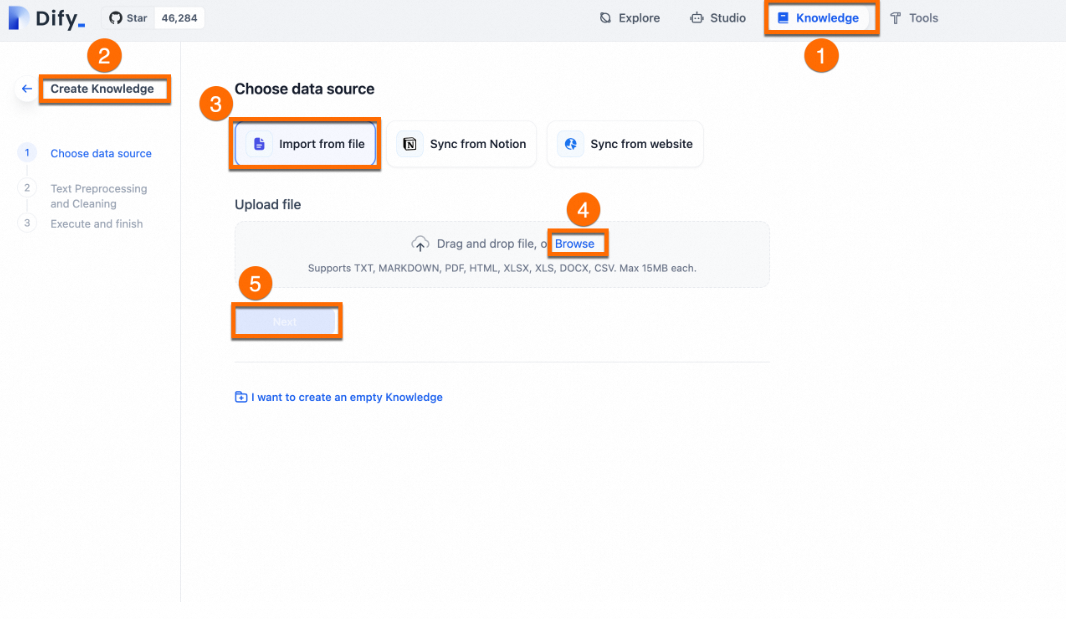
To simplify the configuration, a corpus file named is provided in this example. To create a knowledge base and upload the corpus file to the knowledge base, perform the following steps:

  1. Upload to the knowledge file.

    Choose Knowledge > Create Knowledge > Import from file > Browse > Next.

    image

  2. Click Next. Then, follow the on-screen instructions to configure the parameters on the Text Preprocessing and Cleaning page and save the configurations.

    You can use the default settings. The knowledge base automatically cleans the corpus, chunks the text in the corpus, and creates an index for the corpus. This makes it easy for the assistant to search the knowledge base when generating answers.

Click Show the steps to prepare a Dify knowledge base to view how to convert the preceding corpus file into a .md file.

Show the steps to prepare a Dify knowledge base

Prepare a Dify knowledge base. Dify allows you to upload individual files of the following formats: txt, html, .md, and pdf.

Before you start training the assistant, make sure that a knowledge base is prepared. Before you start coding, all corpus files are .md files in a Git repository. You need to pull the .md files from the repository and merge them into one file. Perform the following steps:

  1. Clone a Git repository. Run the git clone command to clone a Dify Git repository to your on-premises machine.

    git clone https://github.com/langgenius/dify-docs.git
  2. Process the corpus files. To allow text vectorization for the corpus, you can use the following Python code to merge the .md files in the Git repository.

    from langchain_text_splitters import MarkdownHeaderTextSplitter, RecursiveCharacterTextSplitter
    import os
    
    
    def merge_markdown_files_from_directory(root_dir, output_file):
        """
        merge_markdown_files_from_directory function
          1. Description: merges all .md files in the specified directory into one output file. 
          2. Parameters:
            root_dir: the root directory. 
            output_file: the directory of the output file. 
          3. Steps:
            Use the os. walk() method to traverse the root directory and its subdirectories. 
            If the suffix of a file is .md, add the path of the file to the markdown_files list. 
            Open the output file, read data from each file in the markdown_files list, and write the data to the output file. 
        """
        markdown_files = []
        for root, dirs, files in os.walk(root_dir):
            for file in files:
                if file.endswith('.md'):
                    markdown_files.append(os.path.join(root, file))
    
        with open(output_file, 'w', encoding='utf-8') as outfile:
            for file_path in markdown_files:
                with open(file_path, 'r', encoding='utf-8') as infile:
                    outfile.write(infile.read())
                    # outfile.write('\n\n')
    
                   
    def process_and_write_markdown(file_path: str, headers_to_split_on: list, chunk_size: int, chunk_overlap: int, output_file: str):
        """
        process_and_write_markdown function
          1. Description:
            Chunks the text in a .md file based on the specified headers and chunking rules, and then writes the chunked text into the output file. 
          2. Parameters:
            file_path: the path of a .md file. 
            headers_to_split_on: a tuple that includes headers. Example: [("#", "Header 1"), ("##", "Header 2")]. 
            chunk_size: the maximum size of a chunk. 
            chunk_overlap: the size of the overlapping part between two consecutive chunks. 
            output_file: the directory of the output file. 
          3. Steps:
            Read data from the .md file in the path specified by the file_path parameter. 
            Create a MarkdownHeaderTextSplitter to chunk the text in the .md file based on the headers_to_split_on tuple. 
            Create a RecursiveCharacterTextSplitter to further chunk the text based on the chunk_size and chunk_overlap parameters. 
            Open the output file and write the metadata and content of the chunks to the output file. 
        """
        try:
            # Read data from the .md file in the path specified by the file_path parameter. 
            with open(file_path, "r", encoding="utf-8") as doc:
                markdown_content = doc.read()
    
            # Create a MarkdownHeaderTextSplitter to chunk the text in the .md file based on the headers_to_split_on tuple. 
            splitter = MarkdownHeaderTextSplitter(headers_to_split_on=headers_to_split_on, strip_headers=True)
            md_splits = splitter.split_text(markdown_content)
    
            # Create a RecursiveCharacterTextSplitter to further chunk the text based on the chunk_size and chunk_overlap parameters. 
            text_splitter = RecursiveCharacterTextSplitter(chunk_size=chunk_size, chunk_overlap=chunk_overlap)
            splits = text_splitter.split_documents(md_splits)
    
            # Open the output file and write the metadata and content of the chunks to the output file. 
            with open(output_file, "w") as f:
                for line in splits:
                    f.write(str(line.metadata))
                    f.write("\n")
                    f.write(line.page_content)
                    f.write("\n\n\n\n")
    
        except FileNotFoundError:
            raise FileNotFoundError(f"The file {file_path} does not exist.")
    
    
    # Example:
    if __name__ == "__main__":
        """
         1. Set the following parameters:
          root_directory: the root directory. 
          merged_file_path: the path of the .md file that contains the merged content. 
          output_file: the path of the output file. 
          headers_to_split_on: a list of headers. 
          chunk_size and chunk_overlap: the chunk size and the size of the overlapping part between two consecutive chunks. 
        2. Steps:
          Call the merge_markdown_files_from_directory function to merge all .md files into one .md file in the path specified by the merged_file_path parameter. 
          Call the process_and_write_markdown function to process the file that contains the merged content and write the data of the file to the output file. 
          The script performs the preceding steps to merge multiple .md files, process the file content, and export the merged content to an output file. 
        """
        
        # The directory to be processed.
        root_directory = 'path/to/dify-docs/en'
        # The path of the file that contains the merged content.
        merged_file_path = './merged_markdown.md'
        # The path of the output file after data cleaning.
        output_file = './dify_doc.md'
        
        merge_markdown_files_from_directory(root_directory, merged_file_path)
        headers_to_split_on = [
            ("#", "Header 1"),
            ("##", "Header 2"),
            ("###", "Header 3"),
        ]
        chunk_size = 500
        chunk_overlap = 50
        process_and_write_markdown(merged_file_path, headers_to_split_on, chunk_size, chunk_overlap, output_file)
    
  3. Upload the dify_doc.md corpus file to the knowledge base.

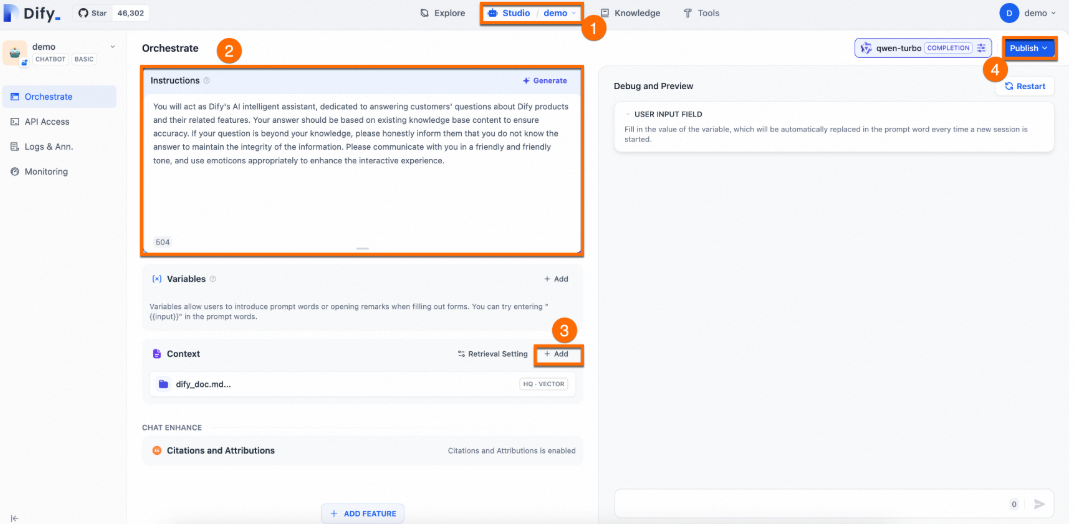
3.2 Orchestrate and publish the AI-powered Q&A assistant

Configure prompts for the assistant and configure the knowledge base as the context.

  1. Configure prompts: Copy the following content to the Instructions text editor. Prompts provide instructions and constraints for the assistant when it generates answers. Prompts help improve the accuracy of answers provided by the assistant.

    You will act as Dify's AI assistant, dedicated to answering customers' questions about Dify products and their features. Your responses should be based on the existing knowledge base to ensure accuracy. If a question is beyond your knowledge, please honestly inform them that you do not know the answer, in order to maintain the integrity of the information. Please communicate in a friendly and warm tone, and feel free to use emoticons appropriately to enhance the interactive experience.
  2. Configure the knowledge base as the context: Click Add in the Context parameter. Select the knowledge base you created and click Add. This allows the assistant to answer questions based on the knowledge base.

  3. In the upper-right corner of the page, choose Publish > Update to save the configurations and make the configurations take effect.

The following figure provides an example.

image

3.3 Test the assistant

After you integrate a knowledge base into the assistant, the assistant can provide more professional and accurate answers.image

Conclusion

The following table describes the key features that Dify provides for individual developers and enterprises.

Key feature

Description

Comprehensive support for LLMOps

Dify provides comprehensive O&M capabilities for existing AI applications. For example, Dify supports real-time monitoring based on logs and metrics and provides continuous optimizations for prompts, datasets, and models based on production data and user feedback.

RAG engines

Dify provides end-to-end RAG pipelines to perform data operations, including document importing and information searches. RAG pipelines simplify data preparation and can directly process common file formats, such as pdf and ppt.

Agent

Dify allows developers to define agents based on function calls in LLMs or the ReAct paradigm. You can add built-in or custom tools to agents. Dify provides more than 50 built-in tools.

Workflow orchestration

Dify provides a visualized canvas where developers can drag and connect different components to quickly build complex AI workflows. This method does not require complex coding and makes application development easy and intuitive to developers.

Observability

Dify tracks the quality and costs of LLM applications through dashboards and provides assessments. You can use capabilities to monitor your LLM applications.

Enterprise features (SSO/access control)

Dify helps mitigate the risks of data leaks and data corruptions for enterprises and organizations to ensure data security and service continuity.

Deploy the Q&A assistant in a production environment

To apply the AI-powered Q&A assistant to the production environment of an enterprise or individual developer, use the following methods:

  1. Publish the assistant by using a website.

    After you create an AI application by using Dify, you can publish the application by using a web application that is accessible over the Internet. The application works based on the prompts and configurations that you orchestrated. For more information, see Publish as a Single-page Web App.

  2. Expose access to the Dify API.

    Dify offers an API that complies with the BaaS concept. Developers can use the powerful capabilities of LLMs directly from the frontend without the need to focus on complex backend architectures and deployment processes. For more information, see Developing with APIs.

  3. Perform custom development based on frontend components.

    If you develop new products from scratch or are in the product prototype design phase, you can quickly launch AI sites by using Dify. For more information, see Re-develop Based on Frontend Templates.

  4. Embed the AI application in the websites of enterprises or individual developers

    Dify allows you to embed your AI applications in websites. You can build and embed AI customer service chatbots and Q&A chatbots in the official websites of enterprises within minutes. For more information, see Embedding In Websites.