Malicious attacks or fraudulent traffic on your domain can cause sudden spikes in bandwidth and traffic consumption, leading to high bills that cannot be waived or refunded. To mitigate this risk, you can block unusual traffic using access control, Web Application Firewall (WAF) protection, and other methods.
Background
Fraudulent traffic incidents have become more common with the rapid growth of the Internet. Edge Security Acceleration (ESA) billing is based on the amount of traffic that users download. Therefore, malicious attacks can lead to unexpectedly high fees.
Preventive measures
Set a usage cap
You can set a usage cap to manage unexpected traffic spikes and prevent large postpaid bills. When the cap is reached, pre-configured actions are triggered for your site resources. Evaluate this feature carefully before use because it may affect service continuity.
In the ESA console, choose Websites. In the Website column, click the target site.
In the navigation pane on the left, choose Usage Cap.
On the Usage Cap page, click Create Rule. Enter a Rule Name, and set the match conditions and Statistical Cycle.
Every 5 Minutes: The statistical period is a 5-minute time window.
Every Hour: The statistical period is a 1-hour time window.
Every Day: The statistical period is a calendar day, from 00:00 to 23:59 on the current day.
Every Month: The statistical period is a calendar month (from the first day to the last day of the current month).
Select an action and click OK.
Disable Website: If traffic reaches the configured threshold, the site is disabled and its status changes to suspended. As a result, acceleration, security, and computing services become unavailable. This action affects your online business and must be used with caution. To ensure your site run as expected, set a higher threshold than your planned usage.
Delete DNS Records: If traffic reaches the configured threshold, this action deletes a specific subdomain record. Choose this option if you want to avoid taking the site offline.
WarningDeleting a subdomain record is irreversible. The system cannot restore a deleted record. You must manually add the record and its configuration again. Use this feature with caution.
Enable real-time log delivery
Real-time log delivery sends access logs from ESA points of presence (POPs) to your analysis system. This feature helps you identify unusual activities, such as hotlinking, traffic bursts, and unauthorized access. You can pinpoint the source of fraudulent traffic, such as high-frequency IP addresses or empty Referers, and then use blocking or rate-limiting rules to stop attacks promptly. This can significantly reduce bandwidth usage and security risks. We recommend enabling the real-time log feature. The following table describes the scope of requests recorded by log type:
Log type | Log collection dimension | Recorded content | Scenarios |
Edge Routine Log | Account dimension | Records request information generated by invoking ESA Edge Routines in the current account. | Business analysis and optimization |
Edge Container Log | Records business logs generated by edge containers in the current account. |
| |
Access And Origin Log | Site dimension | Records detailed request information generated when users access a website or service accelerated by ESA, and detailed information generated when an ESA node performs a back-to-origin access. |
|
Mitigation Logs | Records details of all malicious requests detected and blocked by the ESA Web Application Firewall (WAF). |
| |
Layer 4 Proxy Log | Records details about content transmitted through the ESA transport-layer acceleration feature. |
| |
DNS Log | Records detailed request information for DNS domain name resolution accelerated by ESA. |
|
Fraudulent activity scenarios
Fraudulent traffic involves various types of malicious requests. The following table describes common malicious attack methods and their corresponding countermeasures:
Attack type | Mechanism | Characteristics | Countermeasures |
User-Agent spoofing attack | Attackers send numerous requests with a forged | A forged
| You can configure a |
Referer spoofing attack | Attackers forge the | The URL in the | You can configure a Referer whitelist to allow requests with legitimate |
Frequent requests for the same resource | Attackers repeatedly request the same resource, such as an API operation, in a short period. This can cause high server load, resource consumption, and increased costs. | High-frequency requests originate from the same IP address or a small number of IP addresses. |
|
Malicious bots and scraping | Attackers use malicious bot tools to scrape large amounts of website content. | Requests are sent at a high frequency for the same resource or follow a fixed pattern. | You can use the Bot Protection feature of ESA to detect and block abnormal requests and malicious bots. This feature analyzes request characteristics, such as frequency and patterns, to automatically identify and stop malicious behavior. |
Troubleshooting
ESA provides log collection and analysis features. You can use features such as Traffic Analysis and Standard Log to analyze data from periods of sudden traffic spikes. You can then select the appropriate mitigation policies based on the type of abnormality.
Traffic analysis
Traffic analysis data comes from access logs processed by ESA. These logs record every request that passes through an ESA point of presence (POP). These logs include information such as client IP address, request time, request type, and response status. By summarizing and analyzing these logs, ESA can provide accurate traffic statistics and analysis reports.
View and download reports
In the ESA console, choose Websites. In the Website column, click the target site.
In the left navigation pane, choose .
On the Traffic Analytics page, you can view traffic statistics and analysis. Click the
 icon to print the page report or click the
  icon to download the data as a CSV file. You can use the filters to screen data. For the time filter, select Custom Time Range and choose the date and time of the suspected fraudulent traffic.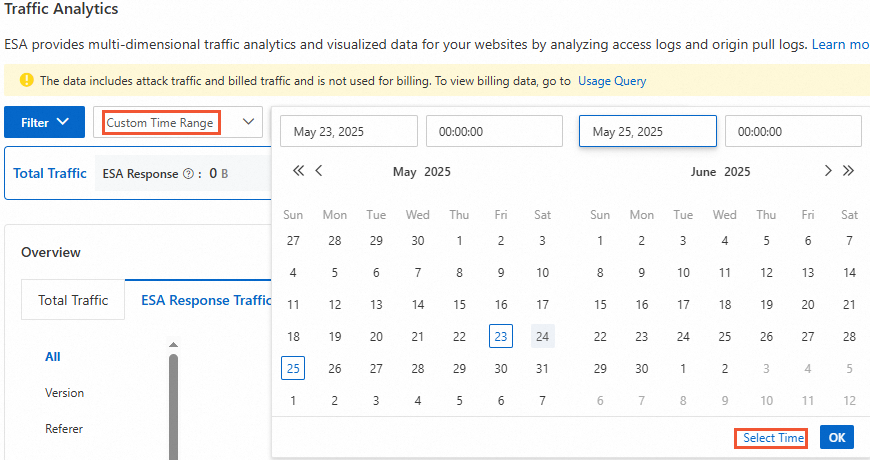
On the Traffic Analysis page, you can view a line chart of total traffic and ESA response traffic. This provides a clear traffic visualization to help you analyze historical traffic trends.
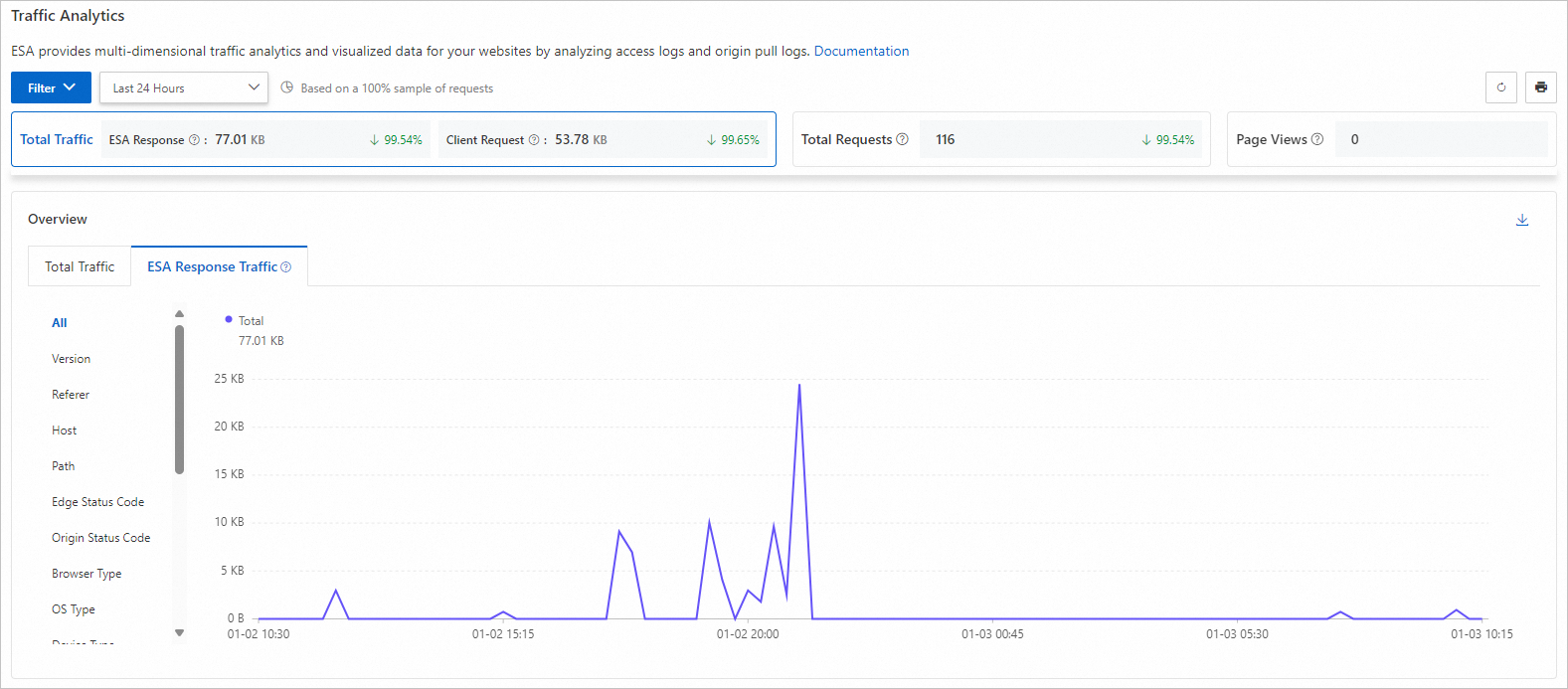
Total Traffic: All traffic transmitted from ESA to clients.
Total Requests: All requests received by ESA from clients.
Page Views: The number of successful HTTP responses with a content type of HTML.
Metric change percentage: The percentage change for each data metric is a period-over-period value. It compares the current time range with the previous identical time range. If there is no data for the previous period, the rate of change is not displayed.
For example, if you select last 30 days and the number of requests shows a 2.03% increase, this means that the number of requests received by the ESA server in the last 30 days increased by 2.03% compared to the period from 60 days ago to 30 days ago.
You can use this module to understand the geographic distribution of your traffic in detail and view regions that have unusual traffic.
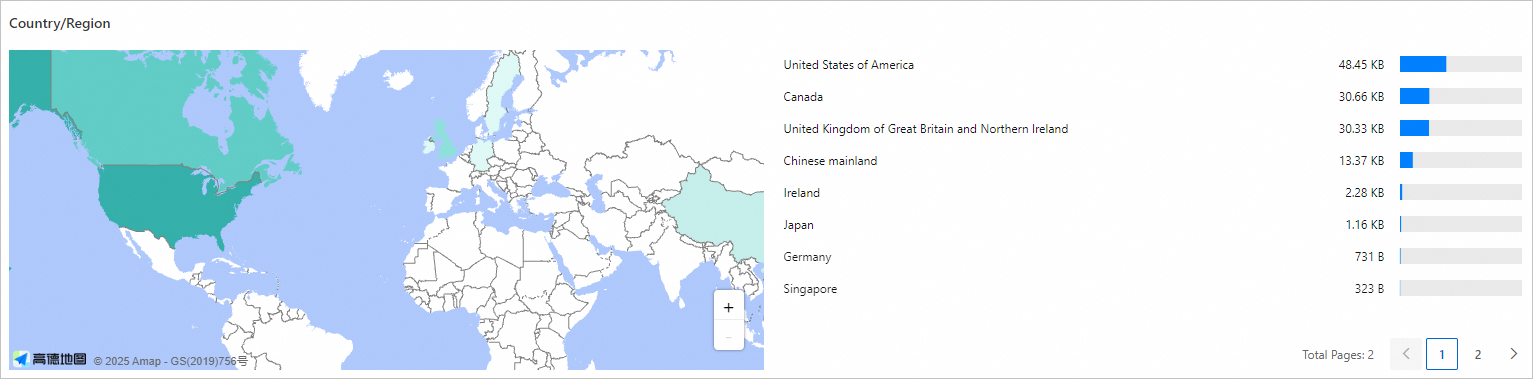
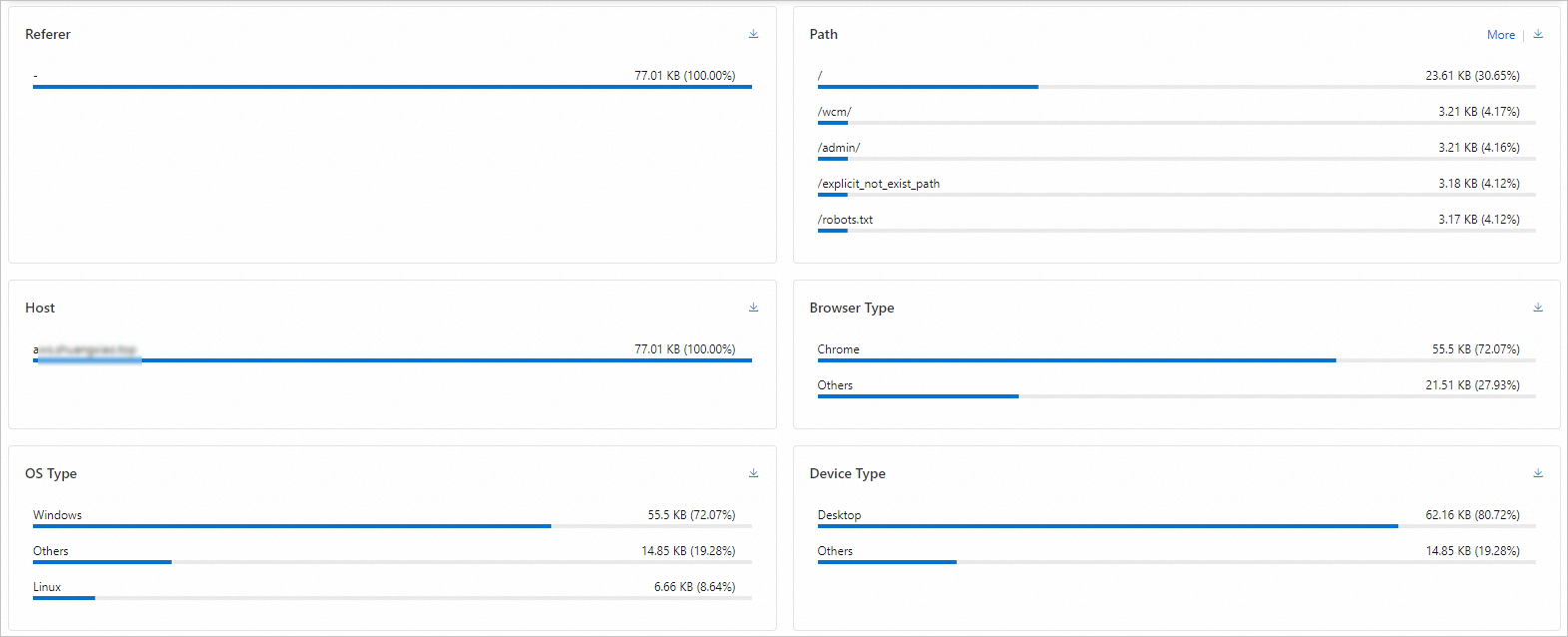
The traffic analysis feature provides multi-dimensional analysis of traffic and user behavior. These modules provide a comprehensive traffic overview and insights into user behavior. You can select an appropriate time range and view detailed data and visualizations for these dimensions.
NoteBy default, traffic analysis shows the top 5 data entries. You can click More to view more items.
Standard log analysis
To uncover the characteristics of fraudulent requests, you can perform a deep analysis of standard logs from the alert period. Use multi-field cross-analysis to build a profile of the fraudulent behavior based on dimensions such as source IP, URL path, request parameters, User-Agent, and Referer. This provides the data required to create precise response strategies.
Download standard logs.
Upload the log file to a local Linux server.
Log on to the local Linux server and count the number of lines in the file to determine the total number of requests.
wc -l [$Log_Txt]You can also count the number of requests per hour.
awk -F' ' '{print \$4}' [$Log_File] | sed 's/^\[\(.*\/.*\/.*\):\(.*\):.*$/\1 \2:00/' | sort | uniq -c | sort -nr | head -n 10After you count the total requests, you can confirm whether the request volume is abnormal.
ImportantThe following configurations are based on real service requests. Proceed with caution to avoid affecting your normal users.
Execute the following command to query the top 10 IP addresses by access volume.
cat [$Log_File] | awk '{print $3}' |sort|uniq -c|sort -nr |head -10You can then restrict access from suspicious IP addresses. For more information, see IP access rules.
Execute the following command to query the top 10 User-Agents by access volume.
grep -o '"Mozilla[^"]*' [$Log_Txt] | cut -d'"' -f2 | sed 's/ ANCHASHI-SCAN[^)]*)//g' | sort | uniq -c | sort -nr | head -n 10You can then filter suspicious User-Agents. For more information, see Custom rules.
Execute the following command to query the top 10 paths by access volume.
grep -oP '"https?://[^"]+"' [$Log_File] | sort | uniq -c | sort -nr | head -n 10
Remedies
When you are sure about the source of attack, set countermeasures based on the attact characteristics. If an analysis reveals multiple attack characteristics, you can configure multiple mitigation policies at the same time to achieve comprehensive protection.
Configure WAF rules to block malicious requests
ESA integrates with Web Application Firewall (WAF) to provide protection on ESA points of presence (POPs). WAF can identify malicious characteristics in your service traffic and forward only normal, safe traffic to your origin server. This helps prevent malicious intrusions into your web server, protect your core business data, and resolve server performance issues caused by malicious attacks.
In the ESA console, choose Websites. In the Website column, click the target site.
In the navigation pane on the left, choose .
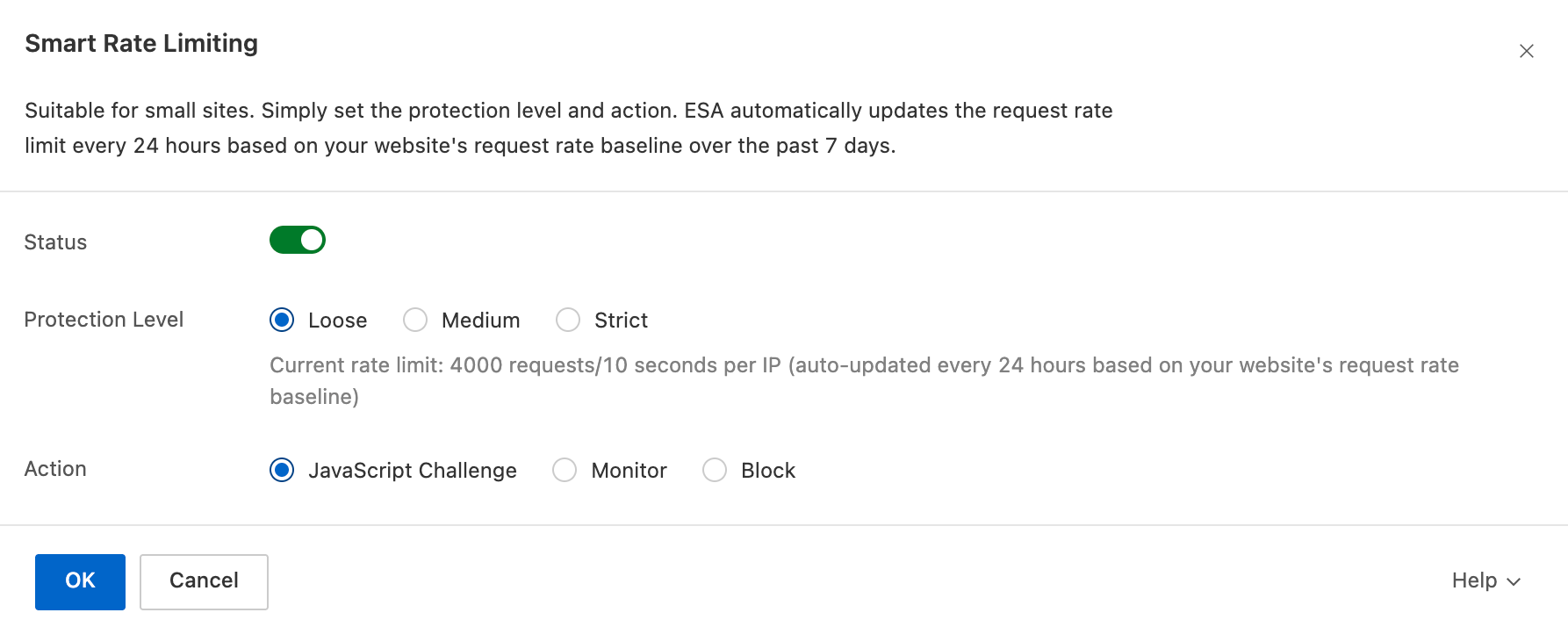
On the Overview tab, in the Smart Rate Limiting area, click Configure. Turn on the Status switch and select an appropriate Protection Level and Action.
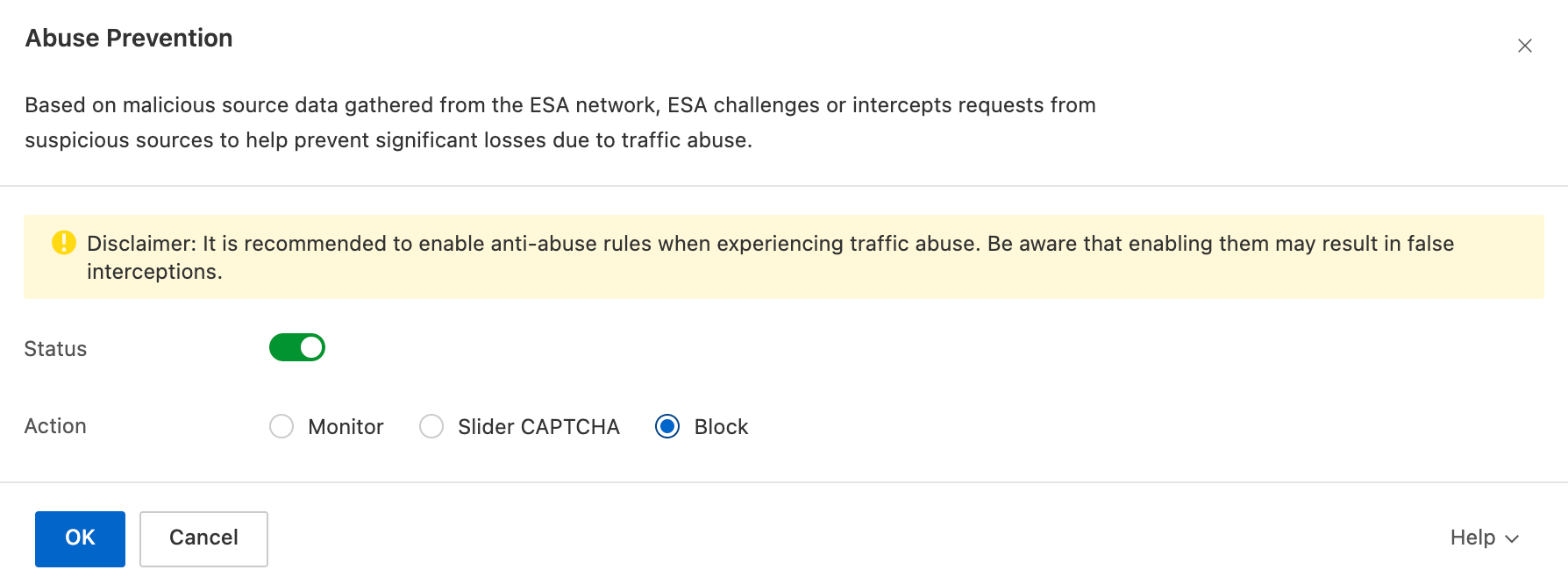
On the Overview tab, in the Abuse Prevention area, click Configure. Turn on the Status switch and select an appropriate Action.
If enabling intelligent rate limiting and abuse prevention does not meet your business needs, you can configure custom mitigation policies.
Limit the number of requests
For more information about how to configure the rule policy, see Rate limiting rules.
Assume a sudden increase in API operation access triggers a monitoring alert. When you view real-time logs, you find that during an attack, a single IP address accesses the API operation more than 3,000 times in 60 seconds. During a non-attack period, a single IP address accesses the API operation a maximum of 100 times in 60 seconds. In this scenario, you can configure a CC mitigation policy with a frequency limit that is two to three times the normal access frequency.
NoteYou can view real-time logs to locate the attacked resource. Compare the access frequency during the attack period with a non-attack period. If there is a significant difference, you can configure this mitigation policy.
In normal business scenarios, a server may call resources through an Internet-facing API operation. If an internal IP address is accessed frequently, add a match condition to exclude that IP address from being counted.
You can adjust the protection path and the trigger threshold based on your business needs and the attacker's access frequency found in the real-time logs. The following is a configuration example.
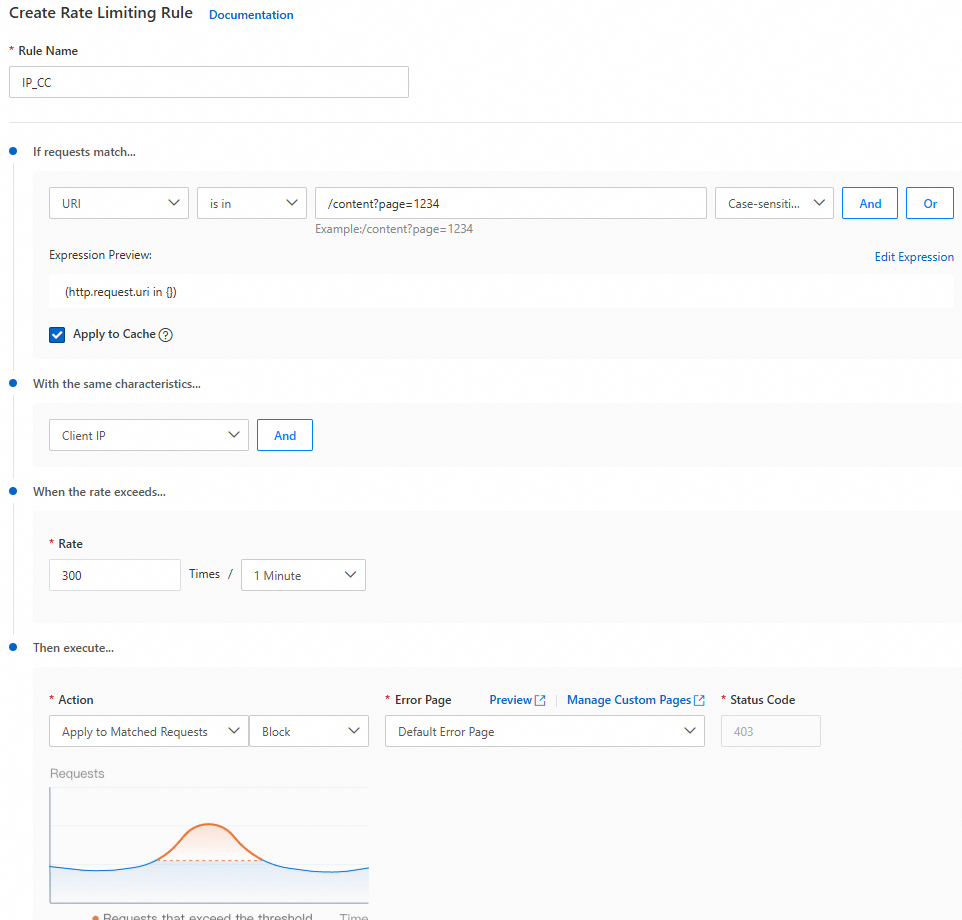
Configuration item
Example value
Description
Rule Name
A custom name for the rule. The name must meet the following requirements:
Can contain Chinese characters, letters (case-insensitive), digits (0-9), and underscores (
_).Can be up to 64 characters long.
/
If requests match...
URI contains
/your_pathFilters requests in which the resource path matches
/your_path.With the same characteristics...
Client IP
Indicates the same client IP address.
When the rate exceeds...
Rate: 300 times/1 minute
If a client IP address meets the match condition more than 300 times within 1 minute, a blacklist action is triggered for that IP address.
Then execute...
Apply to Matched Requests, with a Duration of 1 Hour
The object that meets the frequency detection condition is added to a blacklist. For 3600 seconds, all requests from this object are blocked.
Block abnormal requests
For more information about how to configure the rule policy, see Custom rules.
NoteDo not use this policy for app scenarios in which the normal User-Agent is empty.
If the User-Agent value is an app name, add the app name of your normal business to the match condition.
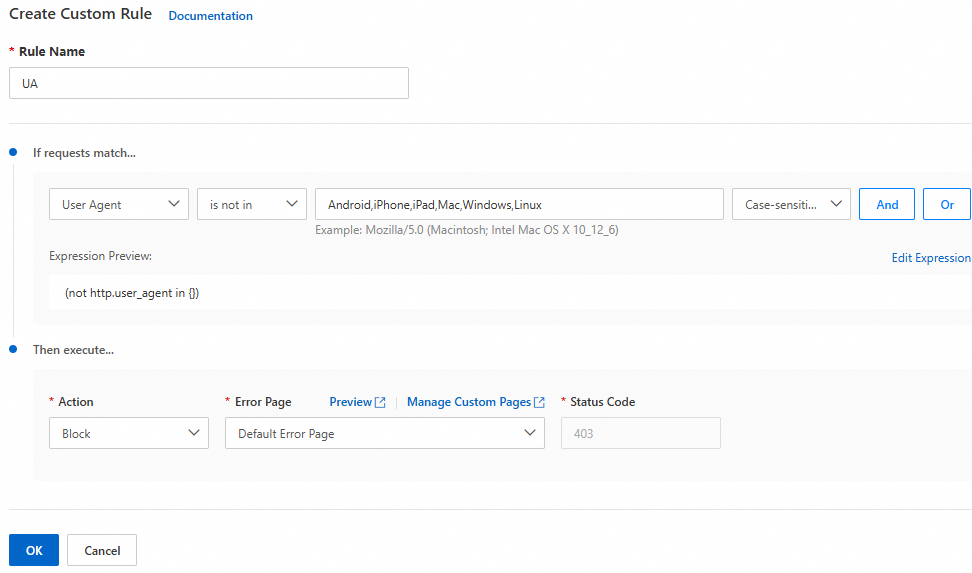
Configuration item
Example value
Description
Rule Name
A custom name for the rule. The name must meet the following requirements:
Can contain Chinese characters, letters (case-insensitive), digits (0-9), and underscores (_).
Can be up to 64 characters long.
If the User-Agent of a request does not contain
Android,iPhone,iPad,Mac,Windows,Linux, the request is blocked.Match Condition
For Match Field, select User-Agent.
For Logical Operator, select Does Not Equal Any Of.
For Match Content, enter
Android,iPhone,iPad,Mac,Windows,Linux.
Then Execute...
For Action, select Block.
For Response Page, select Default Block Page.
For Status Code, select 403.
Block abnormal IP addresses
For more information about how to configure the rule policy, see IP access rules.

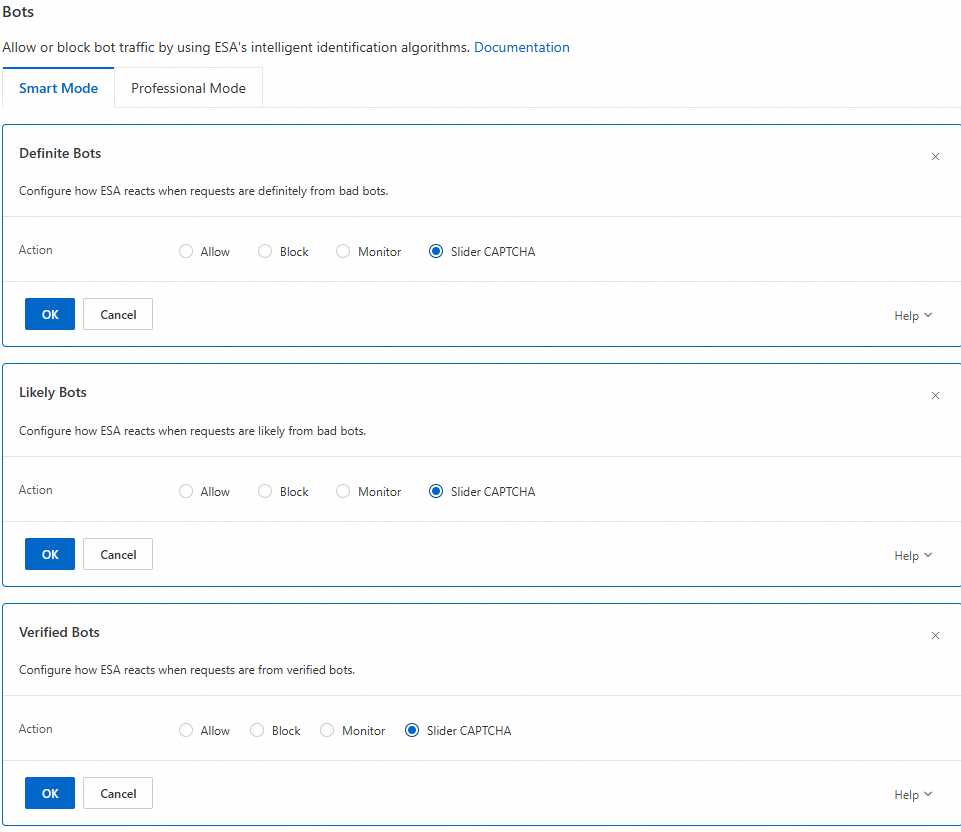
Bot blocking
For more information about how to configure the rule policy, see Quick start. Enable the relevant protection items as needed.
Protection use cases
Abusive downloads of game installation packages
Background
A user of ESA from the gaming industry runs a game stably for two years. The customer recently started receiving high bills for ESA.
Issue detection
By monitoring traffic and analyzing logs using a real-time log delivery task, the customer found multiple instances of high-frequency requests to download the installation package. PC downloads reached 310,000 and Android downloads reached 18,000 within a single hour.
After you enable real-time log delivery and logs are successfully delivered, you are billed based on the number of delivered log entries.

When analyzing the requests to download the Android package, the customer found that the User-Agent in the abnormal requests indicated a PC, not an Android device.

Based on typical user habits, most users download APK packages directly to their mobile phones. It is rare for users to download a package to a PC and then transfer the file to a mobile phone using a USB cable. Therefore, the User-Agent indicates that the downloads were generated by an attacker.
An analysis of the request frequency and requested resources showed that the traffic was clearly abnormal. A single IP address made more than 300 requests per minute for the APK package and more than 5,100 requests per minute for the .exe package.
Solution
You can use access control methods to identify users and protect against high-frequency resource downloads.
IP blocking: You can create a blacklist rule to block the top IP addresses. For more information, see IP access rules.
Resource frequency control: You can create a new rule to limit the number of requests from the same IP address for resources with
.exeor.apksuffixes to a threshold of 20 times per 60 seconds. For more information, see Rate limiting rules.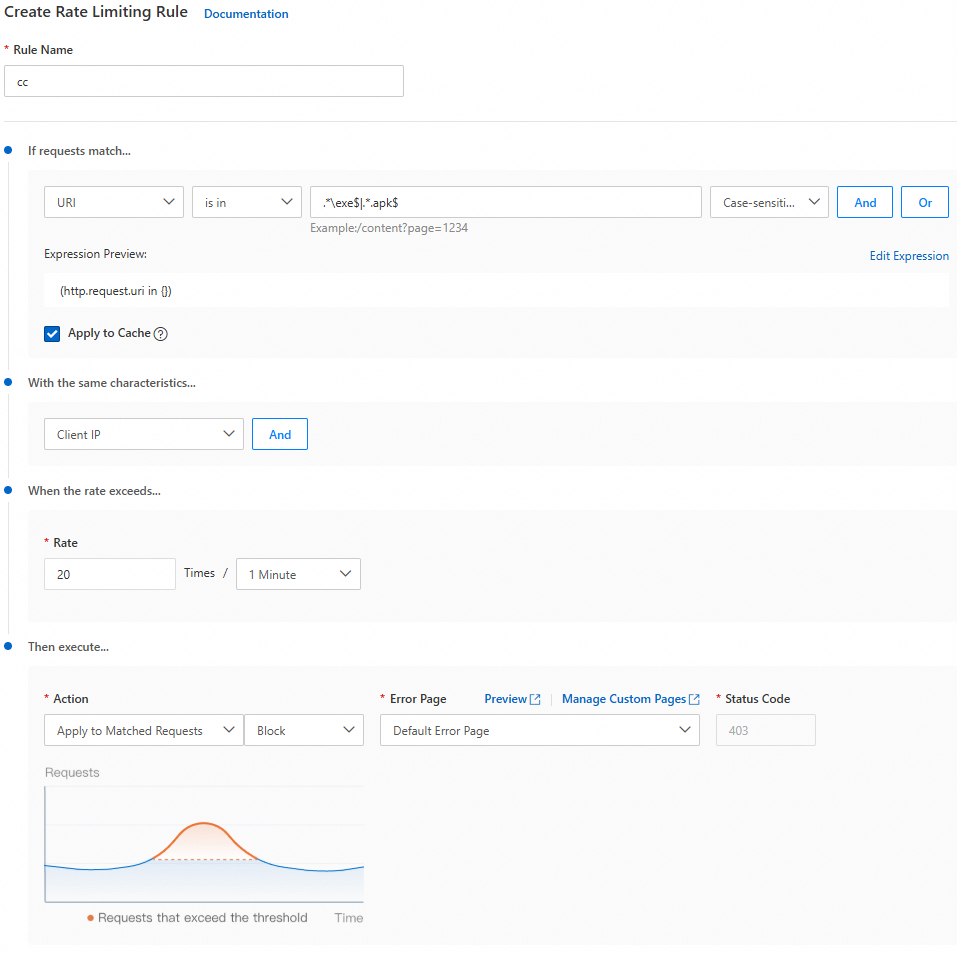
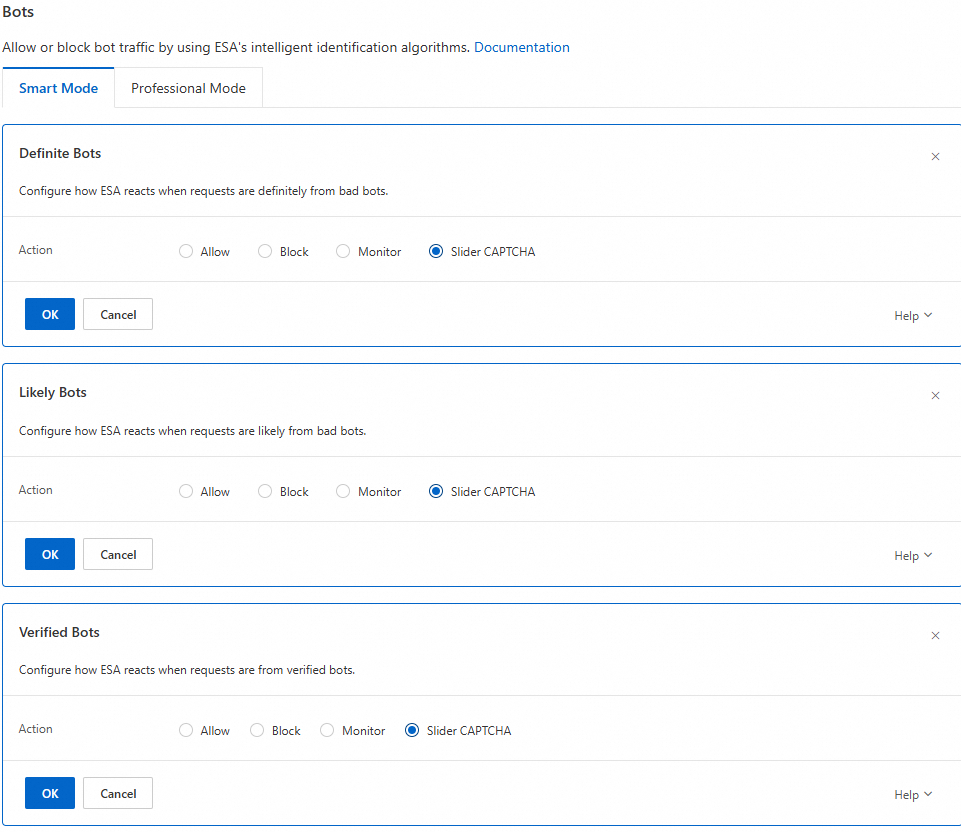
Bot prevention: In the rule, you can enable the bot threat intelligence library and Slider CAPTCHA. For more information, see Bots Quick start.
Website resources are stolen
Background
An ESA e-commerce customer's website was running stably. Recently, the customer discovered that image content from their site was being stolen by other websites through high-frequency requests in a short period.
Issue detection
By monitoring traffic and analyzing logs using a real-time log delivery task, the customer found forged Referer information in the logs.

Using an SQL query on refer_domain, the customer found over 10,000 access requests in just over 10 minutes.

An analysis of the refer_domain showed that the refer_domain did not match the domain, which indicates resource theft. In addition, an SQL query of the access volume showed that this was not only resource theft but also a malicious attack.
Solution
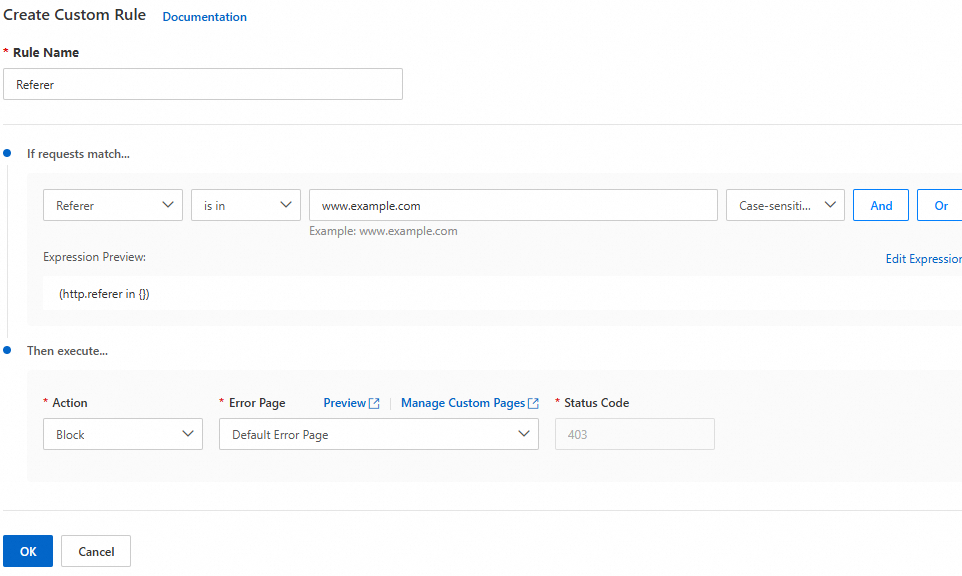
You can use a custom rule to block requests in which the domain and refer_domain do not match.