Alibaba Cloud ESA challenges or blocks requests from suspicious sources based on global intelligence about malicious traffic to prevent significant financial losses from traffic abuse.
Feature overview
The ESA abuse prevention feature combines global monitoring of anomalous traffic with an open-source IP reputation database updated daily. This feature effectively mitigates traffic abuse from sources like Peer-to-Peer CDN (PCDN) platforms and automated scripts, helping you avoid substantial financial losses.
Disclaimer: The abuse prevention rules are strict. We recommend enabling this feature only when you are actively experiencing traffic abuse. You are responsible for any resulting false positives.
Enable abuse prevention
In the ESA console, select Websites, and in the Website column, click the target site.
In the left-side navigation pane, choose .
On the Overview tab, in the Abuse Prevention section, click Configure.
Turn on the Status switch. For first-time use, we recommend selecting Monitor as the action. Then, go to Security Analytics to view matching requests and verify that the feature works correctly. If it does, change the action to Block and go to the Event analytics page to view the number of blocked requests.
Click OK.
Manage exceptions
Handle false positives
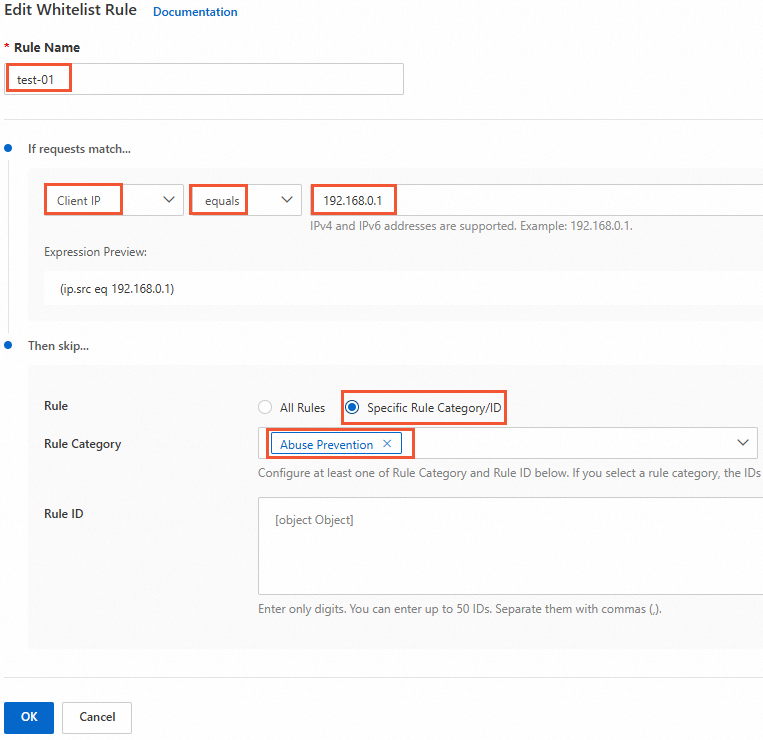
If abuse prevention blocks a legitimate client IP (a false positive), create a whitelist rule to allow its requests to bypass the abuse prevention feature.
In the ESA console, select Websites, and in the Website column, click the target site.
In the left-side navigation pane, choose .
Select the Whitelist Rules tab and click Create Rule. Configure the following settings:
For Rule Name, enter a descriptive name, such as
false-positive-01.In the If requests match... section:
Match Field: Select Client IP.
Operator: Select equals.
Match value:
192.168.0.1(the legitimate client IP).
In the Then skip... section:
For Rule, select Specific Rule Category/ID.
For Rule Category, select Abuse Prevention.
Click OK.
Handle false negatives
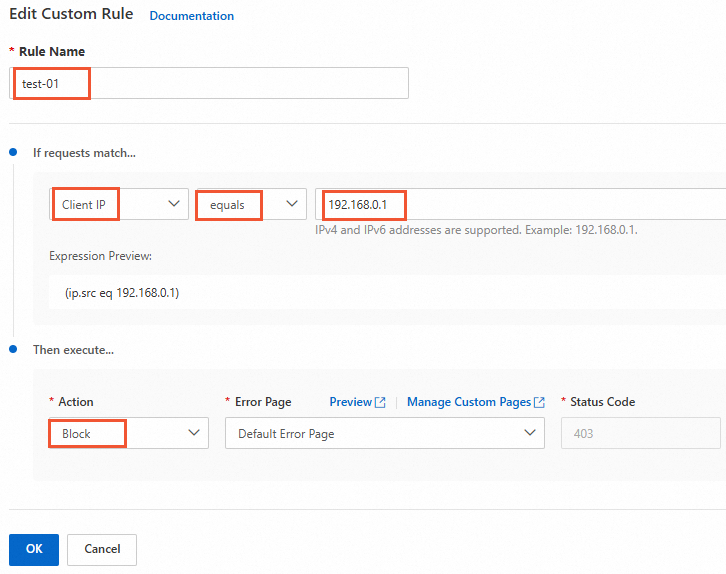
If abuse prevention fails to block a malicious client IP (a false negative), you can create a custom rule to block the IP address manually. You can also contact us to report the suspicious IP. If our team verifies the IP as malicious, ESA adds it to the global IP reputation database.
In the ESA console, select Websites, and in the Website column, click the target site.
In the left-side navigation pane, choose .
Click the Custom Rules tab. On the Custom Rules tab, click Create Rule. Configure the following settings:
For Rule Name, enter a descriptive name, such as
false-negative-01.In the If requests match... section:
Match Field: Select Client IP.
Operator: Select equals.
Match value: 192.168.0.1 (the suspicious client IP).
In the Then execute... section:
For Action, select Block.
For Error Page, select Default Error Page.
Click OK.