Alibaba Cloud Workspace Cloud Phone runs virtual Android phones on Arm-based cloud servers with SHENLONG virtualization. Users remotely control Android systems and apps in real time via streaming from computers, phones, or other clients.
Use cases
Cloud Phone supports mobile office, cloud gaming, and enterprise marketing scenarios.
-
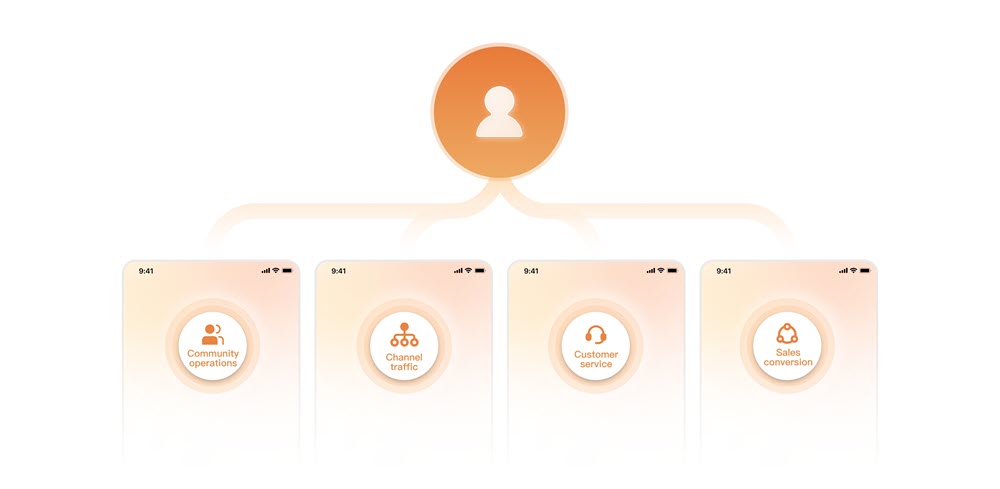
Enterprise marketing activities
Cloud Phone supports enterprise marketers, customer service teams, and other customer-facing roles by driving traffic, delivering customer service, managing community operations, converting leads, and completing various tasks.
-

Cloud gaming
Cloud Phone provides a download-free service for game developers, video platforms, and other users to trial and play mobile games in the cloud.
-
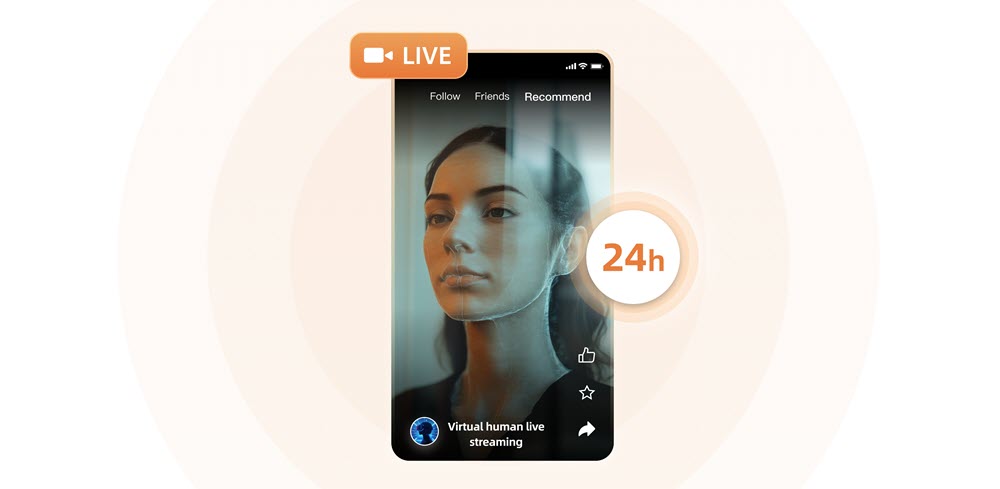
Cloud livestreaming
Cloud Phone enables live broadcast organizations, individual live broadcasters, and other customer groups to engage in new broadcasting techniques, including multicasting and VTuber.
-
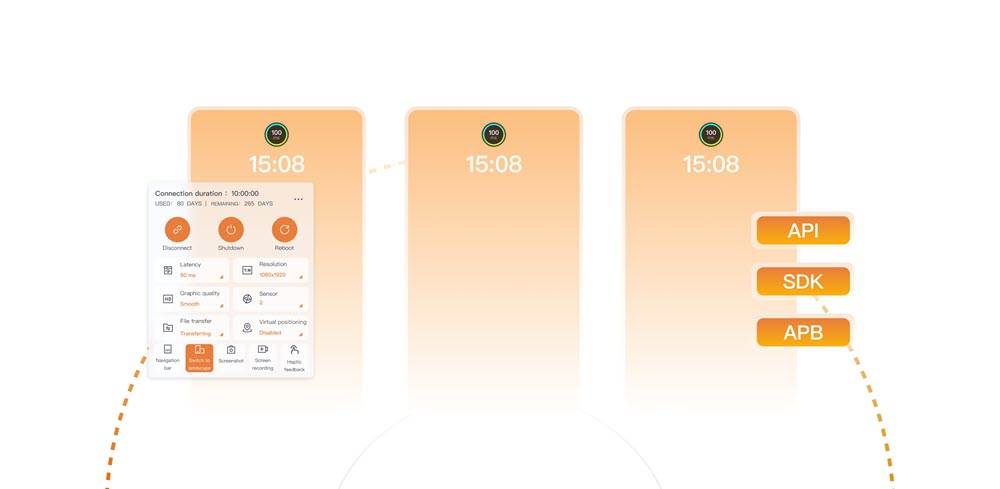
Simulation test
Cloud Phone reduces phone procurement costs and simplifies management and O&M for app launches and feature iterations.
-
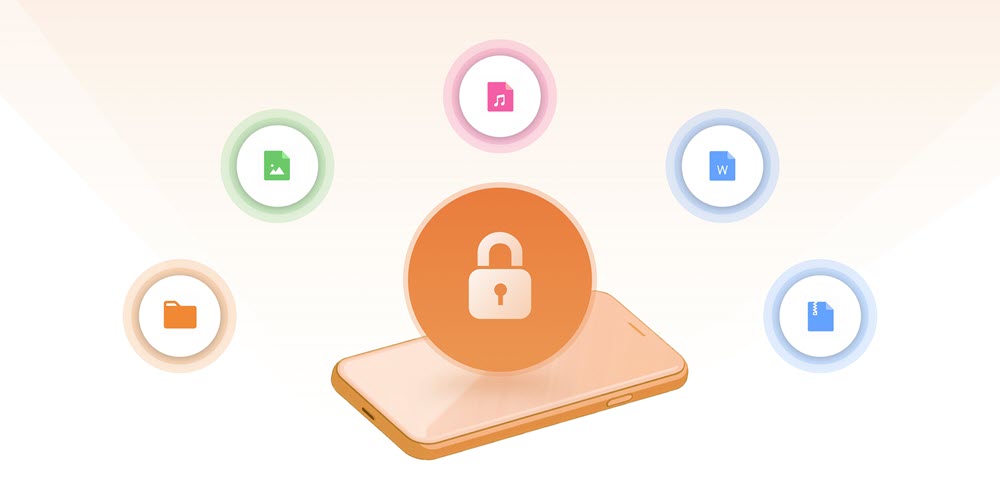
Mobile office
Cloud Phone is specifically designed to protect sensitive data in office settings, ensuring that technical and customer information remains secure.
Benefits
Unlimited scalability
Cloud Phone provides a range of specifications and supports on-demand procurement. Cloud Phone services are available in many parts of the world and can be purchased for immediate use.
Cutting-edge technologies
Cloud Phone utilizes the Adaptive Streaming Protocol (ASP) of Alibaba Cloud and is powered by Arm servers and SHENLONG virtualization components.
Ease of use
Users can centrally manage cloud phone instances in the Alibaba Cloud Management Console. This includes batch operations and centralized O&M.
High security and reliability
Data is stored in the cloud with top-notch security and protection measures, and has a 99.9999999% reliability rate.
On-demand development
Cloud Phone facilitates faster development of business applications by supporting secondary development based on APIs and SDKs.
Real machine simulation
Cloud phone instances have the same features as physical phones and operate on the Android 12 OS, allowing them to work with the newest applications.
Specifications and prices
Cloud Phone offers the following instance specifications. Select an instance type based on your workloads and a region based on your service requirements.
Instance
Specification | Chinese mainland regions | Regions outside Chinese mainland | ||||
Name | Instance type | CPU/memory/storage | Monthly subscription (USD/month) | Pay-as-you-go (USD/hour) | Monthly subscription (USD/month) | Pay-as-you-go (USD/hour) |
Lightweight | acp.basic.small | 2 vCPU/4 GiB/32 GiB | 9.9057 | 0.0457 | 15.3538 | 0.0709 |
General | acp.std.small | 4 vCPU/4 GiB/32 GiB | 13.8679 | 0.0579 | 21.4953 | 0.0898 |
Balanced | acp.std.medium | 3 vCPU/6 GiB/32 GiB | 14.9347 | 0.0610 | 23.1488 | 0.0945 |
Standard | acp.std.large | 4 vCPU/8 GiB/32 GiB | 21.3353 | 0.0808 | 33.0697 | 0.1252 |
Performance | acp.perf.large | 8 vCPU/16 GiB/32 GiB | 36.4224 | 0.1524 | 56.4546 | 0.2362 |
Terms
The following table describes the terms related to Cloud Phone.
No. | Term | Description | References |
① | administrator | The person in charge of creating, assigning, and managing cloud phone instances. Example: Kevin, an O&M engineer at a new media company. | |
② | console | The administrator-facing management tool provided by Alibaba Cloud. Administrators can manage instance groups, instances, applications, and other O&M operations in the Cloud Phone console. | |
③ | region | The physical location of a data center. Regions are independent of each other. | |
④ | instance group | A logical group of cloud phones delivered to end users. Includes underlying resources and general configurations such as resource specifications, pre-installed applications, display resolutions, office networks, and billing methods. | |
⑤ | instance | The smallest usable computing unit. Cloud phone instances run Android 12. Administrators assign instances to end users, who then connect from Alibaba Cloud Workspace clients. | |
⑥ | application | Pre-installed software on each cloud phone instance. Administrators can upload on-premises applications to the Cloud Phone console and install them on all instances within a specific instance group. | |
⑦ | end user | Personnel who use cloud phone instances. After administrators assign instances, end users connect from Alibaba Cloud Workspace clients. Example: Kevin, an anchor at a new media company. | |
⑧ | client | The channel used by end users to connect to cloud phone instances. Sample clients include Windows clients, macOS clients, Web clients, and Android clients of Alibaba Cloud Workspace. | |
⑨ | developer | R&D personnel who develop cloud phone applications. Example: Tom, an application developer of a new media company. | |
⑩ | ADB | A versatile command-line tool for communicating with Android devices. You can install, debug, or manage cloud phones by using Android Debug Bridge (ADB). Note We recommend that end users connect to cloud phone instances over VPCs by using ADB from cloud computers. VPC-based connections provide better security and more reliable, faster transmission than Internet-based connections. |
Obtain a client
Connect to cloud phone instances from clients. Use Alibaba Cloud Workspace clients for trial or demonstration, or develop custom clients using the Cloud Phone SDK or API.
Open or download an Alibaba Cloud Workspace client to connect to cloud phone instances on this page, or go to the Download Alibaba Cloud Workspace Client page.
If you want to download a client on the Download Alibaba Cloud Workspace Client page, note that different clients are tailored to different cloud phone types. Elastic Desktop Service (EDS) Android and iOS clients do not support Cloud Phone. Make sure that you download the Cloud Phone Android client.
If you have questions or special requirements on the operating system versions of Alibaba Cloud Workspace mobile clients, submit a ticket.
Operation guides
Refer to the operation guide that corresponds to your role.

Purchase and assign cloud phones as enterprise users
Administrator guide

Use cloud phones as individuals
View User Guide

Use APIs or SDKs for secondary development
View Development References
FAQ
How do I query the billing information of a cloud phone?
To view billing information:
Go to the Expenses and Costs page.
In the left-side navigation pane, choose .
NoteThis topic uses the new console version as an example. If your console page is different, you may be using an older version. Click Try New Version in the lower-left corner of the navigation pane.
On the Bill Details page, set the filter conditions as needed and click Search.
You can use the Statistic Item and Statistic Period filters to change how the bill details are grouped and the time frame that is displayed. The list updates to show the matching results.
Why am I still charged after releasing my cloud phone?
Check the Expenses console Bill Details page for remaining dependent resources.
-
Check the NAT Gateway console to verify NAT resources are released.
-
Check the EIP console to verify the EIP still exists.
-
Check the Internet Shared Bandwidth page to verify the bandwidth instance is still being charged.
Why am I unable to access the Internet from a cloud phone?
First, check the network type of your cloud phone's instance group.
Log on to the Cloud Phone console.
In the left-side navigation pane, choose .
-
On the Instance Group page, find the instance group to which your cloud phone belongs and click the value in the Network column.
-
On the Network page, check the value of the Network Type parameter and troubleshoot the issue by using one of the following methods:
Shared Network
Shared-network instance groups have internet access enabled by default.
VPC
-
Use the Enable Now button
Log on to the Cloud Phone console.
In the left-side navigation pane, choose .
-
In the upper-left corner of the Network page, select the region of the target cloud phone.
-
Find the network that you want to manage and click Enable Internet Access in the Actions column.
-
In the Enable Internet Access message, click Enable Now.
ImportantAfter you enable the Internet access feature, the system automatically purchases pay-as-you-go NAT gateways and EIPs. For information about the pricing of NAT gateways and EIPs, see NAT Gateway billing and Billing.
-
Manually enable the Internet access feature
For more information, see Enable internet access for a Cloud Phone.
-