This topic describes the file upload feature and its upload limits.
Feature introduction
Instant upload: If a file with the same content already exists in the drive, the upload is completed instantly. You do not need to wait for the full upload process.
Drag-and-drop upload: You can log on to the drive, select multiple local files, and drag them to a specific directory in the drive to start the upload.
Concurrent multi-file upload: You can run up to 10 upload tasks concurrently.
Custom upload speed: When uploading multiple files, you can set a maximum network bandwidth to reduce the impact on your network.
Upload retries: If an error occurs during an upload, the system automatically retries the operation to improve the chances of a successful upload.
Anonymous upload via shared links: External users can upload files anonymously by accessing a shared link to the drive.
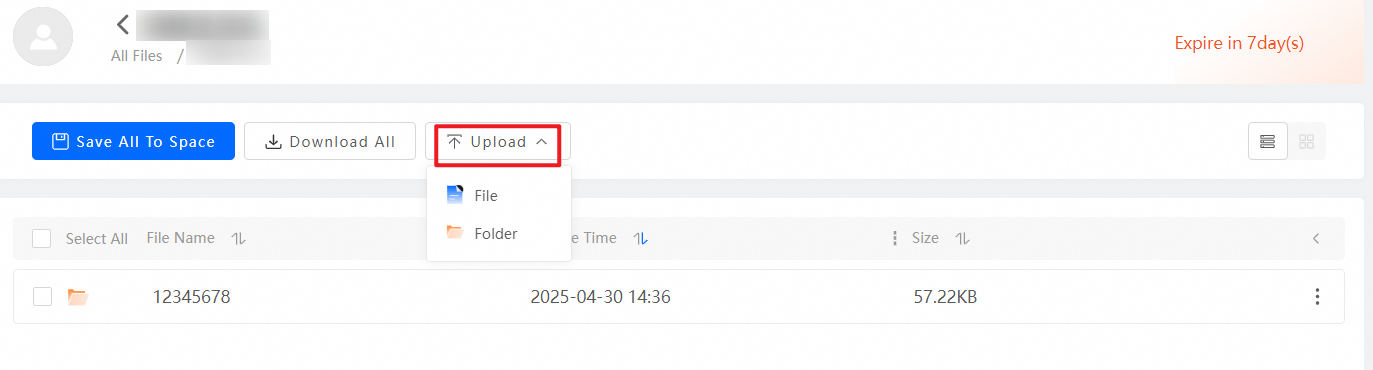
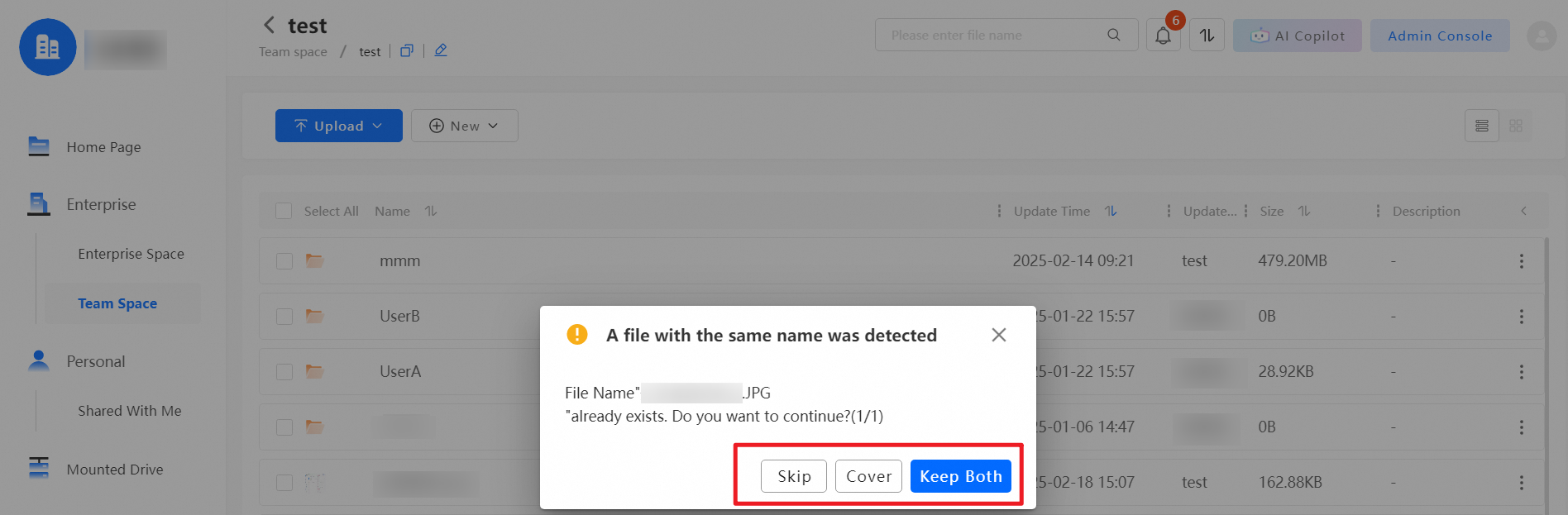
You can handle file name conflicts. When you upload a file or folder with the same name as an existing one, you can choose to Skip, Overwrite, or Keep Both.
Skip: The local file or folder is not uploaded, and the existing file or folder in the cloud is kept.
Overwrite: Replaces the existing file or folder in the cloud with the new local file or folder.
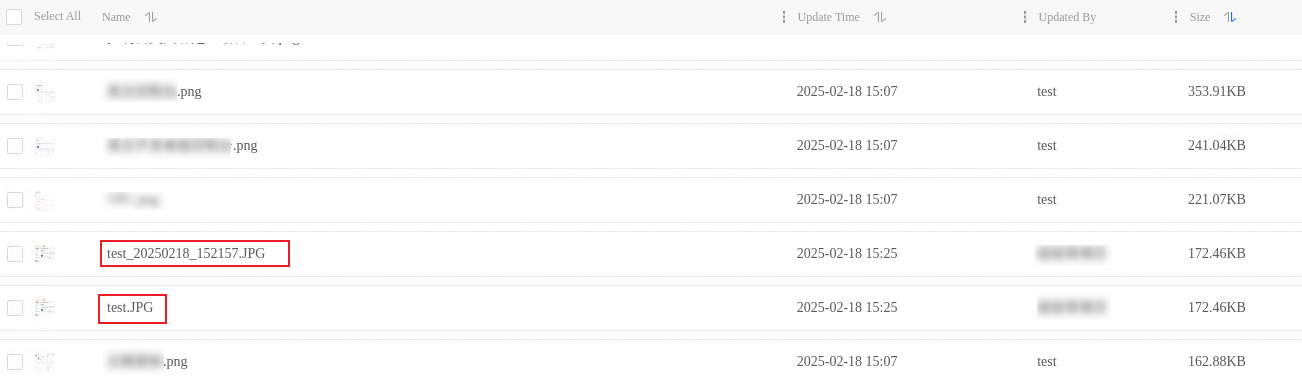
Keep Both: Keeps both the cloud and local files or folders. A date is added to the name of the newly uploaded file or folder to differentiate them.
Upload settings
Administrator
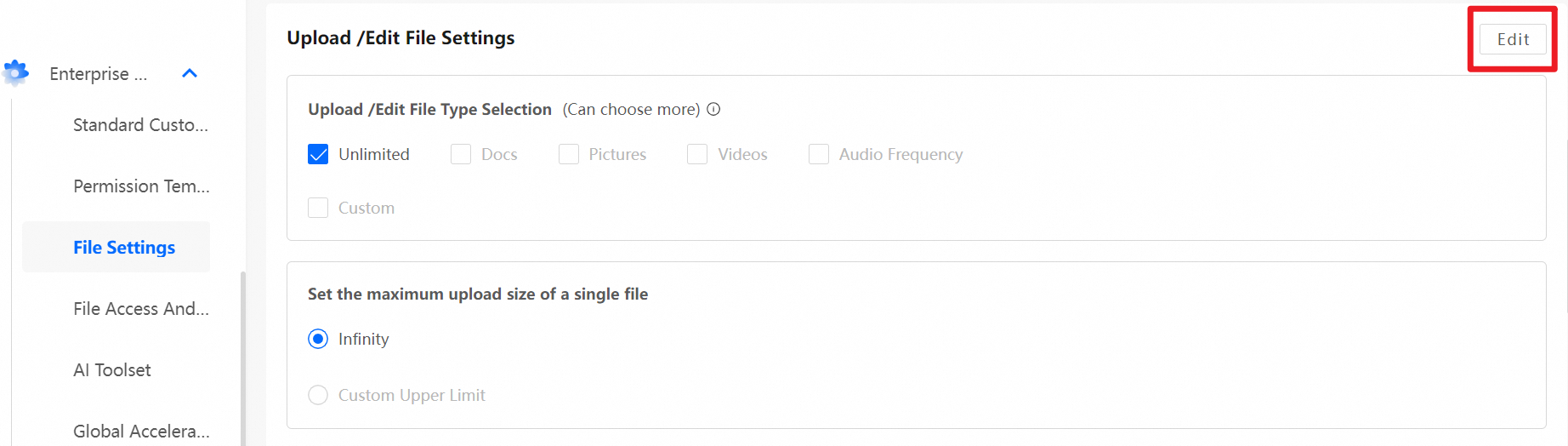
Log on to the PDS management console as an administrator. Go to Enterprise Settings > File Settings to configure upload settings.
Select the allowed file types for upload or define custom file types.
Set a size limit for uploaded files.
Choose how to handle uploads of files with duplicate names.
Regular user
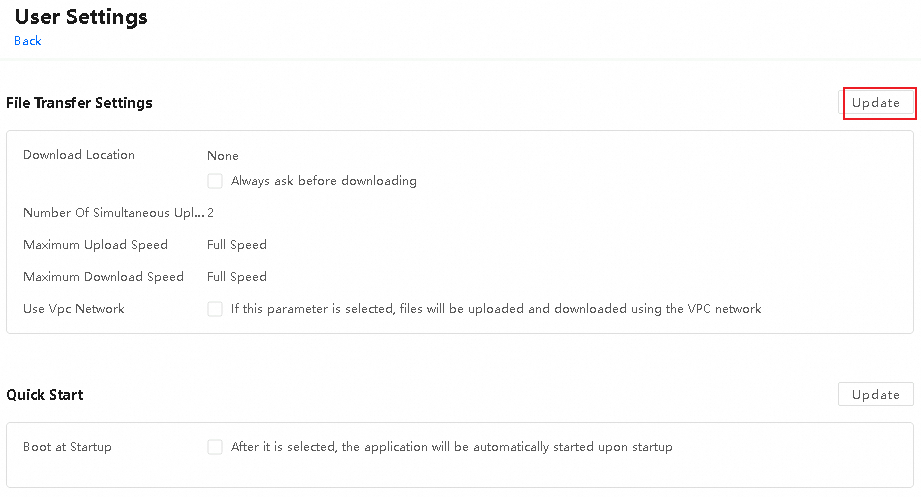
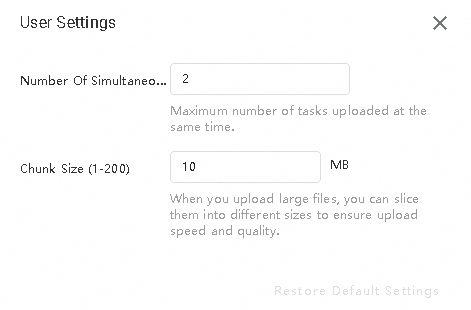
Log on to PDS as a regular user. In the upper-right corner, click your profile picture and choose User Settings. You can then configure the File Transfer Settings.
Desktop client

Web client
Permission dependencies
Upload
Cloud settings
Scenario | Permission Template Dependencies | Custom Permissions List |
Overwrite upload | All permissions | View List, Preview, Upload, Download, Edit Online, Share, Move, Copy, Rename, Delete, Create File/Folder |
Upload and keep both | Uploader | View List, Upload, Create File/Folder |
File/Folder upload | Uploader | View List, Upload, Create File/Folder |
Local settings
Ensure you have read and write permissions for the $HOME directory.
Ensure you have read permissions for the upload directory.
Upload limits
For a single file, the maximum upload size is 500 GB for the PC client, 500 GB for the web client, and 100 GB for the app.