Cloud Firewall’s intrusion prevention system (IPS) detects and blocks malicious traffic in real time, including hacker attacks, vulnerability exploits, brute-force attacks, worms, mining programs, backdoor trojans, and DoS attacks. IPS protects your cloud infrastructure from unauthorized access, data breaches, and service disruptions.
Limits
-
Cloud Firewall intrusion prevention supports decrypting and inspecting encrypted traffic through TLS inspection for outbound traffic at the Internet Border. For inbound traffic at the Internet Border, combine Cloud Firewall with the Web Application Firewall to enhance protection. TLS/SSL decryption and inspection are not supported at the VPC border.
-
Data aggregation introduces a delay in Cloud Firewall’s intrusion prevention statistics. For real-time data, use log audit or log analysis.
-
Queries for the last hour have a 10-minute delay.
-
Queries spanning more than one hour have a 30-minute delay.
For example, if the current time is 15:00, querying 12:00–15:00 excludes data from 14:30–15:00. Querying 12:00–14:30 returns complete results for that period.
-
View or modify IPS rules
After you activate Cloud Firewall, the threat engine defaults to Block Mode, which automatically blocks attacks. Cloud Firewall selects a block mode level (Loose, Moderate, or Strict) based on your traffic. Threat intelligence, basic defense, and virtual patches are enabled by default.
You can go to the IPS Configuration page using either of these methods:
-
From the IPS page, click the link in the upper-right corner of the Protection Details List.

-
In the navigation pane on the left, select .
On the Basic Protection card, view the default intrusion prevention rules. To change a rule, find it in the list and update its action in the Current Action column. IPS Configuration.
Enable IPS Private IP Tracing
-
Entry point:
From the IPS page, click the link in the upper-right corner of the Protection Details List to go directly to the IPS Private IP Tracing Configuration page.

-
Enable
On the Private IP Traceback page, enable tracing for specific resources to locate risky assets without exposing internal IP addresses.
NoteIPS Private IP Tracing requires both Internet firewall protection and NAT session log service to be enabled for the same asset. IPS Private IP Tracing Configuration.

-
Traceability:
After you enable the feature, view risky asset IP addresses in the Protection Details List and Details sections of the IPS page.
List
Details


View Internet blocking events
Cloud Firewall provides inbound and outbound Internet traffic blocking statistics. You can query up to 90 days of data, with each query covering a maximum of 31 days.
Go to the page. On the Protection Status tab, set a time range and view protection statistics and the protection details list.
-
The Protection Statistics module shows total attacks, attack type distribution, and blocking data.
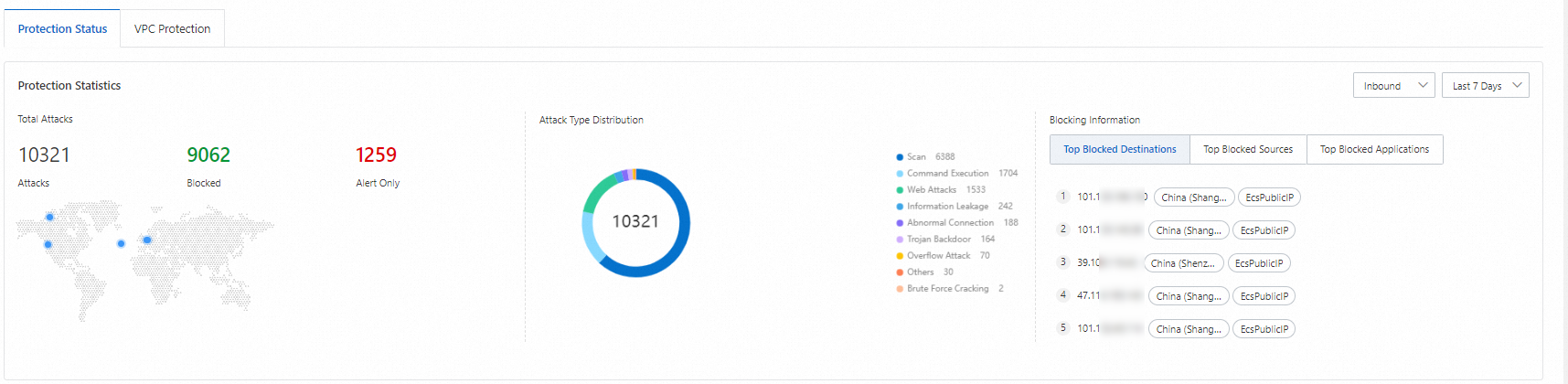
Blocking data metrics:
-
Top Blocked Destinations: Displays the top 5 destination IP addresses among traffic blocked by Cloud Firewall.
Hover over a blocked destination IP and click the
 icon to open the Log Audit page to view destination port, application type, and action details.
 -
Top Blocked Sources: Shows the top three source types by percentage among traffic blocked by Cloud Firewall.
-
Top Blocked Applications: Displays the top five application types among traffic blocked by Cloud Firewall.
-
-
Protection Details List: Lists blocked attack events with risk level, event count, source IP, and destination IP.
 Note
NoteIf the source IP is a WAF or DDoS back-to-origin IP address, Cloud Firewall detects such back-to-origin IP addresses and displays WAF Back-to-origin IP Address and Anti-DDoS Back-to-origin IP Address.
You can:
-
Search for events: Set filters such as risk level, defense status, attack type, source, direction, and time range. Then click Search to view matching events.
-
View event details: In the Actions column, click Details to view Basic Information, Attack Payload, and other details. The Attack Payload shows 5-Tuple Information and payload content for attack tracing.
-
Download blocked events: Click the
 icon next to the search bar, then download from the Download Task Management panel in the upper-right corner.
 -
AI-assisted event analysis: Click the AI Analysis column's
 icon to use the Security AI Assistant for quick event analysis assistance.
This includes:
Payload content analysis: Describes the request and AI analysis of the action.

Threat intelligence: Matches the destination address against the threat intelligence database.
NoteThis feature is not available in the Cloud Firewall Premium Edition or pay-as-you-go edition.
Attacker intent: AI-predicted attacker behavior.
Mitigation recommendations: Suggested Cloud Firewall settings (ACL policies, IPS configuration) and asset checks.
-
View VPC blocking events
Cloud Firewall provides inter-VPC traffic blocking statistics. You can query up to 90 days of data, with each query covering a maximum of 31 days.
Cloud Firewall Premium Edition does not support VPC firewall and does not display the VPC Protection tab.
Go to the page. On the VPC Protection tab, view details such as event name, risk level, and attack type for VPC blocking events in your selected time range.

You can:
-
Search for events: Set filters such as risk level, defense status, attack type, and time. Then click Search to view matching events.
-
View event details: In the Actions column, click Details to view Basic Information, Attack Payload, and other details. The Attack Payload shows 5-Tuple Information and payload content for attack tracing.
-
Download protection events: Click the
icon next to the search bar, then download from the Download Task Management panel in the upper-right corner. -
AI-assisted event analysis: Click the
icon in the AI Analysis column to quickly analyze the event with the Security AI Assistant.This includes:
Payload content analysis: Describes the request and AI analysis of the action.

Threat intelligence: Matches the destination address against the threat intelligence database.
NoteThis feature is not available in the Cloud Firewall Premium Edition or pay-as-you-go edition.
Attacker intent: AI-predicted attacker behavior.
Mitigation recommendations: Suggested Cloud Firewall settings (ACL policies, IPS configuration) and asset checks.