Modifiez des images à l'aide d'instructions textuelles grâce aux modèles Wan. Cette fonctionnalité prend en charge les entrées et sorties multi-images, la fusion d'images, la préservation du sujet ainsi que la détection d'objets.
Prise en main
Générez une image modifiée à partir de deux images d'entrée et d'une invite textuelle avec wan2.7-image-pro.
Invite : Appliquez le graffiti de l'image 2 sur la voiture de l'image 1
Image d'entrée 1 | Image d'entrée 2 | Image de sortie (wan2.7-image-pro) |
|---|---|---|
|
|
|
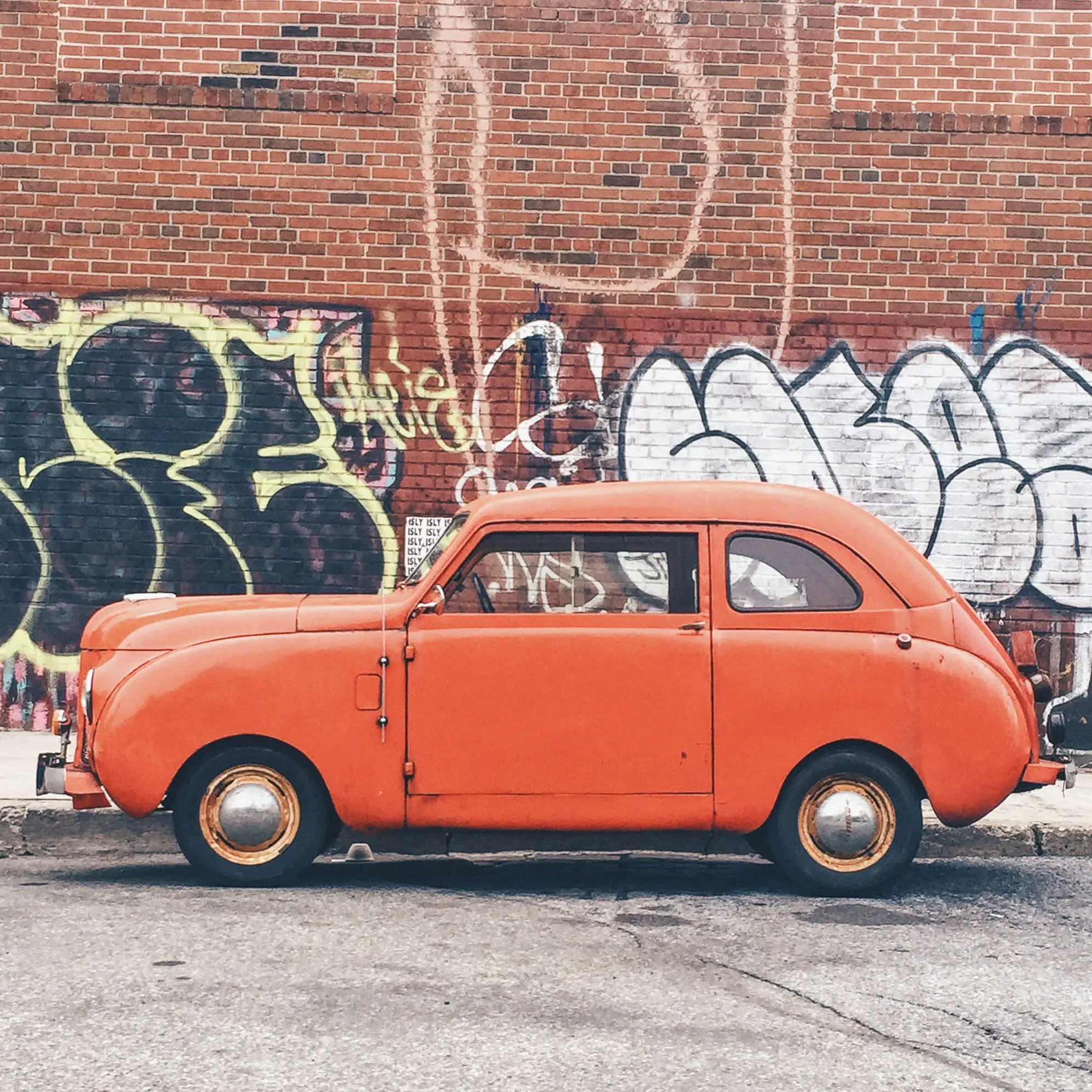
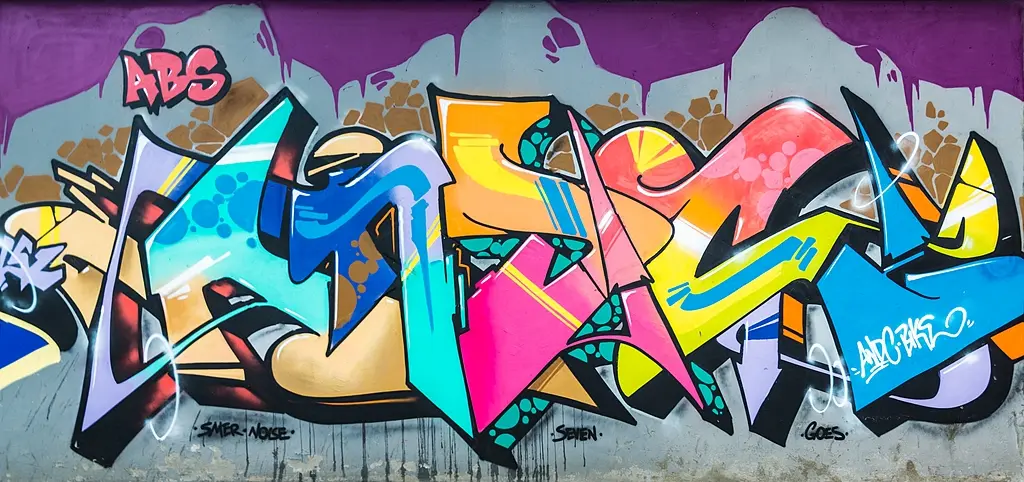
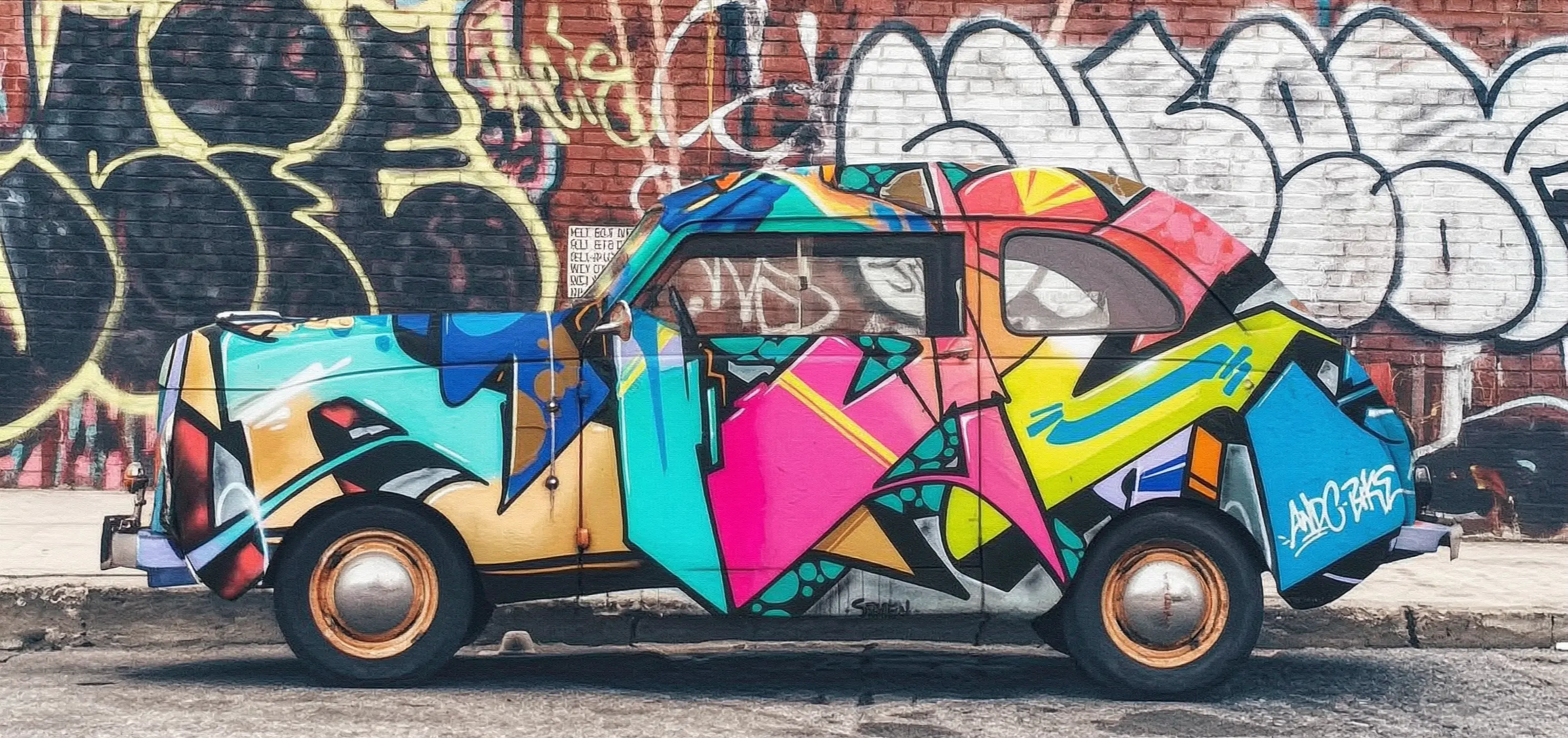
Avant d'effectuer un appel, obtenez une clé API et exportez la clé API en tant que variable d'environnement. Pour réaliser des appels via le SDK, installez le SDK DashScope.
Appel synchrone
Important
Assurez-vous que la version du SDK Python DashScope est1.25.15ou ultérieure, et que la version du SDK Java DashScope est2.22.13ou ultérieure.Python
Exemple de requête
import os
import base64
import mimetypes
import urllib.request
import dashscope
from dashscope.aigc.image_generation import ImageGeneration
from dashscope.api_entities.dashscope_response import Message

# The following base_url is for the Singapore region. Replace {WorkspaceId} with your Bailian workspace ID. The base_url varies by region.
dashscope.base_http_api_url = "https://{WorkspaceId}.ap-southeast-1.maas.aliyuncs.com/api/v1"

# If you have not configured environment variables, replace the following line with your Model Studio API key: api_key="sk-xxx"
# The API key varies by region. To obtain an API key, visit: https://www.alibabacloud.com/help/en/model-studio/get-api-key
api_key = os.getenv("DASHSCOPE_API_KEY")

# --- Base64 encoding function ---
# The Base64 encoding format is data:{MIME_type};base64,{base64_data}
def encode_file(file_path):
    mime_type, _ = mimetypes.guess_type(file_path)
    if not mime_type or not mime_type.startswith("image/"):
        raise ValueError("Unsupported or unrecognized image format")
    with open(file_path, "rb") as image_file:
        encoded_string = base64.b64encode(image_file.read()).decode("utf-8")
    return f"data:{mime_type};base64,{encoded_string}"

"""
Image input methods:
The following are three methods for image input. You need to choose only one.
1. Use a public URL: This method is suitable for publicly accessible images.
2. Use a local file: This method is suitable for local development and testing.
3. Use Base64 encoding: This method is suitable for private images or scenarios that require encrypted transmission.
"""
# [Method 1] Use a public image URL
image_1 = "https://help-static-aliyun-doc.aliyuncs.com/file-manage-files/zh-CN/20251229/pjeqdf/car.webp"
image_2 = "https://help-static-aliyun-doc.aliyuncs.com/file-manage-files/zh-CN/20251229/xsunlm/paint.webp"

# [Method 2] Use a local file (supports absolute and relative paths)
# image_1 = "file:///path/to/your/car.png"
# image_2 = "file:///path/to/your/paint.png"

# [Method 3] Use a Base64-encoded image
# image_1 = encode_file("/path/to/your/car.png")
# image_2 = encode_file("/path/to/your/paint.png")

message = Message(
    role="user",
    content=[
        {"text": "Spray the graffiti from image 2 onto the car in image 1"},
        {"image": image_1},
        {"image": image_2},
    ],
)
print("----sync call, please wait a moment----")
rsp = ImageGeneration.call(
    model="wan2.7-image-pro",
    api_key=api_key,
    messages=[message],
    watermark=False,
    n=1,
    size="2K",  # wan2.7-image-pro supports 4K resolution only for text-to-image generation. Image editing and multi-image generation support up to 2K resolution.
)

# Extract the result image URL and save the image to a local file.
if rsp.status_code == 200:
    for i, choice in enumerate(rsp.output.choices):
        for j, content in enumerate(choice["message"]["content"]):
            if content.get("type") == "image":
                image_url = content["image"]
                file_name = f"output_{i}_{j}.png"
                # The result URL is valid for 24 hours. Please download it promptly.
                urllib.request.urlretrieve(image_url, file_name)
                print(f"Image saved to {file_name}")
else:
    print(f"Failed: status_code={rsp.status_code}, message={rsp.message}")
Exemple de réponse
L'URL est valide pendant 24 heures. Téléchargez l'image rapidement.
{
    "status_code": 200,
    "request_id": "81d868c6-6ce1-92d8-a90d-d2ee71xxxxxx",
    "code": "",
    "message": "",
    "output": {
        "text": null,
        "finish_reason": null,
        "choices": [
            {
                "finish_reason": "stop",
                "message": {
                    "role": "assistant",
                    "content": [
                        {
                            "image": "https://dashscope-result-bj.oss-cn-beijing.aliyuncs.com/xxxxxx.png?Expires=xxxxxx",
                            "type": "image"
                        }
                    ]
                }
            }
        ],
        "audio": null,
        "finished": true
    },
    "usage": {
        "input_tokens": 18790,
        "output_tokens": 2,
        "characters": 0,
        "image_count": 1,
        "size": "2985*1405",
        "total_tokens": 18792
    }
}
Java
Exemple de requête
import com.alibaba.dashscope.aigc.imagegeneration.*;
import com.alibaba.dashscope.exception.ApiException;
import com.alibaba.dashscope.exception.NoApiKeyException;
import com.alibaba.dashscope.exception.UploadFileException;
import com.alibaba.dashscope.utils.Constants;
import com.alibaba.dashscope.utils.JsonUtils;

import java.io.IOException;
import java.io.InputStream;
import java.net.URL;
import java.nio.file.Files;
import java.nio.file.Paths;
import java.nio.file.StandardCopyOption;
import java.util.Arrays;
import java.util.Base64;
import java.util.Collections;
import java.util.List;
import java.util.Map;

/**
 * wan2.7-image-pro Image Editing - Synchronous Call Example
 */
public class Main {

    static {
        // The following URL is for the Singapore region. Replace {WorkspaceId} with your Bailian workspace ID. The base_url varies by region.
        Constants.baseHttpApiUrl = "https://{WorkspaceId}.ap-southeast-1.maas.aliyuncs.com/api/v1";
    }

    // If you have not configured an environment variable, replace the following line with your Model Studio API key: apiKey="sk-xxx"
    // The API key varies by region. To obtain an API key, visit https://www.alibabacloud.com/help/model-studio/get-api-key
    static String apiKey = System.getenv("DASHSCOPE_API_KEY");

    // --- Base64 encoding function ---
    // Base64 encoding format: data:{MIME_type};base64,{base64_data}
    public static String encodeFile(String filePath) throws IOException {
        byte[] fileContent = Files.readAllBytes(Paths.get(filePath));
        String base64String = Base64.getEncoder().encodeToString(fileContent);
        String mimeType = Files.probeContentType(Paths.get(filePath));
        return "data:" + mimeType + ";base64," + base64String;
    }

    public static void basicCall() throws ApiException, NoApiKeyException, UploadFileException, IOException {
        /*
         * Description of image input methods:
         * Three image input methods are provided below. Select one.
         * 1. Use a public URL: Suitable for publicly accessible images.
         * 2. Use a local file: Suitable for local development and testing.
         * 3. Use Base64 encoding: Suitable for private images or scenarios that require encrypted transmission.
         */
        // Method 1: Use a public image URL.
        String image1 = "https://help-static-aliyun-doc.aliyuncs.com/file-manage-files/zh-CN/20251229/pjeqdf/car.webp";
        String image2 = "https://help-static-aliyun-doc.aliyuncs.com/file-manage-files/zh-CN/20251229/xsunlm/paint.webp";

        // Method 2: Use a local file. Both absolute and relative paths are supported.
        // Format: file:// + file path
        // String image1 = "file:///path/to/your/car.png";
        // String image2 = "file:///path/to/your/paint.png";

        // Method 3: Use a Base64-encoded image.
        // String image1 = encodeFile("/path/to/your/car.png");
        // String image2 = encodeFile("/path/to/your/paint.png");

        // Build a multi-image input message.
        ImageGenerationMessage message = ImageGenerationMessage.builder()
                .role("user")
                .content(Arrays.asList(
                        // Multi-image input is supported. You can provide multiple reference images.
                        Collections.singletonMap("text", "Spray the graffiti from image 2 onto the car in image 1"),
                        Collections.singletonMap("image", image1),
                        Collections.singletonMap("image", image2)
                )).build();

        ImageGenerationParam param = ImageGenerationParam.builder()
                .apiKey(apiKey)
                .model("wan2.7-image-pro")
                .messages(Collections.singletonList(message))
                .n(1)
                .size("2K") // For wan2.7-image-pro, only the text-to-image generation scenario supports 4K resolution. Image editing and collage generation support a maximum resolution of 2K.
                .build();

        ImageGeneration imageGeneration = new ImageGeneration();
        ImageGenerationResult result = null;
        try {
            System.out.println("---sync call for image editing, please wait a moment----");
            result = imageGeneration.call(param);
        } catch (ApiException | NoApiKeyException | UploadFileException e) {
            throw new RuntimeException(e.getMessage());
        }
        // Extract the result image URL and save it to a local file.
        for (int i = 0; i < result.getOutput().getChoices().size(); i++) {
            List<Map<String, Object>> contents = result.getOutput().getChoices().get(i)
                    .getMessage().getContent();
            for (int j = 0; j < contents.size(); j++) {
                if ("image".equals(contents.get(j).get("type"))) {
                    String imageUrl = (String) contents.get(j).get("image");
                    String fileName = "output_" + i + "_" + j + ".png";
                    // The result URL is valid for 24 hours. Download the image in a timely manner.
                    try (InputStream in = new URL(imageUrl).openStream()) {
                        Files.copy(in, Paths.get(fileName), StandardCopyOption.REPLACE_EXISTING);
                    }
                    System.out.println("Image saved to " + fileName);
                }
            }
        }
    }

    public static void main(String[] args) throws ApiException, NoApiKeyException, UploadFileException, IOException {
        basicCall();
    }
}
Exemple de réponse
L'URL est valide pendant 24 heures. Enregistrez-la rapidement.
{
    "requestId": "1bf6173a-e8de-9f75-94d3-5e618f875xxx",
    "usage": {
        "input_tokens": 18790,
        "output_tokens": 2,
        "total_tokens": 18792,
        "image_count": 1,
        "size": "2985*1405"
    },
    "output": {
        "choices": [
            {
                "finish_reason": "stop",
                "message": {
                    "role": "assistant",
                    "content": [
                        {
                            "image": "https://dashscope-result-bj.oss-cn-beijing.aliyuncs.com/xxxxxx.png?Expires=xxxxxx",
                            "type": "image"
                        }
                    ]
                }
            }
        ],
        "finished": true
    },
    "status_code": 200,
    "code": "",
    "message": ""
}
curl
Exemple de requête
curl --location 'https://{WorkspaceId}.ap-southeast-1.maas.aliyuncs.com/api/v1/services/aigc/multimodal-generation/generation' \
    --header 'Content-Type: application/json' \
    --header "Authorization: Bearer $DASHSCOPE_API_KEY" \
    --data '{
        "model": "wan2.7-image-pro",
        "input": {
            "messages": [
                {
                    "role": "user",
                    "content": [
                        {"image": "https://help-static-aliyun-doc.aliyuncs.com/file-manage-files/zh-CN/20251229/pjeqdf/car.webp"},
                        {"image": "https://help-static-aliyun-doc.aliyuncs.com/file-manage-files/zh-CN/20251229/xsunlm/paint.webp"},
                        {"text": "Spray-paint the graffiti from image 2 onto the car in image 1"}
                    ]
                }
            ]
        },
        "parameters": {
            "size": "2K",
            "n": 1,
            "watermark": false
        }
    }'
Exemple de réponse
{
    "output": {
        "choices": [
            {
                "finish_reason": "stop",
                "message": {
                    "content": [
                        {
                            "image": "https://dashscope-xxx.oss-xxx.aliyuncs.com/xxx.png?Expires=xxx",
                            "type": "image"
                        }
                    ],
                    "role": "assistant"
                }
            }
        ],
        "finished": true
    },
    "usage": {
        "image_count": 1,
        "input_tokens": 10867,
        "output_tokens": 2,
        "size": "1488*704",
        "total_tokens": 10869
    },
    "request_id": "71dfc3c6-f796-9972-97e4-bc4efc4faxxx"
}
Appel asynchrone
Important
Assurez-vous que la version du SDK Python DashScope est1.25.15ou ultérieure, et que la version du SDK Java DashScope est2.22.13ou ultérieure.Python
Exemple de requête
import os
import base64
import mimetypes
import urllib.request
import dashscope
from dashscope.aigc.image_generation import ImageGeneration
from dashscope.api_entities.dashscope_response import Message
from http import HTTPStatus

# The following base_url is for the Singapore region. Replace {WorkspaceId} with your Bailian workspace ID. The base_url varies by region.
dashscope.base_http_api_url = "https://{WorkspaceId}.ap-southeast-1.maas.aliyuncs.com/api/v1"

# If you have not configured environment variables, replace the following line with your Model Studio API key: api_key="sk-xxx"
# The API key varies by region. To obtain an API key, visit https://www.alibabacloud.com/help/en/model-studio/get-api-key
api_key = os.getenv("DASHSCOPE_API_KEY")

# --- Base64 encoding function ---
# The Base64 encoding format is data:{MIME_type};base64,{base64_data}
def encode_file(file_path):
    mime_type, _ = mimetypes.guess_type(file_path)
    if not mime_type or not mime_type.startswith("image/"):
        raise ValueError("Unsupported or unrecognized image format.")
    with open(file_path, "rb") as image_file:
        encoded_string = base64.b64encode(image_file.read()).decode("utf-8")
    return f"data:{mime_type};base64,{encoded_string}"

"""
Image input methods:
Three image input methods are provided below. Choose one.
1. Use a public URL - suitable for publicly accessible images.
2. Use a local file - suitable for local development and testing.
3. Use Base64 encoding - suitable for private images or scenarios that require encrypted transmission.
"""
# [Method 1] Use a public image URL
image_1 = "https://help-static-aliyun-doc.aliyuncs.com/file-manage-files/zh-CN/20251229/pjeqdf/car.webp"
image_2 = "https://help-static-aliyun-doc.aliyuncs.com/file-manage-files/zh-CN/20251229/xsunlm/paint.webp"

# [Method 2] Use a local file (supports absolute and relative paths)
# image_1 = "file:///path/to/your/car.png"
# image_2 = "file:///path/to/your/paint.png"

# [Method 3] Use a Base64-encoded image
# image_1 = encode_file("/path/to/your/car.png")
# image_2 = encode_file("/path/to/your/paint.png")

# Create an asynchronous task.
def create_async_task():
    print("Creating async task...")
    message = Message(
        role="user",
        content=[
            {"text": "Spray the graffiti from image 2 onto the car in image 1."},
            {"image": image_1},
            {"image": image_2},
        ],
    )
    response = ImageGeneration.async_call(
        model="wan2.7-image-pro",
        api_key=api_key,
        messages=[message],
        watermark=False,
        n=1,
        size="2K",  # wan2.7-image-pro supports 4K resolution only for text-to-image generation scenarios. Image editing and collage generation support a maximum resolution of 2K.
    )

    if response.status_code == 200:
        print("Task created successfully:", response)
        return response
    else:
        raise Exception(f"Failed to create task: {response.code} - {response.message}")

# Wait for the task to complete.
def wait_for_completion(task_response):
    print("Waiting for task completion...")
    status = ImageGeneration.wait(task=task_response, api_key=api_key)

    if status.output.task_status == "SUCCEEDED":
        print("Task succeeded!")
        # Extract the result image URL and save the image to a local file.
        for i, choice in enumerate(status.output.choices):
            for j, content in enumerate(choice["message"]["content"]):
                if content.get("type") == "image":
                    image_url = content["image"]
                    file_name = f"output_{i}_{j}.png"
                    # The result URL is valid for 24 hours. Download the image in a timely manner.
                    urllib.request.urlretrieve(image_url, file_name)
                    print(f"Image saved to {file_name}")
    else:
        raise Exception(f"Task failed with status: {status.output.task_status}")

# Obtain information about the asynchronous task.
def fetch_task_status(task):
    print("Fetching task status...")
    status = ImageGeneration.fetch(task=task, api_key=api_key)

    if status.status_code == HTTPStatus.OK:
        print("Task status:", status.output.task_status)
        print("Response details:", status)
    else:
        print(f"Failed to fetch status: {status.code} - {status.message}")

# Cancel the asynchronous task.
def cancel_task(task):
    print("Canceling task...")
    response = ImageGeneration.cancel(task=task, api_key=api_key)

    if response.status_code == HTTPStatus.OK:
        print("Task canceled successfully:", response.output.task_status)
    else:
        print(f"Failed to cancel task: {response.code} - {response.message}")

# Main execution flow.
if __name__ == "__main__":
    task = create_async_task()
    wait_for_completion(task)
Exemple de réponse
-
Exemple de réponse lors de la création d'une tâche
{ "status_code": 200, "request_id": "4fb3050f-de57-4a24-84ff-e37ee5xxxxxx", "code": "", "message": "", "output": { "text": null, "finish_reason": null, "choices": null, "audio": null, "task_id": "127ec645-118f-4884-955d-0eba8dxxxxxx", "task_status": "PENDING" }, "usage": { "input_tokens": 0, "output_tokens": 0, "characters": 0 } } -
Exemple de réponse lors de l'interrogation du résultat d'une tâche
L'URL est valide pendant 24 heures. Téléchargez l'image rapidement.
{
    "status_code": 200,
    "request_id": "3b99aae5-d26f-9059-8dd0-ee9ca4804xxx",
    "code": null,
    "message": "",
    "output": {
        "text": null,
        "finish_reason": null,
        "choices": [
            {
                "finish_reason": "stop",
                "message": {
                    "role": "assistant",
                    "content": [
                        {
                            "image": "https://dashscope-result-bj.oss-cn-beijing.aliyuncs.com/xxxxxx.png?Expires=xxxxxx",
                            "type": "image"
                        }
                    ]
                }
            }
        ],
        "audio": null,
        "task_id": "127ec645-118f-4884-955d-0eba8dxxxxxx",
        "task_status": "SUCCEEDED",
        "submit_time": "2026-03-31 22:58:47.646",
        "scheduled_time": "2026-03-31 22:58:47.683",
        "end_time": "2026-03-31 22:58:59.642",
        "finished": true
    },
    "usage": {
        "input_tokens": 18711,
        "output_tokens": 2,
        "characters": 0,
        "size": "2985*1405",
        "total_tokens": 18713,
        "image_count": 1
    }
}
Java
Exemple de requête
import com.alibaba.dashscope.aigc.imagegeneration.*;
import com.alibaba.dashscope.exception.ApiException;
import com.alibaba.dashscope.exception.NoApiKeyException;
import com.alibaba.dashscope.exception.UploadFileException;
import com.alibaba.dashscope.utils.Constants;
import com.alibaba.dashscope.utils.JsonUtils;

import java.io.IOException;
import java.io.InputStream;
import java.net.URL;
import java.nio.file.Files;
import java.nio.file.Paths;
import java.nio.file.StandardCopyOption;
import java.util.Arrays;
import java.util.Base64;
import java.util.Collections;
import java.util.List;
import java.util.Map;

/**
 * wan2.7-image-pro Image Editing - Asynchronous Invocation Example
 */
public class Main {

    static {
        // The following URL is for the Singapore region. Replace {WorkspaceId} with your Bailian workspace ID. The base_url varies by region.
        Constants.baseHttpApiUrl = "https://{WorkspaceId}.ap-southeast-1.maas.aliyuncs.com/api/v1";
    }

    // If you have not configured an environment variable, replace the following line with your Model Studio API key: apiKey="sk-xxx"
    // The API key varies by region. To obtain an API key, visit: https://www.alibabacloud.com/help/model-studio/get-api-key
    static String apiKey = System.getenv("DASHSCOPE_API_KEY");

    // --- Base64 encoding function ---
    // The Base64 encoding format is data:{MIME_type};base64,{base64_data}
    public static String encodeFile(String filePath) throws IOException {
        byte[] fileContent = Files.readAllBytes(Paths.get(filePath));
        String base64String = Base64.getEncoder().encodeToString(fileContent);
        String mimeType = Files.probeContentType(Paths.get(filePath));
        return "data:" + mimeType + ";base64," + base64String;
    }

    public static void asyncCall() throws ApiException, NoApiKeyException, UploadFileException, IOException {
        /*
         * Description of image input methods:
         * The following three image input methods are provided. You can choose one of them.
         * 1. Use a public URL - Suitable for publicly accessible images.
         * 2. Use a local file - Suitable for local development and testing.
         * 3. Use Base64 encoding - Suitable for scenarios that involve private images or require encrypted transmission.
         */
        // [Method 1] Use a public image URL
        String image1 = "https://help-static-aliyun-doc.aliyuncs.com/file-manage-files/zh-CN/20251229/pjeqdf/car.webp";
        String image2 = "https://help-static-aliyun-doc.aliyuncs.com/file-manage-files/zh-CN/20251229/xsunlm/paint.webp";

        // [Method 2] Use a local file (supports absolute and relative paths)
        // Required format: file:// + file path
        // String image1 = "file:///path/to/your/car.png";
        // String image2 = "file:///path/to/your/paint.png";

        // [Method 3] Use a Base64-encoded image
        // String image1 = encodeFile("/path/to/your/car.png");
        // String image2 = encodeFile("/path/to/your/paint.png");

        // Build a multi-image input message
        ImageGenerationMessage message = ImageGenerationMessage.builder()
                .role("user")
                .content(Arrays.asList(
                        // Supports multi-image input. You can provide multiple reference images.
                        Collections.singletonMap("text", "Spray-paint the graffiti from image 2 onto the car in image 1"),
                        Collections.singletonMap("image", image1),
                        Collections.singletonMap("image", image2)
                )).build();

        ImageGenerationParam param = ImageGenerationParam.builder()
                .apiKey(apiKey)
                .model("wan2.7-image-pro")
                .n(1)
                .size("2K") // The wan2.7-image-pro model supports 4K resolution only for text-to-image generation. For image editing and composite image generation, the maximum supported resolution is 2K.
                .messages(Arrays.asList(message))
                .build();

        ImageGeneration imageGeneration = new ImageGeneration();
        ImageGenerationResult result = null;
        try {
            System.out.println("---async call for image editing, creating task----");
            result = imageGeneration.asyncCall(param);
        } catch (ApiException | NoApiKeyException | UploadFileException e) {
            throw new RuntimeException(e.getMessage());
        }
        System.out.println("Task creation result:");
        System.out.println(JsonUtils.toJson(result));

        String taskId = result.getOutput().getTaskId();
        // Wait for the task to complete
        waitTask(taskId);
    }

    public static void waitTask(String taskId) throws ApiException, NoApiKeyException, IOException {
        ImageGeneration imageGeneration = new ImageGeneration();
        System.out.println("\n---waiting for task completion----");
        ImageGenerationResult result = imageGeneration.wait(taskId, apiKey);
        // Fetch the resulting image URL and save it to a local file
        for (int i = 0; i < result.getOutput().getChoices().size(); i++) {
            List<Map<String, Object>> contents = result.getOutput().getChoices().get(i)
                    .getMessage().getContent();
            for (int j = 0; j < contents.size(); j++) {
                if ("image".equals(contents.get(j).get("type"))) {
                    String imageUrl = (String) contents.get(j).get("image");
                    String fileName = "output_" + i + "_" + j + ".png";
                    // The result URL is valid for 24 hours. Download the image in a timely manner.
                    try (InputStream in = new URL(imageUrl).openStream()) {
                        Files.copy(in, Paths.get(fileName), StandardCopyOption.REPLACE_EXISTING);
                    }
                    System.out.println("Image saved to " + fileName);
                }
            }
        }
    }

    public static void main(String[] args) throws ApiException, NoApiKeyException, UploadFileException, IOException {
        asyncCall();
    }
}
Exemple de réponse
-
Exemple de réponse lors de la création d'une tâche
{ "requestId": "ccf4b2f4-bf30-9e13-9461-3a28c6a7bxxx", "output": { "task_id": "8811b4a4-00ac-4aa2-a2fd-017d3b90cxxx", "task_status": "PENDING" }, "status_code": 200, "code": "", "message": "" } -
Exemple de réponse lors de l'interrogation du résultat d'une tâche
L'URL est valide pendant 24 heures. Pensez à la sauvegarder rapidement.
{
    "requestId": "60a08540-f1c1-9e76-8cd3-d5949db8cxxx",
    "usage": {
        "input_tokens": 18711,
        "output_tokens": 2,
        "total_tokens": 18713,
        "image_count": 1,
        "size": "2985*1405"
    },
    "output": {
        "choices": [
            {
                "finish_reason": "stop",
                "message": {
                    "role": "assistant",
                    "content": [
                        {
                            "image": "https://dashscope-result-bj.oss-cn-beijing.aliyuncs.com/xxxxxx.png?Expires=xxxxxx",
                            "type": "image"
                        }
                    ]
                }
            }
        ],
        "task_id": "8811b4a4-00ac-4aa2-a2fd-017d3b90cxxx",
        "task_status": "SUCCEEDED",
        "finished": true,
        "submit_time": "2026-03-31 19:57:58.840",
        "scheduled_time": "2026-03-31 19:57:58.877",
        "end_time": "2026-03-31 19:58:11.563"
    },
    "status_code": 200,
    "code": "",
    "message": ""
}
curl
Étape 1 : Créer une tâche pour obtenir l'ID de tâche
curl --location 'https://{WorkspaceId}.ap-southeast-1.maas.aliyuncs.com/api/v1/services/aigc/image-generation/generation' \
    --header 'Content-Type: application/json' \
    --header "Authorization: Bearer $DASHSCOPE_API_KEY" \
    --header "X-DashScope-Async: enable" \
    --data '{
        "model": "wan2.7-image-pro",
        "input": {
            "messages": [
                {
                    "role": "user",
                    "content": [
                        {"image": "https://help-static-aliyun-doc.aliyuncs.com/file-manage-files/zh-CN/20251229/pjeqdf/car.webp"},
                        {"image": "https://help-static-aliyun-doc.aliyuncs.com/file-manage-files/zh-CN/20251229/xsunlm/paint.webp"},
                        {"text": "Spray-paint the graffiti from image 2 onto the car in image 1"}
                    ]
                }
            ]
        },
        "parameters": {
            "size": "2K",
            "n": 1,
            "watermark": false
        }
    }'
{
    "output": {
        "task_status": "PENDING",
        "task_id": "0385dc79-5ff8-4d82-bcb6-xxxxxx"
    },
    "request_id": "4909100c-7b5a-9f92-bfe5-xxxxxx"
}
Étape 2 : Interroger le résultat à l'aide de l'ID de tâche
Utilisez la task_id obtenue à l'étape précédente pour interroger l'état de la tâche via l'API jusqu'à ce que le task_status passe à SUCCEEDED ou FAILED.
Remplacez {task_id} par la valeur task_id renvoyée par l'appel API précédent. La task_id reste valide pour les requêtes pendant 24 heures. Remplacez {WorkspaceId} par votre ID d'espace de travail réel.
curl -X GET https://{WorkspaceId}.ap-southeast-1.maas.aliyuncs.com/api/v1/tasks/{task_id} \
--header "Authorization: Bearer $DASHSCOPE_API_KEY"
L'URL de l'image est valide pendant 24 heures. Téléchargez l'image sans tarder.
{
    "request_id": "810fa5f5-334c-91f3-aaa4-ed89cf0caxxx",
    "output": {
        "task_id": "a81ee7cb-014c-473d-b842-76e98311cxxx",
        "task_status": "SUCCEEDED",
        "submit_time": "2026-03-26 17:16:01.663",
        "scheduled_time": "2026-03-26 17:16:01.716",
        "end_time": "2026-03-26 17:16:22.961",
        "finished": true,
        "choices": [
            {
                "finish_reason": "stop",
                "message": {
                    "role": "assistant",
                    "content": [
                        {
                            "image": "https://dashscope-xxx.oss-xxx.aliyuncs.com/xxx.png?Expires=xxx",
                            "type": "image"
                        }
                    ]
                }
            }
        ]
    },
    "usage": {
        "size": "2976*1408",
        "total_tokens": 11017,
        "image_count": 1,
        "output_tokens": 2,
        "input_tokens": 11015
    }
}
Le modèle wan2.5-i2i-preview utilise des endpoints et des paramètres API différents.
Cliquez pour afficher les exemples d'appel pour wan2.5-i2i-preview
Appel synchrone
Important
Assurez-vous que la version du SDK Python DashScope est au moins1.25.2et que celle du SDK Java DashScope est au moins2.22.2.Des versions obsolètes du SDK peuvent déclencher l'erreur « url error, please check url! ». Installez ou mettez à niveau le SDK.
Python
Cet exemple prend en charge trois méthodes de saisie d'image : URL publique, encodage Base64 et chemin de fichier local.
Exemple de requête
import base64
import mimetypes
from http import HTTPStatus
from urllib.parse import urlparse, unquote
from pathlib import PurePosixPath

import dashscope
import requests
from dashscope import ImageSynthesis
import os

# The following URL is for the Singapore region. Replace {WorkspaceId} with your actual workspace ID. URLs differ by region.
dashscope.base_http_api_url = 'https://{WorkspaceId}.ap-southeast-1.maas.aliyuncs.com/api/v1'

# If you have not configured an environment variable, replace the next line with: api_key="sk-xxx"
# API keys differ between Singapore and Beijing. Get an API key: https://www.alibabacloud.com/help/zh/model-studio/get-api-key
api_key = os.getenv("DASHSCOPE_API_KEY")

# --- Input image: Base64 encoding ---
# Base64 format: data:{MIME_type};base64,{base64_data}
def encode_file(file_path):
    mime_type, _ = mimetypes.guess_type(file_path)
    if not mime_type or not mime_type.startswith("image/"):
        raise ValueError("Unsupported or unrecognized image format")
    with open(file_path, "rb") as image_file:
        encoded_string = base64.b64encode(image_file.read()).decode('utf-8')
    return f"data:{mime_type};base64,{encoded_string}"

"""
Image input methods:
Choose one of the following:

1. Public URL — best for publicly accessible images
2. Local file — best for local development and testing
3. Base64 encoding — best for private images or secure transmission
"""

# [Method 1] Public image URL
image_url_1 = "https://img.alicdn.com/imgextra/i3/O1CN0157XGE51l6iL9441yX_!!6000000004770-49-tps-1104-1472.webp"
image_url_2 = "https://img.alicdn.com/imgextra/i3/O1CN01SfG4J41UYn9WNt4X1_!!6000000002530-49-tps-1696-960.webp"

# [Method 2] Local file (supports absolute and relative paths)
# Format: file:// + file path
# Example (absolute path):
# image_url_1 = "file://" + "/path/to/your/image_1.png"     # Linux/macOS
# image_url_2 = "file://" + "C:/path/to/your/image_2.png"  # Windows
# Example (relative path):
# image_url_1 = "file://" + "./image_1.png"                 # Adjust to your path
# image_url_2 = "file://" + "./image_2.png"                # Adjust to your path

# [Method 3] Base64-encoded image
# image_url_1 = encode_file("./image_1.png")               # Adjust to your path
# image_url_2 = encode_file("./image_2.png")              # Adjust to your path

print('----sync call, please wait a moment----')
rsp = ImageSynthesis.call(api_key=api_key,
                          model="wan2.5-i2i-preview",
                          prompt="Place the alarm clock from image 1 beside the vase on the dining table in image 2.",
                          images=[image_url_1, image_url_2],
                          negative_prompt="",
                          n=1,
                          # size="1280*1280",
                          prompt_extend=True,
                          watermark=False,
                          seed=12345)
print('response: %s' % rsp)
if rsp.status_code == HTTPStatus.OK:
    # Save images to current directory
    for result in rsp.output.results:
        file_name = PurePosixPath(unquote(urlparse(result.url).path)).parts[-1]
        with open('./%s' % file_name, 'wb+') as f:
            f.write(requests.get(result.url).content)
else:
    print('sync_call Failed, status_code: %s, code: %s, message: %s' %
          (rsp.status_code, rsp.code, rsp.message))
Exemple de réponse
L'URL de l'image est valide pendant 24 heures. Téléchargez l'image sans tarder.
{
    "status_code": 200,
    "request_id": "8ad45834-4321-44ed-adf5-xxxxxx",
    "code": null,
    "message": "",
    "output": {
        "task_id": "3aff9ebd-35fc-4339-98a3-xxxxxx",
        "task_status": "SUCCEEDED",
        "results": [
            {
                "url": "https://dashscope-result-sh.oss-cn-shanghai.aliyuncs.com/xxx.png?Expires=xxx",
                "orig_prompt": "Place the alarm clock from image 1 beside the vase on the dining table in image 2.",
                "actual_prompt": "Place the blue alarm clock from image 1 to the right of the vase on the dining table in image 2, near the edge of the tablecloth. Keep the clock facing the camera and parallel to the tabletop, with natural shadow projection."
            }
        ],
        "submit_time": "2025-10-23 16:18:16.009",
        "scheduled_time": "2025-10-23 16:18:16.040",
        "end_time": "2025-10-23 16:19:09.591",
        "task_metrics": {
            "TOTAL": 1,
            "FAILED": 0,
            "SUCCEEDED": 1
        }
    },
    "usage": {
        "image_count": 1
    }
}
Java
Cet exemple prend en charge trois méthodes de saisie d'image : URL publique, encodage Base64 et chemin de fichier local.
Exemple de requête
// Copyright (c) Alibaba, Inc. and its affiliates.

import com.alibaba.dashscope.aigc.imagesynthesis.ImageSynthesis;
import com.alibaba.dashscope.aigc.imagesynthesis.ImageSynthesisParam;
import com.alibaba.dashscope.aigc.imagesynthesis.ImageSynthesisResult;
import com.alibaba.dashscope.exception.ApiException;
import com.alibaba.dashscope.exception.NoApiKeyException;
import com.alibaba.dashscope.utils.Constants;
import com.alibaba.dashscope.utils.JsonUtils;

import java.io.IOException;
import java.nio.file.Files;
import java.nio.file.Path;
import java.nio.file.Paths;
import java.util.*;

public class Image2Image {

    static {
        // The following URL is for the Singapore region. Replace {WorkspaceId} with your actual workspace ID. URLs differ by region.
        Constants.baseHttpApiUrl = "https://{WorkspaceId}.ap-southeast-1.maas.aliyuncs.com/api/v1";
    }

    // If you have not configured an environment variable, replace the next line with: apiKey="sk-xxx"
    // API keys differ between Singapore and Beijing. Get an API key: https://www.alibabacloud.com/help/zh/model-studio/get-api-key
    static String apiKey = System.getenv("DASHSCOPE_API_KEY");

    /**
     * Image input methods: choose one
     *
     * 1. Public URL — best for publicly accessible images
     * 2. Local file — best for local development and testing
     * 3. Base64 encoding — best for private images or secure transmission
     */

    // [Method 1] Public URL
    static String imageUrl_1 = "https://img.alicdn.com/imgextra/i3/O1CN0157XGE51l6iL9441yX_!!6000000004770-49-tps-1104-1472.webp";
    static String imageUrl_2 = "https://img.alicdn.com/imgextra/i3/O1CN01SfG4J41UYn9WNt4X1_!!6000000002530-49-tps-1696-960.webp";

    // [Method 2] Local file path (file://+absolute path or file:///+absolute path)
    // static String imageUrl_1 = "file://" + "/your/path/to/image_1.png";    // Linux/macOS
    // static String imageUrl_2 = "file:///" + "C:/your/path/to/image_2.png";  // Windows

    // [Method 3] Base64 encoding
    // static String imageUrl_1 = encodeFile("/your/path/to/image_1.png");
    // static String imageUrl_2 = encodeFile("/your/path/to/image_2.png");

    // List of images to edit
    static List<String> imageUrls = new ArrayList<>();
    static {
        imageUrls.add(imageUrl_1);
        imageUrls.add(imageUrl_2);
    }

    public static void syncCall() {
        // Set parameters
        Map<String, Object> parameters = new HashMap<>();
        parameters.put("prompt_extend", true);
        parameters.put("watermark", false);
        parameters.put("seed", 12345);

        ImageSynthesisParam param =
                ImageSynthesisParam.builder()
                        .apiKey(apiKey)
                        .model("wan2.5-i2i-preview")
                        .prompt("Place the alarm clock from image 1 beside the vase on the dining table in image 2.")
                        .images(imageUrls)
                        .n(1)
                         //.size("1280*1280")
                        .negativePrompt("")
                        .parameters(parameters)
                        .build();

        ImageSynthesis imageSynthesis = new ImageSynthesis();
        ImageSynthesisResult result = null;
        try {
            System.out.println("---sync call, please wait a moment----");
            result = imageSynthesis.call(param);
        } catch (ApiException | NoApiKeyException e){
            throw new RuntimeException(e.getMessage());
        }
        System.out.println(JsonUtils.toJson(result));
    }

    /**
     * Encode a file as a Base64 string
     * @param filePath File path
     * @return Base64 string in format data:{MIME_type};base64,{base64_data}
     */
    public static String encodeFile(String filePath) {
        Path path = Paths.get(filePath);
        if (!Files.exists(path)) {
            throw new IllegalArgumentException("File not found: " + filePath);
        }
        // Detect MIME type
        String mimeType = null;
        try {
            mimeType = Files.probeContentType(path);
        } catch (IOException e) {
            throw new IllegalArgumentException("Cannot detect file type: " + filePath);
        }
        if (mimeType == null || !mimeType.startsWith("image/")) {
            throw new IllegalArgumentException("Unsupported or unrecognized image format");
        }
        // Read file and encode
        byte[] fileBytes = null;
        try{
            fileBytes = Files.readAllBytes(path);
        } catch (IOException e) {
            throw new IllegalArgumentException("Cannot read file: " + filePath);
        }

        String encodedString = Base64.getEncoder().encodeToString(fileBytes);
        return "data:" + mimeType + ";base64," + encodedString;
    }

    public static void main(String[] args) {
        syncCall();
    }
}
Exemple de réponse
L'URL de l'image est valide pendant 24 heures. Téléchargez l'image sans tarder.
{
    "request_id": "d362685b-757f-4eac-bab5-xxxxxx",
    "output": {
        "task_id": "bfa7fc39-3d87-4fa7-b1e6-xxxxxx",
        "task_status": "SUCCEEDED",
        "results": [
            {
                "orig_prompt": "Place the alarm clock from image 1 beside the vase on the dining table in image 2.",
                "actual_prompt": "Place the blue alarm clock from image 1 to the right of the vase on the dining table in image 2, near the edge of the tablecloth. Keep the clock facing the camera and parallel to the vase.",
                "url": "https://dashscope-result-sh.oss-cn-shanghai.aliyuncs.com/xxx.png?Expires=xxx"
            }
        ],
        "task_metrics": {
            "TOTAL": 1,
            "SUCCEEDED": 1,
            "FAILED": 0
        }
    },
    "usage": {
        "image_count": 1
    }
}
Appel asynchrone
Important
Assurez-vous que la version du SDK Python DashScope est au moins1.25.2et que celle du SDK Java DashScope est au moins2.22.2.Des versions obsolètes du SDK peuvent déclencher l'erreur « url error, please check url! ». Installez ou mettez à niveau le SDK.
Python
Cet exemple utilise une URL publique pour transmettre l'image.
Exemple de requête
import os
from http import HTTPStatus
from urllib.parse import urlparse, unquote
from pathlib import PurePosixPath
import dashscope
import requests
from dashscope import ImageSynthesis

# The following URL is for the Singapore region. Replace {WorkspaceId} with your actual workspace ID. URLs differ by region.
dashscope.base_http_api_url = 'https://{WorkspaceId}.ap-southeast-1.maas.aliyuncs.com/api/v1'

# If you have not configured an environment variable, replace the next line with: api_key="sk-xxx"
# API keys differ between Singapore and Beijing. Get an API key: https://www.alibabacloud.com/help/zh/model-studio/get-api-key
api_key = os.getenv("DASHSCOPE_API_KEY")

# Public image URLs
image_url_1 = "https://img.alicdn.com/imgextra/i3/O1CN0157XGE51l6iL9441yX_!!6000000004770-49-tps-1104-1472.webp"
image_url_2 = "https://img.alicdn.com/imgextra/i3/O1CN01SfG4J41UYn9WNt4X1_!!6000000002530-49-tps-1696-960.webp"

def async_call():
    print('----create task----')
    task_info = create_async_task()
    print('----wait task----')
    wait_async_task(task_info)

# Create an asynchronous task
def create_async_task():
    rsp = ImageSynthesis.async_call(api_key=api_key,
                                    model="wan2.5-i2i-preview",
                                    prompt="Place the alarm clock from image 1 beside the vase on the dining table in image 2.",
                                    images=[image_url_1, image_url_2],
                                    negative_prompt="",
                                    n=1,
                                    # size="1280*1280",
                                    prompt_extend=True,
                                    watermark=False,
                                    seed=12345)
    print(rsp)
    if rsp.status_code == HTTPStatus.OK:
        print(rsp.output)
    else:
        print('Failed, status_code: %s, code: %s, message: %s' %
              (rsp.status_code, rsp.code, rsp.message))
    return rsp

# Wait for the asynchronous task to finish
def wait_async_task(task):
    rsp = ImageSynthesis.wait(task=task, api_key=api_key)
    print(rsp)
    if rsp.status_code == HTTPStatus.OK:
        print(rsp.output)
        # Save file to current directory
        for result in rsp.output.results:
            file_name = PurePosixPath(unquote(urlparse(result.url).path)).parts[-1]
            with open('./%s' % file_name, 'wb+') as f:
                f.write(requests.get(result.url).content)
    else:
        print('Failed, status_code: %s, code: %s, message: %s' %
              (rsp.status_code, rsp.code, rsp.message))

# Fetch asynchronous task status
def fetch_task_status(task):
    status = ImageSynthesis.fetch(task=task, api_key=api_key)
    print(status)
    if status.status_code == HTTPStatus.OK:
        print(status.output.task_status)
    else:
        print('Failed, status_code: %s, code: %s, message: %s' %
              (status.status_code, status.code, status.message))

# Cancel an asynchronous task. Only PENDING tasks can be canceled.
def cancel_task(task):
    rsp = ImageSynthesis.cancel(task=task, api_key=api_key)
    print(rsp)
    if rsp.status_code == HTTPStatus.OK:
        print(rsp.output.task_status)
    else:
        print('Failed, status_code: %s, code: %s, message: %s' %
              (rsp.status_code, rsp.code, rsp.message))

if __name__ == '__main__':
    async_call()
Exemple de réponse
- Réponse lors de la création d'une tâche
{
	"status_code": 200,
	"request_id": "31b04171-011c-96bd-ac00-f0383b669cc7",
	"code": "",
	"message": "",
	"output": {
		"task_id": "4f90cf14-a34e-4eae-xxxxxxxx",
		"task_status": "PENDING",
		"results": []
	},
	"usage": null
}
- Réponse lors de l'interrogation des résultats de la tâche
Les URL des images expirent après 24 heures. Téléchargez les images rapidement.
{
    "status_code": 200,
    "request_id": "8ad45834-4321-44ed-adf5-xxxxxx",
    "code": null,
    "message": "",
    "output": {
        "task_id": "3aff9ebd-35fc-4339-98a3-xxxxxx",
        "task_status": "SUCCEEDED",
        "results": [
            {
                "url": "https://dashscope-result-sh.oss-cn-shanghai.aliyuncs.com/xxx.png?Expires=xxx",
                "orig_prompt": "Place the alarm clock from image 1 beside the vase on the dining table in image 2.",
                "actual_prompt": "Place the blue alarm clock from image 1 to the right of the vase on the dining table in image 2, near the edge of the tablecloth. Keep the clock facing the camera and parallel to the tabletop, with natural shadow projection."
            }
        ],
        "submit_time": "2025-10-23 16:18:16.009",
        "scheduled_time": "2025-10-23 16:18:16.040",
        "end_time": "2025-10-23 16:19:09.591",
        "task_metrics": {
            "TOTAL": 1,
            "FAILED": 0,
            "SUCCEEDED": 1
        }
    },
    "usage": {
        "image_count": 1
    }
}
Java
Cet exemple utilise par défaut une URL publique pour transmettre l'image.
Exemple de requête
// Copyright (c) Alibaba, Inc. and its affiliates.

import com.alibaba.dashscope.aigc.imagesynthesis.ImageSynthesis;
import com.alibaba.dashscope.aigc.imagesynthesis.ImageSynthesisListResult;
import com.alibaba.dashscope.aigc.imagesynthesis.ImageSynthesisParam;
import com.alibaba.dashscope.aigc.imagesynthesis.ImageSynthesisResult;
import com.alibaba.dashscope.exception.ApiException;
import com.alibaba.dashscope.exception.NoApiKeyException;
import com.alibaba.dashscope.task.AsyncTaskListParam;
import com.alibaba.dashscope.utils.Constants;
import com.alibaba.dashscope.utils.JsonUtils;

import java.util.ArrayList;
import java.util.HashMap;
import java.util.List;
import java.util.Map;

public class Image2Image {

    static {
        // The following URL is for the Singapore region. Replace {WorkspaceId} with your actual workspace ID. URLs differ by region.
        Constants.baseHttpApiUrl = "https://{WorkspaceId}.ap-southeast-1.maas.aliyuncs.com/api/v1";
    }

    // If you have not configured an environment variable, replace the next line with: apiKey="sk-xxx"
    // API keys differ between Singapore and Beijing. Get an API key: https://www.alibabacloud.com/help/zh/model-studio/get-api-key
    static String apiKey = System.getenv("DASHSCOPE_API_KEY");

    // Public URLs
    static String imageUrl_1 = "https://img.alicdn.com/imgextra/i3/O1CN0157XGE51l6iL9441yX_!!6000000004770-49-tps-1104-1472.webp";
    static String imageUrl_2 = "https://img.alicdn.com/imgextra/i3/O1CN01SfG4J41UYn9WNt4X1_!!6000000002530-49-tps-1696-960.webp";

    // List of images to edit
    static List<String> imageUrls = new ArrayList<>();
    static {
        imageUrls.add(imageUrl_1);
        imageUrls.add(imageUrl_2);
    }

    public static void asyncCall() {
        // Set parameters
        Map<String, Object> parameters = new HashMap<>();
        parameters.put("prompt_extend", true);
        parameters.put("watermark", false);
        parameters.put("seed", 12345);

        ImageSynthesisParam param =
                ImageSynthesisParam.builder()
                        .apiKey(apiKey)
                        .model("wan2.5-i2i-preview")
                        .prompt("Place the alarm clock from image 1 beside the vase on the dining table in image 2.")
                        .images(imageUrls)
                        .n(1)
                        //.size("1280*1280")
                        .negativePrompt("")
                        .parameters(parameters)
                        .build();
        ImageSynthesis imageSynthesis = new ImageSynthesis();
        ImageSynthesisResult result = null;
        try {
            System.out.println("---async call, please wait a moment----");
            result = imageSynthesis.asyncCall(param);
        } catch (ApiException | NoApiKeyException e){
            throw new RuntimeException(e.getMessage());
        }

        System.out.println(JsonUtils.toJson(result));

        String taskId = result.getOutput().getTaskId();

        System.out.println("taskId=" + taskId);

        try {
            result = imageSynthesis.wait(taskId, apiKey);
        } catch (ApiException | NoApiKeyException e){
            throw new RuntimeException(e.getMessage());
        }
        System.out.println(JsonUtils.toJson(result));
        System.out.println(JsonUtils.toJson(result.getOutput()));
    }

    public static void listTask() throws ApiException, NoApiKeyException {
        ImageSynthesis is = new ImageSynthesis();
        AsyncTaskListParam param = AsyncTaskListParam.builder().build();
        param.setApiKey(apiKey);
        ImageSynthesisListResult result = is.list(param);
        System.out.println(result);
    }

    public void fetchTask(String taskId) throws ApiException, NoApiKeyException {
        ImageSynthesis is = new ImageSynthesis();
        // If DASHSCOPE_API_KEY is set as an environment variable, apiKey can be empty.
        ImageSynthesisResult result = is.fetch(taskId, apiKey);
        System.out.println(result.getOutput());
        System.out.println(result.getUsage());
    }

    public static void main(String[] args) {
        asyncCall();
    }
}
Exemple de réponse
- Réponse lors de la création d'une tâche
{
	"request_id": "5dbf9dc5-4f4c-9605-85ea-542f97709ba8",
	"output": {
		"task_id": "7277e20e-aa01-4709-xxxxxxxx",
		"task_status": "PENDING"
	}
}
- Réponse lors de l'interrogation des résultats de la tâche
Les URL des images expirent après 24 heures. Téléchargez les images rapidement.
{
    "request_id": "d362685b-757f-4eac-bab5-xxxxxx",
    "output": {
        "task_id": "bfa7fc39-3d87-4fa7-b1e6-xxxxxx",
        "task_status": "SUCCEEDED",
        "results": [
            {
                "orig_prompt": "Place the alarm clock from image 1 beside the vase on the dining table in image 2.",
                "actual_prompt": "Place the blue alarm clock from image 1 to the right of the vase on the dining table in image 2, near the edge of the tablecloth. Keep the clock facing the camera and parallel to the vase.",
                "url": "https://dashscope-result-sh.oss-cn-shanghai.aliyuncs.com/xxx.png?Expires=xxx"
            }
        ],
        "task_metrics": {
            "TOTAL": 1,
            "SUCCEEDED": 1,
            "FAILED": 0
        }
    },
    "usage": {
        "image_count": 1
    }
}
curl
La procédure se déroule en deux étapes : créez d'abord une tâche, puis récupérez le résultat.
Remarque
- Pour les appels asynchrones, définissez le paramètre d'en-tête X-DashScope-Async sur enable.
- Le
task_idd'une tâche asynchrone reste valide pendant 24 heures. Une fois ce délai expiré, le statut de la tâche passe àUNKNOWN.
Étape 1 : Envoyer une requête pour créer une tâche
Cette requête retourne un identifiant de tâche (task_id).
Exemple de requête
 curl --location 'https://{WorkspaceId}.ap-southeast-1.maas.aliyuncs.com/api/v1/services/aigc/image2image/image-synthesis' \
    -H 'X-DashScope-Async: enable' \
    -H "Authorization: Bearer $DASHSCOPE_API_KEY" \
    -H 'Content-Type: application/json' \
    -d '{
    "model": "wan2.5-i2i-preview",
    "input": {
        "prompt": "Place the alarm clock from image 1 beside the vase on the dining table in image 2.",
        "images": [
            "https://img.alicdn.com/imgextra/i3/O1CN0157XGE51l6iL9441yX_!!6000000004770-49-tps-1104-1472.webp",
            "https://img.alicdn.com/imgextra/i3/O1CN01SfG4J41UYn9WNt4X1_!!6000000002530-49-tps-1696-960.webp"
        ]
    },
    "parameters": {
        "n": 1
    }
}'
{
    "output": {
        "task_status": "PENDING",
        "task_id": "0385dc79-5ff8-4d82-bcb6-xxxxxx"
    },
    "request_id": "4909100c-7b5a-9f92-bfe5-xxxxxx"
}
Étape 2 : Interroger le résultat par identifiant de tâche
Utilisez le task_id obtenu à l'étape précédente pour interroger régulièrement le statut de la tâche via l'API, jusqu'à ce que le task_status indique SUCCEEDED ou FAILED.
Remplacez {task_id} par la valeur task_id retournée par l'appel API précédent. Le task_id reste valide pour les requêtes pendant 24 heures. Remplacez {WorkspaceId} par votre véritable ID d'espace de travail.
curl -X GET https://{WorkspaceId}.ap-southeast-1.maas.aliyuncs.com/api/v1/tasks/{task_id} \
--header "Authorization: Bearer $DASHSCOPE_API_KEY"
L'URL de l'image est valide pendant 24 heures. Téléchargez l'image rapidement.
{
    "request_id": "d1f2a1be-9c58-48af-b43f-xxxxxx",
    "output": {
        "task_id": "7f4836cd-1c47-41b3-b3a4-xxxxxx",
        "task_status": "SUCCEEDED",
        "submit_time": "2025-09-23 22:14:10.800",
        "scheduled_time": "2025-09-23 22:14:10.825",
        "end_time": "2025-09-23 22:15:23.456",
        "results": [
            {
                "orig_prompt": "Place the alarm clock from image 1 next to the vase on the dining table in image 2",
                "url": "https://dashscope-result-sh.oss-cn-shanghai.aliyuncs.com/xxx.png?Expires=xxx"
            }
        ],
        "task_metrics": {
            "TOTAL": 1,
            "FAILED": 0,
            "SUCCEEDED": 1
        }
    },
    "usage": {
        "image_count": 1
    }
}
Sélection du modèle
-
wan2.7-image-pro et wan2.7-image (recommandés) : idéaux pour une édition précise ou la génération de plusieurs images cohérentes.
- Édition locale précise : sélectionnez une zone spécifique pour déplacer, remplacer ou ajouter des éléments. Cette option convient parfaitement à la retouche e-commerce et aux ajustements de conception.
- Génération multi-vues : produisez plusieurs images au style cohérent en un seul appel. Ce mode est particulièrement adapté aux storyboards de bandes dessinées et aux séries de produits.
-
wan2.6-image : conçu pour l'édition stylisée combinant texte et images, ou intégrant plusieurs références. Ce modèle génère du texte directement dans les images et accepte jusqu'à quatre images de référence.
-
wan2.5-i2i-preview : approprié pour l'édition d'images simples et la fusion de plusieurs images.
Pour connaître les spécifications d'entrée et de sortie de chaque modèle, consultez Spécifications des images d'entrée et Résolution des images de sortie.
Galerie de démonstrations
Ensemble image vers image
Image d'entrée | Image de sortie |
|---|---|
|
|
|
|
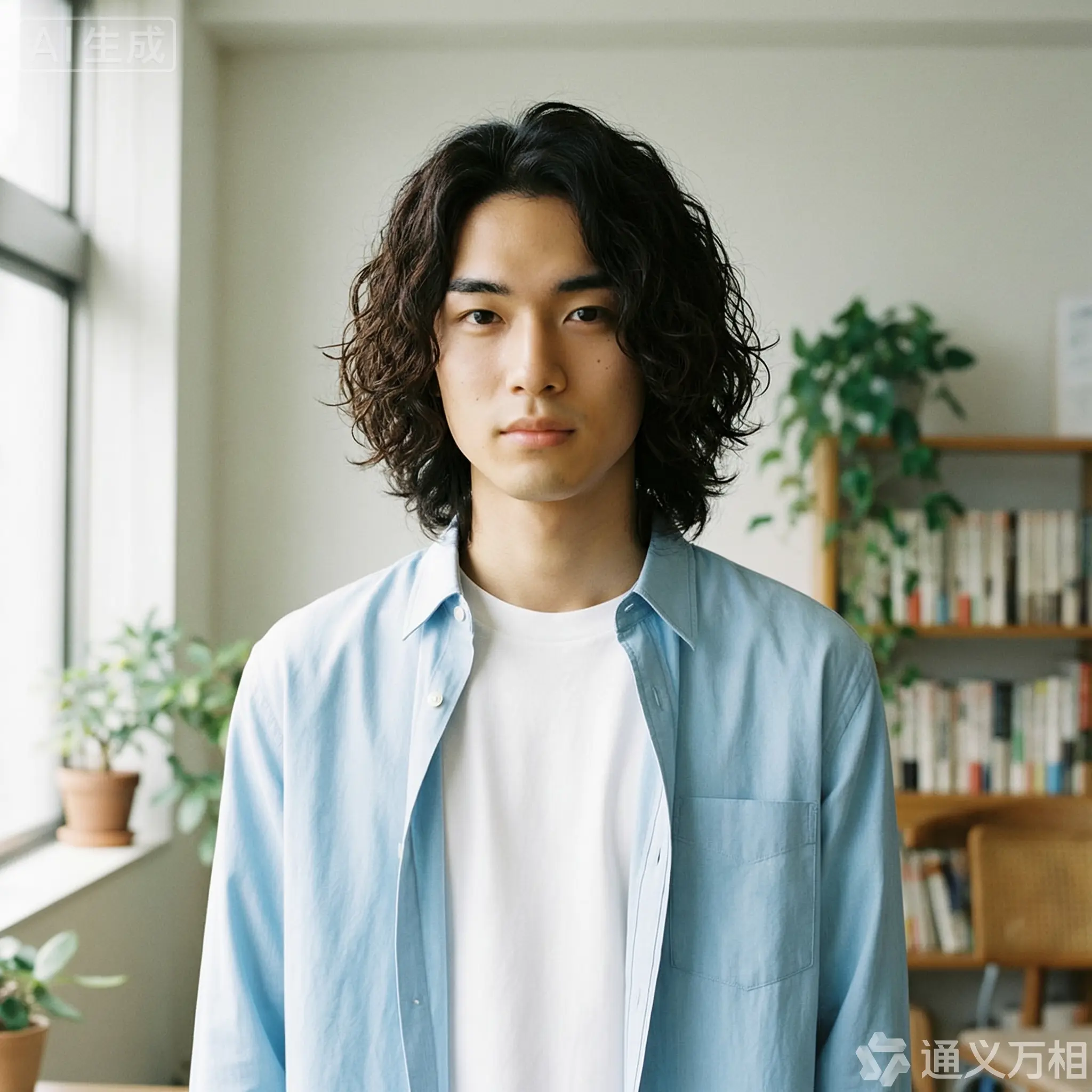
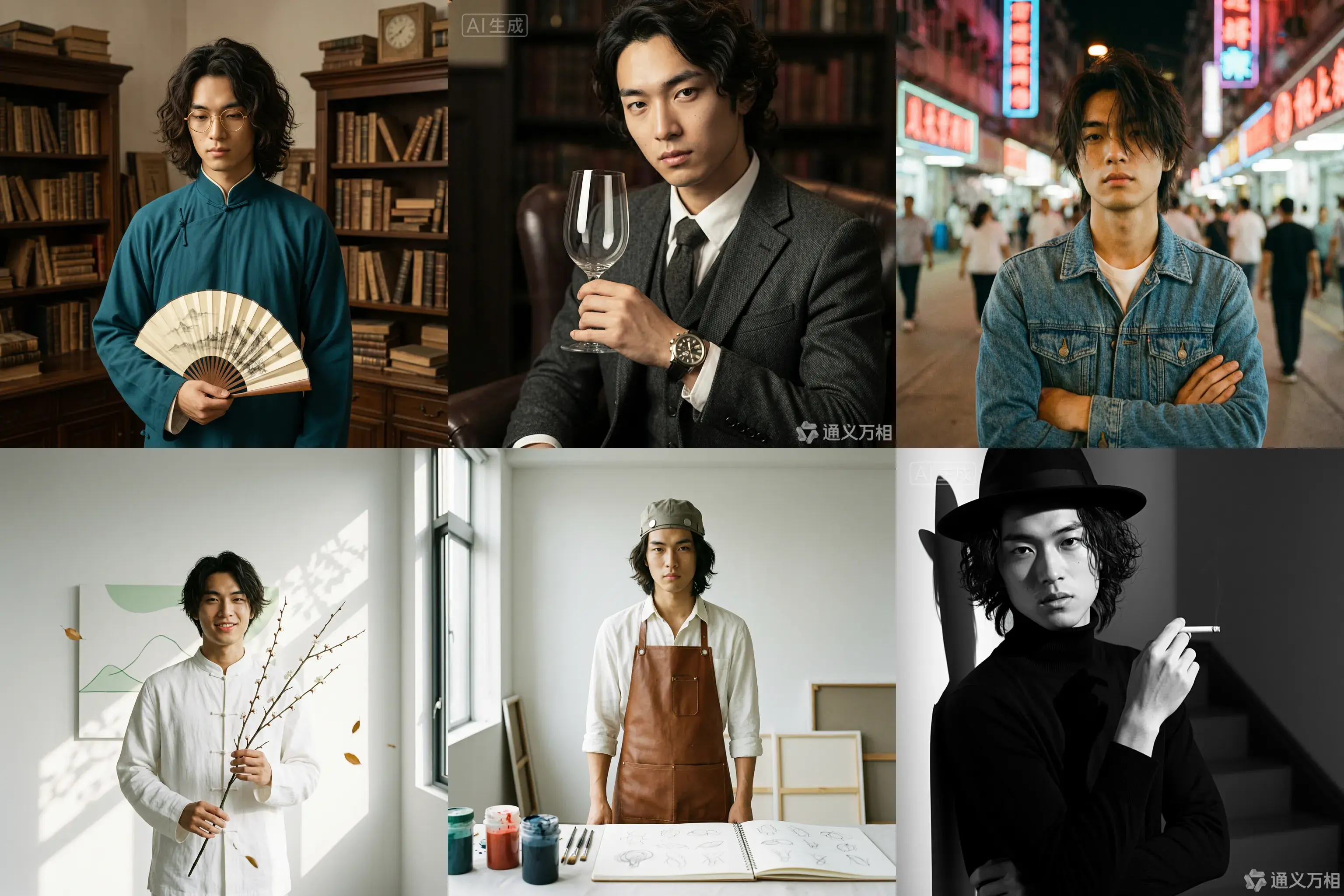
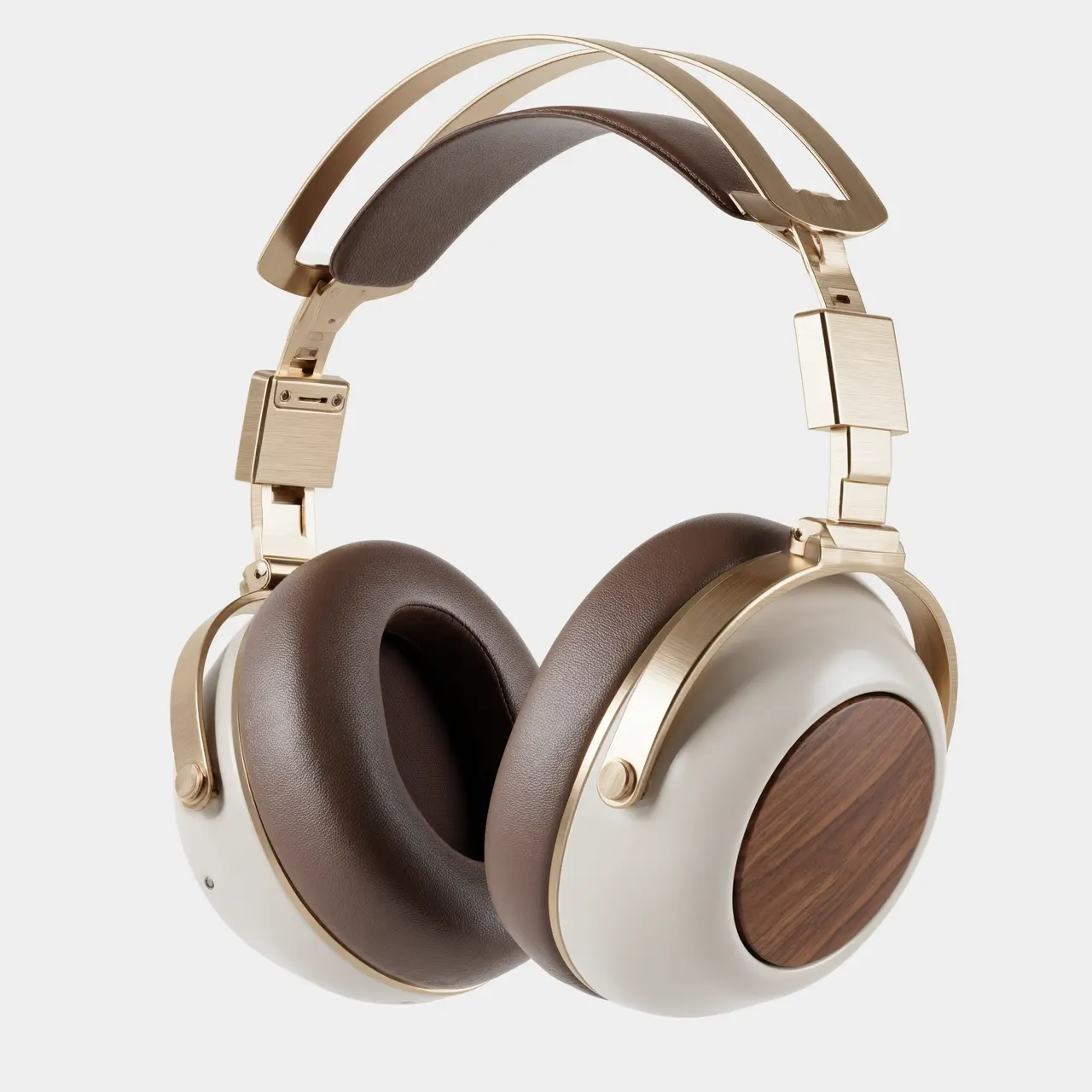
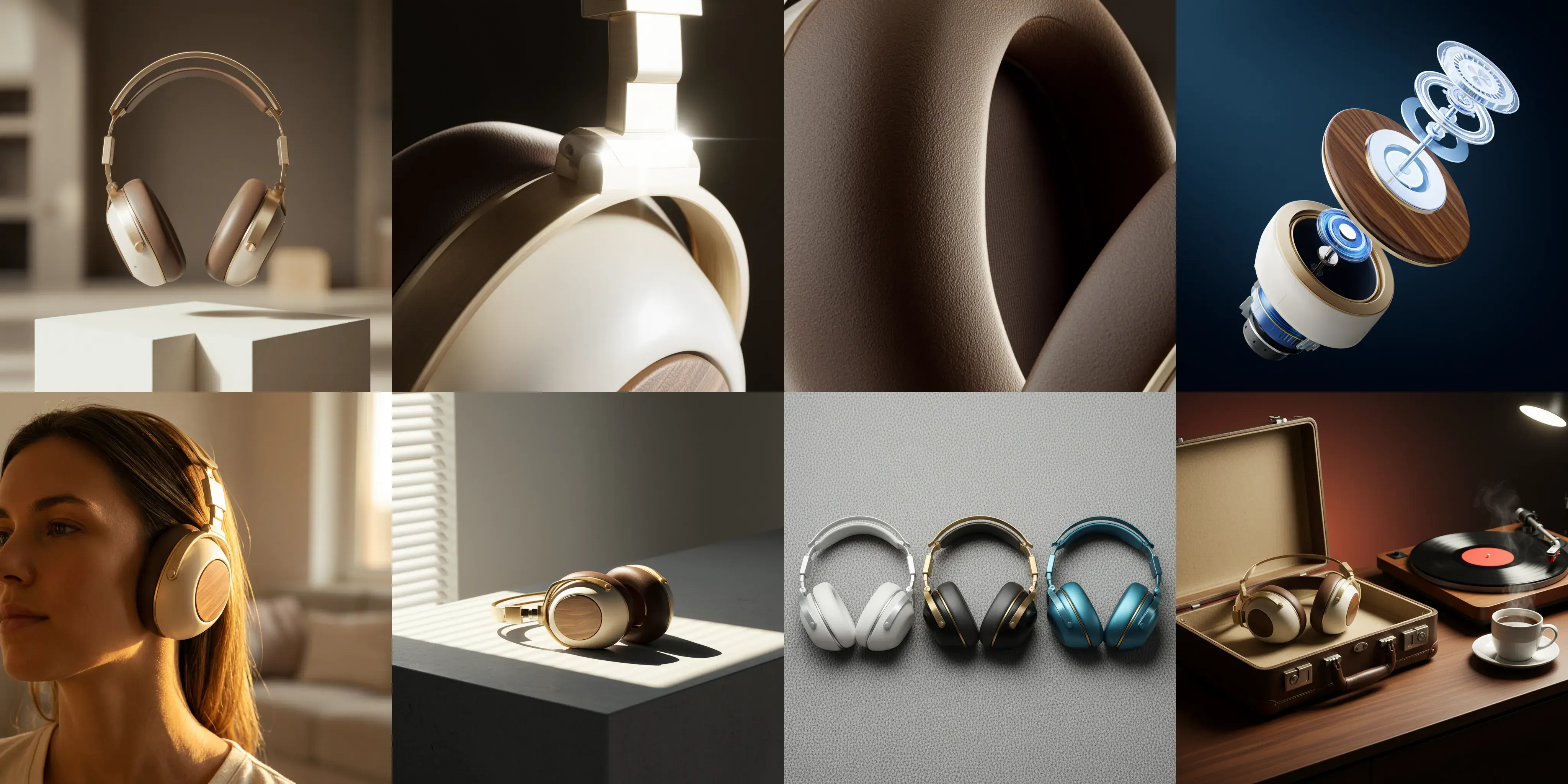
Cliquez pour afficher les prompts
Cas 1 : Séance photo
Base character setting: A 20-year-old East Asian male with curly, medium-length hair, an artistic temperament, defined features, and delicate eyes. He is wearing a simple white T-shirt or a light blue shirt, exuding a youthful and natural vibe.
1. Republic Era Scholar Style
Prompt:
[Base facial description] The character's appearance is based on reference image 1, wearing a dark cyan long gown and round, gold-rimmed glasses, holding a folding fan. The background is an old Shanghai study with wooden bookshelves, a warm yellow tone, a retro film texture, soft side lighting, and dust dancing in the light beams, creating a cultural and serene atmosphere. Hasselblad medium format, 85mm lens, high resolution, cinematic color grading, Wong Kar-wai style.
Props: Folding fan / Thread-bound book / Round-frame glasses
Color tone: Warm yellow / Dark cyan / Sepia
2. British Gentleman Style
Prompt:
[Base facial description] The character's appearance is based on reference image 1, wearing a dark gray tweed three-piece suit and a vintage mechanical watch, holding a glass of red wine and looking at it. The background is a classic library or private club with dark leather sofas, Rembrandt lighting, and a dark, elegant, and noble atmosphere. He has a cool gaze, with rich details and clear textures, exuding a British aristocratic temperament. 8k resolution, fashion magazine-style shot.
Props: Wine glass / Pipe / Mechanical watch
Color tone: Dark gray / Burgundy / Dark gold
3. 90s HK Retro Style
Prompt:
[Base facial description] The character's appearance is based on reference image 1, wearing a washed denim jacket or a floral shirt, with slightly messy hair and arms crossed. The background is a street with neon signs at night, with blurry light spots, high grain, and rich colors, featuring a red and blue color clash. Wong Kar-wai style, emotional, with a dreamy gaze, direct flash effect, and a nostalgic atmosphere. [Full-body shot].
Color tone: Neon red / Dark blue / Film green
4. New Chinese Zen Style
Prompt:
[Base facial description] The character's appearance is based on reference image 1, with a slight smile showing teeth, wearing a modified white Chinese stand-up collar shirt, holding a branch of plum blossoms. The background is a minimalist blank wall or a bamboo forest, with sunlight casting mottled shadows on the wall. The color tone is cool and serene, embodying Eastern aesthetics. The skin is translucent, with high grain and a matte finish. The composition is simple, with rich layers of light and shadow. High-end photography, Zen atmosphere.
Props: Plum blossom branch
Color tone: White / Dark green / Light gray
5. Vintage Artist Style
Prompt:
[Base facial description] The character's appearance is based on reference image 1, wearing a white shirt stained with paint and a brown leather apron, holding a paintbrush or a palette. The background is a clean studio with bright light and colorful light and shadow. He has a focused expression, looking at the paint in his hand, not at the camera. His hair is slightly messy, with an artistic flair, an impressionist color tone, and a strong texture.
Props: Paintbrush / Palette / Sketchbook
Color tone: Warm light / Colorful paint / Brown
6. Classic Noir B&W Style
Prompt:
[Base facial description] The character's appearance is based on reference image 1, wearing a black turtleneck sweater, holding a cigarette, and wearing a black fedora. The background is a staircase or hallway with intersecting shadows. High-contrast black and white photography, hard lighting, strong shadows, a sense of mystery, and a hard-boiled detective style. The facial contours are sharp, with extremely clear skin texture. A classic movie still, timeless feel, side-profile close-up, artistic photography.
Props: Cane / Fedora / Sunglasses
Color tone: Black and white / High contrast
Cas 2 : Conception visuelle
Image 1: A commercial-grade product photography main visual cover image, front-view panoramic composition. A pair of retro-futuristic wireless over-ear headphones floats above a geometric plaster form, showcasing perfect symmetrical aesthetics. The materials are champagne gold metal and a cream-white shell. The background is a deeply blurred warm indoor light and shadow, with soft light outlining the product's silhouette. The white space in the image creates a strong sense of breathability, suggesting a quiet auditory experience. 8k ultra-high resolution, minimalist and premium feel.
Image 2: A 100mm macro shot of the product's material details, focusing closely on the connection of the headphone's telescopic arm. It clearly shows the texture of the champagne gold brushed aluminum alloy and the CNC precision-cut chamfers. A sharp backlight creates a starburst highlight on the metal edge. The background is dark to emphasize the industrial precision of the metal. The image quality is extremely sharp with no noise.
Image 3: An extreme close-up macro shot of the material, focusing on the surface of the mocha-colored protein leather earcups. Side lighting reveals the fine pore texture of the leather, the soft wrinkles from pressing, and the ventilation hole details, conveying ultimate skin-friendly comfort and resilience. The light and shadow are rich in layers, and the color tone is warm and moist. Ultra-high-definition macro photography.
Image 4: An artistic exploded view of the product, showing the internal sound units, noise-canceling chips, battery modules, and external walnut wood decorative panels and metal frame of the retro-futuristic headphones in a suspended, disassembled state. The background is a deep tech blue, and the internal components have a semi-transparent holographic technological texture, emphasizing the combination of internal precision craftsmanship and modern technology. High-tech commercial poster style.
Image 5: A 35mm humanistic shot of the wearing scenario, with a close-up on the model's jawline and neck, showing the perfect fit of the champagne gold headphones. Natural warm sunset light from the side-rear creates a rim light, with the edges of the hair glowing gold. The model's skin tone has a healthy and natural texture, creating a relaxed, immersive music-listening lifestyle feel. The background is a blurry home environment.
Image 6: A still life photograph paying homage to architectural light and shadow. The headphones are placed on a minimalist gray concrete table. Afternoon sunlight streams through blinds, casting striped hard shadows that cut across the matte cream-white body and champagne gold frame, creating a strong geometric composition of light and dark. This highlights the three-dimensional shape of the body and the contrast of materials. A clash of cool and warm color tones, minimalist composition.
Image 7: A top-down flat-lay composition showing the color options. Three headphones from the series in different color schemes—silver-white, black-gold, and blue-copper—are arranged side by side. The background is a highly textured gray wool felt cloth. Soft top lighting emphasizes the diversity of the CMF design and the delicate touch of the materials. The image is clean and orderly, in a design magazine style.
Image 8: A brand lifestyle family portrait still life photograph. The retro-futuristic headphones are placed next to their matching exquisite leather case. On the table are a vinyl record player, a spinning vinyl record, and a cup of steaming coffee. The background is rendered with warm ambient lighting, dominated by a deep walnut wood tone, conveying a brand philosophy that combines a slow-paced lifestyle with high-fidelity sound quality. Cinematic narrative lighting.
Édition interactive
Image d'entrée | Image de sortie |
|---|---|
|
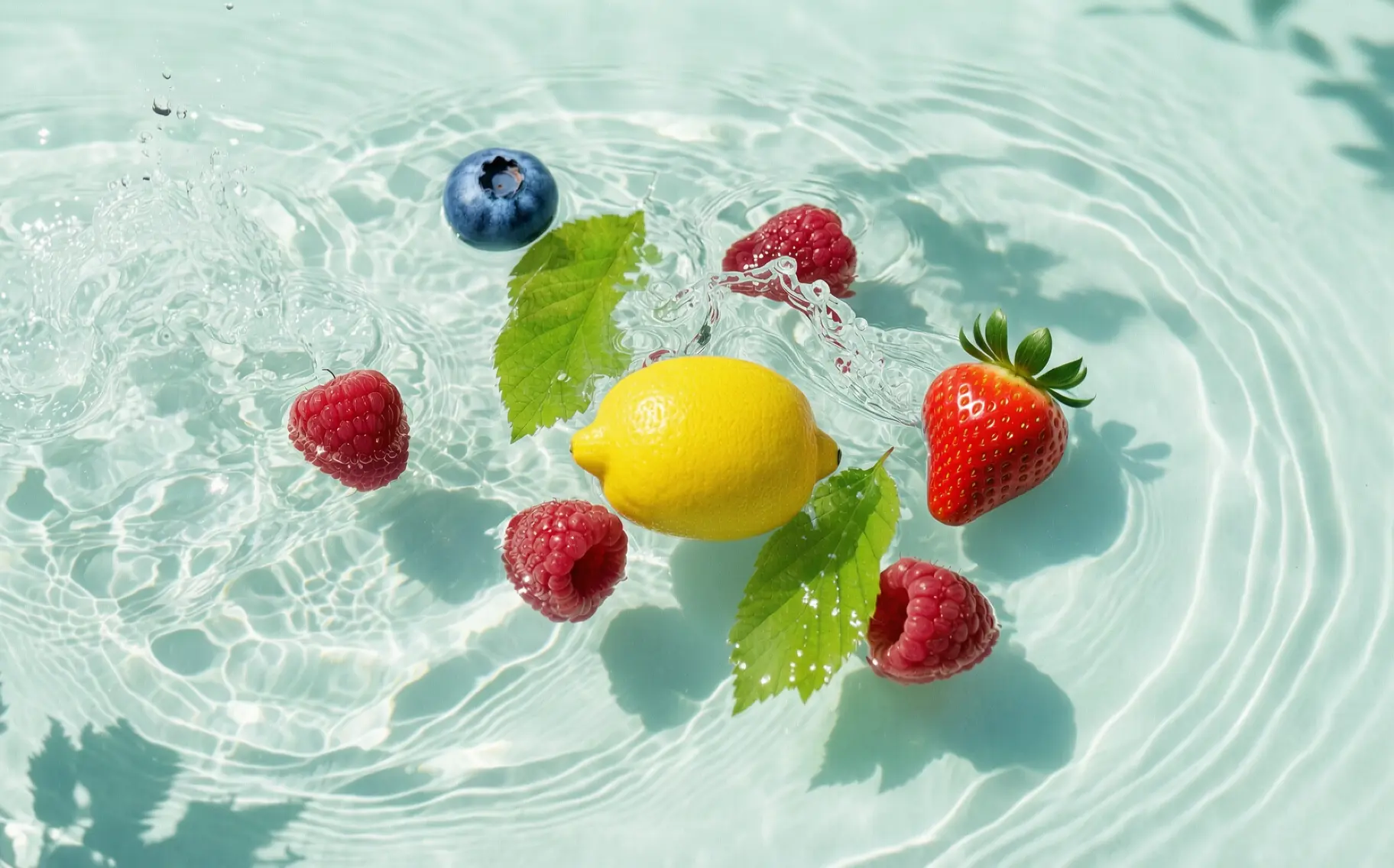
Modifiez l'image 1 en remplaçant la framboise sélectionnée dans le cadre 1 par un citron, celle du cadre 2 par une fraise et celle du cadre 3 par une myrtille. Le résultat doit s'intégrer harmonieusement à l'image originale, sans les cadres ni les numéros de référence, tout en conservant le reste du contenu inchangé. |
|
Insérez le motif sélectionné de l'image 1 dans la zone définie de l'image 2. |
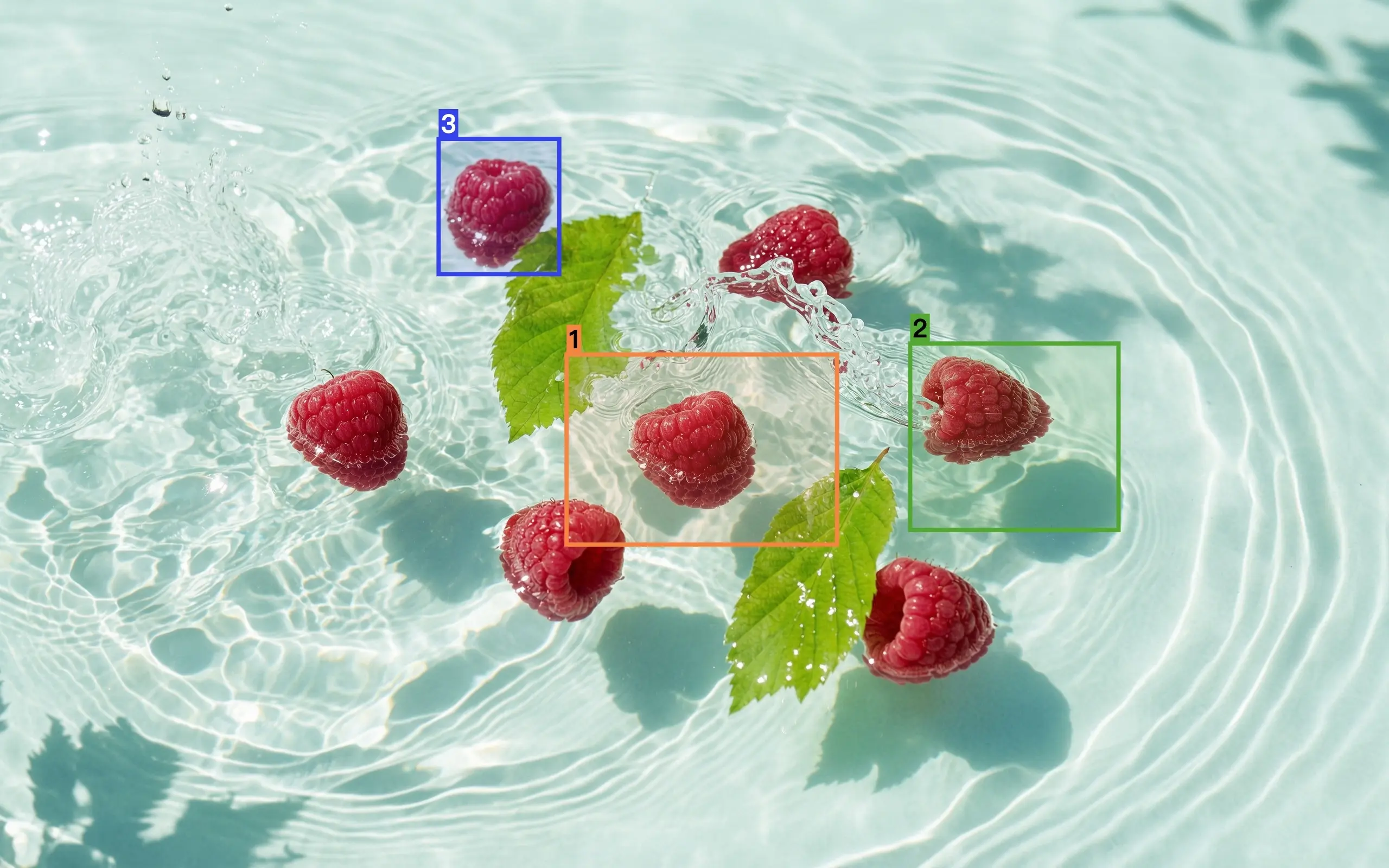


Fusion multi-images
Image d'entrée | Image de sortie |
|---|---|
|
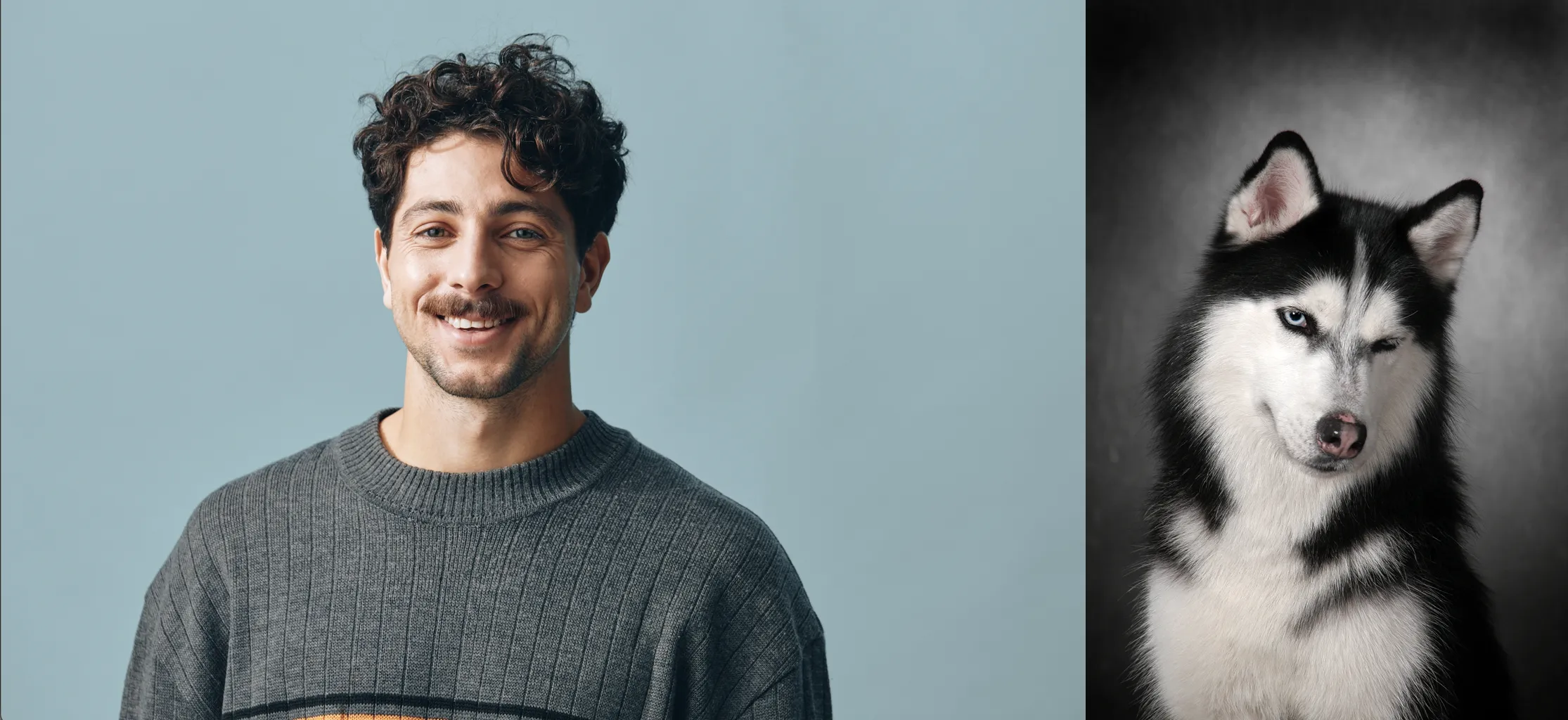
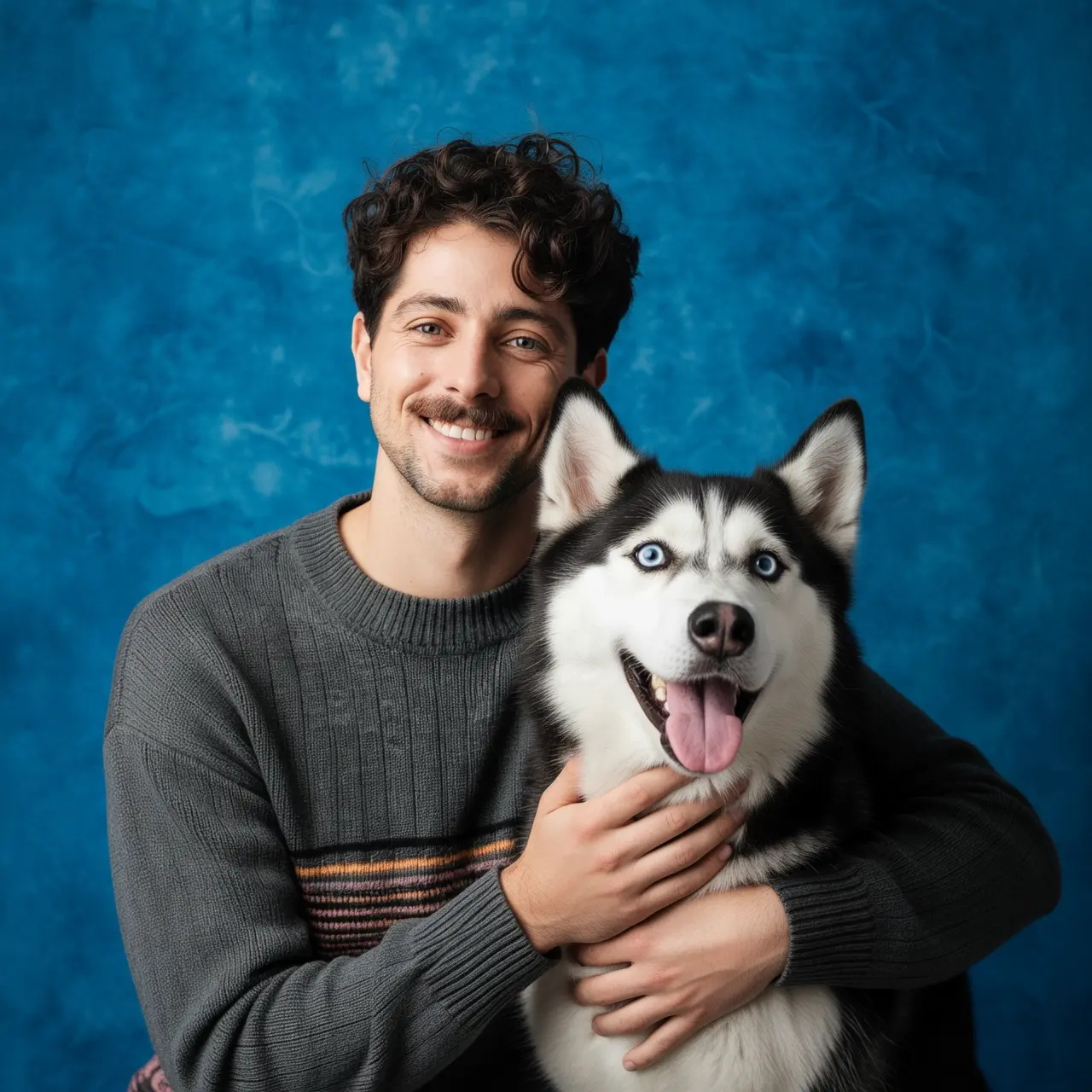
Réalisez un portrait réunissant le garçon de l'image 1 et le chien de l'image 2. Le garçon enlace le chien et tous deux affichent une grande joie. Éclairage doux de studio, fond texturé bleu. |
|
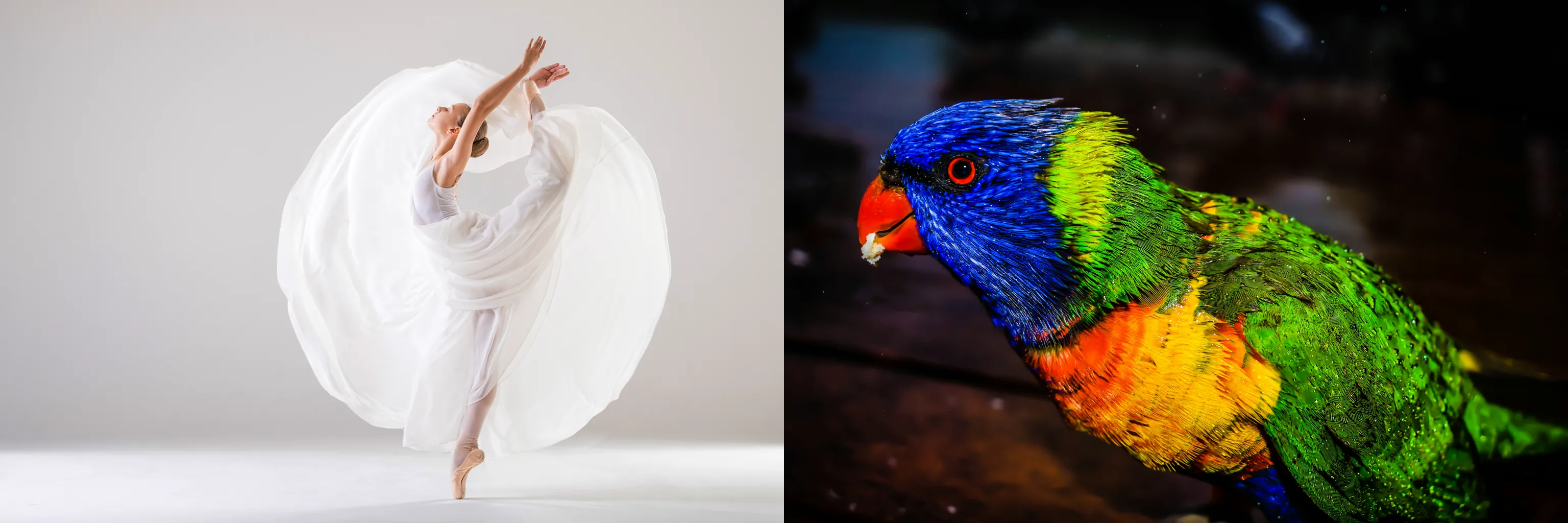
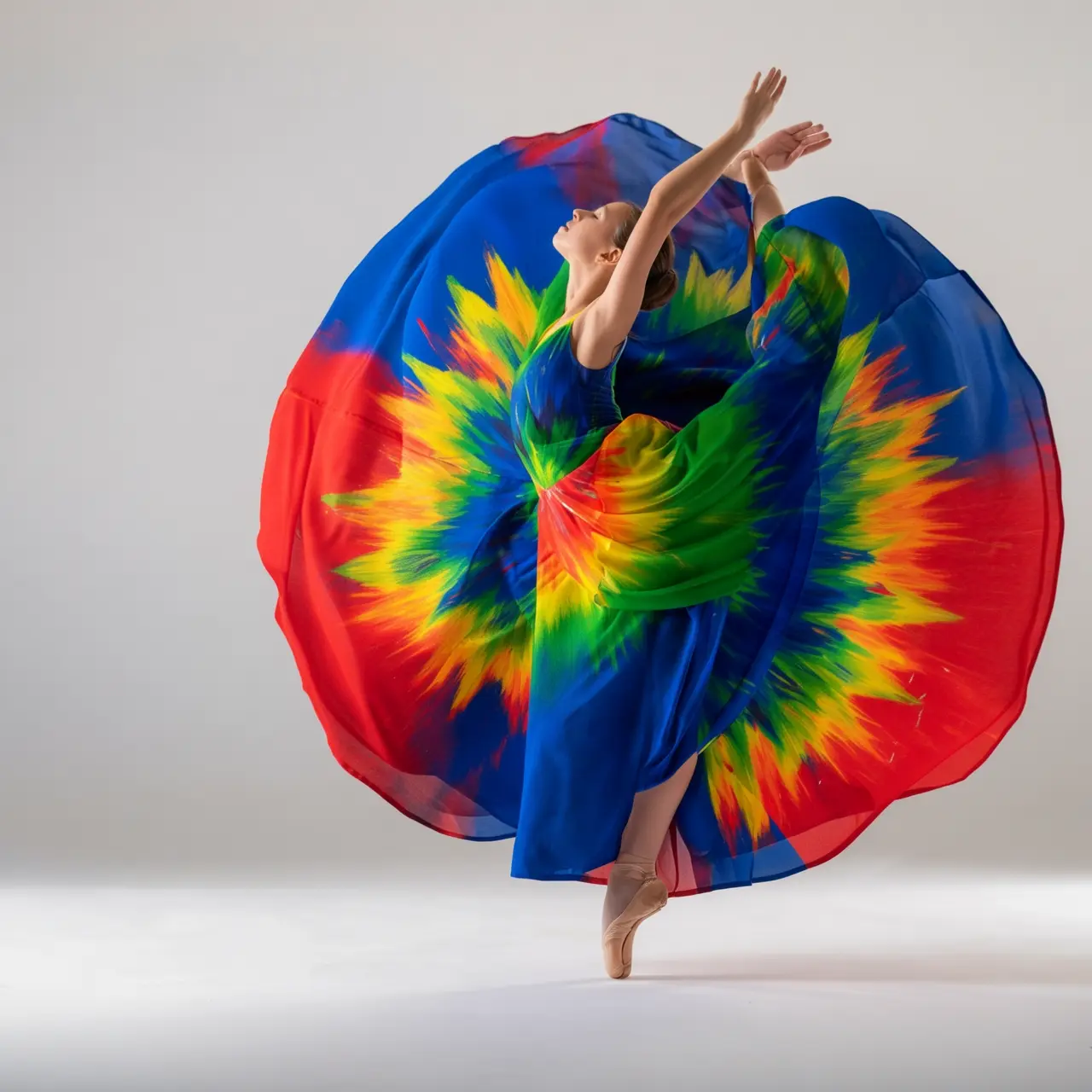
Recoloriez la robe de l'image 1 en utilisant la palette de couleurs de l'oiseau de l'image 2. Donnez un rendu artistique au résultat tout en préservant le style de la robe et l'apparence du mannequin. |
Préservation des caractéristiques du sujet
Image d'entrée | Image de sortie |
|---|---|
|
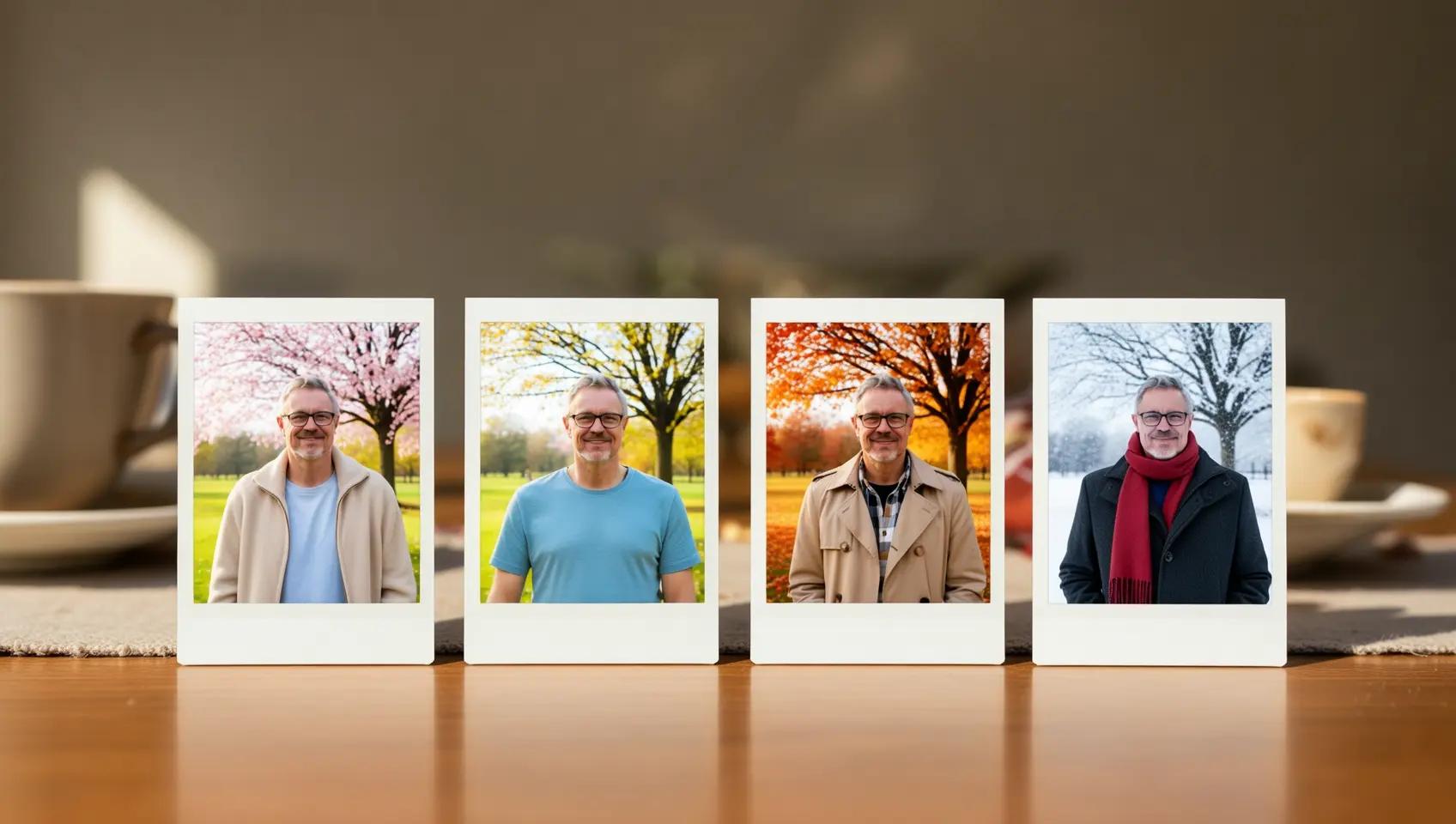
Générez une série de quatre photos Polaroid sur le thème « Changements saisonniers ». Chaque photo est prise au même endroit, sous un arbre dans un parc, mais illustre respectivement le printemps, l'été, l'automne et l'hiver. La tenue vestimentaire doit également correspondre à la saison : une veste légère au printemps, une chemise à manches courtes en été, un trench-coat en automne, ainsi qu'une écharpe et un manteau épais en hiver. Disposez cette série de photos sur une table de salle à manger. |

Détection et segmentation
Image d'entrée | Image de sortie |
|---|---|
|
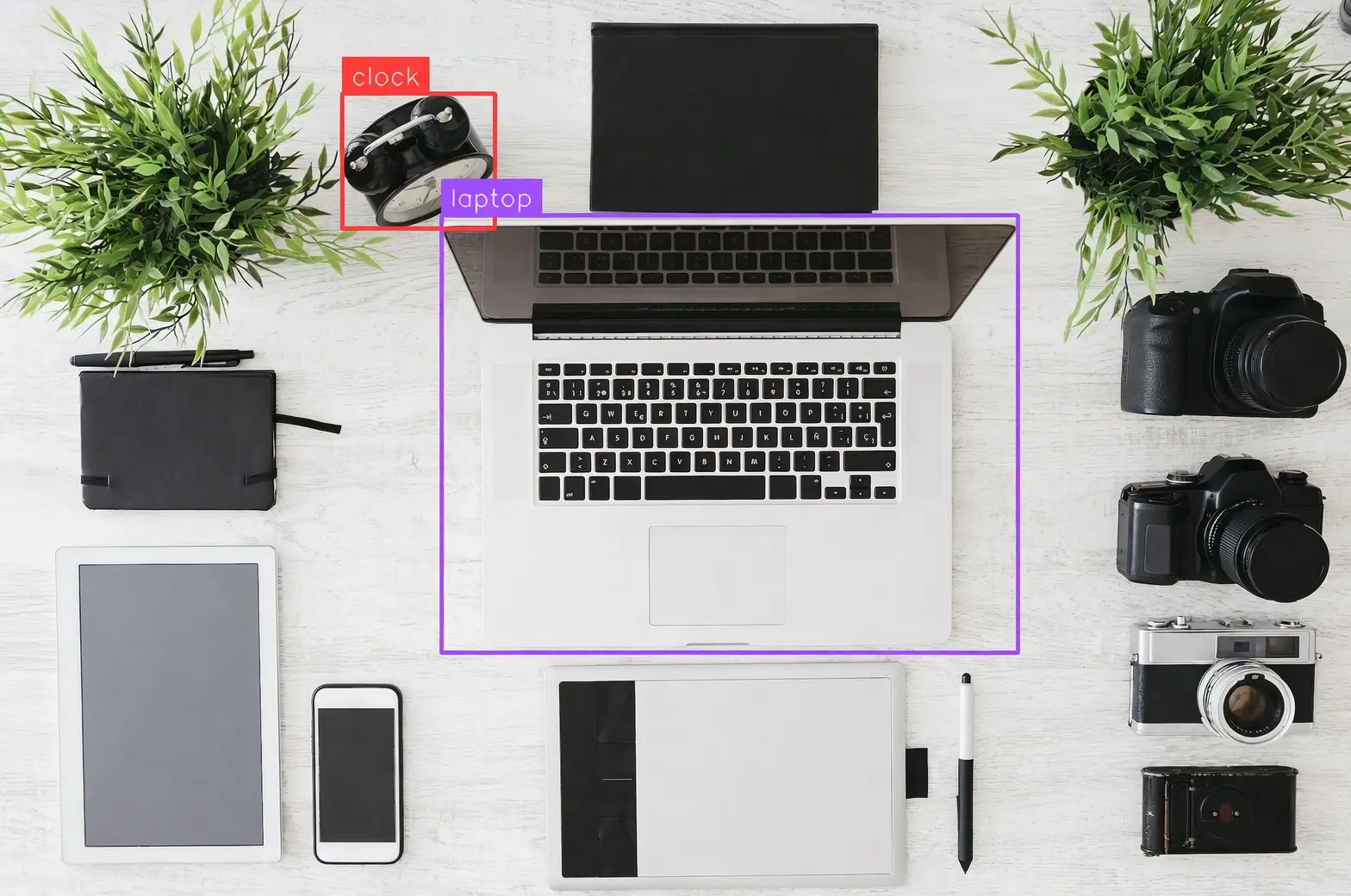
Détectez l'ordinateur portable et le réveil présents dans l'image, tracez des cadres de délimitation autour d'eux et étiquetez-les respectivement « laptop » et « clock ». |
|
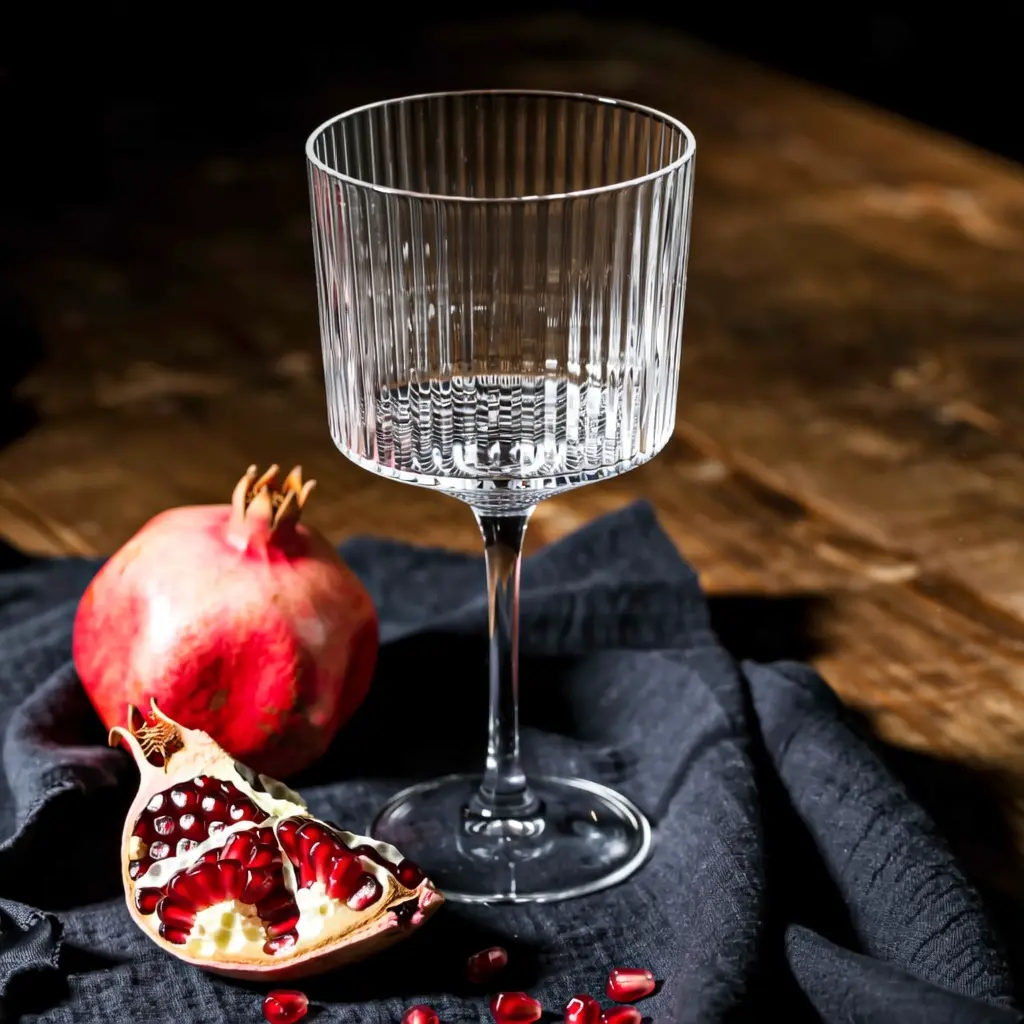
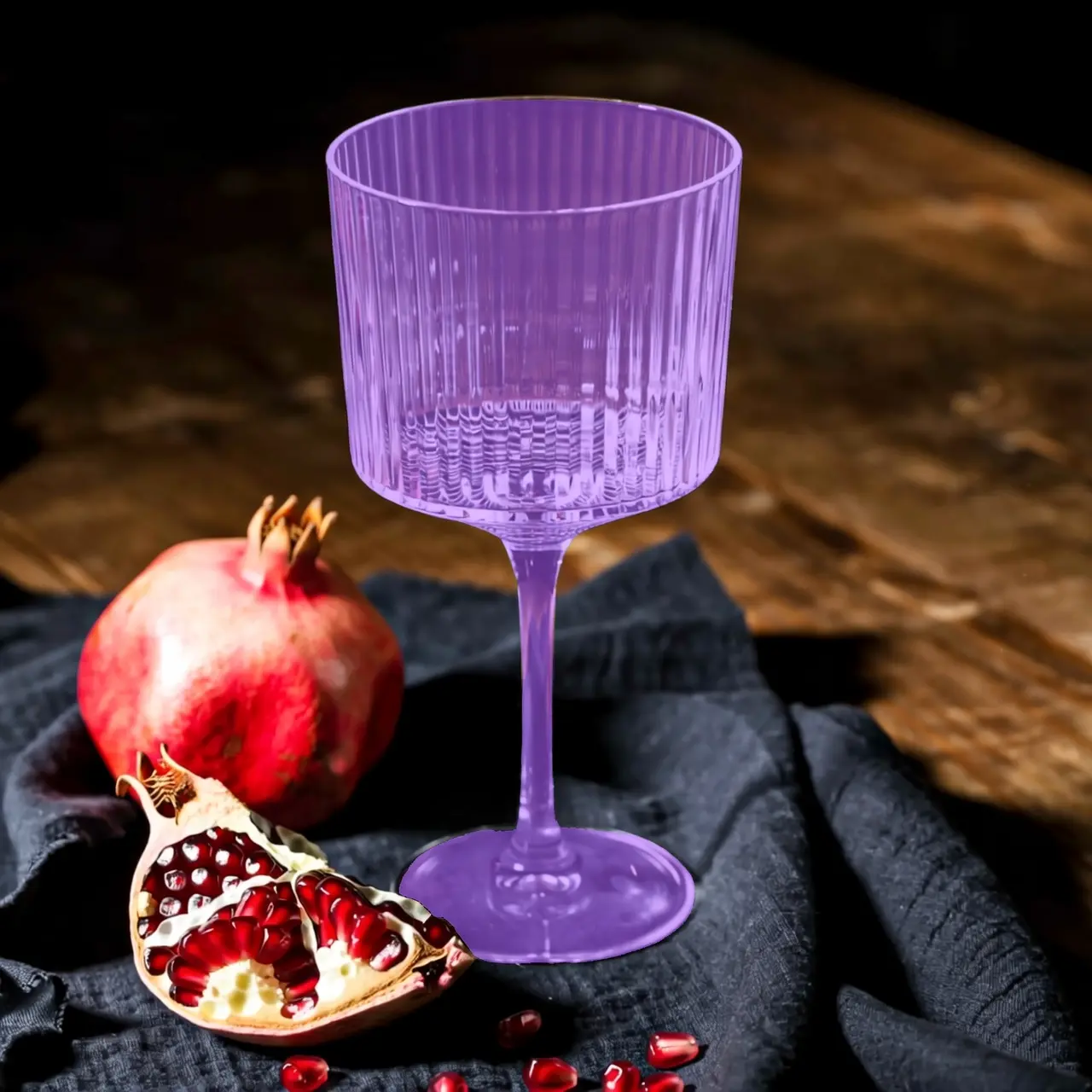
Segmentez le verre présent dans l'image. |

Extraction d'éléments
Image d'entrée | Image de sortie |
|---|---|
|
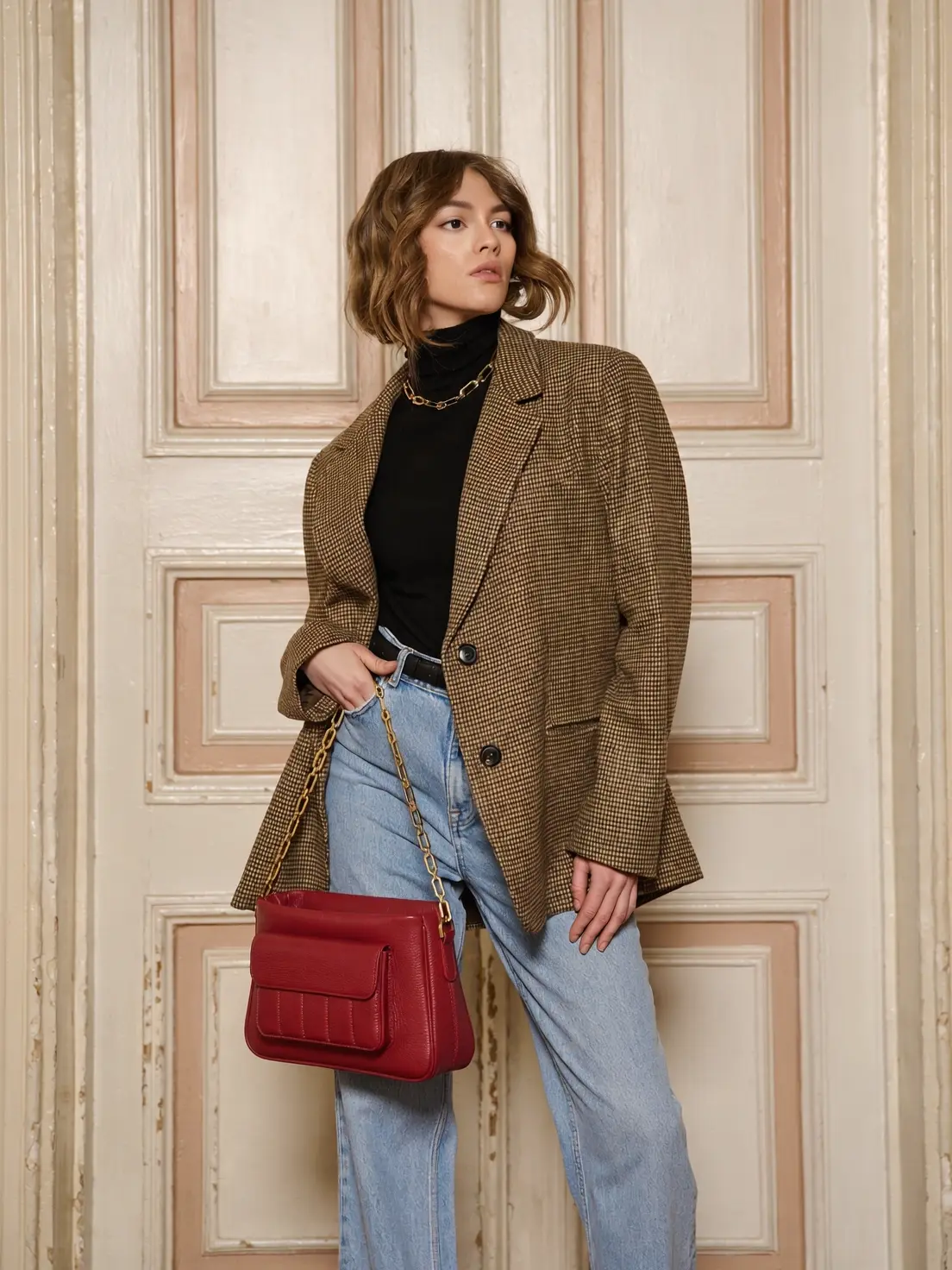
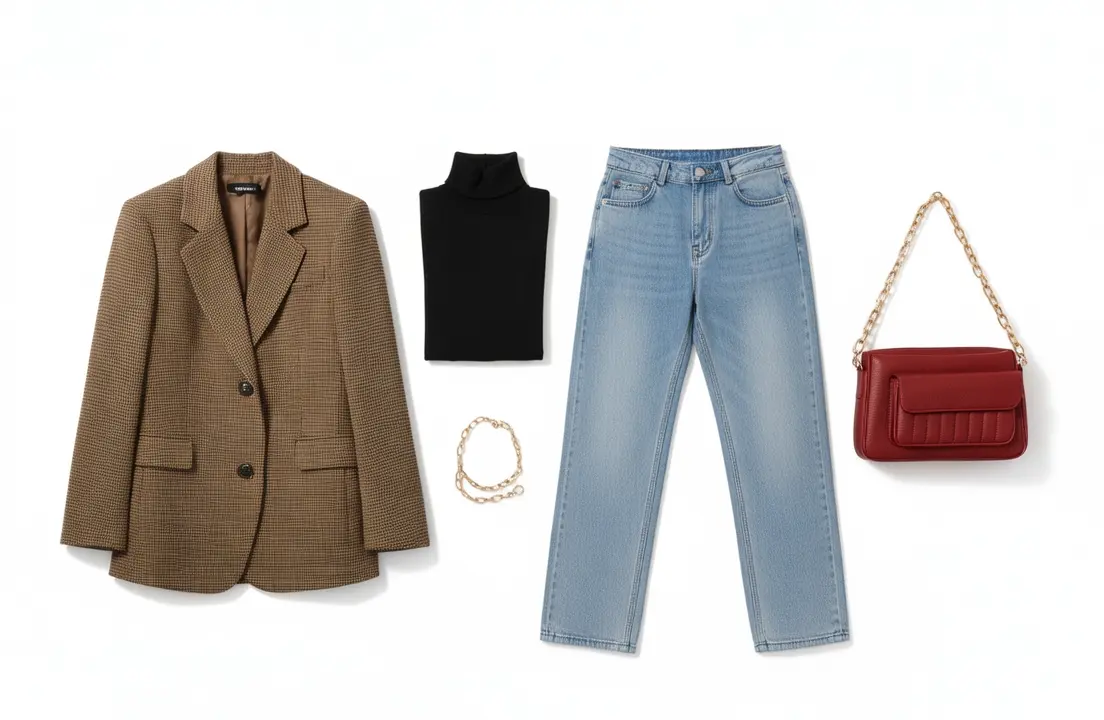
Isolez les vêtements de la photo téléchargée et disposez-les à plat sur un fond blanc uni. Conservez les détails réalistes ainsi que les textures des matériaux. Adoptez un style e-commerce de mode, adapté à la présentation de vêtements. |
Édition de texte
Image d'entrée | Image de sortie |
|---|---|
|
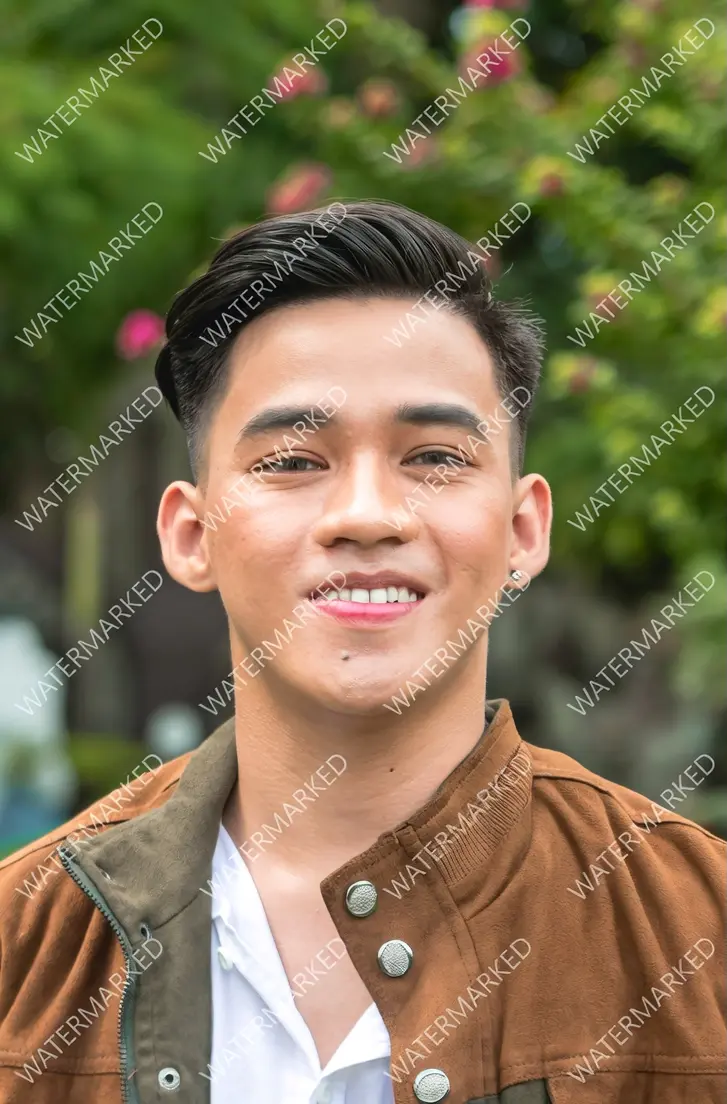
Supprime tous les filigranes de l'image. |
|
Écrit « Time for Holiday ? » sur le sable avec la main, dans un style décontracté. |
|
Remplace 18 par 29 et JUNE par SEPTEMBER. |

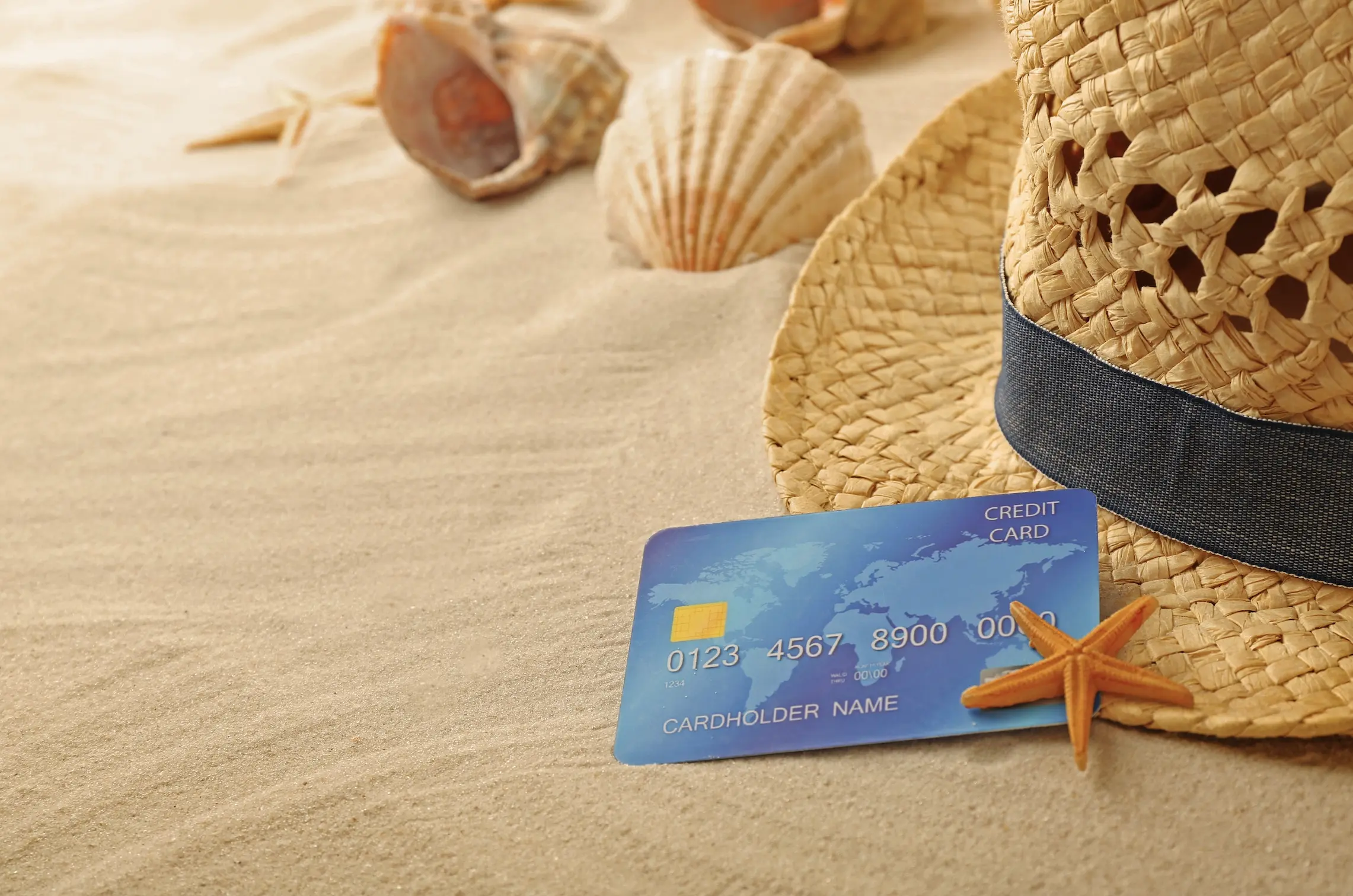
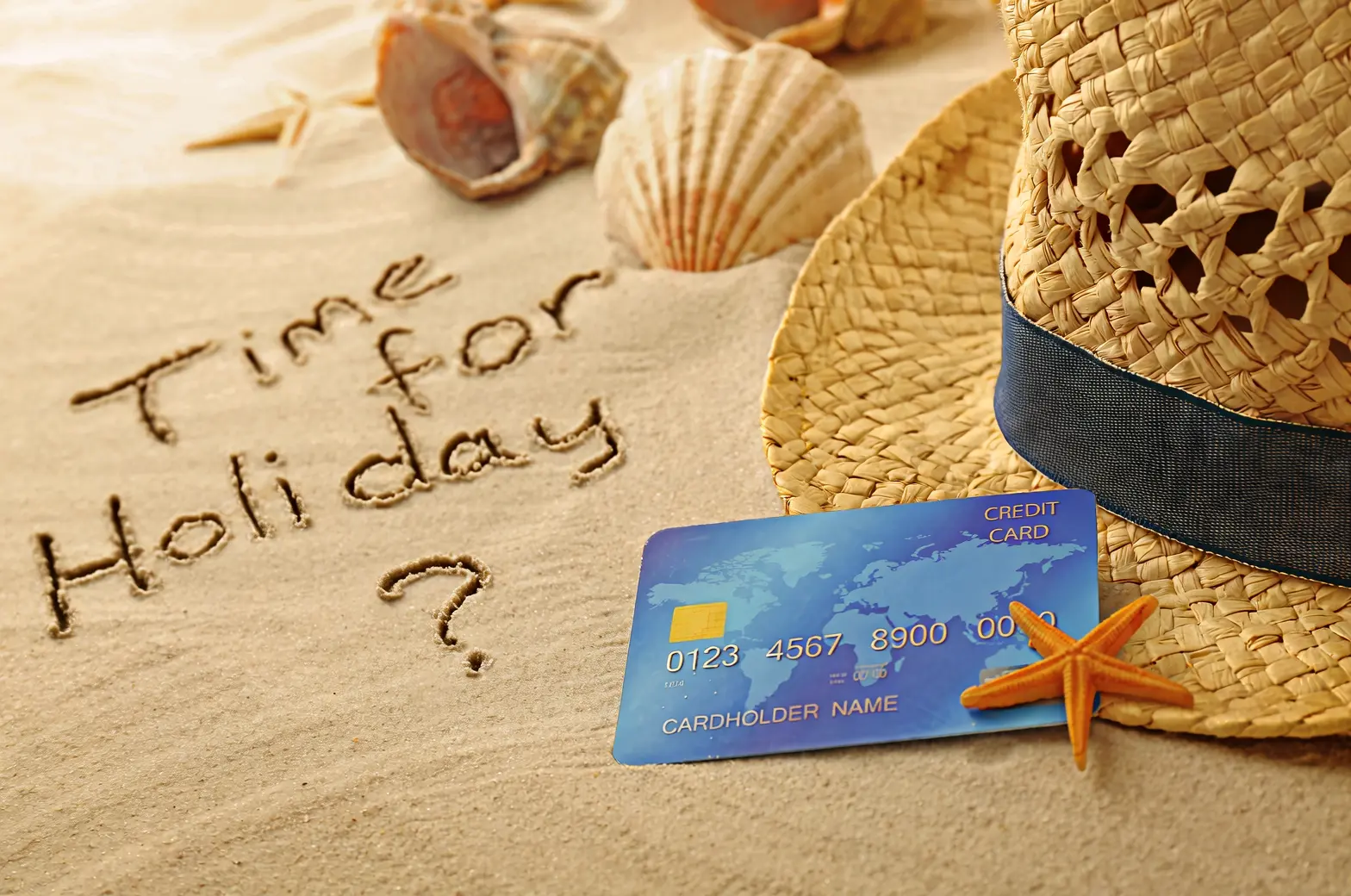


Édition de caméra et de perspective
Image d'entrée | Image de sortie |
|---|---|
|
Conserve les traits du personnage inchangés et génère des vues de face, de profil et de dos. |
|
Reprend cette photo avec un objectif fisheye. |
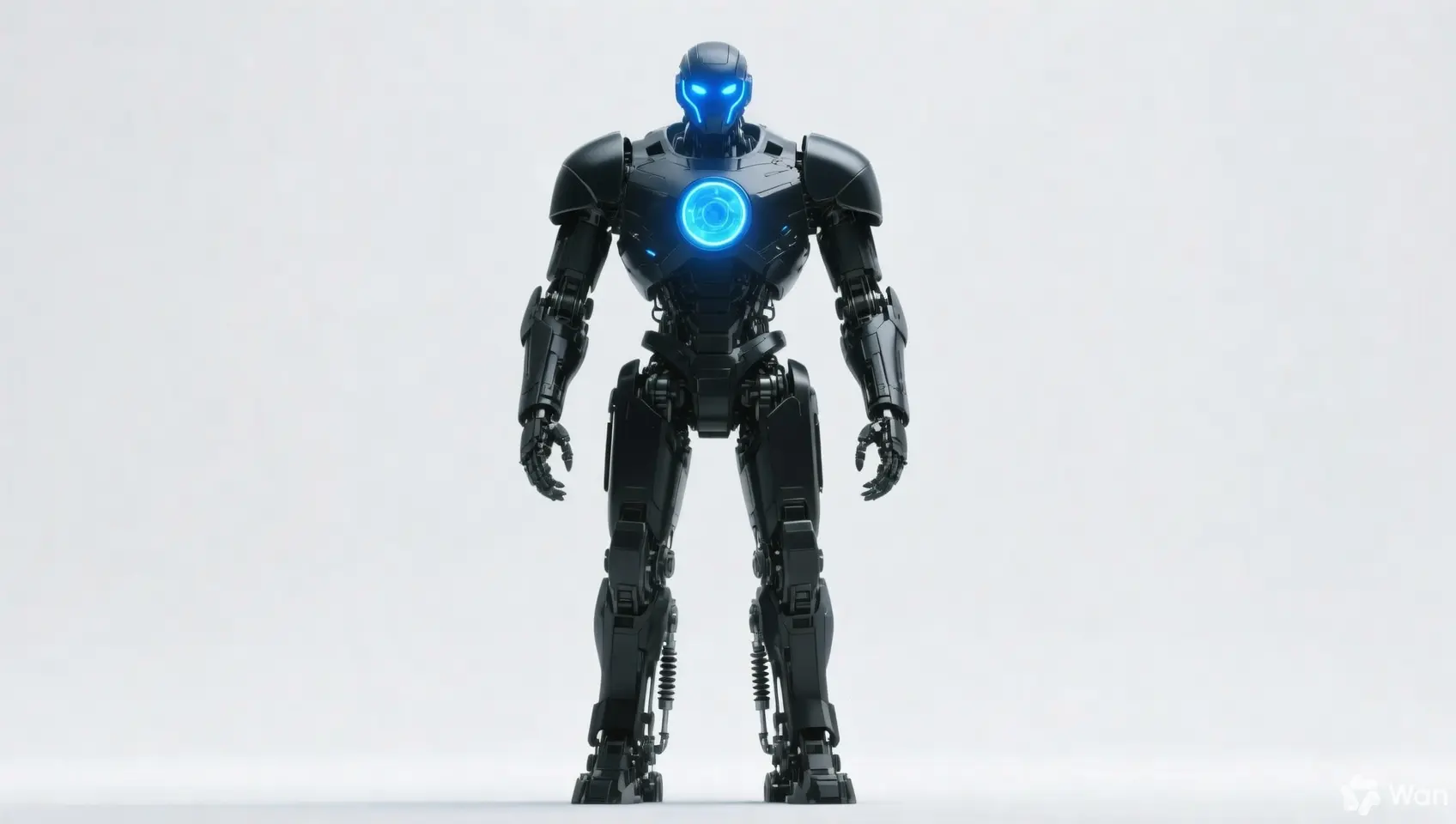
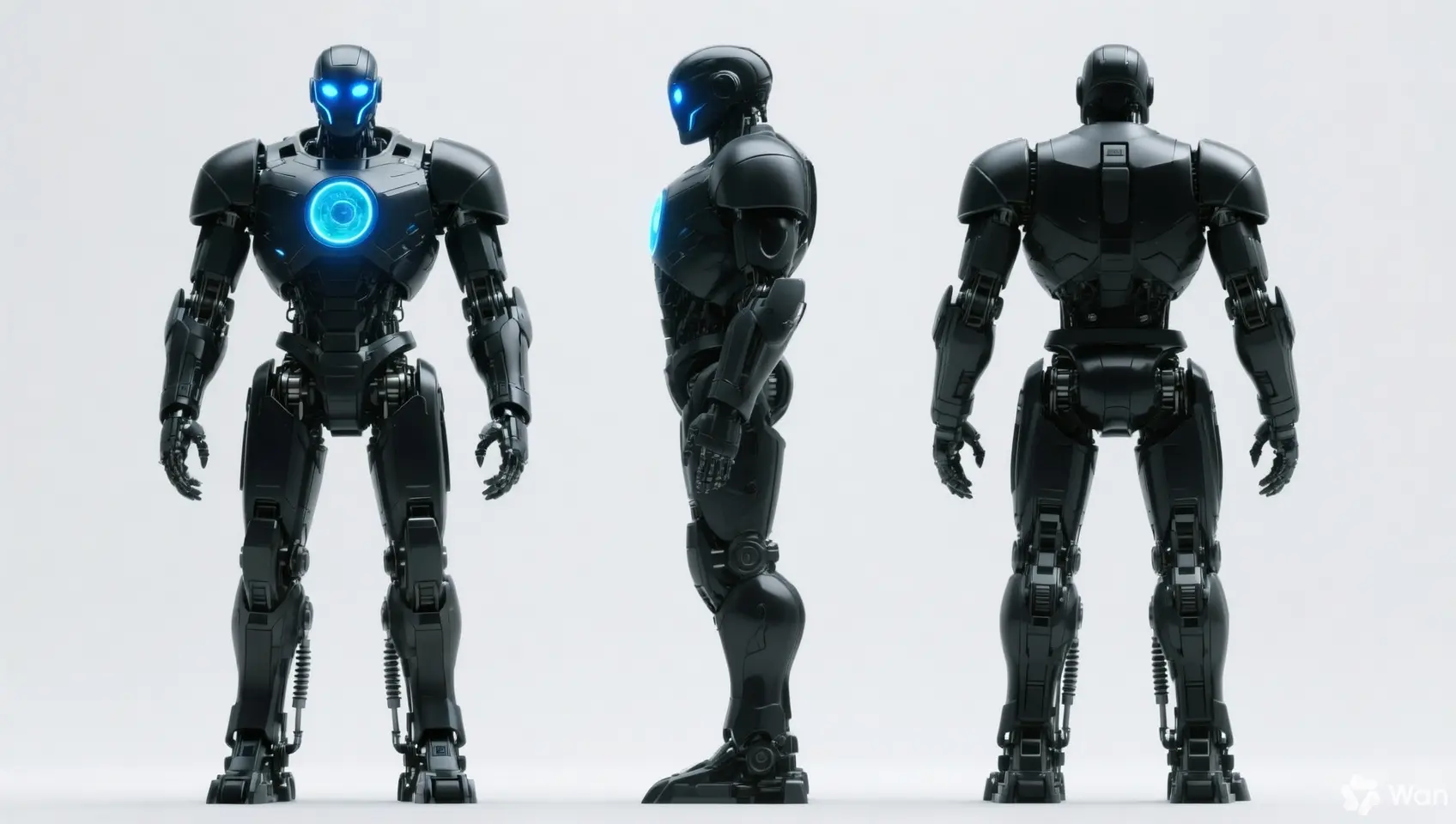
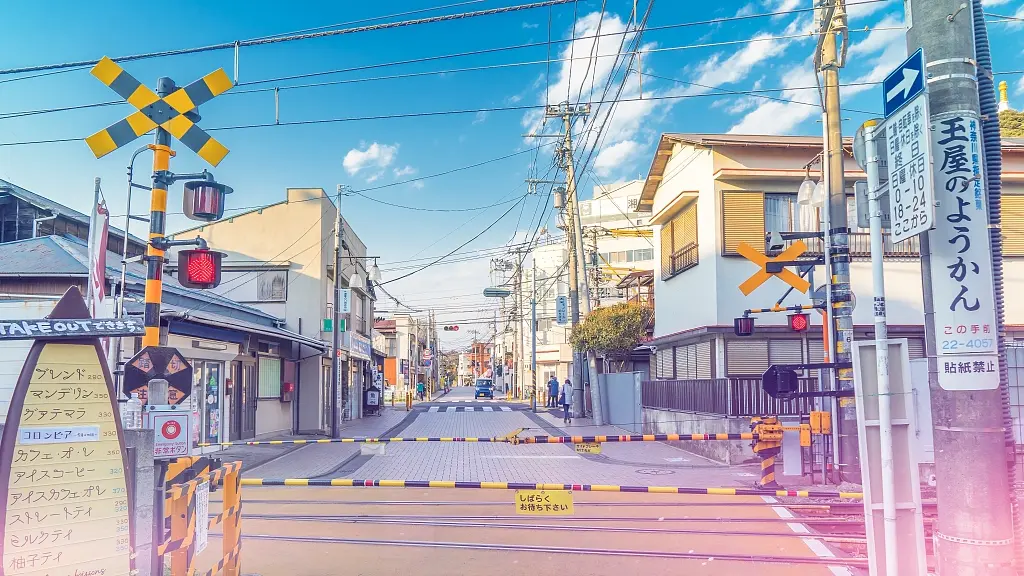
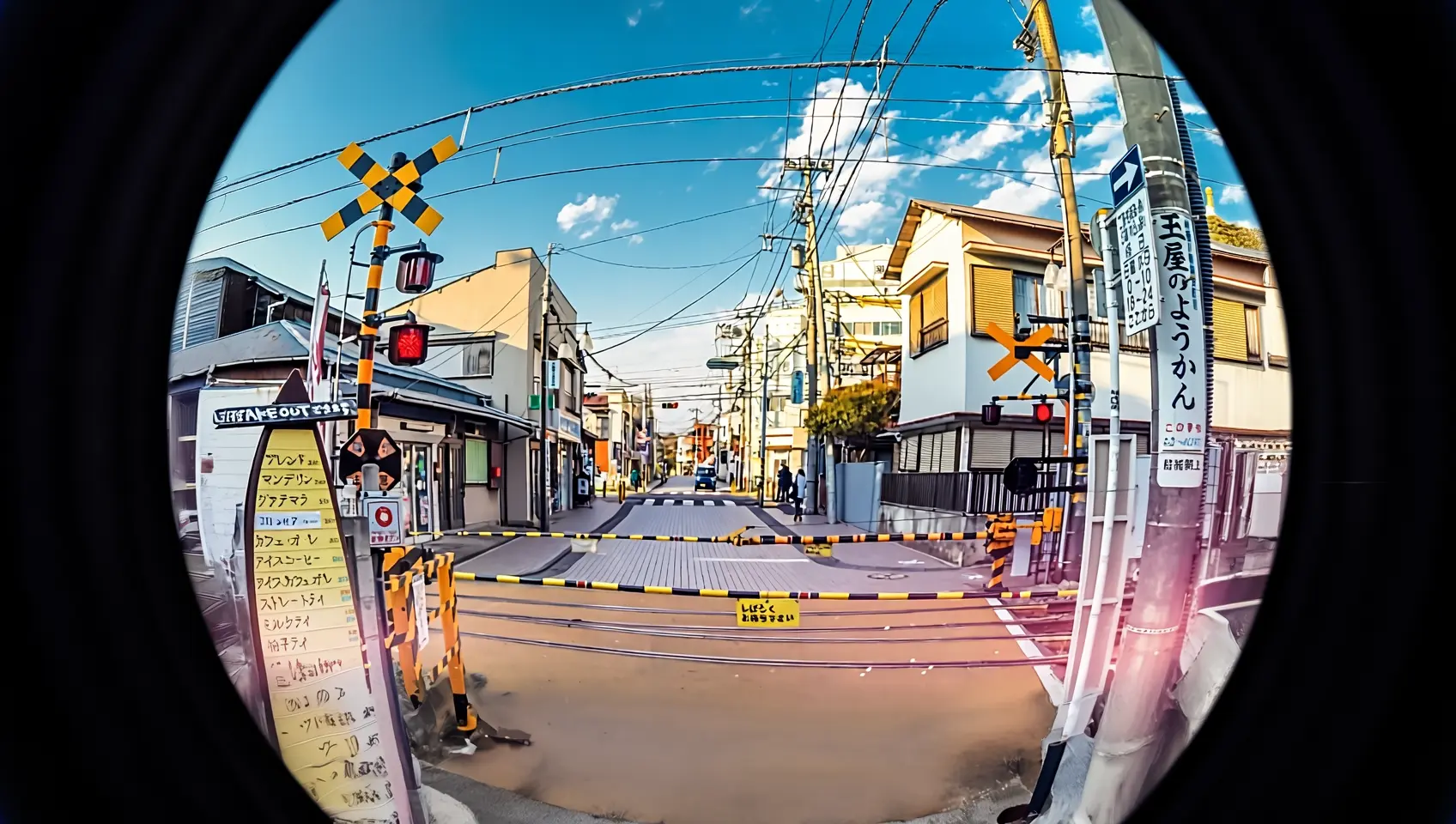
Spécifications d'entrée
Spécifications des images d'entrée
Spécification | wan2.7-image-pro, wan2.7-image | wan2.6-image | wan2.5-i2i-preview |
|---|---|---|---|
Nombre d'images d'entrée | 0 à 9 (0 correspond au mode texte vers image) | Édition d'image : 1 à 4 / Texte et image mixtes : 0 à 1 | 1 à 3 |
Format d'image | JPEG, JPG, PNG (canal alpha non pris en charge), BMP, WEBP | JPEG, JPG, PNG (canal alpha non pris en charge), BMP, WEBP | JPEG, JPG, PNG (canal alpha non pris en charge), BMP, WEBP |
Plage de largeur et de hauteur d'image | [240, 8000] pixels | [240, 8000] pixels | [384, 5000] pixels |
Taille du fichier | ≤ 20 Mo | ≤ 10 Mo | ≤ 10 Mo |
Rapport d'aspect | [1:8, 8:1] | Illimité | [1:4, 4:1] |
Ordre d'entrée des images
Les numéros d'image dans les prompts correspondent à la position dans le tableau : la première image est « image 1 », la seconde est « image 2 ». Vous pouvez également utiliser des marqueurs tels que « [image 1] » et « [image 2] ».
{
    "content": [
        {"text": "Editing instruction, for example: Place the alarm clock from image 1 next to the vase on the dining table in image 2"},
        {"image": "https://example.com/image1.png"},
        {"image": "https://example.com/image2.png"}
    ]
}
Image d'entrée | Image de sortie | ||
|---|---|---|---|
Image 1 |
Image 2 |
Prompt : Déplacer l'image 1 sur l'image 2 |
Prompt : Déplacer l'image 2 sur l'image 1 |
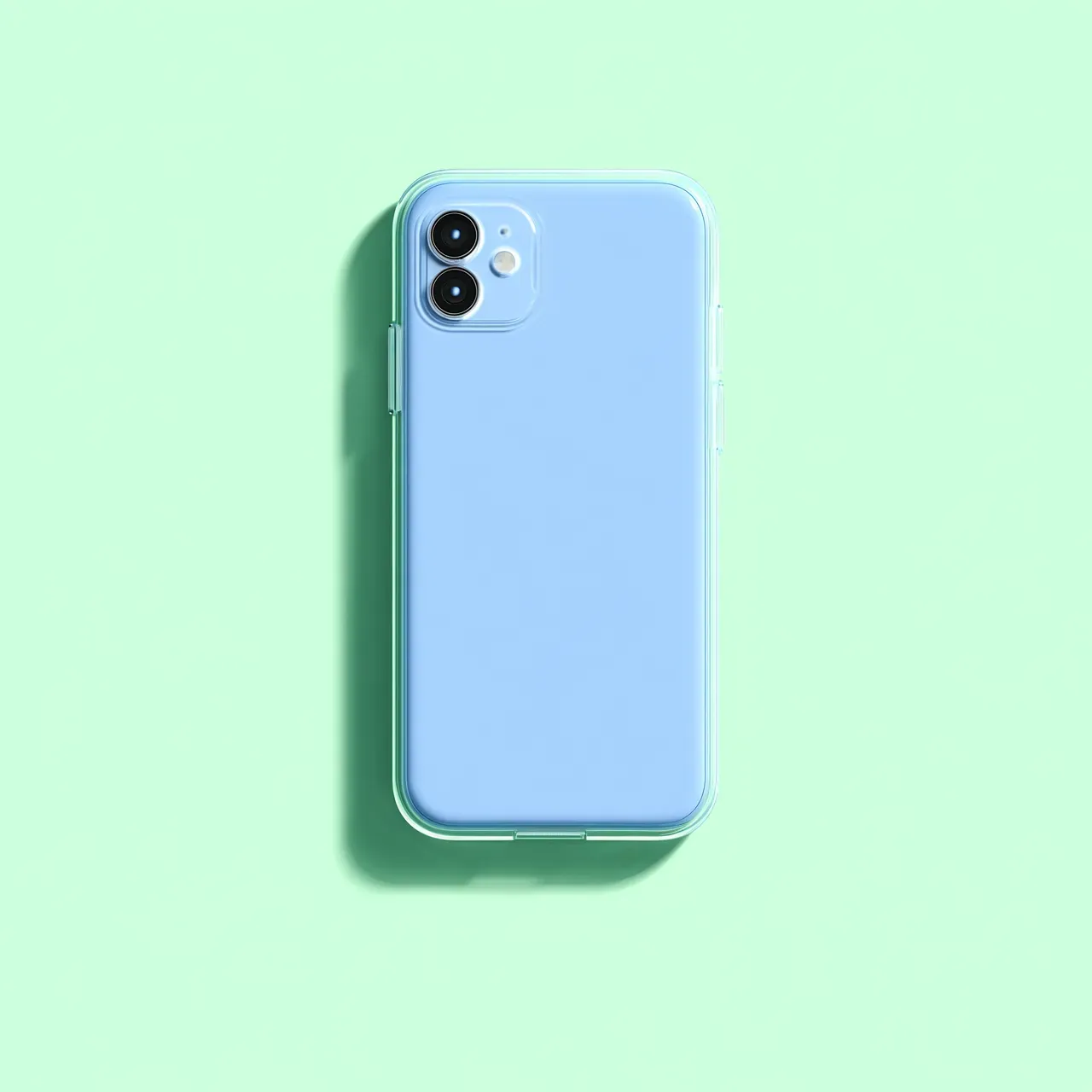
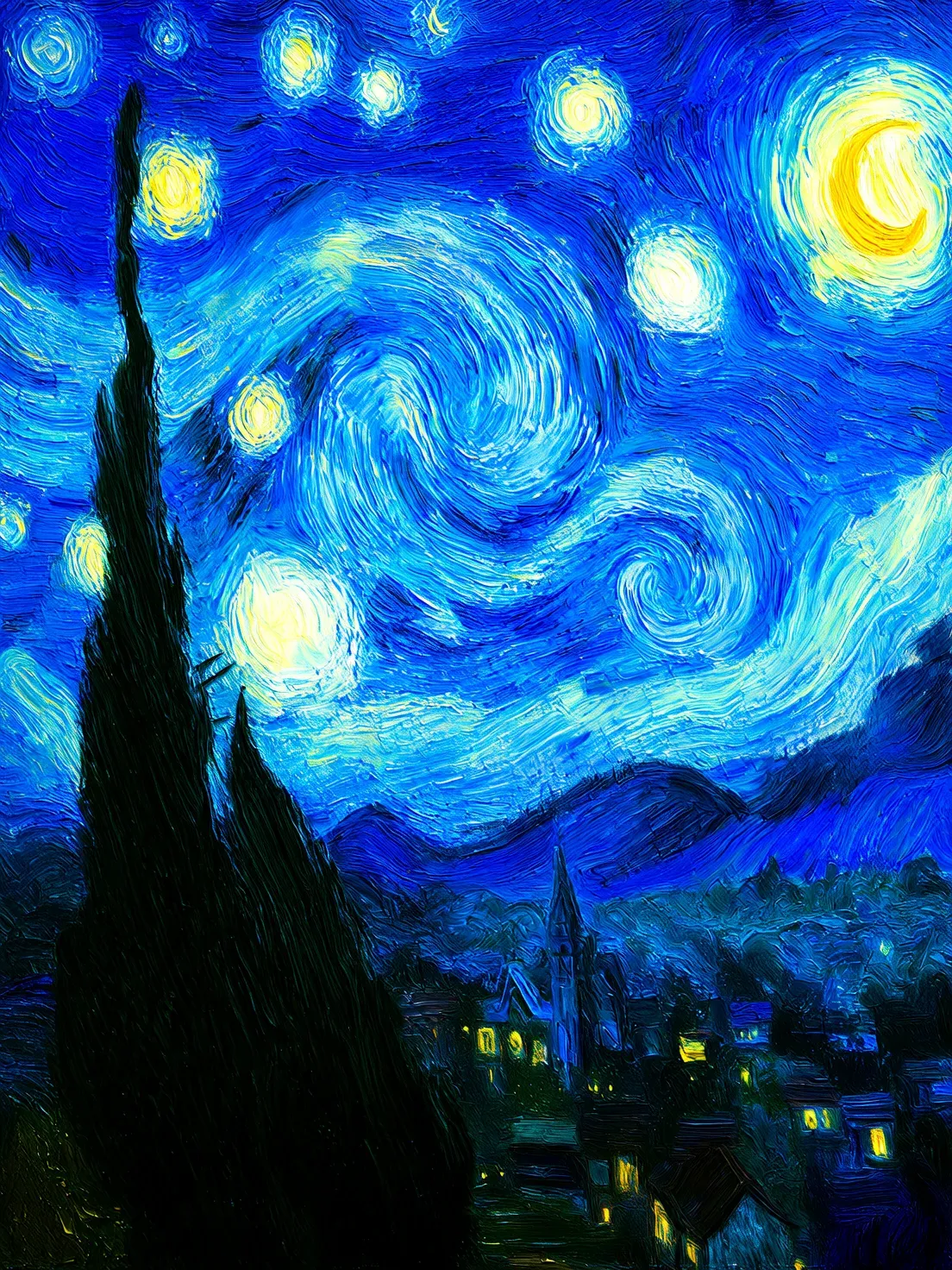
Méthodes d'entrée d'image
Transmettez les images en utilisant l'une des méthodes suivantes :
Méthode 1 : URL publique
- Fournissez une URL d'image HTTP ou HTTPS accessible publiquement.
- Exemple de valeur :
https://xxxx/img.png. - Privilégiez cette méthode lorsque les images sont hébergées sur OSS ou sur un service public d'hébergement d'images.
Méthode 2 : Encodage Base64
Convertissez le fichier image en chaîne encodée en Base64 et formatez-la ainsi : data:{MIME_type};base64,{base64_data}.
-
Exemple de valeur :
data:image/png;base64,iVBORw0KGgoAAAANSUhEUgAABDg......(Ceci est un extrait en raison des limites de longueur). Lors de l'appel, transmettez la chaîne complète. -
{base64_data} : La chaîne encodée en Base64 du fichier image.
-
{MIME_type} : Le type MIME de l'image, qui doit correspondre au format du fichier.
Format d'image
Type MIME
JPEG
image/jpeg
JPG
image/jpeg
PNG
image/png
BMP
image/bmp
WEBP
image/webp
-
Adapté pour la transmission d'images locales, privées ou chiffrées.
Exemple de code : Encodage Base64 d'une image
import os
import base64
import mimetypes

# The format is data:{mime_type};base64,{base64_data}
def encode_file(file_path):
    mime_type, _ = mimetypes.guess_type(file_path)
    with open(file_path, "rb") as image_file:
        encoded_string = base64.b64encode(image_file.read()).decode('utf-8')
    return f"data:{mime_type};base64,{encoded_string}"

# Call the encoding function. Replace "/path/to/your/image.png" with the path to your local image file, otherwise the code will not run.
image = encode_file("/path/to/your/image.png")
Méthode 3 : Chemin de fichier local (SDK uniquement)
-
Python SDK : Prend en charge les chemins absolus et relatifs. Les règles de chemin de fichier sont les suivantes :
Système
Chemin du fichier d'entrée
Exemple (chemin absolu)
Exemple (chemin relatif)
Linux ou macOS
file://{chemin absolu ou relatif du fichier}
file:///home/images/test.png
file://./images/test.png
Windows
file://D:/images/test.png
file://./images/test.png
-
Java SDK : Prend en charge uniquement le chemin absolu. Les règles de chemin de fichier sont les suivantes :
Système
Chemin du fichier d'entrée
Exemple (chemin absolu)
Linux ou macOS
file://{chemin absolu du fichier}
file:///home/images/test.png
Windows
file:///{chemin absolu du fichier}
file:///D:/images/test.png
-
Idéal pour des tests rapides lors du développement local.
Fonctionnalités clés
1. Suivi des instructions (prompts)
Paramètres : messages.content.text ou input.prompt (obligatoire), negative_prompt (facultatif).
- text ou prompt (Prompt positif) : Décrit le contenu, les sujets, les scènes, les styles, l'éclairage et la composition souhaités pour l'image de sortie.
- negative_prompt (Prompt négatif) : Spécifie les éléments indésirables, tels que « flou » ou « doigts supplémentaires ».
Paramètre | wan2.7-image-pro, wan2.7-image | wan2.6-image | wan2.5-i2i-preview |
|---|---|---|---|
text | Obligatoire, jusqu'à 5 000 caractères | Obligatoire, jusqu'à 2 000 caractères | Non pris en charge |
prompt | Non pris en charge | Non pris en charge | Obligatoire, jusqu'à 2 000 caractères |
negative_prompt | Non pris en charge | Pris en charge, jusqu'à 500 caractères | Pris en charge, jusqu'à 500 caractères |
2. Activer la réécriture intelligente des prompts
Paramètre : parameters.prompt_extend (booléen, valeur par défaut : true).
Cette fonctionnalité enrichit les prompts courts afin d'améliorer la qualité de l'image, ce qui augmente toutefois le temps de réponse.
Bonnes pratiques :
- Activation : Recommandée lorsque les prompts sont concis ou trop généraux.
- Désactivation : Utile pour un contrôle précis des détails, des descriptions déjà riches ou des scénarios sensibles à la latence. Définissez
prompt_extendsurfalse.
Paramètre | wan2.7-image-pro, wan2.7-image | wan2.6-image | wan2.5-i2i-preview |
|---|---|---|---|
prompt_extend | Non pris en charge | Pris en charge (mode édition d'image uniquement) | Pris en charge |
3. Définir la résolution de l'image de sortie
Paramètre : parameters.size (chaîne), au format « largeur*hauteur ».
| Paramètre | wan2.7-image-pro, wan2.7-image | wan2.6-image | wan2.5-i2i-preview |
|---|---|---|---|
size | Méthode 1 : Spécifier la résolution de l'image de sortie (recommandé) En mode édition (avec au moins une image fournie), les niveaux de résolution de sortie disponibles sont :
| Méthode 1 : Utiliser le rapport d'aspect de l'image d'entrée comme référence (recommandé) En mode édition (
| Prend uniquement en charge la spécification des valeurs de largeur et de hauteur en pixels de l'image générée
|
4. Édition précise interactive
Utilisez parameters.bbox_list pour sélectionner des zones spécifiques à modifier. Pris en charge uniquement par wan2.7-image-pro et wan2.7-image.
- Longueur de la liste : Elle doit correspondre au nombre d'images d'entrée. Utilisez une liste vide
[]pour les images ne nécessitant aucune modification. - Format des coordonnées :
[x1, y1, x2, y2](x haut-gauche, y haut-gauche, x bas-droite, y bas-droite). Il s'agit de valeurs absolues en pixels, avec l'origine (0, 0) située en haut à gauche, l'axe x vers la droite et l'axe y vers le bas. - Limite de quantité : Deux cadres de délimitation maximum par image.
Exemple : 3 images d'entrée où l'image 1 comporte deux cadres de délimitation et l'image 2 aucun
[
  [[0, 0, 12, 12], [25, 25, 100, 100]],  # Image 1 (2 boxes)
  [],                                    # Image 2 (no box)
  [[10, 10, 50, 50]]                    # Image 3 (1 box)
]
Cliquez pour afficher des exemples d'appel
curl --location 'https://{WorkspaceId}.ap-southeast-1.maas.aliyuncs.com/api/v1/services/aigc/multimodal-generation/generation' \
    --header 'Content-Type: application/json' \
    --header "Authorization: Bearer $DASHSCOPE_API_KEY" \
    --data '{
        "model": "wan2.7-image-pro",
        "input": {
            "messages": [
                {
                    "role": "user",
                    "content": [
                        {"image": "https://img.alicdn.com/imgextra/i3/O1CN0157XGE51l6iL9441yX_!!6000000004770-49-tps-1104-1472.webp"},
                        {"image": "https://img.alicdn.com/imgextra/i3/O1CN01SfG4J41UYn9WNt4X1_!!6000000002530-49-tps-1696-960.webp"},
                        {"text": "Place the alarm clock from image 1 into the bounding box of image 2, and blend the scene and lighting naturally."}
                    ]
                }
            ]
        },
        "parameters": {
            "bbox_list": [[],[[989, 515, 1138, 681]]],
            "size": "2K",
            "n": 1,
            "watermark": false
        }
    }'
Comment déterminer les coordonnées de la zone d'édition
Tracez des cadres de délimitation en faisant glisser la souris sur l'image pour une sélection précise et intuitive :
# Install dependencies: pip install opencv-python
import cv2
import urllib.request

# Download a sample image (replace with your own image URL or local path)
image_url = "https://img.alicdn.com/imgextra/i3/O1CN01SfG4J41UYn9WNt4X1_!!6000000002530-49-tps-1696-960.webp"
urllib.request.urlretrieve(image_url, "example.webp")

# Read the image and open an interactive window
img = cv2.imread("example.webp")
# Drag the mouse in the pop-up window to draw a box. Press Enter to confirm, press Esc to cancel
x, y, w, h = cv2.selectROI("Draw bounding box (Enter=confirm, Esc=cancel)", img)
cv2.destroyAllWindows()

# Convert the (x, y, w, h) returned by OpenCV to the [x1, y1, x2, y2] format required by bbox_list
# Coordinate system: origin at the top-left corner, x-axis points right, y-axis points down, unit is pixels
bbox = [x, y, x + w, y + h]
print(f"Bounding box coordinates: {bbox}")  # Pass these coordinates to parameters.bbox_list
Utilisez qwen3.6-plus pour identifier automatiquement les coordonnées de la zone cible en décrivant celle-ci en langage naturel :
# Install dependencies: pip install dashscope pillow
import os
import json
from dashscope import MultiModalConversation
import dashscope
from PIL import Image
import urllib.request

dashscope.base_http_api_url = "https://{WorkspaceId}.cn-beijing.maas.aliyuncs.com/api/v1"

def get_bbox_list(image, prompt):
    """
    Identify target regions in an image using qwen3.6-plus and return absolute pixel coordinates.

    Args:
        image: Image URL or local path (local path format: "file:///absolute/path.png")
        prompt: Natural language description, e.g., "coffee cup", "all fruits on the plate", "the fruit in the center of the plate"

    Returns:
        [[x1, y1, x2, y2], ...] Absolute pixel coordinates that can be passed directly to bbox_list
    """
    # Concatenate user description with return format instructions
    full_prompt = (
        prompt + "\n"
        "Based on the description above, return the coordinates of the corresponding region.\n"
        "Return a maximum of 2 regions, prioritizing the most matching target.\n"
        "Strictly follow the JSON 2D list format: [[x1, y1, x2, y2], ...]\n"
        "Each set of coordinates: [top-left x, top-left y, bottom-right x, bottom-right y]\n"
        "Use absolute pixel coordinates of the original image, with (0,0) at the top-left corner, x-axis pointing right, y-axis pointing down.\n"
        "If there is only one region, you must still use a 2D list: [[x1, y1, x2, y2]]\n"
        "Only return the JSON list, do not return any other content."
    )

    messages = [
        {'role': 'user',
         'content': [
             {'image': image},
             {'text': full_prompt}
         ]}
    ]

    response = MultiModalConversation.call(
        api_key=os.getenv('DASHSCOPE_API_KEY'),
        model='qwen3.6-plus',
        messages=messages,
    )

    text = response.output.choices[0].message.content[0]["text"]
    text = text.replace("```json", "").replace("```", "").strip()
    coords = json.loads(text)

    # Handle the case where the model returns a 1D list [x1,y1,x2,y2]
    if coords and not isinstance(coords[0], list):
        coords = [coords]

    # Get image dimensions for coordinate conversion
    if image.startswith("file://"):
        local_path = image[len("file://"):]
        img = Image.open(local_path)
    else:
        tmp_path = "temp_bbox_image"
        urllib.request.urlretrieve(image, tmp_path)
        img = Image.open(tmp_path)
    width, height = img.size

    # Convert model's normalized coordinates [0, 999] to absolute pixel coordinates
    bbox_list = []
    for box in coords:
        bbox_list.append([
            int(box[0] / 1000 * width),
            int(box[1] / 1000 * height),
            int(box[2] / 1000 * width),
            int(box[3] / 1000 * height)
        ])

    return bbox_list

# === Usage examples ===
image_url = "https://img.alicdn.com/imgextra/i3/O1CN01ewUWhg1eS3VqJ3wap_!!6000000003869-49-tps-2048-2048.webp"

# Select target by name
bbox = get_bbox_list(image_url, "coffee cup")           # [[x1, y1, x2, y2]]

# Select target by position description
bbox = get_bbox_list(image_url, "the fruit in the center of the plate")  # [[x1, y1, x2, y2]]

# Describe a region
bbox = get_bbox_list(image_url, "lavender potted plant")

# Results can be used as elements in the bbox_list array
# Note: A maximum of 2 bounding boxes per image
# Install dependencies: pip install dashscope pillow
import os
import json
from dashscope import MultiModalConversation
import dashscope
from PIL import Image
import urllib.request

# The following URL is for the Singapore region. Replace WorkspaceId with your actual workspace ID. URLs differ by region.
dashscope.base_http_api_url = "https://{WorkspaceId}.ap-southeast-1.maas.aliyuncs.com/api/v1"

def get_bbox_list(image, prompt):
    """
    Identify target regions in an image using qwen3.6-plus and return absolute pixel coordinates.

    Args:
        image: Image URL or local path (local path format: "file:///absolute/path.png")
        prompt: Natural language description, e.g., "coffee cup", "all fruits on the plate", "the fruit in the center of the plate"

    Returns:
        [[x1, y1, x2, y2], ...] Absolute pixel coordinates that can be passed directly to bbox_list
    """
    # Concatenate user description with return format instructions
    full_prompt = (
        prompt + "\n"
        "Based on the description above, return the coordinates of the corresponding region.\n"
        "Return a maximum of 2 regions, prioritizing the most matching target.\n"
        "Strictly follow the JSON 2D list format: [[x1, y1, x2, y2], ...]\n"
        "Each set of coordinates: [top-left x, top-left y, bottom-right x, bottom-right y]\n"
        "Use absolute pixel coordinates of the original image, with (0,0) at the top-left corner, x-axis pointing right, y-axis pointing down.\n"
        "If there is only one region, you must still use a 2D list: [[x1, y1, x2, y2]]\n"
        "Only return the JSON list, do not return any other content."
    )

    messages = [
        {'role': 'user',
         'content': [
             {'image': image},
             {'text': full_prompt}
         ]}
    ]

    response = MultiModalConversation.call(
        api_key=os.getenv('DASHSCOPE_API_KEY'),
        model='qwen3.6-plus',
        messages=messages,
    )

    text = response.output.choices[0].message.content[0]["text"]
    text = text.replace("```json", "").replace("```", "").strip()
    coords = json.loads(text)

    # Handle the case where the model returns a 1D list [x1,y1,x2,y2]
    if coords and not isinstance(coords[0], list):
        coords = [coords]

    # Get image dimensions for coordinate conversion
    if image.startswith("file://"):
        local_path = image[len("file://"):]
        img = Image.open(local_path)
    else:
        tmp_path = "temp_bbox_image"
        urllib.request.urlretrieve(image, tmp_path)
        img = Image.open(tmp_path)
    width, height = img.size

    # Convert model's normalized coordinates [0, 999] to absolute pixel coordinates
    bbox_list = []
    for box in coords:
        bbox_list.append([
            int(box[0] / 1000 * width),
            int(box[1] / 1000 * height),
            int(box[2] / 1000 * width),
            int(box[3] / 1000 * height)
        ])

    return bbox_list

# === Usage examples ===
image_url = "https://img.alicdn.com/imgextra/i3/O1CN01ewUWhg1eS3VqJ3wap_!!6000000003869-49-tps-2048-2048.webp"

# Select target by name
bbox = get_bbox_list(image_url, "coffee cup")           # [[x1, y1, x2, y2]]

# Select target by position description
bbox = get_bbox_list(image_url, "the fruit in the center of the plate")  # [[x1, y1, x2, y2]]

# Describe a region
bbox = get_bbox_list(image_url, "lavender potted plant")

# Results can be used as elements in the bbox_list array
# Note: A maximum of 2 bounding boxes per image
Facturation et limites de taux
-
Quota gratuit et tarification : Liste des modèles et tarification.
-
Pour les limites de taux, consultez Wanxiang.
-
Facturation :
- Des frais s'appliquent pour chaque image générée avec succès. La facturation intervient uniquement lorsque l'API retourne un
task_statuségal àSUCCEEDED. - Les échecs d'appel au modèle ou les erreurs de traitement n'entraînent aucun frais et ne consomment pas le quota gratuit.
- Des frais s'appliquent pour chaque image générée avec succès. La facturation intervient uniquement lorsque l'API retourne un
Référence de l'API
Chaque modèle requiert un endpoint et une structure de requête spécifiques :
Modèle | Endpoint(Exemple pour la région Singapour) |
|---|---|
| Sync API: Async API: Remplacez |
| Async API: Remplacez |
wan2.7/wan2.6: Adoptez le formatmessages. Dans le tableaumessages[].content, transmettez l'image via le paramètreimageet l'invite via le paramètretext.wan2.5: Fournissez l'image dans le tableauinput.imagesainsi que l'invite dans le paramètreinput.prompt.
"input": {
    "messages": [
        {
            "role": "user",
            "content": [
                {"image": "https://help-static-aliyun-doc.aliyuncs.com/file-manage-files/zh-CN/20251229/pjeqdf/car.webp"},
                {"image": "https://help-static-aliyun-doc.aliyuncs.com/file-manage-files/zh-CN/20251229/xsunlm/paint.webp"},
                {"text": "Spray the graffiti from image 2 onto the car in image 1"}
            ]
        }
    ]
}
"input": {
    "prompt": "Place the alarm clock from image 1 next to the vase on the dining table in image 2",
    "images": [
        "https://img.alicdn.com/imgextra/i3/O1CN0157XGE51l6iL9441yX_!!6000000004770-49-tps-1104-1472.webp",
        "https://img.alicdn.com/imgextra/i3/O1CN01SfG4J41UYn9WNt4X1_!!6000000002530-49-tps-1696-960.webp"
    ]
}
Pour plus de détails sur les paramètres d'entrée et de sortie, consultez Wan2.7 - génération et édition d'images, Wan2.6 - génération et édition d'images et Wanxiang – Édition générale d'images 2.5.