Créez et gérez des points d'accès d'application avec Terraform. Cette rubrique explique comment créer un point d'accès d'application.
Présentation
Avant que vos applications auto-gérées puissent effectuer des opérations cryptographiques ou récupérer des valeurs secrètes, elles doivent utiliser une clé client issue d'un point d'accès d'application pour accéder à une instance KMS.
Un point d'accès d'application est requis uniquement lorsque vous utilisez le SDK de l'instance KMS pour accéder aux clés ou aux secrets. Il n'est pas nécessaire pour le chiffrement côté serveur avec d'autres services Alibaba Cloud ni pour l'accès aux secrets via le SDK KMS principal.
Vous pouvez exécuter directement l'exemple de code de cette rubrique dans Terraform Explorer.
Prérequis
-
Votre compte racine dispose de toutes les autorisations sur l'ensemble de vos ressources. Un compte racine compromis présente des risques de sécurité importants. Nous vous recommandons d'utiliser un utilisateur RAM et de créer une paire AccessKey pour celui-ci. Pour plus d'informations, consultez les rubriques Créer un utilisateur RAM et Créer une clé AccessKey.
-
Accordez à l'utilisateur RAM l'autorisation
AliyunKMSFullAccessafin de gérer Key Management Service (KMS). Pour plus d'informations, consultez la rubrique Gérer les autorisations des utilisateurs RAM.{ "Version": "1", "Statement": [ { "Effect": "Allow", "Action": [ "kms:*" ], "Resource": [ "*" ], "Condition": {} } ] } -
Préparez un environnement d'exécution Terraform. Vous pouvez utiliser l'une des méthodes suivantes :
Utilisez Terraform dans Terraform Explorer : Alibaba Cloud met à disposition un environnement en ligne pour utiliser Terraform sans installation locale. Cette méthode est idéale pour tester et déboguer rapidement Terraform sans frais.
Utiliser Terraform pour créer rapidement des ressources : Alibaba Cloud Cloud Shell intègre Terraform préinstallé et une authentification préconfigurée. Vous pouvez exécuter les commandes Terraform directement dans Cloud Shell. Cette méthode offre un accès pratique et économique à Terraform.
Installer et configurer Terraform sur votre machine locale : Cette méthode convient aux environnements disposant d'une connectivité réseau limitée ou aux utilisateurs souhaitant personnaliser leur configuration de développement.
ImportantAssurez-vous d'utiliser Terraform version 0.12.28 ou ultérieure. Pour vérifier votre version de Terraform, exécutez la commande
terraform --version.
Ressources utilisées
alicloud_kms_network_rule : Crée une règle réseau.
alicloud_kms_application_access_point : Définit une ressource pour un point d'accès d'application.
alicloud_kms_client_key : Définit une ressource pour une clé client.
alicloud_kms_policy : Crée une politique de contrôle d'accès.
Procédure
Cet exemple illustre la création d'un point d'accès d'application dans une instance KMS.
-
Créez un répertoire de travail et créez-y le fichier de configuration suivant nommé
main.tf. main.tf est le fichier Terraform principal qui définit les ressources à déployer. Avant de poursuivre, assurez-vous d'avoir créé une instance KMS.variable "region" { # The ID of the region. This example uses cn-heyuan, which corresponds to the China (Heyuan) region. default = "cn-heyuan" } provider "alicloud" { region = var.region } variable "instance_name" { default = "tf-kms-vpc-172-16" } variable "instance_type" { default = "ecs.n1.tiny" } # Use a data source to query availability zones. Resources can be created only in specified availability zones. data "alicloud_zones" "default" { available_disk_category = "cloud_efficiency" available_resource_creation = "VSwitch" available_instance_type = var.instance_type } # Create a Virtual Private Cloud (VPC). resource "alicloud_vpc" "vpc" { vpc_name = var.instance_name cidr_block = "192.168.0.0/16" } # Create a VSwitch with the CIDR block 192.168.10.0/24. resource "alicloud_vswitch" "vsw" { vpc_id = alicloud_vpc.vpc.id cidr_block = "192.168.10.0/24" zone_id = data.alicloud_zones.default.zones.0.id vswitch_name = "terraform-example-1" } # Create another VSwitch with the CIDR block 192.168.20.0/24. resource "alicloud_vswitch" "vsw1" { vpc_id = alicloud_vpc.vpc.id cidr_block = "192.168.20.0/24" zone_id = data.alicloud_zones.default.zones.0.id vswitch_name = "terraform-example-2" } # Create a software key management instance and start it with network parameters. resource "alicloud_kms_instance" "default" { # The type of the KMS instance. A value of 3 specifies a software key management instance. product_version = "3" vpc_id = alicloud_vpc.vpc.id # The availability zones of the KMS instance. Use the IDs of the availability zones that you queried. zone_ids = [ "cn-heyuan-a", "cn-heyuan-b", ] # The IDs of the VSwitches. vswitch_ids = [ alicloud_vswitch.vsw.id,alicloud_vswitch.vsw1.id ] # The performance level, and the maximum number of keys, secrets, and VPCs. vpc_num = "1" key_num = "1000" secret_num = "100" spec = "1000" # (Optional) Associate the KMS instance with other VPCs. # If a VPC and the KMS instance belong to different Alibaba Cloud accounts, you must share the VSwitch first. #bind_vpcs { #vpc_id = "vpc-j6cy0l32yz9ttxfy6****" #vswitch_id = "vsw-j6cv7rd1nz8x13ram****" #region_id = "cn-shanghai" #vpc_owner_id = "119285303511****" #} #bind_vpcs { #vpc_id = "vpc-j6cy0l32yz9ttd7g3****" #vswitch_id = "vsw-3h4yrd1nz8x13ram****" #region_id = "cn-shanghai" #vpc_owner_id = "119285303511****" #} } # Save the CA certificate of the KMS instance to a local file. resource "local_file" "ca_certificate_chain_pem" { content = alicloud_kms_instance.default.ca_certificate_chain_pem filename = "ca.pem" }Créez le point d'accès d'application :
# Create a network rule. resource "alicloud_kms_network_rule" "network_rule_example" { # The name of the network rule. network_rule_name = "sample_network_rule" # The description. description = "description_test_module" # The allowed source private IP address ranges. source_private_ip = ["172.16.0.0/12"] } # Create an access control policy. resource "alicloud_kms_policy" "policy_example" { # The name of the policy. policy_name = "sample_policy" # The description. description = "description_test_module" # The list of permissions, including access to cryptographic service keys and secrets. permissions = ["RbacPermission/Template/CryptoServiceKeyUser", "RbacPermission/Template/CryptoServiceSecretUser"] # The list of resources, which applies to all keys and secrets. resources = ["key/*", "secret/*"] # The ID of the KMS instance. kms_instance_id = alicloud_kms_instance.default.id # The access control rules in JSON format, referencing the previously defined network rule. access_control_rules = <<EOF { "NetworkRules":[ "alicloud_kms_network_rule.network_rule_example.network_rule_name" ] } EOF } # Define the application access point resource. resource "alicloud_kms_application_access_point" "application_access_point_example" { # The name of the application access point. application_access_point_name = "sample_aap" # The list of associated policies, referencing the name of the access control policy created earlier. policies = [alicloud_kms_policy.policy_example.policy_name] # The description of the application access point. description = "aap_description" } # Define the client key resource. resource "alicloud_kms_client_key" "client_key" { # The name of the application access point. aap_name = alicloud_kms_application_access_point.application_access_point_example.application_access_point_name # The password for the client key. Replace this with your own password. password = "testPassword@" # The start time of the validity period for the client key. not_before = "2023-09-01T14:11:22Z" # The end time of the validity period for the client key. not_after = "2032-09-01T14:11:22Z" # The local file path to save the client key. private_key_data_file = "./client_key.json" }ImportantUne fois le point d'accès d'application créé, récupérez la clé client depuis le chemin de fichier local spécifié et conservez-la en toute confidentialité.
Par bonne pratique, définissez le
passwordà l'aide de variables d'entrée sensibles dans Terraform afin d'éviter de l'exposer en texte clair.
-
Exécutez la commande suivante pour initialiser l'environnement Terraform :
terraform initLe résultat suivant indique que l'initialisation a réussi :
Initializing the backend... Initializing provider plugins... - Reusing previous version of hashicorp/alicloud from the dependency lock file - Using previously-installed hashicorp/alicloud v1.231.0 Terraform has been successfully initialized! You may now begin working with Terraform. Try running "terraform plan" to see any changes that are required for your infrastructure. All Terraform commands should now work. If you ever set or change modules or backend configuration for Terraform, rerun this command to reinitialize your working directory. If you forget, other commands will detect it and remind you to do so if necessary. -
Exécutez la commande suivante pour créer un plan d'exécution et prévisualiser les modifications :
terraform plan -
Exécutez la commande suivante pour créer le point d'accès d'application :
terraform applyLorsque vous y êtes invité, saisissez
yeset appuyez sur Enter. Le résultat suivant indique que le point d'accès d'application a été créé avec succès :Do you want to perform these actions? Terraform will perform the actions described above. Only 'yes' will be accepted to approve. Enter a value: yes ... alicloud_kms_network_rule.network_rule_example: Creating... alicloud_kms_policy.policy_example: Creating... alicloud_kms_network_rule.network_rule_example: Creation complete after 0s [id=sample_network_***] alicloud_kms_policy.policy_example: Creation complete after 0s [id=sample_pol***] alicloud_kms_application_access_point.application_access_point_example: Creating... alicloud_kms_application_access_point.application_access_point_example: Creation complete after 0s [id=sample_***] alicloud_kms_client_key.client_key: Creation complete after 0s [id=KAAP.5093ea57-0b84-4455-a8e9-7679bdc****] ... Apply complete! Resources: 4 added, 0 changed, 0 destroyed. -
Vérifiez le résultat.
Commande Terraform show
Exécutez la commande suivante pour afficher les détails des ressources que vous avez créées avec Terraform :
terraform show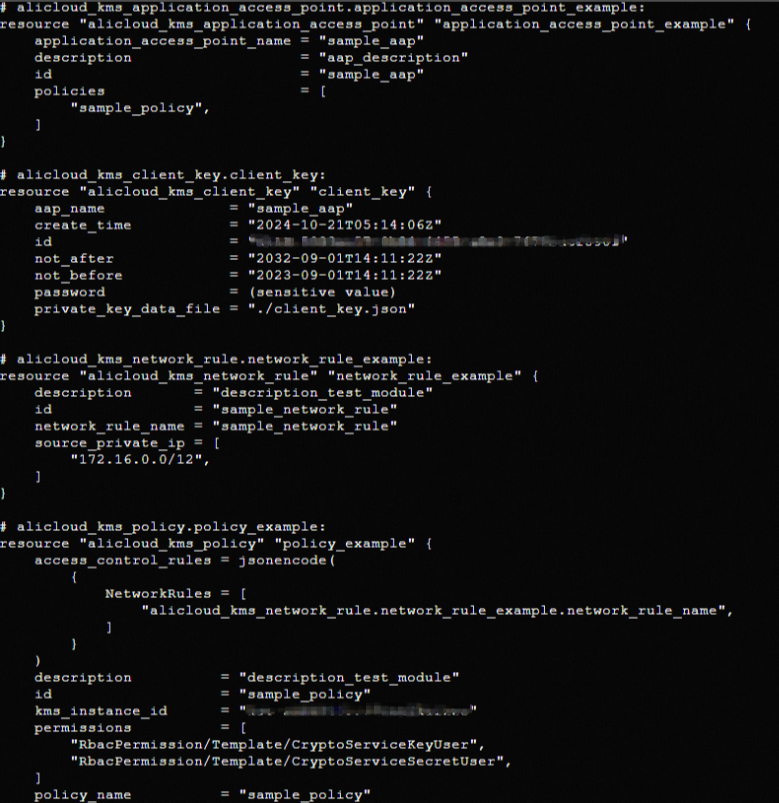
Console KMS
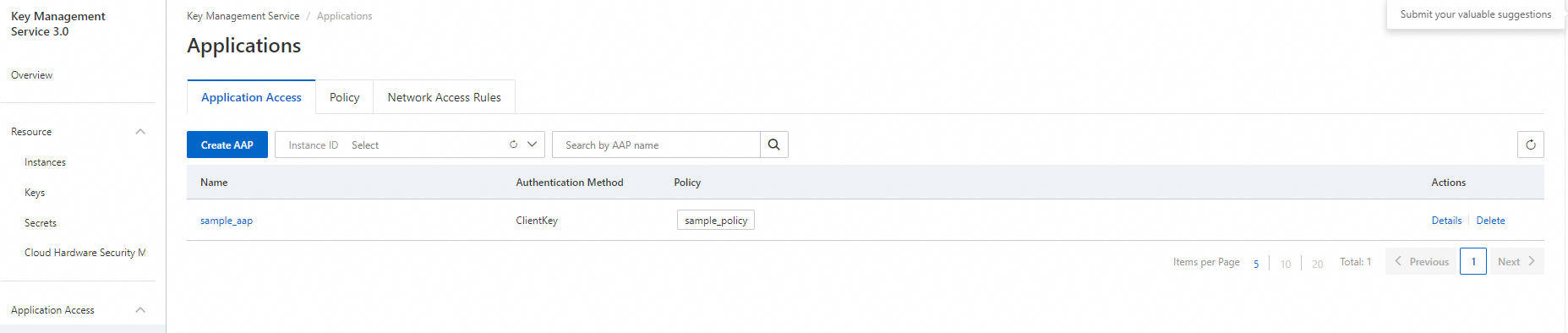
Connectez-vous à la console Key Management Service (KMS) pour consulter le point d'accès d'application.
Nettoyer les ressources
Lorsque vous n'avez plus besoin des ressources créées ou gérées par Terraform, exécutez la commande suivante pour les libérer. Pour plus d'informations sur la commande terraform destroy, consultez la rubrique Commandes Terraform courantes.
terraform destroyExemple complet
Vous pouvez exécuter directement l'exemple de code de cette rubrique dans Terraform Explorer.