Scan protection automatically blocks access requests from IP addresses associated with automated threats — including high-frequency web attackers, directory traversal sources, common security scanners, and IPs listed in the Alibaba Cloud malicious IP library.
Prerequisites
Before you begin, ensure that you have:
A WAF instance running the Pro edition or higher
A website already added to WAF. For more information, see Tutorial
The Pro edition supports only the default scan protection policies. To configure custom rules for Blocking IPs Initiating High-frequency Web Attacks or Directory Traversal Prevention, upgrade to the Business edition or higher.
Scan protection policies
Scan protection includes four policies. Each can be enabled or disabled independently.
| Policy | What it blocks | Customizable | Edition required |
|---|---|---|---|
| Blocking IPs Initiating High-frequency Web Attacks | Client IPs that launch multiple web attacks within a configurable time window | Yes | Business or higher |
| Directory Traversal Prevention | Client IPs that send a high volume of requests probing many directories, with a high 404 response rate | Yes | Business or higher |
| Scanning Tool Blocking | Requests matching behavioral fingerprints of common scanners: sqlmap, AWVS, Nessus, AppScan, WebInspect, Netsparker, Nikto, and RSAS | No | Pro or higher |
| Collaborative Defense | IPs listed in the Alibaba Cloud malicious IP library | No | Pro or higher |
Configure scan protection
Log on to the WAF console.
In the top navigation bar, select the resource group and the region where your WAF instance is deployed. Select Chinese Mainland or Outside Chinese Mainland.
In the left-side navigation pane, choose Protection Configurations > Website Protection.
At the top of the Website Protection page, select the domain name from the Switch Domain Name drop-down list.

On the Access Control/Throttling tab, locate the Scan Protection section.
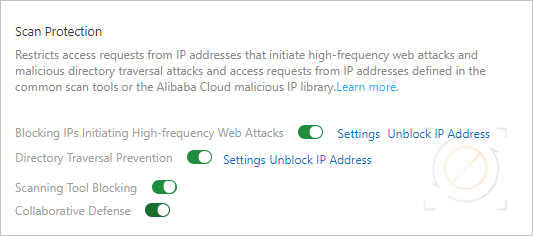
When any scan protection policy is enabled, all requests to your website pass through that policy's check. To exempt requests that match specific conditions, configure a whitelist for Access Control/Throttling. For more information, see Configure a whitelist for Access Control/Throttling.
Enable and configure each policy as needed.
Blocking IPs initiating high-frequency web attacks
This policy monitors web attacks from each client IP within a rolling time window. When the attack count from a single IP exceeds the configured threshold, WAF blocks that IP for the specified duration.
Turn on Blocking IPs Initiating High-frequency Web Attacks.
Click Settings.
In the Rule Setting dialog box, configure the following parameters:
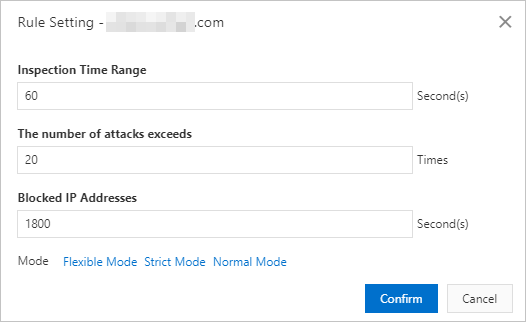 To start with a sensible baseline, select a built-in mode from the Mode section: Adjust individual parameters after selecting a mode if needed.
Parameter Description Inspection Time Range The rolling time window during which WAF counts web attacks from each client IP. A longer window catches sustained, lower-rate attack campaigns. The number of attacks exceeds The attack count threshold per IP within the inspection time range. When a single IP exceeds this count, WAF triggers blocking. Set this lower to catch more aggressive attackers; set it higher to reduce false positives from noisy-but-legitimate traffic. Blocked IP Addresses How long the IP remains blocked after the threshold is exceeded. Longer durations give more protection but delay recovery for legitimate IPs that were mistakenly flagged. Mode When to use Normal Mode Recommended for most production environments with typical attack volumes Strict Mode Use during periods of elevated or active attack activity — lowers thresholds to block more aggressively Flexible Mode Use when your environment has aggressive-but-legitimate crawlers or high-volume automated clients that trigger false positives Click Confirm.
To unblock an IP blocked by this policy, click Unblock IP Address.
Directory traversal prevention
This policy blocks a client IP when it sends a high volume of requests across many different directories, with a high proportion returning HTTP 404 — a pattern typical of automated directory scanning. All three conditions must be met simultaneously to trigger blocking.
Turn on Directory Traversal Prevention.
Click Settings.
In the Rule Setting dialog box, configure the following parameters:
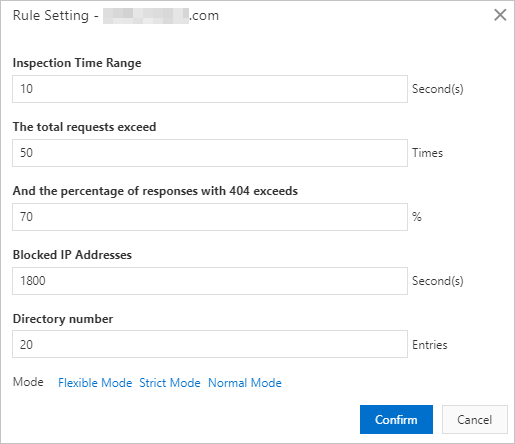 Select a built-in mode from the Mode section as a starting point:
Parameter Description Inspection Time Range The time window during which WAF evaluates the client IP's request pattern. The total requests exceed The minimum total request count from a single IP within the inspection time range. This filters out low-volume clients who happen to hit a few missing paths. And the percentage of responses with 404 exceeds The proportion of those requests that must return HTTP 404. Legitimate users occasionally hit missing pages; a high 404 rate indicates systematic probing. Directory number The number of distinct directories the IP must have probed. A high directory count distinguishes systematic traversal from repeated hits on a single missing path. Blocked IP Addresses How long the IP remains blocked after all thresholds are met. Mode When to use Normal Mode Recommended for most production environments Strict Mode Use when the site is under active directory traversal attacks — tightens all thresholds Flexible Mode Use for sites that have many legitimate 404 responses by design, such as REST APIs with dynamic resource paths Click Confirm.
To unblock an IP blocked by this policy, click Unblock IP Address.
Scanning tool blocking
WAF identifies requests by matching them against behavioral fingerprints of known scanners. When a request matches a scanner's fingerprint, WAF always blocks it.
Turn on Scanning Tool Blocking to enable this detection. Turn it off to stop blocking scanner-originated requests.
No additional configuration is required.
Collaborative defense
WAF blocks all access requests from IPs in the Alibaba Cloud malicious IP library. When a request originates from an IP in this library, WAF blocks it.
Turn on Collaborative Defense to enable this blocking. Turn it off to stop blocking IPs from the malicious IP library.
No additional configuration is required.
Next steps
To exclude specific IPs or request patterns from scan protection checks, configure a whitelist for Access Control/Throttling.