Quickly integrate ApsaraVideo Player SDK for iOS into your project.
Requirements
Operating system: iOS 8.0 or later.
Development tool: Xcode is recommended. This topic uses Xcode. Download at: Xcode.
ApsaraVideo Player SDK for iOS does not support simulators. You must run applications on a real device.
Prerequisites
You have obtained a license file for player authorization, such as
AliVideoCert-********.crt. For more information, see Obtain a license.For manual integration, download the latest ApsaraVideo Player SDK for iOS package. See download.
Usage notes
When you package your app, the dSYM file is used to symbolicate crash reports.
ApsaraVideo Player SDK for iOS requires the AlivcFFmpeg and AliyunPlayer frameworks. The player header files are in AliyunPlayer.
If you integrate both the player SDK and the short video SDK, ensure version compatibility among the short video SDK, player SDK, and AlivcFFmpeg. Mismatched versions can cause feature failures. For more information, see AlivcFFmpeg dependencies.
The ApsaraVideo Player SDK for iOS package includes simulator architectures. Remove them before submitting your app to the App Store to avoid rejection.
Step 1: Integrate the SDK
CocoaPods integration
Install CocoaPods. This requires a Ruby environment.
// In Terminal, run the following command:
sudo gem install cocoapods
Verify the CocoaPods installation.
Run
pod --versionin your terminal to verify the installation.xxx@ ~ % pod --version 1.16.2Create a Podfile.
In your terminal, navigate to your project directory and run
pod initto create a Podfile.// Go to your project directory. xxx@ ~ % cd /path/yourProject // Generate the Podfile. xxx@ yourProject % pod initEdit the Podfile to add the player SDK dependency.
NoteTo integrate both the player SDK and the short video SDK, replace
AliPlayerSDK_iOSin the following code withAliPlayerPartSDK_iOS.AliPlayerPartSDK_iOSdoes not include FFmpeg, which prevents conflicts with the FFmpeg in the short video SDK.Enter the correct version number for the player SDK. Otherwise, the import fails and reports an error. For player SDK versions, see ApsaraVideo Player SDK for iOS Release Notes.
source 'https://github.com/CocoaPods/Specs.git'
platform:ios, '8.0'

target 'yourProject' do
    # Player SDK. We recommend that you use the latest version.
    pod 'AliPlayerSDK_iOS'
end
(Optional) Add a dependency on a specific version of the player SDK.
source 'https://github.com/CocoaPods/Specs.git'
platform:ios, '8.0'

player_sdk_version = '7.17.0'

target 'yourProject' do
    # Player SDK. We recommend that you use the latest version.
    pod 'AliPlayerSDK_iOS' , player_sdk_version
end
Install the dependencies.
Run the following command to install the dependencies.
pod installThe following output indicates a successful installation.
xxx@ yourProject % pod install
Analyzing dependencies
Downloading dependencies
Installing AliPlayerSDK_iOS (7.17.0)
Generating Pods project
Integrating client project
Pod installation complete! There is 1 dependency from the Podfile and 1 total pod installed.
Run the following command to update the player SDK.
pod update AliPlayerSDK_iOS
Manual integration
If you integrate both the player SDK and the short video SDK, import only one AlivcFFmpeg framework and ensure you use the correct version.
Download ApsaraVideo Player SDK for iOS.
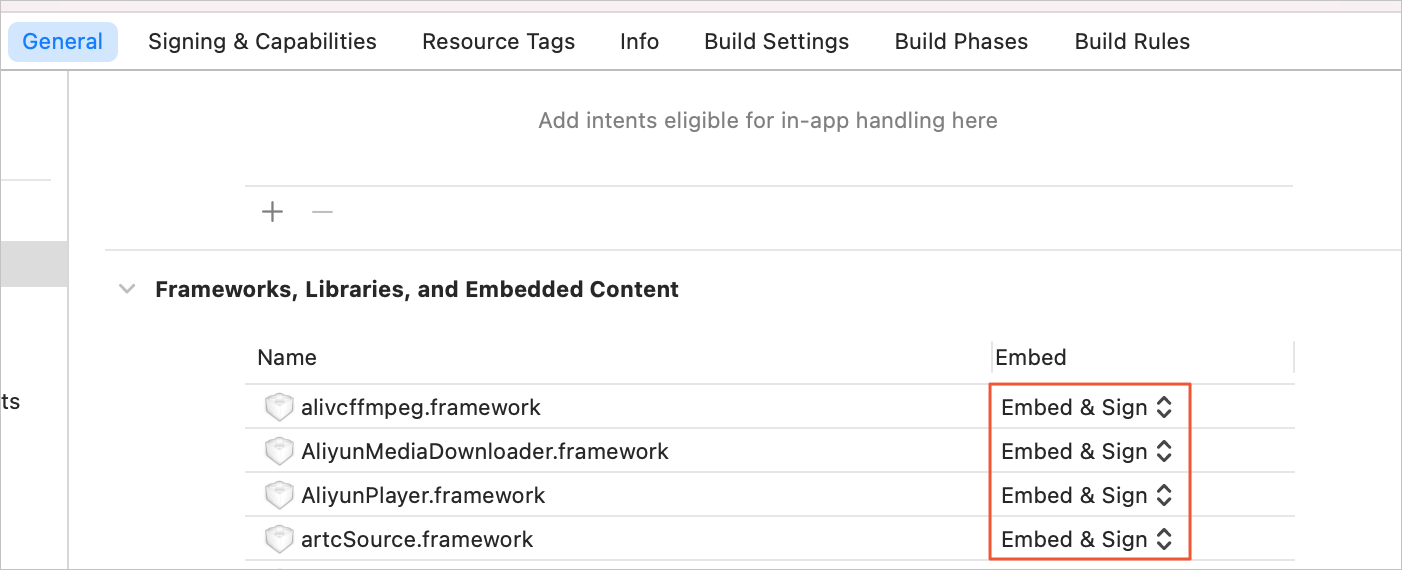
Add the player frameworks to Frameworks, Libraries, and Embedded Content, and set Embed to Embed & Sign.
alivcffmpeg.framework: The underlying framework for the player.
AliyunMediaDownloader.framework: Used for offline download.
AliyunPlayer.framework: The player framework.
Click the Build Settings tab.
In the Search Paths section, set Framework Search Paths to your local framework directory.
(Optional) RTS integration (CocoaPods)
To integrate the Real-Time Streaming (RTS) component, see Implement RTS-based stream pulling on iOS.
Step 2: Configure the license
When using the player in regions outside the Chinese mainland, Hong Kong, and Macao (the international site), you must call the following API to set the environment before calling any other player APIs.
Method 1: Call the following API to update the default configuration to the international site environment.
// For the international site, you must call this API before any other player APIs
// to set the environment. This setting cannot be changed at runtime.
AlivcBase.EnvironmentManager.globalEnvironment = ENV_SEA;
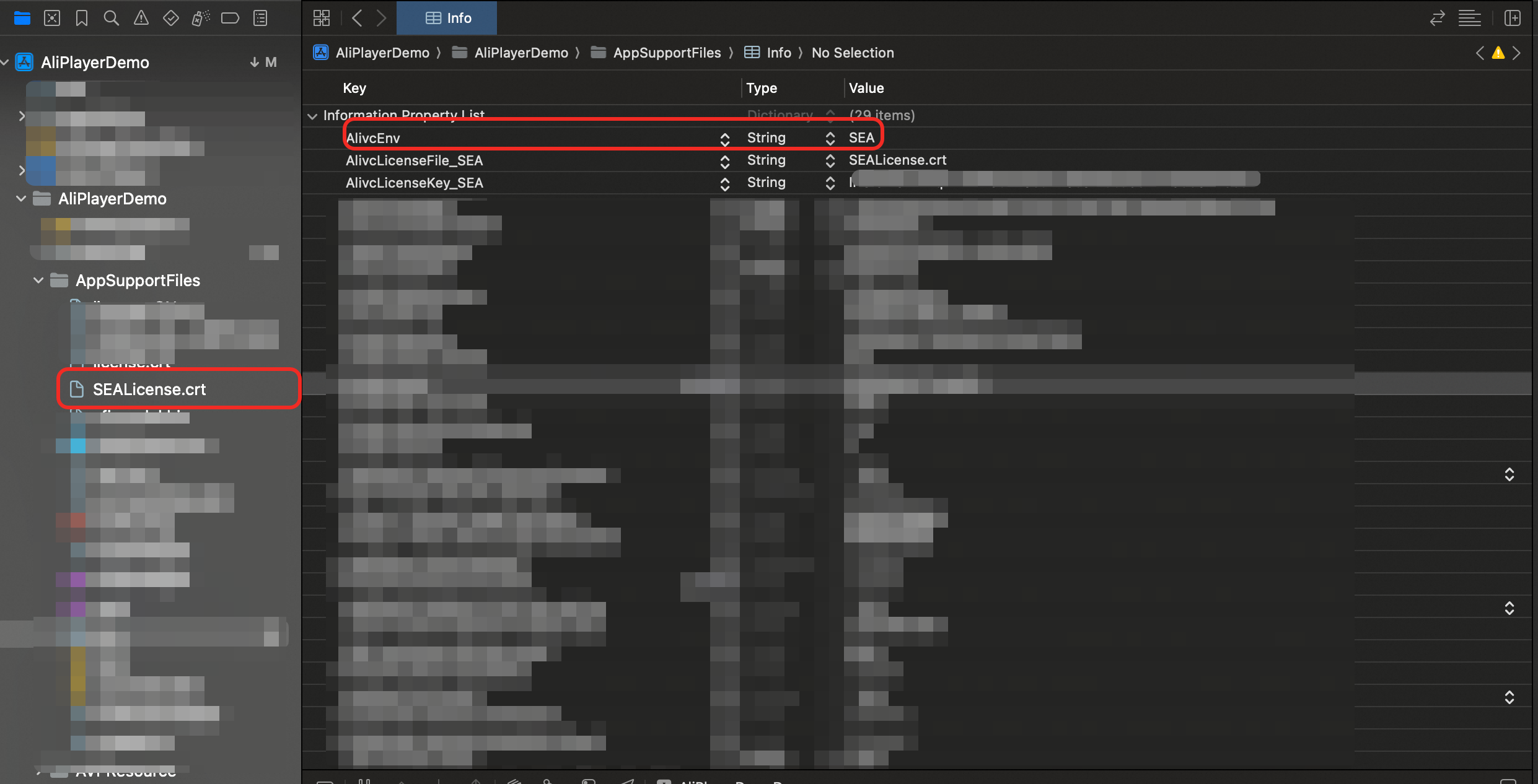
Method 2(Recommended): For player SDK versions 7.6.0 and later, you can configure the international site environment in the
Info.plistfile.Open the
Info.plistfile and change the value ofAlivcEnvtoSEA.// Configure the current environment as the international site. <key>AlivcEnv</key> <string>SEA</string>The following figure shows a configuration example:
To configure the license on your iOS client, see Configure a license on iOS.
Step 3: Enable logging (Optional)
Enable logging to help troubleshoot issues. For instructions on how to obtain logs, see Obtain SDK logs.
// Enable logging.
[AliPlayer setEnableLog:YES];
// Set the log level. The default is LOG_LEVEL_INFO. For troubleshooting, set it to LOG_LEVEL_TRACE.
[AliPlayer setLogCallbackInfo:LOG_LEVEL_INFO callbackBlock:nil];
Project structure
Framework | Description |
alivcffmpeg.framework | The underlying framework for the player. Required. |
AliyunMediaDownloader.framework | Used for offline download. Optional. |
AliyunPlayer.framework | The player framework. Required. |
artcSource.framework | Supports the ARTC protocol. Optional. Note To support the ARTC protocol, you must also add RtsSDK.framework. For integration details, see Implement RTS-based stream pulling on iOS. |
aemFilter.framework | Enables audio enhancement. Optional. |
libPluginSR.framework | Enables super-resolution. Optional. |
normalsrFilter.framework | Enables super-resolution. Optional. |
srFilter.framework | Enables super-resolution. Optional. |
vfiFilter.framework | Enables video frame insertion. Optional. |
vvcCodecPlugin.framework | H.266 decoding plugin. Optional. |
FAQ
Using CocoaPods
Symbol conflicts with AlivcFFmpeg
Solution:
If you encounter symbol conflicts with AlivcFFmpeg, remove the redundant dependency. Keep the version provided with ApsaraVideo Player SDK for iOS and remove the third-party one. This might affect third-party player functionality.
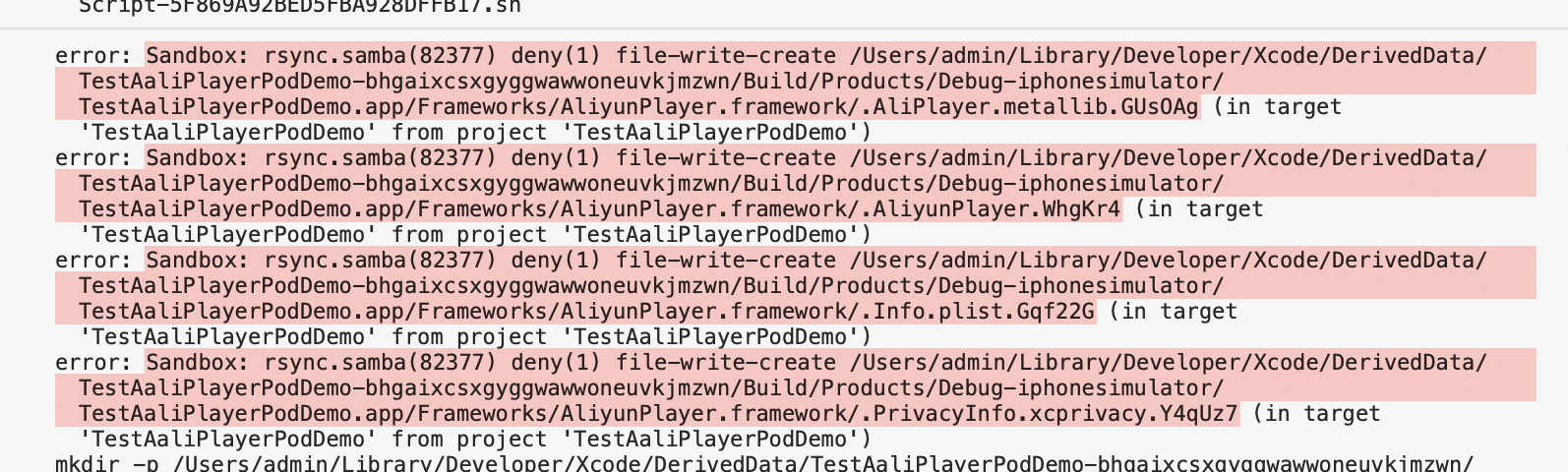
Sandbox error
Issue:
Solution:
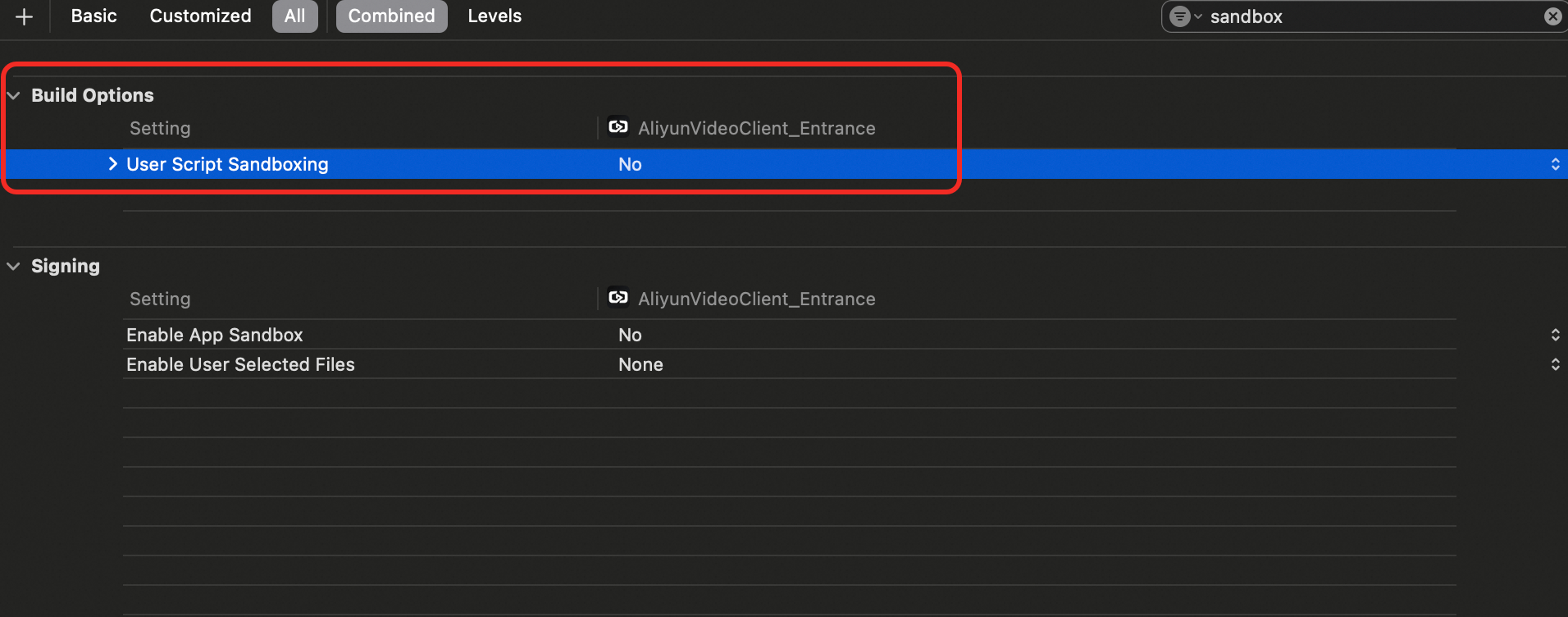
In UserSetting, set User Script SandBoxing to NO.
Short video SDK integration
To integrate both ApsaraVideo Player SDK for iOS and the short video SDK, use the all-in-one SDK for iOS to avoid duplicate class issues and compilation failures.
For more player issues and solutions, see FAQ about ApsaraVideo Player.