ApsaraVideo MediaBox integrates various media modules, including live streaming, player, short video, and beauty effects, into a single SDK and provides a unified license management system that supports all platforms. This topic describes how to purchase, bind, and renew a license, apply for a trial license, and modify the application information bound to a license.
Usage notes
Before you purchase or obtain a license, note the following:
Version compatibility — Newly obtained licenses for the player SDK Mobile Professional Edition are compatible only with version 7.0.0 and later. Before you obtain a license, confirm the player SDK version integrated into your application.
Professional Edition — As of February 14, 2025 (starting with version 7.0.0), the mobile player SDK now includes a Professional Edition in addition to the Standard Edition. To obtain the Professional Edition, contact our business development team. After obtaining the license, follow the instructions in Integrate a player license to authorize it.
Free license offer — You can receive a free one-year license for the Professional Edition of the player SDK when your spending on ApsaraVideo VOD, ApsaraVideo Live, or Intelligent Media Services reaches a certain amount. For more information, see Player SDK billing.
License authorization
Step 1: Create an application
Go to the My Authorizations page in the ApsaraVideo VOD console. On the Application Management tab, click Create Application.
Enter the application information. Applications are categorized by platform: Web or Mobile.
Web: Enter an Application Name and the corresponding Web Domain. Select I understand and agree to the compliance commitments (click View Statement for details), and then click Create.
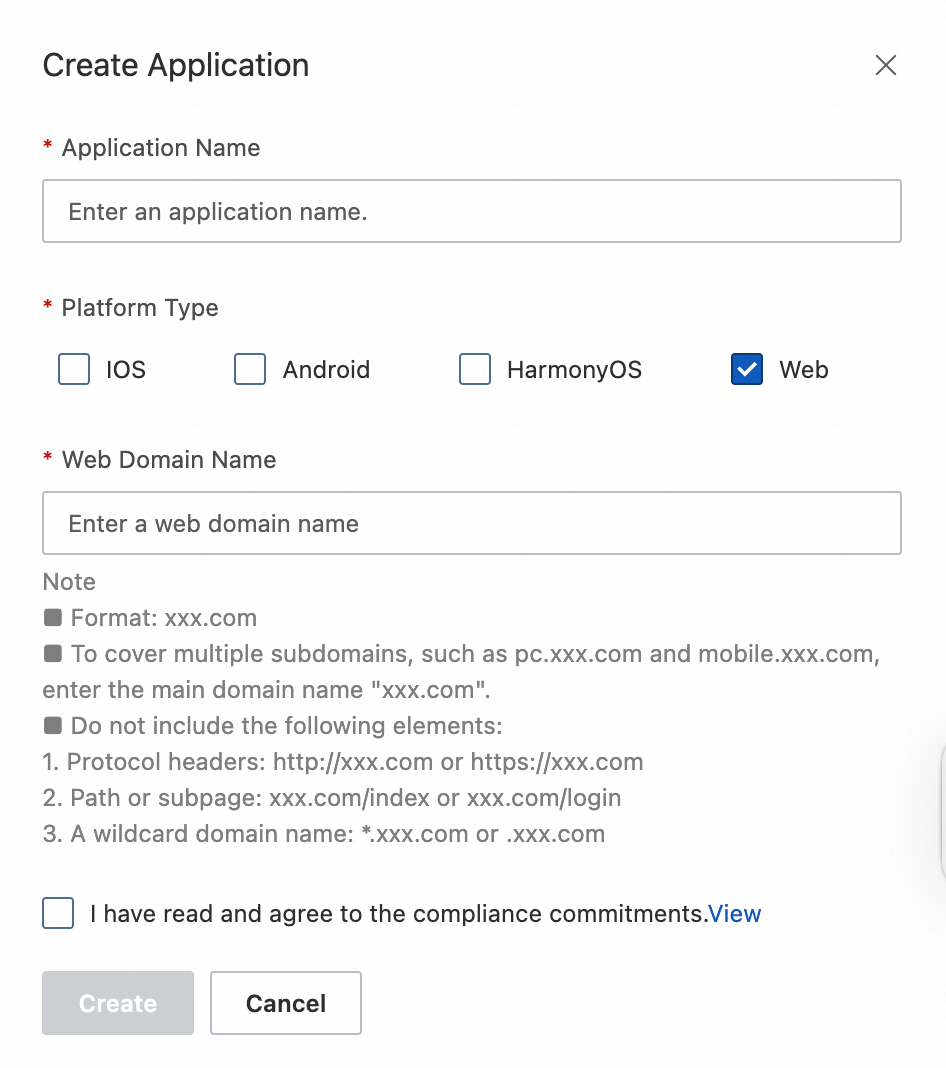
Web domain guidelines
Example of a valid domain:
aliyun.com. To cover multiple subdomains, such aspc.aliyun.comandmobile.aliyun.com, enter only the primary domain namealiyun.com.Avoid the following formats:
Including a protocol prefix:
http://aliyun.comorhttps://aliyun.com.Including a path or subpage:
aliyun.com/indexoraliyun.com/login.Using a wildcard domain:
*.aliyun.comor.aliyun.com.
Mobile: Select a platform, enter an Application Name, and provide the corresponding Android package name, iOS Bundle ID, and HarmonyOS Bundle ID to create the application.
The HarmonyOS Bundle ID can be found in the
bundleNamefield of your project'sapp.json5file. After you enter the information, select the Compliance Commitment checkbox and click Create.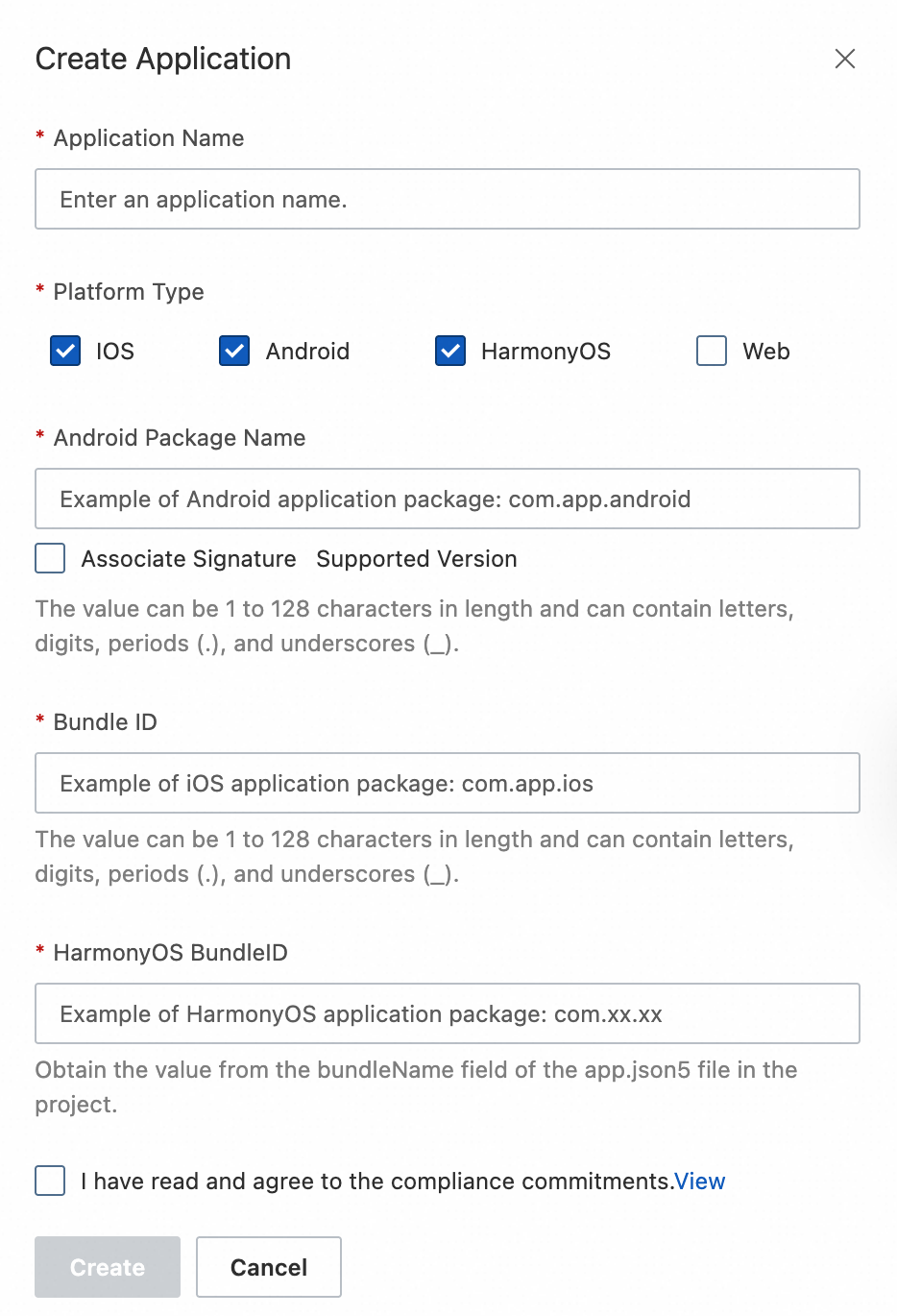
Bind an Android application signature
This field is required if you select Android for the Platform Type and select Bind Signature.
Binding a signature enhances security by preventing other applications with the same package name from using the license.
Newer SDK versions do not require a bound signature, including ApsaraVideo MediaBox v1.7.0 and later, player SDK v5.5.2 and later, live streaming SDK v4.4.9 and later, and short video SDK v3.36.0 and later.
You can obtain the MD5 value of your Android application signature in two ways:
Run the
keytool -v -list -keystore your.keystorecommand to view the MD5 value of the corresponding signature.From Android Studio: Click Gradle in the right-hand sidebar and navigate to Tasks > android > signingReport for the app. Convert any letters in the resulting MD5 value to lowercase and remove the colons.
Step 2: Purchase a license
If you have already purchased a license, proceed to Step 3: Bind a license.
The Standard Edition and the Professional Edition of the player SDK ship in the same SDK package and are distinguished by license type. After you purchase a Professional Edition license and bind it to your application, you can use the Professional Edition features.
Return to the My Authorizations page, select the Order Instances tab, and click Purchase License.
On the ApsaraVideo MediaBox purchase page, select the SDK and function modules based on your business needs (SDK entitlements cannot be combined in a single purchase), and complete the purchase.
When you purchase a player SDK license, ensure that the platform you select matches your application's platform type. A mismatch causes the license binding to fail.
NoteSDK benefits can only be purchased separately. For example, Player SDK Standard Edition can be purchased separately.On the MediaBox Audio and Video SDK purchase page, select the version of each SDK module as needed.After the selection is completed, confirm the purchase quantity and payable expenses, and click Buy Now to complete the payment.
After the payment is successful, return to the Order Instances tab to view your new order instance.
Step 3: Bind a license
Return to the My Authorizations page, select the License Management tab, and click Bind License.
On the Bind License page, select the application and the SDK license order to bind. Each license order can be bound to a single application, covering either Web or Mobile platforms.
In the Authorized Platforms section, select the platforms that you want to authorize, such as Android. A mobile license is valid only for a mobile application.
After you confirm the information, click Bind.
After a successful binding, return to the License Management tab to view the bound application name and its authorization information.
Step 4: Obtain authorization information
On the License Management tab, find the target application. Your License Key is displayed at the top of the page. Click the copy button to copy the key. A Download Certificate link is available under each application name in the list.
After you confirm the authorization details, click Download Certificate to save the license file to your local machine. Also, save the license key for use during application integration. For instructions on configuring the license file, see Integrate a license.
Apply for a trial license
You can apply for a trial license by submitting a Yida form. Trial applications are processed within one to two business days.
Renew a license
Renew your license before it expires to prevent service interruptions. Two situations may prevent you from renewing directly from the License Management page:
Empty instance ID — The instance ID column for the order on the License Management page is empty.
Console error during renewal — A red error message appears at the bottom of the renewal page: Order configuration parameters do not meet validation criteria. Please reconfigure the product! This prevents you from completing the renewal by clicking Buy Now.
If you encounter either situation, purchase a new license and bind it to your application, or submit an Alibaba Cloud ticket for renewal.
In most cases, renew your license directly from the License Management page (Method 1). If the instance ID of your license order is empty or a console error occurs during renewal, use Method 2 instead.
Method 1: Renew from the License Management page (recommended)
Renewal applies to the entire license order. If your license order includes multiple SDK entitlements, all of them are renewed together. You cannot change the configuration during renewal. If you have questions, submit an Alibaba Cloud ticket.
Go to the My Authorizations page in the ApsaraVideo VOD console.
Select the License Management tab, then find and save the instance ID that is bound to the target application.

If the instance ID is empty or an error occurs in the console during renewal, use Method 2: Purchase a new license and bind the application or submit an Alibaba Cloud ticket for renewal.
Go to the Renewals page in the Expenses and Costs console. Search for the saved instance ID, find the order, and then click Renew in the Actions column.
On the ApsaraVideo MediaBox renewal page, confirm your current configuration and the renewal duration, and then click Buy Now to complete the renewal.

(Recommended) Enable auto-renewal to prevent expiration.
Method 2: Purchase a new license and bind the application
If the instance ID is empty for your purchased SDK license or if an error occurs during renewal, you must purchase a new license from the ApsaraVideo MediaBox purchase page before your current license expires. After the purchase, follow the instructions in Step 3: Bind a license to prevent service interruptions.
Modify the application information bound to a license
If your application information changes, you can modify it in the console.
Modifying an application's identifier, such as its package name, invalidates the original identifier. You must download the license file again and replace the existing one. Proceed with caution.
Adding a platform, such as HarmonyOS, does not affect the license authorization status of your existing iOS or Android platforms. The existing Bundle ID, License Key, and SDK configuration remain unchanged, and you do not need to bind them again. Download only the certificate file for the newly added platform.
Log on to the ApsaraVideo VOD console or the ApsaraVideo Live console.
In the left-side navigation pane, choose SDK Management > My Licenses.
Click the Application Management tab, find the target application, and then click Create.
Modify the application name, platform, the MD5 value of the Android application signature, and application identifiers, such as the package name.
After you confirm the changes, click Details to complete the modification.
For more frequently asked questions, see License-related FAQ.