You can manually export bills from the console or use the subscription feature to automatically push bill data to OSS or MaxCompute.
Manual export vs. automatic subscription
The following table compares the two methods for obtaining bills: manual export and bill subscription.
Comparison | ||
Scenarios | One-time query and download. Suitable for temporary reconciliation or archiving. | Periodic and automatic retrieval. Suitable for Data Lake Formation, big data analytics, or automated reports. |
Timeliness | Immediate operation. Get current or historical data. | Automatic push based on a preset schedule (daily or monthly). |
Data format | PDF, CSV | CSV (.zip compression), MaxCompute table |
Automation level | Requires you to log on to the console and perform manual operations. | Configure once for continuous automatic execution. |
Cost | Free | Subscriptions to OSS or MaxCompute incur storage and computing fees. |
Manual export
You can use manual export to obtain bill data for a specific time range. You can export bills for a single month or multiple months.
Export bill summary
Legacy Console
On the Monthly Bill Overview page, click Export Bill File in the upper-right corner to open the export dialog box.
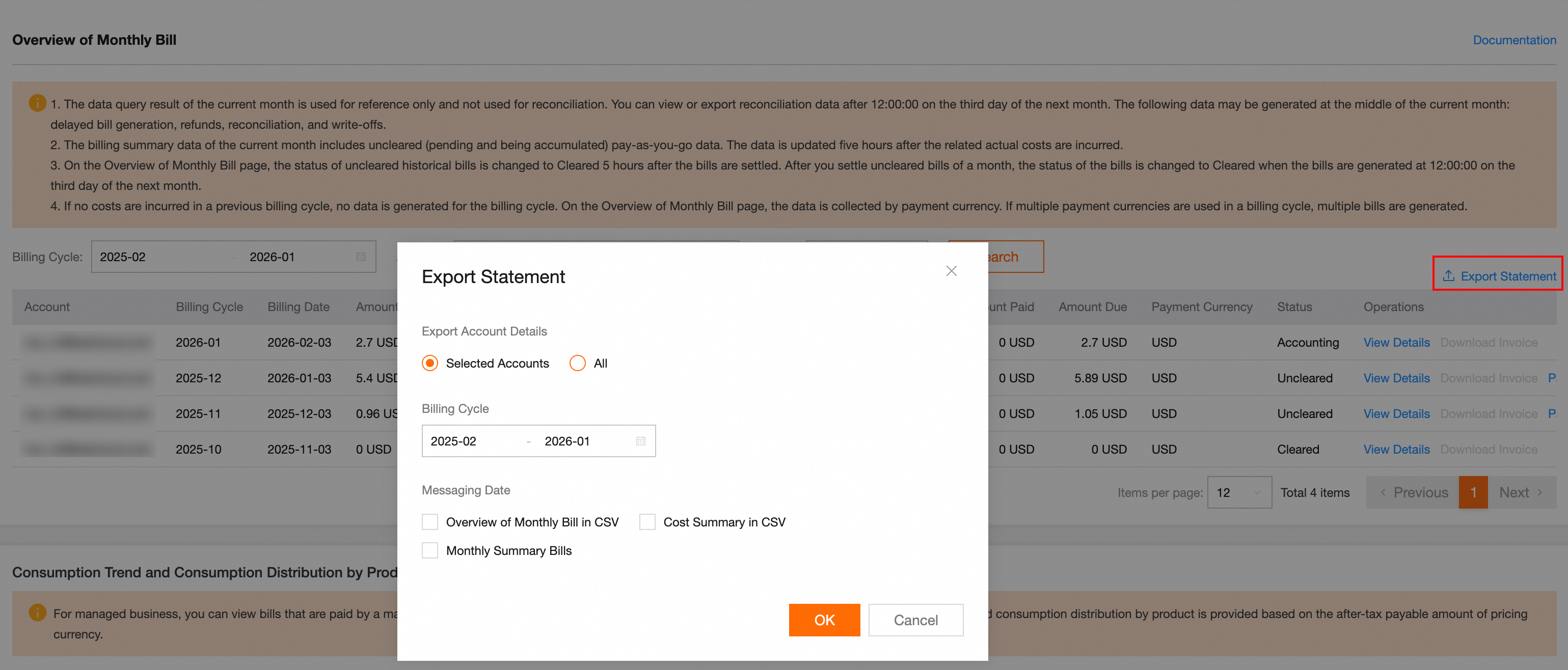
Select an Export Account Content option.
Current Selected Account: Exports bill data only for the accounts selected on the Monthly Bill Overview page.
All Accounts: Exports bill data for all accounts that you have permission to view. The data is merged into a single file.
Select the Billing Cycle to export.
Select an Export Content option.
Monthly Bill Overview CSV: Settlement bill data aggregated by billing month. The bill for a month is officially generated after 12:00 on the 3rd day of the following month.
Product Spend Summary CSV: A CSV file that contains spending details aggregated by dimensions such as account and product.
Monthly Summary Bill: A PDF file that is suitable for financial settlement. The bill for a month is officially generated after 12:00 on the 3rd day of the following month.
Click OK. The system starts to generate the file.
After the file is generated, go to the Export Record page to download it.
New console
On the Overview of Monthly Bill page, click Export Bill in the upper-right corner to open the export dialog box.
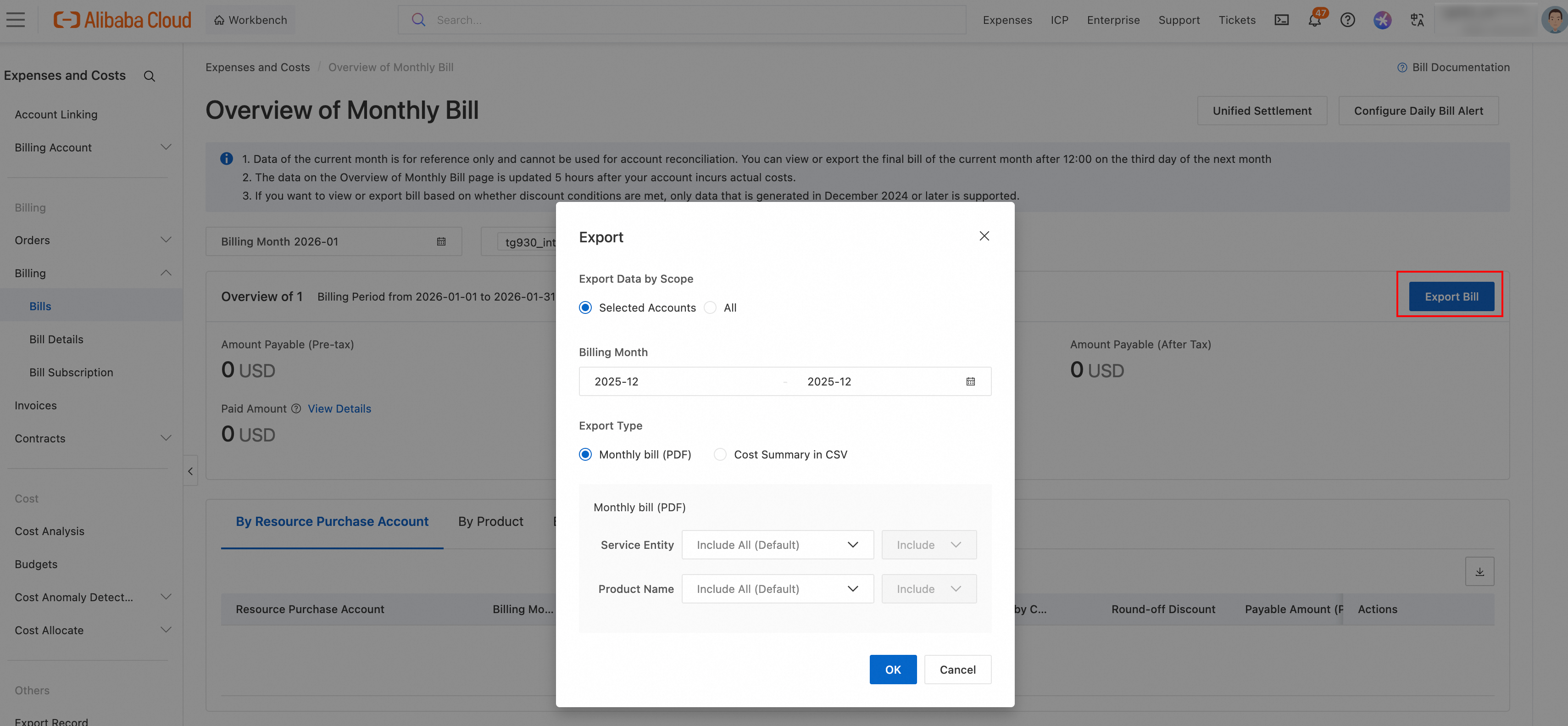
Select an Export Data by Scope.
Selected Accounts: Exports bill data only for the accounts selected on the Bill Overview page.
All: Exports bill data for all accounts that you have permission to view. The data is merged into a single file.
Select an Export Type.
Monthly Bill PDF: A bill in PDF format that is used for financial settlement. The bill for a month is generated after 12:00 on the 3rd of the following month.
Cost Summary in CSV: A CSV file that contains spending details aggregated by dimensions such as account and product.
Click OK. The system starts to generate the file.
After the file is generated, go to the Export Record page to download it.
If you are using the new Expenses and Costs console, you can select By Resource Purchase Account, By Product, By Organization, or By Service Entity at the bottom of the current page. Then, click the  icon in the upper-right corner of the summary table to export the monthly bill aggregated by different dimensions.
Reports exported By Product, By Organization, or By Service Entity contain only the summary data for the enterprise, organization, or account scope that is set at the top of the page. They do not include specific account information.
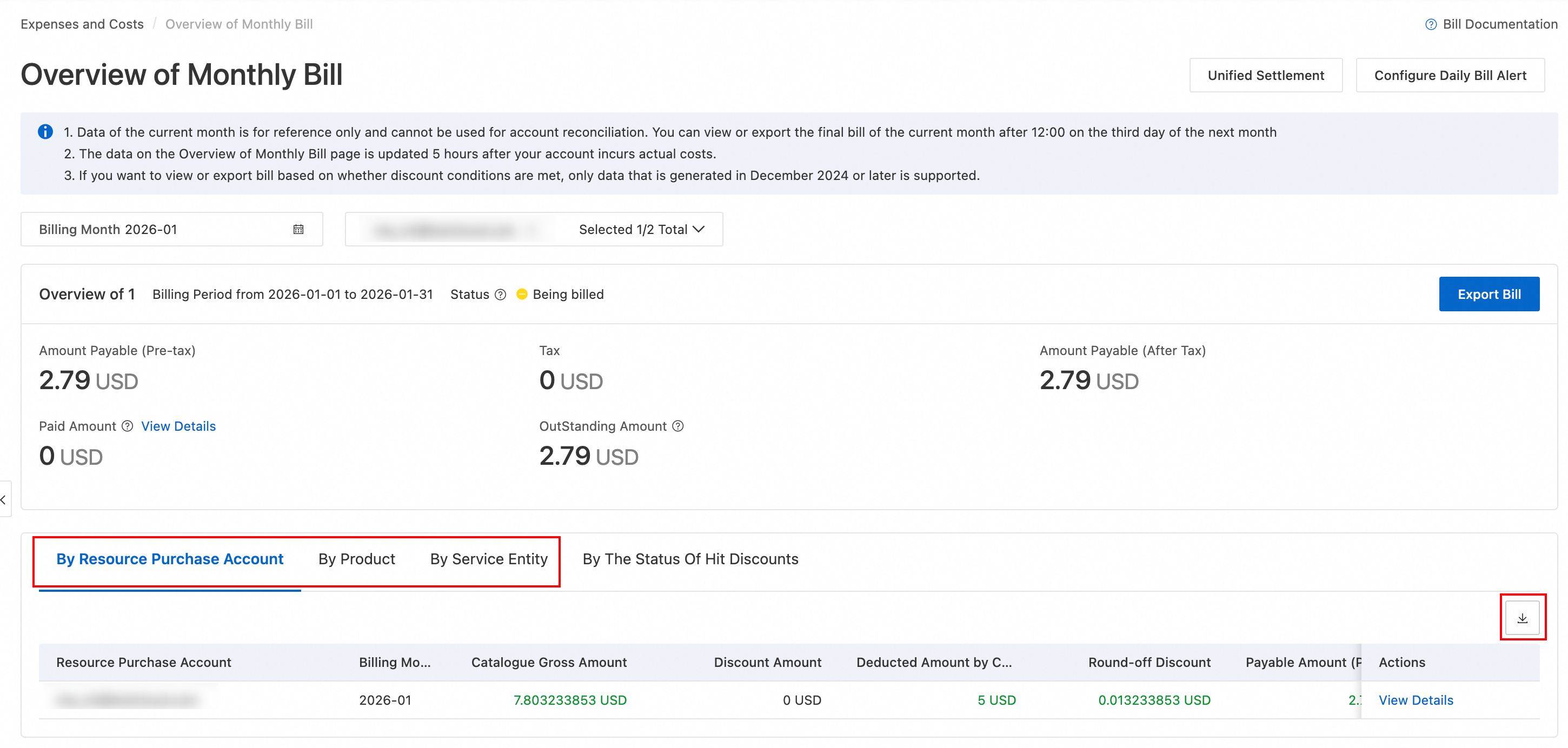
After the file is generated, go to the Export Record page to download it.
Export billing details
Legacy Console
Billing details include granular data such as resource instances, billable items, usage, and payable amounts. This data is the basis for cost analysis. On the Billing Details page, click the Export Bill CSV button in the upper-right corner to open the export dialog box.
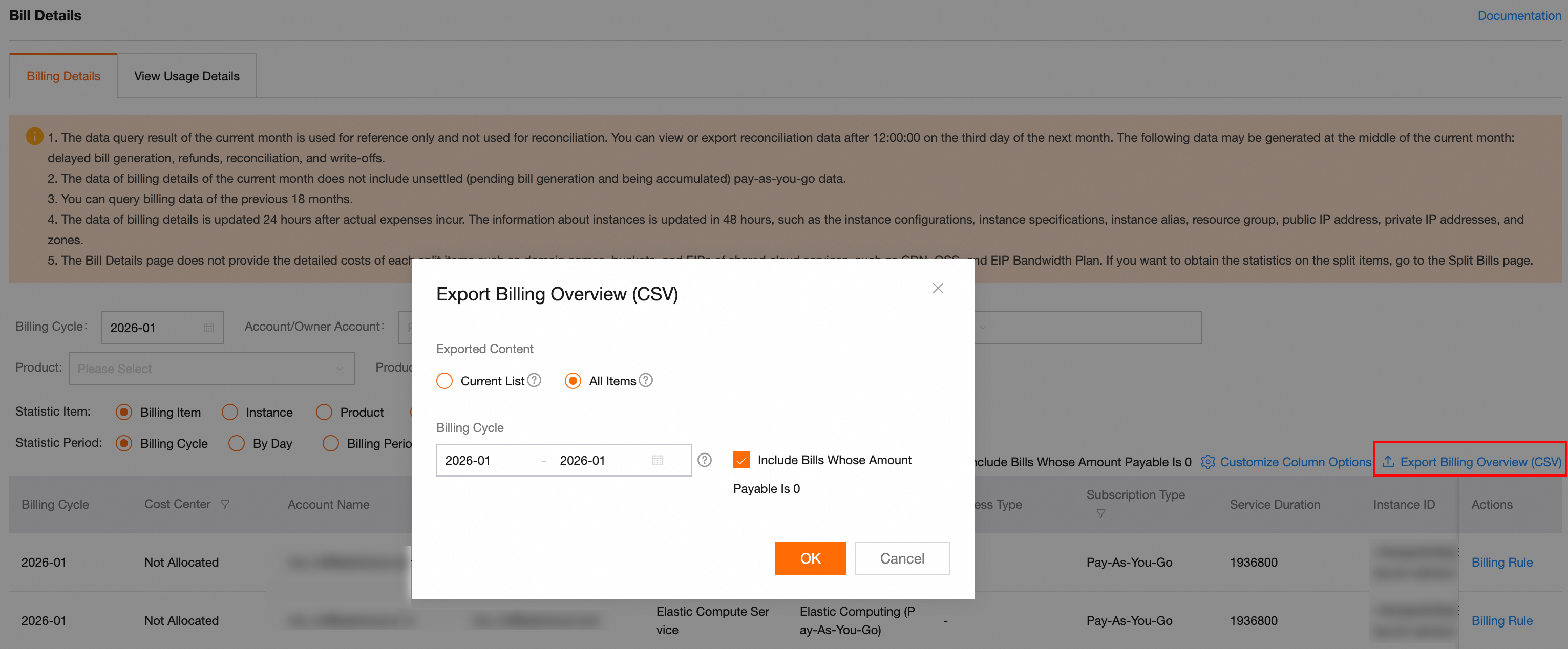
Select the Exported Content.
Current Selection: Exports only the filtered bill data from the export list on the Bill Details page.
All Content: Exports bill data for the selected billing cycle for all accounts that you have permission to view. The data is merged into a single file.
If you set Exported Content to All Content, select the Billing Cycle to export.
If required, select Include Payable Amount of 0.
Click OK. The system starts to generate the file.
After the file is generated, download it from the Export Record page.
New console
Billing details contain granular data, such as resource instances, billable items, usage, and the amount payable. This data serves as the basis for cost analysis. On the Bill Details page, click the icon in the top-right corner to open the export dialog box.
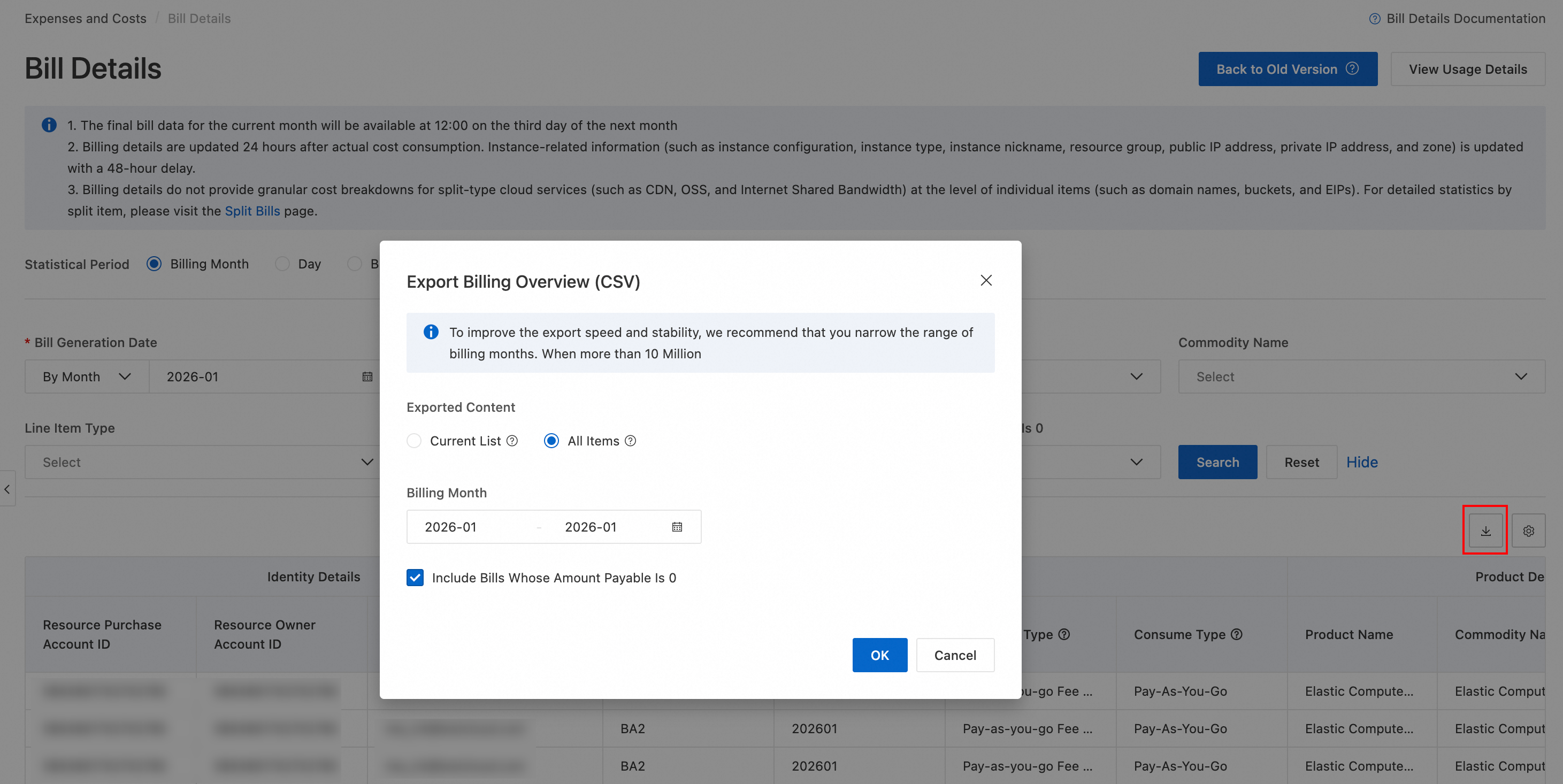
Select the Exported Content.
Current List: Exports only the billing data that is filtered in the export list on the Bill Details page.
All Items: Exports bill data for the selected billing cycle for all accounts that you have permission to view. The data is merged into a single file.
If you set Exported Content to All Items, select the Billing Month to export.
If required, select Include Bills Whose Amount Payable Is 0.
Click OK. The system starts to generate the file.
After the file is generated, go to the Export Record page to download the file.
Export usage details
Legacy Console
Usage details record the specific usage of cloud products, such as ECS runtime and OSS storage capacity. On the Billing Details page, click the View Usage Details tab in the upper-left corner to go to the View Usage Details page.
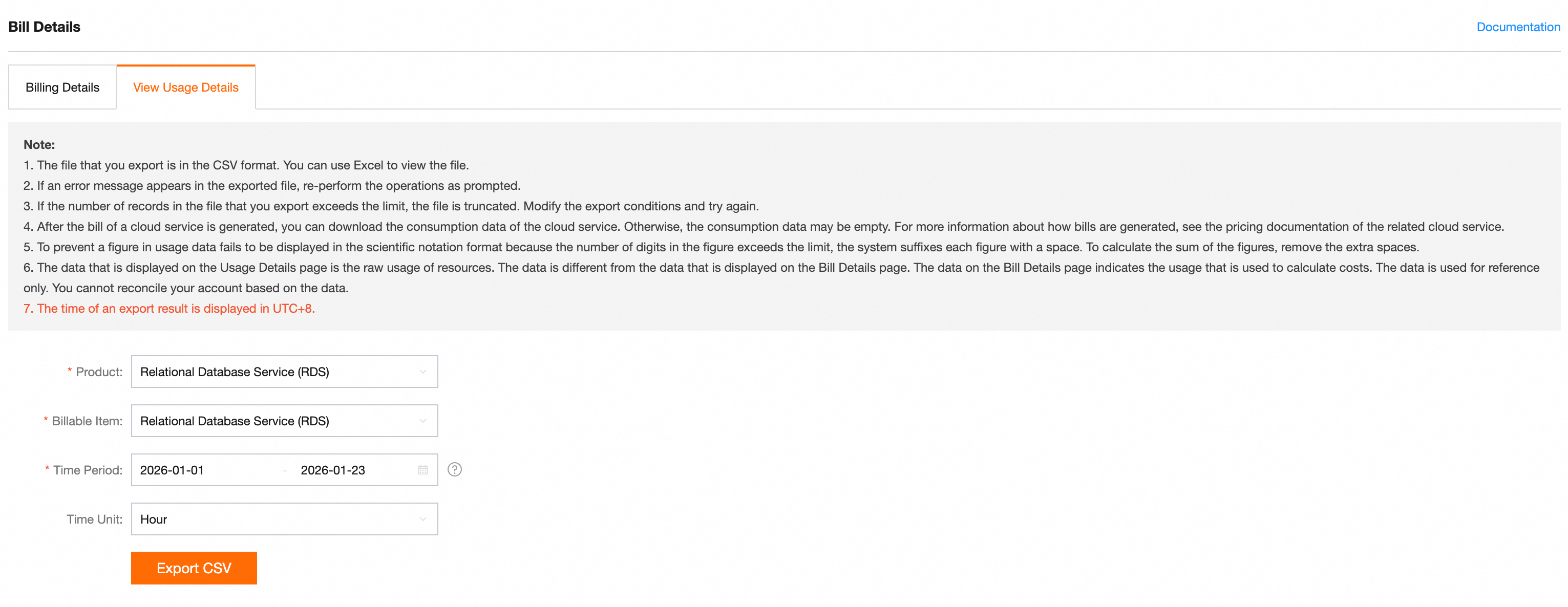
Set filter conditions such as Product, Metering Specification, Usage Time, and Metering Granularity.
Click Export CSV. The system starts to generate the file.
After the file is generated, download it from the Export Record page.
New console
Usage details record the specific usage of cloud products, such as ECS runtime and OSS storage capacity. On the Bill Details page, click View Usage Details in the upper-right corner to go to the View Usage Details page.
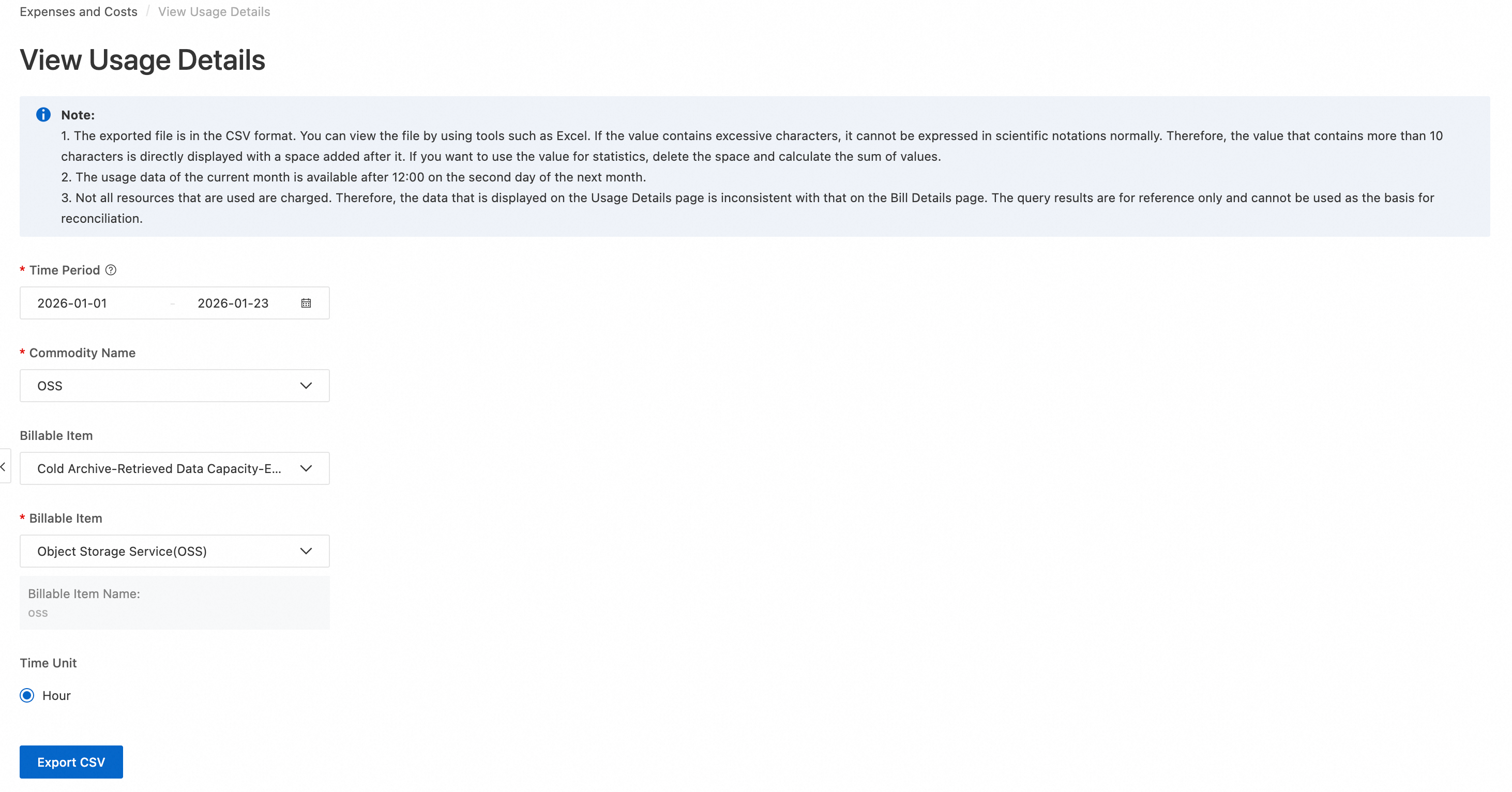
Set filter conditions such as Time Period, Commodity Name, Billable Item, Billable Item, and the time range.
Click Export CSV. The system starts to generate the file.
After the file is generated, go to the Export Record page to download the file.
Automatic subscription
Bill subscription lets you automatically deliver data on a schedule without manual intervention. Bill subscription supports two channels:
OSS: Automatically stores bill files in a specified OSS bucket. This is suitable for data archiving and programmatic processing.
MaxCompute: Imports bill data into MaxCompute for big data analytics. You can use this with DataWorks for visual queries. This is suitable for big data analytics and business intelligence (BI) integration.
Subscribe to OSS
You can configure a tracking task from the console or using an API. The following sections provide examples of how to subscribe from the console and the command-line interface (CLI). For more information about API subscriptions, see the OpenAPI Portal.
Console
If you are using the new version of the Expenses and Costs console, on the Bill Subscription page, click Create Bill Subscription, and then select OSS Subscription.
Procedure
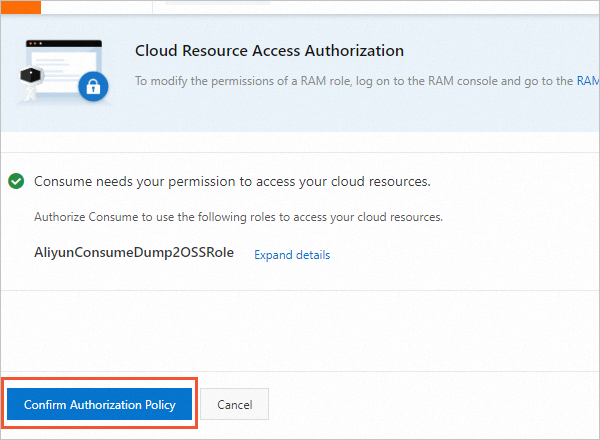
On the Cloud Resource Access Authorization page, click Confirm Authorization Policy.
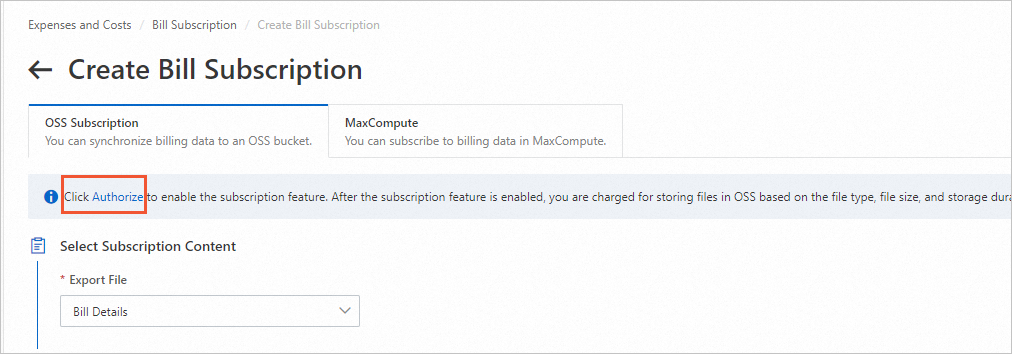
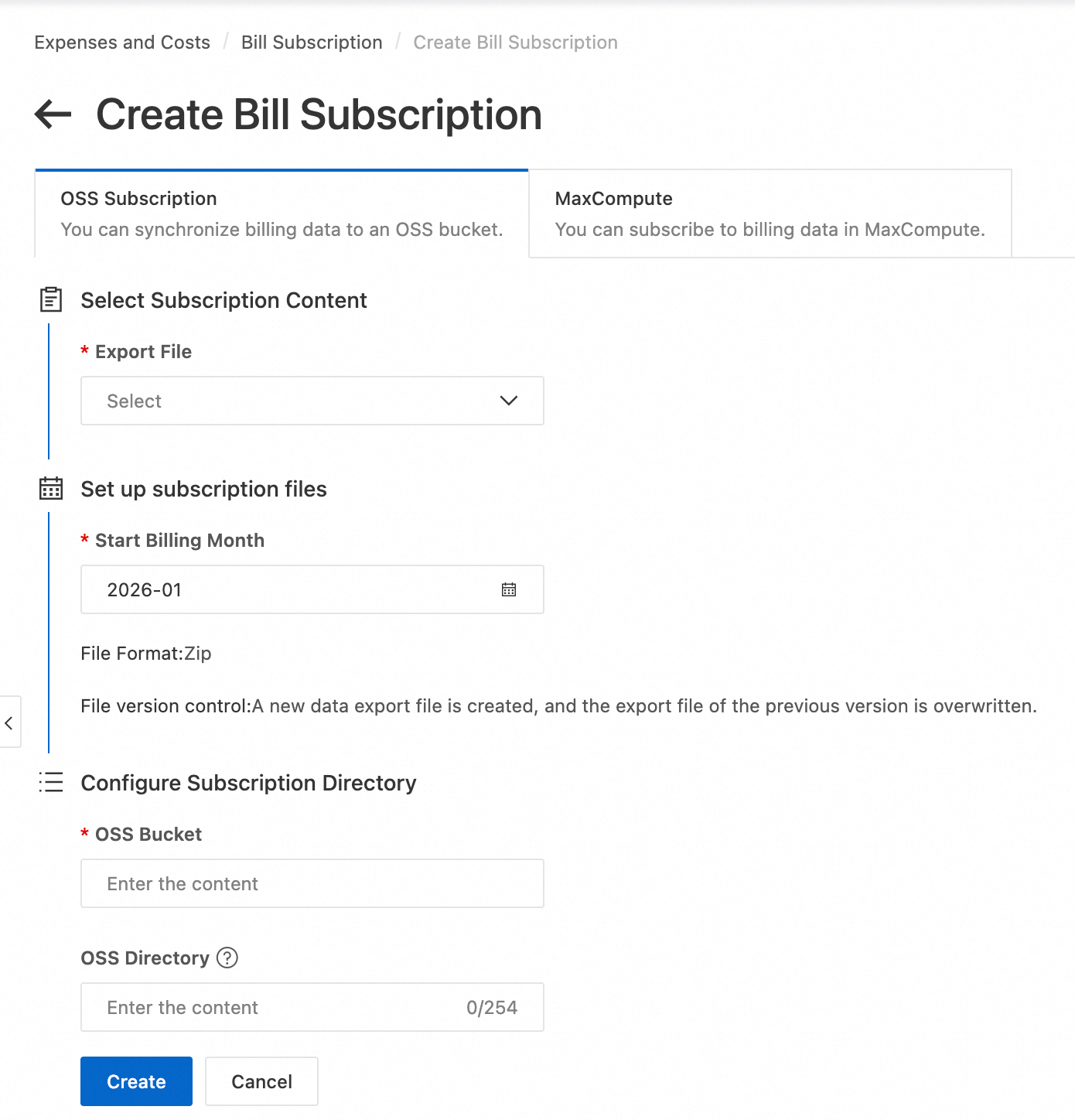
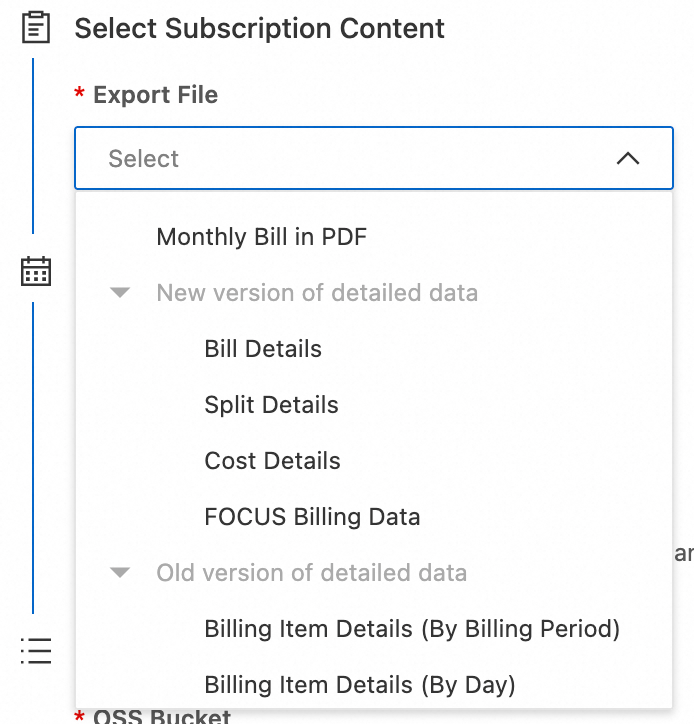
Select the Export File type to subscribe to.
Monthly Bill PDF: An official financial document calculated by calendar month that is used for settlement and reimbursement.
Billable Item Billing Details: The most granular spending data, which includes resource instances, billable items, usage, and payable amounts. This data is the basis for cost analysis.
Split Bill Details: Bills that are split by cost center and allocation rules and used for internal cost accounting.
Cost Details: The cost composition of each cost center, which is aggregated based on split bill details.
Standard Bill FOCUS: A standardized bill data model with well-organized fields that facilitates integration with multi-cloud and multiple systems.
Billable Item Detail Bill: Provides detailed spending records for each billable item, which include usage, unit price, and payable amount.
Billable Item Bill Daily Summary: Summarizes the spending for each billable item on a daily basis and shows the total daily cost.
Billable Item Bill Billing Cycle Summary: Summarizes the spending for each billable item by billing cycle, which is usually one month, and shows the total cost for the cycle.
Instance Detail Bill: Provides detailed spending records for each resource instance, which include the instance ID, billable item, usage, unit price, and total price.
Instance Bill Daily Summary: Summarizes the spending for each resource instance on a daily basis and shows the total daily cost.
Instance Bill Billing Cycle Summary: Summarizes the spending for each resource instance by billing cycle, which is usually one month, and shows the total cost for the cycle.
Split Bill Daily Summary: Summarizes the split bill on a daily basis and splits costs based on dimensions such as cost centers and tags.
NoteIf you have been invited to preview the upgraded bills, we recommend that you upgrade from the old detailed data to the new version as soon as possible.
You can create only one bill subscription for each Export File type. A type for which a subscription has already been created is grayed out and cannot be selected again.
Set the Start Billing Month.
Specify the name of an existing OSS bucket and set the destination storage path. If the path does not exist, the system creates it automatically.
Click Create to create the task.
View subscription records on the Bill Subscription page.
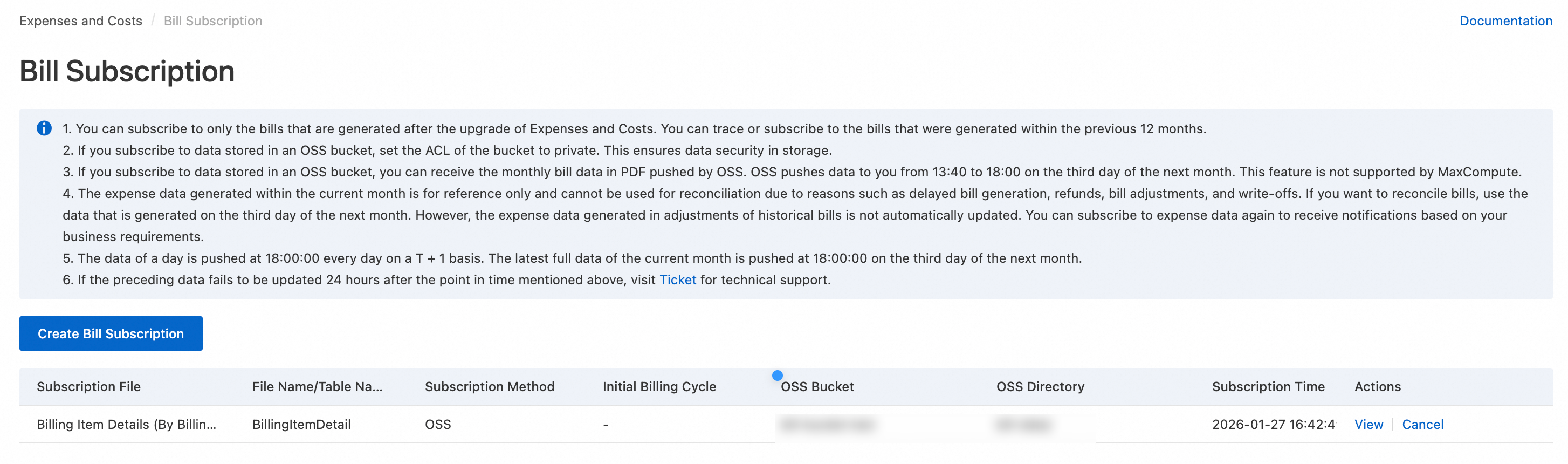
Push time
Bill type | Daily push (UTC+8) | Final monthly push (UTC+8) |
Billable Item Billing Details | Full data from the previous day is pushed before 18:00 | Before 18:00 on the 3rd day of the next month |
Split Bill Details | Full data from the previous day is pushed before 18:00 | Before 18:00 on the 4th day of the next month |
Cost Details | Full data from the previous day is pushed before 18:00 | Before 18:00 on the 4th day of the next month |
Standard Bill FOCUS | Full data from the previous day is pushed before 18:00 | Before 18:00 on the 4th day of the next month |
Monthly Bill PDF | Not supported | Before 18:00 on the 3rd day of the next month |
File naming convention
Format: All bill files are compressed in
.zipformat. Large files are automatically split and named in the format..._part_001.zip.Naming:
{Account UID}_{Site ID}_{Bill Type}_{YYYYMM}.zipSite ID:
1for Alibaba Cloud China Website (www.aliyun.com),2for Alibaba Cloud International Website (www.alibabacloud.com)
Folder:
{Specified Folder}/{YYYYMM}/{YYYYMMDDHHMMSS}/
CLI
You can create a bill subscription using the SubscribeBillToOSS API. If you are subscribing to OSS for the first time, you must grant the AliyunConsumeDump2OSSRole role to the subscription user. You can use one-click authorization. If the authorization is revoked, the system no longer pushes files, and you must grant the permissions again.
Request parameters
Parameter | Type | Required | Description |
SubscribeType | Text | Yes | The subscription type:
|
SubscribeBucket | Text | Yes | The name of an existing OSS bucket. |
BucketOwnerId | Number | No | The ID of the account that owns the bucket. Specify this for cross-account scenarios. |
BucketPath | Text | No | The path of the storage folder. If it does not exist, it is automatically created. |
BeginBillingCycle | Text | No | The starting billing cycle for the subscription. Format: YYYY-MM. |
MultAccountRelSubscribe | Text | No | The scope of the multi-account subscription, such as |
Subscription example
Use the Alibaba Cloud CLI to send a subscription request using the SubscribeBillToOSS API. For more information about the CLI, see What is Alibaba Cloud CLI.
# Send a subscription request
aliyun bssopenapi SubscribeBillToOSS --SubscribeType 'your-billing-type' --SubscribeBucket 'your-bucket-name' --BucketPath 'your-bucket-path'
# Success response
{
    "Code": "Success",
    "Message": "Successful!",
    "RequestId": "55C79633-4F63-3839-8815-XXXXXXXXXX",
    "Success": true
}
Verify a successful subscription
You can use the Alibaba Cloud CLI to query records for bill subscriptions to an OSS bucket by calling the QueryBillToOSSSubscription operation.
# Send a subscription query request
aliyun bssopenapi QueryBillToOSSSubscription --region 'your-region'
# Success response
{
    "Code": "Success",
    "Data": {
        "AccountID": "XXXX",
        "AccountName": "XXXX",
        "Items": {
            "Item": [
                {
                    "BucketOwnerId": XXXX,
                    "BucketPath": "bill-data/",
                    "MultAccountRelSubscribe": "MA",
                    "SubscribeBucket": "XXXX",
                    "SubscribeLanguage": "en",
                    "SubscribeTime": "2026-01-27 16:42:49",
                    "SubscribeType": "BillingItemDetailForBillingPeriod"
                }
            ]
        }
    },
    "Message": "Successful!",
    "RequestId": "B1CCC55E-CD6F-3ABC-AABC-XXXXXXXX",
    "Success": true
}
Common error codes
Error code | Cause |
OssPermissionDenied | User Center (Consume) failed to access your OSS resources using the |
DuplicateSubscription | You have already subscribed to this type of bill. No need to subscribe again. |
ExportFileToOSSFailed | The OSS bucket may not exist. You need to create it first. |
Storing bill files in OSS incurs storage fees. These fees are charged by OSS based on file size and storage duration. You can configure OSS lifecycle rules to periodically clean up daily snapshot files and retain only the final monthly bill to optimize costs.
Subscribe to MaxCompute
Prerequisites
You have been invited to preview the upgraded bills.
You have activated MaxCompute and DataWorks in the same region.
Subscription scope: Data for up to 12 months after the upgraded bills are enabled.
Procedure
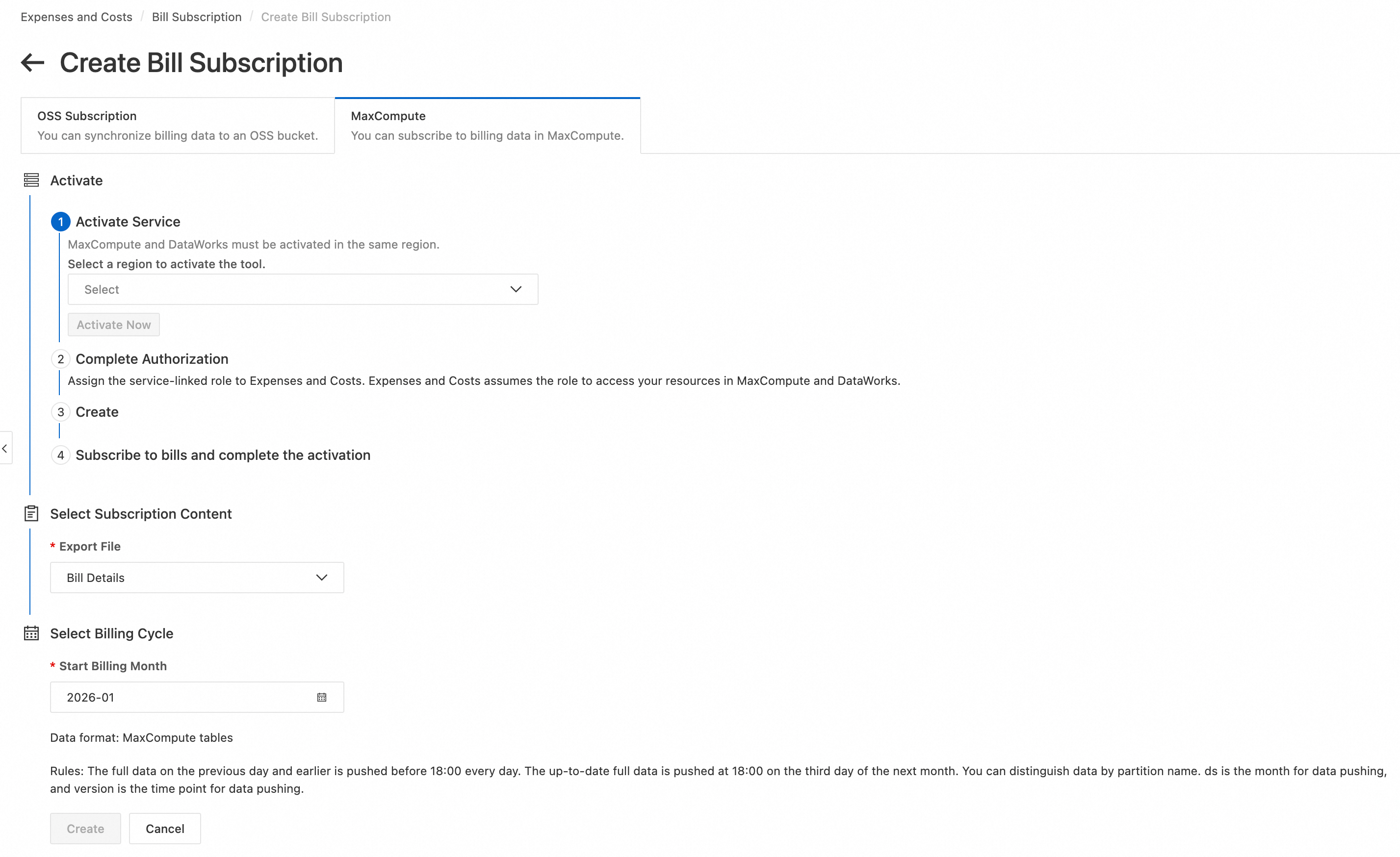
If you are using the new Expenses and Costs client, you can on the Bill Subscription page, click Create Bill Subscription, and then select MaxCompute.
After selecting the activation region, click Go to Activate. Follow the prompts to activate.
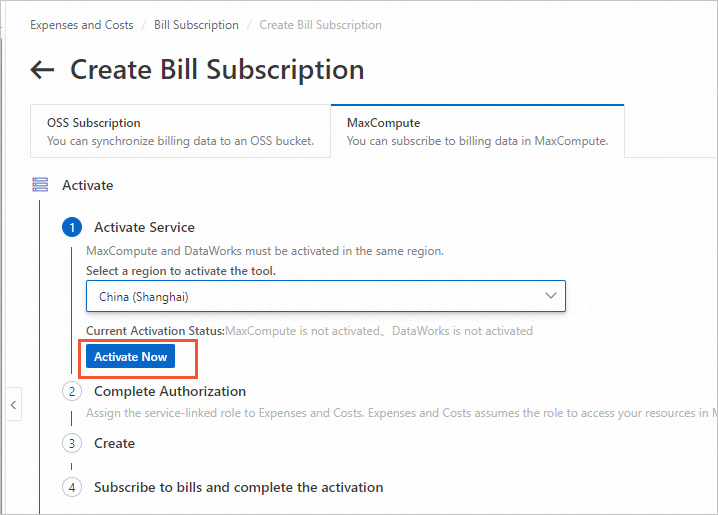
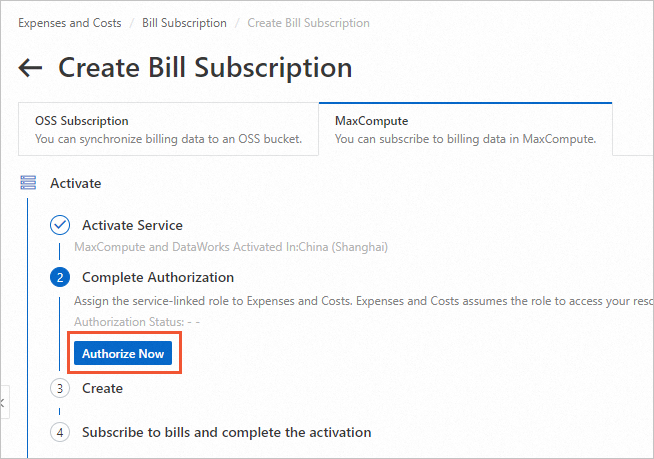
After the activation is successful, the system checks the activation status. Click Confirm, and then click Go to Authorize to complete the authorization.
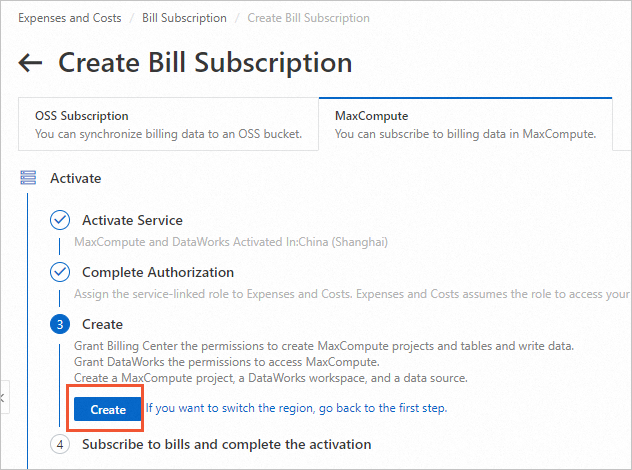
After completing the authorization, click One-click Create.
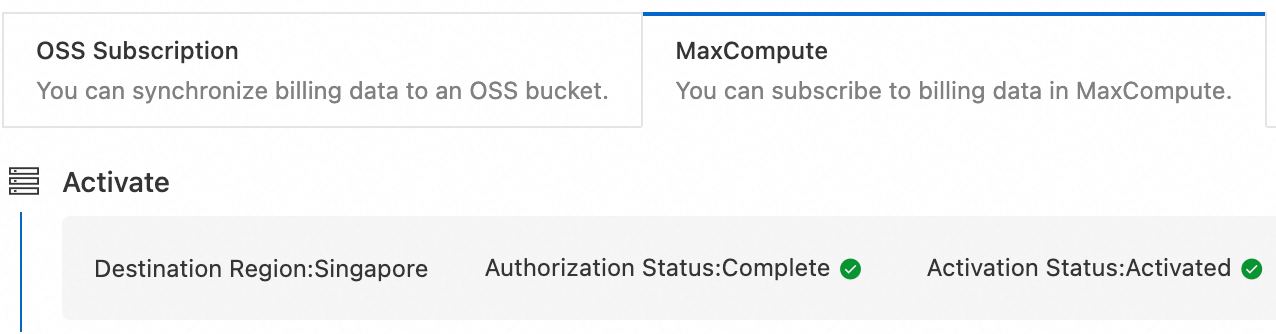
The following prompt indicates that the activation was successful.
NoteIf you have already activated MaxCompute and DataWorks, ensure they are in the same region. Select the region where they are activated and complete the authorization.
The data analytics tool can be activated in only one region. For example, if it is activated in the China (Shanghai) region, you cannot subscribe to bill data in other regions.
Select Subscription Content.
Billing Details by Billable Item: Matches the content of the Bill Details page.
Split bill: Corresponds to the Split Bill page.
Cost Details: Displays the content of the Cost Details page.
Set the Start Billing Month.
Click OK to Create to create the task.
After you subscribe, the relevant bill data is synchronized to the specified MaxCompute table. The project is named bill_{account_that_created_the_subscription}.
Full data up to the previous day is pushed daily before 18:00. The final full monthly data is pushed again before 18:00 on the 3rd day of the following month. Data is distinguished by partition name, in the format ds=push_month/version=push_timestamp.
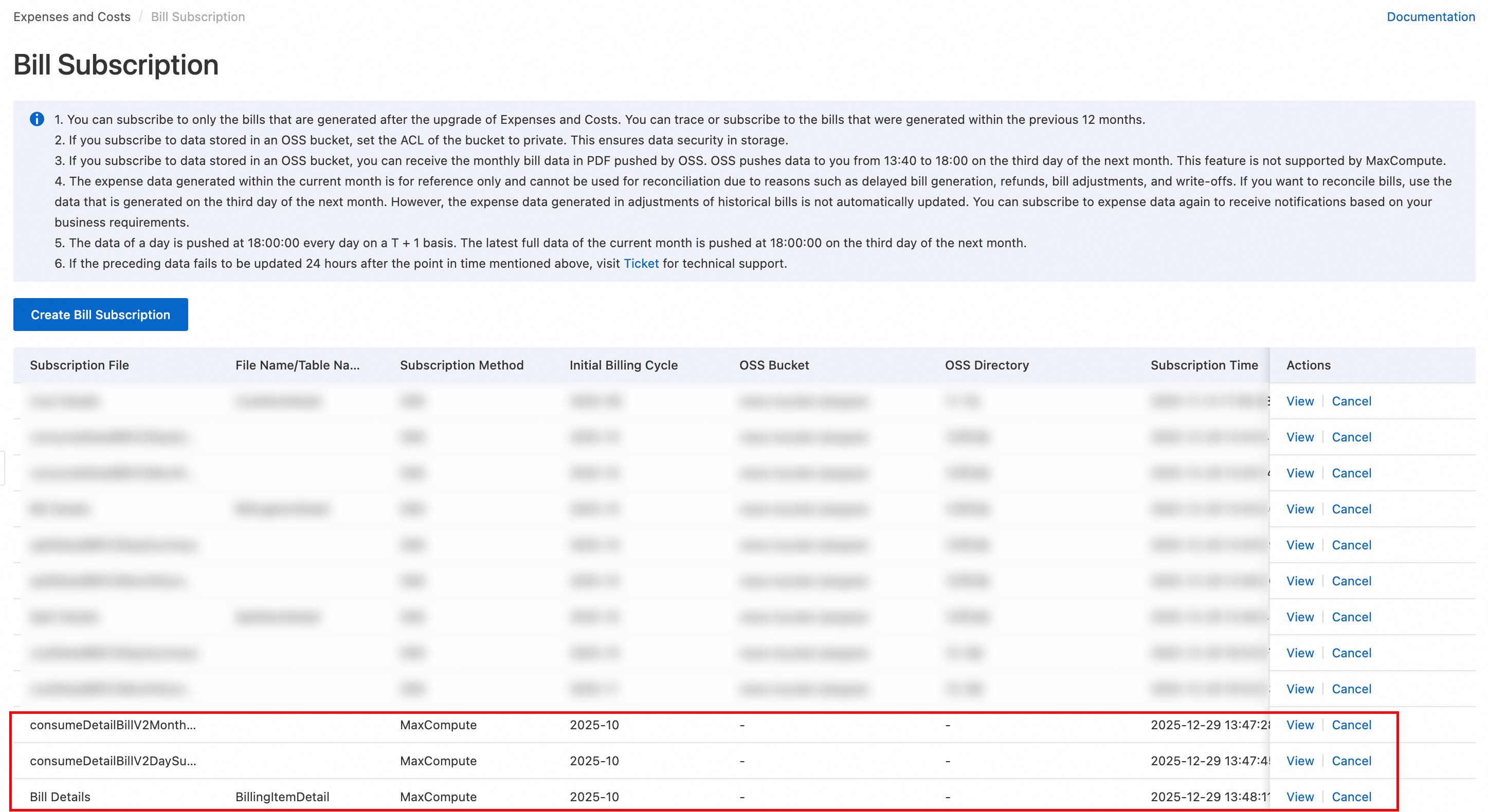
On the Bill Subscription page, you can view your subscription records. Click Go To View to go to the DataWorks data analytics page. On this page, you can use SQL statements to query and analyze your subscribed bill data.
Push time
Full data from the previous day is pushed daily before 18:00. The final monthly data is pushed before 18:00 on the 3rd day of the following month and is distinguished by partition.
MaxCompute table naming convention
Project:
bill_{Account UID}
Bill type | MaxCompute table name |
Billable Item Billing Details | billing_item_detail_for_billing_period |
Split Bill Details | split_item_detail_for_billing_period |
Cost Details | cost_item_detail_for_billing_period |
Subscribing to and analyzing bill data will incur the following fees:
Storage fee (charged by MaxCompute): Bill data is written to the specified MaxCompute table, which incurs storage fees. For more information, see Billable items and billing methods.
Computing fee (charged by MaxCompute): Executing SQL statements in data analytics incurs computing fees. For more information, see Billable items and billing methods.
FAQ
I created a bill subscription but did not receive the file. What should I do?
Follow these steps to troubleshoot:
Check authorization status: Confirm that the service authorization for OSS or MaxCompute is valid.
Confirm push time: Check if the daily data push time (after 18:00 UTC+8) has passed.
Check target configuration: Confirm that the OSS bucket or MaxCompute project exists and that the access policy is correct.