Time Series Database (TSDB) for InfluxDB® supports two account types and lets you create, delete, and authorize databases from the TSDB console.
Quick reference
| Task | Location in console |
|---|---|
| Create an account | Time Series Data Management > Accounts > Create |
| Delete an account | Time Series Data Management > Accounts > Delete |
| Create a database | Time Series Data Management > Databases > Create |
| Delete a database | Time Series Data Management > Databases > Delete |
| Modify account permissions | Time Series Data Management > Accounts |
Prerequisites
Before you begin, ensure that you have:
-
A TSDB for InfluxDB® instance. For more information, see Create a TSDB for InfluxDB® instance
Account types
TSDB for InfluxDB® instances support two account types: administrator accounts and standard accounts. Both account types can only be created and managed in the TSDB console.
| Account type | Limit | Capabilities |
|---|---|---|
| Administrator account | One per instance | Full permissions on all databases on the instance. Cannot create or manage other accounts. |
| Standard account | Multiple per instance | Read and write permissions on authorized databases only. Permissions must be granted manually. Can be deleted. |
By default, the administrator account has owner permissions on all databases created on the instance. You can reset these permissions. Standard accounts can only be created after an administrator account exists for the instance.
Manage accounts
Create an account
-
Log on to the TSDB console.
-
In the upper-left corner, select the region where your instance is located.
-
On the Instances page, click Manage in the Actions column for the instance.
-
Choose Time Series Data Management > Accounts, then click Create.
-
On the Create Account page, configure the following parameters.
Parameter Description Account name Enter a name for the account. The name must meet all of the following requirements: contains only lowercase letters, digits, and underscores ( _); starts with a lowercase letter; ends with a lowercase letter or digit; is 1–16 characters long.Account type Select Administrator account or Standard account. Only one administrator account can be created per instance. Authorize database Applies to standard accounts only. In the Unauthorized databases section, select the databases to authorize, then click Authorize > to move them to the Authorized databases section. For each database, select a permission type: Read/Write, Read, or Write. If no databases exist yet, create databases before granting permissions. Password Enter a password that is 8–32 characters long and contains at least three of the following character types: uppercase letters, lowercase letters, digits, and special characters ( ! @ # $ % ^ & * ( ) _ + - =).Confirm password Re-enter the password to confirm. 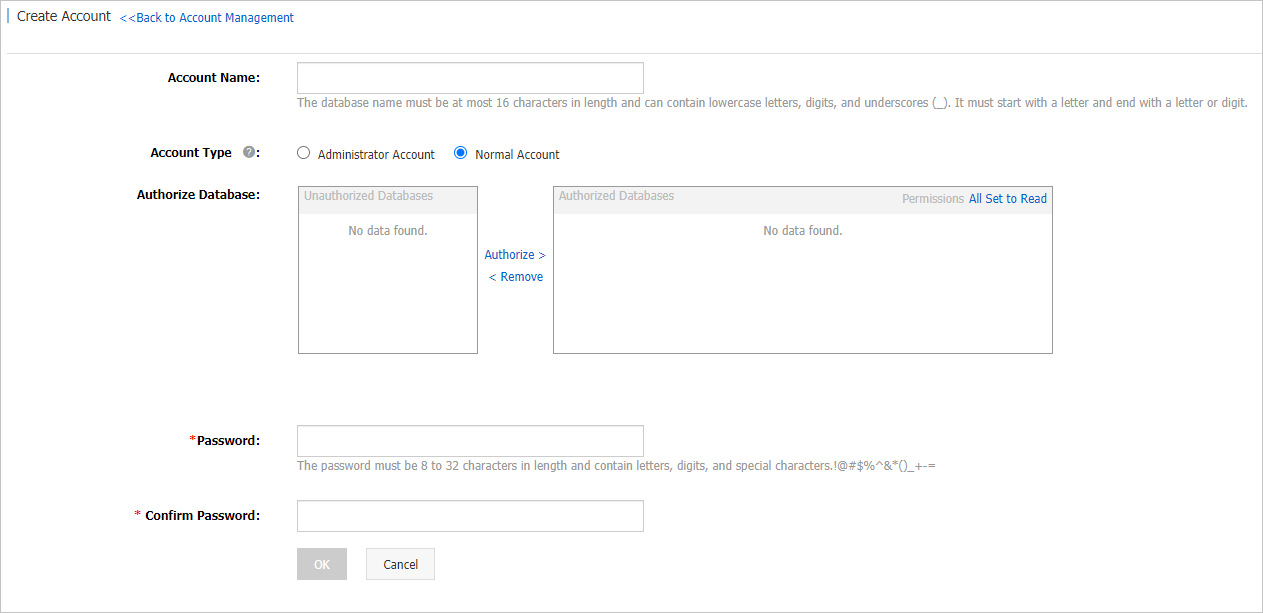
-
Click OK.
Delete an account
Only standard accounts can be deleted.
-
Log on to the TSDB console.
-
In the upper-left corner, select the region where your instance is located.
-
On the Instances page, click Manage in the Actions column for the instance.
-
Choose Time Series Data Management > Accounts. On the Accounts page, click Delete in the Actions column for the account.
-
Click OK.
Manage databases
Create a database
-
Log on to the TSDB console.
-
In the upper-left corner, select the region where your instance is located.
-
On the Instances page, click Manage in the Actions column for the instance.
-
Choose Time Series Data Management > Databases, then click Create in the upper-right corner.
-
In the Create database dialog, enter a database name and click OK.

Keep the number of databases per instance at 10 or fewer. A large number of databases distributes data across many databases, which consumes memory and degrades query performance.
Delete a database
-
Log on to the TSDB console.
-
In the upper-left corner, select the region where your instance is located.
-
On the Instances page, click Manage in the Actions column for the instance.
-
Choose Time Series Data Management > Databases. On the Databases page, click Delete in the Actions column for the database.
-
Click OK.

Manage permissions
Modify the read and write permissions of a standard account on specific databases from the Accounts page.
For example, grant Read/Write permission on the mydb database to the standard account db_test.

Administrator account permissions
The administrator account has full permission on all databases created on the instance.
Account permissions reference
The following table lists the InfluxQL operations available to standard accounts by permission type.
| Permission type | Scope | Operations |
|---|---|---|
| Read/Write | Database | SHOW DATABASES, USE |
| Read/Write | Data | SELECT, INSERT, DELETE FROM, CARDINALITY, SHOW TAG KEY [EXACT] CARDINALITY, SHOW TAG VALUES [EXACT] CARDINALITY, SHOW FIELD KEY [EXACT] CARDINALITY, SHOW MEASUREMENT [EXACT] CARDINALITY, SHOW TAG KEYS, SHOW TAG VALUES, SHOW FIELD KEYS, SHOW QUERIES, EXPLAIN [ANALYZE] |
| Read/Write | Series | SHOW SERIES, DROP SERIES |
| Read/Write | Continuous query | CREATE CONTINUOUS QUERY, DROP CONTINUOUS QUERY, SHOW CONTINUOUS QUERIES |
| Read/Write | Measurement | SHOW MEASUREMENTS, SHOW MEASUREMENT [EXACT] CARDINALITY |
| Read/Write | Retention policy | SHOW RETENTION POLICIES, DROP RETENTION POLICY |