Global Table automatically synchronizes data across multiple regions to provide cross-region disaster recovery. Use Global Table when your cross-region business requires low-latency access, high availability, reads and writes from the nearest replica, and disaster recovery switchover.
How it works
A Global Table uses the multi-region replication technology of Tablestore to establish data synchronization channels between instances in multiple regions. When data in a table in one region changes, the change is automatically synchronized to its replica tables in other regions, ensuring cross-region data consistency. Table replicas support dynamic expansion and removal across different instances and regions.
The replication process runs automatically in the background without manual intervention. This mechanism achieves an acceptable recovery point objective (RPO) while ensuring data consistency, meeting the disaster recovery and business continuity needs of most business systems.
In daily use, users and applications can read from and write to the nearest replica, reducing access latency. When a regional failure or major disaster occurs, such as a data center outage or natural disaster, you can quickly initiate a disaster recovery switchover based on multiple replicas to rebuild critical applications and data, ensuring business continuity.
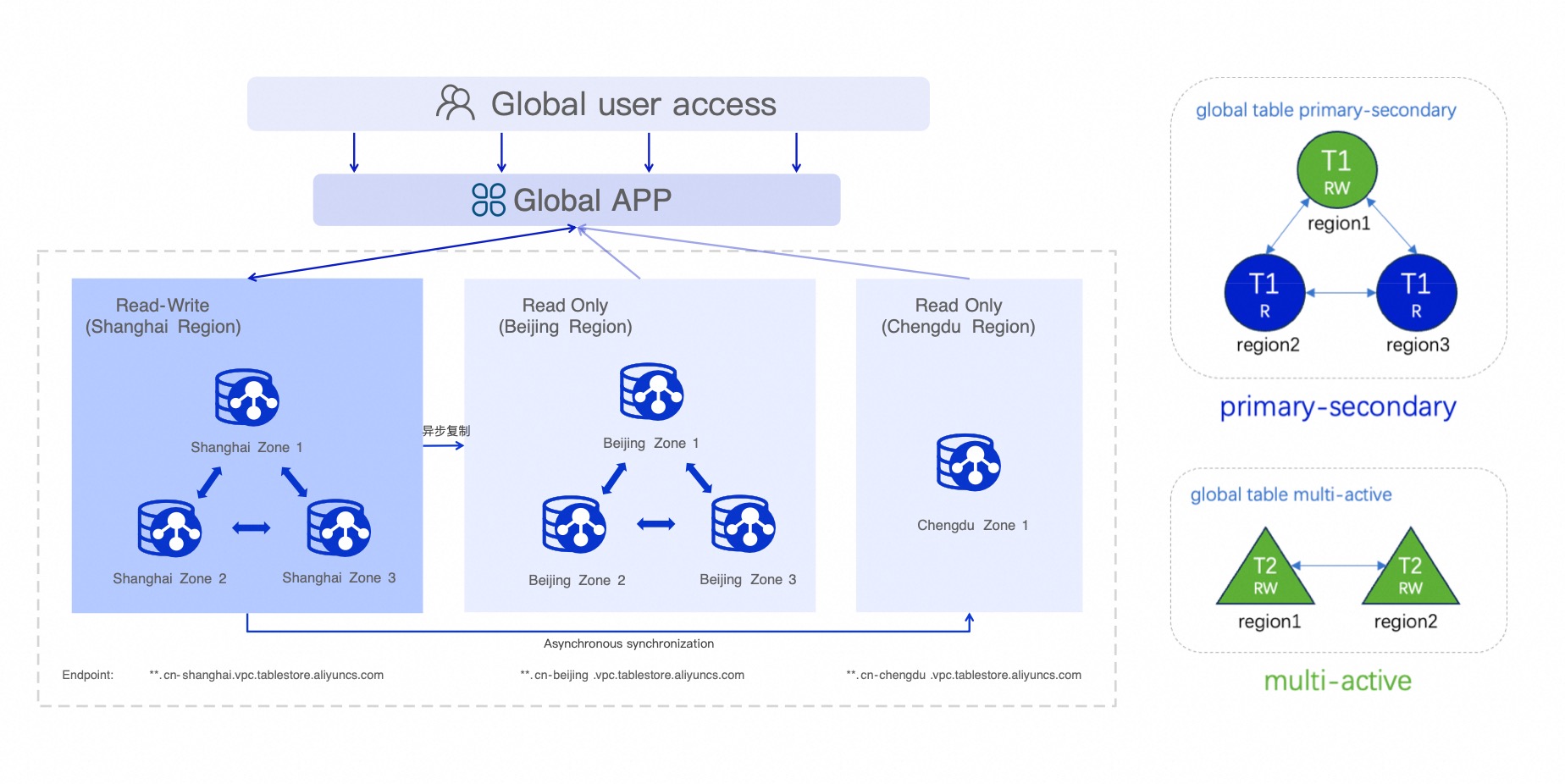
Global Table provides the following features:
Cross-region disaster recovery — Cross-region table replicas. If a region-level failure occurs, replicas in other regions can continue to provide service.
Low-latency access — Users or applications can read from and write to the nearest replica, reducing operation latency.
Eventual consistency — Uses an eventual consistency model. Multiple replicas are synchronized asynchronously, and data is eventually consistent.
Automatic conflict resolution — The system uses the LWW (Last Write Wins) algorithm to automatically resolve concurrent write conflicts across regions.
Sync modes
A Global Table supports two synchronization modes. You select the mode when you create the Global Table.
Active-passive mode — Only the primary replica accepts writes through its instance endpoint. All other replicas are read-only, except during an active-passive switchover. Use this mode for cross-region disaster recovery and for scaling read capacity with read-only replicas.
Active-active mode — Multiple replicas accept writes through their respective instance endpoints. You set the read/write mode for each destination instance. Use this mode when you write to multiple regions and need a global dataset.
Both modes use eventual consistency: replicas synchronize asynchronously, and data is eventually consistent. In active-active mode and during an active-passive switchover, concurrent writes to the same row are resolved by the LWW algorithm. For more information, see Limits.
Scenarios
Global Table is suitable for business scenarios that require high availability, low-latency cross-region reads and writes, and cross-region disaster recovery. Typical scenarios include:
Cross-region backup — If the primary region fails, switch to the secondary region to continue providing read services and ensure business continuity. For example, the primary and secondary user tables of an e-commerce system are stored in Tablestore in the China (Hangzhou) and China (Beijing) regions. If the China (Hangzhou) region fails, the China (Beijing) region continues to provide query services. Recommended mode: active-passive.
Write in one region, read from multiple regions — Write data to the nearest region, and read from the nearest replica in other regions. This is ideal for accelerating remote access. For example, the primary writes of a service are directed to the China (Hangzhou) region, and read-only replicas are deployed in the China (Beijing) and China (Shanghai) regions to meet the demand for low-latency cross-region reads. Recommended mode: active-passive with read-only replicas.
Write to multiple regions, read globally — Writing to multiple regions creates a global dataset and provides eventually consistent reads. This is suitable for scenarios that require access to a global dataset, such as cross-region distribution of gaming user profiles and social messaging systems. Recommended mode: active-active.
Limits
Review the following limits before you create a Global Table. Some limits determine whether a Global Table can be created successfully. For more information, see Limits.
Supported regions — Global Table is available in the China (Hangzhou), China (Shanghai), China (Qingdao), China (Beijing), China (Zhangjiakou), China (Hohhot), China (Ulanqab), China (Shenzhen), China (Guangzhou), and China (Chengdu) regions. Due to data compliance and other reasons, you cannot create a Global Table across regions in different countries. For the regions that Global Table supports, see Supported regions.
Table types — Only data tables are supported. Cross-region synchronization of time-series tables, search indexes, and secondary indexes is not supported.
Number of replicas — A single Global Table supports up to 10 regions.
Synchronization latency — The synchronization RPO is typically within a few seconds, depending on the regions, network conditions, and data volume. The service does not provide reliability guarantees for data transmission latency.
Immutable configuration — You cannot modify the properties of a Global Table, such as the TTL configuration or predefined columns.
Column-mode tables — Existing data tables are created in column mode by default and cannot be directly upgraded to a Global Table.
Re-creating a Global Table — When you use the Global Table feature a second time, existing duplicate tables cannot re-establish the synchronization relationship. You must first delete the search indexes and secondary indexes, then delete the table, and then create a Global Table. A second use refers to the scenario where a data table that was previously part of a Global Table, but whose synchronization relationship has been removed, is created as a Global Table again.
Data overwrite risk — In daily writes in active-active mode and during an active-passive switchover, synchronous writes and user writes may modify the same data row at the same time. The row with the higher version number overwrites the row with the lower version number (LWW), and the data from the lower-version write is overwritten or discarded.
Prerequisites
Instances are created in both the primary region and each target replica region. For instructions, see Create an instance.
The base table meets the Global Table configuration requirements. To use an existing data table as the base table, make sure it meets the requirements in the following table.
| Parameter | Value required for a Global Table | Description |
| Time to live | -1 | Data never expires. |
| Max versions | 1 | The maximum number of versions is 1. |
| Row versioning | Enabled | Sets the table to row mode. You cannot turn off Enable Row Versioning after you enable it. After you enable row versioning, the following limitations apply: a single row supports up to 256 columns; you cannot manually specify a version number when writing data (the system generates it automatically); and each Update operation first reads the current row version, which introduces a small amount of additional read load. |
| Max version offset | MaxInt32 (2147483647) | Sets the version offset to the maximum Int32 value, which means there is no limit. |
Existing tables in non-row mode do not support creating Global Tables. To use such a table, contact technical support to enable this feature.
Create a Global Table
Create the base table in the primary region, and then convert it into a Global Table with replica regions in the target regions.
Step 1: Prepare the base table
In the primary region, create a data table to serve as the base for the Global Table.
Go to the Instance Management page.
Log on to the Tablestore console.
In the top navigation bar, select a resource group and a region.
On the Overview page, click an instance alias, or click Manage Instance in the Actions column of the instance.
On the Instance Details tab, click Create Table.
In the Create Table dialog box, set Data Table Name and Primary Key.
Turn on the Advanced Settings switch, and then turn on the Quick Set Global Table Dependency switch. The system automatically configures the required dependencies for the Global Table, as described in Prerequisites.
For Data Table Name, enter
exampletable. In the Primary Key section, add two primary keys: set the name of the first primary key touser_id, set the type to String, and set it as the partition key; set the name of the second primary key toregion_idand the type to String.Click Create.
Step 2: Create the Global Table
Convert the base table into a Global Table and add replica regions. After the Global Table is created, the system automatically creates the corresponding data tables in the selected replica regions and establishes data synchronization channels.
In the primary region, on the Tables tab, click Create Global Table in the Actions column of the base table. Alternatively, click the data table name, go to the Global Table tab, and then click Create Sync Relationship to continue.
In the Create Global Table dialog box, set the parameters based on the synchronization mode you choose.
If a data table with the same name as the Global Table already exists in the destination instance, the Global Table creation fails.
Configure active-passive mode
In the Current Resource area, set Global Sync Mode to Primary/Standby Mode (Cross-Region Replication).
In the Target Table area, select the region and instance name of the destination instance. You can add multiple destination instances at once. After you create the Global Table, the system automatically creates the target tables in the instances of the selected regions, with the same names as the current base table.
The read/write permission of the destination instance is Read-only.
Configure active-active mode
In the Current Resource area, set Global Sync Mode to Multi-Read Multi-Write (Cross-Region Replication).
In the Target Table area, select the region, instance name, and read/write mode of the destination instance. You can add multiple destination instances at once. After you create the Global Table, the system automatically creates the target tables in the instances of the selected regions, with the same names as the current base table.
Click OK.
To confirm success, in the Create Global Table dialog box, click View List. The new Global Table then appears on the Global Table tab.
Step 3: Verify and use the Global Table
After the Global Table is created, verify data synchronization by performing basic read and write tests.
Write test data — Write test data to the data table in the primary region.
In the primary region, on the Tables tab, click Query in the Actions column of the base table.
On the Query Data tab, click Insert.
In the Insert dialog box, set the primary keys, click Add Column to add an attribute, and then click OK.
Verify data synchronization — Wait 1 to 3 seconds, and then query the data in a replica region.
In the primary region, on the Tables tab, click Query in the Actions column of the base table.
On the Global Table tab of the base table, click the name of a replica table in a replica region.
On the Query Data tab of the replica table, view the data synchronized from the base table. The replica table contains the same data that you wrote in the primary region, which confirms that synchronization succeeded.
Global Table reads and writes
The data read and data write operations on the replica tables of a Global Table are the same as those on a standard data table.
For actual reads, get the endpoint of the instance where the corresponding replica table is located.
In active-passive mode, only the primary replica allows writes through its instance endpoint. All other replicas are read-only, except during an active-passive switchover.
In active-active mode, all writable replicas allow writes through their respective instance endpoints.
In active-active mode, synchronous writes and user writes may modify the same row at the same time. The row with the higher version number overwrites the lower-version write (LWW), and the lower-version data is discarded. For more information, see Limits.
Manage a Global Table
Switch the primary replica (active-passive mode)
Switching the primary replica applies only to Global Tables in active-passive mode. In active-passive mode, if the primary replica table fails or you need to switch the write region, set another replica table as the new primary replica to continue providing services.
During a switchover, both the current primary replica table and the replica table selected as the new primary are readable and writable, which creates a risk of data inconsistency. Confirm that the data is consistent before you switch the application write path. Concurrent writes are resolved by the LWW algorithm. For more information, see Limits.
On the Global Table tab, click Switch to Primary Table in the Actions column of the passive table.
In the Modify Primary/Standby Relationship dialog box, submit the primary table switchover task to start data synchronization. Synchronization continues for a period of time that depends on factors such as data volume and system resources.
In the Data Synchronization step, click Start Data Synchronization.
In the Primary/Standby Table Switch dialog box, click View Details to check the RPO status of the synchronization.
Confirm that the data in the primary and passive tables is consistent, and then click Confirm Write Endpoint Switch in the Sync Mode column of any table.
In the Application Layer Write Path Switch step, confirm that synchronization is complete and that you have changed all write endpoints in your application to the new primary's endpoint. Then click Complete Switch.
After the write path is switched, confirm the primary table switch as soon as possible. This disables the write capability of the original primary table. Click View in the Sync Mode column of any table.
In the Confirm Switch step, click Switch Primary Table.
After the switchover succeeds, the original primary replica provides read-only capability, and the new primary replica provides read and write capability.
To cancel the active-passive table switchover, click Cancel Primary Table Switch, complete the cancellation confirmation, and click OK in the confirmation dialog box.
Add a global region
Add one or more global regions to a Global Table.
On the Global Table tab, click Add Global Region in the Actions column of a replica table.
In the Add Global Region dialog box, select the region and instance name of the destination instance. To add multiple global regions, click Add Instance and continue.
Click OK.
If a data table with the same name as the Global Table already exists in the destination instance, adding the global region fails.
Edit the target instances (active-active mode)
Edit the target instances of a Global Table to add a target instance or change the read/write mode of an existing instance.
On the Global Table tab, click Edit in the Actions column of a replica table.
In the Edit Global Table dialog box, perform one of the following operations:
Add a target instance — Select the region, instance name, and read/write mode of the destination instance. To add multiple global regions, click Add Instance and continue.
Modify the read/write mode of an instance — Select the read/write mode of an existing instance.
Click OK.
If a data table with the same name as the Global Table already exists in the destination instance, adding the global region fails.
Remove the synchronization relationship
Removing the synchronization relationship stops data synchronization for a replica table. To stop synchronization for all regions of a Global Table, remove the synchronization relationship for each replica table separately. To remove the synchronization for a specific region only, perform the operation on that region's replica table alone.
In active-passive mode, you must remove the passive tables first, and then the primary replica.
Active-passive mode
On the Global Table tab, use one of the following methods to start removing the synchronization relationship:
Remove a single replica — Click Remove Sync in the Actions column of a replica table.
Remove multiple replicas in a batch — Select the replica tables to be removed, and click Remove Sync below the list.
Before you delete a data table, you must manually delete its associated search indexes. Otherwise, the data table deletion fails. In the confirmation dialog box, click OK.
Active-active mode
On the Global Table tab, click Unsync in the Actions column of a replica table. In the confirmation dialog box, click OK.
The system starts to remove the synchronization relationship. Wait for the process to complete.
Developer integration
You can use Global Tables through the Java SDK.
Best practices
Follow these best practices when you apply Global Table to a production environment:
Create a Global Table for an existing table — The original read and write APIs remain unchanged. Data is automatically synchronized to the new replica, which can share the read load.
Create a Global Table from scratch — Finalize the table schema, create the base table, and then create the Global Table. You cannot modify the schema of a Global Table, so make sure the base table passes all tests before you create the Global Table.
Dynamically bind a new replica — You can dynamically add new replicas while using a Global Table without affecting the read and write operations of existing replicas. The new replica contains the latest data in the Global Table.
Unbind an existing replica — If a replica table is no longer needed, unbind it first. After unbinding, the replica no longer synchronizes data from other replicas, but the table and its data are retained. To delete the replica, manually delete it after you unbind it.
Choose an appropriate combination of regions — Select appropriate primary and secondary regions based on user distribution and business requirements.
Plan the primary region failover — In active-passive mode, when the primary region is unavailable, first select a new primary replica table in the console and then switch the application layer write path. After data is synchronized to the new primary replica table, switch it to the primary replica table. A brief write interruption may occur during the switchover, so implement a retry mechanism on the business side.
Manage the order and timing of application and service switchovers to avoid data loss.
Billing
Global tables incur fees for data storage, data reads, data writes, and cross-region replication traffic.
The billing method for data storage and read/write operations on each replica table is the same as that of a standard data table. For more information, see Billing overview.
The following fees apply:
-
Data storage fee: Each replica table stores data independently. You are billed separately for the actual amount of data stored in each table's region.
-
Data read fee: Covers local read operations on all replica tables.
-
Data write fee: Write operations can be performed only on writable replicas. Write fees are incurred only on the table to which data is directly written. Replica tables that synchronize data through asynchronous replication do not incur write fees.
-
Cross-region replication traffic fee: Charged for the cross-region data transfer traffic generated when data is asynchronously replicated to each replica table.
ImportantThe cross-region replication traffic fee for each replica is calculated separately. The fee is charged to the instance from which the data is pulled.
FAQ
How do I modify the configuration of a Global Table, such as setting the TTL or adding custom columns?
Currently, you cannot directly modify the configuration of a Global Table. To modify the configuration, first completely unbind the Global Table, make the modifications, and then recreate the Global Table. Before you recreate the Global Table, direct all read and write operations to the primary replica to avoid affecting upper-layer reads and writes, and then delete the other replicas.
How do I delete a replica table?
First, unbind the replica table from the Global Table. After the unbinding succeeds, delete the replica table from the table list of the instance in the console.
In active-passive mode, how do I read from a replica table of a non-primary instance?
On the Global Table tab of the base table in the primary instance, view the instance name of the associated replica table, and then use the endpoint of that instance to read data.
In row mode, if the UpdateRow operation updates values in different columns of the same row in different regions (assume that a updates first and b updates later), what does the row data look like?
The row data is eventually consistent. The final value is the data of the entire row on the replica of b. The specific data can be one of the following two cases:
If the current replica table has not yet synchronized update a before update b, the row contains the value of b but not the value of a.
If the current replica table has already synchronized update a before update b, the row contains both the values of b and a.