Once your version release request is approved, you can publish the version. The process differs between the first release and subsequent releases. For the first release, only an official release is supported. For subsequent releases, you can run a whitelisting test and a canary release before the official release, or you can proceed directly to an official release.
Prerequisites
Complete the version release request.
First release
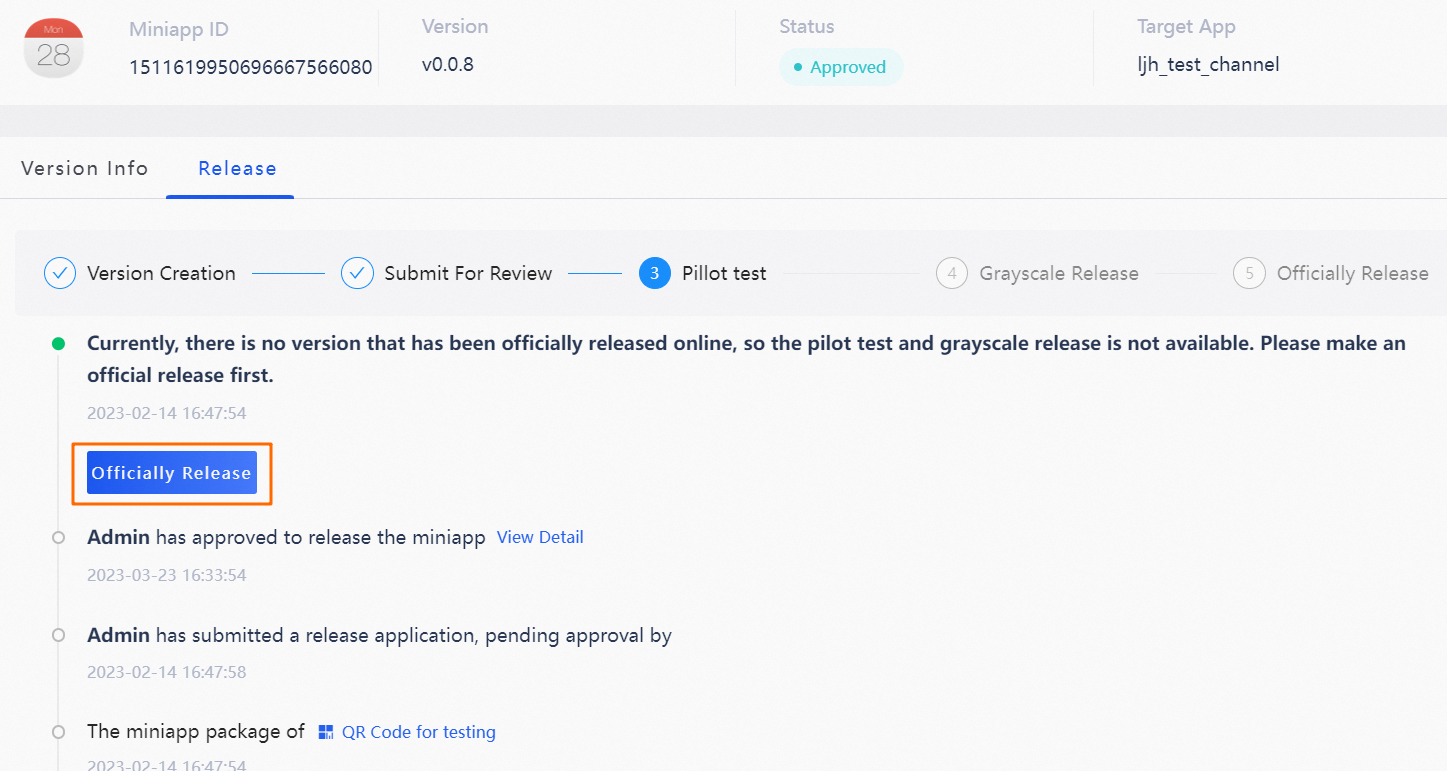
On the Release tab of your miniapp, click Official Release. In the confirmation message that appears, click OK.
Subsequent releases
(Optional) Whitelisting test
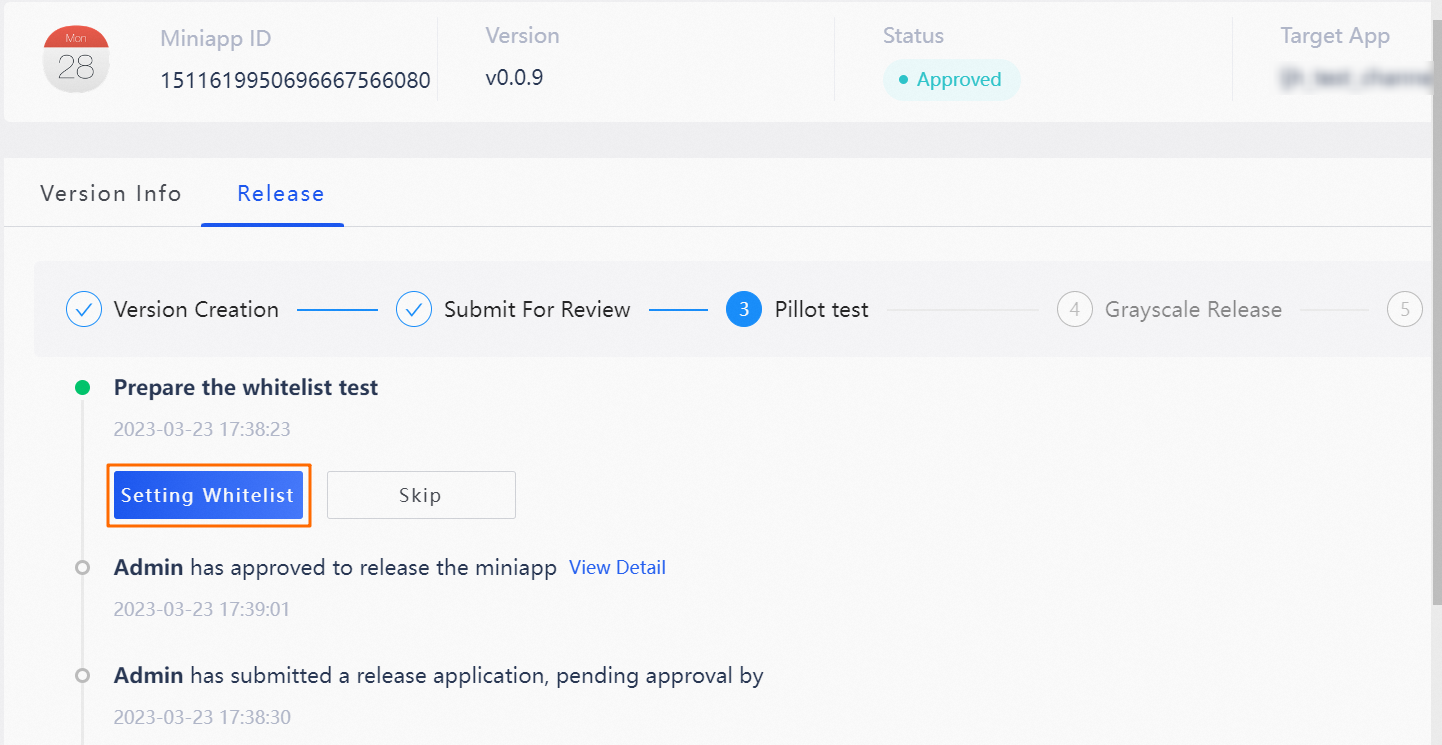
On the Release tab of your miniapp, click Set Whitelist to open the Set Whitelist panel.
Add user IDs to the whitelist.
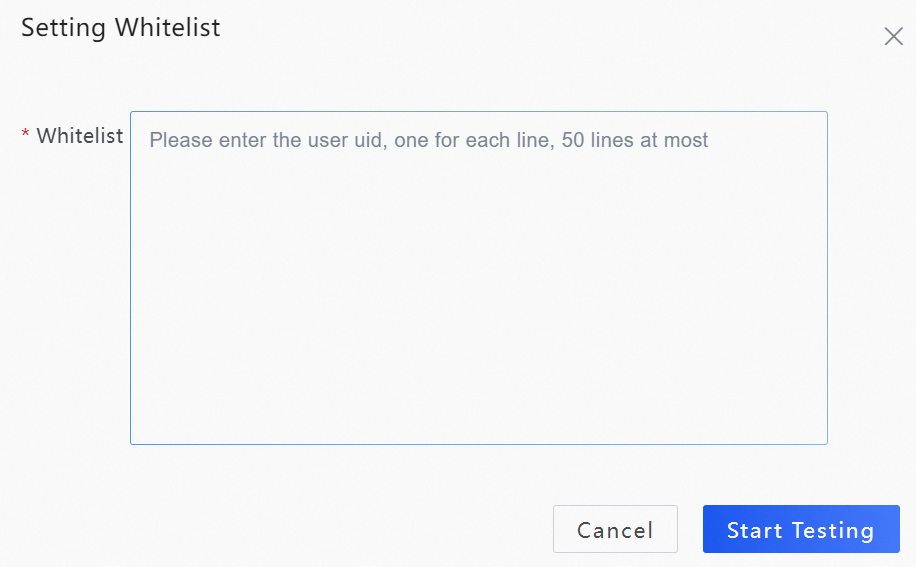
Click Start Test.
(Optional) Canary release
On the Release tab of your miniapp, click Set Canary Percentage to open the Set Canary Percentage panel.
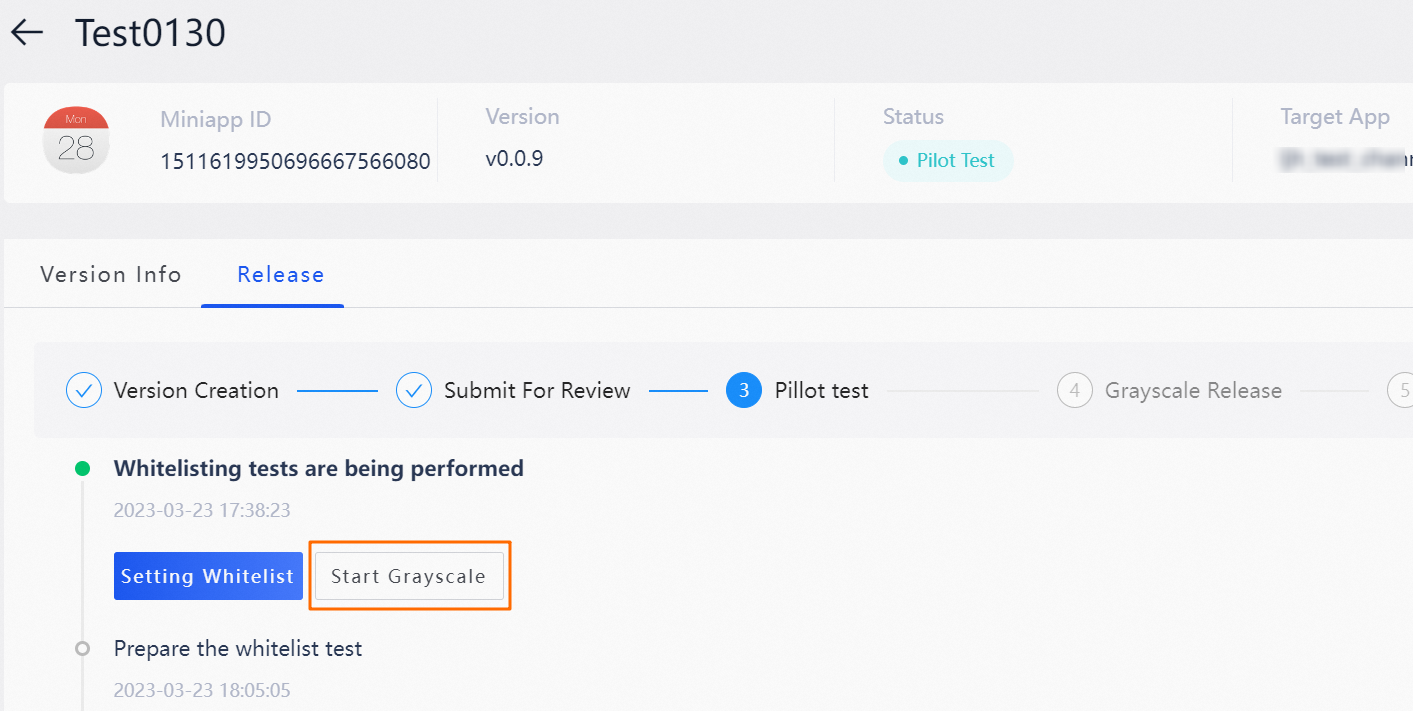
In the Set Canary Percentage panel, set the canary release percentage.
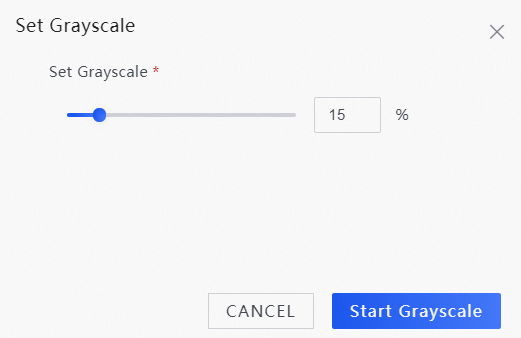
Click Start Canary Release.
Official release
If the user feedback and business performance from the canary release meet your expectations, you can proceed with the official release.
On the Release tab of your miniapp, click Official Release. In the confirmation message that appears, click OK.
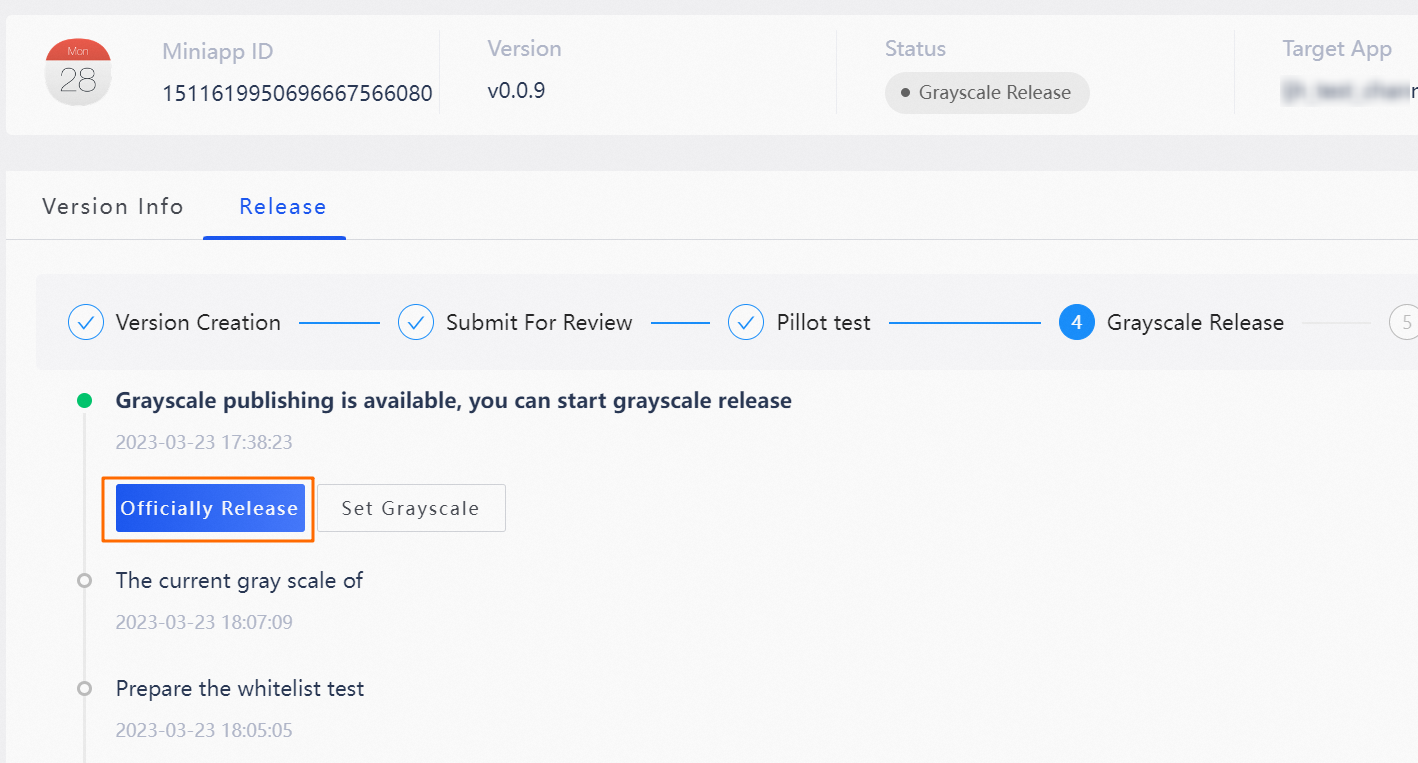
When you publish a new version, the previous version on the same distribution channel is automatically archived. For example, if you release V0.0.2 to distribution channel A, the previously released V0.0.1 on the same channel is archived.