Submit an uploaded mini program version for release to a target app.
Prerequisites
Before you begin, ensure that you have:
Workspace admin or mini program admin access: Admin access to the workspace where the mini program was created, or admin access to the mini program you want to release.
An uploaded version: A built and uploaded mini program version ready for release. For details, see Build and upload a version.
Select a target app
A target app determines where your mini program is deployed. Select which app to release your version to.
On the Versions tab, find the version you want to release. In its Actions column, click Release. The Choose Target App panel opens.
-
In the Choose Target App panel, select a Target App.
NoteTarget apps must be requested by a workspace admin before they appear in this list.
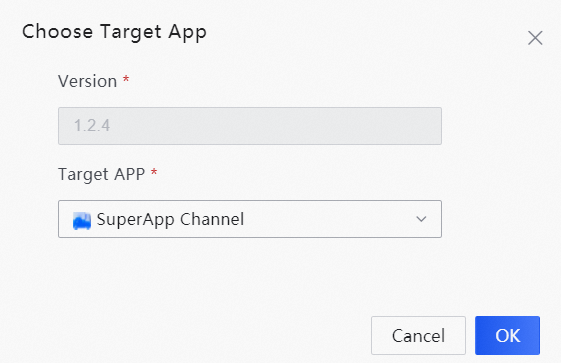
Click OK.
Submit for release
-
After selecting a target app, the page redirects to the Release tab for the mini program. The Release tab shows the full release workflow and the current phase.
The example below shows the workflow in the Version Creation phase.
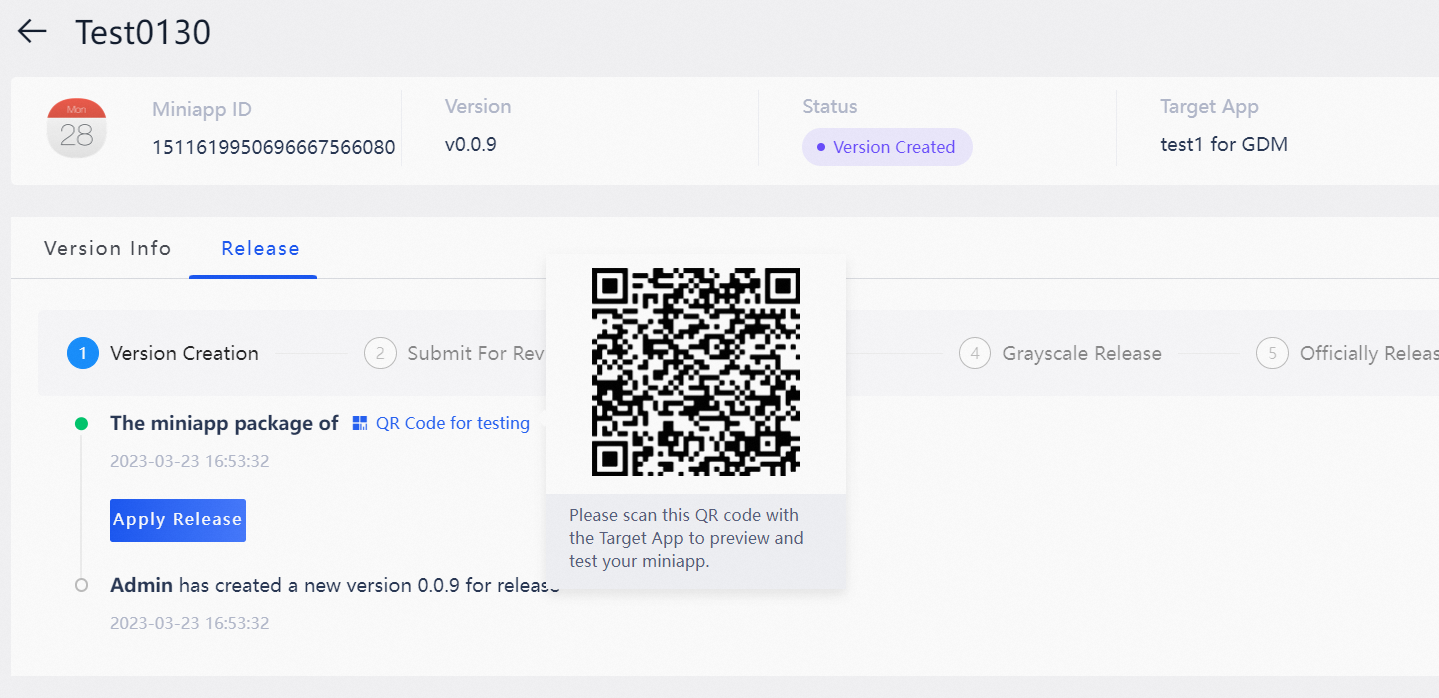
Click Apply Release. The Apply Release page opens.
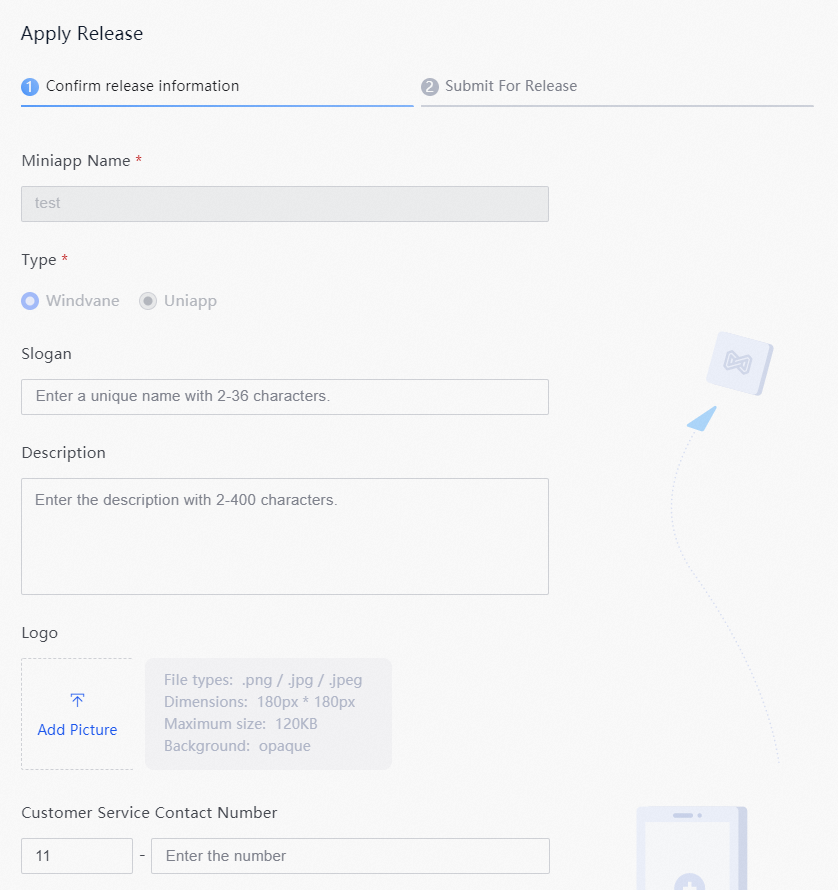
On the Apply Release page, review the release information in the Confirm release information step, then click OK to proceed to the Submit for Release step.
-
In the Submit for Release step, confirm the Target App and Version, then enter Release Notes. Release notes are reviewed by the target app admin during approval — describe what changed in this version to help them evaluate your request.
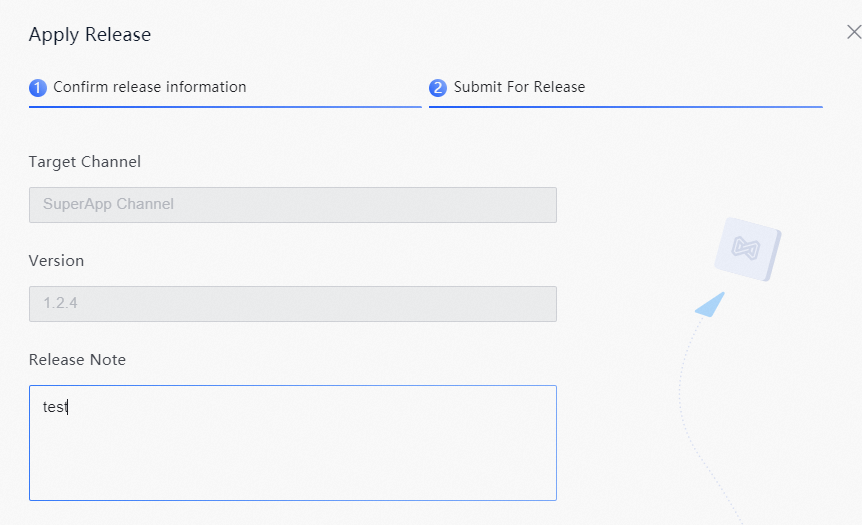
Click OK to submit the release request. Wait for the target app admin to approve it. If your request is rejected, check the rejection reason on the Release tab, address the issues, and resubmit.