When a website uses the unencrypted HTTP protocol, user data is vulnerable to theft during transmission, and browsers may display a Not Secure warning. This can undermine user trust and business security. By deploying an SSL certificate on a Windows WebLogic Server, you can enable encrypted HTTPS communication. This topic shows you how to install an SSL certificate on a WebLogic Server that runs on Windows and how to verify the installation.
Usage notes
Before you begin, make sure that you meet the following requirements:
Certificate status: You have an SSL certificate issued by a trusted certificate authority. If the certificate is about to expire or has expired, you must first renew the SSL certificate.
Domain name matching: Make sure that the certificate matches all domain names that you want to secure. To add or modify domain names, you can Purchase a commercial certificate or Append and replace domain names.
Exact-match domain name: Applies only to the specified domain.
example.comprotects onlyexample.com.www.example.comprotects onlywww.example.com.
Wildcard domain name: Applies only to its first-level subdomains.
*.example.comapplies to first-level subdomains such aswww.example.comanda.example.com.*.example.comdoes not protect the root domainexample.comor multi-level subdomains such asa.b.example.com.
NoteTo match multi-level subdomains, the Bound Domains field must contain the exact domain, such as
a.b.example.com, or a corresponding wildcard domain, such as*.b.example.com.Server permissions: You must use an
Administratoraccount or an account with administrator permissions.Domain name resolution: The domain's DNS record is configured and resolves to the server's public IP address.
Environment dependencies: This topic uses Windows Server 2022 and WebLogic 14c (14.1.2.0) as an example. The example installation directory for WebLogic is
C:\wls141200.NoteThe deployment procedure may vary depending on the operating system or web server version.
Procedure
Step 1: Prepare the SSL certificate
Go to the SSL Certificate Management page. In the Actions column for the target certificate, click Download. On the Download tab, download the certificate for the Server Type JKS.
Unzip the downloaded certificate package. The unzipped package contains a certificate file (with a
.jksextension and the full certificate chain) and a password file (jks-password.txt).NoteIf you used a tool such as OpenSSL or Keytool to generate the Certificate Signing Request (CSR) when you applied for the certificate, the tool stores the private key file only on your local machine and does not include it in the downloaded certificate package. If you lose the private key, the certificate is unusable. You must purchase a commercial certificate and generate a new CSR and private key.
Upload the
.jkskeystore file and its password file (.txt) to a secure directory on your server (such asD:\cert).NoteThe following steps use an Alibaba Cloud Elastic Compute Service (ECS) instance as an example. For other types of servers, refer to their official documentation.
Go to ECS console - Instances. In the top navigation bar, select the target region and resource group.
Locate the target instance. Click Connect and select Sign in now. Log on to the server desktop as prompted.
In the lower-left corner of the server, click the Start menu. Find and open This PC.
Under Redirected drives and folders, double-click workbench on ***. Drag the certificate file from your local machine into this directory, and then right-click the folder and select Refresh.
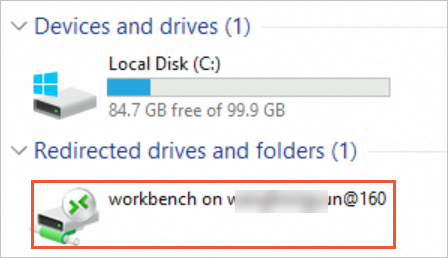
Copy the certificate file to the
D:\certdirectory.ImportantWhen you reconnect to or exit the instance, workbench automatically clears all uploaded files from the Redirected drives and folders directory to save space. This directory is for file transfer only. Do not save your files here.
Step 2: Configure the system and network environment
Open port 443 in the security group.
ImportantIf your server is deployed on a cloud platform, make sure that its security group allows inbound access on TCP port 443. Otherwise, the service cannot be accessed from the Internet. The following steps use Alibaba Cloud ECS as an example. For other cloud platforms, see their official documentation.
Go to the ECS instance page, select the region where the target ECS instance is located, and click the instance name to go to the instance details page.
Click , and make sure that a rule exists with the following settings: Authorization Policy is set to Allow, Protocol Type is TCP, Destination Port Range is HTTPS (443), and Authorization Object is set to Anywhere (0.0.0.0/0).
If the preceding rule does not exist, see Add a security group rule to add the corresponding rule to the target security group.
Open port 443 in the server firewall.
Log on to the Windows server, click the Start menu in the lower-left corner, and open Control Panel.
Click .
If the firewall is off, as shown in the following figure, no further action is required.
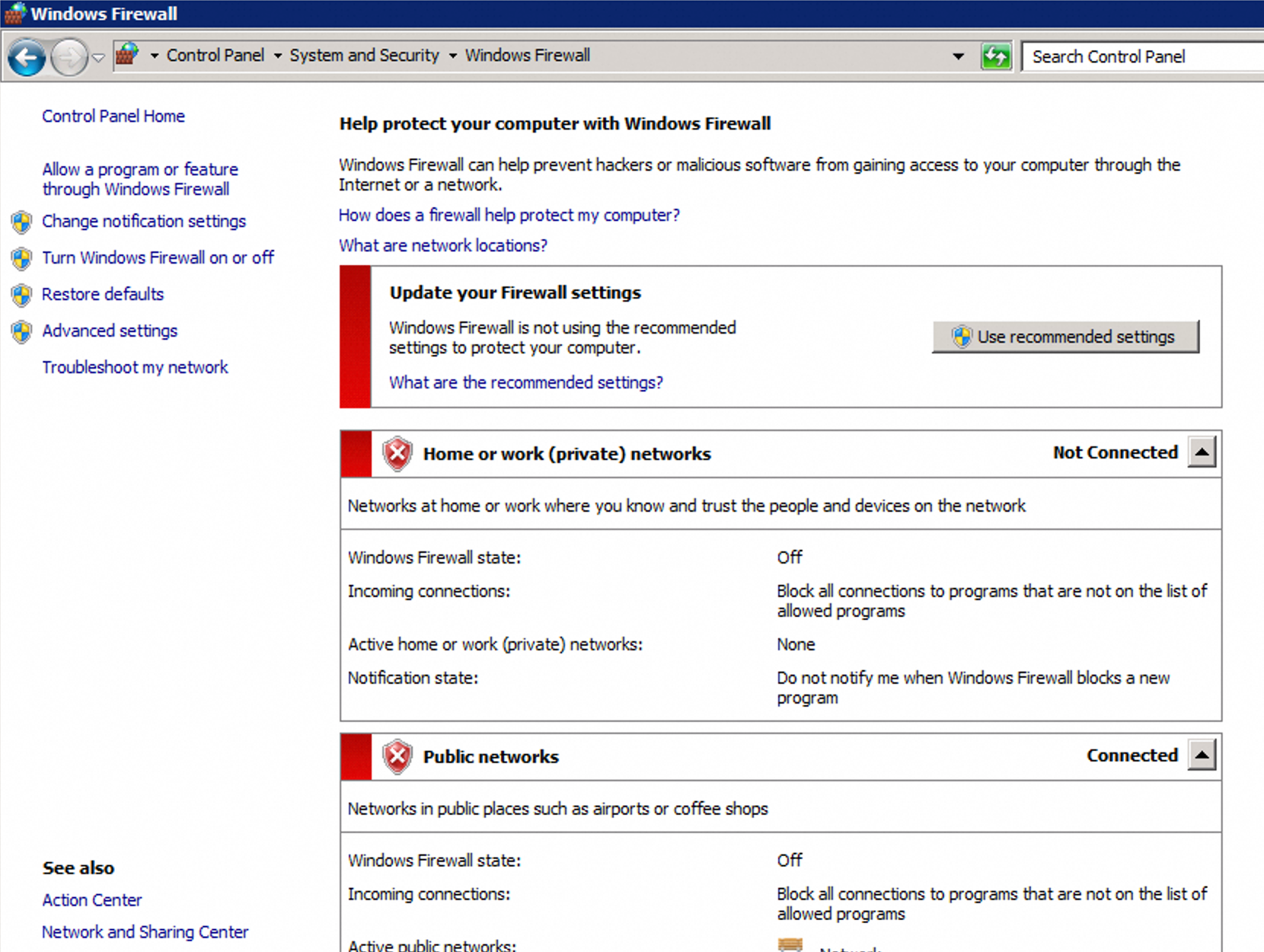
If the firewall is on, follow these steps to allow the HTTPS rule.
In the left navigation pane, click , and check for an inbound rule where the Protocol is TCP, the Local Port is 443, and the Action is Block.
If such a rule exists, right-click it and select Properties. On the General tab, change the setting to Allow the connection and click Apply.
Step 3: Deploy the certificate on the WebLogic server
Log on to the WebLogic Remote Console. The default local address is
http://localhost:7001/rconsole. Enter your administrator username and password to log on.Starting from WebLogic Server 14.1.2.0.0, WebLogic no longer supports the legacy administration console. You must access it through the WebLogic Remote Console.
If your WebLogic Server version is earlier than 14.1.2.0.0, directly access the administration console at
http://localhost:7001/console\. The configuration steps are similar, so you can still follow this guide.
NoteChoose one of the following methods to access the WebLogic Remote Console based on your operational needs. For detailed installation and usage instructions, see the official documentation: Get Started with the WebLogic Remote Console.
Host deployment on the server: This example assumes the WebLogic Remote Console is already hosted on the WebLogic Server, allowing direct access through a browser.
Local access: Visit
http://localhost:7001/rconsole\.Remote access: To access the console remotely, open port
7001on the WebLogic Server.
Standalone installation: You can also install the WebLogic Remote Console desktop application. After installation, create a new administrator connection (which requires a username and password) and access the console through the application.
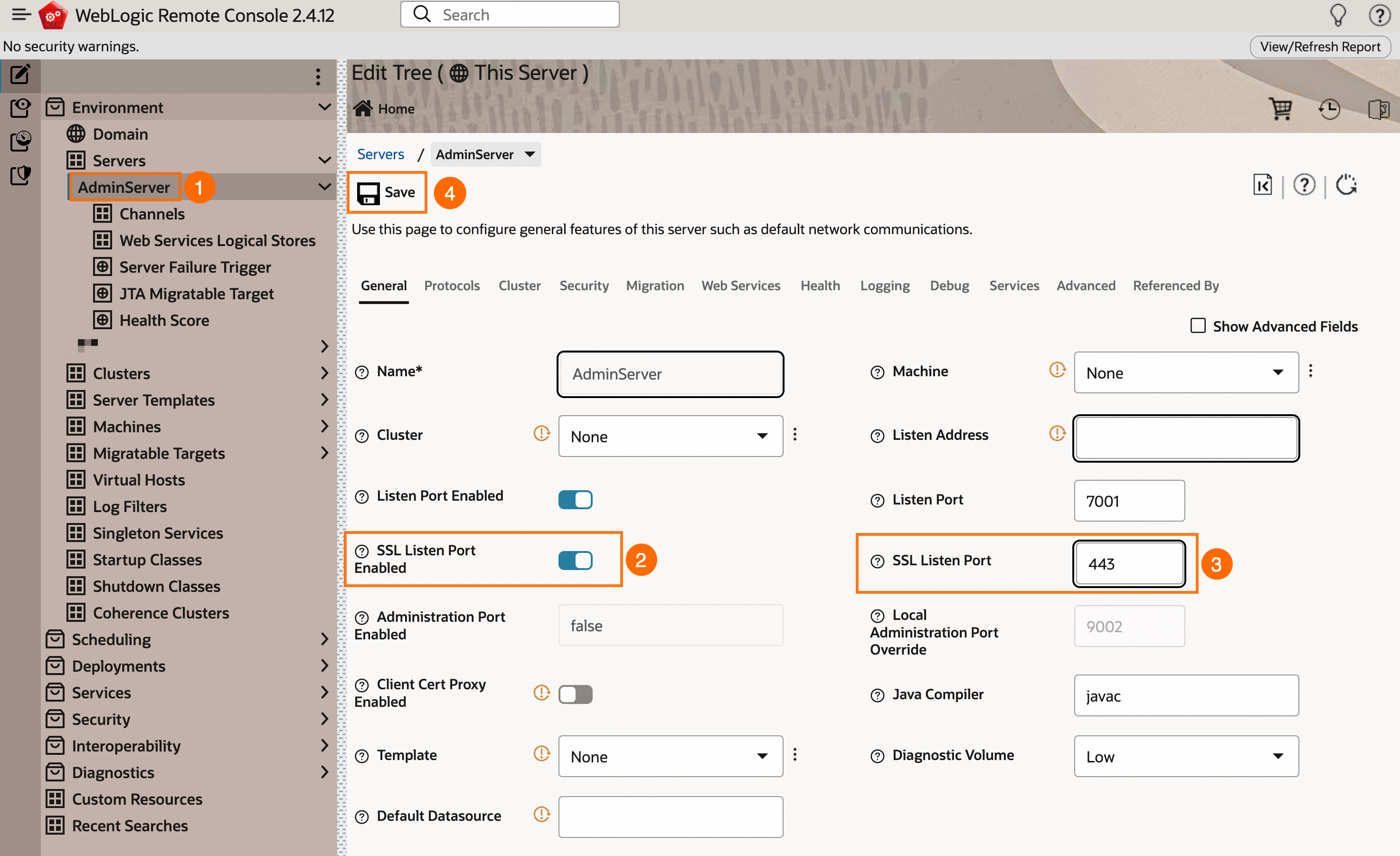
Go to Environment > Servers > AdminServer to open the server's configuration page. Select the SSL Listen Port Enabled checkbox (②), set the SSL Listen Port (③) to
443, and click Save (④) to save the changes temporarily.ImportantThis topic uses the default administration server, AdminServer, as an example. When you configure the settings, select the correct business server name.
Go to . Configure the settings as shown in the following figure, and then click Save (⑦) to save the changes temporarily.
Keystores (③): Select Custom Identity and Java Standard Trust.
Custom Identity Key Store File Name (④): Enter the absolute path to your JKS file. The example path is
D:\cert\example.com.jks.Custom Identity Key Store Type (⑤): Enter JKS.
Custom Identity Key Store Pass Phrase (⑥): Enter the JKS certificate password, which you can find in the
jks-password.txtfile.

Go to . Configure the settings as shown in the following figure, and then click Save (⑤) to save the changes temporarily.
Private Key Alias (③): Enter the alias of the JKS certificate.
NoteFor a single-domain certificate, the private key alias is the same as the domain name. For example, the default alias for
example.comisexample.com.For a wildcard domain name certificate, the private key alias defaults to the root domain. For example, the default alias for
*.example.comisexample.com.
Private Key Pass Phrase (④): Enter the JKS certificate password, which you can find in the
jks-password.txtfile.NoteThis is usually the same as the custom identity keystore passphrase, which is the password in the
jks-password.txtfile.

Click the
 icon in the top-right corner and select Commit Changes to save your settings. Then, restart the server to apply all configurations.
Step 4: Verify the deployment
Access your domain over HTTPS in a web browser. For example,
https://yourdomain. Replaceyourdomainwith your actual domain.If a lock icon appears in the browser's address bar, the certificate is deployed successfully. If you encounter access errors or the lock icon does not appear, clear your browser cache or try again in incognito (privacy) mode.

Starting from version 117, the
 icon in the Chrome address bar has been replaced with a new
  icon. Click this icon to view the lock information.
If the problem persists, see the FAQ section for troubleshooting.
Going live
When you deploy to a production environment, follow these best practices to enhance security, stability, and maintainability:
Run as a non-administrator user:
Create a dedicated, low-privilege system user for the application. Never run the application with an account that has administrator privileges.
NoteA recommended approach is to configure SSL at the gateway layer. This involves deploying the certificate on a Server Load Balancer (SLB) or a reverse proxy such as Nginx. The gateway terminates the HTTPS traffic and forwards the decrypted HTTP traffic to the backend application.
Externalize credential management:
Never hard-code passwords or other sensitive information in your code or configuration files. Use environment variables, Vault, or a cloud provider's key management service to inject credentials.
Enforce HTTP to HTTPS redirection:
Redirect all HTTP traffic to HTTPS to prevent man-in-the-middle attacks.
Configure modern TLS protocols:
Disable old and insecure protocols (such as SSLv3, TLSv1.0, and TLSv1.1) in your server configuration. Enable only TLSv1.2 and TLSv1.3.
Monitor certificates and automate renewal:
After you deploy the certificate, enable domain monitoring. Alibaba Cloud automatically checks the certificate validity period and sends renewal reminders before expiration to help you renew in a timely manner and avoid service interruption. For detailed instructions, see Purchase and enable public domain name monitoring.
FAQ
Why is my certificate not working or HTTPS inaccessible after installation or update?
This issue is often caused by one of the following configuration problems. Check them in order:
Port 443 blocked: The server's security group or firewall does not have port 443 open. See Configure the system and network environment.
Domain mismatch: The domain you are accessing is not listed in the certificate's Bound Domains. See Domain name match.
Changes not committed: You did not commit the changes after you modified the WebLogic configuration. See Step 3.
Incorrect certificate configuration: The certificate file was not replaced correctly, or the certificate path is not correctly specified in the WebLogic configuration. Make sure that the WebLogic configuration and the certificate file are current and valid.
Missing certificate on other services: If your domain uses services such as a Content Delivery Network (CDN), Server Load Balancer (SLB), or Web Application Firewall (WAF), the certificate must also be installed on those services. See Certificate deployment locations when traffic passes through multiple Alibaba Cloud services to complete the setup.
Incomplete deployment on multiple servers: If your domain's DNS resolves to multiple servers, the certificate must be installed on all of them.
For further troubleshooting, see Resolve certificate deployment issues based on browser error messages and SSL certificate deployment troubleshooting guide.
How do I correctly update or replace an SSL certificate on a WebLogic Server?
To update an SSL certificate in WebLogic, you need to replace the old certificate files with the new ones and then restart the server to apply the changes.
Follow these steps:
Back up the existing
.jkscertificate file and its corresponding password file (.txt) from your server.Download the new certificate files from the Certificate Management Service console.
Replace the old files on the server by uploading the new ones to the exact same location with the same filenames.
Restart the WebLogic service to make the new certificate take effect.
Why am I getting an error when submitting SSL configuration changes in the WebLogic Remote Console?
Errors during submission in the WebLogic console are almost always caused by an incorrect file path or a password mismatch.
Check the following settings:
JKS File Path: Verify that the path you entered in the Keystores configuration is an absolute path on the server. Also, ensure the WebLogic process has the necessary file system permissions to read the file at that location.
Passwords: Double-check that all passwords entered in the console (for the keystore and the private key alias) exactly match the contents of your
jks-password.txtfile. Be careful to avoid any leading/trailing spaces or hidden characters.