After you associate an Ingest Processor with a LogStore, you can use the processor to process log data. For example, if you collect single-line access logs from a website into a LogStore, you can create an Ingest Processor to parse the raw logs. This process extracts valid log fields for queries and analysis.
Prerequisites
-
An active Elastic Compute Service (ECS) instance is available. For more information, see Quick Start for ECS.
-
Simple Log Service is activated. For more information, see Activate Simple Log Service.
-
If you use a Resource Access Management (RAM) user, grant the RAM user the permissions to manage Ingest Processors. For more information, see Grant a RAM user permissions for data processing.
Solution overview
This solution uses Logtail to collect Nginx access logs. An Ingest Processor then parses the single-line logs into the ${key}:${value} format. Finally, the logs are sent to a LogStore. The process is as follows:

-
Collect logs with Logtail: Activate Simple Log Service and use Logtail to collect Nginx logs from an ECS host into a LogStore.
-
Configure an Ingest Processor: Configure a Structured Process Language (SPL) statement to parse the raw logs.
-
Associate the Ingest Processor: Associate the LogStore with the target Ingest Processor. New logs are parsed by the processor before they are written to the LogStore. The parsed logs are then written to the LogStore for queries and analysis.
1. Collect logs with Logtail
1.1 Create a project and a LogStore
-
Log on to the Simple Log Service console.
-
Create a project.
In the Projects section, click Create Project. For this example, create a project named
web-project-testin thePhilippines (Manila)region. For more information about configurations, see Manage projects.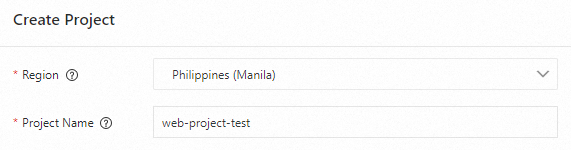
-
Create a LogStore.
After you create the project, the system prompts you to create a LogStore. For this example, create a LogStore named
website_log. For more information about configurations, see Manage LogStores.
1.2 Collect Nginx access logs
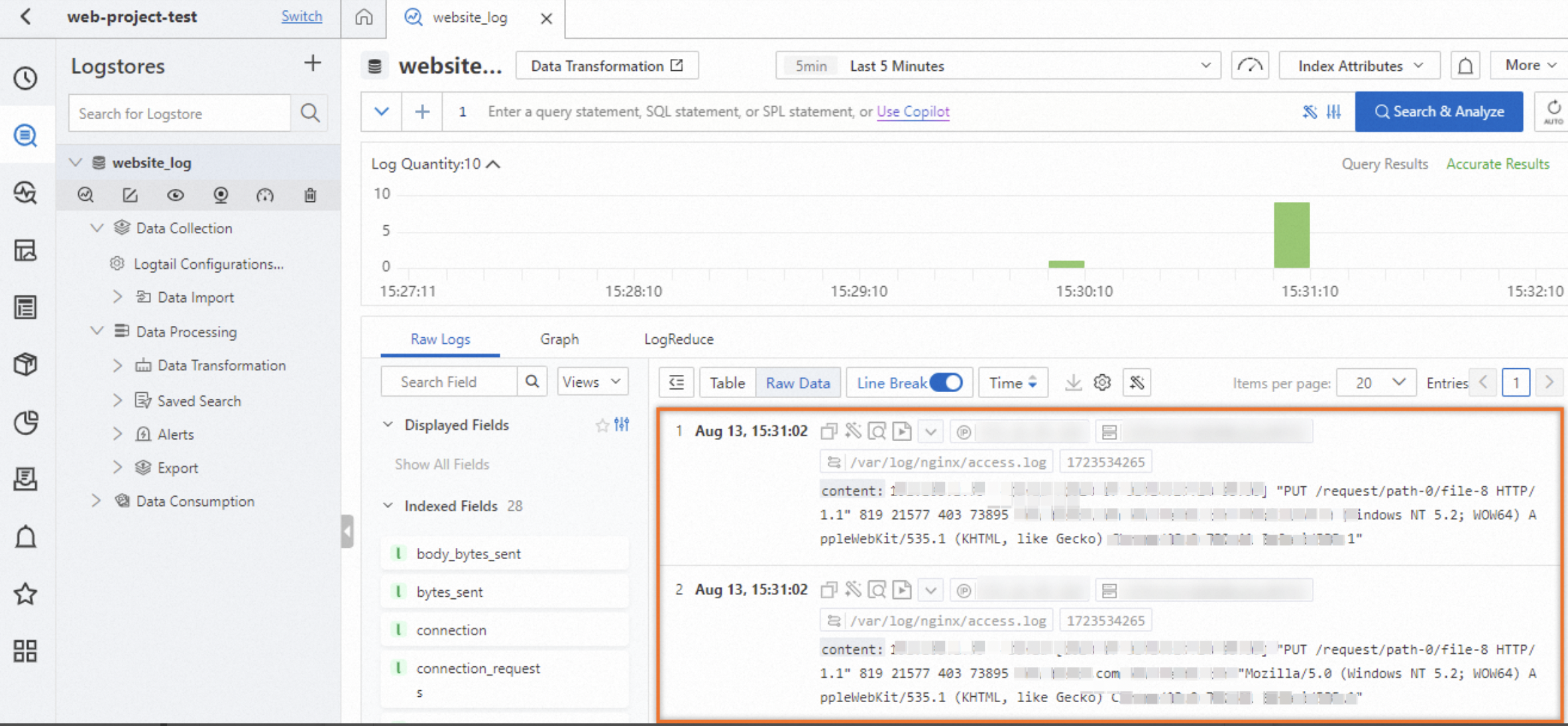
A website stores its Nginx access logs in the /var/log/nginx/access.log file on an ECS host. The logs are output as single lines by default. The content of access.log is as follows:
192.168.1.75 - David [2024-07-31T14:27:24+08:00] "PUT /request/path-0/file-8 HTTP/1.1" 819 21577 403 73895 www.test5.com www.test2.com "Mozilla/5.0 (Windows NT 5.2; WOW64) AppleWebKit/535.1 (KHTML, like Gecko) Chrome/13.0.782.41 Safari/535.1"Use Logtail to collect Nginx logs from the ECS host. For the procedure, see Collect text logs from a host. Collect the logs from /var/log/nginx/access.log to website_log. The LogSearch page is shown in the following figure.
You can also use a software development kit (SDK) for data collection. For more information, see Quick Start for Java SDK. For more information, see Overview of data collection.
2. Configure an Ingest Processor
2.1 Go to the Data Processors page
-
In the Projects section, click
web-project-test.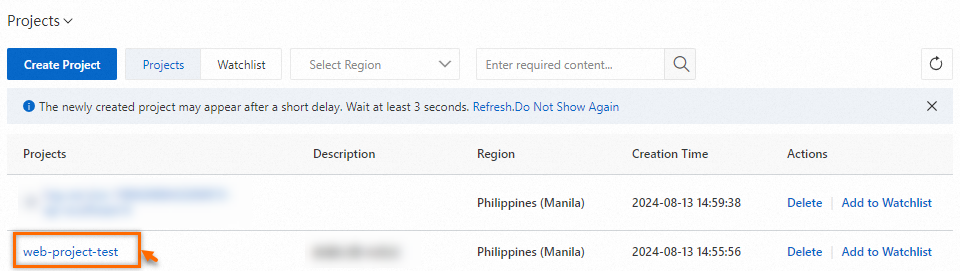
-
In the navigation pane on the left, click .

2.2 Create an Ingest Processor
-
On the tab, click Create.

-
In the Create Processor panel, configure the parameters as shown in the following figure and click OK.
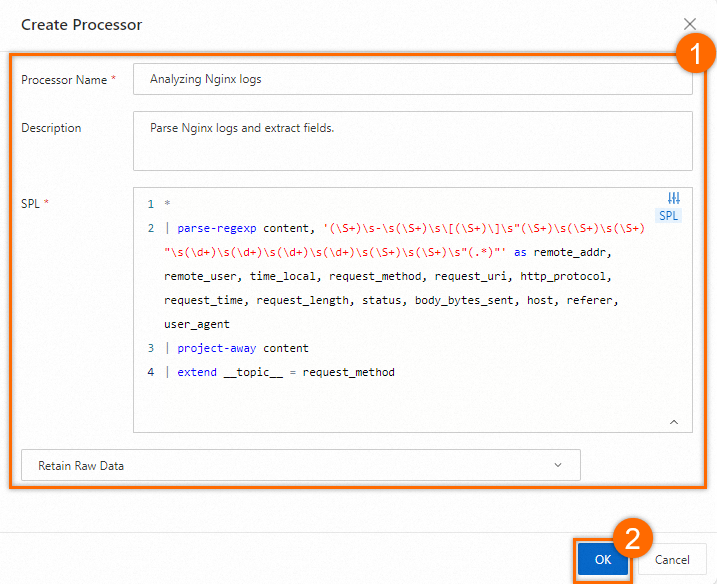
The SPL configuration is as follows. The Ingest Processor uses SPL to process data. For more information about SPL, see SPL syntax.
*
| parse-regexp content, '(\S+)\s-\s(\S+)\s\[(\S+)\]\s"(\S+)\s(\S+)\s(\S+)"\s(\d+)\s(\d+)\s(\d+)\s(\d+)\s(\S+)\s(\S+)\s"(.*)"' as remote_addr, remote_user, time_local, request_method, request_uri, http_protocol, request_time, request_length, status, body_bytes_sent, host, referer, user_agent
| project-away content
| extend __topic__ = request_method
3. Associate the Ingest Processor
3.1 Associate the Ingest Processor with the LogStore
-
In the navigation pane on the left, click Log Storage. Hover the mouse pointer over
website_logand click .
-
On the properties page of
website_log, click Modify in the upper-right corner. In edit mode, set Ingest Processor to theParse Nginx logsprocessor that you created, and then click Save.
3.2 Query and analyze logs
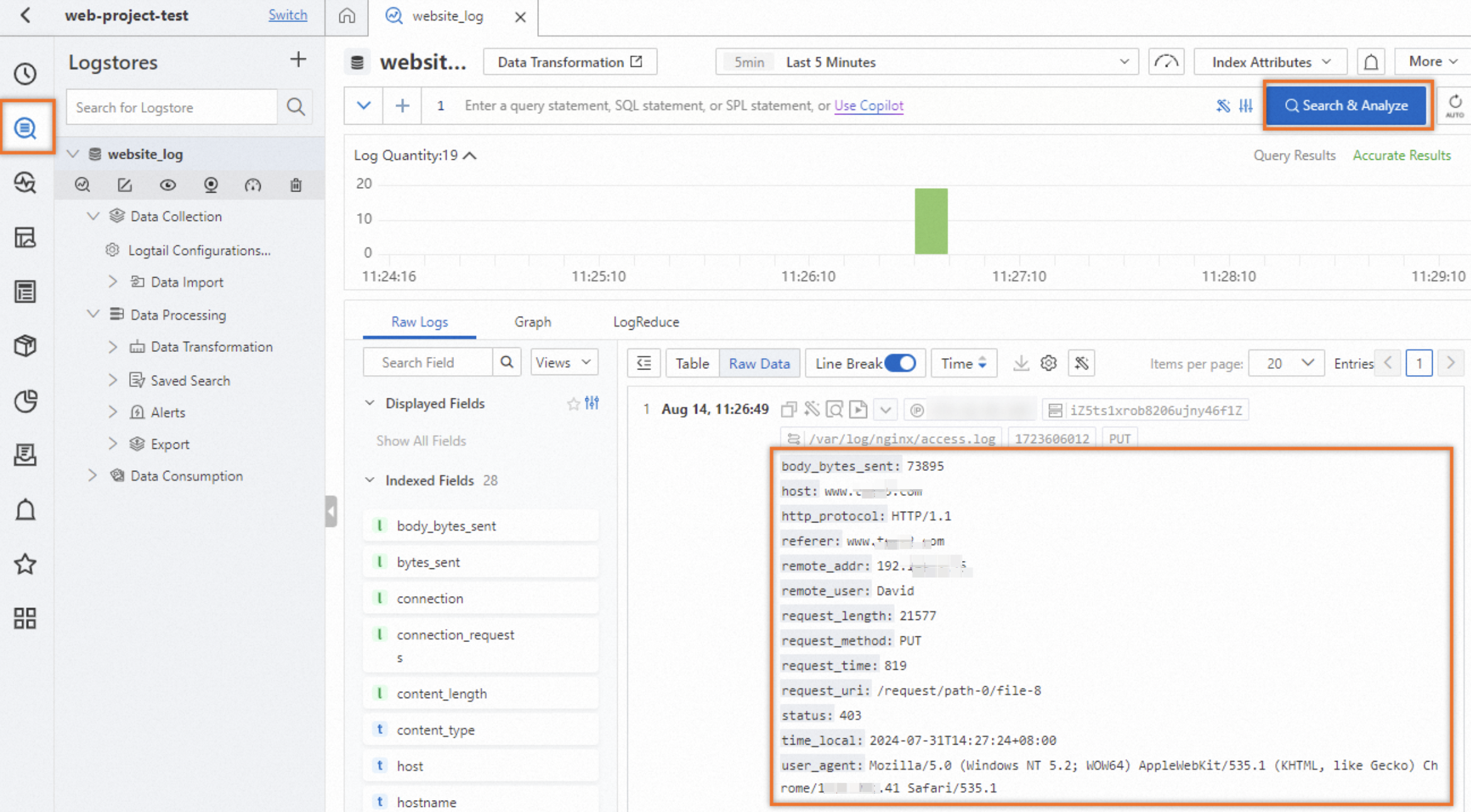
In the navigation pane on the left, click Log Storage. On the LogSearch page, view the parsed logs, as shown in the following figure.
The Ingest Processor takes effect on new logs after it is associated. Wait about one minute to view the parsed logs on the LogSearch page.
References
-
To manage Ingest Processors, see Manage Ingest Processors.
-
For more information about log collection after you activate Simple Log Service, see Overview of data collection.
-
Ingest Processors use SPL to process data. For more information about SPL syntax, see SPL syntax.