After you deploy Docker on a server, you can collect logs for query and analysis. Docker logs are categorized into two types: standard output and file logs. File logs are generated within a container and written to a specified file directory on the server. Standard output is the container's real-time output stream. This topic describes how to use Logtail to collect standard output from a container to a logstore.
Overview
After you install Docker on a host, use Logtail to collect the standard output (stdout) and standard error (stderr) logs from application containers deployed in the Docker environment. The collected log data is sent to a logstore for easy query and analysis.

Prerequisites
A project and a logstore are created. For more information, see Manage projects and Manage a logstore.
The host has installed and is using Docker and Docker Compose and can continuously generate standard output logs.
NoteLogtail collects only incremental logs. If a log file is not updated after a Logtail configuration is applied, Logtail does not collect logs from the file. For more information, see Read logs.
Step 1: Install a Logtail container and create a machine group
Pull the Logtail image
Log on to the host. Based on the region of your Simple Log Service project, obtain the corresponding
${region_id}. Then, replace the${region_id}placeholder in the following command and run it to pull the Logtail image.ImportantFor the
${region_id}of each region, see Regions and zones. For example, the${region_id}for China (Hangzhou) iscn-hangzhou.
#Pull the Logtail image:
docker pull registry.${region_id}.aliyuncs.com/log-service/logtail:v2.1.11.0-aliyun
#If your server is in an Alibaba Cloud VPC, run the following command to pull the Logtail image:
docker pull registry-vpc.${region_id}.aliyuncs.com/log-service/logtail:v2.1.11.0-aliyun
Start the Logtail container
Parameter descriptions
Parameter
Description
${region_id}Obtain the
${region_id}that corresponds to the region of your Simple Log Service Project. For the${region_id}of each region, see Available regions. For information about selecting a network type, see Logtail network types, startup parameters, and configuration files.For example, if a Project is located in the China (Hangzhou) region,
${region_id}iscn-hangzhoufor Alibaba Cloud internal network access andcn-hangzhou-internetfor public network access.
${aliyun_account_id}The ID of the Alibaba Cloud account to which Simple Log Service belongs. For more information about how to obtain the ID, see Obtain the ID of an Alibaba Cloud account.
${user_defined_id}Specifies the custom identifier for the machine group, such as
user-defined-docker-1. The identifier must be unique within the region where the Project is located.Based on the parameter descriptions, replace the
${region_id},${aliyun_account_id}, and${user_defined_id}placeholders in the command template. Then, run the command to start the Logtail container.# Start the Logtail container. Replace ${region_id}, ${aliyun_account_id}, and ${user_defined_id}. docker run -d \ -v /:/logtail_host:ro \ -v /var/run/docker.sock:/var/run/docker.sock \ --env ALIYUN_LOGTAIL_CONFIG=/etc/ilogtail/conf/${region_id}/ilogtail_config.json \ --env ALIYUN_LOGTAIL_USER_ID=${aliyun_account_id} \ --env ALIYUN_LOGTAIL_USER_DEFINED_ID=${user_defined_id} \ registry.${region_id}.aliyuncs.com/log-service/logtail:v2.1.11.0-aliyunImportantCustomize the startup parameters for the Logtail container only if the following conditions are met.
At startup, you must configure the
ALIYUN_LOGTAIL_CONFIG,ALIYUN_LOGTAIL_USER_ID, andALIYUN_LOGTAIL_USER_DEFINED_IDenvironment variables.Mount the
/var/rundirectory on the host to the/var/rundirectory of the Logtail container.Mount the root directory of the host to the
/logtail_hostdirectory in the Logtail container.If the
The parameter is invalid : uuid=noneerror message appears in the Logtail log (/usr/local/ilogtail/ilogtail.LOG), create aproduct_uuidfile on the host. Then, enter a valid UUID, such as169E98C9-ABC0-4A92-B1D2-AA6239C0D261, into the file and mount the file to the/sys/class/dmi/id/product_uuiddirectory in the Logtail container.
Run the
docker pscommand to check whether the container started successfully.
Create a machine group with a custom identifier
Log on to the Simple Log Service console. In the Projects section, click the one you want.
In the navigation pane on the left, choose . In the Machine Groups list, choose
 > Create Machine Group.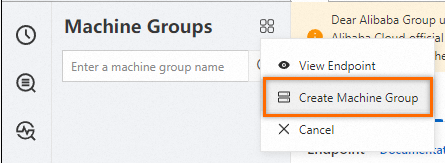
On the Create Machine Group page, enter a Name. Select Custom Identifier as the machine group identifier. In the Custom Identifier field, enter the value of the
${user_defined_id}parameter from Step 1, such asuser-defined-docker-1.
Parameter
Description
Machine Group Topic
Optional. The topic is used to identify the logs generated by different servers.
Check the machine group status
In the machine group list, click the target machine group. On the machine group configuration page, view the machine group configuration and server status.

If the Heartbeat status is OK, the configuration is successful. If the status is FAIL, wait for 1 minute and click Refresh. If the Heartbeat status is still FAIL, check the following items:
Whether the Logtail container and the project are in the same region.
Whether the security group of the host allows outbound traffic from Logtail. The default port is 80.
For more information about how to troubleshoot the issue, see Troubleshoot container log collection errors.
Step 2: Create a Logtail configuration
On the tab, click the logstore you want.
In the menu bar of the Logstores, click Logtail Configurations, and then click Add Logtail Configuration.
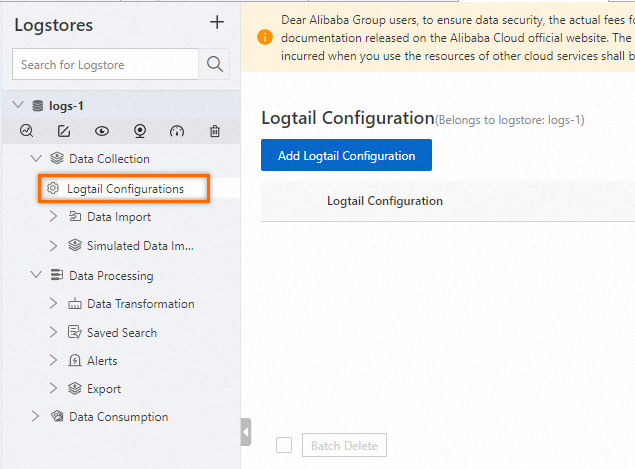
On the Quick Data Import page, click Docker Stdout and Stderr - Old Version.

Because you created a machine group in Step 1, click Use Existing Machine Groups.

In the Machine Group Configurations step, select the machine group that you created in Step 1, click > to add the machine group to the applied machine groups, and then click Next.

In the Logtail Configuration step, enter a Configuration Name, and click Next.

In the Query and Analysis Configurations step, click Refresh to preview the collected logs. If no logs are displayed, confirm that the container is continuously generating standard output logs. By default, standard output is stored in /var/lib/docker/containers/<Container ID>/<Container ID>-json.log. If you still cannot preview any logs, for more information, see How to troubleshoot container log collection errors.

Step 3: View the results
Logtail collects only incremental logs. If no new logs are generated for the standard output after the Logtail configuration is applied, Logtail does not collect previous logs. For more information, see Read logs.

By default, each collected Docker standard output log contains the following fields:
Field | Description |
__source__ | The IP address of the Logtail container. |
__tag__:__hostname__ | The name of the Docker host where Logtail is located. |
__tag__:__receive_time__ | The time when the log arrives at the server. |
_time_ | The time when the data is uploaded. Example: |
_source_ | The type of the input source, stdout or stderr. |
_image_name_ | The name of the image. |
_container_name_ | The name of the container. |
_container_ip_ | The IP address of the application container. |
References
For more information about how to view the Logtail running status, see View the status of Logtail.
For more information about how to use Docker, see Install and use Docker and Docker Compose.
To collect text logs from Docker containers, see Collect Docker container logs (standard output and files).
To collect text logs from the host, see Collect host text logs. By default, the root directory of the host is mounted on the
/logtail_hostdirectory of the Logtail container.After logs are uploaded to a logstore, you must create indexes before querying and analyzing the logs. For more information, see Create indexes and Quick start for log query and analysis.
If an exception occurs when you use Logtail to collect Docker container logs, see Troubleshoot container log collection errors.