Collect container logs from Container Service for Kubernetes (ACK) clusters that belong to different Alibaba Cloud accounts and centralize them into a single Simple Log Service project.
Background
An e-commerce company runs two applications on Kubernetes clusters in the China (Hangzhou) region and uses Simple Log Service in the same region to manage its logs.
-
Application A is deployed on a Kubernetes cluster that belongs to Alibaba Cloud account A (12****456). Simple Log Service under the same account manages logs for this application.
-
Application B is deployed on a Kubernetes cluster that belongs to Alibaba Cloud account B (17****397). Simple Log Service under the same account manages logs for this application.
The company wants to centralize logs from both applications into the Simple Log Service project under Alibaba Cloud account A (12****456), with each application's logs stored in a separate Logstore. To achieve this, you create a Logtail collection configuration, machine group, and Logstore for Application B. The existing log collection setup for Application A remains unchanged.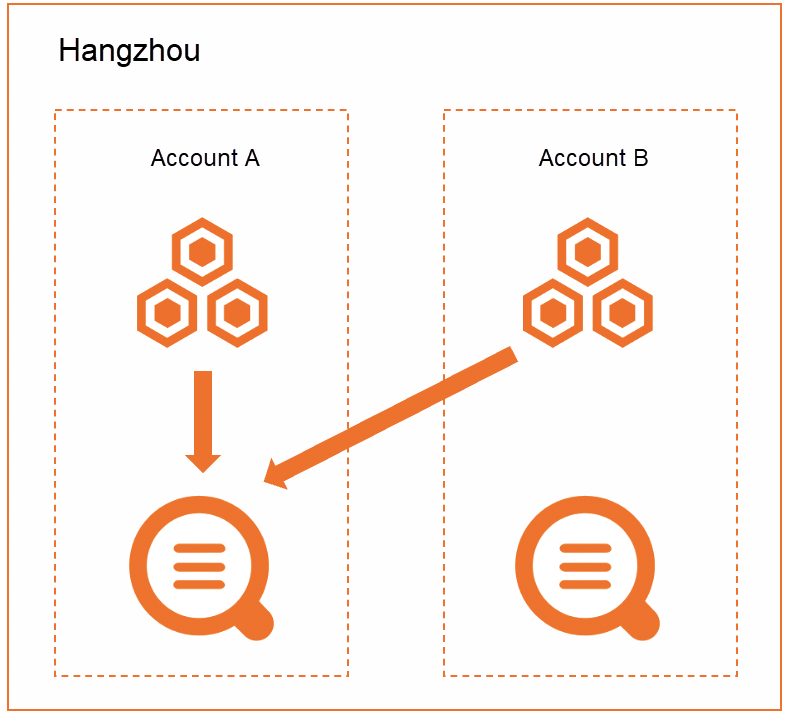
Step 1: Set the Alibaba Cloud account identifier
Loongcollector component
-
Set the user identifier to Alibaba Cloud account A.
-
Log on to the ACK console with Alibaba Cloud account B.
-
On the Clusters page, click the target cluster name.
-
In the left navigation bar, select .
-
On the Helm page, select the kube-system namespace, and click Update in the Actions column of the loongcollector application.
-
In the Update Release dialog box, in the Target Helm Chart Values Configuration section:
-
Configure aliUid with the ID of an Alibaba Cloud account. Use a comma (,) to separate multiple account IDs, for example,
17****397,12****456. -
Record the value of baseMachineGroupName. This is the custom identifier for the machine group. When you create a machine group in Simple Log Service, set the Custom Identifier parameter to this value, for example,
k8s-group-cc47****54428. TheaccessKeyID,accessKeySecret, andclusterAgentfields are also required in this section.
-
-
Select the I acknowledge that the current parameters will be completely overwritten during the update and I understand the related risks outlined in the "Disclaimer" check box, and click OK.
-
-
In the left navigation bar, click . In the kube-system namespace, click loongcollector-ds to open its details page. Confirm that every pod is in Running status and was created after the configuration update.
Logtail-ds component
-
Set the user identifier to Alibaba Cloud account A.
-
Log on to the ACK console with Alibaba Cloud account B.
-
On the Clusters page, click the target cluster.
-
In the left navigation bar, select .
-
Set the Namespace to kube-system, and then in the list of ConfigMaps, find alibaba-log-configuration and click Edit.
-
In the Edit panel, perform the following steps, and then click OK.
Add the ID of Alibaba Cloud account A to the log-ali-uid ConfigMap, and record the value of the log-machine-group ConfigMap (for example, k8s-group-cc47****54428) to use as the Custom Identifier when you create a machine group.
Separate multiple account IDs with commas (,). Example:
17****397,12****456.
-
-
Restart logtail-ds to apply the configuration.
On the logtail-ds details page, confirm that every pod is in Running status and was created after the configuration update.
Step 2: Create a machine group
-
Log on to the Simple Log Service console with Alibaba Cloud account A.
-
In the Projects section, click the target Project.
-
In the left navigation bar, select .
-
To the right of Machine Groups, click
 > Create Machine Group.
 -
In the Create Machine Group dialog box, configure the following parameters, and then click OK.
The Custom Identifier must be set to the machine group identifier that you obtained in Step 1: Set an Alibaba Cloud account as the user identifier, for example, k8s-group-cc47****54428. For more information about other parameters, see Create a machine group with a custom identifier. Set Name to
k8s-group, select Custom Identifier for Machine Group Identifier, and enter the custom identifier value, such ask8s-group-cc{Instance ID}, in the Custom Identifier text box. -
Check that the heartbeat status of all servers in the machine group is OK.
-
In the machine group list, click the target machine group.
-
On the Machine Group Configurations page, view the heartbeat status of the container nodes (ECS).
A Heartbeat status of OK indicates that the container node is connected to Simple Log Service. If the status is FAIL, see Logtail machine group has no heartbeat. The machine group is ready when all nodes show OK.
-
Step 3: Create a Logtail collection configuration
-
Log on to the Simple Log Service console with Alibaba Cloud account A.
-
In the Data Collection area, click Kubernetes - File.
-
Select the target Project and LogStore, and click Next.
-
Click Use Existing Machine Groups.
-
Select the machine group that you created in Step 2: Create a machine group, move it from Source Machine Group to Applied Machine Group, and click Next.
-
Set the Logtail collection configuration, and click Next.
For more information about the parameters, see Collect container text logs in DaemonSet mode by using the console.
ImportantBy default, only one Logtail collection configuration can match a file. Because the collection configuration for account B is still active, the new configuration for account A cannot take effect. You can use one of the following methods to activate the configuration for account A:
Stop the log collection for account B. To do this, log on to the SLS console with account B and remove the Logtail collection configuration from the destination machine group. For more information, see Apply a Logtail configuration to a specified machine group.
Add a forced collection configuration for account A. For more information, see How to collect logs from a file multiple times.
After you create the Logtail collection configuration, delete the original configuration for Alibaba Cloud account B to prevent duplicate log collection. For more information, see Delete a Logtail configuration.
-
Preview the data, set up an index, and click Next.
Simple Log Service enables full-text indexing by default. You can also create field indexes manually or automatically based on the collected logs. For more information, see Create indexes.
Related operations
To migrate historical data from Alibaba Cloud account B to the current Logstore, create a data transformation job in the source Logstore. For more information, see Replicate data from a LogStore.
When you transform data across accounts, you must use a custom role for authorization.
-
The first Role ARN grants the data transformation task read access to the source Logstore. For more information, see Grant a RAM role read-only access to a source LogStore.
-
The second Role ARN grants the data transformation task write access to the target Logstore. For more information, see Grant a RAM role the permissions to write data to a target LogStore (cross-account).