Configure line charts, area charts, column charts, and cross tables for a flow chart in Simple Log Service.
Prerequisites
-
Log data is collected. For more information, see Collect text logs from a host.
-
An index is created. For more information, see Create an index.
Overview
To configure a flow chart, complete these three steps: query and analyze data, add a chart to a dashboard, and set the chart type.
-
Search & Analysis: Query and analyze logs in the console — search, aggregate, and perform statistical analysis.
-
Add a chart: Add a chart to a dashboard. Each chart is based on one or more query and analysis statements.
-
Configure a chart type (line chart, area chart, column chart, or cross table)
Step 1: Query and analyze data
Log on to the Simple Log Service console. In the Projects section, click the project you want.

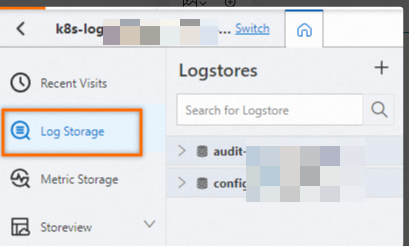
On the tab, click the logstore you want.
-
Enter a query and analysis statement and click Last 15 Minutes to specify a time range.
Example:
-
* | select __time__,count(0) as pv group by request_method,__time__
-
Step 2: Add a chart
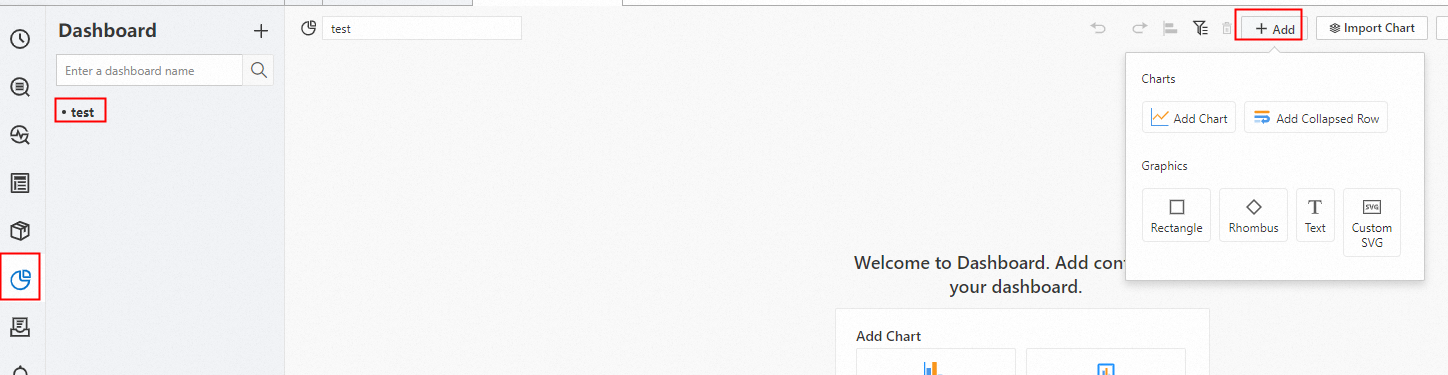
In the left-side navigation pane, choose . In the Dashboard list, click the dashboard you want. In the upper-right corner of the dashboard page, click Edit. In edit mode, choose .
-
Under General Configurations > Chart Types >
 . On the Search & Analysis tab, select LogStore (SQL), select the target Logstore, and enter a query statement.
From the drop-down list in the upper-right corner, select a time range, such as Last 15 Minutes. Click .
-
In the section, set Axis X Field to
__time__and Axis Y Field topv.
By default, the x-axis field __time__ is in the UNIX time format. To format the time for readability, enable Time Series Mode and set the Format option for the x-axis to
YYYY-MM-DD hh:mm:ss. Time Series Mode. -
Step 3: Configure the chart type
Line chart
To display the pv field as a line chart, select .
Area chart
To display the pv field as an area chart, select .
Column chart
To display the pv field as a column chart, select .
Cross table
To display the pv field as a cross table, select .