Enterprise Distributed Application Service (EDAS) integrates with Simple Log Service to provide comprehensive logging capabilities. You can collect application file logs and container stdout and stderr from applications deployed in Container Service for Kubernetes (ACK) clusters and send them to Simple Log Service for querying and analysis. This topic describes the assets and billing for the EDAS log feature and explains how to configure log collection in the EDAS console.
Assets
-
Project and logstore
Important-
Before you disable log collection, do not delete the associated Simple Log Service Project or logstore. Otherwise, log delivery to Simple Log Service will fail.
-
If you enable the pay-by-ingested-data billing mode, the system creates a dedicated logstore that uses this billing mode by default. If you want to switch to the pay-by-feature billing mode, you can modify the logstore configuration. For more information, see Manage a logstore.
You only need to specify the target logstore, which EDAS creates automatically if it does not exist. After the configuration takes effect, the system uses the cluster's Project to collect logs.
-
-
Dedicated dashboard
EDAS does not provide a dedicated dashboard for logs. You can create a custom dashboard to visualize query results. For more information, see Create a dashboard.
Billing
-
EDAS does not charge additional fees for the log collection feature.
-
If your logstore uses the pay-by-feature billing method, Simple Log Service charges you for items such as storage space, read traffic, requests, data transformation, and data shipping after logs are sent from EDAS. For more information, see Billable items of the pay-by-feature billing model.
-
If your logstore uses the pay-by-ingested-data billing method, Simple Log Service charges you based on items such as the volume of raw data ingested after logs are sent from EDAS. For more information, see Billable items of the pay-by-ingested-data mode.
Configure log collection
Prerequisites
-
You have created an ACK cluster. For more information, see Create an ACK managed cluster and Create an ACK dedicated cluster (discontinued).
-
You have imported a Kubernetes cluster into EDAS. For more information, see Import a Kubernetes cluster to the EDAS console.
Procedure
Configure log collection when you create an application
-
Log on to the EDAS console. In the left-side navigation pane, choose . The Applications page appears. In the top navigation bar, select a region. In the upper part of the page, select a namespace. In the upper-left corner, click Create Application.
-
In the Basic Information step, specify Cluster Type and Application Runtime Environment and click Next. The following table describes the parameters.
Parameter
Description
Cluster Type
The type of the cluster in which you want to deploy the application. Select Kubernetes Clusters.
Application Runtime Environment
The application runtime environment. Select an application runtime environment based on the type of the hosted application.
-
Java
-
Custom: Select this option if you want to use a custom image to deploy the application in a Kubernetes cluster.
-
Java: Select this option if you want to use a universal JAR package to deploy the application as a Dubbo or a Spring Boot application. You can set the Java Environment parameter after you select this option.
-
Tomcat: Select this option if you want to use a universal WAR package to deploy the application as a Dubbo or a Spring application. You can set the Java Environment and Container Version parameters after you select this option.
-
EDAS-Container (HSF): Select this option if you want to use a WAR or FatJar package to deploy the application as a High-speed Service Framework (HSF) application. You can set the Java Environment, Pandora Version, and Ali-Tomcat Version parameters after you select this option.
-
-
PHP: Select this option if the application is a PHP application that runs on Apache HTTP Server.
-
Node.js, C++, Go, and Other Languages: Select this option if you want to use a custom image to deploy the application in a Kubernetes cluster. The configuration process for multi-language applications is not described in this topic.
-
-
In the Configurations step, configure the environment information, basic information, and deployment method for the application, set the related resource parameters, and then click Next.
On the Advanced Settings page, expand Log Collection Settings, turn on Enable Log Collection to SLS, and configure the log collection parameters.
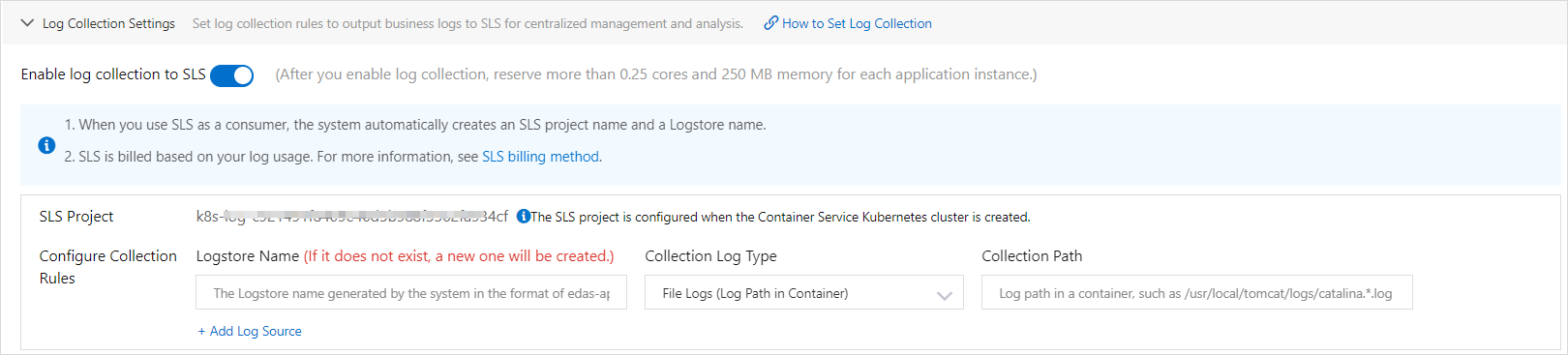
Configuration Item
Description
Logstore Name
Enter the name of the Logstore. If the Logstore does not exist, a new Logstore is created.
Collection Log Type
Select File Log (Path in Container) or Container Standard Output.
Collection Path
Enter the log path in the container. Example: /usr/local/tomcat/logs/catalina.*.log.
ImportantThe log source path must include the log file name, such as /tmp0/cjsc.log.
Do not store other important files in the directory to prevent files from being overwritten.
To configure multiple collection rules, click Add Log Source.
-
Click Create Application.
-
On the Creation Completed page, check the information in the Basic Information, Configurations, and Advanced Settings sections. Then, click Create Application.
In the upper part of the Application Overview page, click View Details. On the Change List page, view the application change process. Wait several minutes until the application is deployed. After the application change process is complete, view the status of the instance in the Basic Information section of the Application Overview page. If the status shows that a pod is running, the application is deployed.
Configure log collection when you update an application
If you did not configure log collection when you created the application, you can configure it when you update the application.
-
Log on to the EDAS console.
-
In the left-side navigation pane, click . In the top navigation bar, select a region. In the upper part of the page, select a namespace. Select Container Service or Serverless Kubernetes Cluster from the Cluster Type drop-down list. Then, find the application that you want to deploy and click the application name.
-
On the Overview or Basic information page, choose in the upper-right corner.
-
On the Select Deployment Mode page, select a deployment mode and click Start Deployment in the upper-right corner of the specified deployment mode section.
Configure the environment and deployment package for the application. Expand Log Collection Settings, turn on Enable Log Collection to SLS, and configure the log collection parameters. Then, click OK.
Configuration Item
Description
Logstore Name
Enter the name of the Logstore. If the Logstore does not exist, a new Logstore is created.
Collection Log Type
Select File Log (Path in Container) or Container Standard Output.
Collection Path
Enter the log path in the container. Example: /usr/local/tomcat/logs/catalina.*.log.
ImportantAfter you click OK, the application restarts. Perform this operation during off-peak hours.
The log source path must include the log file name, such as /tmp0/cjsc.log.
Do not store other important files in the directory to prevent files from being overwritten.
References
-
Once logs are in Simple Log Service, you can query, analyze, download, ship, transform, and create alerts for them. For more information, see Common operations on logs of Alibaba Cloud services.
-
EDAS supports both containerized deployments and traditional deployments on ECS instances. For more information, see Create and deploy an application (K8s) and Create and deploy an application (ECS).