This topic describes the common methods for limiting the period of time during which Simple Log Service sends alert notifications. This topic also describes the scenarios in which each method is used.
Background information
If you do not want to receive alert notifications anytime when you perform monitoring and alerting for your system, you can limit the period of time during which Simple Log Service sends alert notifications in the following scenarios:
You do not want to receive notifications for alerts that are triggered by scheduled updates.
You want to receive notifications only for critical-level alerts during non-business hours.
You do not want to receive alert notifications by phone call at night.
Comparison of the methods
The following table provides a comparison of the methods. You can select a method based on your business requirements.
Cron expression | Pause | Silence policy | Global calendar | Shift group | |
Phase | Alert evaluation is affected. Therefore, alert notification is affected. | Alert evaluation is affected. Therefore, alert notification is affected. | Only alert notification is affected. | Only alert notification is affected. | Only alert notification is affected. |
Supported notification method | All | All | All | All | All notification methods that are related to users and user groups are supported. For example, users can be notified by text message, phone call, email, and DingTalk. |
Reuse | Not supported. You must configure settings based on your alert rule. | Not supported. You must configure settings based on your alert rule. | Supported | Supported | Supported |
Temporary configuration | No | Yes | Yes | No | No |
Supported scenario | Alerts that are triggered by a specified alert rule can be blocked at regular intervals. This setting can be applied to one alert rule at a time. | Alerts that are triggered by a specified alert rule can be temporarily blocked. This setting can be applied to one alert rule at a time. | Alerts that meet specified conditions can be temporarily or permanently blocked. This setting can be applied to multiple alert rules at a time. | Global business days and business hours can be configured. This setting applies to all alerts. | All shift hours can be configured. This setting applies to the alert rules that use a specified shift group. |
Configuration | Simple | Simple | Complicated | Simple | Complicated |
Use a cron expression to limit the period of time during which Simple Log Service sends alert notifications
When you configure an alert rule, you must configure the Check Frequency parameter. You can specify a simple cron expression to determine the check frequency of the alert rule. Examples:
0/5 * * * *indicates that a check is performed at an interval of 5 minutes starting on the hour.0 0/1 * * *indicates that a check is performed at an interval of 1 hour from 00:00.0 18 * * *indicates that a check is performed at 18:00 every day.0 0 1 * *indicates that a check is performed at 00:00 on the first day of each month.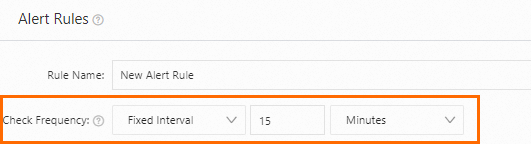
You can also specify a complicated cron expression to limit the period of time during which Simple Log Service sends alert notifications in a more flexible manner. Examples:
If you want to perform a check at an interval of 5 minutes from 08:00 to 18:00 every day, you can specify
0/5 8-17 * * *for your alert rule.If you want to perform a check at an interval of 1 minute from 08:00 to 12:00 and from 14:00 to 18:00 every Monday to Friday, you can specify
* 8-11,14-17 * * 1-5for your alert rule.
A cron expression can specify an interval that is accurate to the minute. A cron expression consists of five fields that indicate minutes, hours, days, months, and weeks. For more information, visit https://crontab.guru/.
Pause alerts to limit the period of time during which Simple Log Service sends alert notifications
If an alert is triggered as anticipated but you do not want to receive notifications for the alert within a period of time, you can click Pause in the Actions column of the alert to pause the alert. For example, if an alert is triggered because the system is temporarily changed, the alert is considered an anticipated alert.

After the alert is paused, the alert rule for the alert no longer evaluates or triggers the alert. After the pause duration ends, the alert rule resumes to evaluate and trigger the alert. If you want to restore the alert before the pause duration ends, you can click Resume in the Actions column.
Use a silence policy to limit the period of time during which Simple Log Service sends alert notifications
If some alerts are triggered as anticipated, the alerts are triggered by multiple alert rules, but you do not want to receive notifications for the alerts within a period of time, you can use a silence policy to manage the alerts. For example, if alerts are triggered during a cluster upgrade, the alerts are considered anticipated alerts. For more information, see Silence policies.
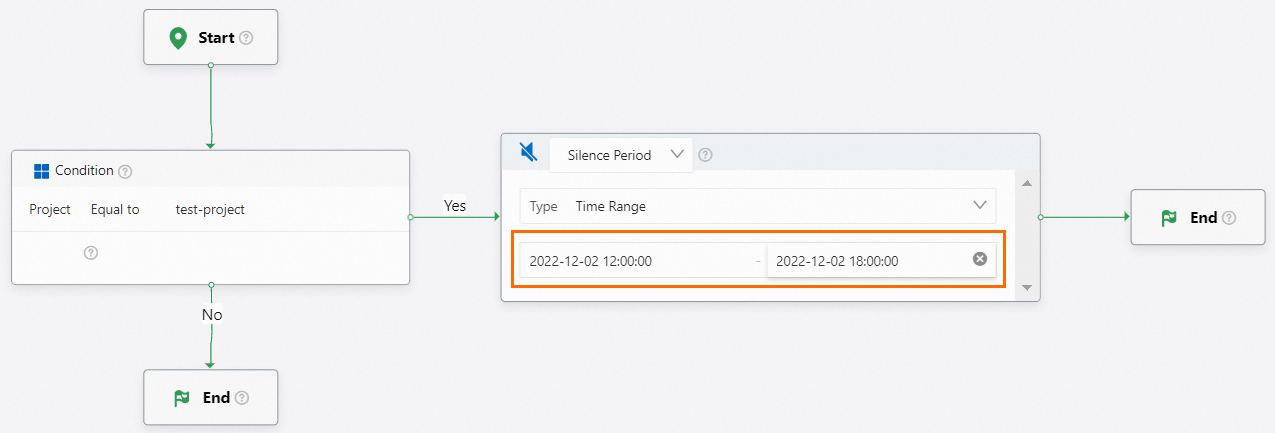
If the alert rules use the same alert policy, you can configure a silence policy in the alert policy. The following figure shows an example of a silence policy. In the example, all alerts that are generated for the test-project project are temporarily blocked from 12:00 to 18:00 on December 2, 2022.
Use a global default calendar to limit the period of time during which Simple Log Service sends alert notifications
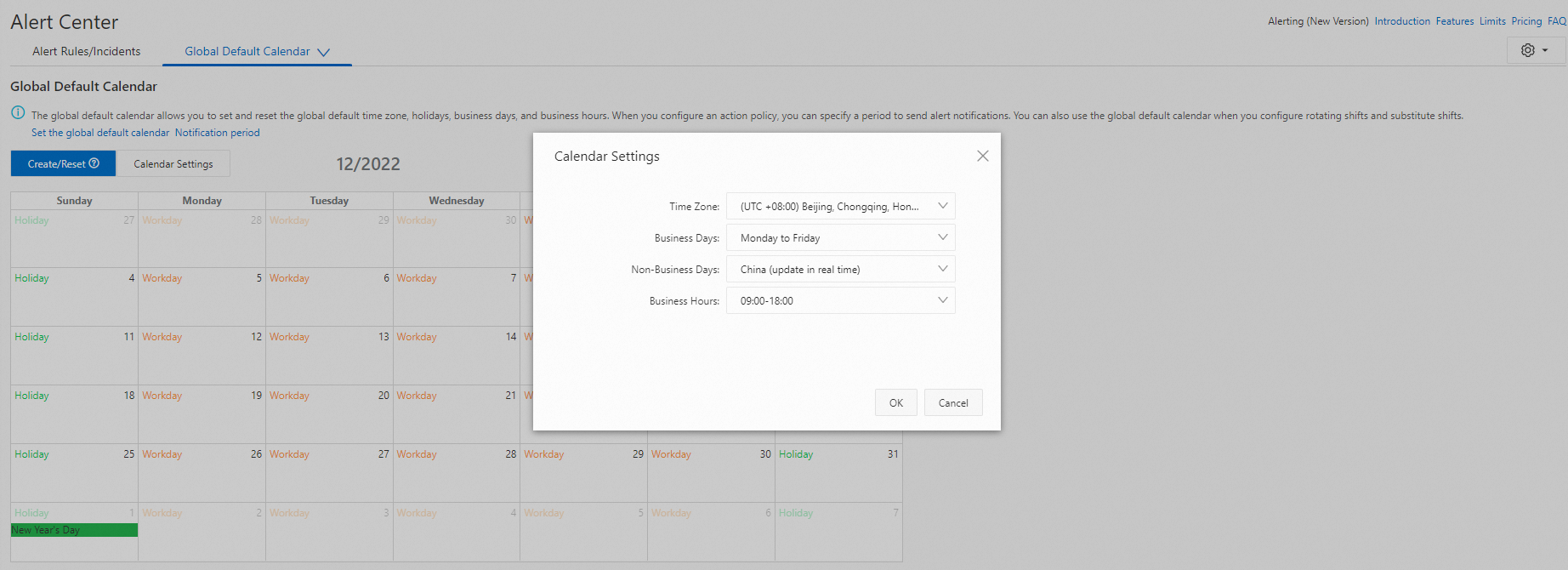
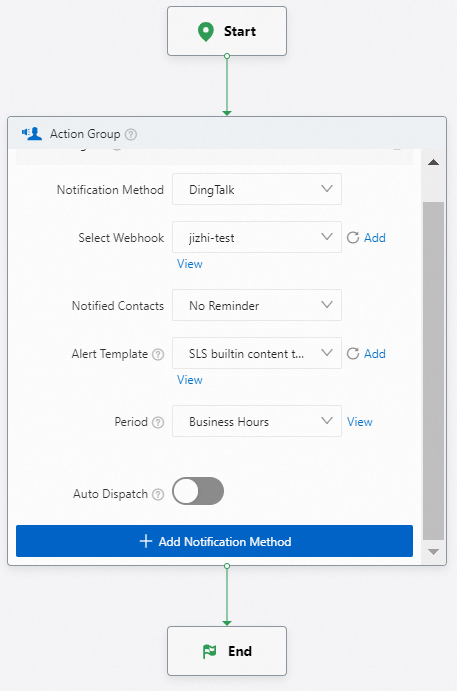
If you want to configure the same alert notification period for global alerts, you can use the global default calendar feature. For example, if you want to receive alert notifications from 09:00 to 18:00 every Monday to Friday for an alert to which an action policy is applied, you can perform the following operations:
Configure the Business Days and Business Hours parameters in Calendar Settings. For more information, see Modify the global default calendar and Reset the calendar.
Configure the Period parameter in your action policy. For more information, see Create an action policy.
Use a shift group to limit the period of time during which Simple Log Service sends alert notifications
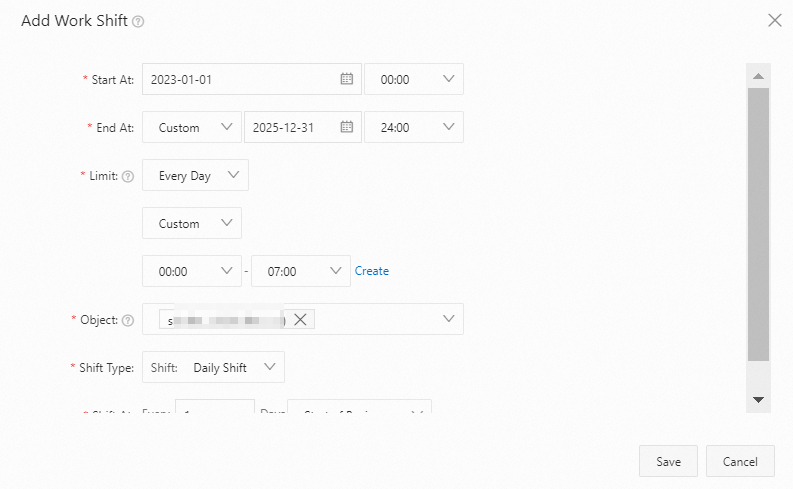
You can configure global business days and business hours in the global default calendar. If you want to specify a custom period of time during which Simple Log Service sends alert notifications for different alerts, you can use a shift group. For example, if you want to receive alert notifications from 00:00 to 07:00 every day for alerts that are triggered by an alert rule, you can perform the following operations to create a shift group and work the shift within this period.
Create a shift group. For more information, see Create a shift group.
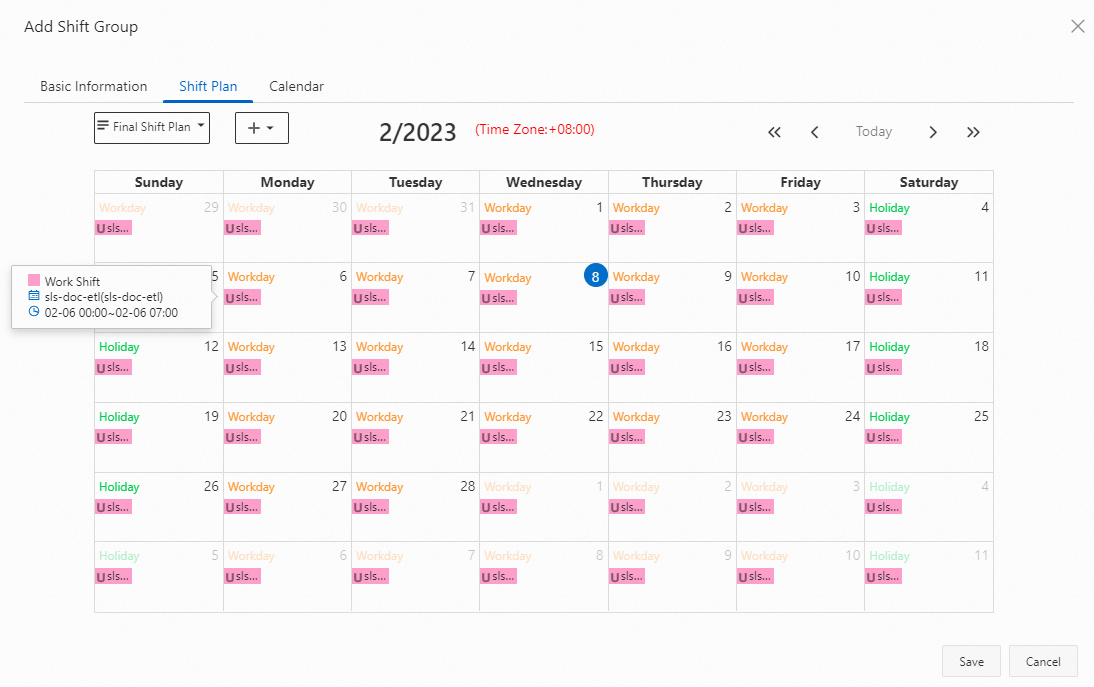
After you create a shift group, you can view the shift schedule in the Final Shift Plan. The shift group works and receives alert notifications only from 00:00 to 07:00 every day.
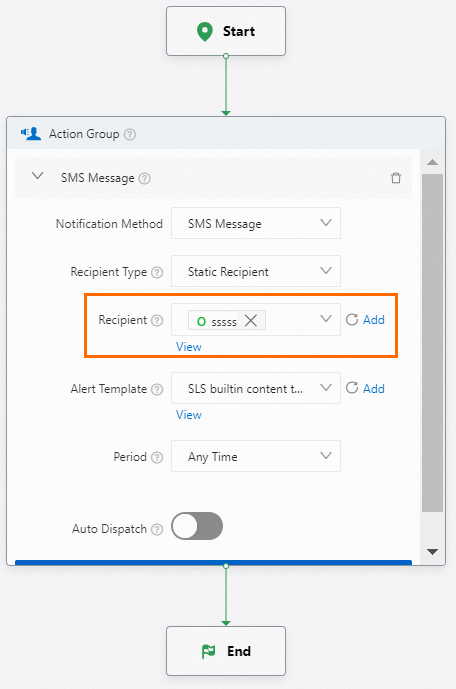
Select the shift group in your action policy. For more information, see Create an action policy.
NoteYou must set the Period parameter to Any Time in your action policy because you have configured the period of time during which Simple Log Service sends alert notifications when you create the shift group.