Docker events record all interactions with containers, images, plugins, networks, and volumes. You can create a Logtail configuration in the Simple Log Service console to collect these events for monitoring, auditing, and troubleshooting.
Prerequisites
Logtail 0.16.18 or a later version is installed on a Linux server. For more information, see Install Logtail on a Linux server.
Limits
-
Logtail can run in a container or on a host and requires permission to access the
/var/run/docker.sockfile.To collect Kubernetes logs, see Collect Kubernetes logs. To collect standard container logs, see Collect Docker container logs (standard output and files).
-
Logtail cannot collect container events when it is restarting or stopped.
Scenarios
-
Monitor the start and stop events of all containers and trigger an alert immediately if a core container stops.
-
Collect all container events for auditing, security analysis, and troubleshooting.
-
Monitor all image pull events and trigger an alert immediately if an image is pulled from an unauthorized path.
Procedure
Log on to the Simple Log Service console.
-
In the Import Data section, select Custom Data Plug-in.
-
Select the destination project and Logstore, and then click Next.
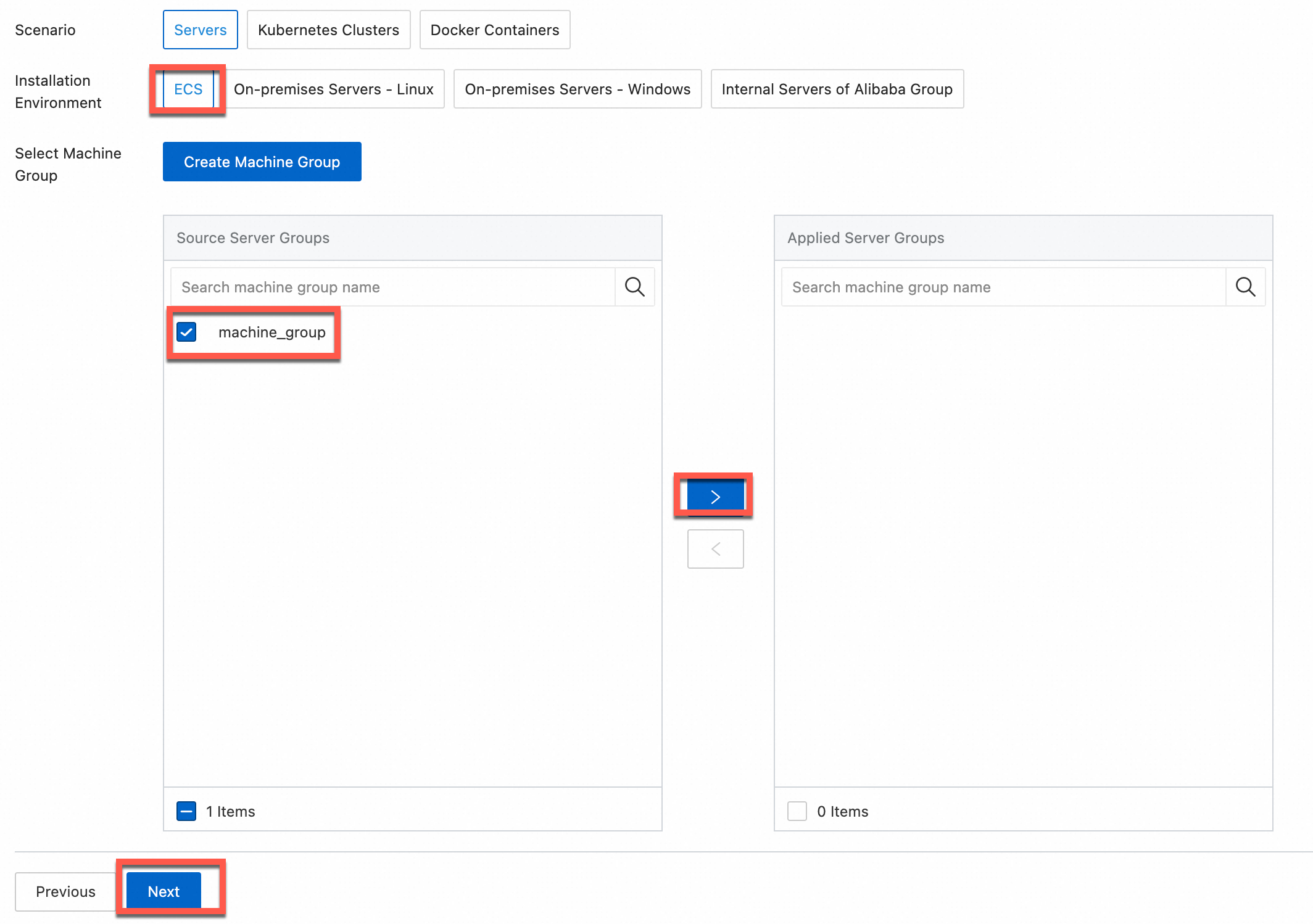
In the Machine Group Configurations step, configure a machine group.
Configure the Scenario and Installation Environment parameters as needed.
ImportantYou must configure the Scenario and Installation Environment parameters regardless of whether a machine group is available. The parameter settings affect subsequent configurations.
Ensure that a machine group is displayed in the Applied Server Groups section, and click Next.
Machine group available
Select a machine group from the Source Machine Group section.
No machine group available
Click Create Machine Group. In the Create Machine Group panel, configure the parameters. You can set the Machine Group Identifier parameter to IP Address or Custom Identifier. For more information, see Create a custom identifier-based machine group or Create an IP address-based machine group.
ImportantIf you apply a machine group immediately after you create the machine group, the heartbeat status of the machine group may be FAIL. This issue occurs because the machine group is not connected to Simple Log Service. To resolve this issue, you can click Automatic Retry. If the issue persists, see What do I do if no heartbeat connections are detected on Logtail?
-
On the Data Source Settings tab, set Configuration Name and Plug-in Configuration, and then click Next.
-
inputs is required and is used to configure the data source settings for the Logtail configuration.
ImportantYou can specify only one type of data source in inputs.
-
processors is optional and is used to configure the data processing settings for the Logtail configuration to parse data. You can specify one or more processing methods.
If your logs cannot be parsed based only on the setting of inputs, you can configure processors in the Plug-in Configuration field to add plugins for data processing. For example, extract fields, extract log time, mask data, and filter logs. For more information, see Logtail plugins for data processing.
{
  "inputs": [
    {
      "detail": {},
      "type": "service_docker_event"
    }
  ]
}
Parameter
Type
Required
Description
type
string
Yes
The type of the data source. Set the value to service_docker_event.
EventQueueSize
int
No
The size of the event buffer queue. Default value: 10. Use the default value unless you have specific requirements.
-
Create indexes and preview data. Then, click Next. By default, full-text indexing is enabled in Simple Log Service. You can also manually create field indexes for the collected logs or click Automatic Index Generation. Then, Simple Log Service generates field indexes. For more information, see Create indexes.
ImportantIf you want to query all fields in logs, we recommend that you use full-text indexes. If you want to query only specific fields, we recommend that you use field indexes. This helps reduce index traffic. If you want to analyze fields, you must create field indexes. You must include a SELECT statement in your query statement for analysis.
-
Click Query Log to go to the Query & Analysis page for the Logstore.
You may need to wait about one minute for the indexes to become effective. You can then view the collected logs on the Raw Logs tab. For more information, see Quick start for log query and analysis.
Troubleshooting
If no data appears on the preview or query page after you configure Logtail to collect logs, see Troubleshoot Logtail collection failures.
Sample logs
The following examples show sample Docker events.
-
Example 1: Image pull event
__source__: 10.10.10.10 __tag__:__hostname__: logtail-ds-77brr __topic__: _action_: pull _id_: registry.cn-hangzhou.aliyuncs.com/ringtail/eventer:v1.6.1.3 _time_nano_: 1547910184047414271 _type_: image name: registry.cn-hangzhou.aliyuncs.com/ringtail/eventer -
Example 2: Container destroy event in Kubernetes
__source__:  10.10.10.10
__tag__:__hostname__:  logtail-ds-xnvz2
__topic__:
_action_:  destroy
_id_:  af61340b0ac19e6f5f32be672d81a33fc4d3d247bf7dbd4d3b2c030b8bec4a03
_time_nano_:  1547968139380572119
_type_:  container
annotation.kubernetes.io/config.seen:  2019-01-20T15:03:03.114145184+08:00
annotation.kubernetes.io/config.source:  api
annotation.scheduler.alpha.kubernetes.io/critical-pod:
controller-revision-hash:  2630731929
image:  registry-vpc.cn-hangzhou.aliyuncs.com/acs/pause-amd64:3.0
io.kubernetes.container.name:  POD
io.kubernetes.docker.type:  podsandbox
io.kubernetes.pod.name:  logtail-ds-44jbg
io.kubernetes.pod.namespace:  kube-system
io.kubernetes.pod.uid:  6ddcf598-1c81-11e9-9ddf-00163e0c7cbe
k8s-app:  logtail-ds
kubernetes.io/cluster-service:  true
name:  k8s_POD_logtail-ds-44jbg_kube-system_6ddcf598-1c81-11e9-9ddf-00163e0c7cbe_0
pod-template-generation:  9
version:  v1.0
The following table describes the log fields of Docker events. For more information, see the official Docker documentation.
|
Field |
Description |
|
_type_ |
The resource type, such as container or image. |
|
_action_ |
The operation type, such as destroy or status. |
|
_id_ |
The unique ID of the event. |
|
_time_nano_ |
The timestamp of the event. |