Adjust the row height and column width of a dashboard table to improve readability when a table contains a large amount of data or lengthy column content.
Prerequisites
-
You have collected log data. For more information, see Collect text logs from a host.
-
You have created indexes. For more information, see Create an index.
Overview
In the Table configurations section of the chart settings, Display mode provides two options: Pagination and Fixed Height. To configure the row height and column width, complete the following steps:
-
Query and analysis: Run a query statement to analyze logs in the console.
-
Add a chart: Add the query results as a chart to a dashboard.
-
Configure row height and column width: Customize the row height and column width of the table.
Step 1: Query and analyze data
Log on to the Simple Log Service console. In the Projects section, click the project you want.

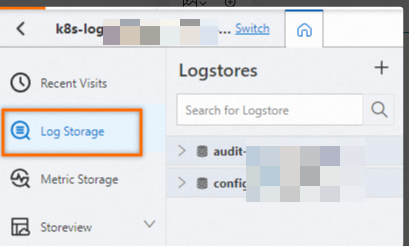
On the tab, click the logstore you want.
-
Enter a query statement, and then click Last 15 Minutes to set the time range for the query.
For example, to view request paths and the number of page views, run the following query statement:
* | select split_part(request_uri,'?',1) as path, count(1) as pv, '' as empty, 'NaN' as nan group by split_part(request_uri,'?',1) order by pv desc limit 10
Step 2: Add a chart
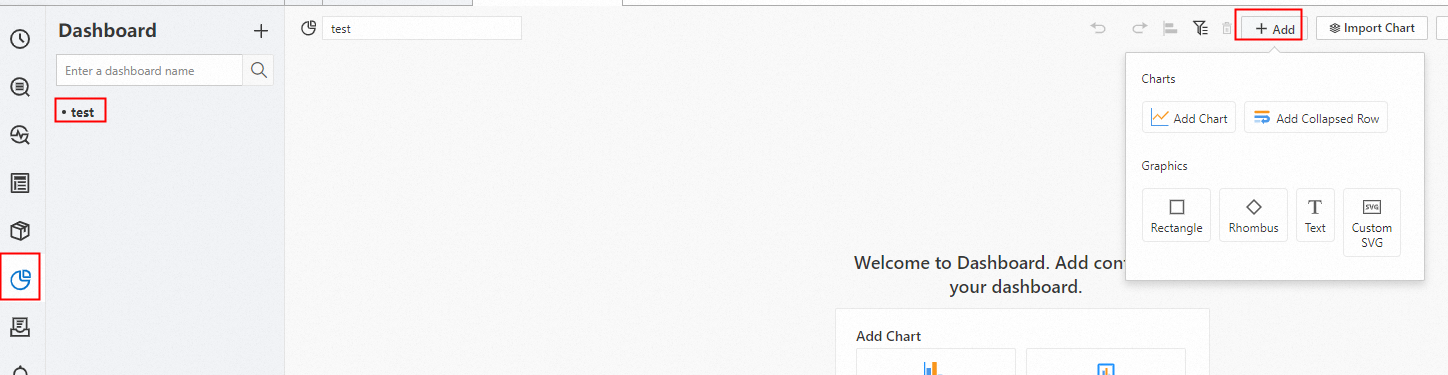
In the left-side navigation pane, choose . In the Dashboard list, click the dashboard you want. In the upper-right corner of the dashboard page, click Edit. In edit mode, choose .
-
In the section, select the
 icon for Chart Type. On the Query and Analysis tab, select your data source (in this case, LogStore (SQL)), select the target Logstore, and enter a query statement.
In the upper-right corner, select a time range such as Last 15 Minutes and click Apply.
Set Chart Type to Table. An example query:
* | select *.
Step 3: Configure row height and column width
Row height
In the . In the Row Height field, enter a value such as 20.
Column width
-
Change the width of all columns
In the section, enter a value in the Column Width field, such as 200.
-
Change the width of a specific column
In the section, find the column that you want to configure, such as
request_method. In the Column Width field for that column, enter a value, such as 150.