In scenarios such as rapid environment deployment, disaster recovery, and configuration migration, use the Application Load Balancer (ALB) instance clone feature to quickly create an instance identical or similar to a source instance, improving deployment efficiency and reducing operational complexity.
ALB instance clone
The instance clone feature replicates the configuration of an existing ALB instance, including key components such as listeners, server groups, forwarding rules, and health checks. This avoids tedious manual reconfiguration and ensures that the new instance has a configuration identical or similar to the source instance's. The feature is especially useful for disaster recovery and configuration migration.
Key features
Fast replication: Clone an existing ALB instance in a single click through an automated process powered by Resource Orchestration Service (ROS). This quick process improves deployment efficiency and reduces operational complexity.
Configuration consistency: Ensures the new instance has an identical or similar configuration to the source instance, which prevents misconfigurations.
Flexible deployment: Deploy a cloned instance in a different region or zone for complex requirements like multi-region business expansion and disaster recovery failover.
Use cases
Environment migration: Clone a test environment configuration to a pre-production or production environment to ensure consistency across environments and accelerate feature releases.
Disaster recovery: In a service failure, use instance clone to quickly deploy standby load balancing resources, improving business continuity and high availability.
Configuration migration: Migrate the configuration of an existing instance to a new instance, for example, for a version upgrade or an architectural adjustment, to avoid repetitive manual configuration.
Limitations
The destination ALB instance and the source ALB instance must be of the same edition.
ALB Ingress instances cannot be cloned.
ALB instances with modification protection enabled cannot be cloned.
If the source ALB instance is added to an Internet Shared Bandwidth instance, the cloned ALB instance is not automatically added to the Internet Shared Bandwidth instance. You can manually add the instance on its details page.
If you clone a non-upgraded ALB instance, an upgraded ALB instance is created by default. For more information, see Differences between non-upgraded and upgraded ALB instances.
Example
A company deploys a new feature in a test environment and uses an ALB instance for load balancing. The ALB instance is configured with a forwarding rule to redirect HTTP requests to HTTPS and uses a custom domain name to provide test services. When a test client accesses the domain name www.example.com, DNS resolves the domain name to the ALB instance based on a CNAME record. The ALB instance then forwards the traffic to ECS01 and ECS02 for processing based on the forwarding rule.
After the feature passes acceptance testing, you must migrate the ALB instance configuration to the production environment. Manually configuring an ALB instance is time-consuming and may cause configuration inconsistencies that affect business operations, especially in a production environment with high traffic.
To resolve this issue, the company decides to use the instance clone feature to quickly replicate the ALB configuration from the test environment to the production environment. By using this feature, the company quickly deploys the ALB instance in the production environment, ensuring a fast launch and stable operation of the new feature.

Prerequisites
A source ALB instance must be configured with listeners, backend servers, and a CNAME record. It must also be accessible for testing through the custom domain name
www.example.com. For more information, see Use ALB to balance the loads of IPv4 services.The source ALB instance has an HTTP listener and an HTTPS listener. The HTTP listener is configured with a redirect forwarding rule to redirect HTTP requests to HTTPS.
Deploy services on the backend servers ECS01 and ECS02 of the source ALB instance.
This topic uses Alibaba Cloud Linux 3 as the operating system and uses Nginx to configure an HTTP 80 service.
Prepare backend servers for the cloned destination ALB instance if needed:
If the destination ALB instance is in the same Virtual Private Cloud (VPC) as the source ALB instance, the backend servers ECS01 and ECS02 of the source ALB instance can also be used as the backend servers for the destination ALB instance.
If the destination ALB instance is not in the same Virtual Private Cloud (VPC) as the source ALB instance, prepare backend servers ECS03 and ECS04 in the destination VPC and deploy services on them.
Prepare servers to simulate clients: ECS-A is used to test pre-migration traffic, and ECS-B is used to verify access traffic during migration. Both servers must have public network access. This topic uses Alibaba Cloud Linux 3 as the operating system.
If you already have test servers, you do not need to create ECS-A and ECS-B.
Procedure
Step 1: Clone the source ALB instance
In the top navigation bar of the ALB console, select the region of the source ALB instance.
On the Instances page, find the instance to clone. In the Actions column, choose
 > Clone Instance.
In the Clone Instance dialog box, configure the parameters for the destination ALB instance and click Next.
By default, the parameters of the destination ALB instance are the same as those of the source ALB instance. In this example, change Region for the Clone from Germany (Frankfurt) to US (Silicon Valley), change VPC from the default VPC1 to the destination VPC2, and select the corresponding destination zone and vSwitch. You can keep the default values for other parameters or modify them based on your needs.
If the cloned instance is of the public network type and the destination region is a region where ALB supports Anycast EIPs, you must also select an IP Type (EIP or Anycast EIP) and allocate a public IP address of the corresponding type in the selected zone.
In the Preview and Confirm step, confirm the information and fees for the destination ALB instance, and then click Clone.
Confirm the clone result.
When the clone is complete, you can compare the business data of the cloned destination ALB instance with that of the source ALB instance.
Instance clone is provided by Resource Orchestration Service (ROS). During the cloning process, you can log on to the ROS console to view the progress.
Add the backend servers ECS03 and ECS04 to the server group of the destination ALB instance.
Step 2: Test traffic
To ensure that the destination ALB instance can connect to the backend services, if your backend services have access policies such as iptables or other third-party security software, add the CIDR block of the ALB instance's vSwitch to the allowlist.
Remotely connect to the test server ECS-A.
Run the following command to modify the hosts file.
sudo vi /etc/hostsIn the hosts file, add the Elastic IP Address (EIP) and domain name of the destination ALB instance. After you modify the file, save the changes and exit.
47.251.XX.XX www.example.comRun the following command to test traffic forwarding for the destination ALB instance.
curl -v -L www.example.comThe following output is returned, which indicates that HTTP requests are successfully redirected to HTTPS and the responding server is ECS03.
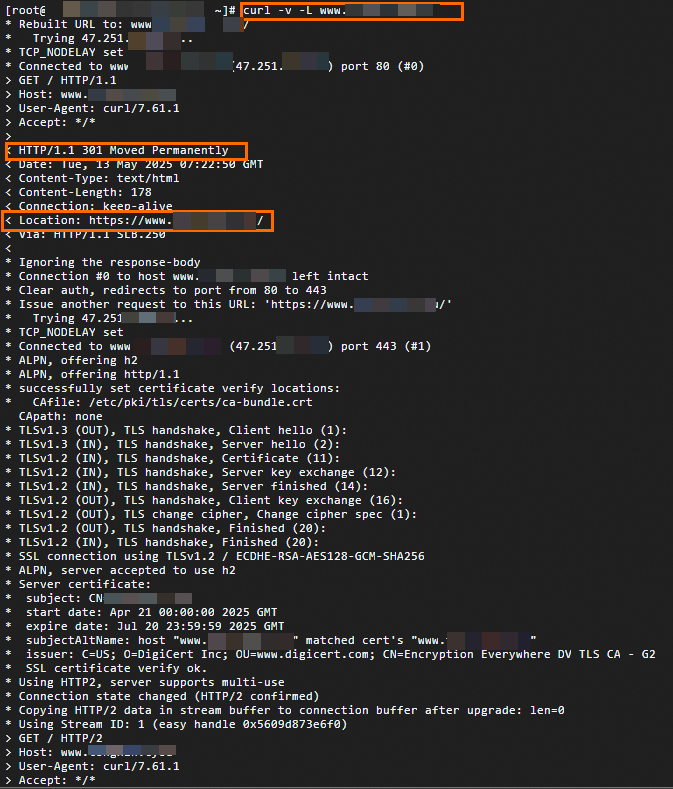
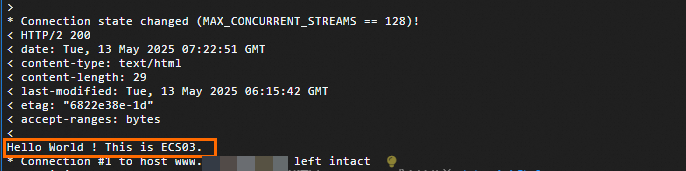
Run the command again. The responding server changes to ECS04.
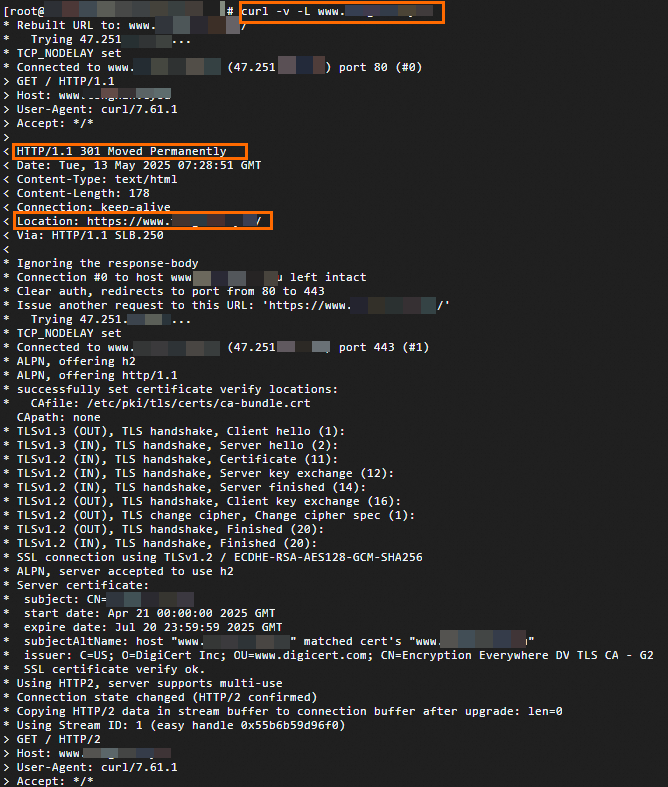
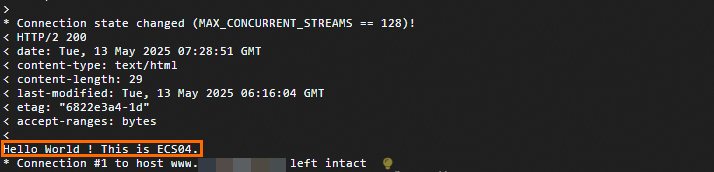
Step 3: Migrate traffic to the destination instance
Before you migrate traffic, compare the forwarding rule configurations of your source and destination ALB instances to ensure that they provide identical capabilities. Make sure that all configurations have passed acceptance testing to avoid unexpected impacts on your business during the migration.
Migrate ALB traffic during off-peak hours.
A CNAME record is configured for the source ALB instance. After you verify the configuration of the destination ALB instance, you can migrate traffic from the source ALB instance to the destination ALB instance as needed.
This topic uses the weighted routing policy feature of Alibaba Cloud DNS as an example. By dynamically adjusting the weight ratio between the source and destination ALB instances, DNS traffic is gradually migrated from the source instance to the new one.
Part 1: Add a CNAME record
In the navigation pane on the left, choose ALB > Instances. On the Instances page, copy the DNS name of the created ALB instance.
Follow these steps to add a CNAME record.
On the Alibaba Cloud DNS console, find the destination domain name and click Settings in the Actions column.
For domains not registered with Alibaba Cloud, you must first add the domain to the Alibaba Cloud DNS console before you can configure DNS settings.
On the Settings page, click Add Record, configure the CNAME record, and then click OK.
In this example, Record Type is set to CNAME, and Record Value is set to the DNS name of the destination ALB instance. You can keep the default values for other DNS record parameters or modify them based on your needs.
In the Change Resource Record Confirmation dialog box, confirm the DNS information and click OK.
Part 2: Set weights and start canary release
On the Settings page, find the CNAME record added in Part 1. Click the drop-down arrow next to Modify and then click Edit Record Set.
In the Edit Record panel, under Record Values, set the weights for the DNS records of the source and destination ALB instances. Set the weight of the DNS record for the source ALB instance to 100 and the weight of the DNS record for the destination ALB instance to 0.
You can enable the weighted routing policy only if multiple A, CNAME, or AAAA records exist for the same hostname and DNS line under the domain name.
If you observe no impact on your business, gradually decrease the weight of the DNS record for the source ALB instance and increase the weight of the DNS record for the destination ALB instance.
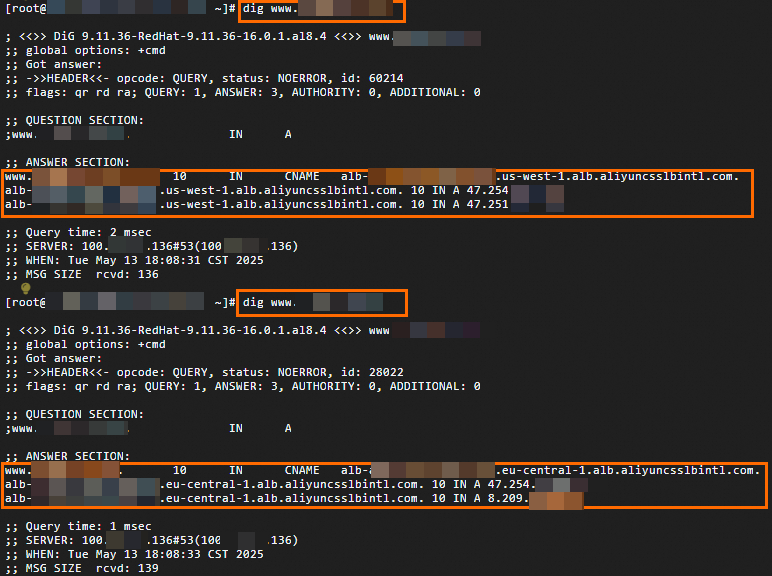
Remotely connect to the test server ECS-B and run the
digcommand multiple times to verify the traffic migration effect.dig www.example.comThe following figure shows the output. By running the command multiple times, you can observe that requests are distributed to either the source ALB instance or the destination ALB instance based on their weights.
(Optional) Part 3: Complete the traffic migration
Based on the verification results of the traffic migration, gradually decrease the weight of the DNS record for the source ALB instance to 0 and increase the weight of the DNS record for the destination ALB instance to 100. This completes the migration of traffic from the source ALB instance to the destination ALB instance.
After all persistent connections to the source ALB instance close and no new traffic routes to it, you can monitor the instance for a period of time and then release it based on your business scenario.
Related documents
After you clone an ALB instance, you can use ALB access logs to monitor the load on the destination instance and troubleshoot related issues.
If you need to migrate a Layer-7 CLB listener to ALB:
You can select a DNS traffic management policy based on your needs:
weighted routing policy: Distributes DNS traffic in a weighted round-robin manner based on configured weights, returning corresponding record values upon query requests.
Intelligent DNS resolution: Returns DNS results based on the user's geographic location and ISP to reduce resolution latency and improve website access speed. Supported lines include ISP, ISP/province, outside Chinese mainland, continent, and custom lines.
Global Traffic Manager (GTM): Implements nearby access, load balancing for high-concurrency traffic, and traffic shifting based on health check results. This allows you to flexibly build active-active and disaster recovery services across different regions.