The SASE App Settings page lets you control startup behavior, choose a network proxy mode, and recover from service issues.
General settings
Navigate to Settings > General Settings.
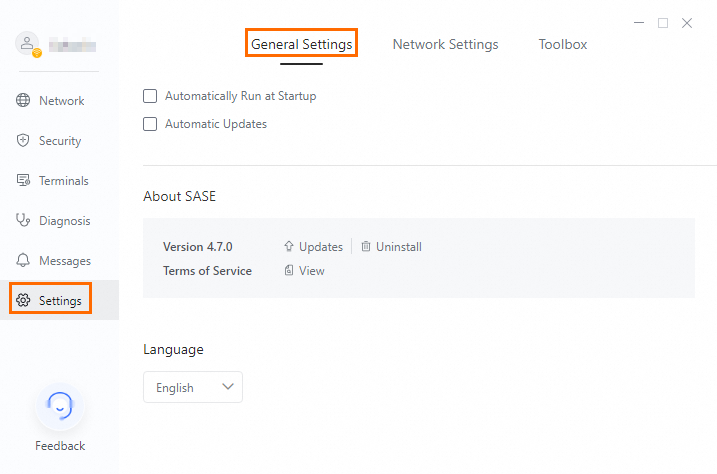
| Setting | Description |
|---|---|
| Auto-start On Boot | Starts the SASE App automatically when the system boots. |
| Auto-update | Automatically updates the SASE App to the latest version. |
| Switch Language | Sets the display language. Options: Chinese, English, or Follow System. |
View version and update status
The About SASE section shows the version number of the installed SASE security client.
Click Check For Updates to check whether the current version is up to date. If a newer version is available, follow the prompts to upgrade.
Click Uninstall to remove the SASE security client.
View user agreements
Click View to read the SASE Service Agreement and User Privacy Agreement.
Network settings
Network settings apply to the SASE App on Windows only.
Navigate to Settings > Network Settings.
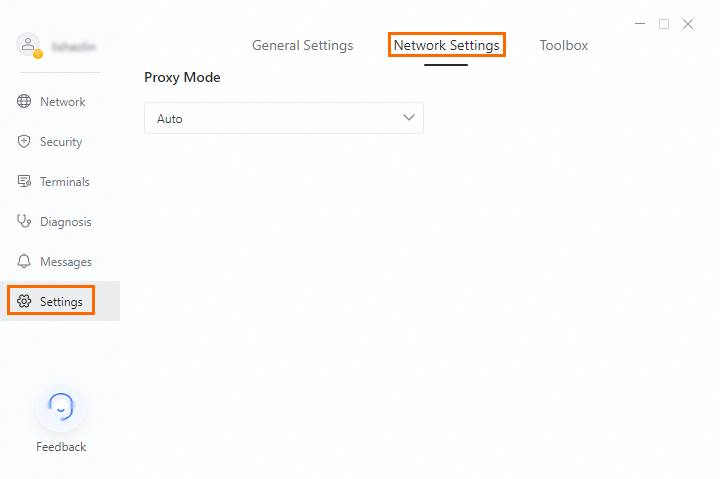
Choose a proxy mode based on your environment:
| Proxy mode | How it works | Best for |
|---|---|---|
| Auto | Intelligently selects the proxy mode based on system information. | Most users — start here if you're unsure. |
| Redirection | Routes traffic through the system kernel via system drivers. | Most scenarios. |
| Routing | Routes traffic through the routing layer. Compatible with security software. | Special scenarios such as minimalist operating systems. |
Toolbox
Navigate to Settings > Toolbox.
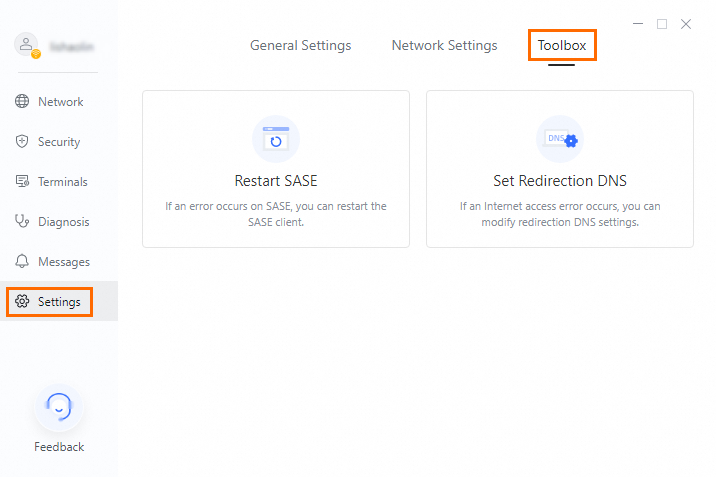
Use Toolbox to recover from SASE service issues.
Restart SASE
When to use: The SASE service is abnormal.
Hover over the Restart SASE area and click Restart to restart the service.
Set Redirection DNS
When to use: Internet access is abnormal.
Hover over the Set Redirection DNS area and click Set.
Configure the DNS settings in the Set Redirection DNS dialog box and click OK.