This topic describes how to use Secure Access Service Edge (SASE) to implement full-link protection for database applications.
Scenarios
You want to restrict database access to only company-issued computers.
You want to audit and block files that are sent from a database to a local device.
Introduction to Secure Access Service Edge
SASE is Alibaba Cloud's one-stop platform for workplace security management. It eliminates the need for enterprises to invest in complex and expensive security hardware. You can quickly build a workplace security system that includes zero trust intranet access, data leakage prevention, internet behavior management and auditing, and accelerated office access. By integrating database applications into the zero trust protection system, you can control access to these applications, audit downloaded files for data exfiltration, and block them when necessary. This achieves full-link protection for database-related data.
Configuration procedure
Step 1: Activate an SASE instance
SASE offers a 7-day free trial. For more information, see Activate SASE. For more information about billing, see Billing overview for Secure Access Service Edge.
Step 2: Configure an identity source
Identity sources are used to provide identity authentication for your employees. SASE supports both third-party and self-managed identity authentication systems, such as LDAP, DingTalk, WeCom, Lark, IDaaS, and custom identity sources. If your business uses multiple identity sources, you can configure all of them. This lets you use the SASE service with your various identity sources.
This topic uses a custom identity source as an example to demonstrate the feature.
Log on to the SASE console.
In the navigation pane on the left, choose .
On the Identity synchronization tab, find Custom IdP. In the Actions column, click Edit and follow the wizard to configure the custom identity source. For more information, see Configure an SASE identity source.
Step 3: Configure a user group
When you configure a policy, you must specify the user group to which the policy applies.
In the navigation pane on the left, choose .
On the User Group Management tab, click Create User Group.
In the Create User Group panel, configure the Organizational Structure, Account Name, Email Address, Mobile Phone Number, and other information for the user group. Then, click OK. For more information, see Configure a user group.
Step 4: Enable network access
In the navigation pane on the left, choose .
On the Network Settings page, click the tab to view the network resources that SASE has synchronized.
Find the target CEN instance or an associated VPC-connected instance, and then turn on the Network Connection switch for that instance.
In the Network Connection dialog box, select Enable Network Connection for All Cloud Applications or Custom Connection to Cloud Applications.
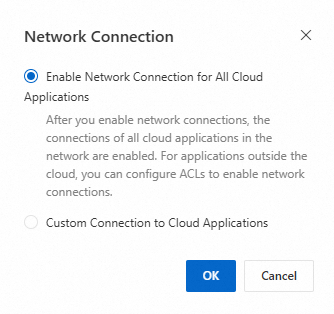
Enable Network Connection for All Cloud Applications: After you select this option, all cloud applications are automatically connected. Non-cloud applications can be connected by configuring ACL rules. Cloud applications that are created in the VPC later are also connected by default.
NoteCurrently, only some cloud-native applications of cloud databases are supported. You can view the supported cloud application types on the tab by checking the Application Type.
Custom Connection to Cloud Applications:
Select Custom Connection to Cloud Applications and click OK.
In the Custom Connection to Cloud Applications panel, select the cloud database instances that you want to connect and click OK.
Step 5: Create a zero trust policy
In the navigation pane on the left, choose .
On the Zero Trust Policies tab, click Create Policy.
In the Create Policy panel, configure the policy to allow authorized users to access RDS applications, and then click OK.

Step 6: Verify the configuration
Open the installed SASE app.
Enter the enterprise verification ID and click OK.
You can log on to the Secure Access Service Edge console. In the navigation pane on the left, on the Settings page, obtain the Enterprise Authentication Identifier.
Log on with the initial account name and password that you received in an email or text message.
Click Connect To Intranet.
Access the RDS application. If the access is successful, the configuration is complete.
Step 7: Configure a data leakage prevention policy in SASE
In SASE, you can configure a control policy to audit and block files that are exported from a database to a local device. For example, you can alert or block users when they try to exfiltrate exported files using cloud storage services, WeChat, DingTalk, or external USB devices. For more information, see Ensure data security by detecting exfiltrated files.