If system policies do not meet your business requirements, you can create custom policies to implement the principle of least privilege. Custom policies allow you to implement fine-grained control over permissions and improve resource access security. This topic describes common scenarios in which you can use custom policies for Secure Access Service Edge (SASE) and provides a policy example.
What is a custom policy?
Resource Access Management (RAM) policies are classified into system policies and custom policies. You can manage custom policies based on your business requirements.
After you create a custom policy, you must attach the policy to a RAM user, RAM user group, or RAM role. This way, the permissions that are specified in the policy can be granted to the principal.
You can delete a RAM policy that is not attached to a principal. If the RAM policy is attached to a principal, before you can delete the RAM policy you must detach the RAM policy from the principal.
Custom policies support version control. You can manage custom policy versions based on the version management mechanism provided by RAM.
References
Custom policy example for SASE
Procedure
Log on to the RAM console as a RAM administrator.
In the left-side navigation pane, choose .
On the Policies page, click Create Policy.
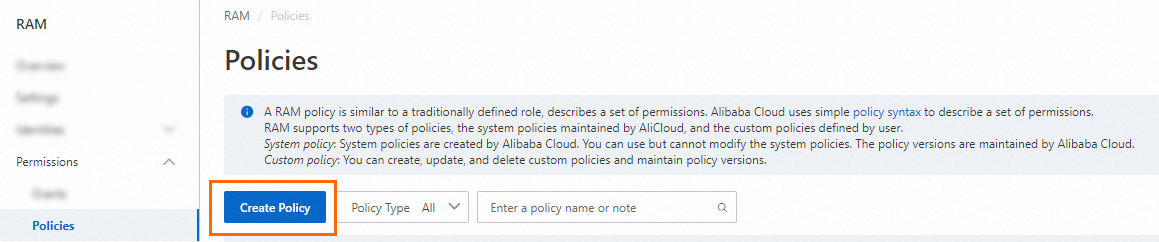
On the Create Policy page, click the JSON tab.
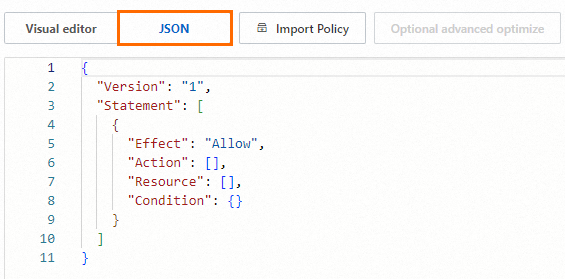
Enter the policy document and click OK.
{
  "Statement": [{
    "Effect": "Allow",
    "Action": "csas:*",
    "Resource": "*"
  }],
  "Version": "1"
}
In the Create Policy dialog box, configure the Name and Description parameters and click OK.
In the left-side navigation pane, choose . On the page that appears, find the RAM user to which you want to grant the permissions specified in the created custom policy, and click Add Permissions in the Actions column.
In the Grant Permission panel, select the custom policy that you created, and click Grant permissions.
After you grant the permissions to the RAM user, O&M personnel of your enterprise can log on to the SASE console as the RAM user to perform O&M operations.