You can adjust probe feature switches, sampling policies, and other common settings on the Custom Configuration tab.
Access the feature
On the homepage of Serverless App Engine (SAE), navigate to Applications.
Select the application and click on its name.
Navigate to Application Monitoring.
Click the Configuration tab.
Select Custom Configurations in the drop-down menu.
Sampling settings
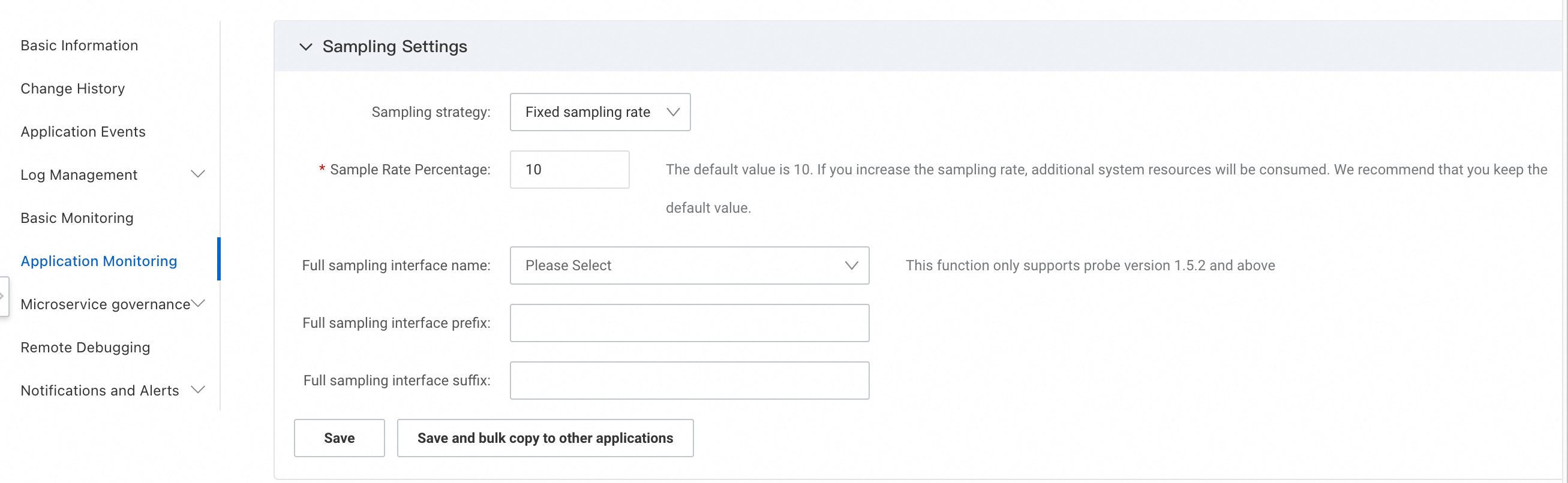
In the Sampling Settings area, configure sampling policies for call chains. Sampling by interface name, interface prefix, and interface suffix at a fixed sampling rate are supported.
Agent switch settings
In the Probe switch settings section, you can enable or disable application monitoring and select the plug-ins that you want to use.
The enabling or disabling of application monitoring takes effect immediately without the need to restart the application. If you disable application monitoring, the system cannot monitor the application. Proceed with caution.
If you modify a plug-in switch, you must manually restart the application to ensure that the modification takes effect.

Application log association configuration
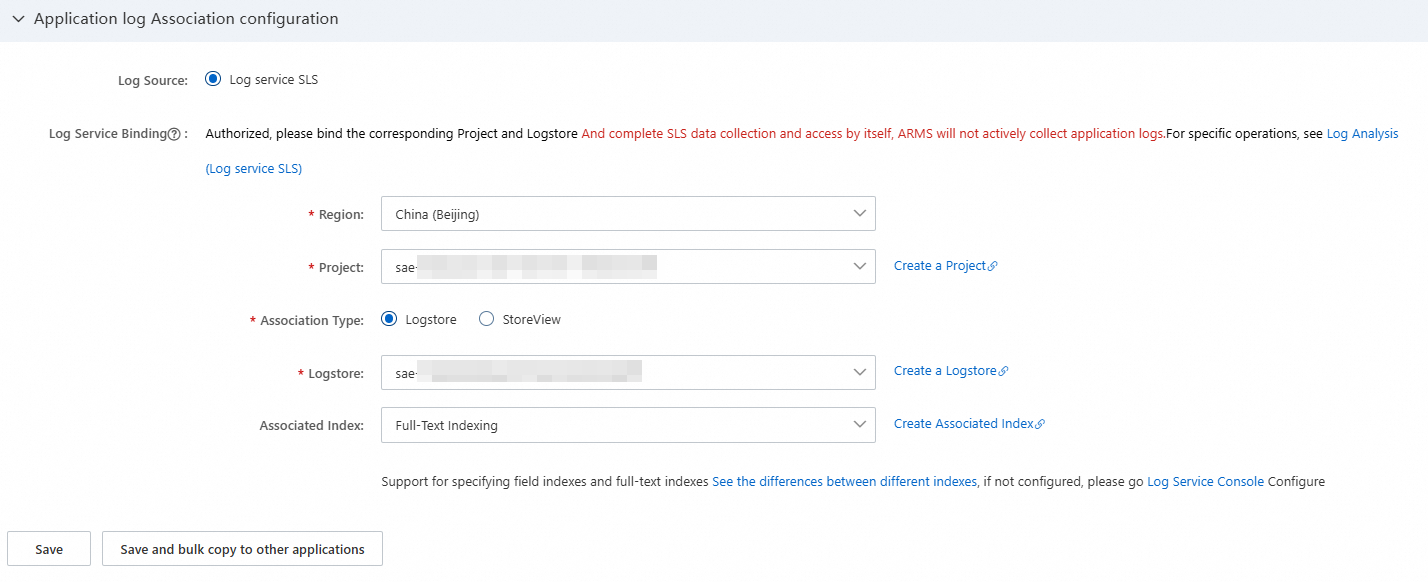
In the Application log association configuration area, configure the log source information associated with the application, to print SpanId and TraceId on corresponding logs.
Copy application settings to other applications
You can copy the settings of an application to other applications.
Copy a single configuration item to other applications
In the section of the configuration item, click Save and bulk copy to other applications.
If the Current settings not saved message appears, click Save to save the configuration and then click Save and bulk copy to other applications.
In the dialog box that appears, select a specific application or all other applications and click OK.
Copy all configuration items to other applications
In the lower part of the page, click Save and bulk copy to other apps.
If the Current settings not saved message appears, click Save to save the configurations and then click Save and bulk copy to other applications.
In the dialog box that appears, select a specific application or all other applications and click OK.
Globally apply application settings
You can globally apply the current application settings. If you create a new application, the settings are used by default.
In the lower part of the page, click Save current app settings as global default configuration.
If the Current settings not saved message appears, click Save to save the configurations and then click Save current app settings as global default configuration.
In the message that appears, click OK.