Use a resource import scenario in Resource Orchestration Service (ROS) to generate a template from existing resources, then modify it for batch deployment.
Use cases
To deploy a web application, tag all related resources withapp:web to filter them during resource import. After generating a template, add parameters to make it reusable, then create a stack to batch-deploy the following resources:
-
One VPC
-
One vSwitch
-
One security group
-
Two ECS instances
-
One SLB instance
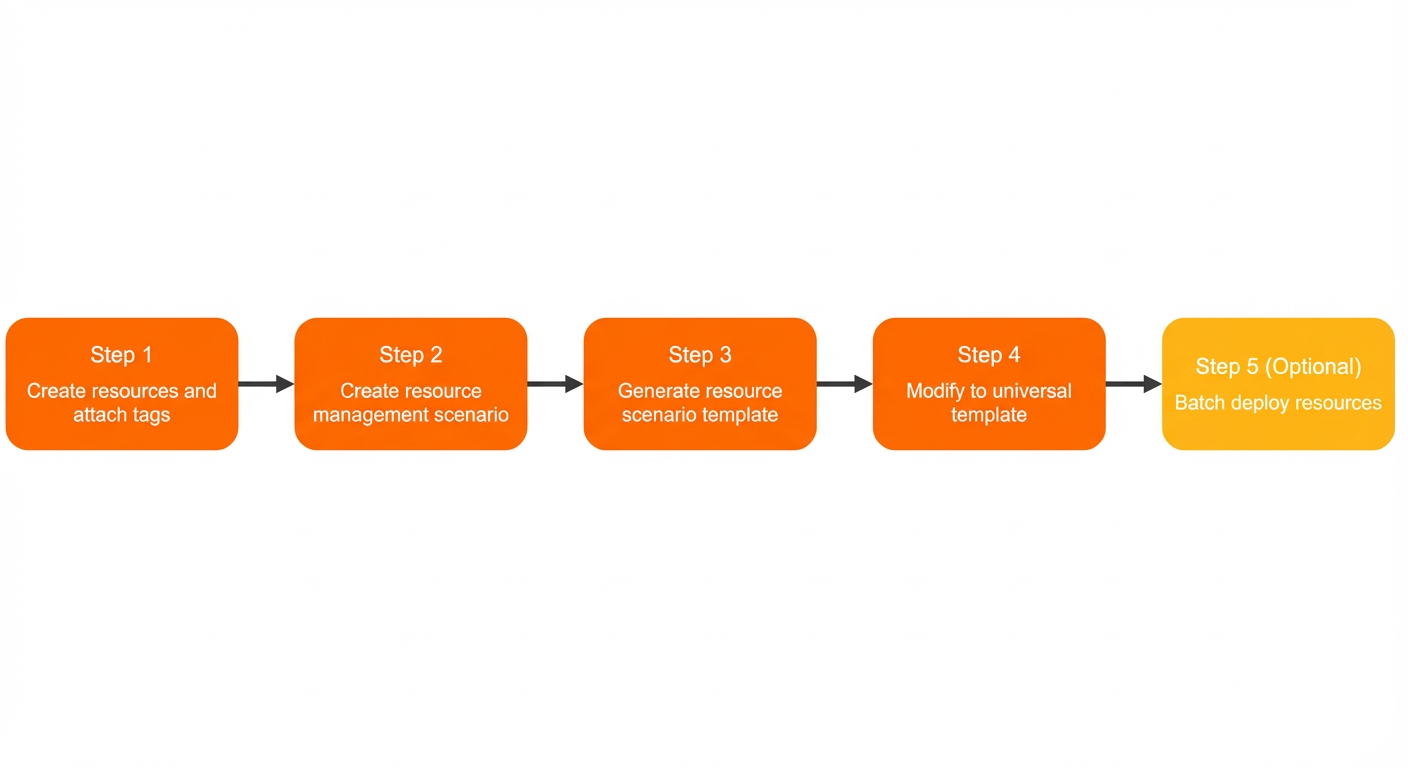
Step 1: Create resources and add tags
Create the required resources in their respective consoles and add the tagapp:web (tag keyapp, tag valueweb). What are tags?
For existing resources, you only need to add tags.
-
In the VPC console, create a VPC and a vSwitch, and add the tag
app:webto them.Create a VPC. Add tags to a VPC.
NoteTo add a tag to a vSwitch, follow the same procedure as for a VPC. Click the
 icon in the Tags column for the target vSwitch.
 -
In the ECS console, create a security group for a VPC, set Network to the VPC that you created in Step 1, and add the tag
app:web. -
Create two ECS instances and add the tag
app:web. -
In the SLB console, create an SLB instance (this example uses an Application Load Balancer instance) and add the tag
app:web.
Step 2: Create a resource import scenario
Create a resource import scenario to filter the resources from Step 1: Create resources and add tags.
-
Log on to the ROS console.
-
In the left-side navigation pane, click Scenarios.
-
From the region drop-down list in the top navigation bar, select the region for the resource scenario.
-
On the Scenarios page, click Create Scenario.
-
In the Create Scenario dialog box, enter a description for the scenario and select Resource Management as the scenario type.
-
Define the scope of resources.
-
In the Method section, select Source Tag.
-
In the Source Tag section, set Tag Key to
appand Tag Value toweb.
In the Description field, enter
web-app. Click Generate Scenario. -
-
Set the Delete Resource for the resource scenario to Retain.
NoteSelect Retain to preserve the existing resources when the stack is deleted.
-
Click Create.
After the resource scenario is created, its Status changes to Created.
Step 3: Generate a template
-
On the Scenarios page, click the ID of the target resource scenario.
-
On the resource scenario management page, click Create Template in the upper-right corner.
The template supports JSON and YAML formats. The following example uses YAML.
The basic structure of the template is as follows:
ROSTemplateFormatVersion: '2015-09-01' # The version of the template syntax.
Resources: {} # A list of resources.-
ROSTemplateFormatVersion: The version of the template syntax. The value is fixed at2015-09-01. -
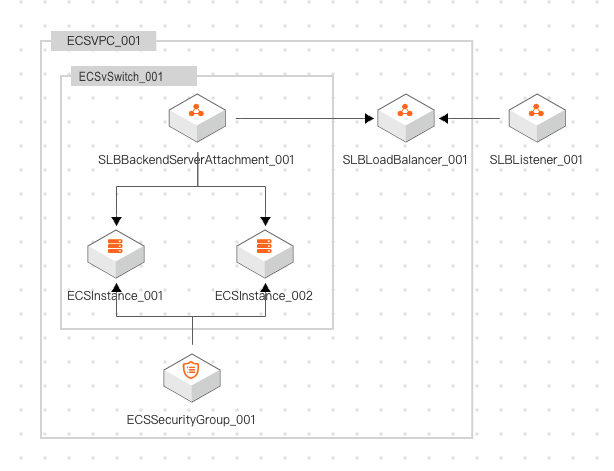
Resources: A list of resources, including their properties and dependencies. The list includes the resources from Step 1: Create resources and add tags:-
One VPC: ECSVPC_001.
-
One vSwitch: ECSVSwitch_001.
-
One security group: ECSSecurityGroup_001.
-
Two ECS instances: ECSInstance_001 and ECSInstance_002, which are collectively referred to as ECSInstance_00X.
-
One SLB instance, which includes SLBLoadBalancer_001 and SLBBackendServerAttachment_001.
The following figure shows the resource architecture.
-
Step 4: Make the template reusable
The generated template hard-codes resource property values from Step 1: Create resources and add tags. To make the template reusable, replace hard-coded values such as availability zones and instance types with parameters, and add outputs.
Before
ROSTemplateFormatVersion: '2015-09-01' # The version of the template syntax.
Resources: {} # A list of resources.
After
ROSTemplateFormatVersion: '2015-09-01' # The version of the template syntax.
Description: {} # Describes the use case and architecture of the template.
Parameters: {} # Customized parameters extracted from hard-coded values.
Resources: {} # A list of resources.
Outputs: {} # Returns information such as resource properties. You can retrieve the output content from the console or by calling an API operation.Mapping between resource properties and parameters
|
Resource name |
Properties to parameterize |
Outputs to add |
|
VPC: ECSVPC_001 |
VPC CIDR block ( |
None |
|
vSwitch: ECSVSwitch_001 |
Availability zone ID ( |
None |
|
vSwitch CIDR block ( |
||
|
Security group: ECSSecurityGroup_001 |
None |
None |
|
ECS instance: ECSInstance_00X |
Availability zone ID ( |
ECS instance ID ( |
|
ECS instance type ( |
||
|
ECS system disk category ( |
||
|
SLB instance: SLBLoadBalancer_001 |
Primary availability zone ID ( |
IP address of the SLB instance ( |
|
Backup availability zone ID ( |
||
|
SLB instance specification ( |
Template modification
Reusable template
ROSTemplateFormatVersion: '2015-09-01'
Parameters:
ZoneId:
Type: String
AssociationProperty: ALIYUN::ECS::Instance:ZoneId
Description: The ID of the availability zone.
Label: Availability Zone
SlaveZoneId:
Type: String
Description: The ID of the backup availability zone.
Label: SLB Backup Zone
VpcCidrBlock:
Type: String
Label: VPC IPv4 CIDR Block
Description: The IPv4 address range of the VPC.
Default: 172.16.0.0/12
VSwitchCidrBlock:
Type: String
Label: vSwitch CIDR Block
Description: Must be a subnet of the VPC.
Default: 172.16.0.0/24
ECSInstanceType:
Type: String
Description: The instance type of the ECS instance.
Label: Instance Type
AssociationProperty: ALIYUN::ECS::Instance::InstanceType
AssociationPropertyMetadata:
ZoneId: ZoneId
SystemDiskCategory:
Type: String
Description: The category of the system disk.
AssociationProperty: ALIYUN::ECS::Disk::SystemDiskCategory
AssociationPropertyMetadata:
ZoneId: ZoneId
InstanceType: ECSInstanceType
Label: System Disk Category
LoadBalancerSpec:
Type: String
AssociationProperty: ALIYUN::SLB::Instance::InstanceType
Description: The specification of the SLB instance.
Label: SLB Specification
AssociationPropertyMetadata:
ZoneId: ZoneId
Default: slb.s1.small
Resources:
ECSVPC_001:
Type: ALIYUN::ECS::VPC
Properties:
CidrBlock:
Ref: VpcCidrBlock
VpcName: web-vpc
EnableIpv6: false
Description: web-vpc
Tags:
- Value: web
Key: app
ECSVSwitch_001:
Type: ALIYUN::ECS::VSwitch
Properties:
VSwitchName: web-vsw
VpcId:
Ref: ECSVPC_001
Description: web-vsw
Tags:
- Value: web
Key: app
ZoneId:
Ref: ZoneId
CidrBlock:
Ref: VSwitchCidrBlock
DependsOn:
- ECSVPC_001
ECSSecurityGroup_001:
Type: ALIYUN::ECS::SecurityGroup
Properties:
VpcId:
Ref: ECSVPC_001
Description: web-sg
SecurityGroupName: web-sg
Tags:
- Value: web
Key: app
SecurityGroupIngress:
- PortRange: 80/80
NicType: intranet
Priority: 1
SourceCidrIp: 0.0.0.0/0
Policy: accept
IpProtocol: tcp
- PortRange: 443/443
NicType: intranet
Priority: 1
SourceCidrIp: 0.0.0.0/0
Policy: accept
IpProtocol: tcp
- PortRange: 22/22
NicType: intranet
Priority: 1
SourceCidrIp: 0.0.0.0/0
Policy: accept
IpProtocol: tcp
SecurityGroupType: normal
DependsOn:
- ECSVPC_001
ECSInstance_001:
Type: ALIYUN::ECS::Instance
Properties:
DeletionProtection: true
SystemDiskCategory:
Ref: SystemDiskCategory
VpcId:
Ref: ECSVPC_001
Description: web-ecs
Tags:
- Value: web
Key: app
VSwitchId:
Ref: ECSVSwitch_001
SystemDiskSize: 40
ImageId: centos_7_9_x64_20G_alibase_2022****.vhd
SpotStrategy: NoSpot
AllocatePublicIP: false
InstanceChargeType: PostPaid
IoOptimized: optimized
SecurityGroupIds:
- Ref: ECSSecurityGroup_001
InternetChargeType: PayByTraffic
ZoneId:
Ref: ZoneId
InstanceName: web-ecs002
InstanceType:
Ref: ECSInstanceType
SystemDiskPerformanceLevel: PL0
DependsOn:
- ECSSecurityGroup_001
- ECSVSwitch_001
- ECSVPC_001
ECSInstance_002:
Type: ALIYUN::ECS::Instance
Properties:
DeletionProtection: true
SystemDiskCategory:
Ref: SystemDiskCategory
VpcId:
Ref: ECSVPC_001
Description: web-ecs
Tags:
- Value: web
Key: app
VSwitchId:
Ref: ECSVSwitch_001
SystemDiskSize: 40
ImageId: centos_7_9_x64_20G_alibase_2022****.vhd
SpotStrategy: NoSpot
AllocatePublicIP: false
InstanceChargeType: PostPaid
IoOptimized: optimized
SecurityGroupIds:
- Ref: ECSSecurityGroup_001
InternetChargeType: PayByTraffic
ZoneId:
Ref: ZoneId
InstanceName: web-ecs001
InstanceType:
Ref: ECSInstanceType
SystemDiskPerformanceLevel: PL0
DependsOn:
- ECSSecurityGroup_001
- ECSVSwitch_001
- ECSVPC_001
SLBListener_001:
Type: ALIYUN::SLB::Listener
Properties:
AclStatus: 'off'
Protocol: tcp
Description: tcp_80
HealthCheck:
Interval: 2
HealthyThreshold: 3
Switch: 'on'
UnhealthyThreshold: 3
HealthCheckType: tcp
LoadBalancerId:
Ref: SLBLoadBalancer_001
ListenerPort: 80
Bandwidth: -1
BackendServerPort: 80
Scheduler: tch
StartListener: true
Persistence:
PersistenceTimeout: 0
DependsOn:
- SLBLoadBalancer_001
SLBLoadBalancer_001:
Type: ALIYUN::SLB::LoadBalancer
Properties:
DeletionProtection: false
VpcId:
Ref: ECSVPC_001
AddressIPVersion: ipv4
Tags:
- Value: web
Key: app
SupportPrivateLink: true
PayType: PayOnDemand
AddressType: intranet
VSwitchId:
Ref: ECSVSwitch_001
LoadBalancerName: web-slb
InternetChargeType: paybytraffic
LoadBalancerSpec:
Ref: LoadBalancerSpec
MasterZoneId:
Ref: ZoneId
SlaveZoneId:
Ref: SlaveZoneId
DependsOn:
- ECSVPC_001
- ECSVSwitch_001
SLBBackendServerAttachment_001:
Type: ALIYUN::SLB::BackendServerAttachment
Properties:
BackendServers:
- ServerId:
Ref: ECSInstance_001
Type: ecs
Weight: 100
- ServerId:
Ref: ECSInstance_002
Type: ecs
Weight: 100
LoadBalancerId:
Ref: SLBLoadBalancer_001
DependsOn:
- SLBLoadBalancer_001
- ECSInstance_001
- ECSInstance_002
Outputs:
  ECSInstance_001:
    Description: The instance ID of the created ECS instance.
    Value:
      Fn::GetAtt:
        - ECSInstance_001
        - InstanceId
  ECSInstance_002:
    Description: The instance ID of the created ECS instance.
    Value:
      Fn::GetAtt:
        - ECSInstance_002
        - InstanceId
SLBListenerIpAddress:
Description: The IP address of the load balancer.
Value:
Fn::GetAtt:
- SLBLoadBalancer_001
- IpAddress(Optional) Step 5: Deploy resources in batches
Use the reusable template to create a stack and batch-deploy resources.
-
In the ROS console, use the reusable template from Step 4: Make the template reusable to create a stack. On the Configure Template Parameters page, set parameters such as Availability Zone (for example, China (Hangzhou) Zone I), SLB Backup Zone, VPC IPv4 CIDR Block (for example, 172.16.0.0/12), and vSwitch CIDR Block. Then, select an Instance Type, such as
ecs.c7.large(a c7 compute-optimized instance with 2 vCPUs and 4 GiB of memory). -
On the stack details page, click the Parameter tab to view details about the deployed resources.