You can use a case and space detection tag policy to validate the capitalization and spacing of tags on resources in your Alibaba Cloud account or resource directory. This feature automatically identifies tags that do not conform to your standards, helping you maintain consistent tags.
Prerequisites
The tag policy feature is enabled. For more information, see Enable the tag policy feature.
The
AliyunTagAdministratorAccesspolicy is attached to the Resource Access Management (RAM) user that you use to perform the steps in this topic.
Supported Alibaba Cloud services
For a list of Alibaba Cloud services that support automatic tag detection, see the Support for automatic tag detection and remediation column in the "Services that support tag policies" section.
Detection rules
Similar tag detection
If two tags have the same key and value after leading and trailing spaces are removed and case is ignored, they are considered similar tags. For example,
"Env":"Prod"and" env ":" prOd"are similar tags. However,"Env":"Prod"and"Env":"Pro d"are not similar tags because spaces in the middle of a value are not ignored.NoteThe similar tag definition is used for evaluation purposes. The final compliance report categorizes resources only as compliant, non-compliant, or not applicable.
Compliance evaluation
Compliant: A resource is considered compliant if its tag key and value exactly match the standards that are defined in the policy. This includes the correct case and no leading or trailing spaces.
Non-compliant: A resource is considered non-compliant if it has a similar tag, but the tag key and value do not exactly match the standards that are defined in the policy.
Not applicable: A resource is considered not applicable if it does not have any similar tags.
For example, assume you define a standard tag key as Env with allowed values of Prod or Test. In this case:
Resource A with the tag
"Env":"Prod"→ CompliantResource B with the tag
"Env":"Test"→ CompliantResource C with the tag
"Env":"prod"→ Non-compliantResource D with the tag
" env ":"prod "→ Non-compliantResource E with the tag
"dep":"a"→ Not applicableResource F with the tag
"Env":"Pro d"→ Not applicable
Procedure
This example demonstrates how to create a tag policy that detects non-compliant tags on resources within the current account. For this example, the policy defines the standard tag key as Env with the allowed value Prod. The policy will then find non-compliant tags, such as "env:Prod", "Env:proD", or "Env":" Prod", because they have incorrect capitalization or include extraneous spaces.
Step 1: Create a tag policy
Log on to the Resource Management console.
In the left-side navigation pane, choose .
On the Policy Library page, click the Policy Library tab and then the Current Account subtab. Then, click Create Tag Policy.
On the Create Tag Policy page, configure the parameters.
Set the Policy Name and Policy Description field.
In the Details section, click the Quick Mode tab.
In the Add Policy Scenario and Tag Key section, select Case and Space Detection.
Enter
Envin the Tag Key field.Enter
Prodin the Specify Allowed Tag Values field.
Click Create.
Step 2: Attach the tag policy
Attach the tag policy that you created in Step 1 to the current account. After the policy is attached, it becomes effective and starts evaluating resources in the account.
On the Policy Library page, click the Policy Library tab and then the Current Account subtab. Find the policy that you just created in the policy list.
Click Attach in the Actions column.
In the Attach dialog box, click Attach. The tag policy is attached to the Alibaba Cloud account that you use for logon.
(Optional) Step 3: View the effective policy
When multiple policies are attached to the same account, they are aggregated into a single effective policy. For more information, see View an effective policy.
Step 4: View and download the non-compliance report
After the detection task runs, you can view the compliance report.
The report lists all detected non-compliant resources and is available for viewing in the console or for download.
In the left-side navigation pane, choose .
Click the Current Account tab.
Click the tag key
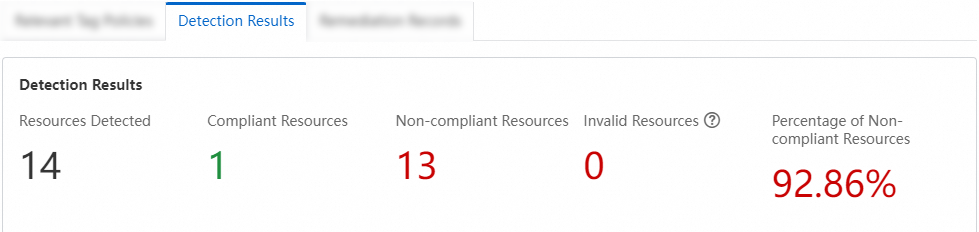
Envor click Details in the Actions column to open the policy details page.On the Detection Results tab, view the compliance status of your resources.
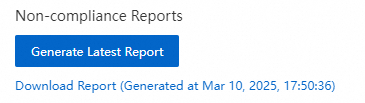
In the Non-compliance Reports section, you can generate and download a report of detected non-compliant resources in Excel format.
What to do next
You can correct the tags on non-compliant resources manually, or configure a policy to remediate them automatically. For information about how to use a tag policy to perform automatic tag remediation, see Enable automatic tag remediation.
After the remediation is complete, you can view the detection results again to verify the changes.