You can delete members of the resource account type. Deleting a member permanently removes all its resources and data. You can no longer sign in to or use the account.
You cannot recover a resource account-type member after deleting it. This action is irreversible. Please proceed with caution.
Workflow
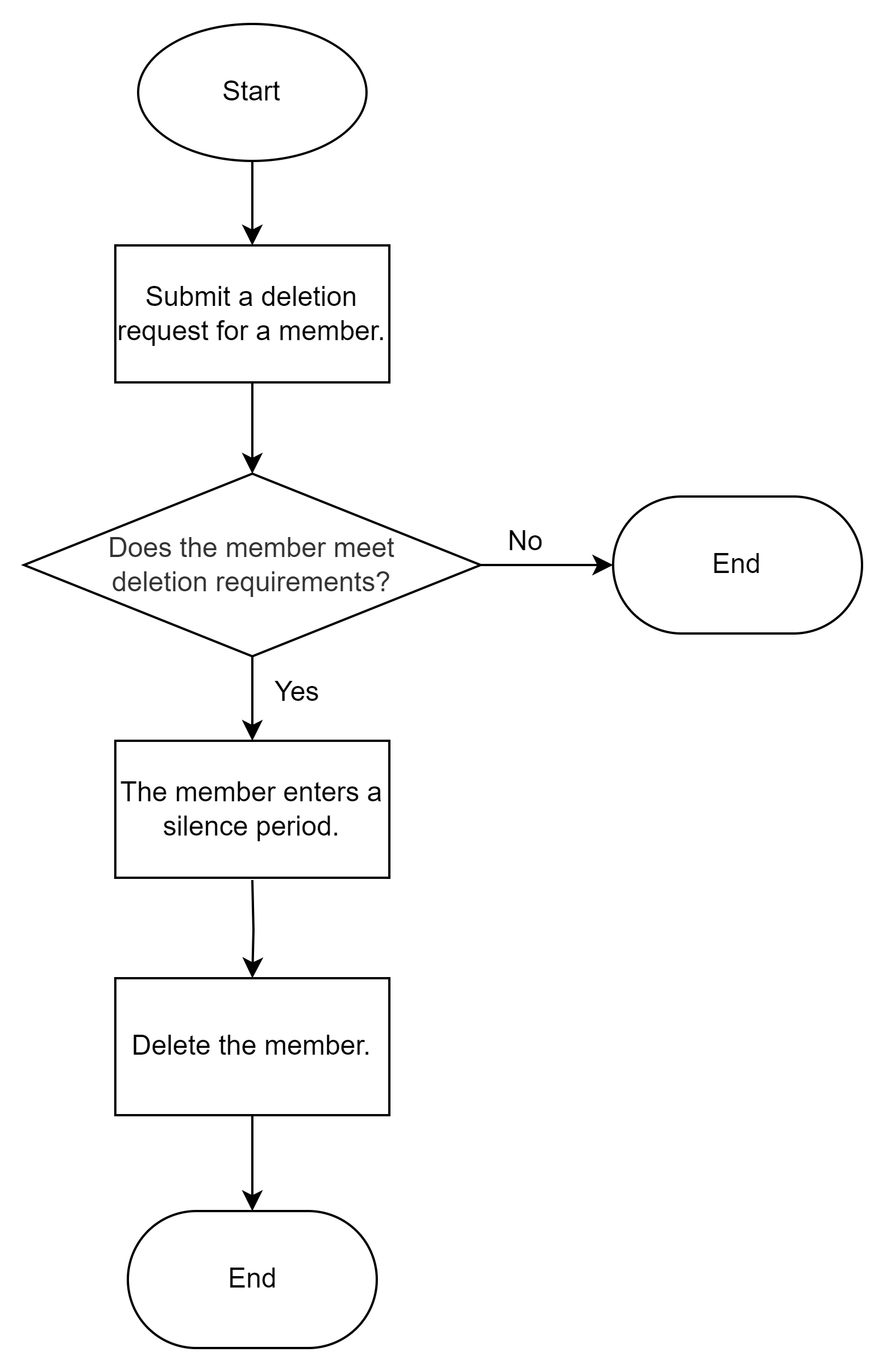
Pre-deletion checks
Resource Directory checks
Before a member is deleted, the system automatically checks whether the following Resource Directory conditions are met:
Member deletion permission check
You can delete a member only after you enable the member deletion permission. For more information, see Enable the member deletion permission.
Operator check
As a security best practice, you can delete a member only by using a RAM User with administrative permissions (
AliyunResourceDirectoryFullAccess) under the Management Account. You cannot use the root user of the Management Account to delete a member. For more information, see Create a RAM user.Deletion target (member) check
You cannot delete a Delegated Administrator Account.
You must first remove the role from the Delegated Administrator Account before you can delete the member. For more information, see Remove a delegated administrator account.
You can only delete members that were created in Resource Directory (members of the resource account type).
You can only remove Alibaba Cloud accounts that were invited to join your Resource Directory (members of the Alibaba Cloud account type) from the Resource Directory. You cannot delete them within Resource Directory. To delete these accounts, follow the standard deletion process for an Alibaba Cloud account.
Account checks
Before you delete a member, the system automatically checks whether the member meets the following conditions. If a member fails a check, implement the proposed solution before trying to delete the member again.
Category | Condition | Solution | Actions |
Financial checks | The member has outstanding bills. | Settle the bills before you delete the member. | |
The member has an invoice that is being issued. | Wait for the invoice to be issued or cancel the request before you delete the member. | None | |
The member has an overdue invoice. | Return the invoice before you delete the member. | None | |
Resource checks | The member has domain names. | Wait for the domain names to expire or transfer them to another account before you delete the member. | |
The member has active subscription resource instances that have not expired. | Unsubscribe from the resources before you delete the member. | ||
The member used Pay-As-You-Go resource instances in the last 30 days. | After submitting the deletion request, the member enters a Silence Period. The member is automatically deleted after the Silence Period ends. | None |
Procedure
Log on to the Resource Management console.
-
In the navigation pane on the left, choose .
On the Resource Organization View or Member List View tab, find the target member of the resource account type. In the Actions column, click the more icon (
 ) and select Delete.
In the Delete Member dialog box, carefully read the on-screen information, enter the account name of the member, and then click Deletion Check.
The pre-deletion check takes 3 to 5 minutes to complete. You can click Run in Background to close the dialog box and monitor the status of the pre-deletion check in the Status column.
After the pre-deletion check is successfully completed, in the Actions column, click the more icon () and select View Deletion Check Results. Then, click Delete.
After the deletion check is complete, proceed based on the result:
Check passed
The member enters the Silence Period. During this period, the member is unavailable. After the Silence Period ends, the system automatically starts the deletion process, which you cannot stop. For information about when the Silence Period ends, see FAQ about managing members.
Check failed
Manually resolve the issues according to the on-screen instructions. Then, try deleting the member again.
Next steps
After deleting a member, you can view the record of the DeleteAccount event in ActionTrail. For more information, see Query events in the ActionTrail console.