When requests concentrate on a small set of keys in a Tair (Redis OSS-compatible) instance, those keys become hotkeys. Traffic concentration can saturate the network interface and cause service degradation or downtime. Use the audit log feature to look up and analyze hotkeys from past traffic.
This page covers historical hotkey data from audit logs. To monitor hotkeys in real time, see Use the real-time key statistics feature.
Prerequisites
Before you begin, make sure you have:
The audit log feature enabled for your instance. See Enable the audit log feature.
Simple Log Service management permissions granted to your Resource Access Management (RAM) user.
To grant full access, attach the AliyunLogFullAccess system policy. See Grant permissions to a RAM user.
To restrict access to the audit Logstores of your Tair instances only, create a custom policy:
{
  "Version": "1",
  "Statement": [
    {
      "Action": "log:*",
      "Resource": "acs:log:*:*:project/nosql-*",
      "Effect": "Allow"
    }
  ]
}
How hotkey detection works
Tair identifies hotkeys using efficient sorting and statistical algorithms built on top of the Least Frequently Used (LFU) algorithm. A key is classified as a hotkey when its queries per second (QPS) exceeds the threshold:
| Instance version | Statistical algorithm | QPS threshold |
|---|---|---|
| Redis Open-Source Edition 7.0.18, 6.0.2.9, or 5.5.2.9; Tair DRAM-based version 5.0.50, 24.5.1.0, or later | Direct and accurate algorithm | 5,000 |
| Earlier versions | Approximate algorithm | 3,000 (approximate range shown only when QPS < 6,000; 6,000 is the maximum displayable value) |
Query historical hotkeys
Log on to the console and go to the Instances page. In the top navigation bar, select the region where your instance resides, then click the instance ID.
In the left-side navigation pane, choose Logs > Audit Logs.
On the Audit Logs page, click the Official Version tab. In the upper-right corner, click Time Range and specify the time range to query. For example, select 1 Week to query the previous week.
In the Keyword field, clear the default filters, enter
type:7, and press Enter. Thetype:7filter returns hotkey records.In the Audit log detail section, review the hotkey records.
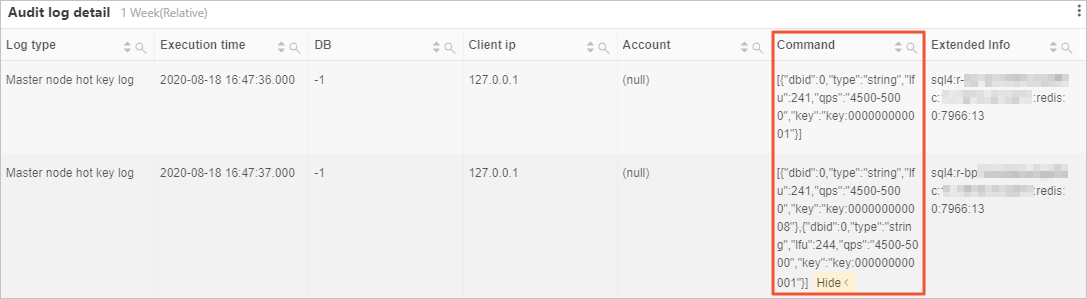
The Client ip column displays 127.0.0.1, the local host IP address of the Tair instance.Read the results
Each hotkey entry appears in the Command column as a JSON object. The following table describes the fields.
| Field | Example value | Description |
|---|---|---|
dbid | "dbid":0 | The database where the hotkey resides. |
type | "type":"string" | The data structure type of the hotkey. |
lfu | "lfu":241 | The LFU value of the hotkey. This field is no longer used and is fixed to 0 for Redis Open-Source Edition 7.0.18, 6.0.2.9, or 5.5.2.9 instances and Tair DRAM-based instances of version 5.0.50 or later. |
qps | "qps":"6000" | The QPS of the hotkey. For Redis Open-Source Edition 7.0.18, 6.0.2.9, or 5.5.2.9 instances and Tair DRAM-based instances of version 5.0.50 or later, this is the exact QPS. For earlier versions, this is an approximate range when QPS is below 6,000 (for example, "qps":"4500-5000"); 6000 indicates the maximum displayable value. |
key | "key":"key:000000000008" | The hotkey. |
What's next
Use the real-time key statistics feature — monitor hotkeys as they occur.