ApsaraDB RDS for SQL Server supports Linked Server, letting you query data from a self-managed (on-premises) SQL Server instance directly within your RDS instance. This is useful for cross-region data access, data merging and analysis, and data migration and synchronization.
This topic walks you through connecting your RDS instance to an on-premises SQL Server instance over a VPN, then creating a Linked Server so you can run cross-instance queries.
Prerequisites
Before you begin, make sure that:
Your ApsaraDB RDS for SQL Server instance meets all of the following requirements:
Runs RDS Cluster Edition or RDS High-availability Edition. RDS Basic Edition is not supported.
Belongs to the general-purpose or dedicated instance family. The shared instance family is not supported.
Uses a subscription or pay-as-you-go billing method. Serverless RDS instances are not supported.
The private IP address range of your on-premises network and the virtual private cloud (VPC) associated with your RDS instance do not overlap. Overlapping CIDR blocks cause communication failures.
Your on-premises machine can access the network.
Billing
VPN Gateway usage incurs charges. For details, see Billing of VPN Gateway.
Step 1: Establish a VPN connection
Connect your VPC to your on-premises network using Alibaba Cloud VPN Gateway. This involves creating a VPN gateway, an SSL server, an SSL client certificate, and then configuring the OpenVPN client on the on-premises machine.
1.1. Create a VPN gateway
Log on to the VPN Gateway console.
In the top navigation bar, select the region where you want to create the VPN gateway.Default value: Standard.
The VPN gateway must reside in the same region as the VPC associated with your RDS instance.
On the VPN Gateways page, click Create VPN Gateway.
On the buy page, configure the parameters and click Buy Now, then complete the payment. After the VPN gateway is created, the system assigns it a public IP address for establishing IPsec-VPN connections.
For regions that support only one zone (China (Nanjing - Local Region), Thailand (Bangkok), South Korea (Seoul), Philippines (Manila), UAE (Dubai), and Mexico), cross-zone disaster recovery is not supported. Specify two vSwitches in the same zone for high availability.
Parameter Description Instance Name The name of the VPN gateway. Resource Group The resource group to which the VPN gateway belongs. If left blank, the VPN gateway is added to the default resource group. Region The region of the VPN gateway. Must match the region of the associated VPC. Gateway Type The type of VPN gateway. Default: Standard. Network Type Public: establishes VPN connections over the internet. Private: establishes VPN connections over private networks. Tunnels The tunnel mode: Single-tunnel or Dual-tunnel. For more information, see [Upgrade notice] IPsec-VPN connections support the dual-tunnel mode. VPC The VPC to associate with the VPN gateway. vSwitch The vSwitch to associate with the VPN gateway. For dual-tunnel mode, specify two vSwitches in different zones for cross-zone disaster recovery. Peak Bandwidth The maximum bandwidth of the VPN gateway, in Mbit/s. Traffic
The metering method of the VPN gateway. Default value: Pay-by-data-transfer.
Traffic The metering method. Default: Pay-by-data-transfer. IPsec-VPN Specifies whether to enable IPsec-VPN. Default: Enable. Must be enabled to establish an IPsec-VPN connection. SSL-VPN Specifies whether to enable SSL-VPN. Default: Disable. Billing Cycle The billing cycle. Default: By Hour. The billing cycle of the VPN gateway. Default value: By Hour.
Service-linked Role Click Create Service-linked Role to create the AliyunServiceRoleForVpnrole automatically. If Created is displayed, the role already exists.
What's next: After creating the VPN gateway, create a customer gateway to register the IP address and autonomous system number (ASN) of the Border Gateway Protocol (BGP) of your on-premises gateway device with Alibaba Cloud. For details, see Create and manage a customer gateway.
1.2. Create an SSL server
Log on to the VPN Gateway console.
In the left-side navigation pane, choose Interconnections > VPN > SSL Servers.
In the top navigation bar, select the region of the SSL server.
The SSL server and VPN gateway must reside in the same region.
On the SSL Servers page, click Create SSL Server.
In the Create SSL Server panel, configure the following parameters and click OK. Recommended client CIDR block sizes based on SSL-VPN connection count:
Parameter Description Name The name of the SSL server. Resource Group Must match the resource group of the VPN gateway. VPN Gateway The VPN gateway to associate with the SSL server. SSL-VPN must be enabled on the gateway. Local Network The CIDR block that clients access through the SSL-VPN connection, such as the VPC CIDR block or a vSwitch CIDR block. Add up to five local CIDR blocks. The subnet mask must be 8–32 bits. Client CIDR Block The CIDR block from which IP addresses are assigned to connecting clients. Must not overlap with the local CIDR block or VPC CIDR block. The subnet mask must be 16–29 bits.
Make sure that the number of IP addresses in the client CIDR block is at least four times the maximum number of SSL-VPN connections supported by the VPN gateway.
Protocol The protocol used by the SSL-VPN connection. Default: TCP (Recommended). Port The port used by the SSL server. Valid values: 1–65535. Default: 1194. Ports 22, 2222, 22222, 9000, 9001, 9002, 7505, 80, 443, 53, 68, 123, 4510, 4560, 500, and 4500 are not supported. Encryption Algorithm The encryption algorithm for SSL-VPN connections. For OpenVPN 2.4.0 and later, the SSL server negotiates the algorithm dynamically. For earlier versions, specify one of: AES-128-CBC, AES-192-CBC, AES-256-CBC, or none. Compressed Specifies whether to compress data transmitted over the SSL-VPN connection. Default: No. Two-factor Authentication Specifies whether to enable two-factor authentication using IDaaS EIAM. Disabled by default. For details, see SSL-VPN two-factor authentication. 

The client initiates an SSL-VPN connection request.
After the VPN gateway receives the request, the VPN gateway verifies the SSL client certificate of the client. After the client passes the authentication, you need to enter the username and password on the client.
Then, the VPN software passes the username and password to the VPN gateway.
After the VPN gateway receives the username and password, it sends them to IDaaS for authentication.
IDaaS verifies the username and password, and returns the authentication result to the VPN gateway.
The VPN gateway accepts or denies the SSL-VPN connection request based on the authentication result.
SSL-VPN connections Recommended subnet mask 5 /27 or shorter (e.g., 10.0.0.0/27) 10 /26 or shorter (e.g., 10.0.0.0/26) 20 /25 or shorter (e.g., 10.0.0.0/25) 50 /24 or shorter (e.g., 10.0.0.0/24) 100 /23 or shorter (e.g., 10.0.0.0/23) 200 /22 or shorter (e.g., 10.0.0.0/22) 500 /21 or shorter (e.g., 10.0.0.0/21) 1,000 /20 or shorter (e.g., 10.0.0.0/20)
1.3. Create an SSL client certificate
Log on to the VPN Gateway console.
In the left-side navigation pane, choose Cross-network Interconnection > VPN > SSL Clients.
In the top navigation bar, select the region of the SSL client.
On the SSL Clients page, click Create SSL Client.
In the Create SSL Client panel, configure the following parameters and click OK.
Parameter Description Name The name of the SSL client certificate. Resource Group Must match the resource group of the SSL server. SSL Server The SSL server to associate with this certificate.
1.4. Download the SSL client certificate
Log on to the VPN Gateway console.
In the left-side navigation pane, choose Cross-network Interconnection > VPN > SSL Clients.
In the top navigation bar, select the region of the SSL client.
On the SSL Clients page, find the SSL client certificate and click Download Certificate in the Actions column.
1.5. Configure the OpenVPN client
Download and install the OpenVPN client on the on-premises machine.
Decompress the downloaded SSL client certificate and copy the files to the
configfolder in the OpenVPN installation directory.Click Connect to initiate the VPN connection.
1.6. Test the connection
Create an ECS instance in the same VPC as the RDS instance.
In the OpenVPN client, run
ping <ECS-private-IP>to verify connectivity to the ECS instance.Make sure the ECS security group allows inbound connections from the client CIDR block you specified in the SSL server configuration. Include the service port of the on-premises SQL Server instance. For more information, see Security group configuration examples. If the ping fails, check whether a local firewall is blocking outbound connections from the on-premises machine.
Step 2: Create a Linked Server on your RDS instance
Use the sp_rds_add_linked_server stored procedure to create the Linked Server. Connect to your RDS instance using either SQL Server Management Studio (SSMS) or Data Management Service (DMS).
sp_rds_add_linked_server parameters
All five parameters are required.
| Parameter | Type | Description | Example |
|---|---|---|---|
@linked_server_name | sysname | The name used to identify the Linked Server in queries. | myLinkedServer |
@data_source | sysname | The IP address and port of the on-premises SQL Server instance, in <IP>,<port> format. | 10.1.10.1,1433 |
@user_name | sysname | The login name for the on-premises SQL Server instance. | sqluser |
@password | nvarchar(128) | The password for the login name. | — |
@link_server_options | xml | Additional options in XML format. Supported config options: data access, rpc, rpc out. | See example below. |
Supported @link_server_options config options:
<rds_linked_server>
    <config option="data access">true</config>  <!-- Allow data access queries -->
    <config option="rpc">true</config>          <!-- Allow inbound RPC calls -->
    <config option="rpc out">true</config>      <!-- Allow outbound RPC calls -->
</rds_linked_server>
Method 1: Create a Linked Server using SSMS
Connect to your ApsaraDB RDS for SQL Server instance using SSMS.
Run the following SQL to create the Linked Server:
DECLARE
    @linked_server_name sysname = N'yangzhao_slb',                          -- The name of the linked server. This name is used to identify the remote server.
    @data_source        sysname = N'****.sqlserver.rds.aliyuncs.com,3888',  -- The IP address and port number of the self-managed SQL Server database. Format: <IP address>,<Port number>. Example: 10.1.10.1,1433.
    @user_name          sysname = N'ay15',                                  -- The username of the self-managed SQL Server database. This username is used to connect to the remote database.
    @password           nvarchar(128) = N'******',                          -- The password that corresponds to the username of the self-managed SQL Server database.
    @link_server_options xml = N'
        <rds_linked_server>
            <config option="data access">true</config>
            <config option="rpc">true</config>
            <config option="rpc out">true</config>
        </rds_linked_server>';

EXEC sp_rds_add_linked_server
    @linked_server_name,
    @data_source,
    @user_name,
    @password,
    @link_server_options;
Method 2: Create a Linked Server using DMS
Connect to your ApsaraDB RDS for SQL Server instance using DMS.
Run the following SQL to create the Linked Server:
EXEC sp_rds_add_linked_server
    @linked_server_name  = N'yangzhao_slb',                        -- The name of the linked server. This name is used to identify the remote server.
    @data_source         = N'rm-***.sqlserver.rds.aliyuncs.com,1433',  -- The IP address and port number of the self-managed SQL Server database. Format: <IP address>,<Port number>. Example: 10.1.10.1,1433.
    @user_name           = N'ay15',                                -- The username of the self-managed SQL Server database. This username is used to connect to the remote database.
    @password            = N'******',                              -- The password that corresponds to the username of the self-managed SQL Server database.
    @link_server_options = N'
        <rds_linked_server>
            <config option="data access">true</config>
            <config option="rpc">true</config>
            <config option="rpc out">true</config>
        </rds_linked_server>';
Verify the Linked Server
After creating the Linked Server, run the following SQL command to view the list of configured linked servers:
SELECT * FROM [myTestLinkedServer].master.sys.servers;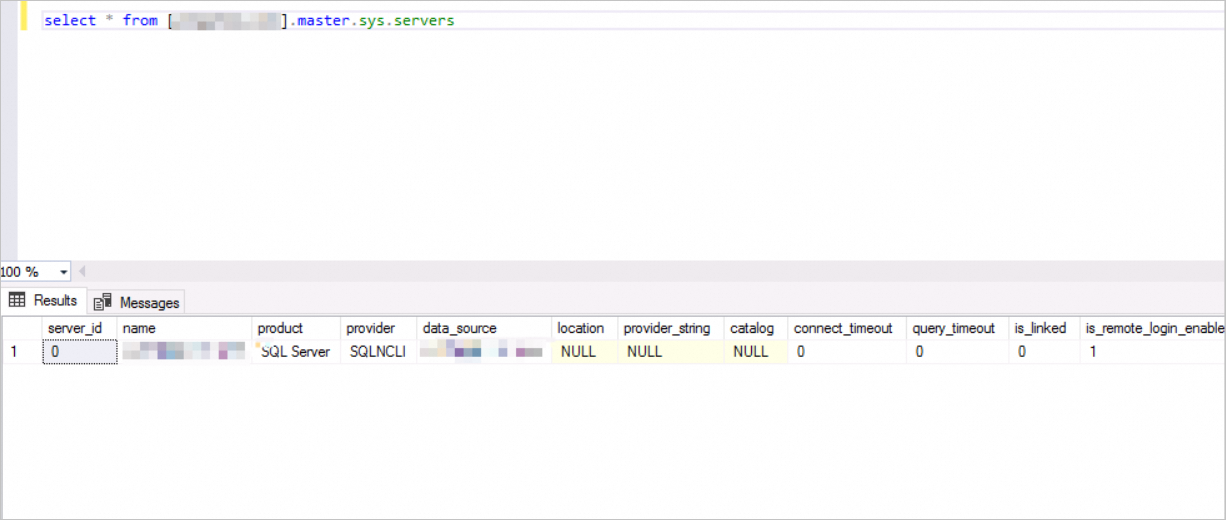
Performance considerations
Cross-instance queries go over the network, so latency and data volume both affect performance. Query speed ranks as follows:
Highest: Local query within the same RDS instance
Medium: Same-zone query (low network latency)
Lowest: Cross-zone query (higher network latency, larger data transfer)
To optimize performance:
Keep your RDS instance and the Linked Server in the same zone. To change the zone of your RDS instance, see Migrate an instance across zones.
Minimize the amount of data transferred by adding filter conditions or using paged queries instead of full table scans.
FAQ
Why is cross-zone Linked Server query performance worse than same-zone queries?
Cross-zone queries involve network transmission between availability zones, which adds latency compared to queries within the same zone. The impact grows with the size of the result set — small queries complete quickly even across zones, but large data transfers amplify the latency difference.
Query performance across different access methods:
| Method | Network path | Performance |
|---|---|---|
| SSMS connection to the same RDS instance | No cross-instance transmission | Fastest |
| DMS query (returns up to 3,000 rows) | Small data volume | Fast |
| ECS instance in the same zone | Same-zone network | Better than cross-zone |
| Linked Server across zones | Cross-zone network | Slowest |
To reduce latency, deploy instances in the same zone and filter result sets as narrowly as possible.