When you cannot connect to an RDS instance, you need to grant access to the clients or services that require it. Security groups let you authorize ECS instances and specific IP addresses or CIDR blocks to access your ApsaraDB RDS for SQL Server instance. This topic explains when to use each access control method and how to configure security groups and security group rules.
Choose an access control method
Both security groups and IP address whitelists grant access to an RDS instance, but they work differently:
| Method | Best for | Instance families |
|---|---|---|
| Security group | Granting access to a group of ECS instances. Changes to the group automatically apply to the RDS instance. | All |
| Security group rule | Granting access to specific IP addresses or CIDR blocks, including for SQL Server Analysis Services (SSAS) and SQL Server Reporting Services (SSRS). | General-purpose and dedicated only |
| IP address whitelist | Granting access to individual IP addresses or CIDR blocks when security groups are not required. | All |
For details on IP address whitelists, see Configure an IP address whitelist.
Limitations
| Constraint | Details |
|---|---|
| Security groups per RDS instance | Up to 10 |
| Rules per security group | Unlimited |
| Network type | The security group and the RDS instance must use the same network type: virtual private cloud (VPC) or classic network. |
| Network type change | If you change the network type of an RDS instance, previously associated security groups become invalid. Re-associate security groups that match the new network type. |
| Security group rules | Available only on general-purpose and dedicated instances. See Instance families. |
| VPC scope | In a VPC, all hosts share the same security group. Modifying a security group affects all RDS instances in that VPC. |
| ECS instance updates | Updates to ECS instances in an associated security group take effect immediately. |
Associate a security group
Associating a security group grants all ECS instances in the group access to the RDS instance.
-
Go to the Instances page. In the top navigation bar, select the region where the RDS instance resides, then click the instance ID.
-
In the left-side navigation pane, click Whitelist and SecGroup. On the page that appears, click the Security Group tab.
-
Click the appropriate button based on your instance family:
-
Shared instances: Click Add Security Group.
-
General-purpose or dedicated instances: Click Associate Security Group Whitelist.
-
-
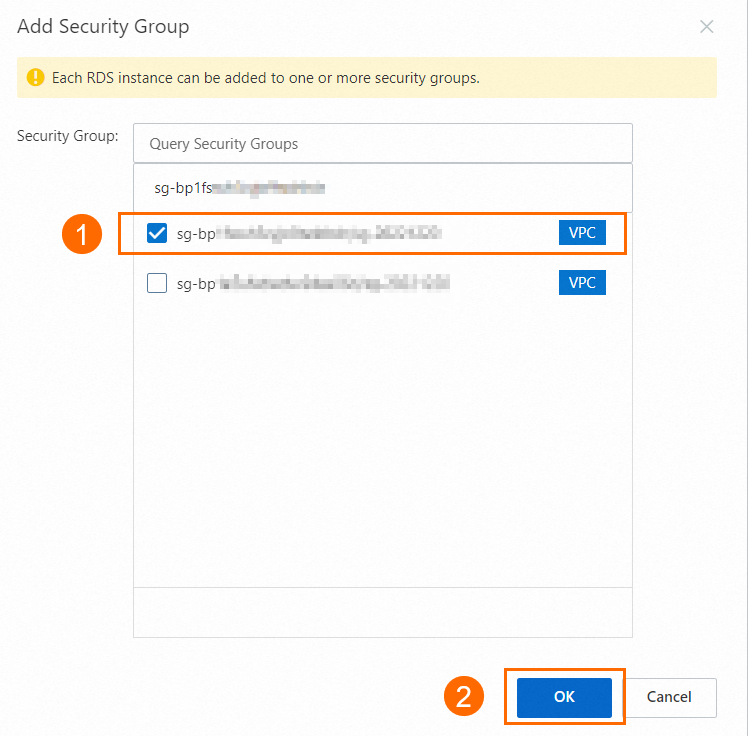
Select the security groups to associate, then click OK.
Security groups labeled with a VPC tag are VPC-type security groups.
Add a security group rule
Security group rules grant specific IP addresses or authorization entities access to your RDS instance or to services such as SSAS and SSRS.
Security group rules are available only on general-purpose and dedicated instances.
-
Go to the Instances page. In the top navigation bar, select the region where the RDS instance resides, then click the instance ID.
-
In the left-side navigation pane, click Whitelist and SecGroup. On the page that appears, click the Security Group tab.
-
Click Add Security Group Rule. In the dialog box, select an addition method, configure the rule, and click OK.
Modifying a security group in a VPC affects all RDS instances in that VPC.
Scenario-based addition
Use preset configurations for common services:
| Scenario | Protocol | Port range | Authorization object |
|---|---|---|---|
| SSAS | TCP | 2383/2383 |
0.0.0.0/0 |
| SSRS | TCP | 443/443 |
0.0.0.0/0 |
The 0.0.0.0/0 authorization object grants all IP addresses access to your instance. Replace it with a specific CIDR block to limit exposure.
Manual addition
Specify the following parameters:
| Parameter | Description | Example |
|---|---|---|
| Protocol Type | Network protocol. TCP and UDP are supported. See Security group rules. | TCP |
| Port Range | Destination port range. See Common ports. | 22/22 |
| Authorization Object | Authorized source IP address. | 192.XX.XX.100 |
| Description | Description of the rule. | — |
Related operations
Disassociate a security group
-
Go to the Instances page. In the top navigation bar, select the region where the RDS instance resides, then click the instance ID.
-
In the left-side navigation pane, click Whitelist and SecGroup. On the page that appears, click the Security Group tab.
-
Find the security group and click Delete on the right.
NoteTo remove all associated ECS security groups at once, click Clear.
-
Click OK.

Modify a security group rule
-
Go to the Instances page. In the top navigation bar, select the region where the RDS instance resides, then click the instance ID.
-
In the left-side navigation pane, click Whitelist and SecGroup. On the page that appears, click the Security Group tab.
-
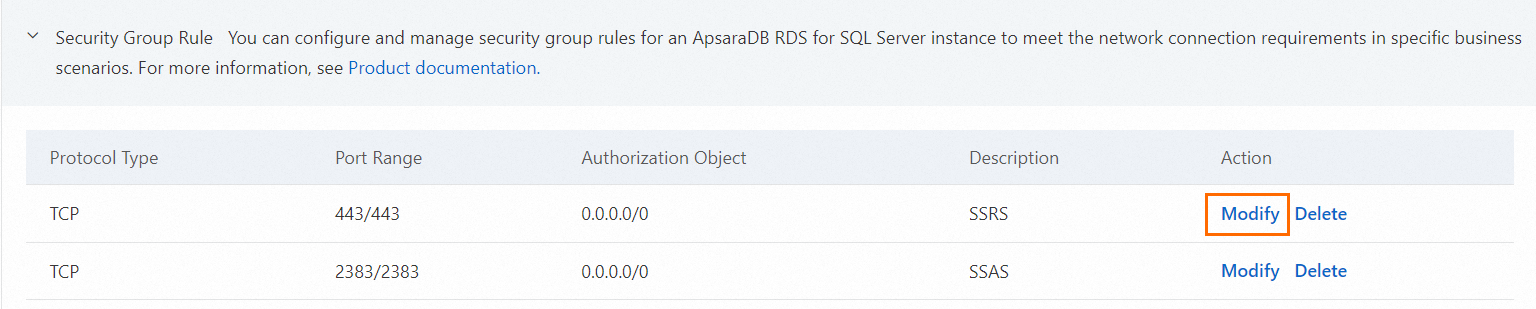
In the Action column, click Modify.
-
In the dialog box that appears, update the rule parameters and click OK. The following parameters are available:
Parameter Description Example Protocol Type Network protocol. TCP and UDP are supported. See Security group rules. TCP Port Range Destination port range. See Common ports. 22/22Authorization Object Authorized source IP address. 192.XX.XX.100Description Description of the rule. —
Delete a security group rule
-
Go to the Instances page. In the top navigation bar, select the region where the RDS instance resides, then click the instance ID.
-
In the left-side navigation pane, click Whitelist and SecGroup. On the page that appears, click the Security Group tab.
-
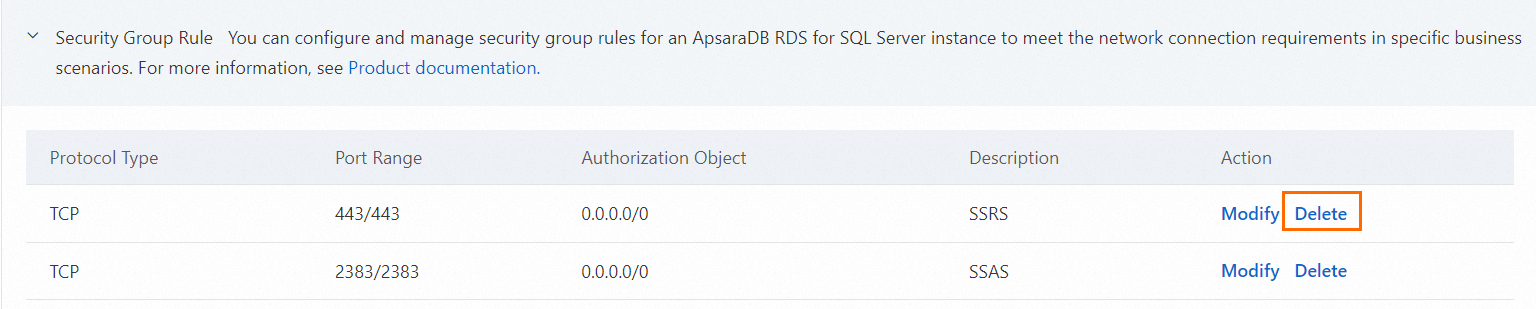
Find the security group rule and click Delete in the Action column.
What's next
-
Configure an IP address whitelist: Grant access by individual IP addresses as an alternative or complement to security groups.
-
Create a security group: Create a new ECS security group to associate with your RDS instance.
-
Create an account and a database: After configuring access control, create databases and accounts for your RDS instance.