RDS Supabase Storage lets you store and serve files—images, videos, documents, and other media—directly from your database project, with access control backed by PostgreSQL row-level security (RLS).
Key concepts
Storage organizes your files using three building blocks:
| Concept | Description |
|---|---|
| Bucket | The top-level container for files. Create separate buckets for different security or access requirements—for example, one bucket for public assets and another for private user data. |
| Folder | Organizes files within a bucket, just like folders on your computer. |
| File | Any media file such as an image or video. Storing large files in Storage instead of the database reduces database load. For security reasons, HTML files are served as plain text. |
Bucket visibility — choose the right type for your use case:
| Type | Access | Typical use cases |
|---|---|---|
| Public bucket | All files accessible via URL without authentication | Website logos, CSS files, publicly shared media |
| Private bucket (default) | Files require authorization | User profile photos, order records, sensitive documents |
All bucket, folder, and file names must follow Alibaba Cloud OSS naming conventions and avoid special characters. See Bucket naming and Object naming.
Manage files using the console
In the left sidebar of your RDS Supabase project console, select Storage to open the storage management interface.
Create a bucket
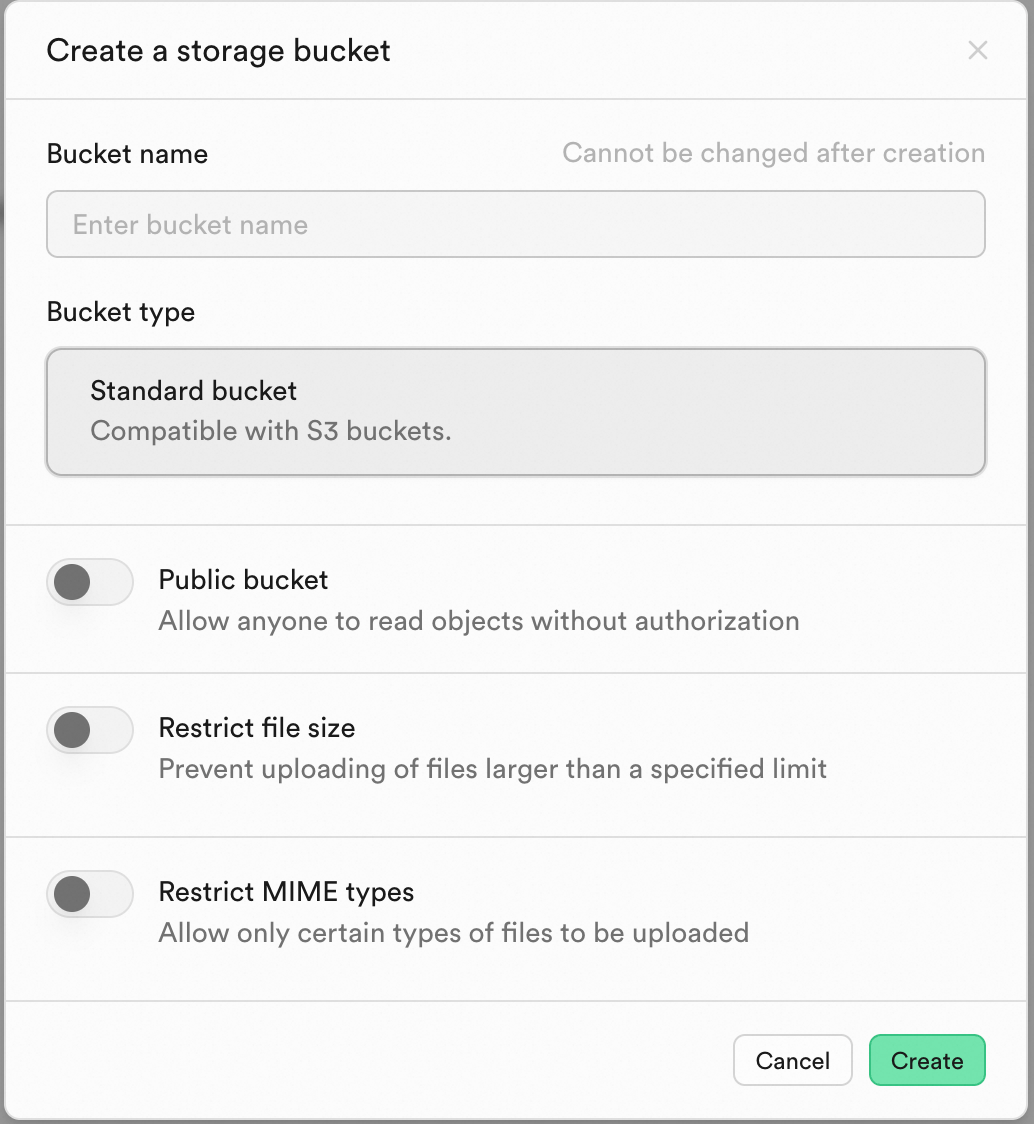
On the Storage page, click New bucket.
Enter a bucket name.
Choose a bucket visibility:
Public bucket: All files are accessible via URL without authentication.
Private bucket (default): Files require authorization to access.
Click Create.
Upload and manage files
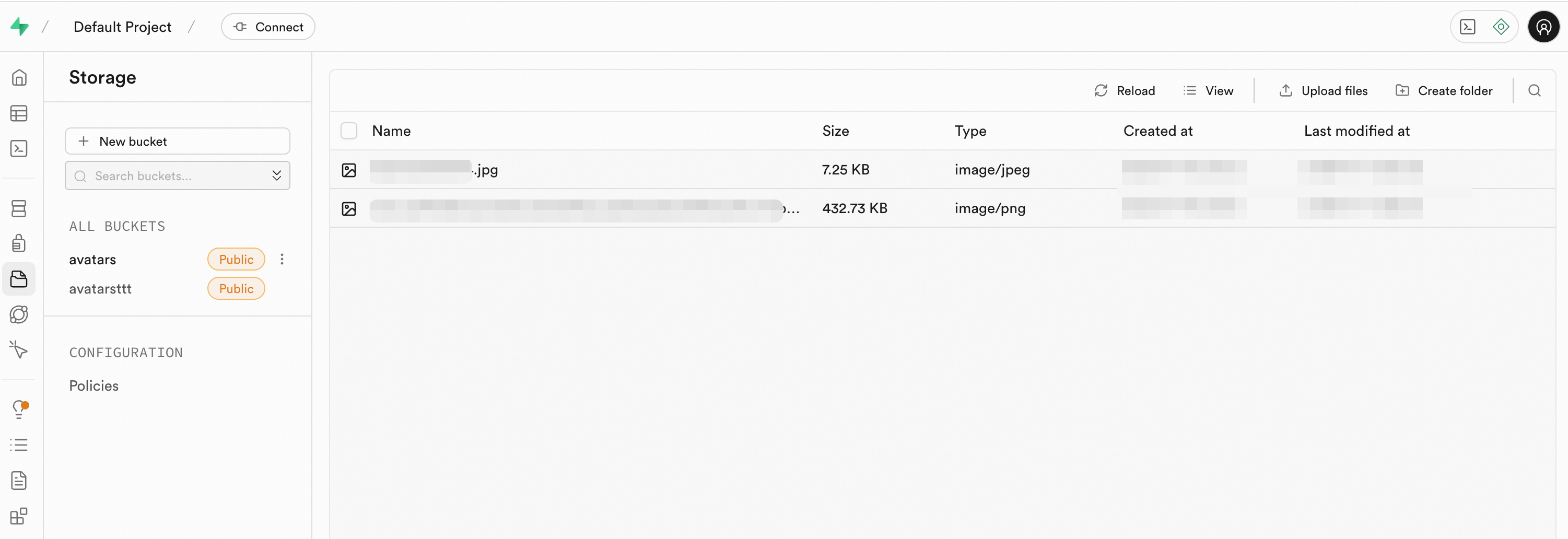
In the bucket list, click the target bucket.
Click Create folder to organize your file structure.
Click Upload files and select one or more files from your device.
After upload, files appear in the list. Hover over a file and click the ... menu to Download, Get URL, Move, or Delete it.
Manage files using the SDK
Use the official JavaScript client library (@supabase/supabase-js) to integrate file operations into your application.
Prerequisites
Before you begin, ensure that you have:
An RDS Supabase project
The project URL and service key from your Supabase project settings
Initialize the client
Install the supabase-js library and initialize the client with your project URL and service key.
import { createClient } from '@supabase/supabase-js';

// Get the URL and ServiceKey from your Supabase project settings
const supabaseUrl = 'YOUR_SUPABASE_URL';
const supabaseServiceKey = 'YOUR_SUPABASE_SERVICE_KEY';

const supabase = createClient(supabaseUrl, supabaseServiceKey);
Create a bucket
// Create a bucket named "avatars"
const { data, error } = await supabase.storage.createBucket('avatars');
Upload a file
const avatarFile = event.target.files[0];
const { data, error } = await supabase.storage
  .from('avatars')
  .upload('public/avatar1.png', avatarFile);
Download a file
// Download a file from the "avatars" bucket
const { data, error } = await supabase.storage
  .from('avatars')
  .download('public/avatar1.png');
Complete example
The following example creates a bucket, uploads a file, retrieves its public URL, downloads it, and lists all files in the bucket.
Example code
Configure access control
RDS Supabase Storage uses PostgreSQL row-level security (RLS) to control access to storage objects at the database level.
Two configuration methods are available.
Configure policies in the console
The console provides a guided UI for creating policies without writing SQL.
In the left navigation pane, select Storage > Policies.
On the Policies page, click New Policy in the bucket list.
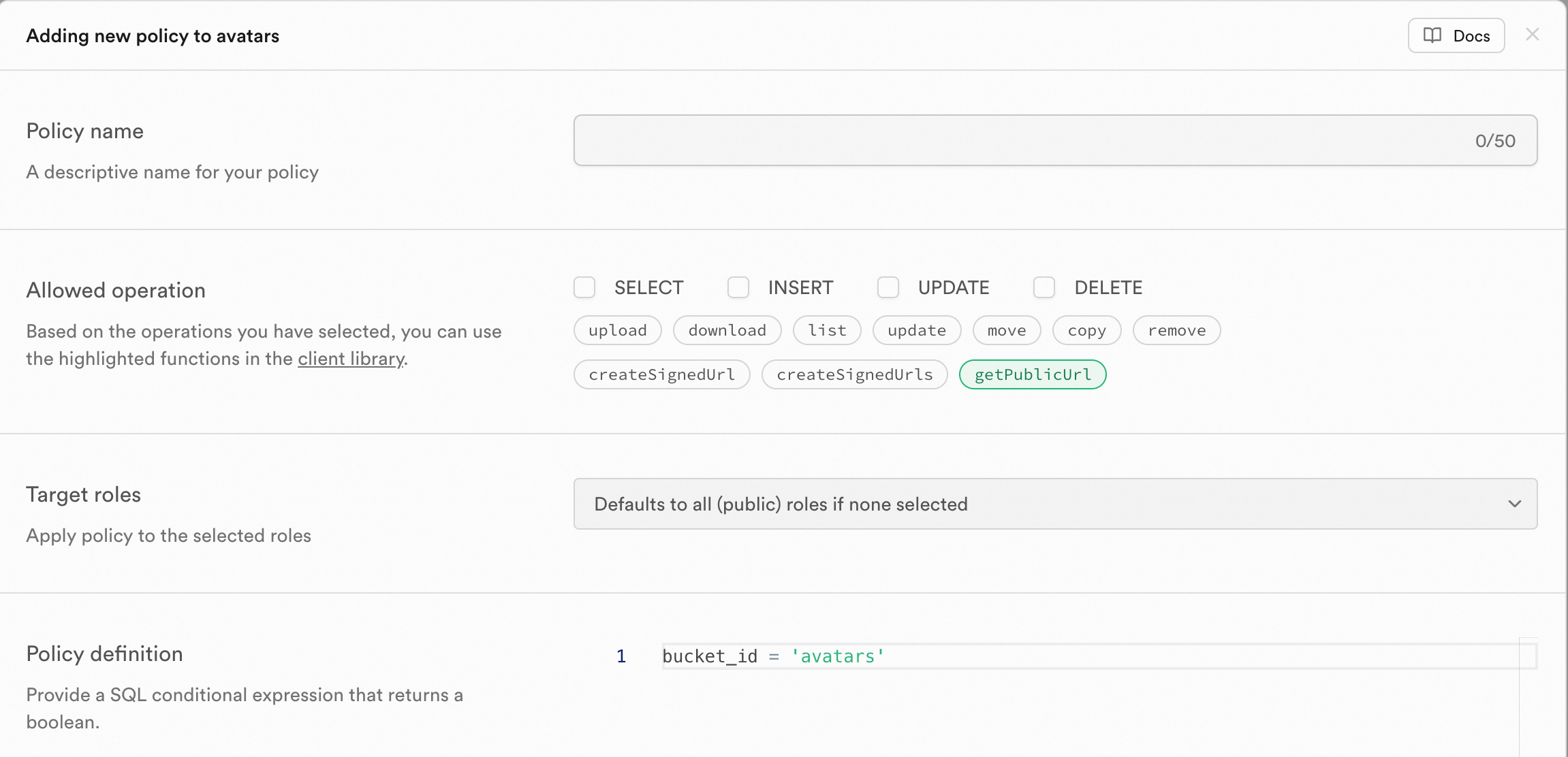
Select Get a policy from a template to use a preset template, or Create a new policy from scratch for full customization.
Fill in the policy fields:
Field Description Example Policy name A descriptive name for the policy Allow authenticated read accessAllowed operation The permitted action SELECT(download or list),INSERT(upload)Target roles The role this policy applies to authenticatedPolicy definition Conditions that must be met bucket_id = 'avatars'Click Review to check the generated SQL. If correct, click Save policy.
Configure policies using SQL Editor
For complex or batch scenarios, run CREATE POLICY statements directly in the SQL Editor.
Example 1: Allow public read access to a bucket
This policy lets anyone read all files in the avatars bucket.
CREATE POLICY "Public read access for avatars"
ON storage.objects FOR SELECT
USING ( bucket_id = 'avatars' );
Example 2: Restrict authenticated users to their own files
These policies ensure users can only upload and read files within their personal folder.
-- Allow authenticated users to upload files to their own folder
CREATE POLICY "Allow authenticated uploads in user folder"
ON storage.objects FOR INSERT
TO authenticated
WITH CHECK(bucket_id = 'avatars' AND auth.uid()::text = (storage.foldername(name))[1]);

-- Allow authenticated users to read files in their own folder
CREATE POLICY "Allow authenticated reads in user folder"
ON storage.objects FOR SELECT
TO authenticated
USING(bucket_id = 'avatars' AND auth.uid()::text = (storage.foldername(name))[1]);
For more details on security policies, see the official Supabase storage security documentation.
Configure S3 backend and protocol
S3 backend configuration
RDS Supabase Storage includes a built-in Alibaba Cloud OSS backend by default. After purchasing RDS Supabase, Storage is ready to use without any configuration.
To use your own Alibaba Cloud OSS or another S3-compatible object storage service, set the following parameters:
| Parameter | Description | Format and notes |
|---|---|---|
GLOBAL_S3_ENDPOINT | OSS endpoint | Must start with https://. Example: https://oss-cn-beijing.aliyuncs.com |
GLOBAL_S3_BUCKET | OSS bucket name | Must comply with OSS bucket naming rules. Example: beijing-supabase-test |
REGION | OSS region | Use the lowercase region code. Example: cn-beijing |
TENANT_ID | OSS folder name (no need to create manually) | We recommend using your Supabase project ID. Example: ra-supabase-xxx |
AWS_ACCESS_KEY_ID | OSS AccessKey ID | Must follow the AccessKey ID format |
AWS_SECRET_ACCESS_KEY | OSS AccessKey secret | Must follow the AccessKey secret format |
AWS_SESSION_TOKEN | (Optional) OSS temporary access token | Required only when using temporary credentials (STS). If omitted, authentication uses the AccessKey ID and AccessKey secret |
USE_DEFAULT_S3_BACKEND | (Optional) Whether to use the built-in OSS | Custom OSS: set to false or leave blank. Built-in OSS: set to true |
When using a custom OSS (
USE_DEFAULT_S3_BACKEND=false), the backend releases the built-in Alibaba Cloud OSS.When using the built-in OSS (
USE_DEFAULT_S3_BACKEND=true), the backend clears any custom OSS configuration.
Additionally, the following general Storage configuration parameter can be set separately:
| Parameter | Description | Format and notes |
|---|---|---|
FILE_SIZE_LIMIT | Maximum size for a single file (bytes) | Positive integer in bytes. Example: 10485760 (10 MB) |
S3 protocol configuration
Enable S3 protocol access to expose a standard S3-compatible endpoint for Storage. The endpoint format is http(s)://<supabaseUrl>/storage/v1/s3, and the region matches the region of your instance.
| Parameter | Description | Format and notes |
|---|---|---|
S3_PROTOCOL_ENABLED | Whether to enable S3 protocol access | true or false |
S3_PROTOCOL_ACCESS_KEY_ID | (Optional) ACCESS_KEY_ID for the S3 protocol endpoint | Letters and digits only. If not specified, the backend generates one randomly |
S3_PROTOCOL_ACCESS_KEY_SECRET | (Optional) ACCESS_KEY_SECRET for the S3 protocol endpoint | Letters and digits only. If not specified, the backend generates one randomly |
API reference
Create bucket: createBucket
Upload file: upload()
Download file: download()