After you create an ApsaraDB RDS for PostgreSQL instance and complete necessary configurations, such as creating an account and configuring an IP address whitelist, you can connect to the RDS instance by using Data Management (DMS), the pgAdmin client, the PostgreSQL CLI, or an application. This topic describes how to connect to an RDS instance by using these connection methods.
Prerequisites
-
An RDS instance is created. For more information, see Create an ApsaraDB RDS for PostgreSQL instance.
-
A database is created in the RDS instance, and an account is created for the database. For more information, see Create an account and a database.
-
An IP address whitelist is configured for the RDS instance. This way, you can connect to the RDS instance from the Elastic Compute Service (ECS) instance or an on-premises device on which a client is deployed. For more information, see Configure an IP whitelist.
-
If you want to connect an ECS instance to the RDS instance over an internal network, make sure that these instances are deployed in the same region and reside in the same virtual private cloud (VPC) created by the same Alibaba Cloud account. In addition, the private IP address of the ECS instance must be added to an IP address whitelist of the RDS instance.
-
If you want to connect an on-premises device to the RDS instance, make sure that the public IP address of the on-premises device is added to an IP address whitelist of the RDS instance.
-
Procedure
Use DMS to connect to the RDS instance
DMS offers an integrated solution that supports data management, schema management, server management, user authorization, security audit, trend analysis, data tracking, business intelligence (BI) reporting, and performance analysis and optimization. For more information, see What is Data Management (DMS)?
Log on to the ApsaraDB RDS console and go to the Instances page. In the top navigation bar, select the region in which the RDS instance resides. Then, find the RDS instance and click the instance ID.
-
On the Basic Information page, click Log On to Database.

-
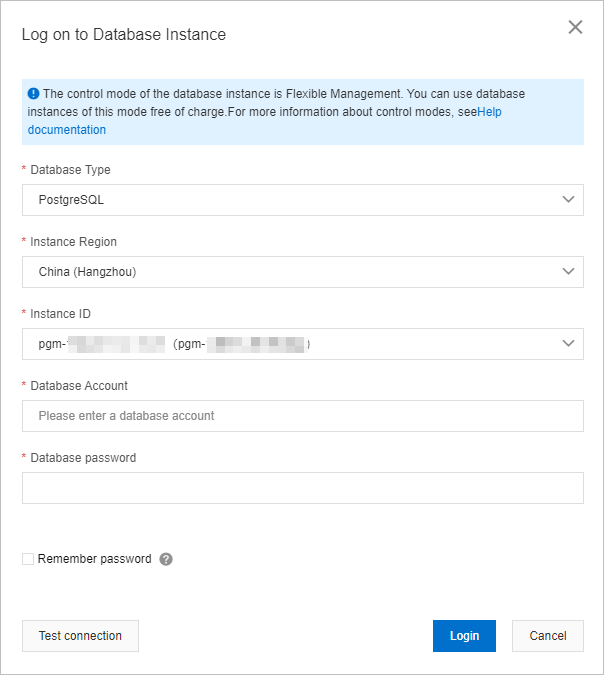
In the Log on to Database Instance dialog box of the DMS console, enter the username and password of the account that is used for logon and click Login.
NoteThe account that is used for logon must have permissions on the required database. Otherwise, the required database is not displayed in the left-side navigation pane.
-
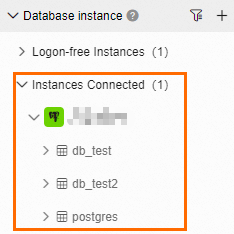
Refresh the page. In the left-side navigation pane of the DMS console, click Instances Connected to view databases that are created for the RDS instance.
-
You can also directly log on to the DMS console and add your RDS instance to DMS. Then, you can switch to the specified database of your RDS instance in the DMS console. For more information, see Register a cloud database instance.
-
After you reset the password of your account, you must log on to DMS again.
Use pgAdmin to connect to the RDS instance
pgAdmin is a recommended PostgreSQL client that you can use to connect to an RDS instance. When you download the PostgreSQL software package from the PostgreSQL official website and install PostgreSQL, pgAdmin 4 is automatically downloaded and installed. The following section provides an example on how to use pgAdmin 4 V6.2.0 to connect to an RDS instance.
If you do not want to install PostgreSQL, you can download only pgAdmin for remote connections.
-
Start pgAdmin 4.
NoteIf this is the first time you log on to pgAdmin of a later version, you must specify a master password that is used to protect saved passwords and other credentials.
-
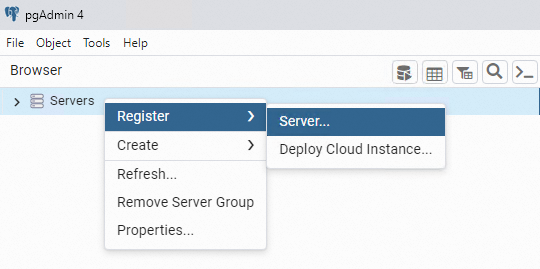
Right-click Servers and choose .
-
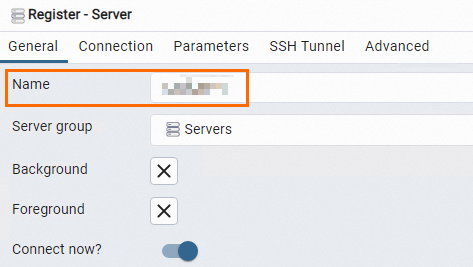
On the General tab of the Register - Server dialog box, enter the name of the server on which pgAdmin is installed.
-
Click the Connection tab. Then, configure the parameters that are used to connect to the RDS instance.
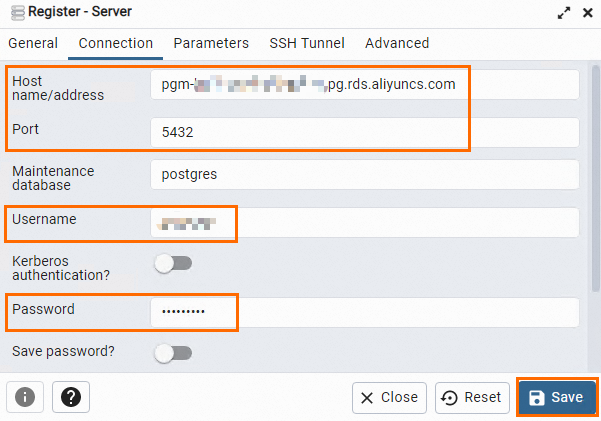
Parameter
Description
Host name/address
The endpoint and port that are used to connect to the RDS instance.
-
If you want to connect to the RDS instance over an internal network, enter the internal endpoint and internal port of the RDS instance.
-
If you want to connect to the RDS instance over the Internet, enter the public endpoint and public port of the RDS instance.
You can view the preceding information on the Database Connection page of the RDS instance.
For more information, see View and change the endpoints and port numbers of an ApsaraDB RDS for PostgreSQL instance.
Port
Username
The username and password that are used to log on to the RDS instance.
For more information about how to create an account on an RDS instance, see Create an account and a database.
Password
-
-
Click Save.
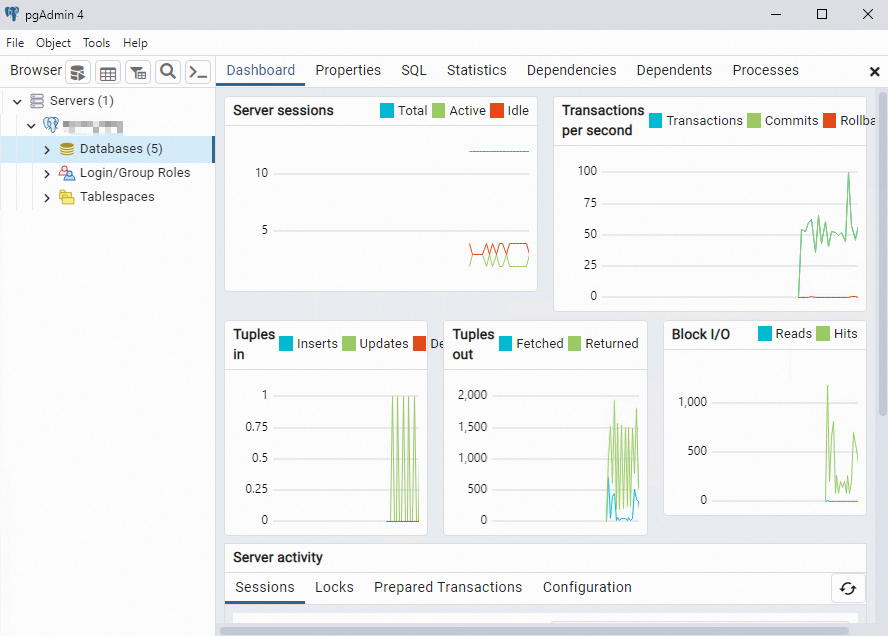
If the information that you enter is correct, the page that is shown in the following figure appears, which indicates that the connection to the RDS instance is successful.
 Important
The postgres database is the default system database. Do not perform operations on the postgres database.
Use the PostgreSQL CLI to connect to the RDS instance
When you download the PostgreSQL software package from the PostgreSQL official website and install PostgreSQL, the PostgreSQL CLI that is named Command Line Tools is automatically downloaded and installed.
Run the following command in the PostgreSQL CLI to connect to the RDS instance:
psql -h <Endpoint> -U <Username> -p <Port> [-d <Database name>]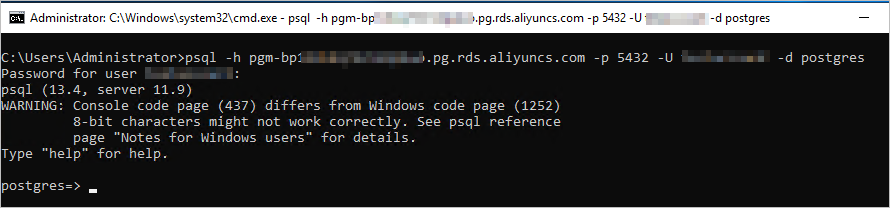
|
Parameter |
Description |
|
Endpoint |
The endpoint and port that are used to connect to the RDS instance.
You can view the preceding information on the Database Connection page of the RDS instance. For more information, see View and change the endpoints and port numbers of an ApsaraDB RDS for PostgreSQL instance. |
|
Port |
|
|
Username |
The account of the RDS instance. For more information about how to create an account on an RDS instance, see Create an account and a database. |
|
Database Name |
The name of the database that you want to connect on the RDS instance. This parameter is optional. The database named postgres is the default system database. Do not perform operations on the postgres database. We recommend that you use another existing database of the RDS instance. For more information about how to create and view a database on an RDS instance, see Create a database. |
Use an application to connect to the RDS instance
In this section, a Java Database Connectivity (JDBC) connection is configured in a Maven project to connected to the RDS instance. If you want to connect to the RDS instance by using another programming language, the steps are similar.
-
Add dependencies to the pom.xml file.
<dependency> <groupId>postgresql</groupId> <artifactId>postgresql</artifactId> <version>8.2-504.jdbc3</version> </dependency> -
Use JDBC to connect to the RDS instance.
public class DatabaseConnection
{
    public static void main( String[] args ){
        try {
            Class.forName("org.postgresql.Driver");
        } catch (ClassNotFoundException e) {
            e.printStackTrace();
        }
        //Endpoint of the RDS instance
        String hostname = "pgm-bp1i3kkq7321o9****.pg.rds.aliyuncs.com";
        //Port number of the RDS instance
        int port = 5432;
        //Database name
        String dbname = "postgres";
        //Username
        String username = "username";
        //Password
        String password = "password";

        String dbUrl = "jdbc:postgresql://" + hostname + ":" + port + "/" + dbname + "?binaryTransfer=true";
        Connection dbConnection;
        try {
            dbConnection = DriverManager.getConnection(dbUrl, username, password);
            Statement statement = dbConnection.createStatement();
            //SQL statement that you want to execute
            String selectSql = "SELECT * FROM information_schema.sql_features LIMIT 10";
            ResultSet resultSet = statement.executeQuery(selectSql);
            while (resultSet.next()) {
                System.out.println(resultSet.getString("feature_name"));
            }
        } catch (SQLException e) {
            e.printStackTrace();
        }
    }
}
Use a third-party reporting tool to connect to the RDS instance
ApsaraDB RDS for PostgreSQL allows you to use third-party reporting tools to obtain, cleanse, and visualize data, and create models based on the data. This facilitates data analysis. This section provides an example on how to use Power BI Desktop that is provided by Microsoft to connect to an RDS instance. In this example, Power BI Desktop 2.112.1161.0 64-bit is used.
-
Download and install Power BI Desktop. For more information about the download method, see Obtain Power BI Desktop.
-
Start Power BI Desktop.
-
In the top navigation bar, click the Home tab and choose .
-
In the Get Data dialog box, choose and click Connect.
-
In the PostgreSQL database dialog box, configure the Server and Database parameters. In the Data Connectivity mode section, select Import. Then, click OK.
Parameter
Description
Server
The endpoint and port of the RDS instance.
The value is in the format of
Endpoint:Port number.-
If you want to connect to the RDS instance over an internal network, enter the internal endpoint and internal port of the RDS instance.
-
If you want to connect to the RDS instance over the Internet, enter the public endpoint and public port of the RDS instance.
You can view the preceding information on the Database Connection page of the RDS instance.
For more information, see View and change the endpoints and port numbers of an ApsaraDB RDS for PostgreSQL instance.
Database
The name of the database that you want to connect on the RDS instance. The database named postgres is the default system database. Do not perform operations on the postgres database. We recommend that you use another existing database of the RDS instance.
For more information about how to create and view a database on an RDS instance, see Create a database.
-
-
Configure the User name and Password parameters and click Connect. You must set these parameters to the username and password of the RDS instance.
NoteFor more information about how to create an account on an RDS instance, see Create an account and a database.
-
In the Encryption Support dialog box, click OK.
-
In the Navigator window, view information about the tables in the database. You can select the required table and click Load or Transform Data based on your business requirements.
Connect to an RDS instance over SSL connections
You can configure SSL encryption for an RDS instance. SSL encryption is used to encrypt the connections to the RDS instance and protect the data that is transmitted over the connections. For more information, see Connect to an ApsaraDB RDS for PostgreSQL instance over SSL.
FAQs
-
How do I connect to an RDS instance from an ECS instance that is deployed in a different region or owned by another Alibaba Cloud account?
You can use one of the following methods to connect to the RDS instance:
-
Use VPC peering connection to establish private network connection between two VPCs in the same region or different regions. Peering connections between VPCs in the same region are free of charge.
-
Use Cloud Enterprise Network (CEN) to connect to the RDS instance over the internal network. For more information, see Connect VPCs in the same region, Connect VPCs across different regions, and Connect VPCs across accounts.
-
-
How do I use Function Compute to obtain data from my RDS instance?
You can install third-party dependencies on Function Compute. Then, you can use these built-in dependencies to obtain data from ApsaraDB RDS. For more information, see Install third-party dependencies.