Before using the Global Active Database (GAD) feature of ApsaraDB RDS for PostgreSQL, authorize Data Transmission Service (DTS) to access your cloud resources. This creates a RAM role named AliyunDTSDefaultRole and attaches the AliyunDTSRolePolicy system policy to it, allowing DTS to manage RDS instances and related services on your behalf. The authorization does not affect RDS instance performance.
If you have already completed this authorization, skip this topic and proceed to create a GAD instance group.
Prerequisites
Before you begin, ensure that you have:
An Alibaba Cloud account. To create one, see Create an Alibaba Cloud account
Policy description
The AliyunDTSRolePolicy system policy grants DTS the permissions required to manage the following cloud services: ApsaraDB for RDS, ECS, PolarDB, ApsaraDB for MongoDB, ApsaraDB for Redis, PolarDB-X, DataHub, and Elasticsearch.
For the full list of permissions included in this policy, see AliyunDTSRolePolicy. For information about policy structure, see Policy structure and syntax.
Authorize DTS (recommended)
Use your Alibaba Cloud account to open the RAM Quick Authorization page for AliyunDTSDefaultRole, then click Authorize and wait for the process to complete.
After authorization completes, verify the result.
Authorize DTS in the RAM console
Use this method if the RAM Quick Authorization page is unavailable or if you prefer to configure permissions manually.
Log on to the RAM console.
In the left-side navigation pane, choose Identities > Roles.
In the search box next to Create Role, enter AliyunDTSDefaultRole and click the search icon.
If AliyunDTSDefaultRole does not appear in the results, use the RAM Quick Authorization page instead.
Click AliyunDTSDefaultRole in the search results.
On the Permissions tab, click Precise Permission.
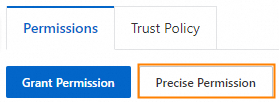
In the Precise Permission panel, set Type to System Policy.

In the Policy Name field, enter AliyunDTSRolePolicy, then click OK.
Click Close.
Verify the authorization result
After completing either authorization method, confirm both of the following conditions are met:
Log on to the RAM console.
In the left-side navigation pane, choose Identities > Roles.
In the search box next to Create Role, enter AliyunDTSDefaultRole and click the search icon.
Click AliyunDTSDefaultRole in the search results.
Check both of the following conditions: To refresh the permissions list, click the
 icon on the right side of the Permissions tab.
On the Trust Policy tab,
dts.aliyuncs.comappears in the Service field.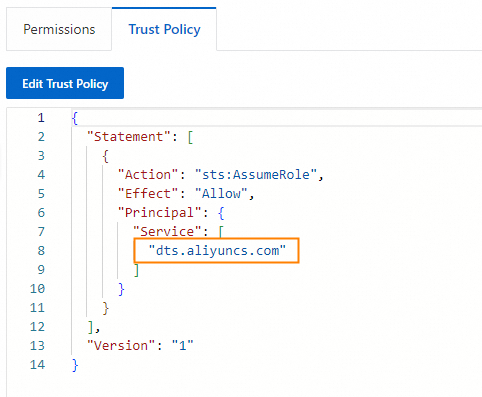
On the Permissions tab, the AliyunDTSRolePolicy policy is listed.

If either condition is not met, the authorization failed. To fix it:
Delete the AliyunDTSDefaultRole role. For instructions, see Delete a RAM role.
Authorize again using the RAM Quick Authorization page.