Use Alibaba Cloud CLI to manage ApsaraDB RDS instances directly from your shell without opening the console.
Prerequisites
Before you begin, make sure you have:
An Alibaba Cloud account with access to ApsaraDB RDS
A RAM user with the AliyunRDSReadOnlyAccess or AliyunRDSFullAccess policy attached
An AccessKey pair (AccessKey ID and AccessKey secret) for the RAM user
A region ID where your RDS instances are deployed (for example,
cn-hangzhou)
Avoid using your Alibaba Cloud account directly to call API operations. Root account credentials carry full permissions across all services, which creates unnecessary security risk. Create a RAM user and attach only the policies the user needs:
AliyunRDSReadOnlyAccess — grants read-only access to query RDS instances
AliyunRDSFullAccess — grants full permissions to manage RDS instances To create a RAM user and generate an AccessKey pair, see Create a RAM user and Create an AccessKey pair for a RAM user.
Install Alibaba Cloud CLI
Install Alibaba Cloud CLI for your operating system:
Windows: Install Alibaba Cloud CLI on Windows
Alternatively, use Cloud Shell to run CLI commands directly in your browser without installation. For details, see What is Cloud Shell?
Configure credentials
Alibaba Cloud CLI supports multiple credential types. The following table shows the available options:
| Credential type | When to use | Security level |
|---|---|---|
| AccessKey (long-term) | Service accounts, automated scripts | Use with caution — no expiration |
| STS token (short-term) | Interactive or temporary access | Recommended — expires automatically |
This example uses AccessKey credentials. For all supported types, see Credential types.
Run the following command to configure your AccessKey credentials:
aliyun configure --profile <profileName>The CLI prompts you for each value:
Configuring profile '<profileName>' in 'AK' authenticate mode...
Access Key Id []: LTAI5tXxxxxxxxxxxxxxxx
Access Key Secret []: xXxXxXxXxXxXxXxXxXxX
Default Region Id []: cn-hangzhou
Default Output Format [json]: json
Default Language [zh|en] en:| Prompt | What to enter | Example |
|---|---|---|
| Access Key Id | Your RAM user's AccessKey ID | LTAI5tXxxxxxxxxxxxxxxx |
| Access Key Secret | Your RAM user's AccessKey secret | xXxXxXxXxXxXxXxXxXxX |
| Default Region Id | The region ID where your instances are located | cn-hangzhou |
| Default Output Format | Output format for command results | json |
For available region IDs, see Endpoints.
Use --profile <profileName> to switch between named credential profiles. When specified, the CLI ignores default credentials and environment variable settings. For details, see Command-line options.Generate a CLI command from OpenAPI Explorer
The fastest way to build a CLI command is to use the OpenAPI Explorer debugger:
Open the ApsaraDB RDS API debugging page.
In the left-side search box, find the API operation you want to call.
On the Parameters tab, fill in the parameter values.
Click the CLI Example tab to view the generated command.
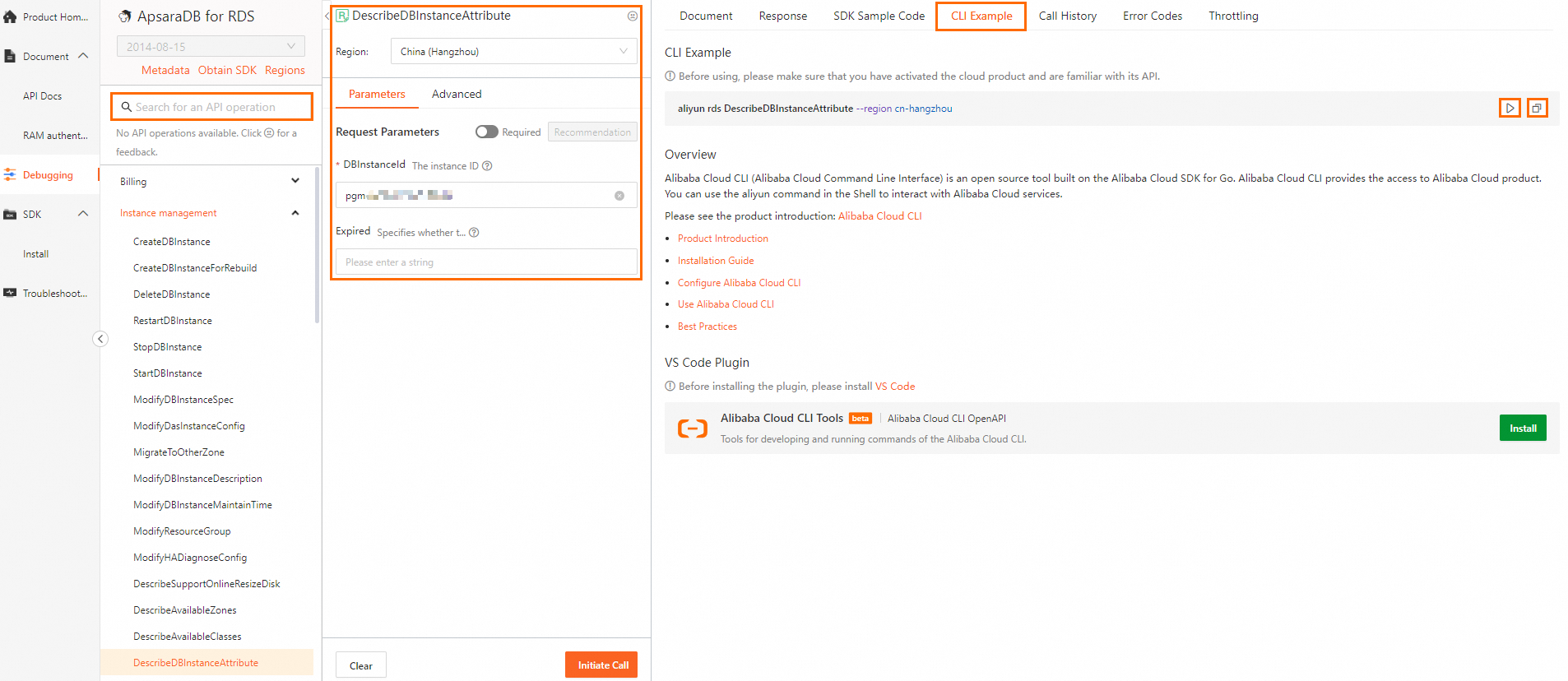
From the CLI Example tab:
Click
 to copy the command to your clipboard, then paste it into your shell.
Click
 to open Cloud Shell and run the command in your browser.
OpenAPI Explorer adds--regionto generated commands by default. When--regionis present, the CLI uses the specified region instead of the default from your credential profile. Remove or keep--regionbased on your needs. For parameter format requirements, see Parameter formats.
Call API operations
Command syntax
All Alibaba Cloud CLI commands follow this structure:
aliyun <command> <subcommand> [options and parameters]For the full command reference, see Command structure.
Query details for a specific RDS instance
Use DescribeDBInstanceAttribute to retrieve configuration details for a single instance:
aliyun rds DescribeDBInstanceAttribute --region cn-hangzhou --DBInstanceId 'pgm-bp16k272p478****'| Parameter | Description | Example |
|---|---|---|
--region | Region ID where the instance is located | cn-hangzhou |
--DBInstanceId | Unique identifier of the RDS instance | pgm-bp16k272p478**** |
Output:
{
    "Items": {
        "DBInstanceAttribute": [
            {
                "AccountMaxQuantity": 99999,
                "AccountType": "Mix",
                "AdvancedFeatures": "LinkedServer,DistributeTransaction",
                "AutoUpgradeMinorVersion": "Auto",
                "AvailabilityValue": "100.0%",
                "BabelfishConfig": {},
                "CanTempUpgrade": false,
                "Category": "HighAvailability",
                "ColdDataEnabled": false,
                "ConnectionMode": "Standard",
                "ConnectionString": "pgm-bp16k272p478****.pg.rds.aliyuncs.com",
                "ConsoleVersion": "2",
                "CreationTime": "2024-08-06T06:18:48Z",
                "CurrentKernelVersion": "rds_postgres_1400_20240530",
                "DBClusterNodes": {
                    "DBClusterNode": []
                },
                "DBInstanceCPU": "2",
                "DBInstanceClass": "pg.n4.2c.2m",
                "DBInstanceClassType": "x",
                "DBInstanceDescription": "DB-test",
                "DBInstanceDiskUsed": 3520069632,
                "DBInstanceId": "pgm-bp16k272p478****",
                "DBInstanceMemory": 8192,
                "DBInstanceNetType": "Intranet",
                "DBInstanceStatus": "Running",
                "DBInstanceStorage": 100,
                "DBInstanceStorageType": "cloud_essd",
                "DBInstanceType": "Primary",
                "DBMaxQuantity": 99999,
                "DedicatedHostGroupId": "",
                "DeletionProtection": false,
                "DispenseMode": "MultiAVZDispenseMode",
                "Engine": "PostgreSQL",
                "EngineVersion": "14.0",
                "ExpireTime": "",
                "Extra": {
                    "DBInstanceIds": {
                        "DBInstanceId": []
                    }
                },
                "IPType": "IPv4",
                "InsId": 1,
                "InstanceNetworkType": "VPC",
                "InstructionSetArch": "x86",
                "IoAccelerationEnabled": "0",
                "LatestKernelVersion": "rds_postgres_1400_20240530",
                "LockMode": "Unlock",
                "MaintainTime": "18:00Z-22:00Z",
                "MasterZone": "cn-hangzhou-j",
                "MaxConnections": 800,
                "MaxIOMBPS": 0,
                "MaxIOPS": 6800,
                "OriginConfiguration": "{\"KindCode\":\"18\"}",
                "PayType": "Postpaid",
                "Port": "5432",
                "ProxyType": 2,
                "ReadOnlyDBInstanceIds": {
                    "ReadOnlyDBInstanceId": []
                },
                "RegionId": "cn-hangzhou",
                "ResourceGroupId": "rg-acfmz7u4zzrngoa",
                "SecurityIPList": "0.0.0.0/0,172.16.0.0/12",
                "SecurityIPMode": "normal",
                "ServerlessConfig": {},
                "SlaveZones": {
                    "SlaveZone": [
                        {
                            "ZoneId": "cn-hangzhou-k"
                        }
                    ]
                },
                "SuperPermissionMode": "",
                "SupportCreateSuperAccount": "Yes",
                "SupportUpgradeAccountType": "Yes",
                "Tips": "ok",
                "TipsLevel": 1,
                "VSwitchId": "vsw-bp1sxxsodv28ey5dl****",
                "VpcCloudInstanceId": "pgm-bp16k272p478****-20240806141842",
                "VpcId": "vpc-bp1ov7as4yvz4kxei****",
                "ZoneId": "cn-hangzhou-j",
                "kindCode": "18"
            }
        ]
    },
    "RequestId": "14B99E32-4ECD-5B8E-A9C8-6738C8C95910"
}
For the full API reference, see DescribeDBInstanceAttribute.
Troubleshooting
Invalid parameter or authentication error
If the command returns an error, verify that your parameter names and values match the API specification.
Common causes:
| Symptom | Likely cause | Fix |
|---|---|---|
InvalidAccessKeyId | Wrong or expired AccessKey ID | Re-run aliyun configure --profile <profileName> with a valid AccessKey |
SignatureDoesNotMatch | Wrong AccessKey secret | Re-run aliyun configure --profile <profileName> and re-enter the secret |
InvalidParameter | Parameter name or value format is wrong | Check the parameter format requirements in Parameter formats |
Forbidden.RAM | RAM user lacks the required policy | Attach AliyunRDSReadOnlyAccess or AliyunRDSFullAccess to the RAM user |
Use Alibaba Cloud OpenAPI Diagnostic Platform to diagnose errors by entering the RequestId from the response.
What's next
What is Alibaba Cloud CLI? — full CLI documentation
Command-line options — complete reference for
--region,--profile, and other optionsParameter formats — how to pass arrays, JSON objects, and other parameter types
List of operations by function — browse all available ApsaraDB RDS API operations