When concurrent connections spike or your workload changes, you may need to adjust the connection limits for your ApsaraDB RDS for MySQL instance. Modify max_connections and max_user_connections through the ApsaraDB RDS console or API. Both parameters are dynamic and take effect immediately without a restart.
Parameters
Two MySQL parameters control the maximum number of concurrent connections to an RDS instance:
| Parameter | Scope | Range | Error when exceeded |
|---|---|---|---|
max_connections |
All database accounts combined | 1 to 200,000 | too many connections |
max_user_connections |
Per database account | 10 to 200,000 | has more than 'max_user_connections' or has exceeded the 'max_user_connections' |
Impact of high connection limits
Connections consume memory. Setting max_connections too high can cause out of memory (OOM) errors and destabilize the instance. To maintain stability, set this parameter to the maximum supported by your instance type.
Behavior: Running Value and open_files_limit
-
Running Value includes O&M reserved connections. After you change
max_connections, the Running Value column on the Parameters page shows a number higher than what you specified. The value includes connections reserved for routine O&M. The Maximum Connections field in the Configuration Information section of the Basic Information page reflects the value you specified. -
open_files_limitcan capmax_connectionson restart. When the instance restarts, the effective value ofmax_connectionsis calculated as: The default value ofopen_files_limitis 655,350. If you setmax_connectionsabove 654,540, also increaseopen_files_limitin the console to prevent it from cappingmax_connectionsafter a restart.open_files_limitis a static parameter, so the instance must be restarted for changes to take effect.min(open_files_limit - 810, user-defined value or instance type default + O&M reserved connections)
Prerequisites
Before you begin, make sure that you have:
-
An ApsaraDB RDS for MySQL instance
-
The permissions required to modify instance parameters
Modify parameters in the console
-
Log in to the ApsaraDB RDS console. In the top navigation bar, select the region of your RDS instance. Find the instance and click its ID.
-
In the left-side navigation pane, click Parameters.
-
On the Modifiable Parameters tab, find
max_user_connectionsormax_connections. Click the icon in the Running Value column, enter the new value, and click OK.
 -
Click Apply Changes. In the dialog box, select when the change takes effect and click OK.
Note Changes tomax_connectionsandmax_user_connectionstake effect immediately. No restart is required.
Modify parameters by calling an API operation
Call the ModifyParameter operation to change both parameters in a single request.
Sample request
The following example sets max_connections to 2000 and max_user_connections to 500:
http(s)://rds.aliyuncs.com/?Action=ModifyParameter
&DBInstanceId=rm-gs5v9xajylz45****
&Parameters={"max_connections":"2000","max_user_connections":"500"}
&<Common request parameters>
Sample response (JSON)
HTTP/1.1 200 OK
Content-Type:application/json
{
  "RequestId" : "542BB8D6-4268-45CC-A557-B03EFD7AB30A"
}
Verify the change
-
Log in to the ApsaraDB RDS console. In the top navigation bar, select the region of your RDS instance. Find the instance and click its ID.
-
In the left-side navigation pane, click Parameters.
-
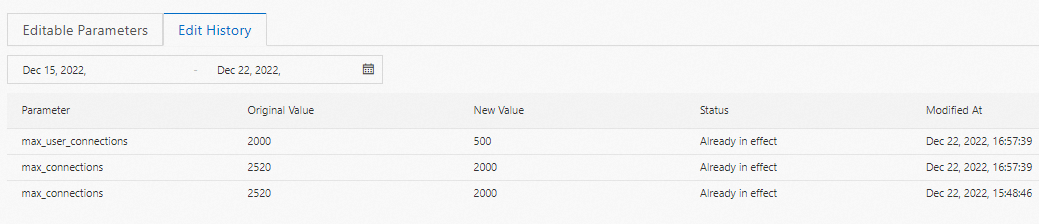
Click the Edit History tab and confirm that the new values are listed.
FAQ
After I changed max_connections, why does the Running Value show a higher number than what I entered?
The Running Value includes connections that the management system reserves for routine O&M to keep the instance stable, which is why it is higher than the value that you specified. The maximum number of connections available to your application is shown in the Maximum Connections field in the Configuration Information section of the Basic Information page.
I upgraded the instance type, but the maximum number of connections did not change. Why?
Upgrading the instance type does not automatically adjust max_connections. Change the value manually through the console or API. The default connection limits for each instance type are listed in the instance type reference.