RDS for MySQL lets you retain backup files after an instance is released. Configure a retention policy before releasing an instance to prevent permanent data loss from accidental deletions, malicious attacks, or migration failures. Retained backups can be restored to a new instance or downloaded for archival.
For cloud disk instances purchased on or after February 1, 2024, the default retention policy is Latest. Storage is free for the first 7 days after release. After 7 days, backup storage fees apply. To avoid charges, set the policy to Do Not Retain.
Limits
This feature is not supported for RDS for MySQL instances that use Premium Local SSDs and run on RDS Enterprise Edition.
Default policies
Instance type | Purchase date | Default policy |
Cloud disk instances | On or after February 1, 2024 | Latest |
Instances with Premium Local SSDs | Any | Do Not Retain |
For instances with a default policy of Do Not Retain, configure a retention policy manually before releasing the instance.
Use cases
Accidental deletion recovery: If an important instance is accidentally released, retained backups let you recover data immediately.
Security incidents: If an instance is released due to a malicious attack, you can still restore data from retained backups.
Migration rollback: When migrating data between instances, retain backups of the source instance. If the migration fails, use the backups to roll back.
Retention policy options
Option | What is retained after release |
Latest | Only the last completed backup |
All | All completed backups |
Do Not Retain | Nothing — data cannot be recovered |
Billing
Retained backup files are stored free of charge for the first 7 days after an instance is released. After 7 days, storage is billed at the pay-as-you-go rate.
You cannot use storage plans to offset backup storage fees for released instances.
Type | Region | Unit price (USD per GB-day) |
Public cloud | China (Hangzhou), China (Beijing), China (Shanghai), China (Shenzhen), China (Qingdao), China (Zhangjiakou), China (Hohhot), China (Chengdu), China (Heyuan), China (Ulanqab), and China (Guangzhou) | 0.00058 |
Public cloud | China (Hong Kong), Singapore, US (Silicon Valley), Germany (Frankfurt), Indonesia (Jakarta), Philippines (Manila), and Thailand (Bangkok) | 0.00067 |
Public cloud | Japan (Tokyo), South Korea (Seoul) | 0.0007 |
Public cloud | US (Virginia) | 0.00062 |
Public cloud | Malaysia (Kuala Lumpur) | 0.00064 |
Public cloud | UK (London) | 0.00065 |
Public cloud | UAE (Dubai) | 0.00072 |
Unit price for cloud disk instances (USD per GB-day):
Region | Unit price (USD per GB-day) |
China (Beijing), China (Hohhot), China (Ulanqab), China (Hangzhou), China (Shanghai), China (Shenzhen), China (Heyuan), China (Chengdu), China (Qingdao), China (Guangzhou), and China (Zhangjiakou) | 0.0009375 |
China (Hong Kong), US (Silicon Valley), US (Virginia), Singapore, Japan (Tokyo), Germany (Frankfurt), Malaysia (Kuala Lumpur), Indonesia (Jakarta), Philippines (Manila), UK (London), South Korea (Seoul), and Thailand (Bangkok) | 0.001125 |
Configure a backup retention policy
There are three ways to configure the policy, depending on when you set it.
Method 1: Set the policy when purchasing an instance
This method applies only to new subscription RDS for MySQL instances with Premium Local SSDs. On the purchase page, set the Backup Retention After Release parameter.

Method 2: Set the policy on the instance details page (before release)
Use this method while the instance is still running.
Log on to the ApsaraDB RDS console. In the top navigation bar, select the region where the instance resides. Find the instance and click its ID.
In the left navigation pane, click Backup and Restoration.
On the Backup Strategy tab, go to the Basic Backup section and click Edit.
Set Retain Backup Files After Instance Release and click OK.
Latest or All: After release, completed backups are retained based on your selection.
Do Not Retain: No backups are retained after release. Data cannot be recovered. Use this option with caution.
The system retains backup files for the long term based on the configured policy. You cannot specify a fixed retention period.
Retained backups are stored free of charge for 7 days. After 7 days, storage fees apply. For pricing details, see Delete backup files of a released instance.
Method 3: Set the policy on the Backup Management page (after release)
Use this method after the instance has already been released.
Log on to the ApsaraDB RDS console. In the left navigation pane, click Backups. In the top navigation bar, select the region where the instance was located.
On the Backups for Deleted Instances tab, find the instance and click Settings in the Retention Policy column.
Set Data Backup Retention Policy and click OK.
Latest or All: Completed backups are retained based on your selection.
Do Not Retain: All retained backups are removed. Data cannot be recovered. Use this option with caution.
The system retains backup files for the long term based on the configured policy. You cannot specify a fixed retention period.
Retained backups are stored free of charge for 7 days. After 7 days, storage fees apply. For pricing details, see Delete backup files of a released instance.
Use retained backups
After an instance is released, its retained backups appear on the Backups > Backups for Deleted Instances page in the RDS console.
After release, backup files may take up to 30 minutes to appear on this page.
Restore a backup to a new instance
Go to the Backups page and click the Backups for Deleted Instances tab. Find the instance and click Restore in the Actions column to restore the backup to a new RDS for MySQL instance.
Track the creation progress of the new instance on the Task List page. For parameter details, see Create an RDS for MySQL instance.
After the instance is created, connect to it to verify the restored data. For connection instructions, see Connect to an RDS for MySQL instance.
Download and archive a backup
The download feature is available only for physical backups of RDS for MySQL instances with Premium Local SSDs. Snapshot backups of cloud disk instances cannot be downloaded.
Downloading over an internal network is free. Downloading over the internet incurs traffic charges. For details on download methods and internet traffic billing, see Download a backup.
Go to the Backups page and click the Backups for Deleted Instances tab. Find the instance and click Download in the Actions column. Copy the internal or public endpoint to download the backup.
Go to the Backup Management page and click the Backup for Deleted Instances tab.
At the top of the page, select the region of the instance.
In the search box, enter the Asset/Resource Instance ID that you recorded in Step 1. If the instance was deleted a long time ago, manually adjust the time range filter on the page to expand the search scope, and then perform the search.
After you find the target instance, click Settings in its Retention Policy column.
In the dialog box that appears, set the backup retention policy to one of the following options:
Latest: Change the current policy from All to Latest to reduce backup storage costs.
Do Not Retain: Change the current policy from All or Latest to Do Not Retain to avoid future backup storage costs.
ImportantAfter you change the setting, the system automatically deletes backup files that are no longer retained based on the new policy. This operation cannot be undone and the data cannot be recovered. Exercise caution when you perform this operation.
Click OK.
Related operations
View the backup retention policy
Before release: instance details page
This method applies only while the instance is still running. If the instance has been released, use the Backup Management page method below.
Log on to the ApsaraDB RDS console. In the top navigation bar, select the region where the instance resides. Find the instance and click its ID.
In the left navigation pane, click Backup and Restoration.
On the Backup Strategy tab, the current backup retention policy is displayed in the Basic Backup section.
Latest: After release, the last completed backup is retained.
All: After release, all completed backups are retained.
Do Not Retain: No backups are retained after release. Data cannot be recovered.
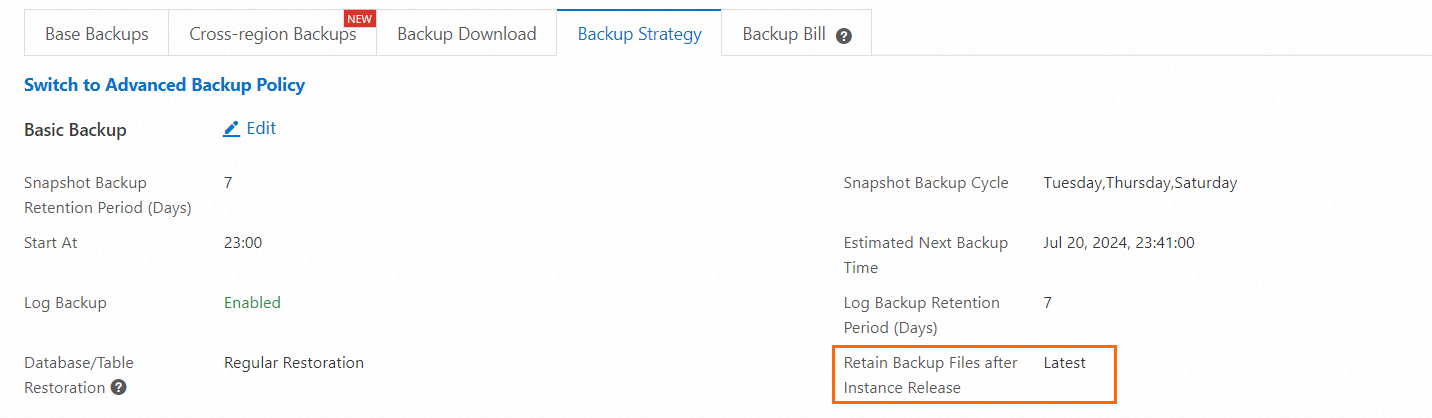
After release: Backup Management page
Log on to the ApsaraDB RDS console. In the left navigation pane, click Backups. In the top navigation bar, select the region where the instance was located.
On the Backups for Deleted Instances tab, find the instance and click Settings in the Retention Policy column.
The current backup retention policy is displayed in the dialog box.
Latest: After release, the last completed backup is retained.
All: After release, all completed backups are retained.
Do Not Retain: No backups are retained after release. Data cannot be recovered.

Delete backup files of a released instance
If you no longer need to retain the backups of a released instance, adjust the retention policy to reduce or stop storage charges.
Go to the Backups page and click the Backups for Deleted Instances tab.
In the top navigation bar, select the region where the instance was located.
In the search box, enter the Asset/Resource Instance ID. If the instance was released a long time ago, expand the time range filter before searching.
Find the instance and click Settings in the Actions column.
In the dialog box, update the policy:
Latest: Switches from All to Latest to reduce backup storage costs.
Do Not Retain: Stops all future backup storage charges.
ImportantAfter you confirm the change, the system automatically deletes backup files that are no longer retained. This action is irreversible. Data cannot be recovered. Use this option with caution.
Click OK.

FAQ
Can I change the retention policy after an instance is released?
Yes. Go to Backups > Backups for Deleted Instances, find the instance, and click Settings in the Retention Policy column to update the policy.
What happens when I change the policy to Do Not Retain after release?
The system permanently deletes all retained backup files. This action is irreversible — the data cannot be recovered. Use this option only when you are certain you no longer need the backups.